 by
by The tutorial shows how to write an IF OR statement in Excel to check for various "this OR that" conditions.
IF is one of the most popular Excel functions and very useful on its own. Combined with the logical functions such as AND, OR, and NOT, the IF function has even more value because it allows testing multiple conditions in desired combinations. In this tutorial, we will focus on using IF-and-OR formula in Excel.
IF OR statement in Excel
To evaluate two or more conditions and return one result if any of the conditions is TRUE, and another result if all the conditions are FALSE, embed the OR function in the logical test of IF:
In plain English, the formula's logic can be formulated as follows: If a cell is "this" OR "that", take one action, if not then do something else.
Here's is an example of the IF OR formula in the simplest form:
=IF(OR(B2="delivered", B2="paid"), "Closed", "Open")
What the formula says is this: If cell B2 contains "delivered" or "paid", mark the order as "Closed", otherwise "Open".
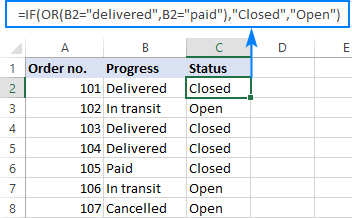
In case you want to return nothing if the logical test evaluates to FALSE, include an empty string ("") in the last argument:
=IF(OR(B2="delivered", B2="paid"), "Closed", "")
The same formula can also be written in a more compact form using an array constant:
=IF(OR(B2={"delivered","paid"}), "Closed", "")
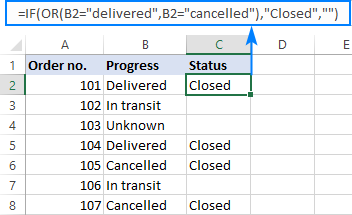
In case the last argument is omitted, the formula will display FALSE when none of the conditions is met.
Note. Please pay attention that an IF OR formula in Excel does not differentiate between lowercase and uppercase characters because the OR function is case-insensitive. In our case, "delivered", "Delivered", and "DELIVERED", are all deemed the same word. If you'd like to distinguish text case, wrap each argument of the OR function into EXACT as shown in this example.
Excel IF OR formula examples
Below you will find a few more examples of using Excel IF and OR functions together that will give you more ideas about what kind of logical tests you could run.
Formula 1. IF with multiple OR conditions
There is no specific limit to the number of OR conditions embedded into an IF formula as long as it is in compliance with the general limitations of Excel:
- In Excel 2007 and higher, up to 255 arguments are allowed, with a total length not exceeding 8,192 characters.
- In Excel 2003 and lower, you can use up to 30 arguments, and a total length shall not exceed 1,024 characters.
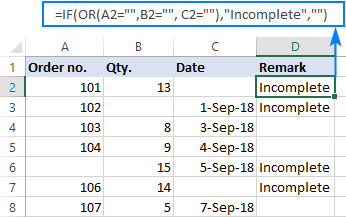
As an example, let's check columns A, B and C for blank cells, and return "Incomplete" if at least one of the 3 cells is blank. The task can be accomplished with the following IF OR function:
=IF(OR(A2="",B2="", C2=""),"Incomplete","")
And the result will look similar to this:
Formula 2. If a cell is this OR that, then calculate
Looking for a formula that can do something more complex than return a predefined text? Just nest another function or arithmetic equation in the value_if_true and/or value_if_false arguments of IF.
Say, you calculate the total amount for an order (Qty. multiplied by Unit price) and you want to apply the 10% discount if either of these conditions is met:
- in B2 is greater than or equal to 10, or
- Unit Price in C2 is greater than or equal to $5.
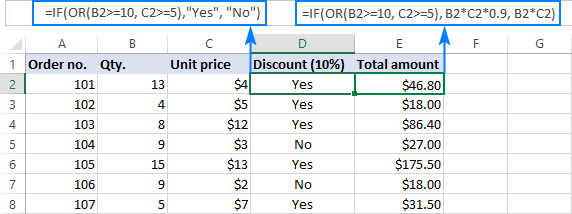
So, you use the OR function to check both conditions, and if the result is TRUE, decrease the total amount by 10% (B2*C2*0.9), otherwise return the full price (B2*C2):
=IF(OR(B2>=10, C2>=5), B2*C2*0.9, B2*C2)
Additionally, you could use the below formula to explicitly indicate the discounted orders:
=IF(OR(B2>=10, C2>=5),"Yes", "No")
The screenshot below shows both formulas in action:
Formula 3. Case-sensitive IF OR formula
As already mentioned, the Excel OR function is case-insensitive by nature. However, your data might be case-sensitive and so you'd want to run case-sensitive OR tests. In this case, perform each individual logical test inside the EXACT function and nest those functions into the OR statement.
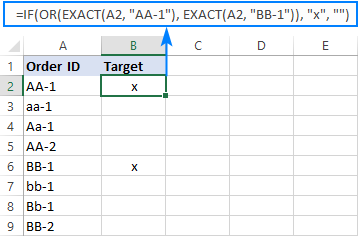
In this example, let's find and mark the order IDs "AA-1" and "BB-1":
=IF(OR(EXACT(A2, "AA-1"), EXACT(A2, "BB-1")), "x", "")
As the result, only two orders IDs where the letters are all capital are marked with "x"; similar IDs such as "aa-1" or "Bb-1" are not flagged:
Formula 4. Nested IF OR statements in Excel
In situations when you want to test a few sets of OR criteria and return different values depending on the results of those tests, write an individual IF formula for each set of "this OR that" criteria, and nest those IF's into each other.
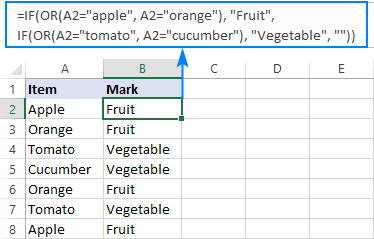
To demonstrate the concept, let's check the item names in column A and return "Fruit" for Apple or Orange and "Vegetable" for Tomato or Cucumber:
=IF(OR(A2="apple", A2="orange"), "Fruit", IF(OR(A2="tomato", A2="cucumber"), "Vegetable", ""))
For more information, please see Nested IF with OR/AND conditions.
Formula 5. IF AND OR statement
To evaluate various combinations of different conditions, you can do AND as well as OR logical tests within a single formula.
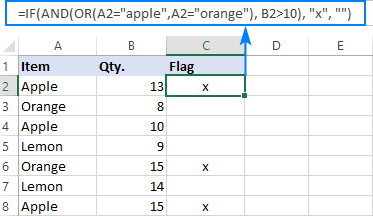
As an example, we are going to flag rows where the item in column A is either Apple or Orange and the quantity in column B is greater than 10:
=IF(AND(OR(A2="apple",A2="orange"), B2>10), "x", "")
For more information, please see Excel IF with multiple AND/OR conditions.
That's how you use IF and OR functions together. To have a closer look at the formulas discussed in this short tutorial, you are welcome to download our sample Excel IF OR workbook. I thank you for reading and hope to see you on our blog next week!
Latest comments
=If C2>99.99% than answer need 100% Ci, If D2>99.99% Than answer need 100% CO
How can i apply this formula in excel.
Hi! The description of the problem you gave does not allow you to give a exact formula. For example, it is not known what result should be given if both conditions are met. I recommend reading this guide: Nested IF in Excel – formula with multiple conditions.
In an Excel file, if both the cells for in and out time data are blank, then a person is considered absent, and if either of the cells has an entry, then a person is considered present.
Hello Archie!
The answer to your question can be found in this guide: Excel IF statement for blanks and non-blanks.
To determine that at least one of the conditions is met, the OR function is used.
For example:
=IF(OR(ISBLANK(A1),ISBLANK(B1)),"Absent","Present")
How can i prepair an automated studentes roster including blind students?
Hi! To get a list of values by condition, you can use one of these instructions: How to Vlookup and return multiple values in Excel or XLOOKUP and return multiple values (row or column) or Excel FILTER function - dynamic filtering with formulas.
I want to do this: if this, then this, or if this, then this, otherwise this
Example, if A2=Male, enter "man", of if A2 = Female, enter "woman", otherwise enter "unknown"
Hi Jim!
For multiple conditions, you can use nested IF function as described in this manual: Nested IF in Excel – formula with multiple conditions.
=IF(A2="Male","man",IF(A2="Female","woman","unknown"))
You can also use IFS function. You can find the examples and detailed instructions here: The new Excel IFS function instead of multiple IF.
=IFERROR(IFS(A2="Male","man",A2="Female","woman"),"unknown")
I need help with generating a formula, please
If cell H birthday is between 6/3/20 - 9/1/20 cell I is equal to TE; if cell H birthday is between 9/2/19 - 6/2/20 cell I is equal to TK; if cell H birthday is between 9/2/18 - 9/1/19 cell I is equal to K
Hi! We have a special tutorial that can help to solve your problem: Excel IF between two numbers or dates. To use multiple time intervals in an IF formula, I recommend these instructions: Nested IF in Excel – formula with multiple conditions.
For example:
=IF(AND(A2>=DATEVALUE("6/3/20"), A2<=DATEVALUE("9/1/20")), "TE", IF(AND(A2>=DATEVALUE("9/2/19"), A2<=DATEVALUE("6/2/20")), "TK", ""))
Column A has multiple ITEMS for eg - mango, banana, papaya, knife, spoons, garlic, ginger, tomato, potato, TV, Refrigerator, Microwave, Oven, Shirts, Pants, Shoes, Socks, Dell Laptop, Huawei Laptop, Lenovo Laptop, etc.
Now in Column B, Types Of Items must be grouped -
I need types of items =If(A1="mango","banana","papaya"),"FRUITS"),If( A1="knife", "spoons"),"Cutleries", if (A1="Garlic","potato","tomato,"Vegetables" and so on..
Hi! You can try a nested IF function as described in your question. For multiple conditions, I recommend using the IFS function. You can see other solutions for multiple conditions in this article: Excel Nested IF statements - examples, best practices and alternatives.
Hi,
I need one formula but not able to figure out how to apply. I have two cells. in cell 1 entries may be(Yes, No) in cell 2 entries may be (Required, Not required), now the conditions I want to check. if in cell 1 "Yes" and Cell 2 "Required" then output should be "Yes". But if in cell 1 "Yes" and in Cell 2 "Not Required" then the answer should be "No".
Hi! The following tutorial should help: Excel IF statement with multiple conditions. For example:
=IF(AND(A1="yes",A2="required"),"yes", IF(AND(A1="yes",A2="not required"),"no",""))
Hi there, im trying to give a single cell a number value based off 2 words. Ive tried the IF but cant seem seem to figure it out. I want
Cell F3 to give a number 2 if its a "W" and cell F3 also to give me a -1 if the text is a "L". Ive done IF(f3="w",2) and it works but cant figure out to add the "L" portion to the formula
Hi! The answer to your question can be found in this article: Nested IF in Excel – formula with multiple conditions. Try this formula:
=IF(F3="W",2,IF(F3="L",-1,""))
What if you want a function to calculate if you gonna times by 30 if someone is on self catering(C2) of by 95 if the are B&B catering(C3) if you are given number people in cell C7 are 6 people and number of nights they are 7 on D7 and someone is on self catering but you want a formular so that you can calculate those that are on B&B
Hi! Try to use the recommendations described in this article: Nested IF in Excel – formula with multiple conditions.
i have 3 worksheets of part numbers. i want to look up a part number from sheet 1 and see if they exist on sheet 2 and sheet 3, if it does i want it to return a yes. i am a newbie with excel and cannot figure out the formula for this.
Hello!
We have a special tutorial on this. Please see How to VLOOKUP across multiple sheets in Excel with examples.
I am trying to sum a range of cells if another range of cells says either yes or no. If yes then sum the cells, if no, then subtract the amount in that cell. Can someone help?
Hi!
You can also find useful information in this article: How to use SUMIF function in Excel with formula examples. I hope it’ll be helpful.