 by
by In this tutorial, you'll learn different ways to insert emojis in Excel, from quick keyboard shortcuts and symbol menus to formulas that display emojis dynamically based on data.
We've got used to expressing our emotions in online communications with emojis and smileys. But do you know that you can add them to your spreadsheets as well? In Excel, emojis work like text characters, which means you can insert them into cells, copy and paste them, and even use in formulas. If you are looking for quick visual cues for your Excel data, emojis are a simple and practical solution.
How to put emoji in Excel
The simplest way to insert emojis in Excel is by using the built-in emoji keyboard available in your operating system, Windows and macOS.
- Click the cell where you want the emoji.
- Open the emoji picker using one of these keyboard shortcuts:
- On Windows, press Windows key + . (period) or Windows key + ; (semicolon)
- On Mac, press Control + Command + Space
- On the emoji panel that opens, click an emoji to insert it into the cell.
- Close the panel.
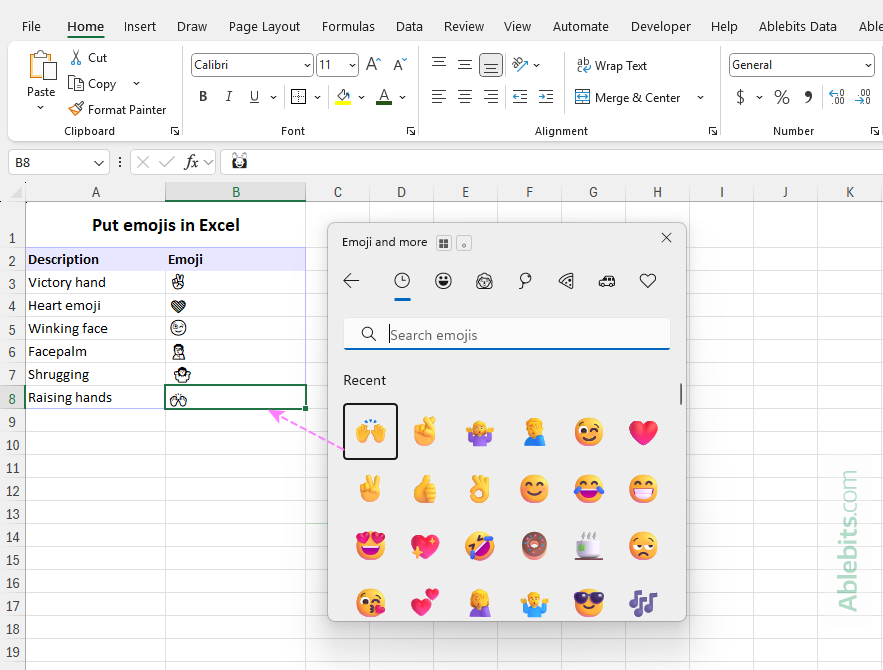
That's it! The selected emoji is inserted into the active cell. Once added, emojis behave like regular cell content. You can copy them to other cells using the copy and paste shortcuts or by dragging the fill handle.
This method is fast, easy, and works in all modern versions of Excel 365 – 2016 as well as in Excel online.
How to insert emojis in Excel using touch keyboard
Another way to insert emojis in Excel is by using the Windows touch keyboard. This method works not only on touchscreen devices, but also on standard desktop and laptop computers, even when a physical keyboard is connected.
- Select the cell where you want to insert an emoji.
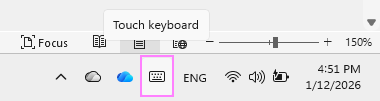
- Click the touch keyboard icon on the Windows taskbar to open the virtual keyboard.
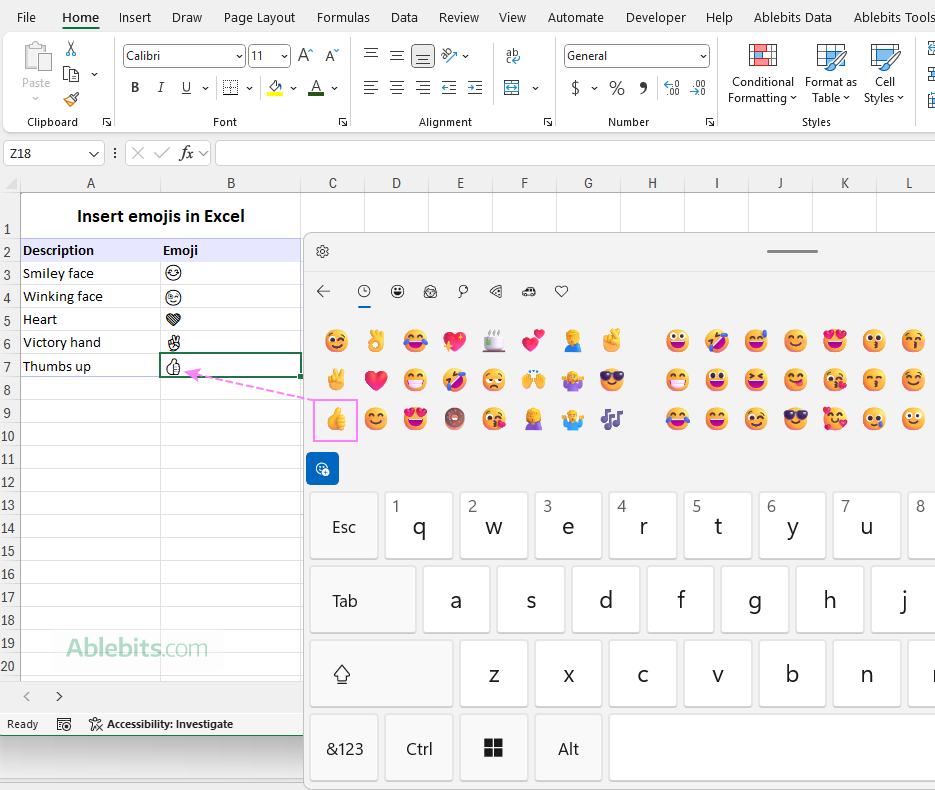
- In the upper-left corner of the touch keyboard, click the emoji icon to open its pane.
- By default, the pane shows recently used items. To browse all available emojis, click its category icon at the top of the panel.

- Click the emoji you want, and it will be inserted into the selected cell.
Tip. If the virtual keyboard is not visible on the task bar, right-click the taskbar and select Task bar settings. Under System tray icons, choose to always show Touch Keyboard.
How to add emoji symbols in Excel
You can also insert emojis in Excel by using the built-in Symbols feature, which gives you access to a wide range of characters.
- Select the cell where you want to put an emoji.
- Go to the Insert tab, and in the Symbols group, click Symbol.
- In the Symbol dialog box:
- Set Font to Segoe UI Emoji.
- Set Subset to Extended Characters - Plane 1.
- Scroll through the list to find the emoji you want, select it, and click Insert.
- Click Close to exit the dialog box.
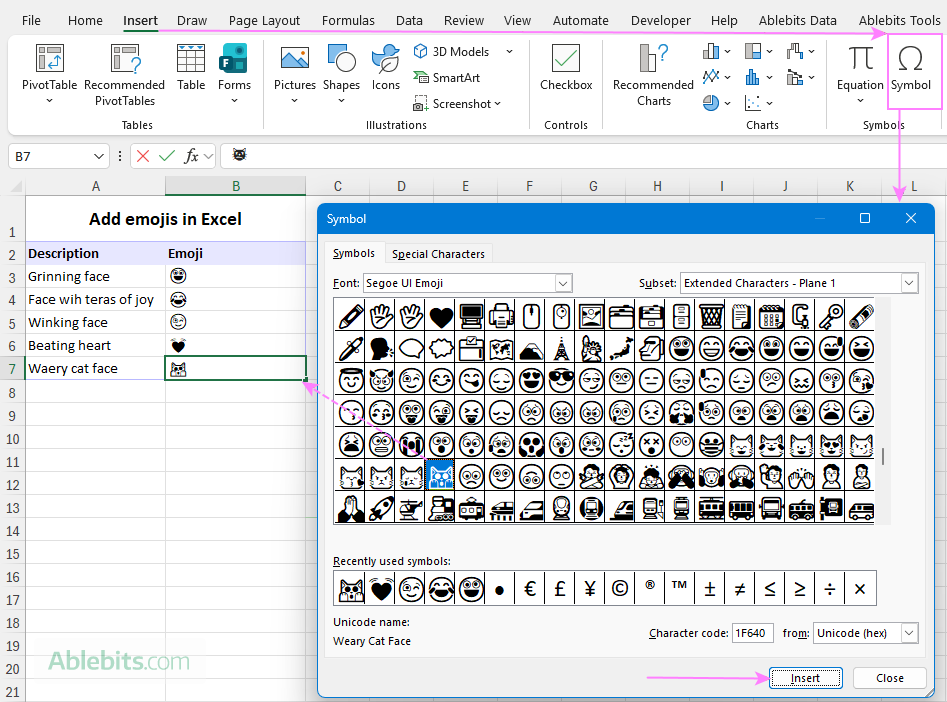
This method works well when you need to insert an emoji only once or twice. It is less convenient for adding multiple emojis, as the Symbol dialog box must be closed and reopened each time.
Tip. At the bottom of the Symbol dialog box, Excel displays the character code for the selected emoji. You can copy this code and reuse it in a formula to insert the same emoji elsewhere in your worksheet.
How to insert emojis using Excel formulas
If you prefer to manipulate Excel data like a real pro, you can insert emojis into your spreadsheets using formulas.
For this, you will need to know an emoji's hexadecimal code. The full list of codes can be found on this website. Also, you can find it in the Character code box at the bottom of Excel's Symbol window (see the previous example).
With the emoji's character code determined, use these two functions together:
- HEX2DEC to convert the hexadecimal code to a decimal number.
- UNICHAR to return the Unicode character (emoji) corresponding to a given number.
The generic formula is:
And here are a couple of examples of real formulas:
To insert a smiling face in an Excel cell, the formula is:
=UNICHAR(HEX2DEC("1F642"))
To put a heart emoji, use this one:
=UNICHAR(HEX2DEC("2764"))
For the above formulas to work correctly, be sure to enclose the character code in quotation marks.
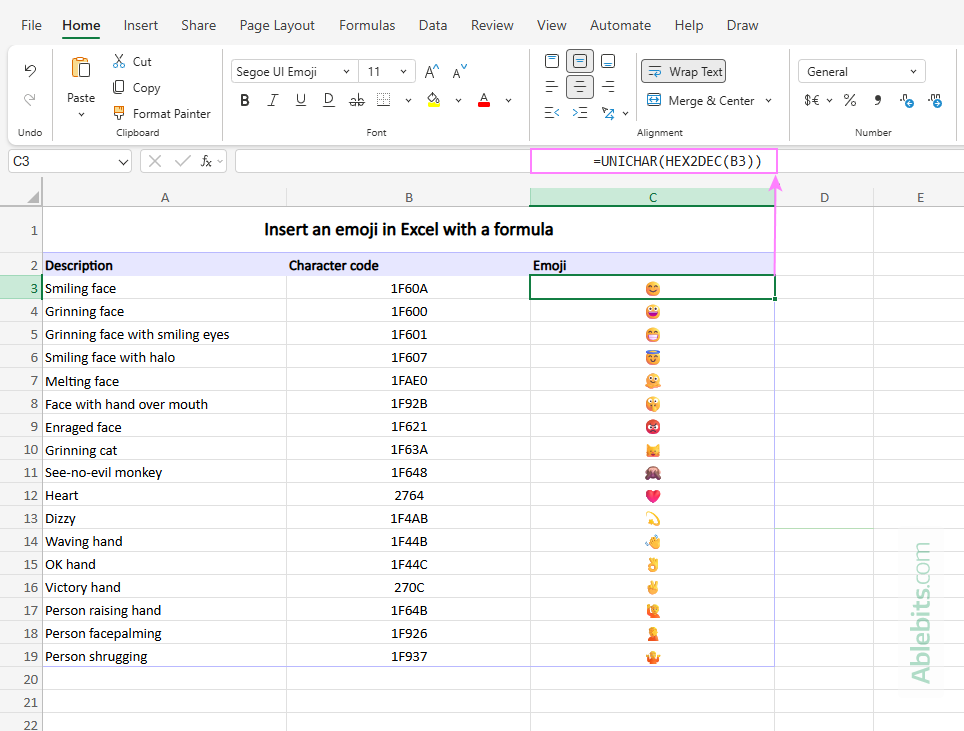
Or you can enter the emoji's hexadecimal code in a certain cell, say B3, and reference it in your formula. In this case, quotation marks are not used:
=UNICHAR(HEX2DEC(B3))
As a result, you will have beautiful full color emojis in Excel online. In desktop Excel, they are displayed in black and white but are still easy to recognize.
Tip. If needed, you can quickly convert a formula to a regular value using Excel's Past Special feature or the Convert Formula tool included with our Ultimate Suite.
How to insert an emoji dynamically based on cell value
In situations where you want an emoji to appear automatically based on the value in another cell, Excel formulas provide an effective solution. This approach is useful for creating visual indicators that update dynamically as your data changes.
The general idea:
Each emoji is inserted using a combination of the UNICHAR and HEX2DEC functions, which converts an emoji's hexadecimal code into a character Excel can display. You then combine these emoji formulas in a nested IF statement to control which emoji to return under a specific condition.
How it works in practice:
Suppose you want to display face emojis as visual cues of performance based on numeric scores:
- Happy face for high scores (greater than 80)
- Neutral face for medium scores (between 50 and 80)
- Sad face for low scores (lower than 50)
First, find each emoji's hexadecimal code and return an Excel-compatible emoji character:
- Happy face: UNICHAR(HEX2DEC("263A"))
- Neutral face: UNICHAR(HEX2DEC("1F611"))
- Sad face: UNICHAR(HEX2DEC("1F61E"))
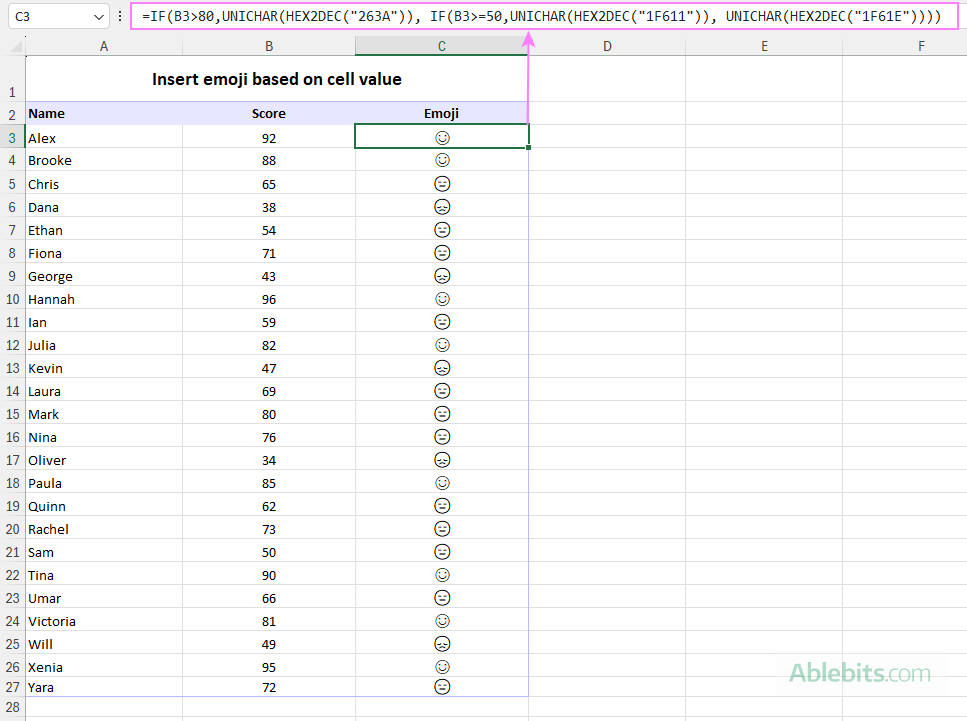
Next, nest these formulas inside an IF statement that evaluates the score in cell B3 based on the above conditions. This formula goes to cell C3, and then you copy it down the column:
=IF(B3>80, UNICHAR(HEX2DEC("263A")), IF(B3>=50, UNICHAR(HEX2DEC("1F611")), UNICHAR(HEX2DEC("1F61E"))))
Instead of the character code, you can use the following letters for the face emojis:
- Happy face - J
- Neutral face - K
- Sad face - L
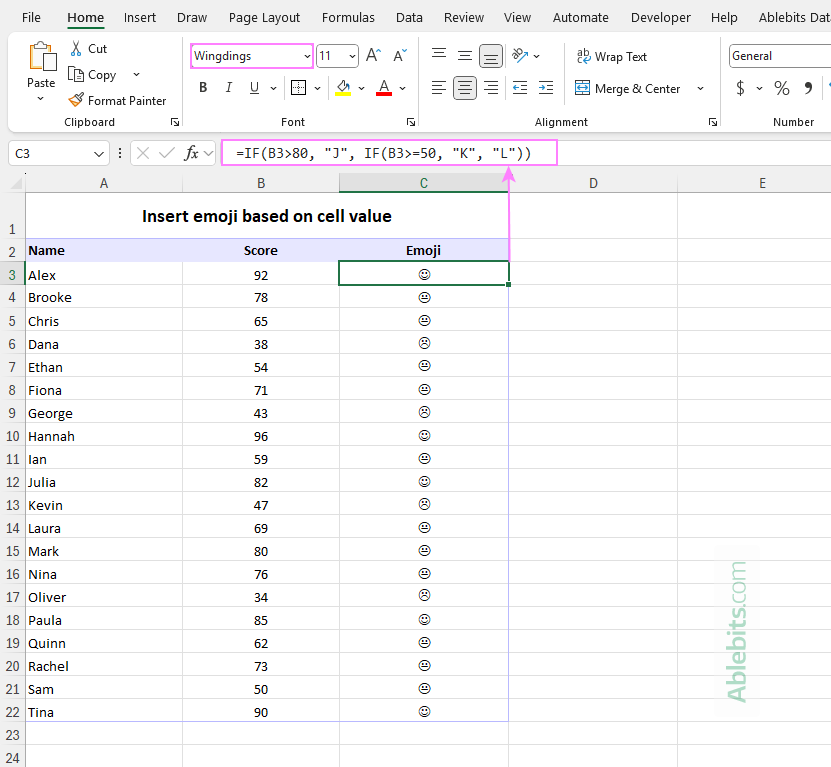
This makes the formula much shorter and simpler:
=IF(B3>80, "J", IF(B3>=50, "K", "L"))
The key point is to change the font of the formulas cells to Wingdings to display the corresponding emojis.
Tip. If you want clearer visual markers to interpret the results quickly, you can apply color to emojis as explained in the next section.
How to add color to emojis in Excel desktop
Different Excel apps display emojis differently. In desktop version, emojis appear black and white, while in Excel online, they are shown in full color.
To make emojis easier to distinguish in desktop Excel, you can apply color using conditional formatting. This approach works best when emojis are inserted using formulas and a clear condition can be defined for each one. When the underlying data changes, a formula may return a different emoji, and its color will update automatically based on the rule you set. The way conditional formatting is set depends on how the emojis were inserted. In practice, there are two main approaches. If emojis are inserted using a UNICHAR formula, you can use the same logic when creating conditional formatting rules. For example, to color the face emojis returned by the nested IF statement in column C, create three separate conditional formatting rules using formulas like the following: Happy face emoji: Neutral face emoji: Sad face emoji: Where C3 is the top-left cell of the range to which the rule applies. Create all three rules for the same range, so Excel can evaluate which one applies to each cell. For step-by-step instructions, see Creating a conditional formatting rule with formula. The screenshot below shows these formula-based rules in action:
If emojis were added manually using the emoji keyboard, the touch keyboard, or by converting characters with a symbol font such as Wingdings, a simpler rule works better. Conditional formatting won't produce the multi-color emoji styles available in Excel for the web, but it does make each icon easy to recognize at a glance.
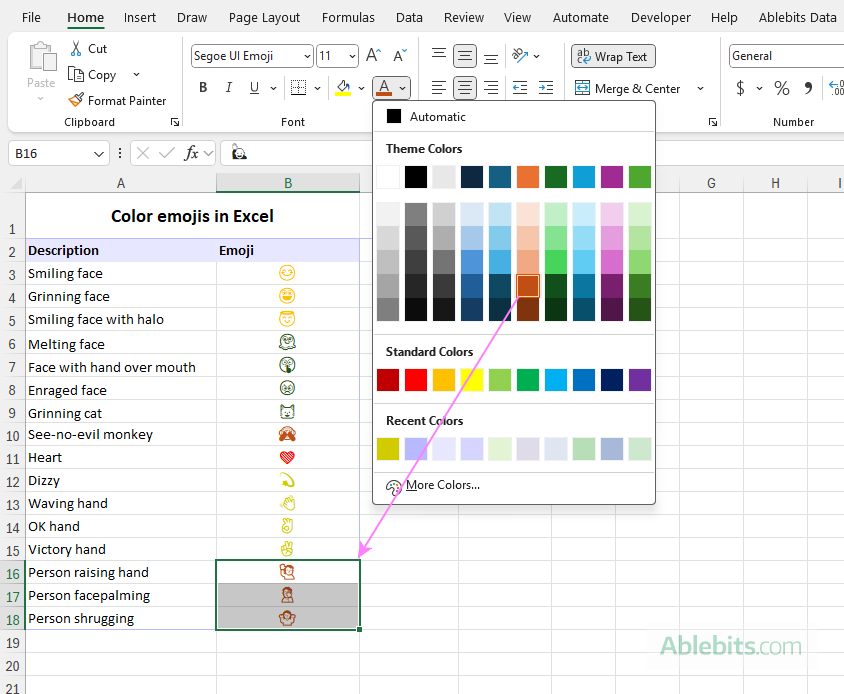
When conditional formatting is not practical, you can quickly change the appearance of emojis in Excel by applying standard font colors. As with conditional formatting, this approach colors the entire emoji character and does not produce the detailed, multi-color appearance like in Excel online. Still, it can be useful for simple visual emphasis.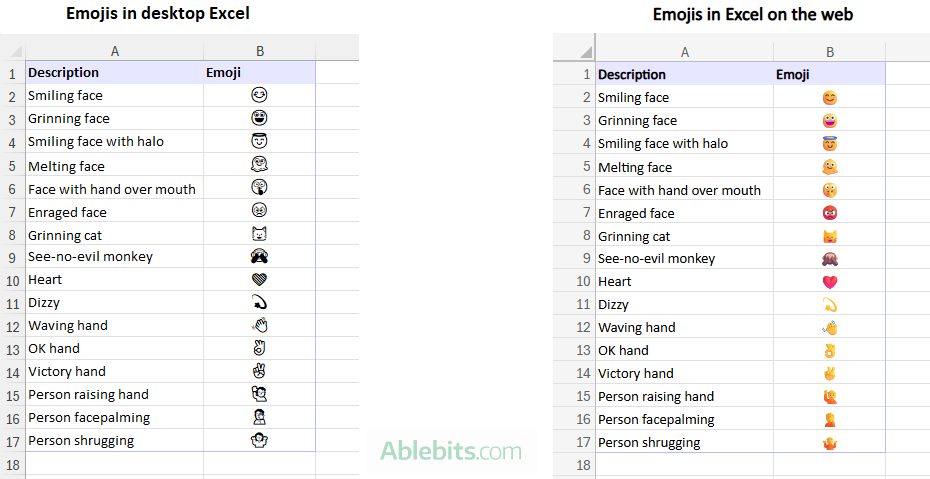
Color emojis with conditional formatting
Formula-based conditional formatting rules
=C3=UNICHAR(HEX2DEC("263A"))
=C3=UNICHAR(HEX2DEC("1F611"))
=C3=UNICHAR(HEX2DEC("1F61E"))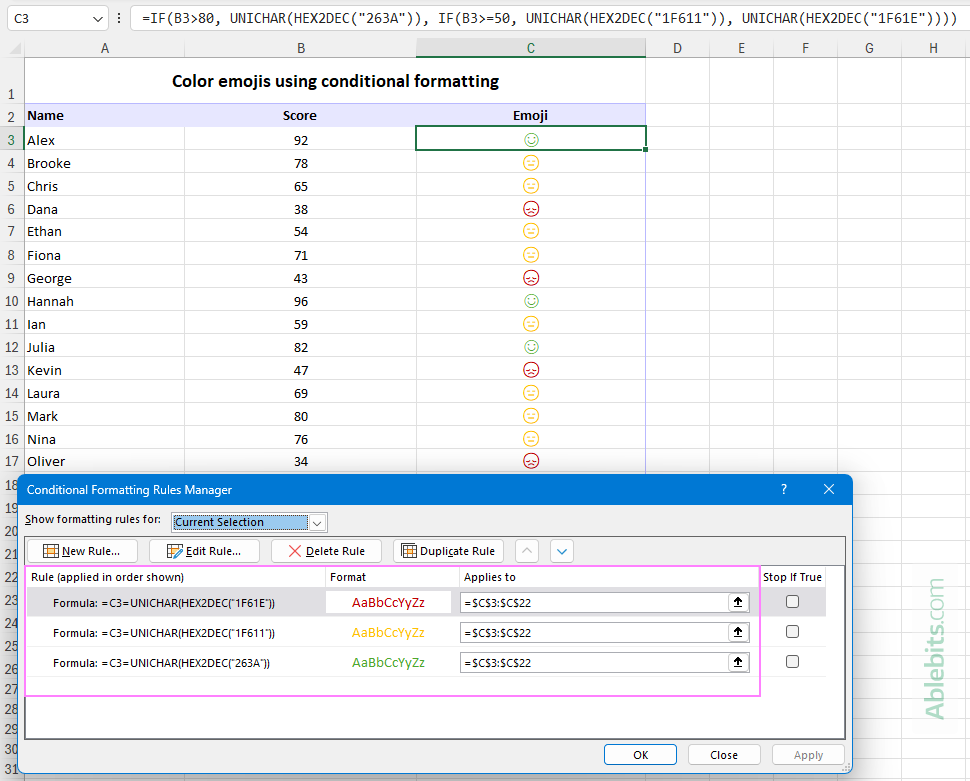
Highlight cells equal to rule
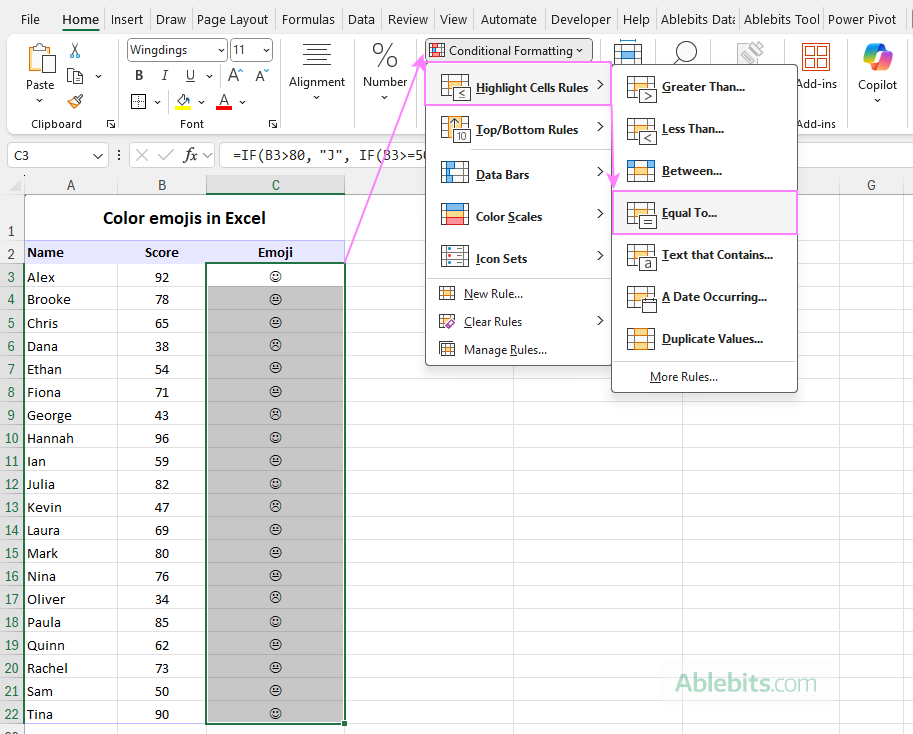
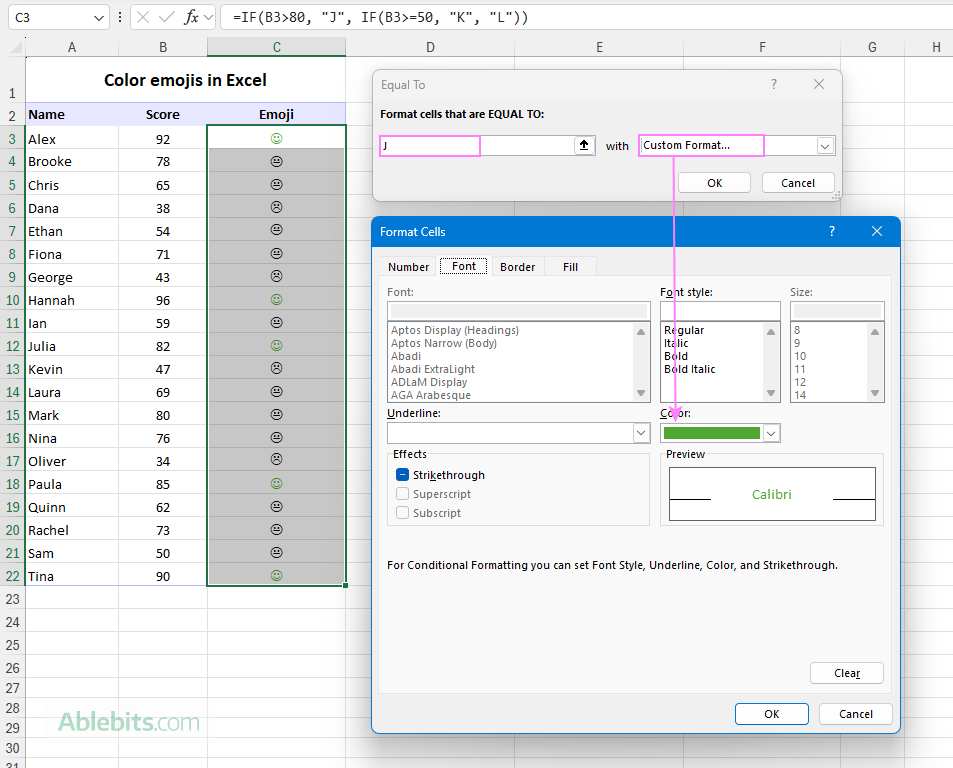
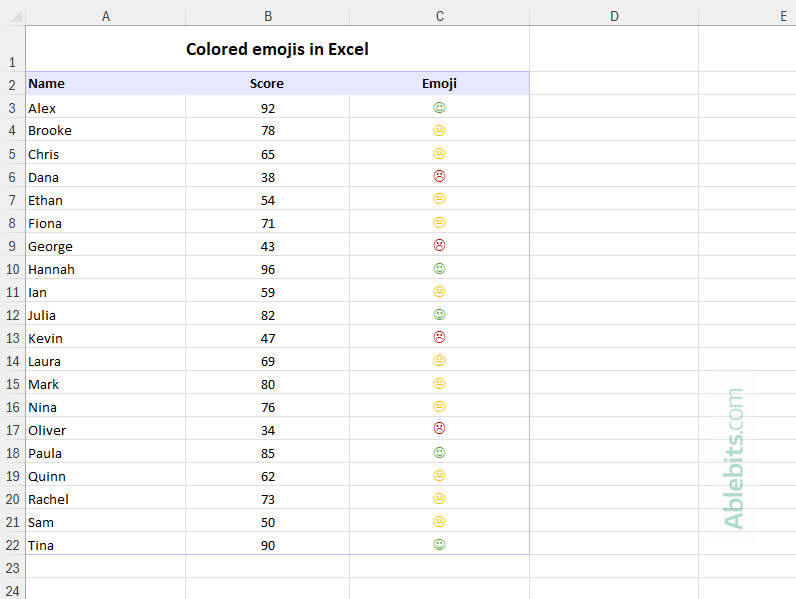
Apply font color options to emojis
Use emojis in Excel charts and slicers
Once emojis are added to your Excel sheet using any of the available methods, you can include them in charts and slicers. Because emojis are treated as text, Excel can display them wherever text labels are supported.
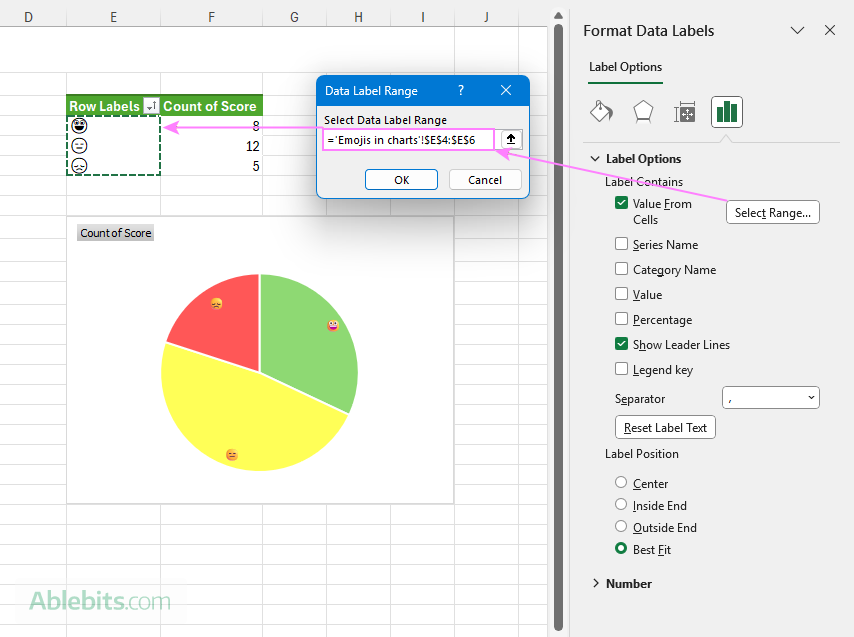
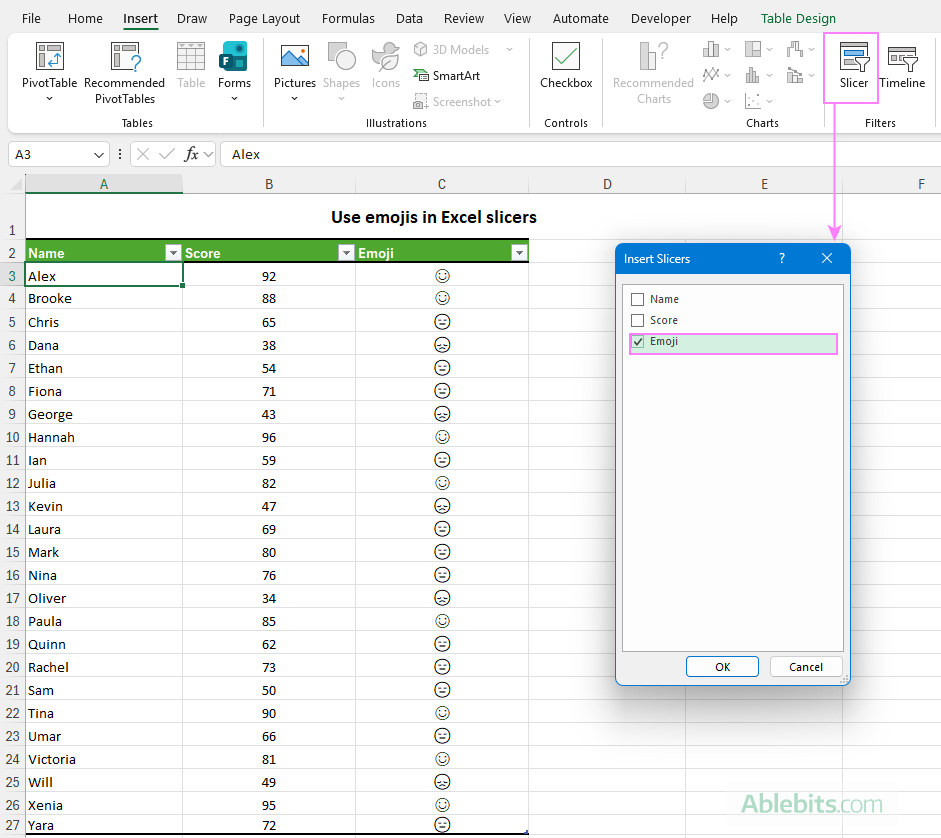
Emojis can replace or complement data labels in charts, helping viewers understand results at a glance. To make it happen, follow these steps: As a result, the chart displays emoji icons instead of or alongside standard labels. Notably, most emojis appear in color even in desktop Excel when used as chart labels. You can also use emojis in slicers to make filtering more intuitive. How it works: As a result, the slicer buttons display the emojis, allowing users to filter data visually rather than by scanning text labels.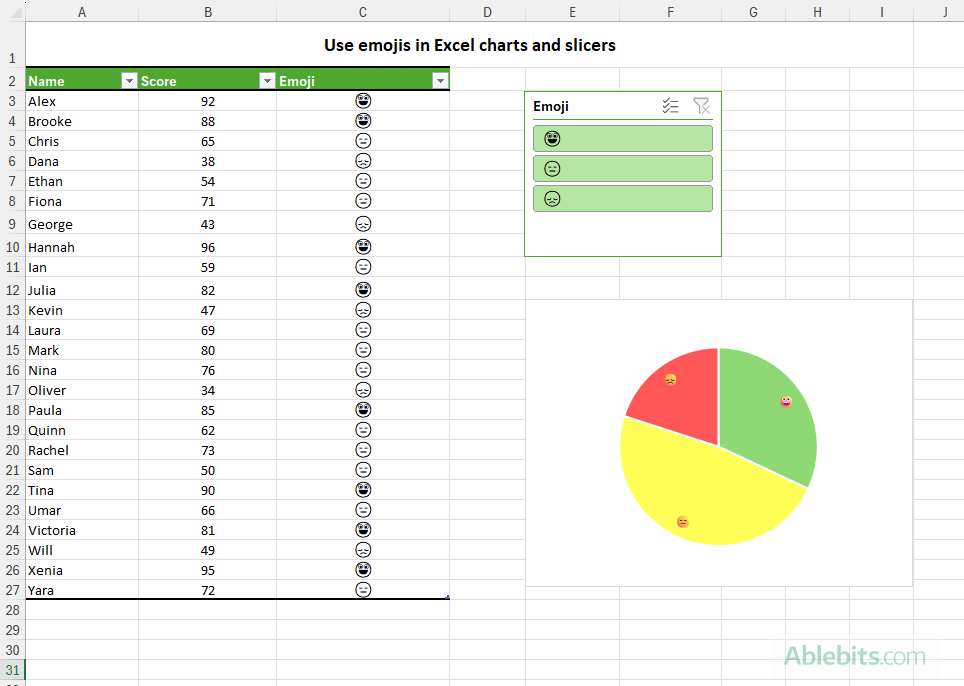
Use emojis as chart labels
Use emojis in Excel slicers
Emojis do not show in Excel – how to fix
If an emoji you insert in Excel appears as a blank box, a square, or another placeholder symbol, the issue is usually related to the font being used. Not all fonts support emoji characters, so Excel may not be able to display them correctly.
To fix the issue, try changing the font to one of these:
- Segoe UI Emoji (on Windows) or Apple Color Emoji (on Mac)
- Wingdings or Webdings in old workbooks (these fonts are from pre-Unicode era and currently are rarely used)
Once the font is changed, the emoji should display correctly.
Now that you've learned different ways to insert and manage emojis in Excel, the next step is experimentation. Download the practice workbook below and try applying each method yourself – add emojis manually, build simple formulas, and adjust formatting to see how the results change.
Available downloads
Using emojis in Excel - examples (.xlsx file)