 by
by In this article, you will learn new effective approaches to summing and counting cells in Excel by color. These solutions work for cells colored manually and with conditional formatting in all versions of Excel 2010 through Excel 365.
Even though Microsoft Excel has a variety of functions for different purposes, none can calculate cells based on their color. Aside from third-party tools, there is only one efficient solution - create your own functions. If you know very little about user-defined functions or have never heard of this term before, don't panic. The functions are already written and tested by us. All you need to do is to insert them in your workbook :)
How to count cells by color in Excel
Below, you can see the codes of two custom functions (technically, these are called user-defined functions or UDF). The first one is purposed for counting cells with a specific fill color and the other - font color. Both are written by Alex, one of our best Excel gurus.
Once the functions are added to your workbook, they will do all work behind the scenes, and you can use them in the usual way, just like any other native Excel function. From the end-user perspective, the functions have the following look.
Count cells by fill color
To count cells with a particular background color, this is the function to use:
Where:
- Data_range is a range in which to count cells.
- Cell_color is a reference to the cell with the target fill color.
To count cells of a specific color in a given range, carry out these steps:
- Insert the code of the CountCellsByColor function in your workbook.
- In a cell where you want the result to appear, start typing the formula: =CountCellsByColor(
- For the first argument, enter the range in which you want to count colored cells.
- For the second argument, supply the cell with the target color.
- Press the Enterkey. Done!
For example, to find out how many cells in range B3:F24 have the same color as H3, the formula is:
=CountCellsByColor(B3:F24, H3)
In our sample dataset, the cells with values less than 150 are colored in yellow, and the cells with values higher than 350 in green. The function gets both counts with ease:

Count cells by font color
In case your cell values have different font colors, you can count them using this function:
Where:
- Data_range is a range in which to count cells.
- Font_color is a reference to the cell with the sample font color.
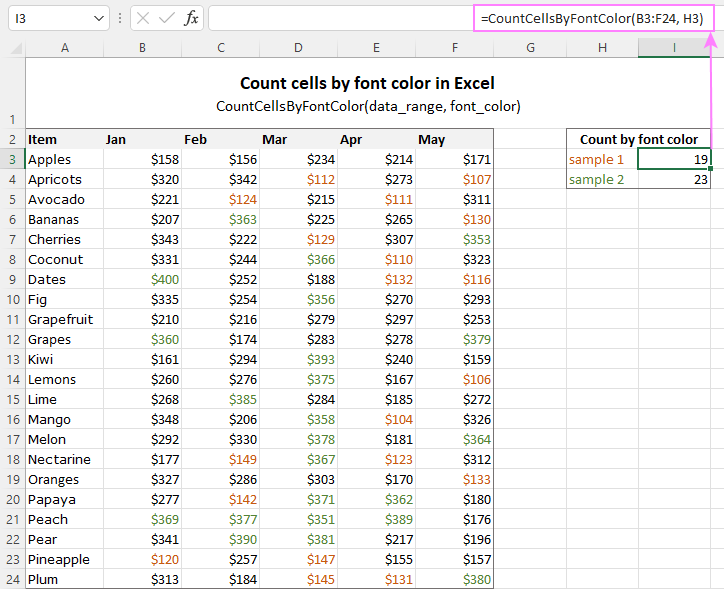
For example, to get the number of cells in B3:F24 whose values have the same font color as H3, the formula is:
=CountCellsByFontColor(B3:F24, H3)
Tip. If you'd like to name the functions differently, feel free to change the names directly in the code.
How to sum by color in Excel
To sum colored values, add the following two functions to your workbook. As with the previous example, the first one handles fill color and the other - font color.
Sum values by cell color
To sum by fill color in Excel, this is function to use:
Where:
- Data_range is a range in which to sum values.
- Cell_color is a reference to the cell with the fill color of interest.
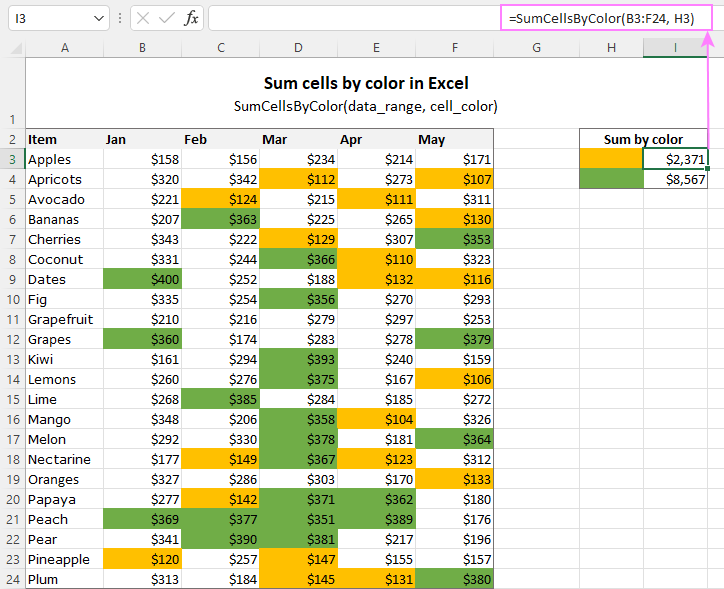
For example, to add up the values of all cells in B3:F24 that are shaded with the same color as H3, the formula is:
=SumCellsByColor(B3:F24, H3)
Sum values by font color
To sum numeric values with a specific font color, use this function:
Where:
- Data_range is a range in which to sum cells.
- Font_color is a reference to the cell with the target font color.
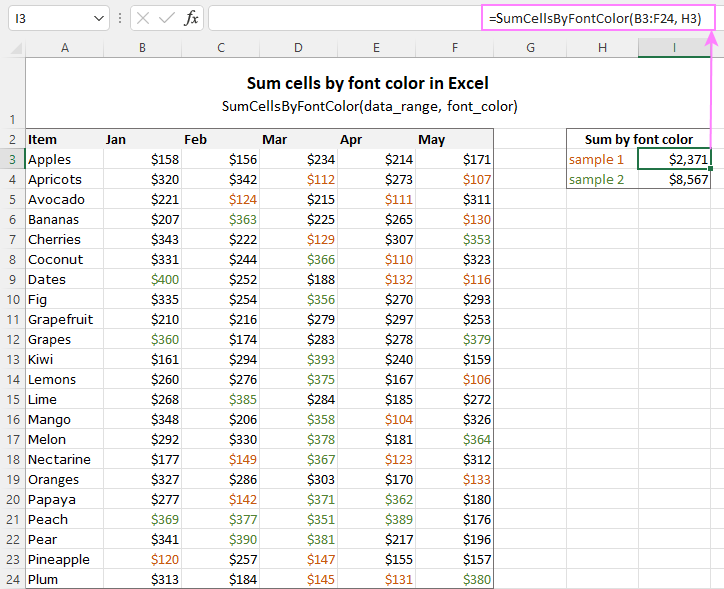
For instance, to add up all the values in cells B3:F24 with the same font color as the value in H3, the formula is:
=SumCellsByFontColor(B3:F24, H3)
Count and sum by color across entire workbook
To count and sum cells of a certain color in all sheets of a given workbook, we created two separate functions, which are named WbkCountByColor and WbkSumByColor, respectively. Here comes the code:
Note. To make the functions' code more compact, we refer to the two previously discussed functions that count and sum within a specified range. So, for the "workbook functions" to work, be sure to add the code of the CountCellsByColor and SumCellsByColor functions to your Excel too.
How to count colored cells in entire workbook
To find out how many cells of a particular color there are in all sheets of a given workbook, use this function:
The function takes just one argument - a reference to any cell filled with the color of interest. So, a real-life formula may look something like this:
=WbkCountByColor(A1)
Where A1 is the cell with the sample fill color.
How to sum colored cells in whole workbook
To get a total of values in all cells of the current workbook highlighted with a particular color, use this function:
Assuming the target color is in cell B1, the formula takes this form:
=WbkSumByColor(B1)
Count and sum conditionally formatted cells
The custom functions for adding up and counting color-coded cells are really nice, aren't they? The problem is that they do not work for cells colored with conditional formatting, alas :(
To handle conditional formatting, we have written a different code (kudos to Alex again!). It works well with both preset formats and custom formula-based rules. Contrasting with the previous examples, this code is a macro, not a function. The macro counts and sums conditionally formatted cells by fill color. Please insert it in your VBA Editor, and then follow the below instructions.
How to count and sum conditionally formatted cells using VBA macro
With the macro's code inserted in your Excel, this is what you need to do:
- Select one or more ranges where you want to count and sum colored cells. Make sure the selected range(s) contains numerical data.
- Press Alt + F8, select the SumCountByConditionalFormat macro in the list, and click Run.
- A small dialog box will pop asking you to select a cell with the sample color. Do this and click OK.
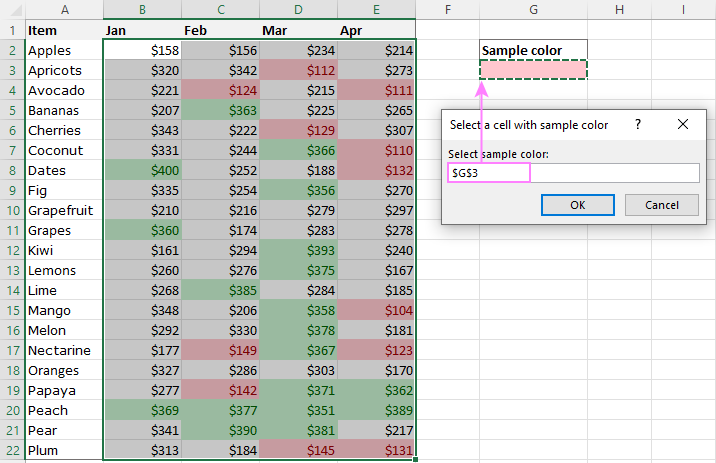
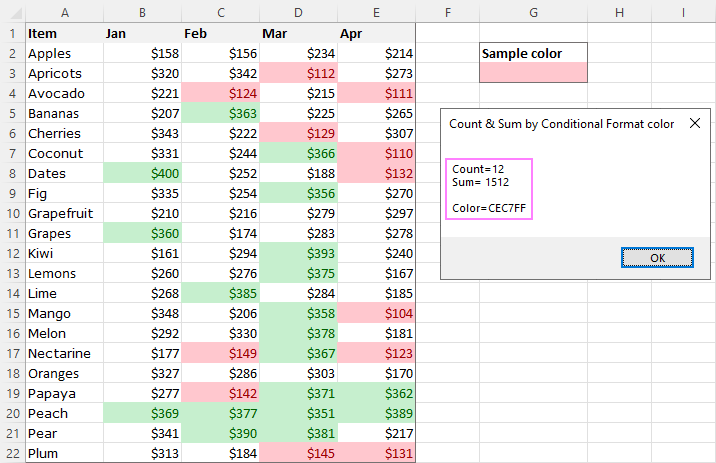
For this example, we used the inbuilt Highlight Cell Rules and got the following results:
- Count (12) the number of cells in range B2:E22 with the same color as G3.
- Sum (1512) is the sum of values in cells formatted with Light Red Fill.
- Color is a hexadecimal color code of the sample cell.
Tip. The sample workbook with the SumCountByConditionalFormat macro is available for download at the end of this post.
How to get cell color in Excel
If you need (or are curious) to know the color of a specific cell (fill or font color), add the following user-defined functions to your Excel. It returns ColorIndex as a decimal number.
Note. The functions only work for colors applied manually, and not with conditional formatting.
Get fill color of a cell
To return a decimal code of the color a given cell is highlighted with, make use of this function:
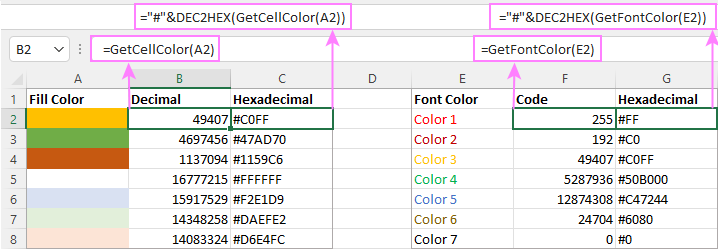
For example, to get the color of cell A2, the formula is:
=GetCellColor(A2)
Get font color of a cell
To get a font color of a cell, use an analogous function:
For instance, to find the font color of cell E2, the formula is:
=GetFontColor(E2)
Get hexadecimal color code of a cell
To convert a decimal color index returned by our custom functions into a hexadecimal color code, make use of Excel's native DEC2HEX function.
For example:
="#"&DEC2HEX(GetCellColor(A2))
="#"&DEC2HEX(GetFontColor(E2))
How to insert VBA code in your workbook
To add the function's or macro's code to your Excel, move on with these 4 steps:
- In your workbook, press Alt + F11 to open Visual Basic Editor.
- In the left pane, right-click on the workbook name, and then choose Insert > Module from the context menu.
- In the Code window, insert the code of the desired function(s):
- Count by color: CountCellsByColor and CountCellsByFontColor functions
- Sum by color: SumCellsByColor and SumCellsByFontColor functions
- Count and sum colored cells in whole workbook: WbkCountByColor and WbkSumByColor functions
- Count and sum conditionally formatted cells: SumCountByConditionalFormat function
- Get color code: GetCellColor and GetFontColor functions
- Save your file as Macro-Enabled Workbook (.xlsm).
If you are not very comfortable with VBA, you can find the detailed step-by-step instructions and a handful of useful tips in this tutorial: How to insert and run VBA code in Excel.
How to get custom functions to update
When summing and counting color-coded cells in Excel, please keep in mind that your formulas won't recalculate automatically after coloring a few more cells or changing existing colors. Please don't be angry with us, this is not a bug in our code :)
The point is that changing cell color in Excel does not trigger worksheet recalculation. To get the formulas to update, press either F9 to recalculate all open workbooks or Shift + F9 to recalculate only the active sheet. Or just place the cursor into any cell and press F2, and then hit Enter. For more information, please see How to force recalculation in Excel.
Fastest way to calculate colored cells in Excel
If you do not want to waste time tinkering with VBA codes, I'm happy to introduce you to our very simple but powerful Count & Sum by Color tool. Together with 70+ other time-saving add-ins, it is included with Ultimate Suite for Excel.
Once installed, you will find it on the Ablebits Tools tab of your Excel ribbon:

And here is a short summary of what the Count & Sum by Color add-in can do:
- Count and sum cells by color in all versions of Excel 2016 - Excel 365.
- Find average, maximum and minimum values in the colored cells.
- Handle cells colored manually and with conditional formatting.
- Paste the results anywhere in a worksheet as values or formulas.
Sum and count cells by one color
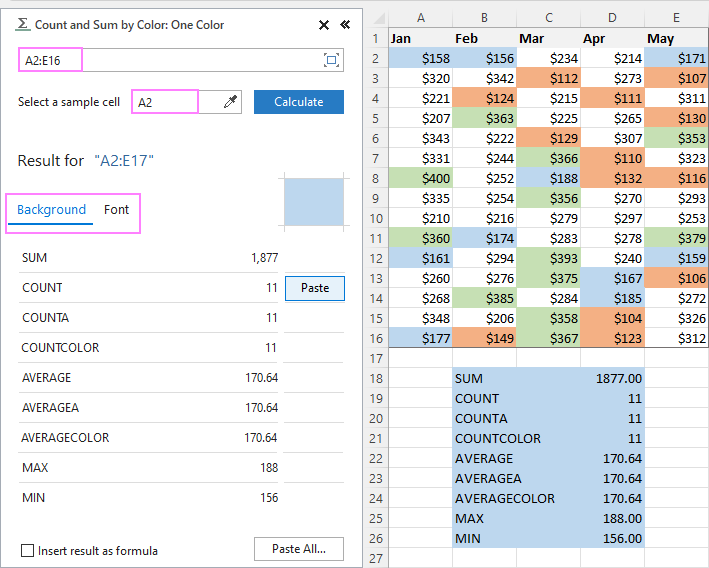
Selecting the Sum & Count by One Color option will open the following pane in the left part of your worksheet. You specify the source range and sample cell, then then click Calculate.
The result will appear on the pane straight away! No macros, no formulas, no pain :)
Apart from count and sum, the add-in also shows Average, Max and Min for colored numbers. To insert a particular value in the sheet, click the Paste button next to it. Or click Paste All to have all the results inserted at once:
Count and sum all colored cells at once
To handle all colored cells at a time, choose the Sum & Count by All Color option. Basically, it works in the same way, except that instead of color, you choose the function to calculate.
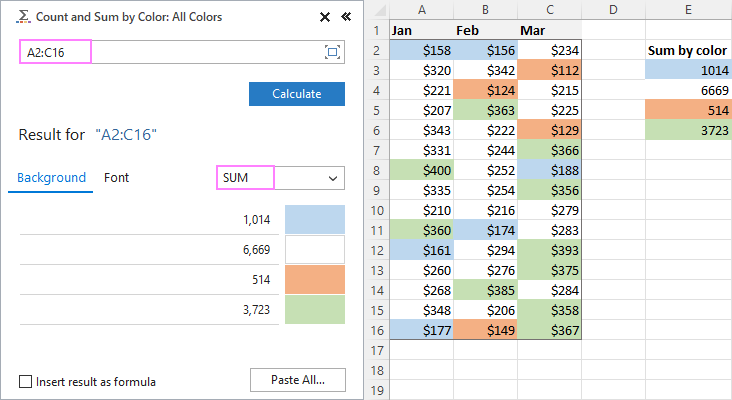
Tip. To have the results inserted in the worksheet as formulas (custom functions), check the corresponding box at the bottom of the pane.
Well, calculating colored cells in Excel is pretty easy, isn't it? Of course, if you have that little gem that makes the magic happen :) Curious to see how our add-in will cope with your colored cells? The download link is right below.
Available downloads
Sum and count by color in Excel - examples (.xlsm file)
Ultimate Suite 14-day fully-functional version (.exe file)
Latest comments
"How to count and sum conditionally formatted cells" partially helps yet, it does not tell me how to have that count appear in a cell (just the popup box). Can this be done?
Hello Rick,
Excellent question. Unfortunately, conditionally formatted cells behave differently behind the scenes in Excel, so let us explain how this affects counting and summing them.
For manually colored cells, yes — the count can appear directly in a worksheet cell. In the first example, this is done with a VBA Worksheet Function (a user-defined function), which you can insert in any Excel cell, just like a regular formula.
For conditionally formatted cells, however, the situation is different. The formatting applied by conditional formatting rules is not accessible to worksheet functions, only to VBA procedures (macros). Technically, a VBA macro could write the result into a cell, but this approach has several limitations. For example, it could overwrite existing content, and the results would not update automatically whenever the source data changes.
If you need the count or sum of conditionally formatted cells to appear directly in worksheet cells and update dynamically, consider using Ablebits Count & Sum by Color tool described in the last example. Since it is implemented as a COM add-in, it has access to properties that regular worksheet functions do not. It can insert results either as static values or as formulas (custom functions). In the latter case, the results update automatically when the source data changes.
I have column C with 29 and column E with 24 and column G with 25 how do I add all these together with the answer of 78 in column I ?
Hi! If I understand your task correctly, this article may be helpful: Excel SUM formula to total a column, rows or only visible cells
I pasted the SumCellsByColor() function code in VBA editor. I was able to use the function as long as I did not save it as .xlsm file. Once I saved the file as.xlsm and then reopened the file, I see #Name? in the cell where I used the formula. The function code is still there in VBA editor. And I tried pressing F9 and it did not help. The function stops works as soon as you save the file as .xlsm and reopen the file. Please help.
Hi! You can download the sample file that is linked to at the end of the article. Check his work and compare it with your file. You may also find these articles helpful: How to enable and disable macros in Excel and Excel UDF not working: problems and solutions.
How to have a dynamic formula for the count of coloured cells? After applying 3 cells in a row colour and applying formula I get 3 but if I remove colour from one cell it not becomes 2 automatically. Regards Jay
Hi! In VBA (Visual Basic for Applications), the Application.Volatile function is used to make a User Defined Function (UDF) volatile. A volatile function is recalculated every time any cells in the worksheet are recalculated, whether its input data has been changed or not.
If you change the color of a cell using the Fill Color menu, Excel does not recognize this as changing the cell value and does not recalculate the formulas. If you change the color of a cell by using the Format Painter tool, Excel recalculates all of the formulas and user-defined functions on the worksheet.
Thank you for your effort, but this tricks are not working.
The formula gives the error #NAME
Hi! My guess is that you do not have the VBA code installed, or that you did it incorrectly. That is why you get the error message. You can see other causes of the #NAME error at this link.
Using the count by conditional formatting colour, how can i input the result of this into a cell? Is there a formula so i can return this figure in a cell within my table? I have a large amount of data in a table and at the end of each row i would like to have an overall RAG rating based on the coloured cells with the row.
Hello Naomi!
Unfortunately, counting by conditional color formatting is not possible with a custom user-defined function. It can only be done using a VBA macro.
You might want to try Count and Sum by Color Wizard.
It can count by cell color and paste the result anywhere on your worksheet.
The tool is included in the Ultimate Suite for Excel and can be used in a free trial to see how it works.
Hi. I'm looking for a way to count coloured formatted cells. The VBA macro above works well but it only gives me the answer in a box, I want to be able to show that value in a cell and copy the formula down so it counts colours in various rows. Is this possible? Many thanks
Hello Jeanette!
A VBA macro is the only way to specify the color of a cell that is colored by conditional formatting. You cannot do this using a user-defined function. As a result, it is not possible to use a formula to count cells that are highlighted with conditional formatting.
You can calculate colored cells using Count & Sum by Color tool. You can then automatically insert the results into any cells of your choice. It is available as a part of our Ultimate Suite for Excel that you can install in a trial mode and check how it works for free.
Good morning, the formula gives me the error #NAME?, it had already happened to me with another case, but I really don't remember how they told me to solve it, it even happens to me in the example file,
Can you help me please
Hi! I recommend reading this guide: #NAME error in Excel: reasons and fixes.
Hi, the color sum works perfectly, but I need to calculate the sum total with decimal points. Is there any solution to do so? thank you.
Hi! The user-defined function SumCellsByColor counts with decimals. Change the number format of the cell containing the formula to your preferred format. You can find the examples and detailed instructions here: Custom Excel number format.
The colour count works perfectly, but would there be a way to edit it so it counts a specific name against the colour. So if I had Agent 1 appear in a yellow cell 5, a red cell 4 times and a blue cell 8 times it would return that number to me without counting any other names or coloured boxes. I have tried multiple different ways of count/countif/countifs to include both but they don't seem to work. Thanks in advance.
Hello Phillip!
This can be done, however we do not do VBA code creation or customization on request.
However, you can use the custom GetCellColor function to get the cell color code. Read the detailed description in the articles above.
Use the SUMPRODUCT function to count the number of values for multiple conditions.
The formula might look as follows:
=SUMPRODUCT((GetCellColor(A2:A15)=49407) * (A2:A15="Agent 1"))
Hi,
I had this working but now it has stopped I also downloaded the example file and it is not working on my computer I get the #NAME error (even in the example file) Is there some option I need to change?
Thanks
Vicki
Hello Vicki!
In this case, the #NAME error may mean that the macros are not working. You may find this instruction helpful: How to enable and disable macros in Excel.
Hi! I've been using the sum by color function for years. All of the sudden it has slowed down my workbook dramatically and I can't figure out how to fix it.
Hello Michel!
It can really slow down calculations if you use whole column or row references (e.g. A:A) in your formulas.
You can try to change the order of calculations as recommended in this article: Excel calculations: automatic, manual, iterative.
It is impossible to give accurate advice without seeing your formulas.
Can you tell me something...
How to count names in rows and don't count if they are in red color.
In case I have a table with planner
There are names in hours for work. If someone is missing marks field with red.
and i want to have column with total visits.. without missings
Hi! Count the number of all names in the rows and subtract the number of names that are in red color.
Hi!
Is anyone finding that when you change the color (but not the data) the calculation does not automatically update? I have Calculations Options as Automatic, but it won't update unless I hit Calculate Now.
Hi! Excel automatically recalculates formulas when you change the value in a cell or change the formula. Changing the cell format does not change the value, so no automatic calculation is executed. Read more: Excel calculations: automatic, manual, iterative.
Hi Alexander,
How to count cells by color in Excel;
This works perfectly and has saved many tiring works.
The counts are correct but when I change the colors of the cells, the formula doesnt pick this up, unless I go back to cell and press "Enter" again.
Am I missing something?
Hi! Only when you change values in the worksheet does Excel automatically recalculate formulas. The result is not changed by changing the cell format. Therefore, changing colors does not automatically recalculate.
CountCellsByColor works fine using the Excel application (on Windows 10) but when shared through a link and viewed from a browser I get the #NAME?.
After removing the line containing "Application.Volatile" it also works fine from a browser view.
Hi! Excel Online does not work with VBA. Consequently, macros and custom functions cannot be used.
Thanks! understood. Nevertheless, I'm sharing in viewing mode only so no changes can be made and all Excel Online results look correct after removing the Application.Volatile line. Looks like the Excel Desktop calculated results have been saved and are shown in Excel Online without needing to run VBA(?)
Hi! Application.Volatile causes Excel to recalculate the values of the custom function every time there is a change in the worksheet. Since it doesn't work in Excel Online, it causes an immediate error.
Hi, the count cells by color funtions work great! But is it possible to combine these and count cells with specific fill and font colours, e.g. yellow cells with red font?
Hi! To count yellow cells with red font, try using a formula like this:
=SUM((GetCellColor(A1:A10)=65535)*(GetFontColor(A1:A10)=255))
Thanks! That formula only seems to return a 1 or a 0. I've been able to achieve the desired result by using GetCellColor and GetFontColor in two new colums, then using COUNTIFS to count the required cominations. I'm thinking there must be a better way though.
You're wrong. If you have 3 cells with these colors, the formula will return 3.
Hey, the code countscellsbycolor works fine but if I change a cell color the value of my code doesn't change. I have to clic on the code for the value to change.
It is easier if the value change instantly so i don't have to clic on the code each time.
Hey, Excel automatically recalculates formulas when a cell value changes. A color change is not considered a value change.
I am using the SumCellsByColour whic is fantatic - thank you!
Could anyone help advise how I could also add an additional if condition. Basically I want to add a coloured cell as long as another cell in my table also has specific text. e.g. sum the coloured cell as long as cell C2 = "include". Grateful for any advice or guidance that anyone can offer.
Hello! Use the GetCellColor function to get the color of the cell. I believe the following formula will help you solve your task:
=SUM((GetCellColor(D2:D20)=GetCellColor($K$1))*(J2:J20="text"))
K1 - cell with color sample.
Hi all,
I just added this sum function "=SumCellsByColor" in my workbook earlier and save it. it worked perfectly but when I open the same excel again after few days, how come it is not automatically calculating. I have no idea have to resolve the issue. Any help please on how I fix the problem? Thanks!
Hi! Check if your file is saved in XLSM format. You may also find these recommendations useful: How to use and store custom functions in Excel.