 by
by In this tutorial, we'll explore how to use the TRIMRANGE function in Excel to create ranges that automatically adjust as your data grows.
When working with continuously updating datasets in Excel, it's common to reference ranges that contain extra blank rows or columns. These empty cells usually don't break formulas, but they can produce messy results, such as zeros or errors for empty rows, or unnecessary blank space in summary tables and reports.
The TRIMRANGE function solves this problem by removing empty rows and columns from the outer edges of a range. The result is a clean, compact array that includes only the cells containing data.
Excel TRIMRANGE function
The TRIMRANGE function in Excel removes completely empty rows and columns from the outer edges of a range. The result is a dynamic array that includes only the portion of the range that actually contains values. In other words, it trims blank spaces around a dataset while leaving the data itself untouched.
This is particularly useful when working with dynamic arrays, spilled formulas, or data imported from external sources.
Important note. TRIMRANGE only removes unused rows and columns outside the range. It does not remove empty rows or columns inside the dataset.
Syntax
The syntax of the TRIMRANGE function is as follows:
Where:
- range- the source range or array to be trimmed.
- trim_rows [optional] – controls how empty rows are removed.
- trim_columns [optional] – controls how empty columns are removed.
The optional trim_rows and trum_columns arguments can take the following values:
- 0 – None (do not remove empty rows or columns)
- 1 – Trim leading blank rows/columns
- 2 – Trim trailing blank rows/columns
- 3 – Trim both leading and trailing blank rows/columns (default)
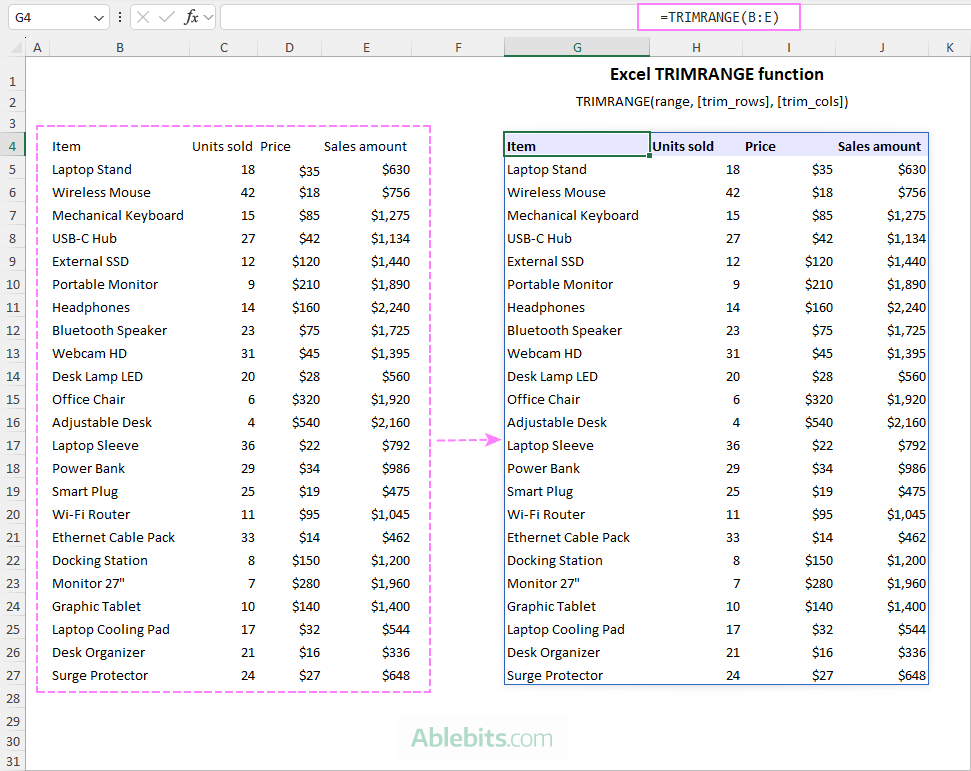
Below is an example of the Excel TRIMRANGE function in its basic form, with only the first argument defined, that removes both leading and trailing empty rows and columns from the outer edges of the whole-column range B:E.
=TRIMRANGE(B:E)
Trim references (dot operator)
Trim references (also called trim refs or dot operator) provide a shorter way to define ranges while trimming unnecessary blank rows or columns at the same time.
The idea is to modify a normal range reference (:) by prefixing or suffixing it with a dot (.). This tells Excel to remove blanks from the start, end, or both sides of the range.
In other words, trim references combine the range definition and the trimming behavior in a single compact expression.
| Trim reference | Description | Example | Equivalent TRIMRANGE formula |
|---|---|---|---|
| (.:) | Trim leading blanks | A1.:D100 | TRIMRANGE(A1:D100, 1, 1) |
| (:.) | Trim trailing blanks | A1:.D100 | TRIMRANGE(A1:D100, 2, 2) |
| (.:.) | Trim leading and trailing blanks | A1.:.D100 | TRIMRANGE(A1:D100, 3, 3) |
Using trim references with full rows or columns
The dot operator also works with full-column or full-row references. For example:
- A:D – regular range, no trimming
- A.:D – removes leading empty rows and columns
- A:.D – removes trailing empty rows and columns
- A.:.D – removes both leading and trailing empty rows and columns
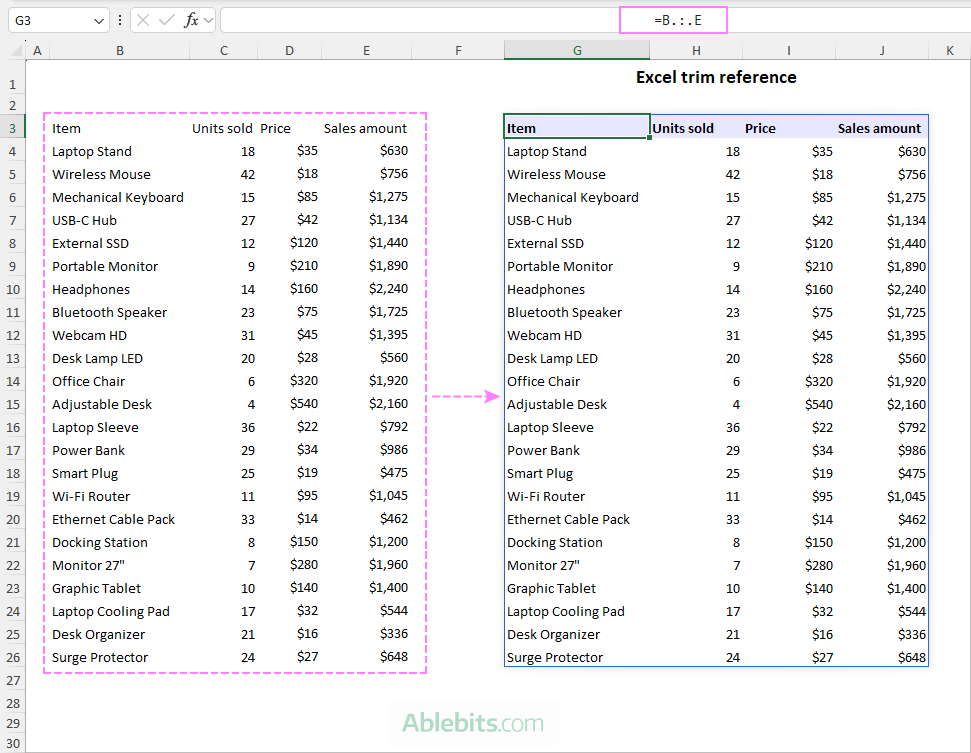
So, here is a more compact syntax for trimming blank rows and columns in the whole-column range, which produces the same result as the equivalent TRIMRANGE formula demonstrated in the previous section:
=B.:.E
TRIMRANGE or trim references – which should you use?
Both approaches produce the same result, so the choice mostly depends on your preference.
Trim references are short and compact, which can make formulas easier to write once you are familiar with the syntax. However, the dot notation is unusual and may not be immediately obvious to someone reading the formula for the first time.
The TRIMRANGE function, on the other hand, is more explicit and easier to understand at a glance.
Note. Trim references are an alternative syntax for TRIMRANGE. Use either the function or the dot operator, but not both together.
TRIMRANGE function availability
TRIMRANGE is only available in Excel for Microsoft 365.
In other versions of Excel, this function is not supported and won't be recognized.
What is TRIMRANGE used for?
The TRIMRANGE function is especially helpful when you want formulas to work with ranges that may grow or shrink over time. Instead of adjusting references manually, TRIMRANGE allows formulas to focus only on the cells that actually contain data.
Common uses include:
- Creating expandable arrays when you don't know in advance how many rows or columns the dataset will contain.
- Allowing formulas to expand automatically without using an Excel Table.
- Building dynamic named ranges that include newly added data.
- Fixing performance issues caused by whole-column or whole-row references, limiting calculations to the cells that actually contain values.
In short, TRIMRANGE helps keep formulas flexible and efficient when working with datasets that change over time.
How to use TRIMRANGE in Excel
The syntax of the TRIMRANGE function is very simple, and using it is straightforward. However, there are a few practical nuances that can affect how the formula behaves in real-life worksheets.
Let's consider a simple example. Suppose we have a product sales sheet where column E contains sales amounts. In column F, we want a formula that calculates a 10% sales tax.
Given that our current data is in E3:E22, the following percentage formula works perfectly:
=(E3:E22)*10%
Because there are 20 values in the range E3:E22, the formula returns 20 results that spill into F3:F22. This is convenient because we get all results with a single formula.
However, if we add another row to the dataset, the formula will not expand, because the referenced range E3:E22 remains unchanged.
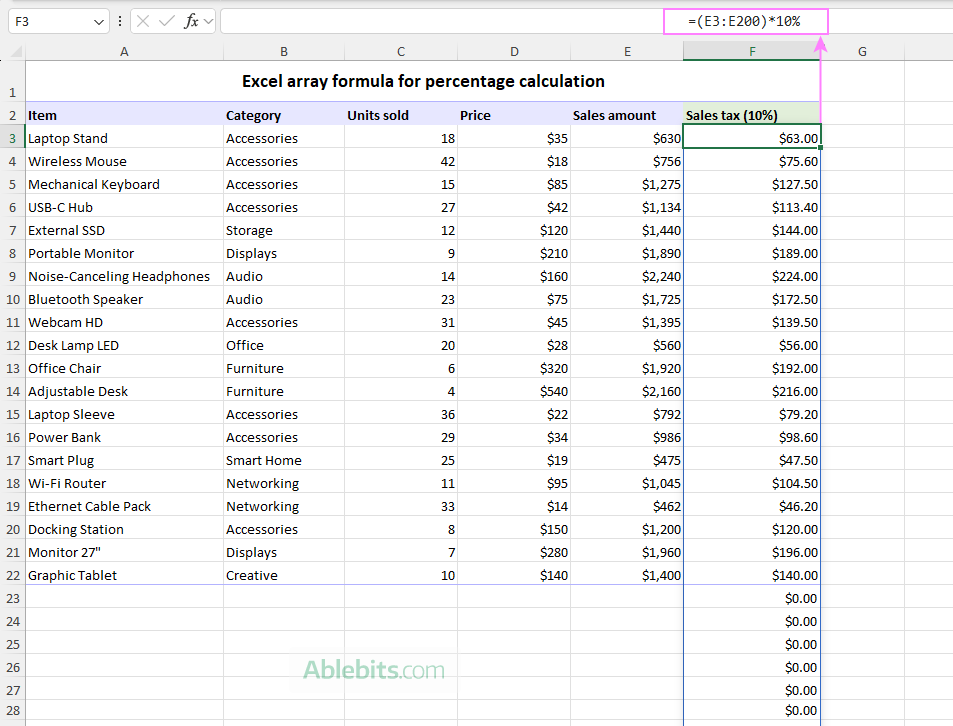
One possible workaround is to include extra rows in the referred range in anticipation of future data, for example:
=(E3:E200)*10%
This approach technically works, but it introduces a new problem: all rows without data return zeros, which is usually not what we want.
Using TRIMRANGE
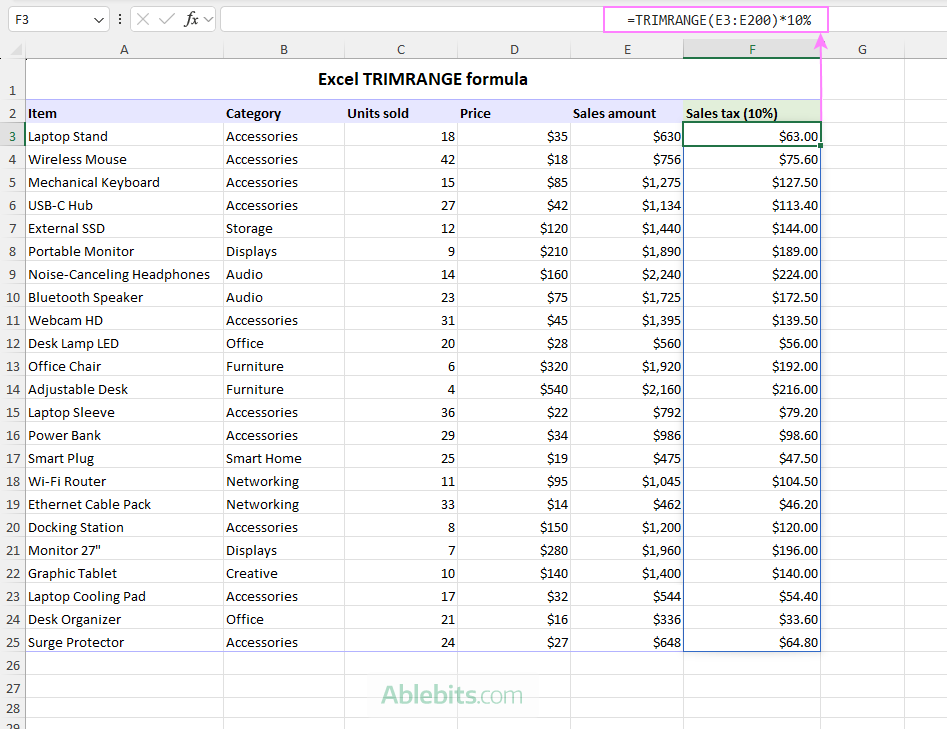
A much better solution is to reference a larger range and let TRIMRANGE remove any trailing empty rows:
=TRIMRANGE(E3:E200, 2)*10%
In this case, TRIMRANGE trims unused cells at the bottom of the range, so the formula only processes rows that actually contain values.
The default form (which trims both leading and trailing blanks), also works correctly in our case because there are no empty rows above E3, so there are no leading blanks to remove:
=TRIMRANGE(E3:E200)*10%
The same result can be achieved with a short and elegant formula using a trim reference:
=(E3:.E200)*10%
Here, the dot after the colon tells Excel to trim trailing blanks from the range.
The output automatically expands whenever new data is added to column E.
Handling column headers
Actual worksheets often contain column headers or informational rows at the top. To avoid including those cells in calculations, you can simply start the range from the first cell that contains actual data, such as E3:E200 in the example above.
If you prefer not to define fixed range boundaries, you can reference the entire column and remove one or more header rows with the DROP function.
For example:
=DROP(TRIMRANGE(E:E), 1)*10%
Here, TRIMRANGE trims the empty cells surrounding the dataset, returning only the populated range. The DROP function then removes the first row of that result, excluding the column header from the calculation.
Using trim references, the same logic can be written more compactly:
=DROP(E.:.E, 1)*10%
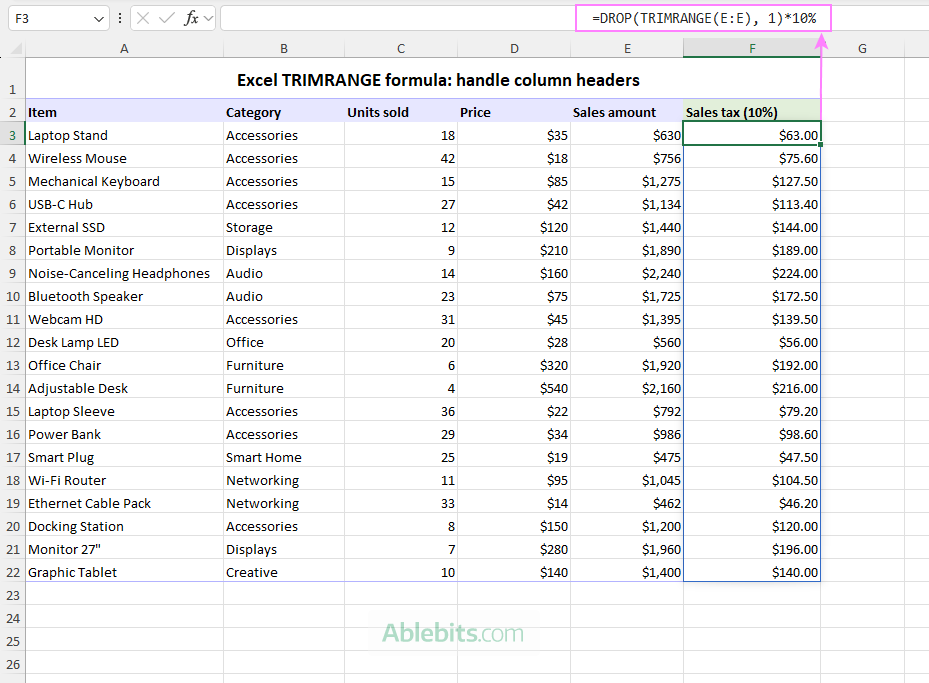
Note. The above screenshot may create an impression that both row 1 and row 2 have data. In reality, row 1 contains merged cells spanning A1:F1. In Excel, a merged area stores the value only in its upper-left cell (A1 in this case); the other cells in the merged range are technically blank. Because of this, DROP is set to remove just one non-empty row (row 2).
Alternative solution
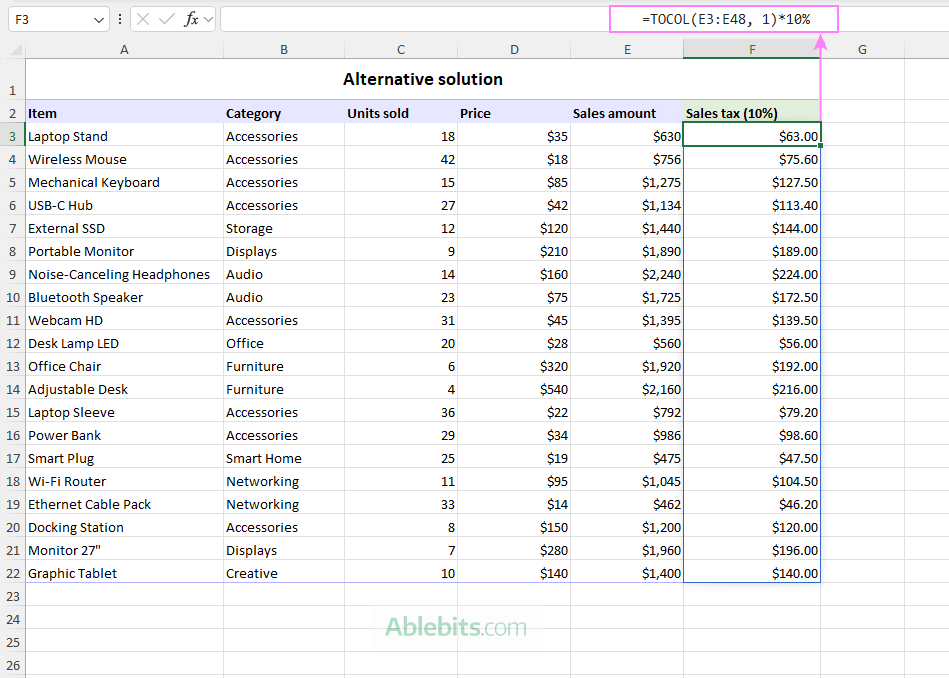
Another way to avoid blank results in Excel formulas is to convert the range into a single column array that ignores empty cells using the TOCOL function:
=TOCOL(E3:E48, 1)*10%
Here, the second argument 1 tells TOCOL to ignore blank cells.
As you can see in the screenshot below, this approach also produces a clean spill range:
Bottom line: Excel TRIMRANGE is an ideal solution when you want formulas to adapt to expanding datasets without producing extra results for empty rows. Once you start using it, many dynamic formulas become easier to maintain because they no longer depend on fixed range sizes.
Excel TRIMRANGE formula examples
The following examples illustrate different ways to use TRIMRANGE to build adaptable and flexible formulas in Excel.
Example 1: Create an expandable dynamic array for another function
The real value of TRIMRANGE becomes apparent when it is used inside other formulas to generate a scalable array that grows with the dataset.
In modern dynamic-array Excel, formulas that return multiple values automatically populate onto the worksheet, creating what is called a spill range. For example, we can use the UNICODE function to return the decimal Unicode code for the emoji character in each cell in B3:B19:
=UNICODE(B3:B19)
As there are 17 values in the range, the formula returns 17 results, which spill into C3:C19. This is convenient because a single formula calculates all the results at once.
However, if a new emoji is added below the list, the formula will not expand, because the source range B3:B19 remains fixed.
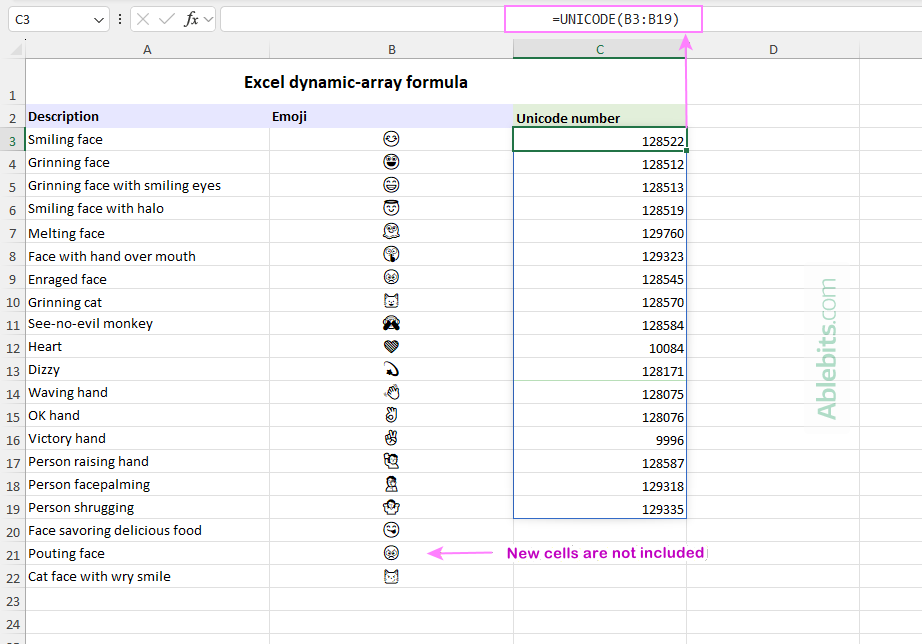
To force a formula to adapt to a growing dataset, you can use the TRIMRANGE function or trim references. Just enter any of the following formulas in C3.
A trim reference:
=UNICODE(B3:.B200)
It defines a larger range but trims trailing blank cells so UNICODE only processes cells that contain values.
The TRIMRANGE function:
=UNICODE(TRIMRANGE(B3:B200))
Works the same way as the above formula – removes empty rows from the referenced range before passing the values to UNICODE.
DROP with a trim reference:
=UNICODE(DROP(B.:.B, 1))
Uses a whole-column reference, trims blanks on both sides of the range, and drops the header how.
Combining DROP and TRIMRANGE:
=UNICODE(DROP(TRIMRANGE(B:B), 1))
This formula follows the same logic as the previous one but uses the TRIMRANGE function instead of the trim reference.
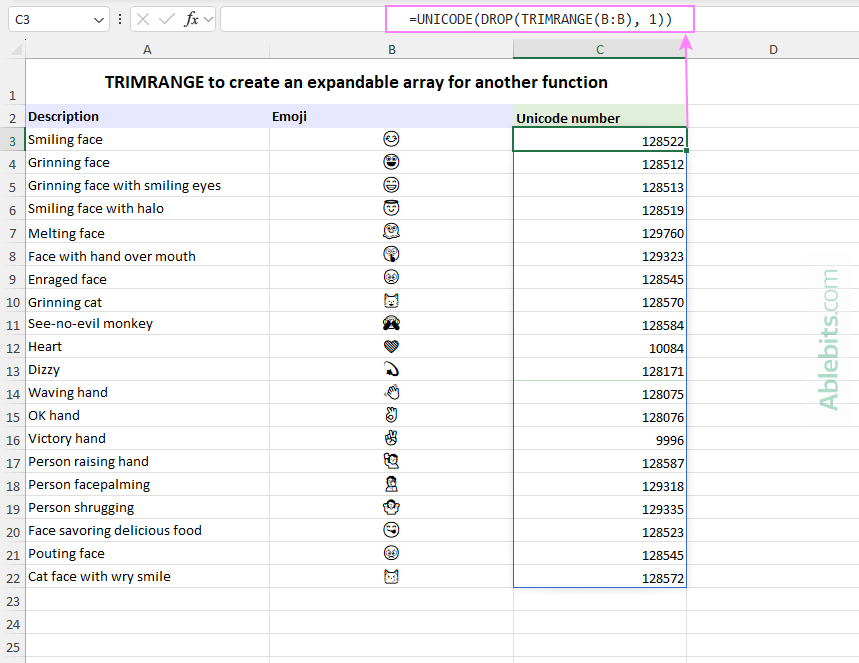
All of these formulas allow the results to expand automatically as new emojis are added to column B, without producing extra results for empty rows.
Example 2: Return last N rows from an expanding dataset
Another useful situation for TRIMRANGE is when you want to retrieve the latest records from a table that continues to grow over time.
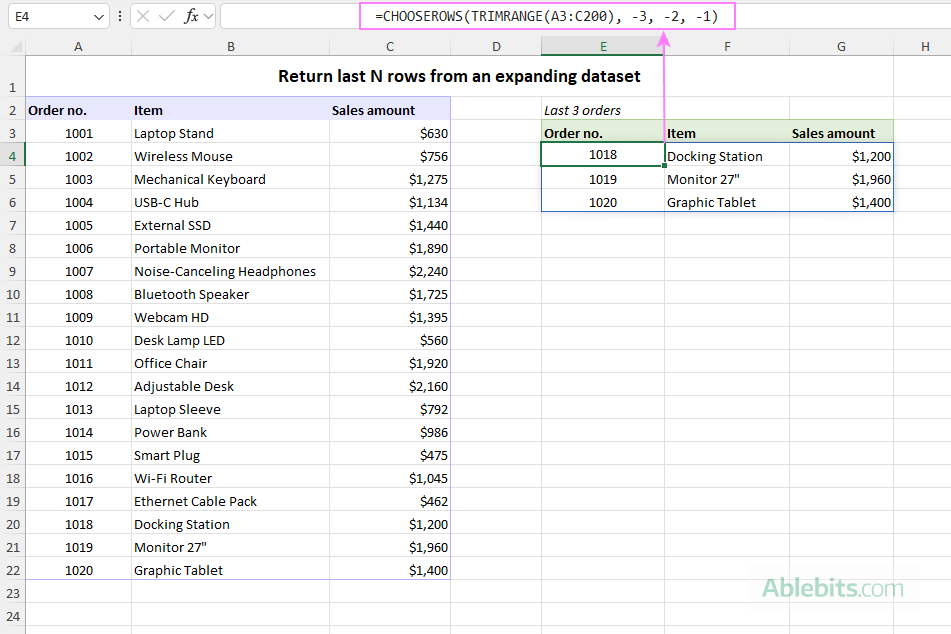
Suppose you have a sales table in A3:C22 that lists customer orders. Now you want to display information about the latest three orders, which always appear at the bottom of the table.
To return the last 3 rows from the current dataset, you can use the CHOOSEROWS function like this:
=CHOOSEROWS(A3:C22, -3, -2, -1)
However, if new orders are added below row 22, CHOOSEROWS will not include them. For the formula to incorporate new rows, you can supply a bigger range, say A3:.C200, and place a dot after the column in the range reference:
=CHOOSEROWS(A3:.C200, -3, -2, -1)
Here, the range extends to row 200, but the trim reference removes the trailing blank rows, ensuring that CHOOSEROWS always works with the actual data.
The same result can be achieved with the TRIMRANGE function:
=CHOOSEROWS(TRIMRANGE(A3:C200), -3, -2, -1)
Example 3. Create an expandable dynamic named range
Another practical use of TRIMRANGE is creating a dynamic named range that automatically adjusts to include new entries.
A named range in Excel is simply a descriptive name assigned to a range of cells so you can refer to it easily in formulas. Many named ranges point to a fixed worksheet area such as A1:A20, but they can also be defined with a formula that adapts to changes in the worksheet.
To illustrate this, we'll create two dynamic ranges based on TRIMRANGE that will later be used in an XLOOKUP formula.
Step 1: Create dynamic named ranges
For this example, we are going to make two expandable named ranges:
- lookup_array – contains all order numbers in column A.
- return_array – includes the item names in column B and the sales amounts in column C.
These ranges will automatically expand or contract as new records are added or the current entries are removed.
First, let's create a dynamic named range to be used for the lookup_array argument of XLOOKUP. The steps are:
- Press Ctrl + F3, or go to the Formulas tab and click Name Manager > New.
- In the Name Manager dialog window, configure the range as follows:
- In the Name box, enter lookup_array (or any name you prefer).
- Leave Scope set to Workbook (default).
- In the Refers to box, enter one of these formulas:
=TRIMRANGE(Sheet1!$A3:$A200)
Or
=Sheet1!$A3:.$A200
Both formulas produce a dynamic range that trims unused cells in column A and includes only the cells that contain data.
In a similar fashion, set up a range named return_array based on either of the following formulas:
=TRIMRANGE(Sheet1!$B3:$C200)
Or
=Sheet1!$B3:.$C200
This dynamic range returns values from columns B and C, excluding any blank rows at the bottom.
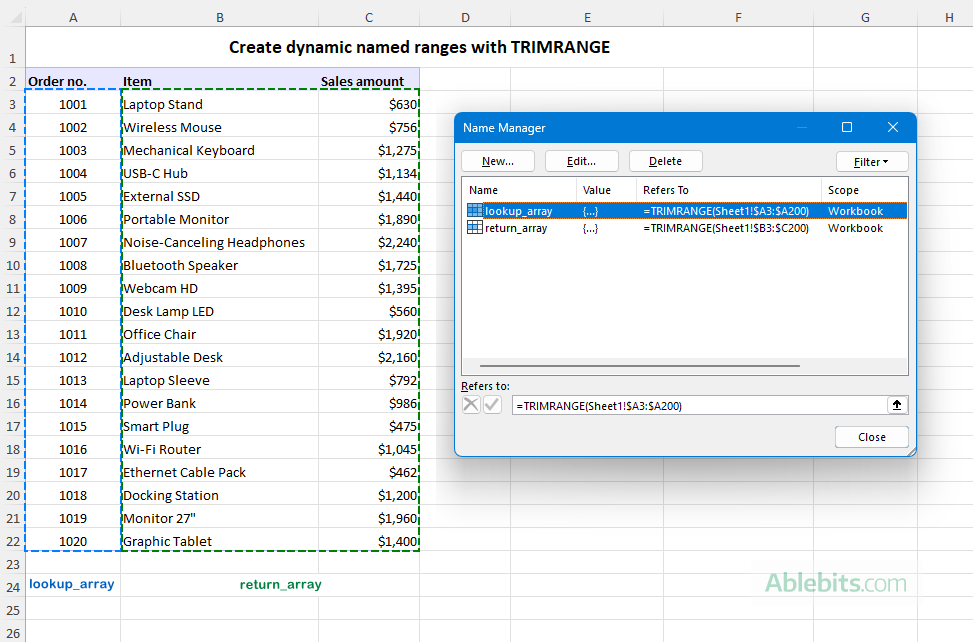
Note. When defining named ranges, include the sheet name and use absolute references such as Sheet1!$A:$A. This ensures the named range behaves consistently from any cell in any worksheet. If the sheet name is not specified, Excel will automatically add the name of the current worksheet to all the references.
For more information, see how to create a dynamic range in Excel 365.
Step 2: Use the dynamic named ranges in a formula
Now that you have the expandable lookup and return arrays, use them to build a dynamic XLOOKUP formula:
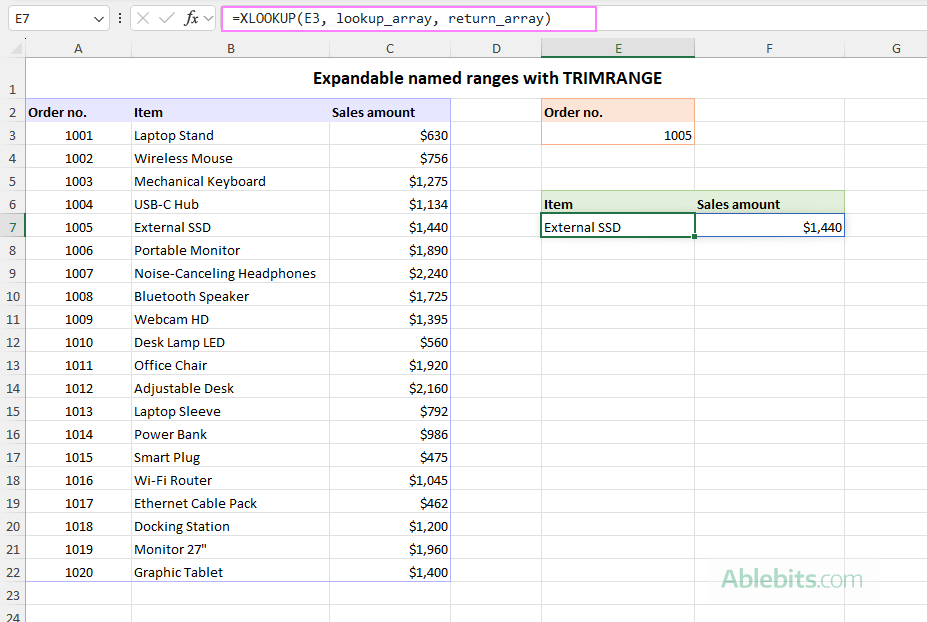
=XLOOKUP(E3, lookup_array, return_array)
Here is what the formula does:
- E3 contains the order number you want to find.
- lookup_array refers to column A, where the order numbers are stored.
- return_array refers to columns B and C, which contain the item name and sales amount.
When the order number in E3 is found, XLOOKUP returns the corresponding item and sales value from columns B and C.
Because both named ranges are built with TRIMRANGE, they automatically update when new orders are added, so the lookup formula continues to work without adjusting the ranges manually.
TRIMRANGE limitations
While TRIMRANGE is a useful function for building flexible formulas, it does have a few limitations to keep in mind:
- Availability. TRIMRANGE is only available in Excel for Microsoft 365 and is not supported in earlier versions.
- No support for 3D references. TRIMRANGE does not work with 3D references, such as =Sheet1:Sheet5!A:A.
Practical tips for working with TRIMRANGE in Excel
When working with TRIMRANGE, keep the following practical considerations in mind to avoid unexpected results:
- Watch for extra data outside the dataset. When you use large ranges such as A1:F2000, full-column references like A:F, or full-row references like 1:20, make sure there is no other data below or to the right of the target set of data. If there is any content in those areas, TRIMRANGE will treat it as part of the used range. For example, if your dataset has 20 rows but cell A100 contains a single character or even a space, TRIMRANGE will expand the range to include all 100 rows. Invisible or non-printable characters can cause the same issue.
- Clean up imported or shared worksheets. If you are working with imported data or a spreadsheet that has been edited by multiple people, it's a good idea to delete unused rows below the data before applying TRIMRANGE. This helps prevent hidden values or spaces from expanding the detected range.
- Empty ranges return an error. If the referenced range contains no data at all, TRIMRANGE returns a #REF! error.
At first glance, TRIMRANGE might not look like the most exciting function in Excel. But the moment you start working with changing datasets, it quickly proves its worth. Instead of adjusting ranges every time new data appears, you can let Excel handle it for you. Less time fixing formulas, more time doing actual work 😊
Practice workbook for download
Excel TRIMRANGE formula examples (.xlsx file)