 by
by In this tutorial, you'll learn how to use the Excel DETECTLANGUAGE function, understand the language codes it returns, detect languages in multiple cells, and combine it with other functions to solve practical tasks.
Working with worksheets in different languages? Excel's DETECTLANGUAGE formula can help you identify which language each cell contains without manually checking every record.
DETECTLANGUAGE function in Excel
The DETECTLANGUAGE function in Excel identifies the language of a text string and returns its language code.
For example, if a cell contains "Bonjour tout le monde", the function returns fr, indicating French. Similarly, "Hola amigos" returns es for Spanish, and "Guten Morgen" returns de for German.
The function is particularly useful when working with customer feedback, product descriptions, survey responses, and other multilingual datasets.
DETECTLANGUAGE is a service-backed function based on Microsoft Translation Services.
The list of supported languages and detection results may change over time as languages are added or removed from the service.
DETECTLANGUAGE syntax
The function has a simple syntax with just one argument:
DETECTLANGUAGE(text)
Where:
- text is the text string whose language you want to identify. It can be a cell reference, a text value enclosed in double quotes, or another formula that returns text.
Here is a DETECTLANGUAGE formula in its basic form:
=DETECTLANGUAGE("Buongiorno")
The formula returns it, which is the language code for Italian.
Instead of typing the text directly into the formula, you can refer to a cell containing the string you want to analyze:
=DETECTLANGUAGE(A4)
Excel identifies the language of the text in A4 and returns the corresponding language code. 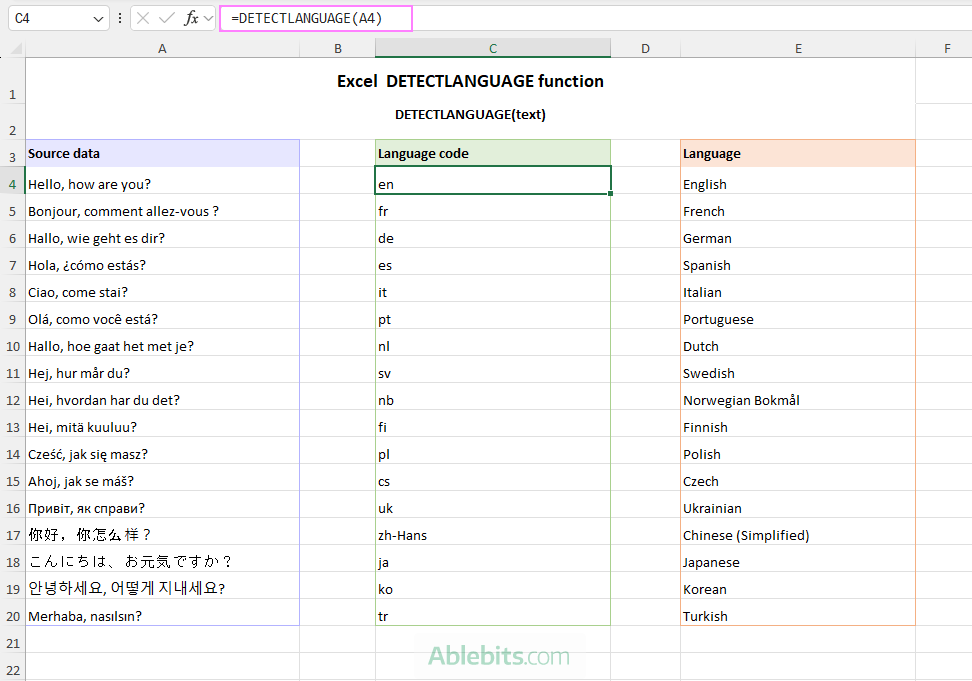
Language codes
Most language codes returned by DETECTLANGUAGE are short, two-letter identifiers. However, some languages have multiple variants or writing systems, so their codes include additional information. For example, zh-Hans indicates Chinese written in Simplified characters, while zh-Hant refers to Chinese written in Traditional characters.
Here are some commonly used codes:
| Language | Code | Language | Code |
|---|---|---|---|
| English | en | Russian | ru |
| French | fr | Japanese | ja |
| German | de | Korean | ko |
| Spanish | es | Chinese (Simplified) | zh-Hans |
| Italian | it | Chinese (Traditional) | zh-Hant |
| Portuguese | pt | Arabic | ar |
| Dutch | nl | Hindi | hi |
| Polish | pl | Turkish | tr |
| Ukrainian | uk | Swedish | sv |
For the complete list, see Microsoft's supported languages and language codes.
DETECTLANGUAGE availability
DETECTLANGUAGE is a new function, which is currently available in Excel for Microsoft 365, Excel on the web, and Excel Mobile.
It is not supported in perpetual versions such as Excel 2024, 2021, 2019, or 2016.
As the function uses Microsoft's online language detection service, an internet connection is required.
How to detect language in Excel with a formula
Identifying the language in an Excel cell with the DETECTLANGUAGE function is as simple as it could possibly be:
- In any empty cell, enter the text whose language you want to identify.
- In another cell where you want the language code, enter a DETECTLANGUAGE formula referencing the cell with the text.
- Press Enter to get the language code.
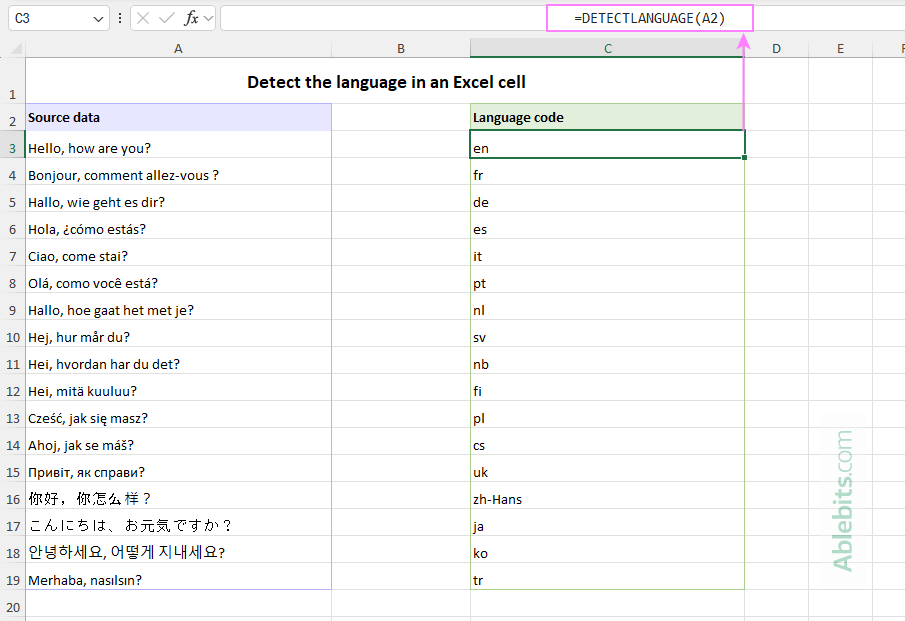
For example, if you have a list of text strings in column A, starting in A3, enter the following formula in C3, then drag it down through C19:
=DETECTLANGUAGE(A3)
Tips and notes:
- If the DETECTLANGUAGE formula refers to a blank cell, it returns an empty string ("").
- For more accurate results, use complete sentences rather than individual words. Short words such as "no" or "chat" may exist in multiple languages, making it difficult for Excel to identify the correct one.
How to detect languages in an entire range
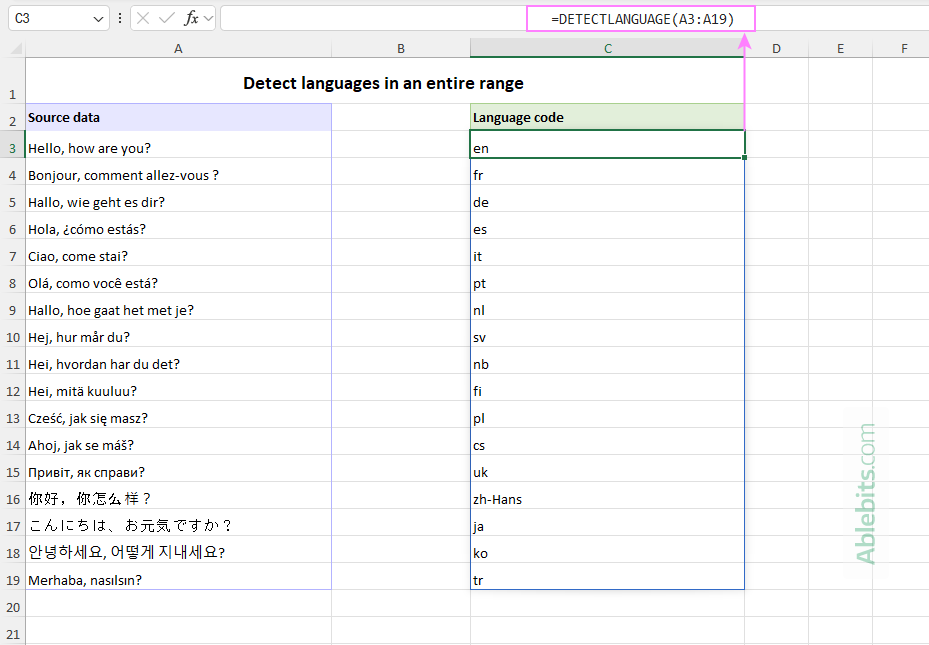
DETECTLANGUAGE is designed for Excel 365 and, like many modern Excel functions, supports dynamic arrays natively. This means you can identify the languages in multiple cells with a single formula, simply by supplying a range reference as the text argument:
=DETECTLANGUAGE(A3:A19) The formula analyzes each cell in A3:A19 and returns the corresponding language code. If a source cell is blank, the corresponding result is also blank.
Instead of copying the formula down manually, you enter it just once in the top cell, and Excel automatically spills the results into the cells below.
Note. Because DETECTLANGUAGE relies on an online service, processing large blocks of cells may take longer or encounter service limits.
Excel DETECTLANGUAGE formula examples
Beyond identifying the language of individual cells, you can combine DETECTLANGUAGE with other Excel functions to make your multilingual data easier to analyze and work with.
Example 1: Return the language name instead of a code
Language codes are convenient for formulas, but not always easy to understand at a glance. If you'd rather see English, French, or German instead of en, fr, or de, you can use one of the following methods to convert the detected codes into full language names.
SWITCH function – for a few languages
If your dataset contains text in just a few languages, or you only need to recognize the most important ones, the SWITCH function is a simple solution:
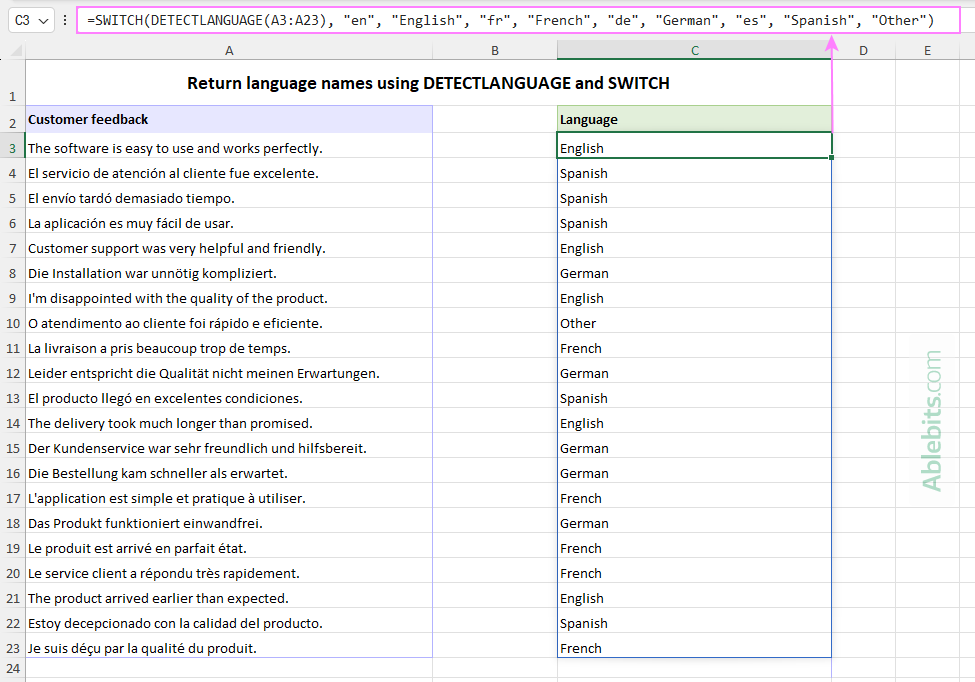
=SWITCH(DETECTLANGUAGE(A3:A23), "en", "English", "fr", "French", "de", "German", "es", "Spanish", "Other")
Here's how it works:
DETECTLANGUAGEidentifies the language of each text string in the rangeA3:A23.SWITCHmatches each detected code to the corresponding language name.- If a language code isn't specified in the formula, SWITCH returns "Other".
For example, if A3 contains text in English, the formula returns English instead of en.
XLOOKUP function – for multiple languages
If you're working with a larger number of languages, a lookup table is a more practical and flexible solution. You can add or change language names without having to rewrite a long formula.
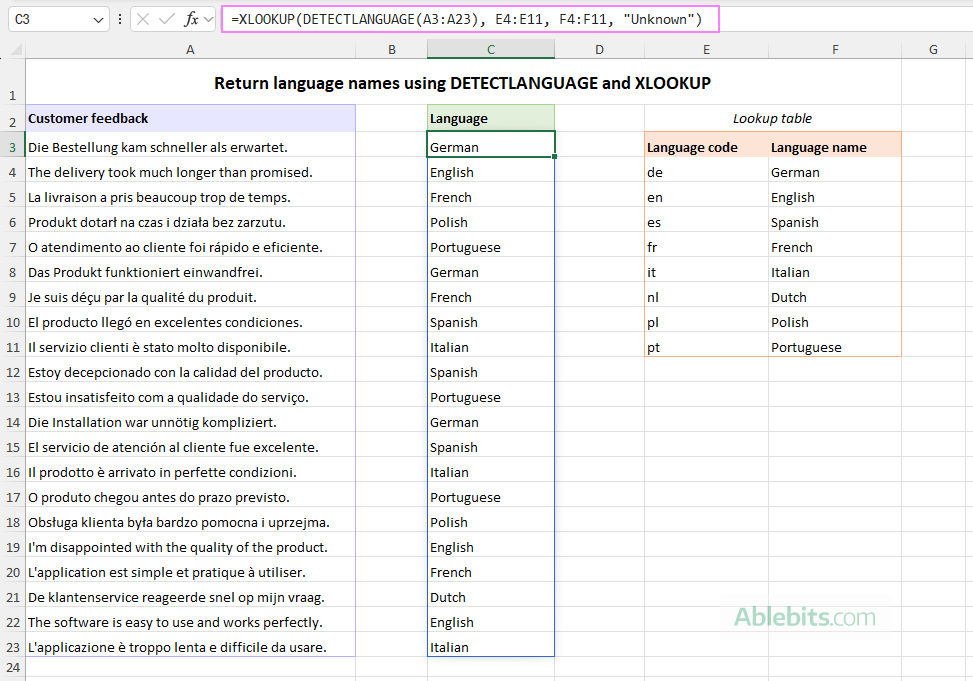
First, create a two-column lookup table with language codes in one column and their full names in the other. Then, use XLOOKUP to find the language name corresponding to each detected code:
=XLOOKUP(DETECTLANGUAGE(A3:A23), E4:E11, F4:F11, "Unknown")
In this formula:
DETECTLANGUAGE(A3:A23)identifies the languages of the text strings in the rangeA3:A23.E4:E11contains the language codes to look up.F4:F11contains the corresponding language names to return.- "Unknown" is returned if a detected language code isn't found in the lookup table, helping you spot languages you haven't added yet.
Enter the formula in C3, and it will return a dynamic array of language names, automatically filling the cells below.
Example 2: Check whether text is written in a specific language
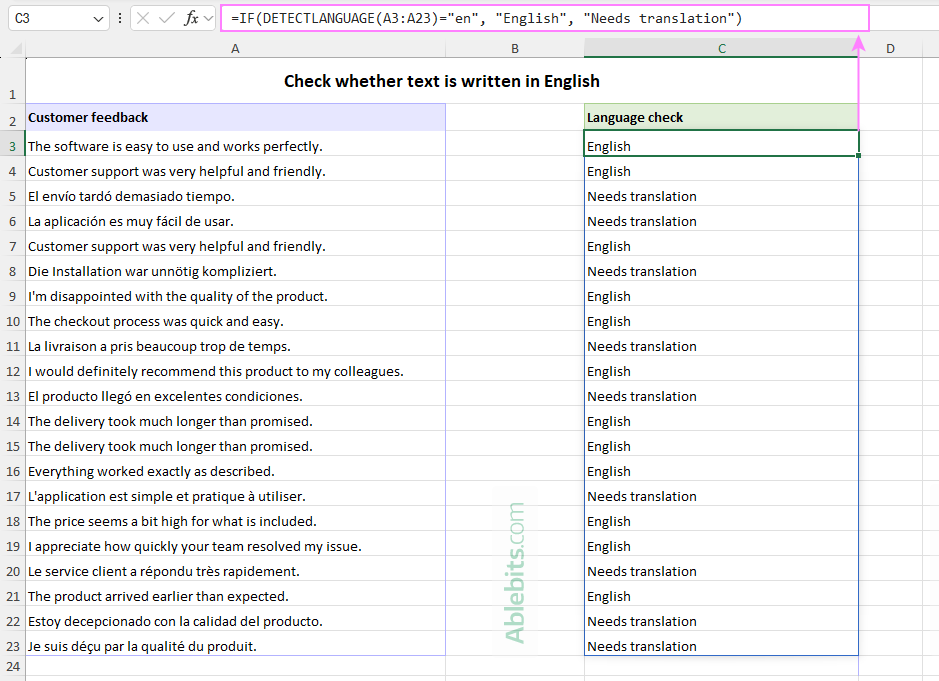
Suppose you're reviewing customer feedback and need to identify messages written in languages other than English, so you can forward them to the appropriate customer support team.
To do this, combine DETECTLANGUAGE with the IF function to check whether the detected language code is en:
=IF(DETECTLANGUAGE(A3:A23)="en", "English", "Needs translation")
If DETECTLANGUAGE identifies the en language code, the formula returns "English". Otherwise, it displays "Needs translation", flagging messages written in other languages.
In a similar way, you can check for any other language by changing the language code in the formula. For example, to detect messages written in French and flag all others for translation into French, use:
=IF(DETECTLANGUAGE(A3:A23)="fr", "French", "Needs translation into French")
Example 3: Translate only text written in other languages
Another useful application of DETECTLANGUAGE is combining it with Excel's TRANSLATE function, which is designed to automatically translate text from one language into another.
The TRANSLATE function can detect the source language on its own, simply by omitting the second argument. For example, to translate the text in A3 into English, use:
=TRANSLATE(A3, , "en")
However, combining the two functions makes sense when you want to check the language before deciding whether translation is necessary.
Let's return to our multilingual customer feedback dataset. Suppose you want to translate all messages into English while leaving those already written in English exactly as they are.
To achieve this, use a nested IF statement with DETECTLANGUAGE and TRANSLATE:
=IF(DETECTLANGUAGE(A3)="en", A3, TRANSLATE(A3, , "en"))
Here's how the formula works:
DETECTLANGUAGE(A3)identifies the language of the text inA3.IFchecks whether the language code is en (English).- If the text is already in English, the formula returns the original content from
A3without changing it. - Otherwise,
TRANSLATEautomatically detects the source language and translates the text into English.
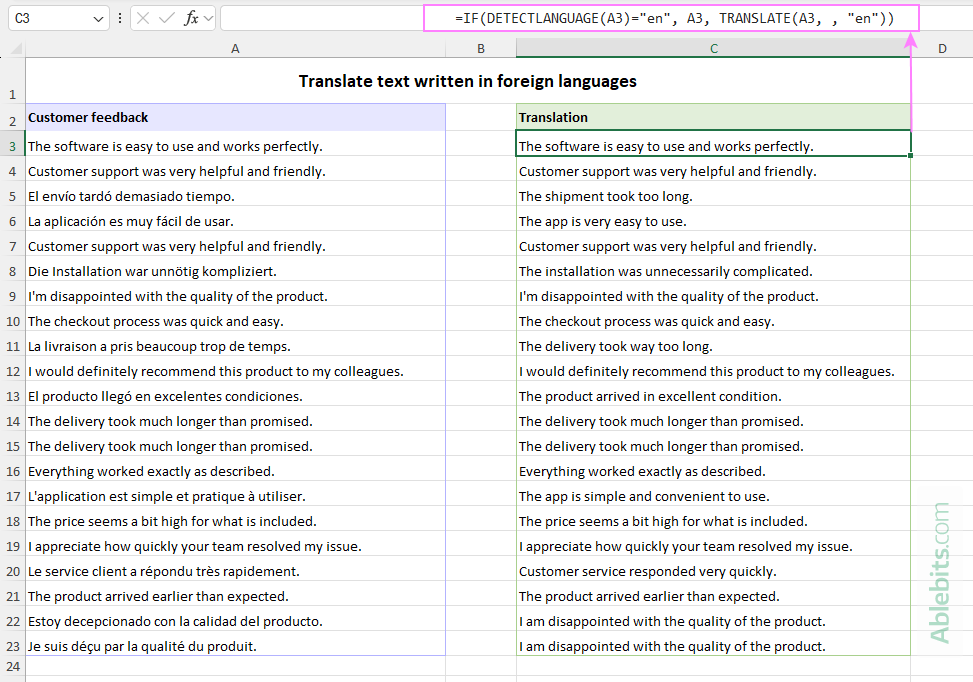
This approach is handy for multilingual worksheets containing a mix of English and foreign-language text. By checking the language first, you avoid unnecessary translation requests and preserve the original wording of English messages.
Example 4: Count how many entries are written in each language
After detecting languages in your dataset, you may want to find out how many entries are written in each one. For example, this can help you understand which languages are most common in customer feedback.
Count languages using existing codes
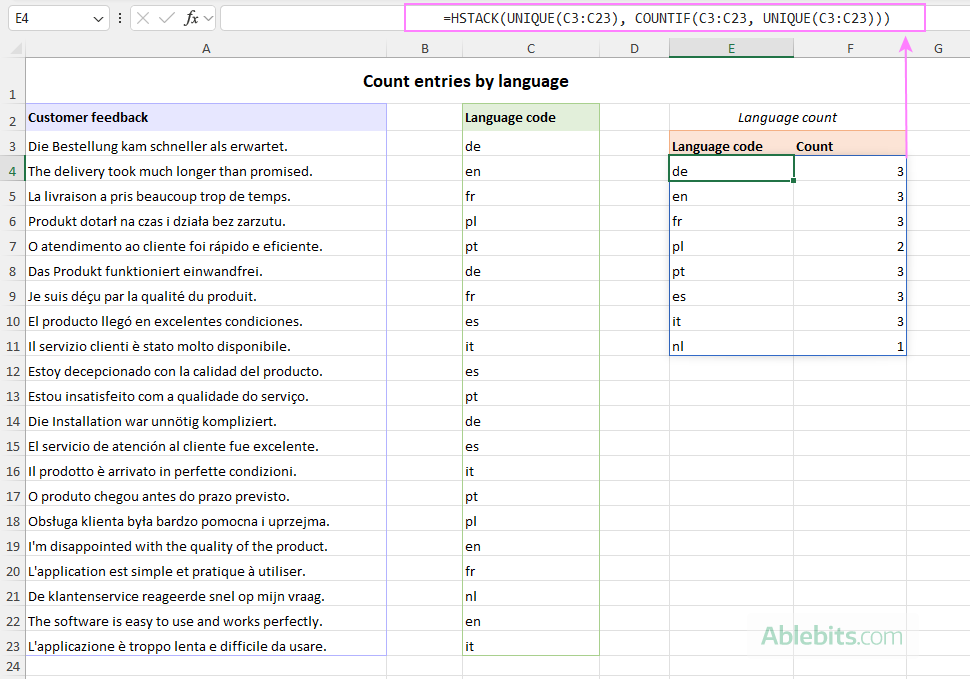
If you've already used DETECTLANGUAGE to output language codes in a separate column (C3 in our example), you can combine the UNIQUE, COUNTIF, and HSTACK functions to create a complete summary with a single formula:
=HSTACK(UNIQUE(C3:C23), COUNTIF(C3:C23, UNIQUE(C3:C23)))
The formula may look a little tricky at first glance, but the logic behind it is quite simple:
UNIQUE(C3:C23)extracts a list of distinct language codes from column C.COUNTIF(C3:C23, UNIQUE(C3:C23))counts how many times each language code appears in the range.HSTACKputs the codes and counts arrays side by side.
Enter the formula in an empty cell (E4 in this example), and Excel will automatically spill the results into two columns: language codes and their counts.
Tip. If you prefer to display full language names instead of codes, you can use XLOOKUP with the language lookup table from Example 1.
Count languages directly from the original text
Sometimes, you may only want a summary of all languages in your dataset, without creating a separate column with language codes.
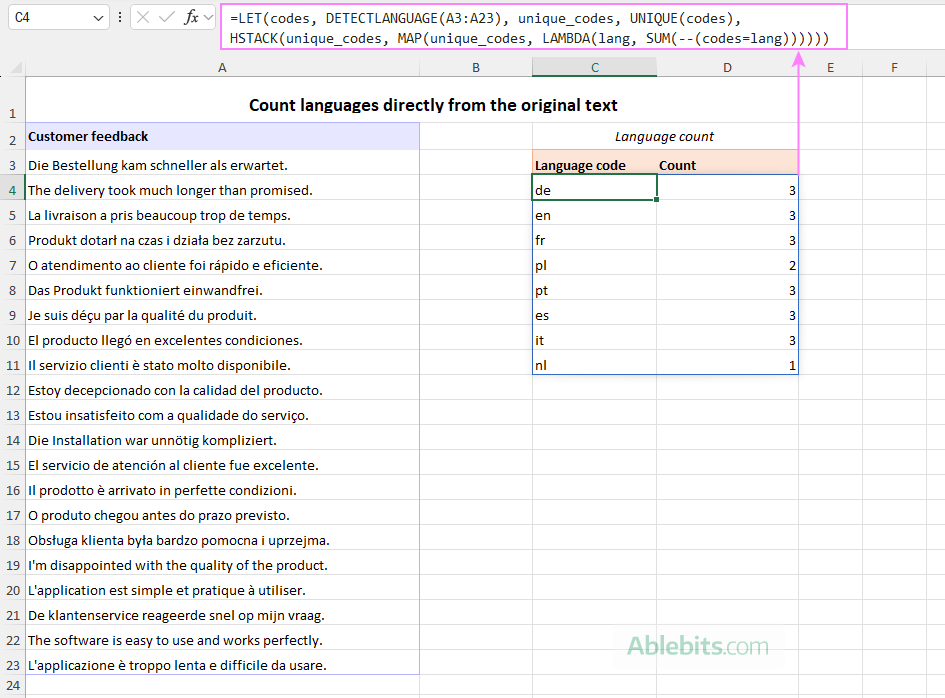
To get a quick breakdown of all languages and their counts directly from the original text, use this formula:
=LET(codes, DETECTLANGUAGE(A3:A23), unique_codes, UNIQUE(codes), HSTACK(unique_codes, MAP(unique_codes, LAMBDA(lang, SUM(--(codes=lang))))))
Here's how it works:
DETECTLANGUAGE(A3:A23)identifies the language of each text string and stores the resulting codes in thecodesvariable.UNIQUE(codes)extracts the distinct language codes and stores them in theunique_codesvariable.MAP(unique_codes, LAMBDA(lang, SUM(--(codes=lang))))counts how many times each language occurs.MAPgoes through the unique language codes one by one, passing each code toLAMBDAaslang. The expressioncodes=langcompares it with all detected codes, returning an array of TRUE and FALSE values. The double unary operator(--)converts these into 1s and 0s, and SUM adds up the 1s to get the number of matches.HSTACKcombines the unique language codes and their counts into a two-column array.
The result is a dynamic summary table showing each language found in the dataset and the number of entries written in it.
Excel DETECTLANGUAGE not working
If the function doesn't return the expected result, here are some common errors and ways to resolve them.
#NAME? error
A #NAME? error usually means your Excel version doesn't support the DETECTLANGUAGE function or you've misspelled its name.
Make sure you're using the latest version of Microsoft 365 and the function name is typed correctly in your formula.
#VALUE! error
DETECTLANGUAGE expects a text argument. If the referenced cell contains a number or another non-text value, the function may return an error. Sometimes, it returns the code for the system language (en in case of English) for numeric values.
#CONNECT! error
If your internet connection is unavailable or unstable, the DETECTLANGUAGE function may return a #CONNECT! error.
Check your internet connection and try recalculating the formula. If the error persists, the service may be temporarily unavailable, so try again later.
Incorrect language detected
Language detection isn't always perfect, especially with very short or ambiguous text. For example, words such as menu, radio, and hotel are used in multiple languages. A single word may not provide enough context to identify the language reliably. To improve accuracy, use longer text strings with complete sentences whenever possible.
Also, keep in mind that DETECTLANGUAGE identifies the most likely language of the supplied text. It cannot provide separate results for each language in a multilingual sentence.
Text is too long
Microsoft's translation service places limits on the amount of text it can process in a single request. If your text exceeds the limit, language detection may fail. Try shortening the input or dividing long passages into smaller sections.
Request throttled or service unavailable
Because DETECTLANGUAGE uses Microsoft Translation Services, it is subject to online service availability and usage quotas. If you've reached the limit, you'll need to wait until the service allows further requests.
That's how to detect a language in Excel cells with a formula. DETECTLANGUAGE may not teach you how to speak French or Spanish, but it can certainly help you recognize them. And sometimes, that's all you need! 😊
Practice workbook for download
Excel DETECTLANGUAGE formula examples (.xlsx file)