 by
by Learn how to use the REDUCE function in Excel to process arrays and return a single accumulated result. This tutorial provides practical formula examples for conditional sums, counts, concatenation, and other custom calculations.
Sometimes, your Excel formula needs to do more than simply add, count, or average values. It needs to evaluate each item individually and build the result step-by-step. The REDUCE function is designed specifically for this purpose. It processes an array element by element, carries an accumulated result forward, and returns the final outcome after the last value is processed.
Excel REDUCE function
The REDUCE function in Excel processes each value in an array or range using a custom LAMDA and accumulates them into a single final result.
In simple terms, REDUCE goes through the source array item by item, keeps track of the result so far, and returns one final value.
REDUCE syntax
The syntax of the REDUCE function is as follows:
REDUCE([initial_value], array, function)
Where:
- initial_value (optional) – The starting value for the calculation. If omitted, the first value in the array is used as the starting point.
- array – The range or array to process.
- function – The custom LAMBDA to apply.
REDUCE function availability
REDUCE is a dynamic array function available in:
- Excel for Microsoft 365 (Windows and Mac)
- Excel 2024 (Windows and Mac)
- Excel for the web
The function is not supported in older versions of Excel 2021, Excel 2019, or Excel 2016.
Tip. Excel 365 includes two more array-processing functions that are closely related to REDUCE. The SCAN function performs the same iterative processing but returns every intermediate result instead of only the final one. And MAP applies a calculation to each element independently and returns an array of the transformed values.
How the REDUCE function works
The Excel REDUCE function has three arguments:
initial_value– The starting value used for the first calculation. This argument is optional. If omitted, REDUCE uses the first value in the array as the starting accumulator.array– The values to process. In most cases, this is a range of cells containing your source data.function– A LAMBDA function that defines how each value is combined with the accumulated result.
Understanding the LAMBDA function
The LAMBDA function is the heart of REDUCE. It tells Excel what calculation to perform at each step.
The generic structure is:
LAMBDA(accumulator, value, calculation)
Where:
accumulator– Stores intermediate results. It begins with theinitial_valueand is updated after each iteration.value– Represents the current item from the array.calculation– The formula that combines the accumulator and current value. The result becomes the accumulator for the next iteration. After the last value is processed, the accumulator contains the final consolidated value returned by REDUCE.
In simple scenarios, the full LAMBDA syntax can be replaced with an eta-lambda, where the function name is passed directly to REDUCE.
A simple REDUCE example
To see how REDUCE works in practice, let's recreate a basic SUM calculation:
=SUM(10, 20, 30)
Using REDUCE:
=REDUCE(0, {10,20,30}, LAMBDA(a, v, a + v))
Or, using eta-lambda syntax:
=REDUCE(0, {10,20,30}, SUM)
Which is equivalent to:
=REDUCE(0, {10,20,30}, LAMBDA(a, v, SUM(a, v)))
All of the formulas above return 60.
Here's what happens behind the scenes:
- Iteration 1: 0 + 10 = 10.
- Iteration 2: 10 + 20 = 30.
- Iteration 3: 30 + 30 = 60.
The image below illustrates the same process on a larger dataset.
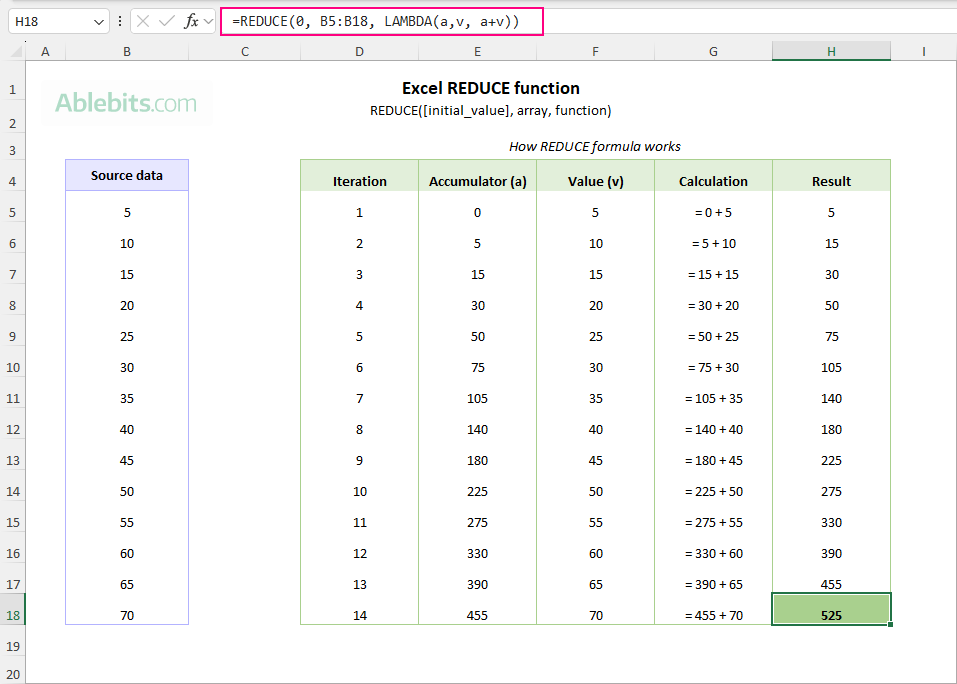
You can think of REDUCE as a repeating calculation with memory. For each value in the array, Excel does the following:
- Takes the current accumulator value.
- Takes the next value from the array.
- Performs the LAMBDA calculation.
- Stores the result back in the accumulator.
- Moves to the next value.
Usage notes:
- The first parameter of LAMBDA is always assigned to the accumulator
aand the second parameter to the current valuevfrom the array. The parameter names (aandv) are arbitrary; you can use any valid names instead. - If
initial_valueis omitted, REDUCE uses the first array element as the starting accumulator and begins processing with the second element. This differs from SCAN, where an omittedinitial_valuedefaults to zero. To avoid unexpected results, it's usually best to specify the initial value explicitly.
Excel REDUCE formula examples
Now that you're familiar with the syntax, let's explore some practical REDUCE formulas. The examples below cover a few common use cases and demonstrate techniques that can be adapted to many other scenarios.
Example 1: REDUCE formula for conditional sum
A frequent requirement in Excel is adding only the values that meet certain conditions. The REDUCE function provides a flexible way to perform this type of calculation.
Suppose a company pays bonuses only to employees whose sales exceed the team average. The accounting manager needs to determine the total sales generated by these top-performing employees, as this figure will be used as the basis for bonus calculations.
In this scenario, the condition depends on a value calculated from the same dataset – the team average. REDUCE compares each employee's sales against that benchmark and adds only those that exceed it.
=REDUCE(0, B5:B24, LAMBDA(a, v, IF(v > AVERAGE(B5:B24), a + v, a)))
With the AVERAGE formula in a predefined cell (B2), the formula becomes even simpler: The logic that determines which values are included in the total is contained in this LAMBDA expression: For each value After the last iteration, the accumulator contains the sum of all sales values that met the condition, which becomes the result returned by REDUCE. When you need to sum values that meet a condition, Excel's SUMIF function (or its multi-criteria counterpart SUMIFS) is usually the first tool to consider. In fact, this example can also be solved with a For straightforward conditions, SUMIF is often simpler and easier to understand than REDUCE. The real advantage of REDUCE is flexibility. Because REDUCE evaluates each value individually through a LAMBDA function, it can handle custom logic that is difficult or impossible to express with SUMIF. You can combine multiple tests, perform dynamic calculations during the evaluation process, or use functions that return arrays rather than ranges. For example, suppose you want to sum only the odd values in a range. This cannot be done directly with SUMIF because the ISODD function returns an array of TRUE and FALSE, while SUMIF expects a range for its criteria. With REDUCE, the formula is easy to build: Similarly, to sum only even values:
=REDUCE(0, B5:B24, LAMBDA(a, v, IF(v > B2, a + v, a))) 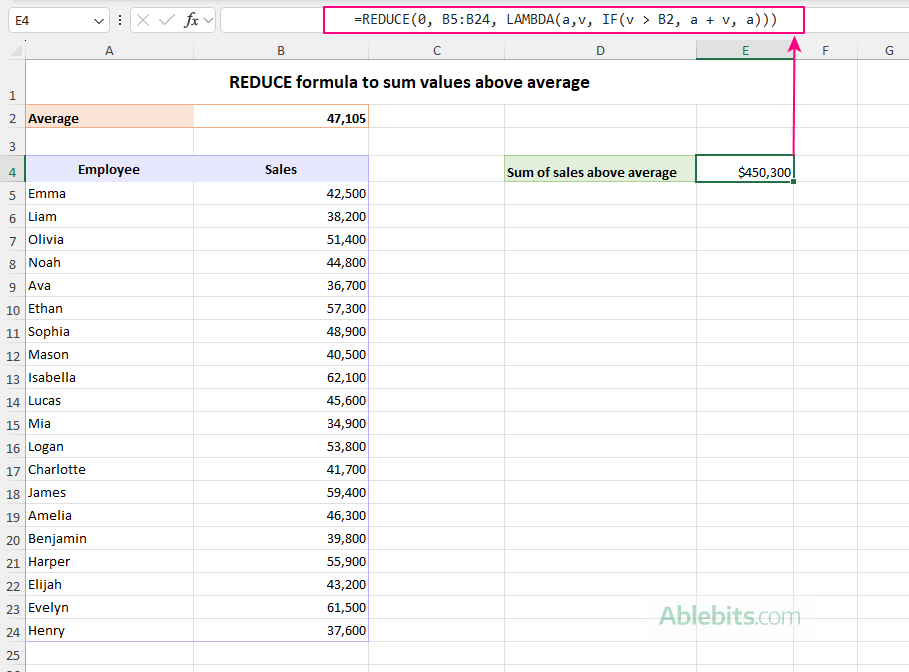
How this formula works
LAMBDA(a, v, IF(v > AVERAGE(B5:B24), a + v, a))v in the range B5:B24, the formula checks whether it is greater than the average sales value.
a + v.a.
How this compares to a SUMIF formula
SUMIF formula:
=SUMIF(B5:B24, ">"&AVERAGE(B5:B24), B5:B24)
=REDUCE(0, A2:A10, LAMBDA(a, v, IF(ISODD(v), a + v, a)))
=REDUCE(0, A2:A10, LAMBDA(a, v, IF(ISEVEN(v), a + v, a)))
Example 2: REDUCE formula to sum values divisible by 5
Like the previous example, this formula sums values that meet a specific condition. This time, the condition is that the quantity must be divisible by a certain number, five in our case.
Suppose a warehouse stores products in cartons that hold exactly 5 units. The inventory manager wants to determine the total number of units that can be shipped as full cartons only, ignoring quantities that would leave a partially filled carton.
The REDUCE formula below checks each quantity using the MOD function and sums only those values that are divisible by 5: Here is the key part of the formula: For each value After all entries have been processed, REDUCE returns the total of all values that are evenly divisible by 5. This calculation cannot be perform with SUMIF because the expression MOD(B5:B24, 5)=0 returns an array of TRUE/FALSE values, which SUMIF cannot use directly as a criteria range. While REDUCE (as well as SUM) can apply the MOD test as part of its logic. In earlier Excel versions, you can use the formula below with the same result:
=REDUCE(0, B5:B24, LAMBDA(a, v, IF(MOD(v, 5)=0, a+v, a))) 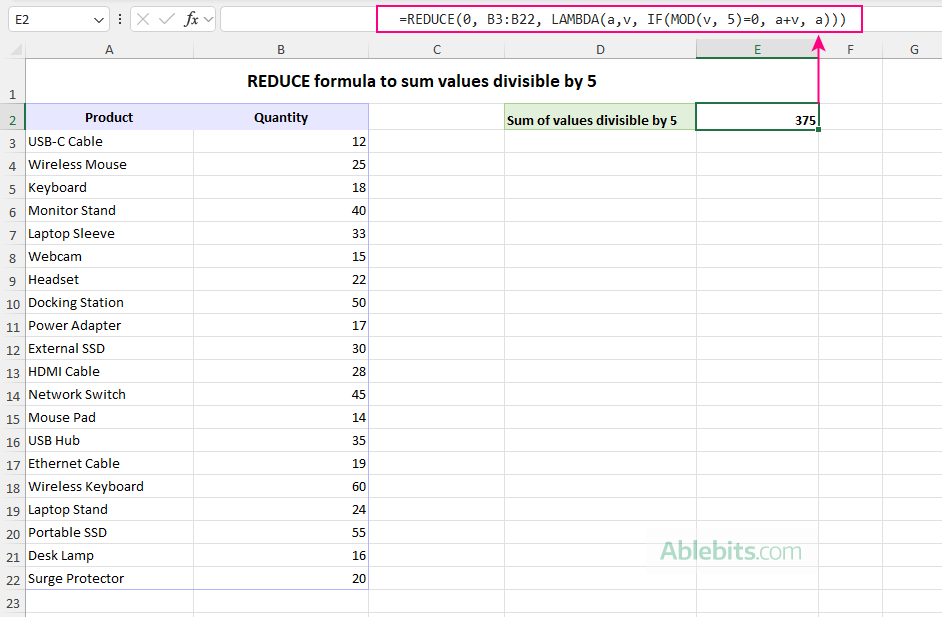
How the formula works
LAMBDA(a, v, IF(MOD(v, 5)=0, a+v, a))v in the range:
MOD(v, 5) returns the remainder after dividing the value by 5.a + v.a.
=SUM(B3:B22*(--MOD(B3:B22,5)=0))
Example 3: REDUCE formula for conditional count
Besides conditional sums, REDUCE can also be used to count values that meet a specific condition. This is particularly useful when the counting logic is more complex than what COUNTIF can easily handle.
Suppose a company stores order information in a compact code format such as Apples-UK-1000/5, where each code contains the product name, destination country, quantity, and the number of shipping cartons. The logistics manager wants to determine how many orders were placed for a particular product.
Assuming the product of interest is specified in E2, you can count its orders with this REDUCE formula:
=REDUCE(0, B3:B22, LAMBDA(a, v, IF(TEXTBEFORE(v, "-")=E2, a + 1, a)))
To make the formula easier to read, you can give more descriptive names to the LAMBDA parameters:
=REDUCE(0, B3:B22, LAMBDA(count, code, IF(TEXTBEFORE(code, "-")=E2, count + 1, count)))
To make the formula a little more compact and the logic a little less obvious :)
=REDUCE(0, B3:B22, LAMBDA(count, code, count+--(TEXTBEFORE(code, "-")=E2))) 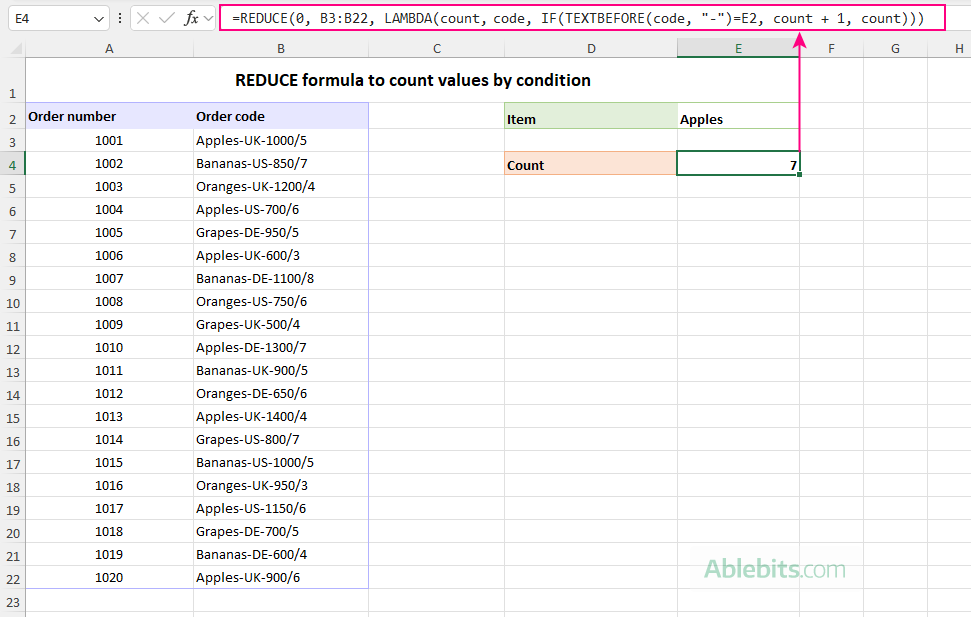
If you need to count several products at once, list their names in separate cells (D3:D6 in our case) and compare each order code against that range: All the formulas count the order codes where the text before the first hyphen equals the item in E2. The counting logic differs slightly between the formulas: The result is a shorter formula that performs exactly the same calculation.
=REDUCE(0, B3:B22, LAMBDA(count, code, IF(TEXTBEFORE(code, "-")=D3:D6, count + 1, count))) 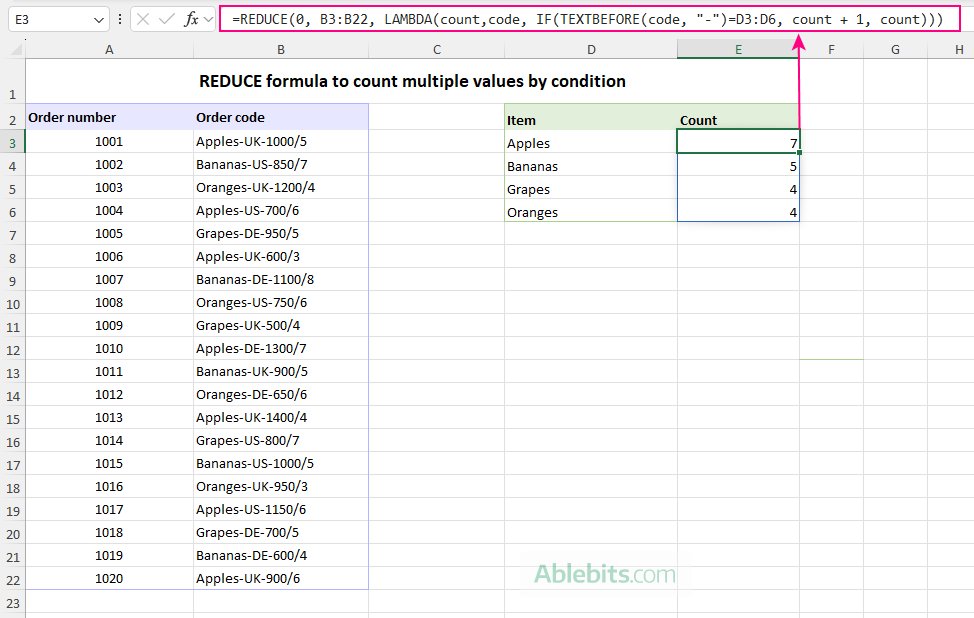
How the formulas work
REDUCE(0, B3:B22, …) starts the count at 0 and checks each order code in the range B3:B22.TEXTBEFORE(code, "-") extracts the portion of the order code that appears before the first hyphen. In Apples-UK-1000/5, everything before the first hyphen is Apples, which is returned as the result.=E2 checks whether the extracted product name matches the item in E2.Formula 1:
IF(TEXTBEFORE(code, "-")=E2, count + 1, count)
count + 1.count.Formula 2:
count + --(TEXTBEFORE(code, "-")=E2)
TEXTBEFORE(code, "-")=E2 returns TRUE or FALSE.-- converts TRUE to 1 and FALSE to 0.count + ….
Example 4: REDUCE formula for conditional count with multiple criteria
Just like COUNTIFS extends COUNTIF, REDUCE can be extended to evaluate multiple conditions.
Building on the previous example, we will now count orders based on both the product name in E2 and destination country in E3.
=REDUCE(0, B3:B22, LAMBDA(count, code, IF(AND(TEXTBEFORE(code, "-")=E2, TEXTBEFORE(TEXTAFTER(code, "-"), "-")=E3), count+1, count)))
The same logic can also be written without IF by converting the result of the AND test to a numeric value: The logic is similar to the previous example. The difference is that each order code is now checked against two conditions instead of one: the product and the country. To get the product name, the formula extracts the text before the first hyphen: To get the country code, the formula uses: This expression extracts the text between the first and second hyphens. Here, TEXTAFTER moves past the first hyphen, while TEXTBEFORE pulls the segment before the next hyphen. The counting logic is then applied in one of two ways. The first formula uses the AND function inside an IF statement: The second formula performs the same test differently: Both formulas return the same result. The choice between them is a matter of personal preference and which style you find easier to read.
=REDUCE(0, B3:B22, LAMBDA(count, code, IF(AND(TEXTBEFORE(code, "-")=E2, TEXTBEFORE(TEXTAFTER(code, "-"), "-")=E3), count+1, count))) 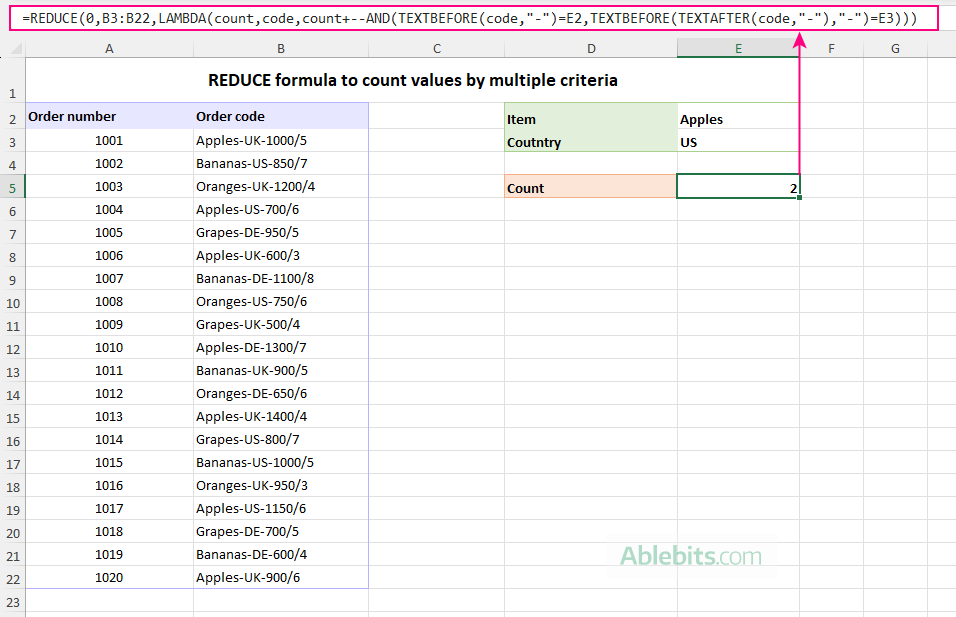
How the formulas work
TEXTBEFORE(code, "-")
TEXTBEFORE(TEXTAFTER(code, "-"), "-")
IF(AND(…), count+1, count)
count + --AND(…) The AND function returns TRUE or FALSE, the double unary operator -- converts that logical value to 1 or 0, and the value is added directly to the accumulator.
Example 5: REDUCE formula to get the longest text string
Although REDUCE is most often used with numbers, it can work with text just as effectively. In this example, we have a list of city and village names in column A, and we want to find the longest name in the list.
The task can be accomplished with this formula:
=REDUCE(, A3:A23, LAMBDA(a, v, IF(LEN(v) > LEN(a), v, a))) The result is the longest text value in the range.
In the screenshot below, cell B3 contains the following formula copied down the column:
=LEN(A3) This formula is not part of the REDUCE calculation. It is included only to display the length of each name to verify that the value returned by REDUCE is indeed the longest one in the list.
Interestingly, the Welsh village name Llanfairpwllgwyngyll returned by the formula is actually a shortened version of its full official name, Llanfairpwllgwyngyllgogerychwyrndrobwllllantysiliogogogoch, which contains 58 characters.
The core logic is: As REDUCE processes each text value in the range: After the last value has been processed, the accumulator contains the longest text string in the range. Notice that the initial_value argument is omitted. In this case, there is no need for a starting value because REDUCE can simply use the first cell in the range as the initial accumulator and begin comparing it with the remaining values.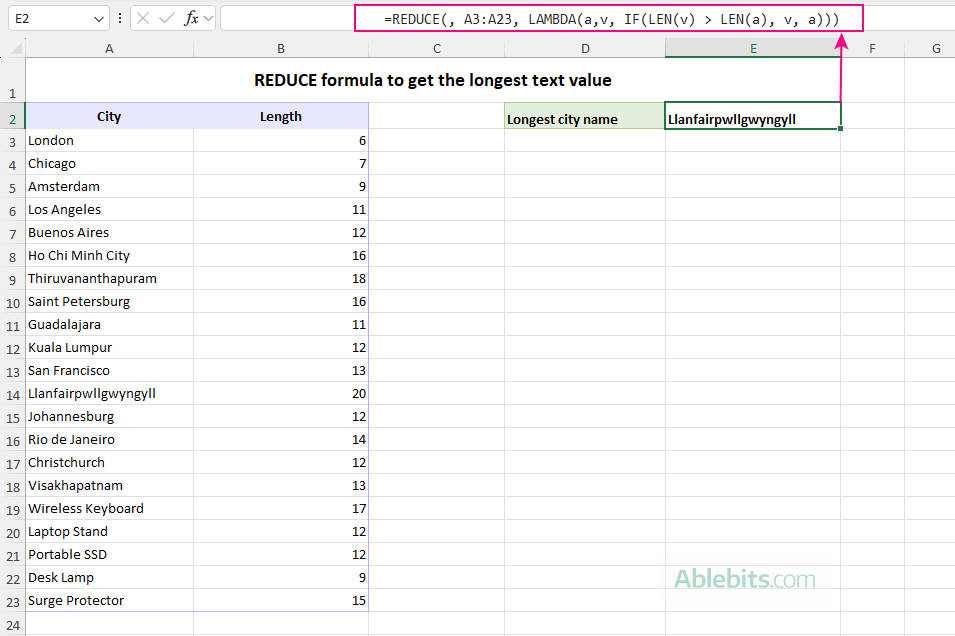
How the formula works
LAMBDA(a, v, IF(LEN(v) > LEN(a), v, a))
a stores the longest name found so far.v represents the current name being evaluated.LEN(v) > LEN(a) compares the lengths of the current name and the one currently stored in the accumulator.
Example 6: REDUCE formula to concatenate text values by condition
The REDUCE function can also be used to build text strings by repeatedly combining values that meet a condition.
Suppose you have a list of events and their host cities in the format Event Name: City. You want to create a comma-separated list of cities for each event type. For example, all cities hosting Art Festival events should be combined into one cell, all Music Festival cities into another, and so on.
Assuming the event names are listed in C3:C6, the following formula returns a separate list of cities for each event: The formula starts with an empty text string ("") as the accumulator and loops through the values in A3:A22, one at a time. To identify the event type, it extracts the text before the colon: To get the city name, it returns the text after the colon and space: The main logic is: After all values have been processed, the accumulator contains a comma-separated list of all cities associated with each event type. Because C3:C6 is an array, the formula returns multiple results at once, one for each event listed in the above range.
=REDUCE("", A3:A22, LAMBDA(a, v, IF(TEXTBEFORE(v,":")=C3:C6, IF(a="", TEXTAFTER(v,": "), a&", "&TEXTAFTER(v, ": ")), a))) 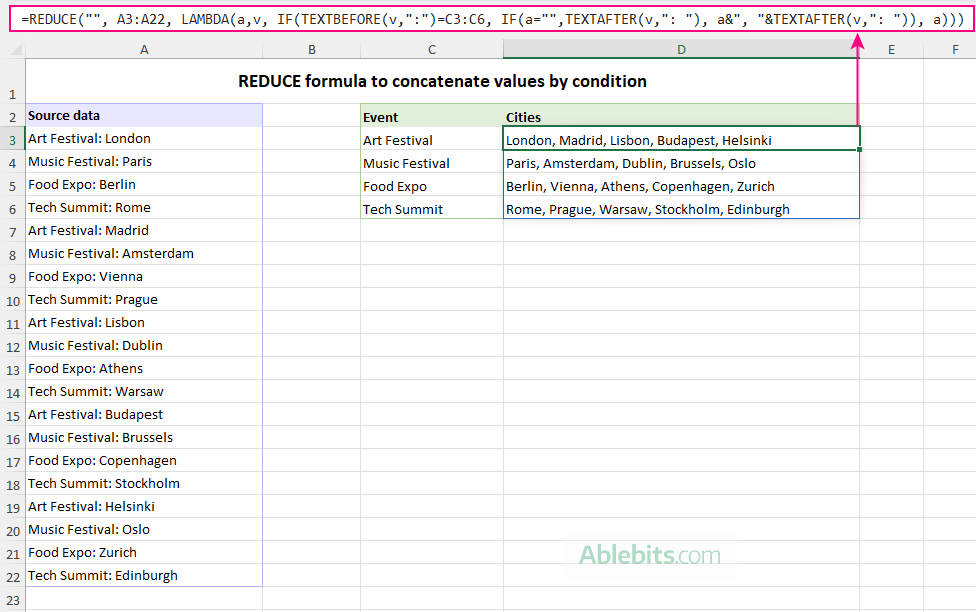
How the formula works
TEXTBEFORE(v, ":")
TEXTAFTER(v, ": ")
IF(TEXTBEFORE(v,":")=C3:C6, IF(a="", TEXTAFTER(v,": "), a&", " & TEXTAFTER(v,": ")), a)
a="", the city is added as the first item in the list: TEXTAFTER(v,": ")a&", "&TEXTAFTER(v,": ")a.
Example 7: REDUCE formula to remove specific characters
Microsoft Excel offers several ways to remove unwanted characters from text. For a small number of replacements, traditional formulas work fine. But as the list of characters grows, they tend to become increasingly complex and less readable.
Imagine you have a list of product codes imported from another system. The codes contain parentheses, hyphens, and slashes, which must be removed before the data can be used for matching, validation, or import into a different application.
Instead of creating a long chain of nested SUBSTITUTE functions, use this elegant formula to remove all characters listed in E3:E6:
=REDUCE(A3:A22, E3:E6, LAMBDA(a, v, SUBSTITUTE(a, v, ""))) 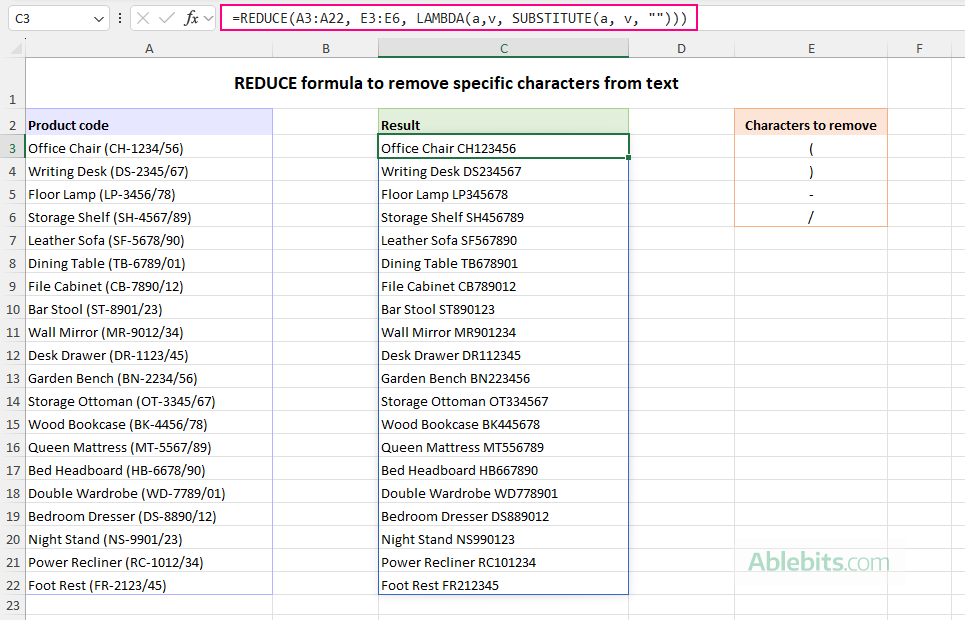
If you expect the list of characters to grow, you can reference a larger range and let TRIMRANGE return only the populated cells:
=REDUCE(A3:A22, TRIMRANGE(E3:E60, 2), LAMBDA(a, v, SUBSTITUTE(a, v, "")))
This way, the formula can accommodate additional characters without requiring any changes to the range reference.
How this formula works
This example uses REDUCE a little differently from the previous ones. Earlier, the values being processed were supplied in the array argument. Here, the roles are reversed: the text values in A3:A22 become the initial_value, while the characters to remove in E3:E6 form the array.
Because the initial_value argument contains multiple text strings, REDUCE applies the same sequence of substitutions to every value in A3:A22. That sequence consists of removing each character entered in E3:E6, one after another, using the following LAMBDA function:
LAMBDA(a, v, SUBSTITUTE(a, v, ""))
Where:
arepresents the current version of the text from A3:A22 after all previous substitutions have been applied.vis the character from E3:E6 currently being removed.SUBSTITUTE(a, v, "")replaces all occurrences of that character with an empty string.
At each step, the output from SUBSTITUTE becomes the input for the next iteration. If a particular character is not found in a text value, SUBSTITUTE simply returns that value unchanged.
This example highlights one of the key strengths of REDUCE: repeatedly applying the same operation while keeping the formula compact and easy to maintain. As your cleanup requirements change, you can simply add or remove characters in column E without modifying the formula itself.
Excel REDUCE function not working
If your REDUCE formula does not work as expected or returns an error, the cause is usually one of the following issues.
#NAME? error
A #NAME error typically means that Excel does not recognize the REDUCE function name. This could happen because:
- The function name is misspelled.
- Your version of Excel does not support REDUCE.
Remember that REDUCE is only available in Excel for Microsoft 365, Excel 2024, and Excel for the web.
#VALUE! error
A #VALUE error with the message "Incorrect Parameters" or "Incorrect Number of Parameters" usually indicates a problem with the LAMBDA function supplied to REDUCE.
Common causes include:
- The LAMBDA function has too few or too many parameters.
- The LAMBDA function does not follow the required syntax.
- The calculation references parameter names that are not defined in the LAMBDA function.
For example, this formula returns an error because the LAMBDA function defines only one parameter instead of the required two:
=REDUCE(0, A1:A10, LAMBDA(v, v+1))
In conclusion: If there's one takeaway from this tutorial, it's that REDUCE is far more versatile than its simple syntax suggests. With a little creativity, it solve problems that would otherwise require several formulas working together. And if anyone asks why your worksheet contains a REDUCE formula, you can simply smile and say, "It's reducing complexity." 🙂
Practice workbook for download
Excel REDUCE formula examples (.xlsx file)