 by
by In this tutorial, you'll learn what the Excel SCAN function does, understand its syntax, and see practical formula examples for common tasks.
Some Excel calculations aren't interested only in the final answer, they need every step in between. The SCAN function is designed specifically for this type of problem. It works through an array one value at a time and returns every intermediate result, making many cumulative calculations surprisingly easy to build.
Excel SCAN function
The SCAN function in Excel applies a custom calculation to each value in an array or range and returns an array containing every intermediate result.
Excel SCAN syntax
The syntax of the SCAN function is as follows:
SCAN([initial_value], array, function)
Where:
- initial_value (optional) - The starting value for the calculation. The default is zero.
- array - The array or range to process.
- function - The built-in Excel function or custom LAMBDA that defines how each value is combined with the accumulated result.
SCAN function availability
SCAN is a dynamic array function available in:
- Excel for Microsoft 365 (Windows and Mac)
- Excel 2024 (Windows and Mac)
- Excel for the web
The function is not backward compatible and not supported in older versions of Excel 2021, Excel 2019, or Excel 2016. If you enter a SCAN formula in an unsupported version, Excel will not recognize the function name and will return a #NAME? error.
How the SCAN function works
The SCAN function has three arguments. The first two are straightforward:
- initial_value – The starting (seed) value used for the first calculation. In simple words, it is the value you want SCAN to begin with before processing the array. For cumulative sums, this is usually 0, so the argument is often omitted. However, if you need the calculation to start from a different value (e.g. an opening balance), supply it here.
- array – The values to process. In most formulas, this is typically a range of cells containing your data.
The third argument, function, defines what happens at each step of the scan. It can be written in two ways: as a full LAMBDA function or as an Eta-reduced lambda.
LAMBDA function (full form)
Most SCAN formulas use a LAMBDA function that specifies how to calculate each value in the array.
The structure looks like this:
LAMBDA(accumulator, value, calculation)
Where:
- accumulator – Stores intermediate results. It starts with the initial_value and keeps changing as SCAN loops through each item in the array.
- value – The current value being processed.
- calculation – The formula that operates on the accumulator (a) and value (v). The result of each calculation becomes the starting point for the next step. All intermediate results (accumulator values) are returned as the final output of SCAN.
For example, to get a running total from three values, the formula is:
=SCAN(0, {10,20,30}, LAMBDA(a, v, a+v))
With the source values in A2:A5, it takes this form:
=SCAN(0, A2:A5, LAMBDA(a, v, a+v))
Eta Lambda (short form)
For some calculations, you can use a shorter syntax by removing the Lambda wrapper and passing the function name directly to the third argument of SCAN.
Using the abbreviated syntax, the previous example can be written as:
=SCAN(0, A2:A4, SUM) This is known as an Eta-reduced lambda. Excel automatically interprets the SUM function as:
LAMBDA(a ,v, SUM(a, v))
As a result, both formulas (with full and eta lambda) return the same results. Internally, Excel performs the following calculations:
1st iteration: 0 + 10 = 10
2nd iteration: 10 + 20 = 30
3rd iteration: 30 + 30 = 60
Because SCAN returns every intermediate accumulator value, all three results are spilled into separate cells.
The image below shows both approaches side by side using a larger dataset:
While the Eta-lambda syntax is concise and convenient, it does not work correctly with every Excel function. It is generally best suited for simple operations such as Functions such as For this reason, the full Usage notes: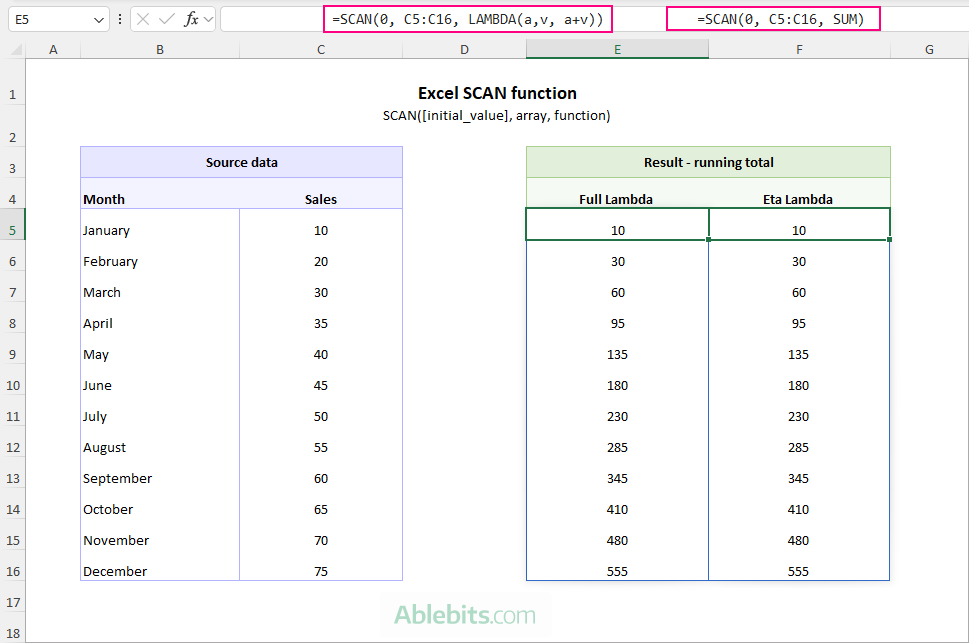
A note about Eta-reduced Lambda
SUM, MAX, MIN and similar functions that naturally accept two arguments.COUNT produce wrong and useless results because they do not process the accumulator and current value in the way SCAN expects.LAMBDA syntax is usually the safer and more flexible choice.
Excel SCAN formula examples
The best way to understand SCAN is to see it in action. So, let's explore some real-world examples that showcase its versatility.
Example 1: SCAN formula for running total and YTD calculations
One of the most common uses of the SCAN function is calculating running totals, also known as cumulative sum. In business reports, these are often referred to as year-to-date (YTD) totals, where each result includes all values up to the current period.
We have already used a cumulative sum to illustrate the inner mechanics of SCAN. Since running totals are by far one of the most practical applications of the function, let's revisit the example and explore it in more detail.
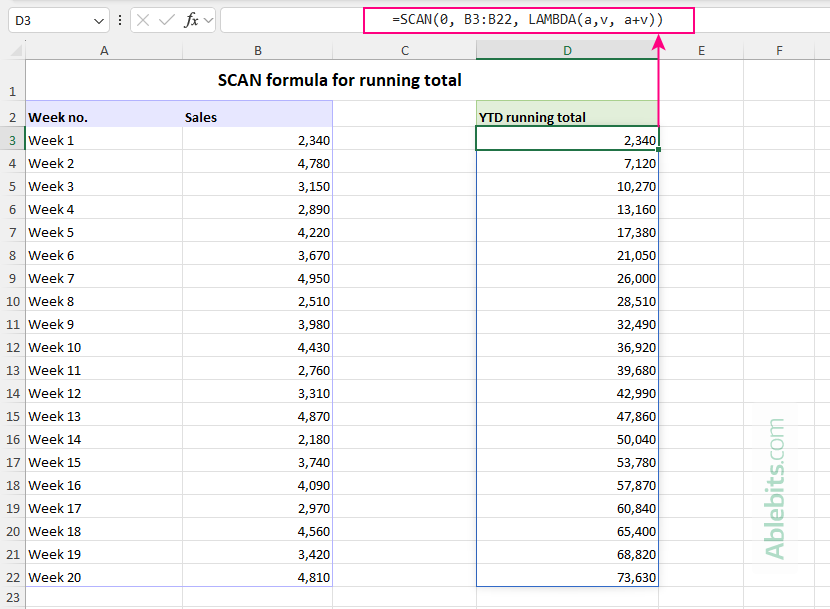
Suppose your weekly sales figures are in B3:B22. To calculate a running total, use either of the following formulas:
Full LAMBDA syntax:
=SCAN(0, B3:B22, LAMBDA(a, v, a+v))
Eta lambda syntax:
=SCAN(0, B3:B22, SUM)
The Eta lambda version is simply a shorthand for:
=SCAN(0, B3:B22, LAMBDA(a, v, SUM(a, v)))
All three formulas return the same result. As SCAN moves through the range, each sales value is added to the accumulated total from the previous step, producing a running sum for the entire dataset.
How this compares to a traditional running total formula:
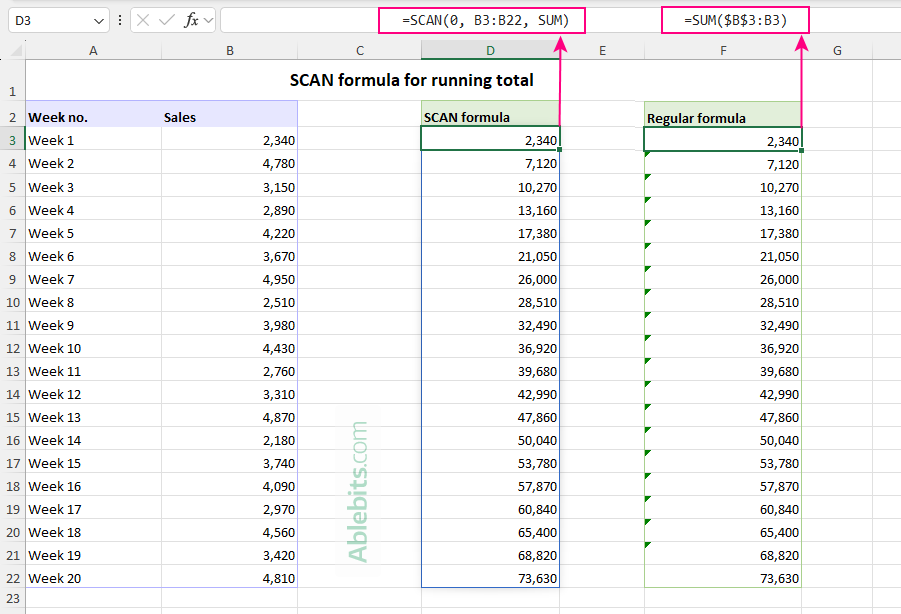
Before SCAN was introduced in Excel 365, running totals were typically calculated with a formula like this:
=SUM($B$3:B3) Entered in the first result cell and copied down, the formula relies on the clever use of cell references:
- An absolute reference ($B$3) always points to the first value.
- A relative reference (B3) expands as the formula is copied down.
The method works correctly, but it is more prone to errors because each row contains a separate formula that can be accidentally changed or deleted.
Another inconvenience is that it triggers green error indicators because Excel treats the expanding ranges as inconsistent formulas that omit adjacent cells.
Tip. Need a separate running total for each product, customer, or department? See How to calculate running total by category where the cumulative sum automatically restarts whenever the category changes.
Example 2: SCAN formula for running balance
Another practical use of SCAN is calculating a running balance. Unlike a running total, which typically starts from zero, a running balance begins with an existing amount and then applies each transaction in sequence.
Suppose your account transactions are listed in C5:C29, where deposits are positive numbers and withdrawals are negative numbers.
If the opening balance is $1,000, you can calculate a running balance using this formula:
=SCAN(1000, C5:C24, LAMBDA(a, v, a+v))
A more flexible approach is to store the opening balance in a separate cell, for example B2:
=SCAN(B2, C5:C24, LAMBDA(a, v, a+v))
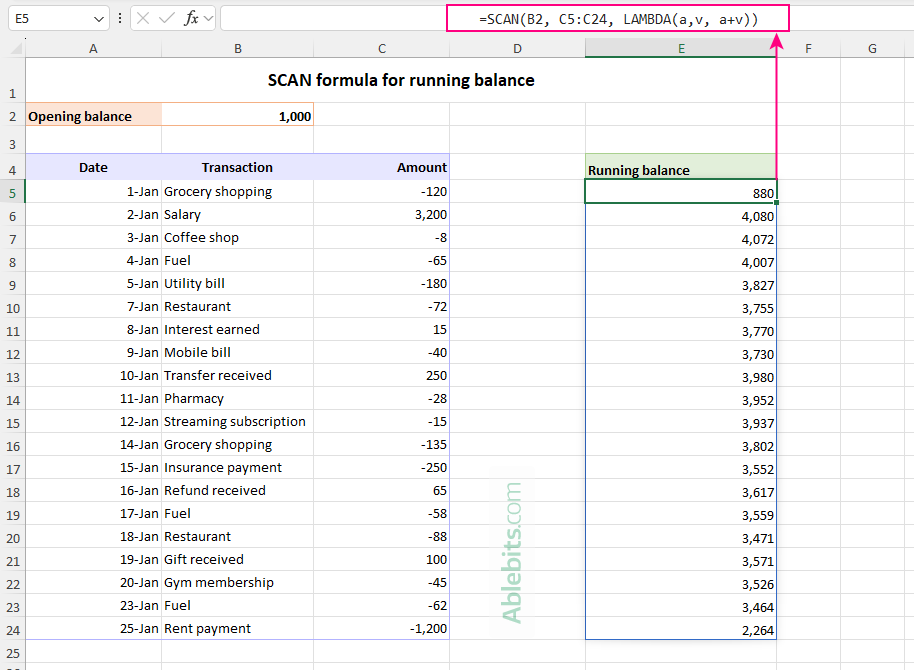
Just like the running total formula in the previous example, SCAN processes each value one at a time and adds it to the accumulated result. The difference is that the calculation starts with the opening balance provided in the first argument rather than with zero.
Example 3: SCAN formula for running maximum and minimum values
Besides cumulative calculations, SCAN can also be used to track the highest or lowest value encountered so far in a dataset. This can be useful for monitoring peak sales, record temperatures, account highs and lows, and similar metrics.
Running maximum
To calculate a running maximum, use SCAN with the MAX function.
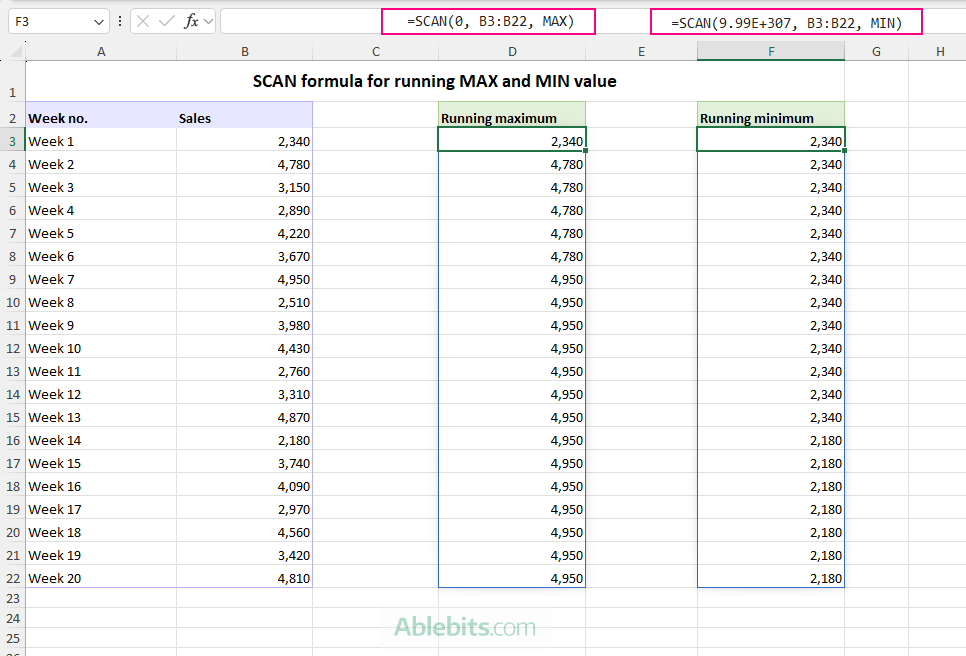
With the source values in B3:B22, the formula is:
=SCAN(0, B3:B22, MAX)
In this case, the abbreviated eta lambda syntax works perfectly because the MAX function naturally compares two values: the accumulator and the current item from the array.
The equivalent long-form formula is:
=SCAN(0, B3:B22, LAMBDA(a, v, MAX(a, v))) In the formula above, the initial_value is set to 0 because all values in column B are positive. As a result, the first value encountered automatically becomes the running maximum.
If your source data may contain negative values, using 0 as the starting value could produce incorrect results. In that case, use a starting value that is less than or equal to the smallest value in the range:
=SCAN(MIN(B3:B22), B3:B22, MAX)
Alternatively, you can start with the smallest number Excel can represent:
=SCAN(-9.99E+307, B3:B22, MAX)
Running minimum
To find the lowest value reached at each step, use the MIN function:
=SCAN(MAX(B3:B22), B3:B22, MIN)
The equivalent full Lambda version is:
=SCAN(MAX(B3:B22), B3:B22, LAMBDA(a, v, MIN(a, v)))
Unlike the running maximum example, using 0 as the initial value is not appropriate here. Since zero is often smaller than all values in the range, the running minimum would remain 0 throughout the entire calculation.
To avoid this, start with a value that is greater than or equal to the largest value in the dataset. Alternatively, you can use the largest number Excel can represent:
=SCAN(9.99E+307, B3:B22, MIN)
As shown below, the running maximum changes only when a new high value is encountered, while the running minimum changes only when a new low value appears.
Example 4: SCAN formula to create cumulative text strings
Although SCAN is most often used with numbers, it can work with text just as well. By combining each value with the accumulated result, you can build a text string progressively, one value at a time.
When working with text, remember to set the initial_value argument to an empty string ("").
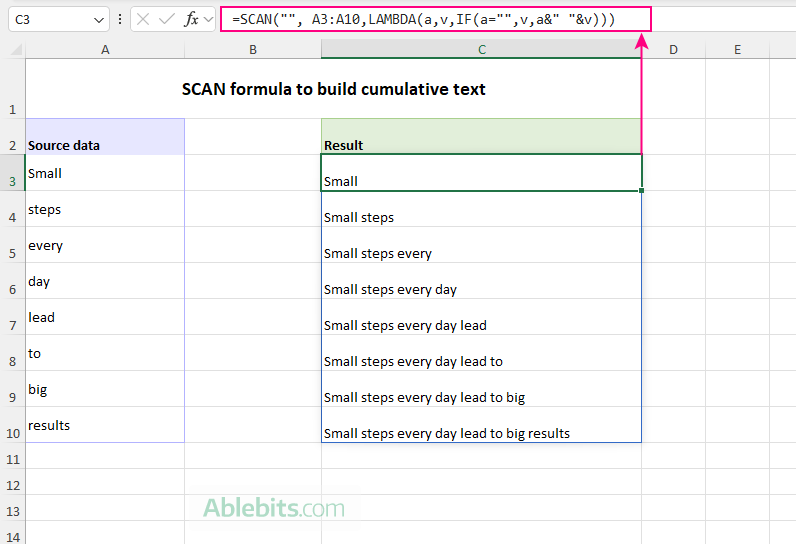
Suppose each word of a sentence is stored in a separate cell in A3:A10. To combine the words into a growing text string, use this formula:
=SCAN("", A3:A10, LAMBDA(a, v, a & " " & v))
The formula works as follows:
a- contains the accumulated text from previous iterations.v- contains the current word.a & " " & v- appends the current word to the existing text, separating the words with a space.
While this formula combines the text correctly, it also adds a leading space to the first result because the accumulator starts as an empty string.
To avoid this, you can wrap the entire SCAN formula in the TRIM function:
=TRIM(SCAN("", A3:A10, LAMBDA(a,v, a & " " & v)))
Or add an IF statement to LAMBDA that handles the first word differently:
=SCAN("", A3:A10, LAMBDA(a, v, IF(a = "", v, a & " " & v)))
The formula works this way:
- If the accumulator is empty, return the current word as is.
- Otherwise, append the current word to the accumulated text with a space in between.
The result is a cumulative text string that grows with each iteration.
Example 5: SCAN formula for cumulative percentage growth
Another interesting use of SCAN is calculating cumulative growth. Instead of simply adding percentages together, SCAN compounds each growth rate on top of the previous result, just as growth occurs in real life.
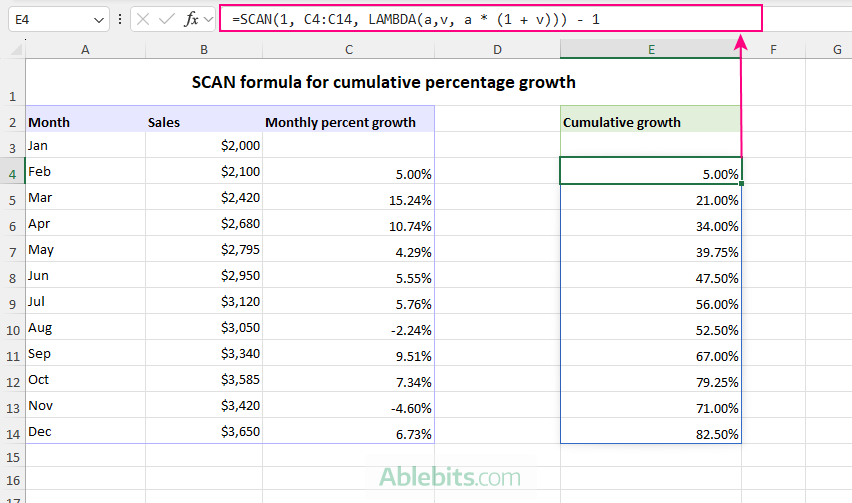
In this example, monthly sales figures are listed in B3:B14. The month-over-month growth rates in C4:C14 are calculated using the traditional percent change formula entered in C4 and copied down:
=(B4 - B3) / B3
This formula compares each month's sales with the previous month's data, producing both positive and negative growth rates. For example, February sales are 5% higher than January, while August sales are 2.24% lower than July.
Calculate cumulative growth percentages
To calculate the cumulative growth relative to the starting month, enter this formula in E4:
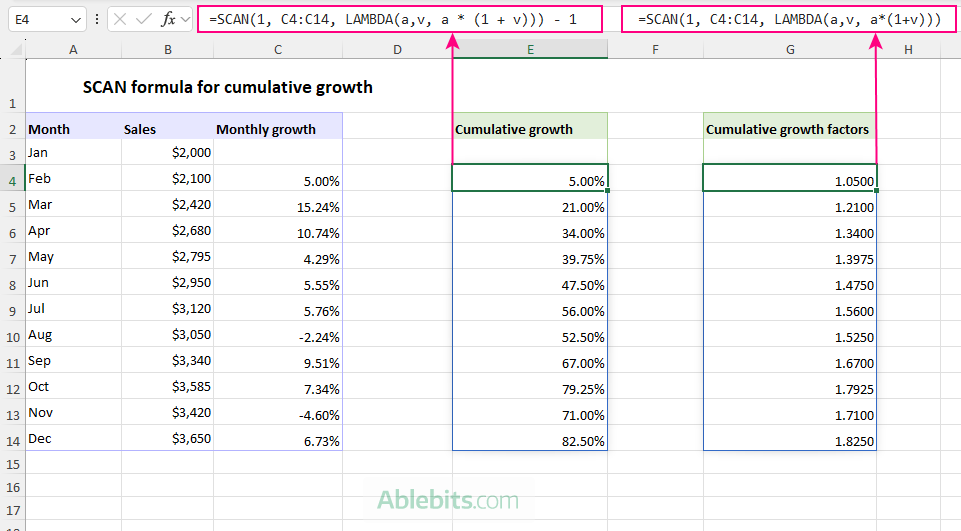
=SCAN(1, C4:C14, LAMBDA(a, v, a * (1 + v))) - 1
Here's how it works:
1represents the starting value, or 100% of the original amount.vis the current month's growth rate.1 + vconverts the growth rate into a multiplier, e.g. 5% to 1.05; 10% to 1.10, -2.24% to 0.9776, etc.a * (1 + v)applies the current month's growth to the cumulative result from the previous step.- Subtracting 1 converts the final growth factors back into percentages.
To make the logic easier to visualize, you can write the formula like this:
=SCAN(100%, C4:C14, LAMBDA(a, v, a * (100% + v))) - 100%
This version returns exactly the same results.
Notice that the cumulative percentages in column E match the growth of each month's sales compared with the starting value in B3. For example, February sales increased from $2,000 to $2,100, which corresponds to a cumulative growth of 5%.
In earlier Excel versions, you could calculate the same cumulative growth using the classic percent change formula that compares each sales figure with the first month's sales in B3:
=(B4 - $B$3) / $B$3
The difference is that SCAN derives the cumulative growth directly from the monthly growth rates rather than from the original sales values.
Calculate cumulative growth factors
You can also return the underlying growth factors instead of percentages:
=SCAN(1, C4:C14, LAMBDA(a, v, a * (1 + v)))
This formula uses the same compounding logic but does not subtract 1 at the end. As a result, the returned values are growth factors rather than growth percentages.
For example, a factor of 1.05 means the value has grown to 105% of its starting amount.
A practical way to interpret these numbers is to multiply them by the starting sales value. Since January sales are $2,000, the December factor of 1.825 corresponds to:
$2,000 x 1.825 = $3,650
which matches the December sales figure in the source data.
As shown in the image, the cumulative growth percentages in column E and the growth factors in column G represent the same information in different formats – the first one as percentages and the other as multipliers.
Example 6: SCAN formula for running counts
The SCAN function can also be used for calculating running counts. The formula depends on what exactly you want to count: non-empty cells, text values, numbers, blanks, errors, or values that meet a specific condition.
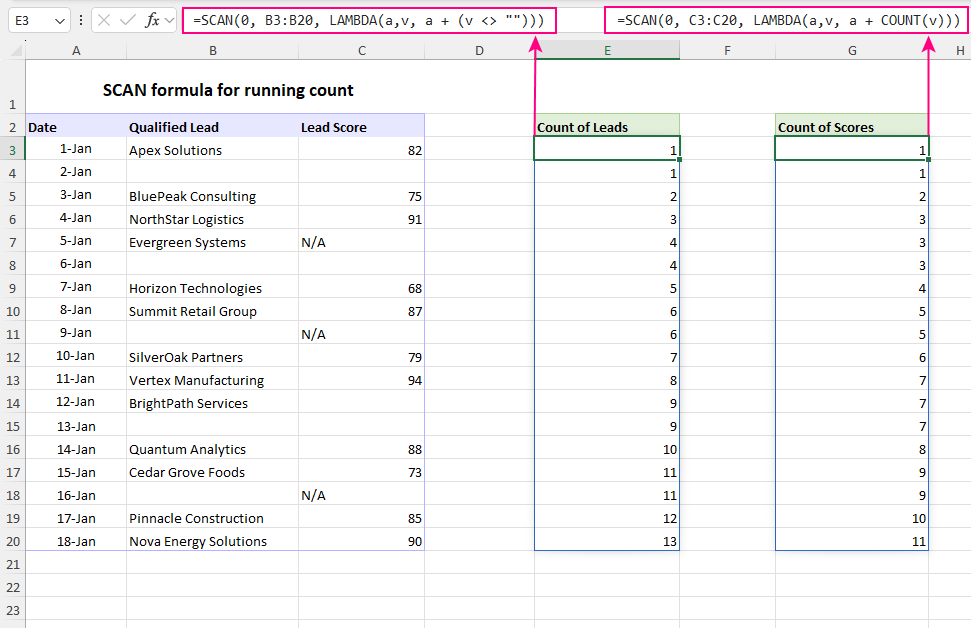
In this example, we have a list of qualified sales leads in column B and lead scores in column C. Some cells are blank, and some scores contain text values such as N/A.
To count non-blank lead names in column B, use:
=SCAN(0, B3:B20, LAMBDA(a, v, a + (v <> "")))
Since column B contains text values only, you can also count text entries with:
=SCAN(0, B3:B20, LAMBDA(a, v, a + ISTEXT(v)))
To create a running count of numbers in column C, use either COUNT or ISNUMBER function:
=SCAN(0, C3:C20, LAMBDA(a, v, a + COUNT(v))) =SCAN(0, C3:C20, LAMBDA(a, v, a + ISNUMBER(v)))
In each formula, the count increases only when the current value meets the condition. If the cell is blank or contains a value that should not be counted, SCAN returns the accumulator unchanged.
How these formulas work:
All of these formulas follow the same pattern:
SCAN(0, range, LAMBDA(a, v, a + test))
Here, SCAN maintains a running count in the accumulator a while evaluating each cell v in turn. And test is a function or expression that returns 1 when the current value should be counted and 0 when it should not. As SCAN iterates through the range, it adds the result of the test to the accumulator. If the current value meets the specified condition, the count increases by 1; otherwise, it remains unchanged. SCAN then returns every intermediate count, producing a cumulative total of matching values.
Why Eta Lamda won't work for running counts:
In this case, the full LAMBDA syntax is required. You cannot shorten the formula like this:
=SCAN(0, C3:C20, COUNT)
Instead of a running count, it would return only 1's and 2's. Here's why:
SCAN passes two values to COUNT: the accumulator a and the current value v. At each iteration, COUNT simply determines how many of those two values are numeric. Because the initial value is 0, the accumulator is always a number. Therefore:
- If the current value is also a number,
COUNTreceives two numeric values and returns 2. - If the current value is text or blank,
COUNTreceives only one numeric value (the accumulator) and returns 1.
As a result, COUNT never produces a cumulative total. It only reports whether one or both of the values passed to it are numeric. To create a running count, you need the full LAMBDA syntax that adds the result of each step to the existing accumulator value.
In a similar manner, you can use other functions inside SCAN, e.g. COUNTBLANK to count empty cells or ISERROR to count errors.
Tip. You can also use SCAN to create running counts within categories, where the count resets automatically for each group.
Example 7: SCAN formula to count occurrences by category
Unlike the earlier examples that accumulated all values in a range, this one focuses on tracking repeated categories.
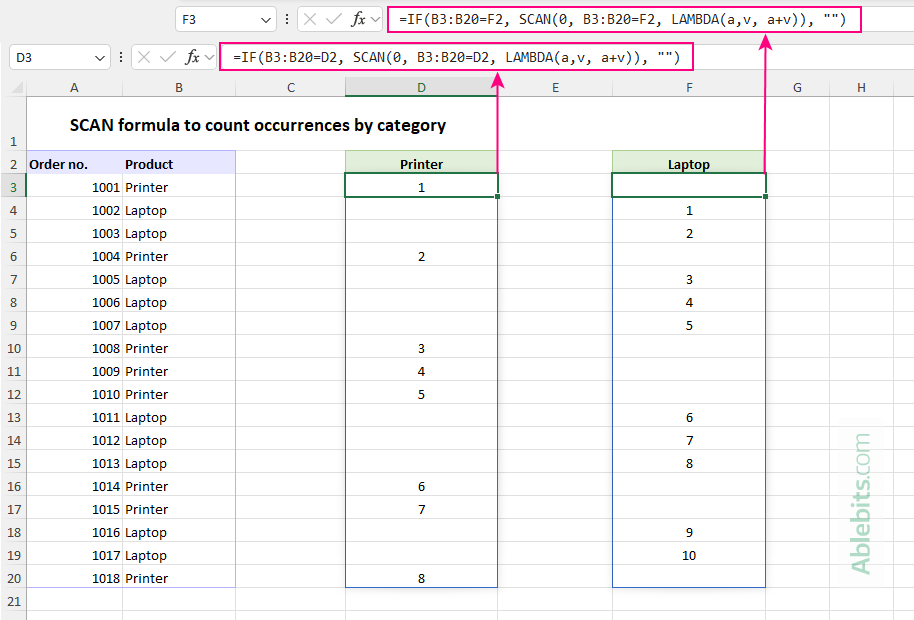
Suppose your dataset contains multiple occurrences of the same item in column B. The goal is to count how many times each product has appeared so far.
For Printers, the formula in D3 is:
=IF(B3:B20=D2, SCAN(0, B3:B20=D2, LAMBDA(a, v, a + v)), "")
For Laptops, the formula in F3 is:
=IF(B3:B20=F2, SCAN(0, B3:B20=F2, LAMBDA(a, v, a + v)), "")
Notice that each formula refers to the category name in the column header (D2 for printers and F2 for laptops). This makes it easy to adapt the formula for any category by simply changing the header value.
How the formula works:
The expression B3:B20=D2 checks whether each product matches the item name in the column header and returns an array of TRUE and FALSE values.
SCAN then creates a running count of those matches:
SCAN(0, B3:B20=D2, LAMBDA(a, v, a + v))
Because Excel treats TRUE as 1 and FALSE as 0, the count increases each time the specified product is encountered.
Finally, the outer IF function displays the count only for matching rows and leaves all other rows blank. As a result, each occurrence of the selected product is numbered sequentially, even when the data is not sorted by category.
Example 9: Expandable SCAN formula
Finally, here's something very simple but incredibly useful!
Real-world worksheets are rarely static. New records are added, old ones are removed, and formulas need to adapt to the changes. One of the strengths of SCAN is that it works naturally with dynamic arrays, adjusting its output to match the size of the source data.
In practice, this means you don't need to modify the formula whenever new rows are added or existing rows are deleted. Simply provide SCAN with a dynamic range.
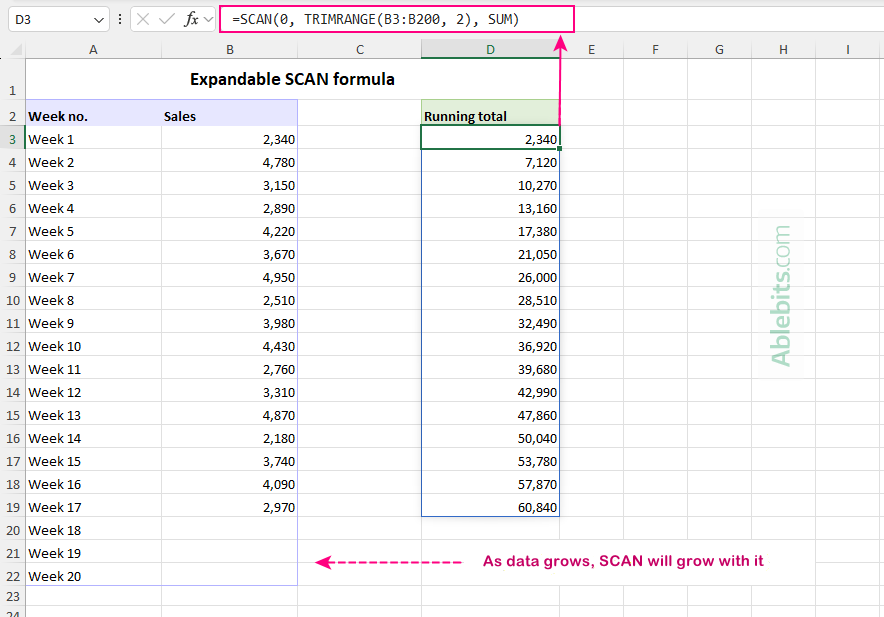
In this example, sales figures currently occupy B3:B19, but we intentionally reference a much larger range, B3:B200, to allow for future growth:
=SCAN(0, TRIMRANGE(B3:B200, 2), SUM)
The TRIMRANGE function removes empty cells from the specified range, returning only the cells that contain data. SCAN then calculates the running total for the resulting array. The second argument (trim_rows) is set to 2 to trim only trailing blank rows
As a result, the formula automatically expands when new sales figures are added and contracts when rows are removed. There is no need to adjust the range reference, copy formulas, or update spill ranges manually.
This approach is particularly useful for dashboards, reports, and data-entry sheets where the number of records changes frequently.
Now that you've seen SCAN in action, you have a powerful new way to handle cumulative calculations in Excel. Start with simple running totals today, and before long, you may find yourself replacing multiple helper columns with a single elegant dynamic formula. 😊
Practice workbook for download
Excel SCAN formula examples (.xlsx file)