 by
by Learn how to use the REGEXTEST function in Excel to test whether text matches a specific regex pattern. This tutorial covers syntax, practical formula examples, case-sensitive and case-insensitive matching, and custom validation messages.
Checking whether a text string matches a specific format in Excel can sometimes require multiple nested functions and complicated logic. REGEXTEST simplifies this process by using regular expressions to test patterns directly. This makes it much easier to validate things like emails, phone numbers, IDs, and other structured text.
Excel REGEXTEST function
The REGEXTEST function in Excel checks whether text matches a specific pattern using regular expressions.
The result of the REGEXTEST function is a logical value:
- TRUE if the text matches the regex.
- FALSE if the text does not match the pattern.
In earlier Excel versions, you could perform basic if cell contains checks using the FIND or SEARCH function. However, those are mostly limited to elementary text searches.
REGEXTEST is much more flexible because it lets you define a matching pattern using the full power of regular expressions. For example, you can use REGEXTEST to check whether a cell contains a valid email address, phone number, date, postal code, product ID, password, etc. In general, regex can be configured to test any alphanumeric string that has an identifiable pattern.
REGEXTEST syntax
The syntax of REGEXTEST is as follows:
REGEXTEST(text, pattern, [case_sensitivity])
Where:
- text - The text value you want to evaluate.
- pattern - The regular expression to test against.
- case_sensitivity [optional] - Controls case matching.
- 0 or omitted (default) - case-sensitive
- 1 - case-insensitive
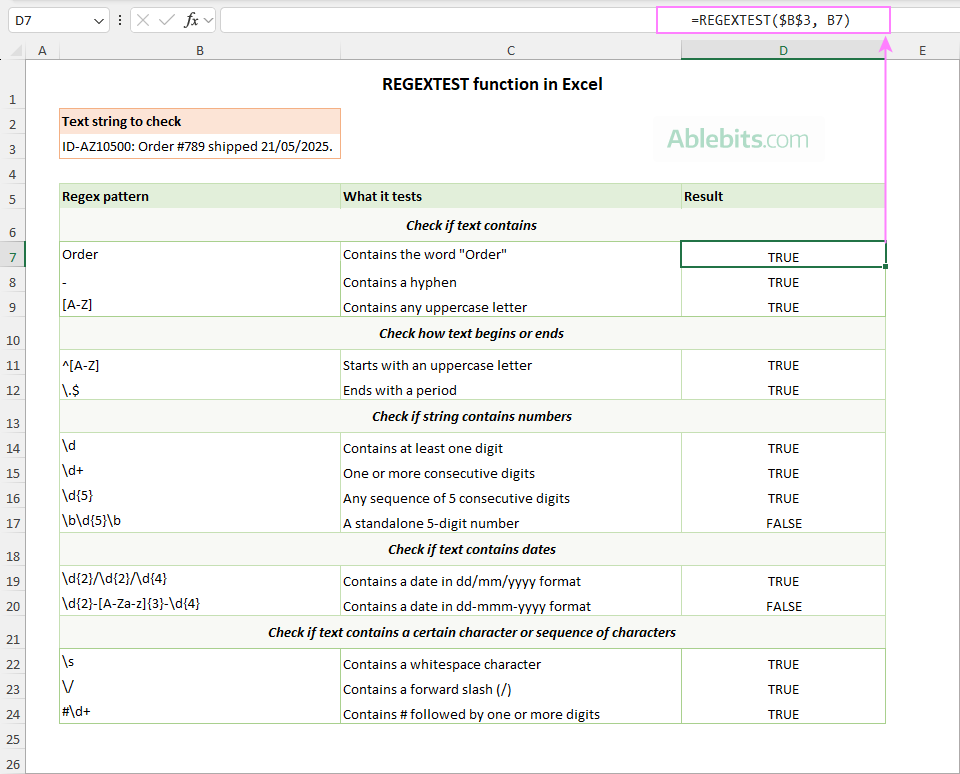
The image below demonstrates how the Excel REGEXTEST function works with different regexes to identify specific text, numbers, dates, character types, and other patterns.
REGEXTEST availability
REGEXTEST is only available in Excel for Microsoft 365 (Windows and Mac) and Excel for the web. It is not backward compatible and not supported in older versions.
Tip. In Excel 2024, 2021, 2019, 2016, and earlier, you can still check whether data matches a specific regex pattern by using a custom Regex MATCH function or the Regex Tools.
How to use REGEXTEST in Excel
To use REGEXTEST in your Excel worksheets, you mainly need one thing — a valid regex pattern.
Let's start with a few simple examples to understand how the function works and how different regular expressions affect the result.
The sample dataset below uses REGEXTEST in its basic form to test the same text string in cell B3 using 15 different patterns. In each formula, the regex comes from column B, starting in row 6.
The formula in cell D6, copied down through D20, is:
=REGEXTEST($B$3, B6) Notice that we lock the reference to the original text string with an absolute reference ($B$3) for the formula to always test the same source text. While the relative reference to the regex pattern (B6) changes as the formula is copied down.
If needed, you can also supply a regex directly in the formula. For example, this one checks whether the text string in B3 contains any 5 consecutive digits:
=REGEXTEST(B3, "\d{5}")
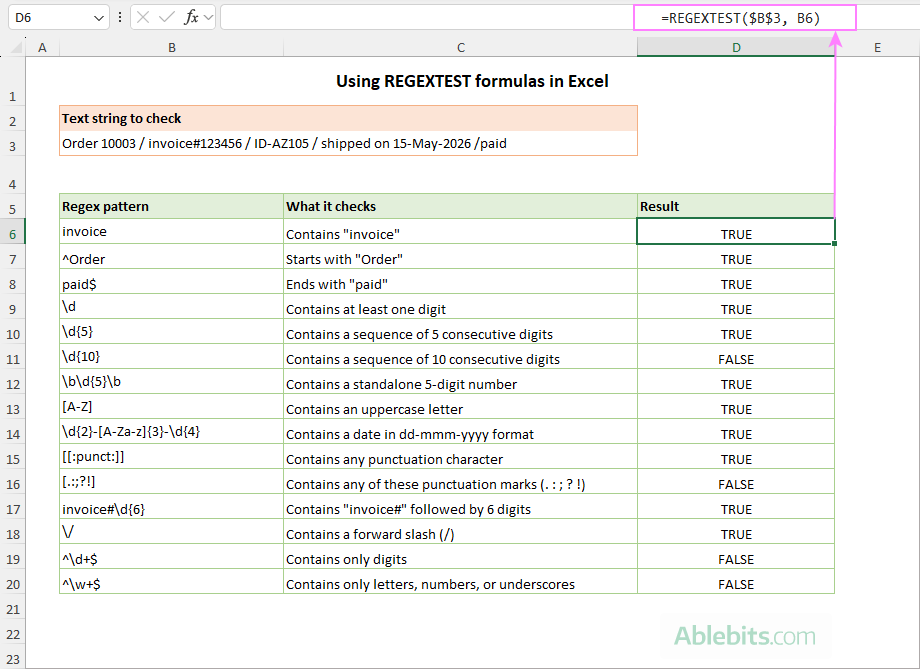
Now, let's briefly review each regex pattern from the above example.
| Regex pattern | Explanation |
|---|---|
| invoice | Looks for the literal text "invoice" anywhere in the source string. REGEXTEST returns TRUE because the text contains the word "invoice". Notice that the formula is case-sensitive because the optional case_sensitivity argument is omitted, so the default behavior applies. If B3 contained "Invoice" or "INVOICE" instead, the formula would return FALSE. |
| ^Order | Checks whether the text starts with "Order". The caret ^ is an anchor that matches the beginning of a text string. |
| paid$ | Matches text that ends with "paid". The dollar sign $ is an anchor representing the end of a text string. |
| \d | Searches for any digit anywhere in the text. In many regex flavors, including Excel, \d is simply a shorthand version of [0-9], so either will work the same way. |
| \d{5} | Looks for 5 consecutive digits. The number in curly braces {5} specifies an exact quantity. If the source string contains a 6-digit or longer number, the formula will also return TRUE because the pattern matches any 5-digit portion within a larger number. |
| \b\d{5}\b | Attempts to find a standalone 5-digit number. The word boundaries \b prevent the match from being part of a larger number. Because no such number exists in the source string, the result is FALSE. |
| [A-Z] | Searches for at least one uppercase letter. Square brackets define a character class, and the range A-Z matches any uppercase letter from A through Z. |
| \d{2}-[A-Za-z]{3}-\d{4} | Checks if the source text contains a date in the dd-mmm-yyyy format. The result is TRUE because 15-May-2026 matches the pattern exactly. |
| [[:punct:]] | This POSIX character class matches any punctuation character, including symbols such as . , : ; ! ? # / - $ %. In other words, any printable character that is not a letter, digit, or whitespace character. As an alternative, you can use [^\w\s], which produces a similar result. |
| [.;?!] | Searches for any of these punctuation marks: . ; ? !. Since none of these symbols appear in the source string, the result is FALSE. |
| \s | Matches any whitespace character, including spaces and tabs. Because the source text contains spaces, the formula returns TRUE. |
| invoice#\d{6} | Looks for the text "invoice#" immediately followed by exactly 6 digits. The pattern successfully matches "invoice#123456", so the result is TRUE. |
| \/ | Matches a forward slash (/). The forward slash is escaped with a backslash, so Excel treats it as a literal character instead of part of the regex syntax. |
| ^\d+$ | Requires the entire text string to contain only digits. The anchors ^ and $ force the whole string to match the pattern, while \d+ allows one or more digits. Because the source string also contains letters, spaces, and special characters, the result is FALSE. |
| ^\w+$ | Requires the entire text string to contain only letters, numbers, or underscores. Since the source text contains a few other symbols, the formula returns FALSE. |
Excel REGEXTEST formula examples
With the basic concepts covered, let's explore some practical REGEXTEST examples that can help with data validation and pattern-matching tasks in your real worksheets.
Tip. The examples below assume you're familiar with basic regular expressions. If not, our Regex cheat sheet provides a quick introduction to the most common patterns, metacharacters, and syntax rules.
Example 1. REGEXTEST formula to validate phone numbers
Suppose you have a list of text strings that contain phone numbers in different positions within the string. Your goal is to identify entries that include a phone number in a specific format such as (555) 123-4567.
To do this, you can use REGEXTEST to verify whether the text matches the required telephone number pattern.
With the source text in A6, the formula is:
=REGEXTEST(A6, "\(\d{3}\)\s\d{3}-\d{4}")
In actual worksheets, it is often more convenient to store the regex in a dedicated cell and reference that cell in your formulas. This makes the pattern easier to update and reuse throughout the workbook.
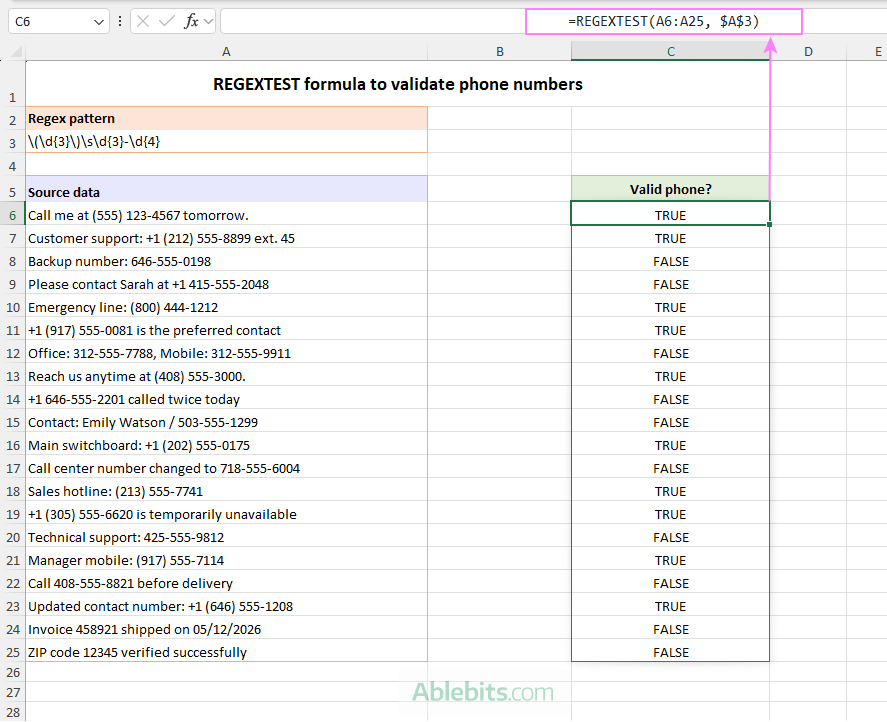
For example, in the image below, the regex pattern is stored in A3, and the formula becomes:
=REGEXTEST(A6, $A$3) Instead of copying the formula down, you can write it once for the entire range as REGEXTEST supports dynamic arrays natively. For example:
=REGEXTEST(A6:A25, $A$3)
How this formula works
Pattern: \(\d{3}\)\s\d{3}-\d{4}
This regex matches phone numbers in the format (555) 123-4567.
Pattern breakdown:
\(matches the opening parenthesis. The backslash escapes the special meaning of the parenthesis so it is treated as a literal character rather than a regex operator.\d{3}matches exactly 3 digits for the area code.\)matches the closing parenthesis. Here again, the backslash escapes the parenthesis so it is interpreted as a regular character.\smatches a space character.\d{3}matches the next 3 digits.-matches the hyphen.\d{4}matches the final 4 digits.
Notice that we do not use the anchors ^ and $ in this example. As a result, the formula can locate matching phone numbers anywhere inside the text string.
That is also why the formula works for entries that include the country code or extensions before or after the phone number. As long as the required format appears somewhere in the string, REGEXTEST returns TRUE.
Example 2. REGEXTEST formula to check alternatives (OR Logic)
One common challenge when working with regex is testing multiple possible matches within the same pattern.
To match one pattern or another, group the alternatives within parentheses and separate them with the pipe symbol (|), which works as a logical OR operator in regular expressions.
For example, to check whether cell A6 contains either "invoice", "receipt", or "bill", use this formula:
=REGEXTEST(A6, "invoice|receipt|bill") The formula returns TRUE if any of the three words appears anywhere in the source text.
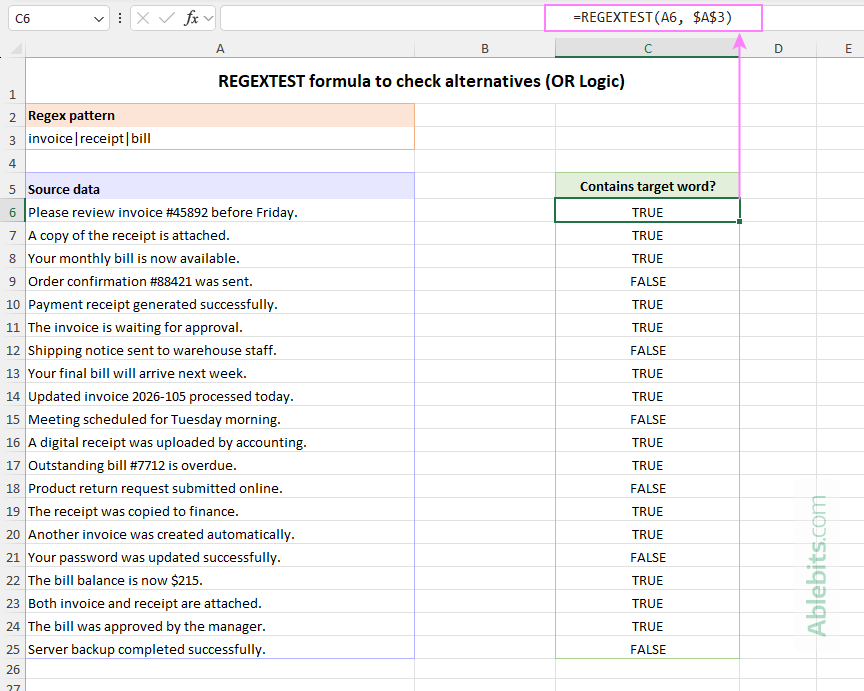
Note. In this example, the pattern matches lowercase words only. If your source data may contain different capitalization, use the optional third argument to make the formula case-insensitive as shown in this example.
Example 3. REGEXTEST formula to detect disallowed characters
Another frequent validation task is identifying characters you do not want to allow. This can be solved using the caret character ^ inside a character class.
In regular expressions, the caret has different meanings depending on where it is used in a regex pattern:
- Outside square brackets,
^is an anchor that matches the beginning of a string. - Inside square brackets,
[^…]means "NOT" or "any character except".
For example, suppose you have a list of product names that should contain only letters, numbers, and spaces. Any other characters, such as #, @, %, or /, are considered invalid and need correction.
The following formula checks whether the text in A6 contains any disallowed characters:
=REGEXTEST(A6, "[^A-Za-z0-9 ]") As a result, the formula returns TRUE for entries that contain special characters or symbols outside the allowed set.
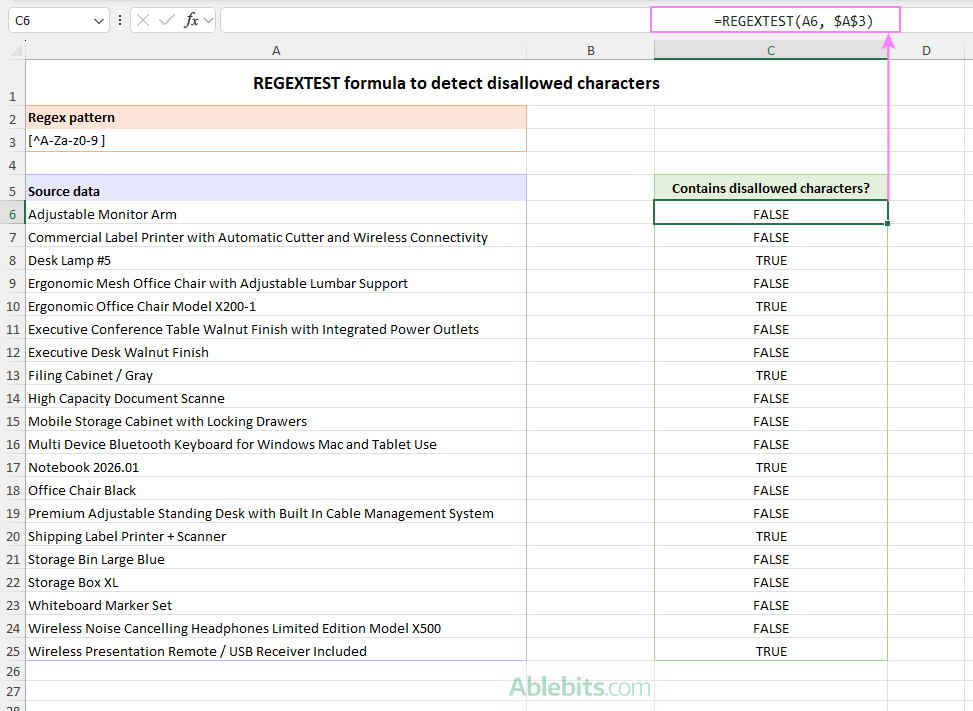
How this formula works
Pattern: [^A-Za-z0-9 ]
Pattern breakdown:
[^…]means "any character except".A-Zallows uppercase letters.a-zallows lowercase letters.0-9allows digits.- The
space character(before the closing bracket) allows regular spaces.
Any character not included in this set causes the formula to return TRUE.
Example 4. REGEXTEST case-insensitive matching
By default, the REGEXTEST function in Excel is case-sensitive. This means "invoice" and "Invoice" are treated as different text values.
To make the test case-insensitive, set the optional third argument to 1. For example:
=REGEXTEST(A2, "invoice", 1)
Now the formula matches "invoice", "INVOICE", "Invoice", and other capitalization variations.
Alternatively, you can use the inline regex modifier (?i) to make the pattern case-insensitive within the regex itself. In this case, the optional case_sensitivity argument is not needed, so the formula only requires the first two arguments:
=REGEXTEST(A2, "(?i)invoice")
And now let's see how this works with real-world data.
In the dataset from the previous example where we tested alternatives, suppose some entries begin with capitalized words such as "Invoice" or "Receipt", while others use ALL CAPS like "BILL" to make things look extra important :)
To match all target words regardless of letter case, use either of these formulas:
=REGEXTEST(A4:A23, "invoice|receipt|bill", 1) or =REGEXTEST(A4:A23, "(?i)invoice|receipt|bill") Both formulas correctly match entries containing "invoice", "RECEIPT", "Bill", and other capitalization variations.
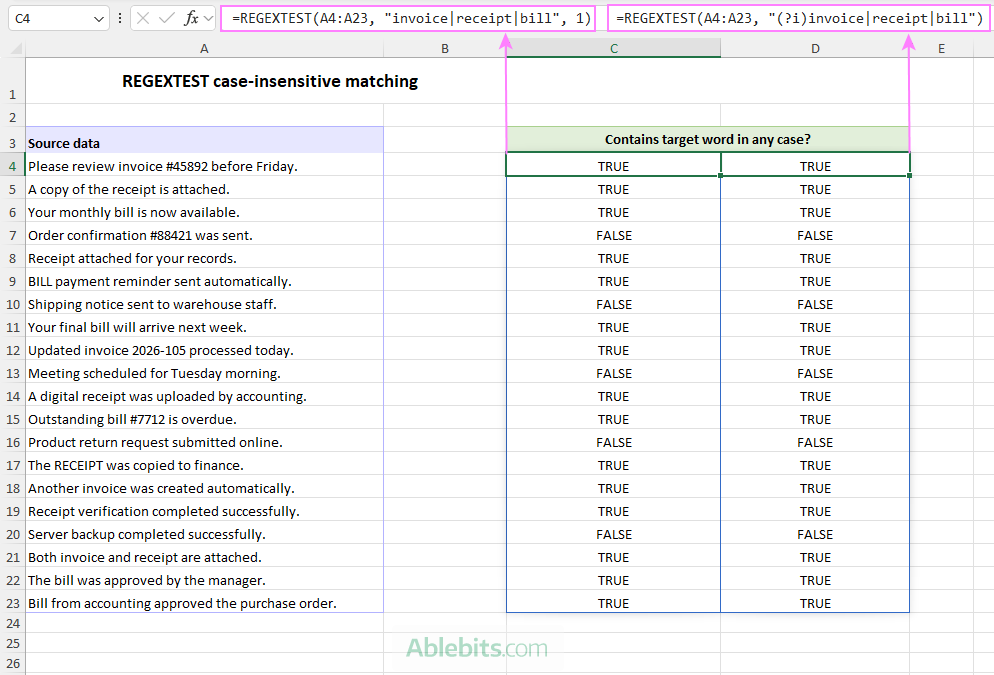
Keep in mind that regex only looks for matching text patterns; it does not understand context or meaning. So, in the last row, "Bill" is matched too, even though it refers to a person rather than an actual bill 😊
Tip. Another very useful example is finding multiple partial matches in Excel — something that XLOOKUP, VLOOKUP, and other standard lookup functions simply cannot do. While REGEXTEST handles this kind of task with ease. For the solution, see How to lookup multiple partial matches in Excel.
Combining REGEXTEST with IF to return custom labels
Sometimes the Boolean TRUE and FALSE values returned by REGEXTEST are not the most user-friendly way to present the results.
To make the output easier to interpret, you can use REGEXTEST together with the IF function and return custom validation labels instead.
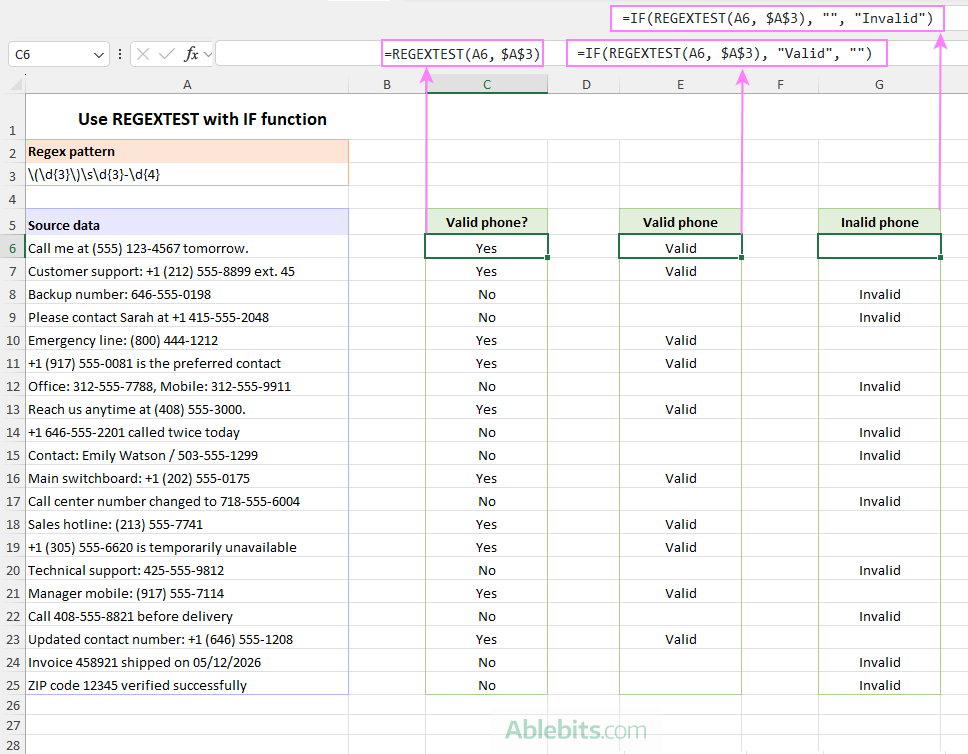
For example, to check whether A6 contains a valid phone number and return "Yes" for matching entries and "No" otherwise, use this formula:
=IF(REGEXTEST(A6, "\(\d{3}\)\s\d{3}-\d{4}", "Yes", "No")
You can also return only one label when you want to highlight matching entries and keep all other cells empty:
=IF(REGEXTEST(A6, "\(\d{3}\)\s\d{3}-\d{4}"), "Valid", "")
It also works the other way around — you can display a label only for non-matching strings while leaving valid phone numbers blank:
=IF(REGEXTEST(A6, "\(\d{3}\)\s\d{3}-\d{4}"), "", "Invalid")
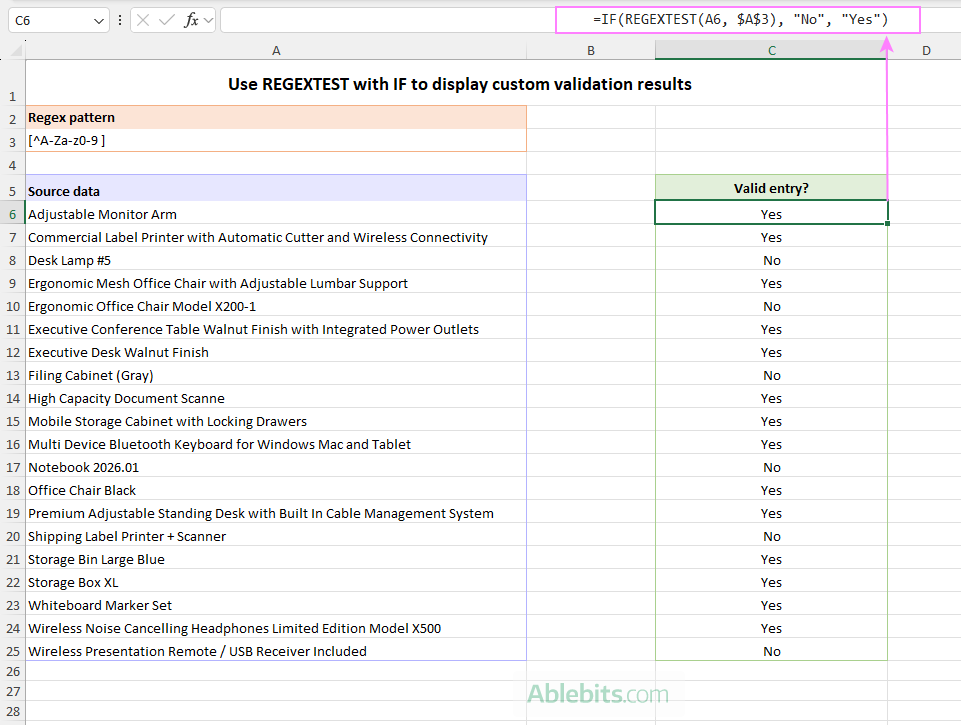
Another good example is detecting disallowed characters. In this case, REGEXTEST returns TRUE when the source text contains something that should not be there, which can feel a little counterintuitive.
A better approach is to return custom labels that explicitly indicate whether the entry is valid or unwanted characters were found:
=IF(REGEXTEST(A6, $A$3), "No", "Yes") Here, "Yes" means the entry is clean, while "No" means the text contains disallowed characters.
Excel REGEXTEST missing or not working
The REGEXTEST function is currently available only in Excel for Microsoft 365 and Excel for the web. It does not work in standalone versions such as Excel 2024, 2021, 2019, 2016, or earlier.
If you are using Excel 365 but still cannot find the function, your Office apps may simply need updating.
If REGEXTEST is available but returns unexpected results, the problem is often in the regex pattern itself. Make sure the regular expression really matches the structure of your data. Sometimes the pattern is too broad and matches more than expected, while other times it is too strict and misses valid entries.
Match text using regular expressions in Excel 365 – 2016
If the REGEXTEST function is not available in your Excel version, you can still work with regular expressions by using the Regex Tools included with our Ultimate Suite.
Here's how to match text strings with Ablebits Regex Tools for Excel:
- On the Ablebits Data tab, in the Text group, click Regex Tools.
- In the Regex Tools pane:
- Select the source data.
- Enter the regex pattern.
- To return results as formulas instead of static values, keep the Insert as a formula option selected (enabled by default).
- Click Match.
In a few seconds, the AblebitsRegexMatch function is added to a new column next to your original data.
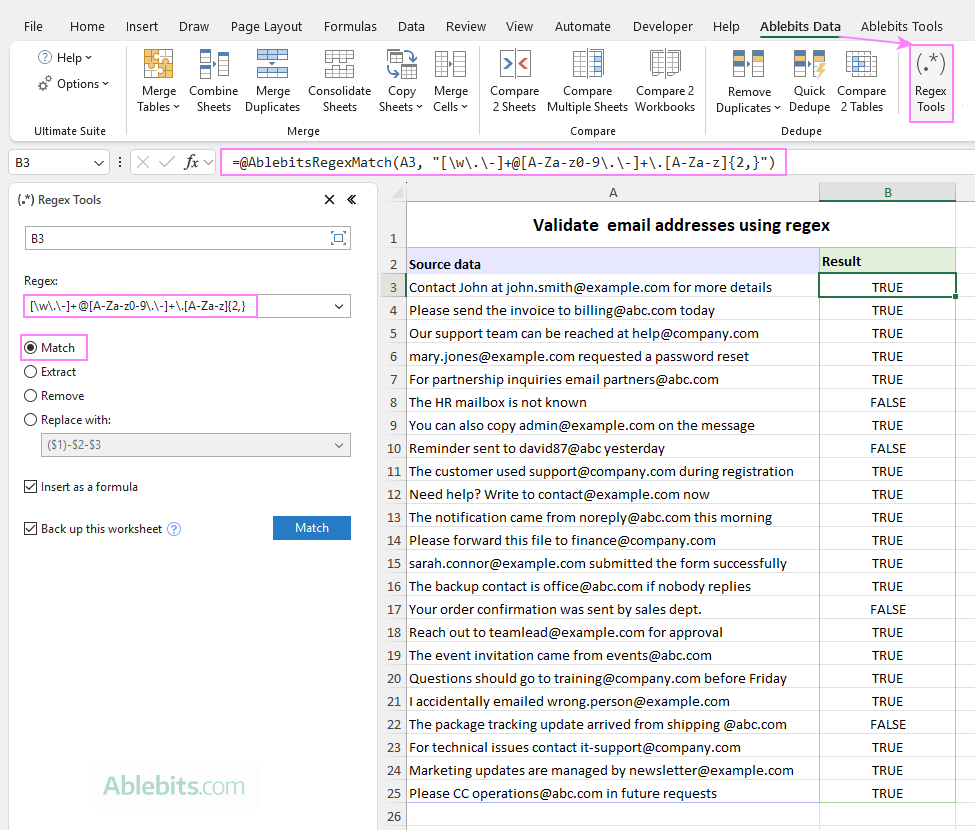
The image above shows how to match email addresses in text using a regular expression. For a detailed breakdown of the pattern, see How to extract email addresses using regex.
Want to test it yourself? A fully functional trial of Ultimate Suite is available, so you can experiment with regex in your own spreadsheets.
Hopefully, our examples gave you a good starting point for using the REGEXTEST function in Excel. And these are just a few common scenarios – the possible uses of regex are practically endless!
Available downloads
-
Excel REGEXTEST function - examples (.xlsx file)
Ultimate Suite – 14-day trial version (.exe file)