 by
by Discover how REGEXEXTRACT can simplify complex text extraction tasks in Excel, from extracting numbers and URLs to pulling multiple parts of messy strings.
Excel has plenty of useful text functions, but sometimes they still can't handle complex extraction tasks. When standard functions are not flexible enough, REGEXEXTRACT comes to the rescue. Instead of building long nested formulas to locate a certain substring, you can use regular expressions to identify exactly what you need.
Excel REGEXEXTRACT function
The REGEXEXTRACT function in Excel extracts text from a string based on a specified regular expression pattern. It can return the first match, all matches, or specific capturing groups from the matched text.
While LEFT, RIGHT, MID, and other text functions rely on fixed positions or delimiters, REGEXEXTRACT can identify flexible patterns such as numbers, dates, email addresses, URLs, or specific combinations of characters within a text string.
REGEXEXTRACT is especially useful when working with inconsistent or messy data because it allows you to pull exactly the information you need without building long nested formulas.
REGEXEXTRACT syntax
The syntax of REGEXEXTRACT is as follows:
REGEXEXTRACT(text, pattern, [return_mode], [case_sensitivity])
Where:
- text - The original text, or a reference to a cell containing the text you want to extract substrings from.
- pattern - The regular expression pattern to extract.
- return_mode [optional] - Controls which results are returned.
- 0 or omitted (default) - return the first match.
- 1 - return all matches.
- 2 - return capture groups from the first match as an array.
- case_sensitivity - Controls letter case matching.
- 0 or omitted (default) - case-sensitive.
- 1 - case-insensitive.
Note. The result of REGEXEXTRACT is always a text value. To return numeric values as numbers, use it together with the VALUE function.
REGEXEXTRACT availability
REGEXEXTRACT is only available in Excel for Microsoft 365 (Windows and Mac) and Excel for the web. In older versions, it is not supported.
Tip. In Excel 2024, 2021, 2019, 2016, and earlier versions, you can use a custom Regex Extract function as an alternative to the native REGEXEXTRACT, or the Regex Tools.
How to use REGEXEXTRACT in Excel
Let's begin with a very simple example to understand the general idea behind REGEXEXTRACT.
The simplest case is extracting literal text. For example, to extract the word "excel" from the string in A2, you can use this formula:
=REGEXEXTRACT(A2, "excel") As easy as this looks, there are a few nuances that may not be obvious at first sight.
Return all matches
By default, REGEXEXTRACT returns only the first match it finds. If the same text appears more than once in a cell, you can return all matches by setting the third argument to 1:
=REGEXEXTRACT(A2, "excel", 1) For example, if A2 contains the text "Excel users say EXCEL is easy", the formula will return 2 occurrences in the adjacent cells.
Make the formula case-insensitive
By default, the REGEXEXTRACT function is case-sensitive, so the pattern "excel" only matches lowercase.
To match all letter cases, set the last argument to 1:
=REGEXEXTRACT(A2, "excel", , 1) This will match the word "excel" in any capitalization including mixed-case versions such as EXcEl. It will also find this text when it appears inside larger words such as excellent or Excellence.
Return whole words only
If you want to extract only the whole word and ignore cases where it is part of a longer word, add a word boundary \b on both sides of the pattern:
=REGEXEXTRACT(A2, "\bexcel\b", , 1) This formula matches the word "excel" regardless of text case but ignores words such as excelled.
Handle non-matching patterns
When no match is found, REGEXEXTRACT returns a #N/A error like almost any other Excel function does. To handle non-matching patterns elegantly, wrap the formula in IFERROR and return an empty string or any message you prefer:
IFERROR(REGEXEXTRACT(…), "return_if_error")
For example, the formula below returns nothing if the word "excel" is not found in A2:
=IFERROR(REGEXEXTRACT(A2, "\bexcel\b", , 1), "")
Extract all occurrences of a certain word from anywhere in a string
Now, let's build the final formula for our sample dataset in B4:B25. The formula should:
- Extract the word "excel" in uppercase, lowercase, proper case, or mixed case.
- Extract the whole word only.
- Return all matches.
- Return a blank cell (zero-length string) if no match is found.
Here is the formula:
=IFERROR(REGEXEXTRACT(B4, "\bexcel\b", 1, 1), "") Enter this formula in cell D4, then copy it down, and you will see the results like these:
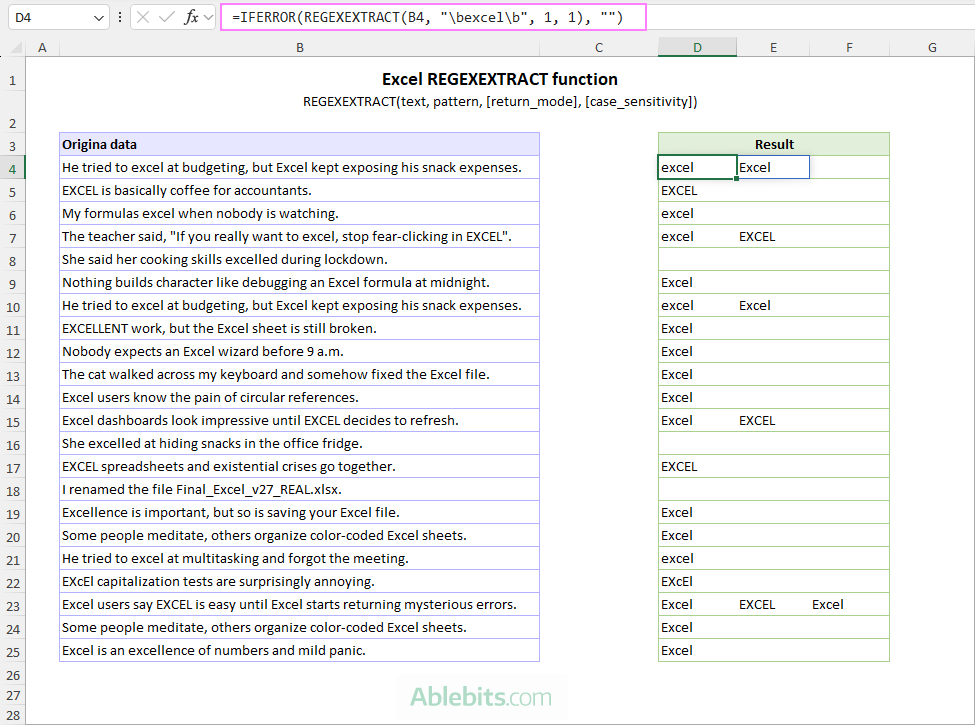
Note. Although Excel 365 supports dynamic arrays, we do recommend writing a REGEXEXTRACT formula for a single cell, and then dragging it down to the remaining rows. A formula where the text argument is a range may work incorrectly especially when configured to return all matches.
Excel REGEXEXTRACT formula examples
Below are several practical examples showing how to use REGEXEXTRACT in Excel to extract specific parts of text strings using regular expressions.
Tip. These examples assume a basic understanding of regular expressions. If you are just getting started with regex, our Regex cheat sheet is a helpful reference for learning the most common patterns and syntax.
Example 1: REGEXEXTRACT formula to extract numbers
When dealing with alphanumeric strings, you may often need numbers in a separate column. In pre-regex Excel era, you would need a mind-boggling formula like these ones that only an Excel pro could fully comprehend. With REGEXEXTRACT, it all comes to a basic pattern matching one or more digits: \d+ or [0-9]+.
For example, to pull the number from an alphanumeric string in A3, the formula is:
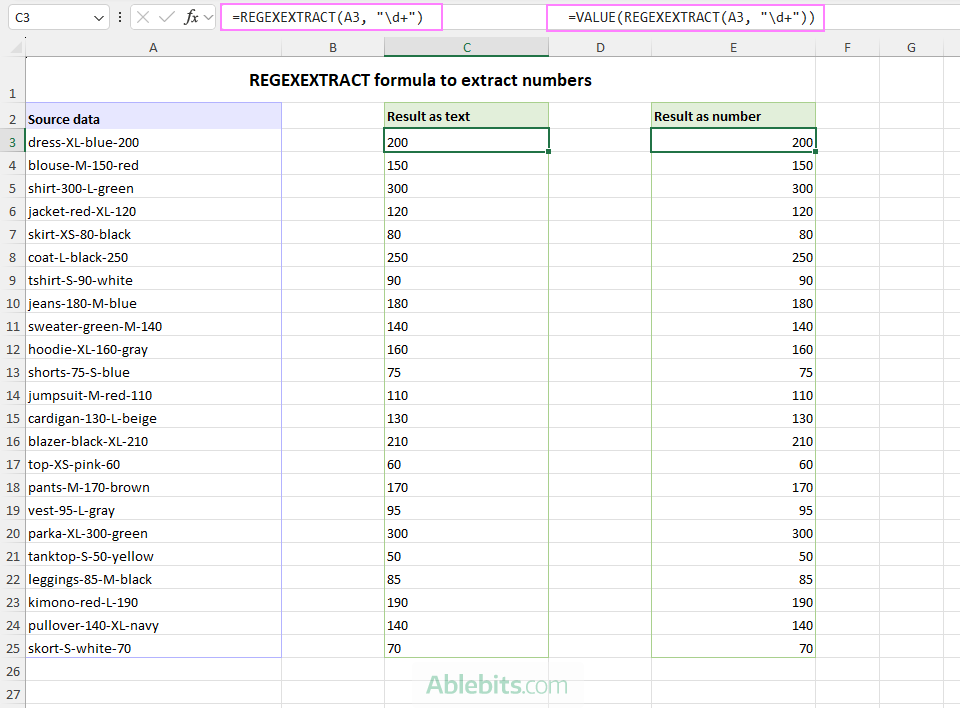
=REGEXEXTRACT(A3, "\d+") Since REGEXEXTRACT always returns text values, the extracted number is technically stored as text even if it looks like a number.
To convert the result to a real numeric value, wrap the formula in the VALUE function:
=VALUE(REGEXEXTRACT(A3, "\d+")) This changes the extracted text value into an actual number that can be used in calculations, sorting, PivotTables, charts, etc.
In the screenshot below, notice the default left alignment of text values returned by the first formula in column C, and the default right alignment of numeric values returned by the second formula in column E.
Example 2: REGEXEXTRACT formula to pull URLs
Here is a more practical example that you are likely to encounter in real worksheets.
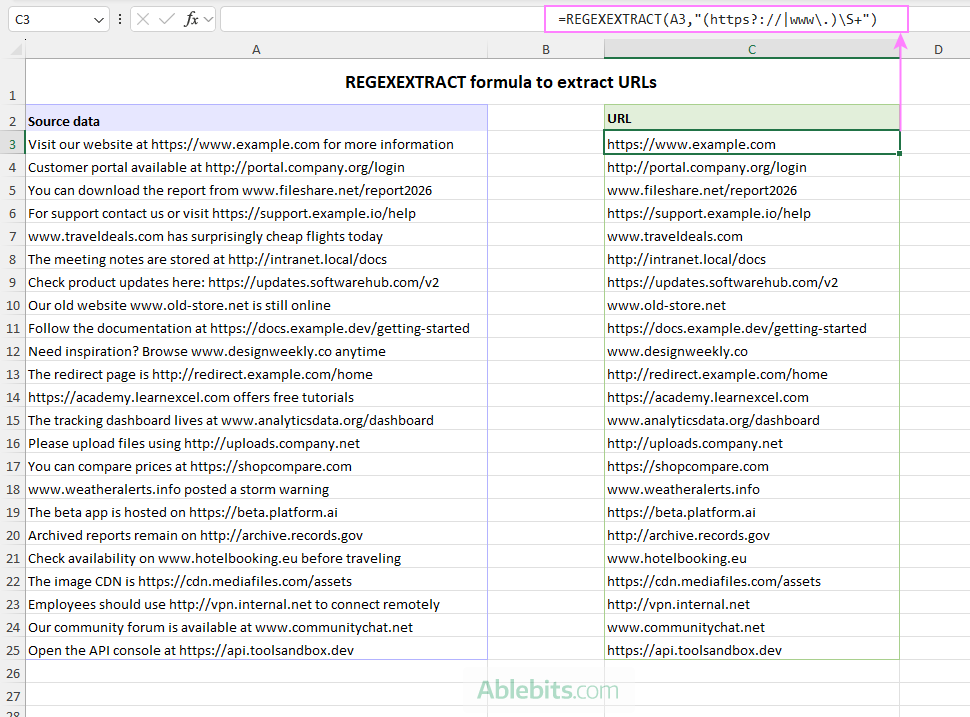
Suppose you have a list of text strings containing website addresses and you want to extract the URLs into a separate column. The addresses may start with https, http, or simply www.
With the source data beginning in A3, the formula takes this form:
=REGEXEXTRACT(A3,"(https?://|www\.)\S+")
How the formula works
Pattern: (https?://|www\.)\S+
(https?://|www\.)matches a web address starting with http://, https://, or www.https?matches both http and https. The?quantifier means zero or one occurrence, making the letter s optional.://matches the literal characters :// that appear after the protocol.|acts as an OR operator in regex, allowing the formula to match either the http(s) or www. pattern.www\.matches the literal text www.. The backslash escapes the special meaning of the dot because . normally represents any character in regex.\S+matches one or more non-whitespace characters after the URL prefix, letting the formula capture the rest of the web address.
Example 3: REGEXEXTRACT to get phone numbers and country codes
Another real-life use case for REGEXEXTRACT is pulling telephone numbers from text strings. Since phone numbers can appear in many different formats, regular Excel text functions may stumble.
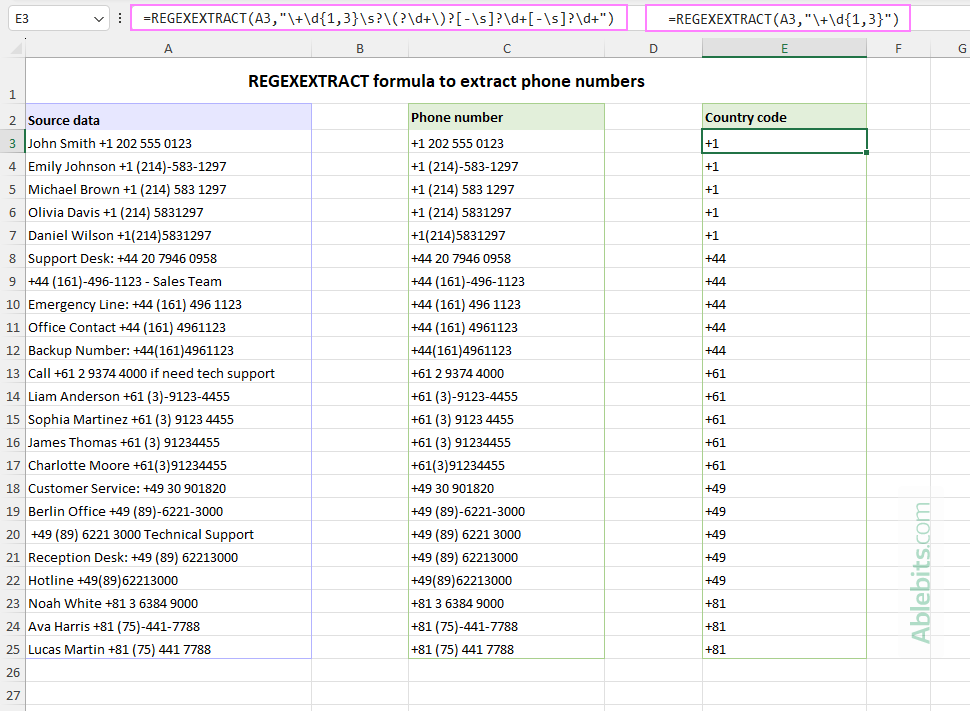
With REGEXEXTRACT, you can describe the structure of a phone number using a regex pattern and extract the matching value with a single formula:
=REGEXEXTRACT(A3, "\+\d{1,3}\s?\(?\d+\)?[-\s]?\d+[-\s]?\d+")
If you only need the country code, the formula becomes much simpler:
=REGEXEXTRACT(A3 ,"\+\d{1,3}")
The screenshot below shows the results returned by both formulas:
How the phone number formula works
Pattern: \+\d{1,3}\s?\(?\d+\)?[-\s]?\d+[-\s]?\d+
Let's break down the regex pattern step by step:
\+matches the plus sign at the beginning of the country code. The backslash \ escapes the special meaning of the plus character in regex, so the formula searches for the literal + symbol instead of treating it as a regex operator.\d{1,3}matches 1 to 3 digits for the country code.\s?matches zero or one space character after the country code.\(?matches an optional opening parenthesis before the area code.\d+matches one or more digits in the county code.\)?matches an optional closing parenthesis after the area code.[-\s]?matches an optional separator between number groups. The square brackets create a character set that matches either adash- or a whitespace character\s.\d+identifies the next group of digits in the phone number.
How the country code formula works
Pattern: \+\d{1,3}
This pattern is very simple:
\+matches the literal plus sign.\d{1,3}matches 1 to 3 digits after the plus sign.
Example 4: REGEXEXTRACT to retrieve dates
Dates are another common type of data you may need to extract from text strings. The challenge is that dates can appear in different formats even within the same dataset.
Suppose your source strings contains dates written either with slashes such as 1/1/27 or 11/03/2024, or with month abbreviations such as 1-Jan-2024 and 16-Apr-2025.
To extract both date formats with one formula, use:
=REGEXEXTRACT(A3, "\b(\d{1,2}/\d{1,2}/(\d{2}|\d{4})|\d{1,2}-[A-Za-z]{3}-\d{4})\b", 1) If your strings may contain more than one date, and you want to retrieve all matches, remember to set the third argument to 1.
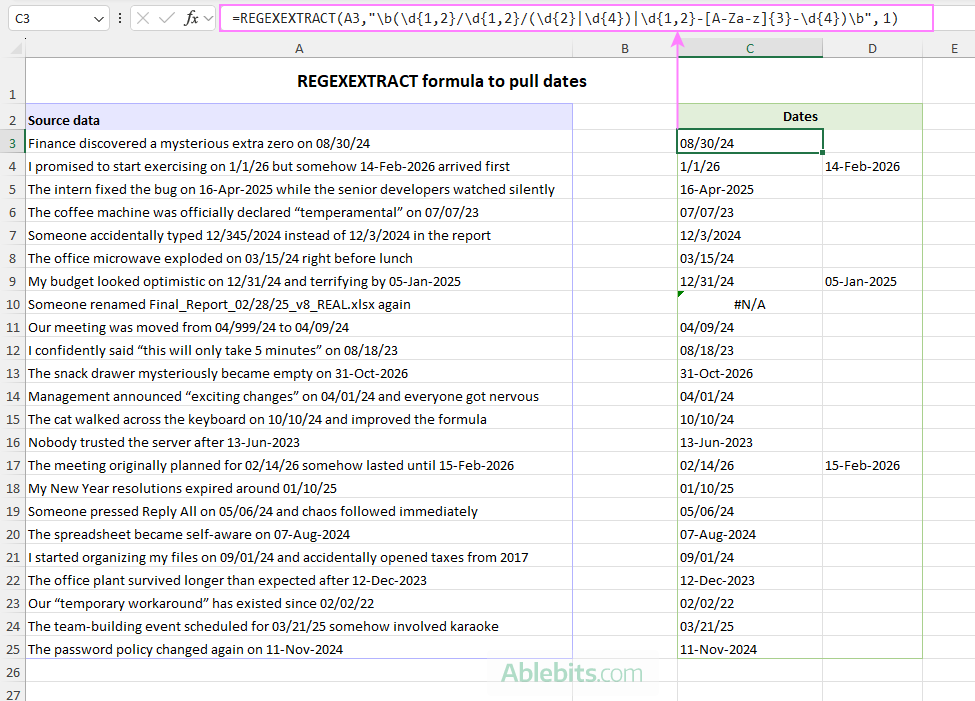
Notice that this formula extracts only standalone dates. Dates embedded inside longer strings, such as filenames or IDs, are intentionally ignored. The pattern uses word boundaries (\b) to detect complete dates.
Tip. To return actual Excel dates instead of text values, place the formula inside the VALUE function. The result will be a serial number representing the date, which you can then display in any Excel date format you prefer.
How this formula works
Pattern: \b(\d{1,2}/\d{1,2}/(\d{2}|\d{4})|\d{1,2}-[A-Za-z]{3}-\d{4})\b
\bmatches a word boundary to ensure the formula extracts complete dates only.( )groups the alternative date patterns together.|acts as an OR operator, allowing the formula to match either date format.
First date format: \d{1,2}/\d{1,2}/(\d{2}|\d{4})
This pattern identifies dates such as 1/1/27, 04/12/26, 1/1/2027, or 11/03/2026.
\d{1,2}matches one- or two-digit days and months./matches the literal slash separator.(\d{2}|\d{4})is either a two-digit or four-digit year.
Second date format: \d{1,2}-[A-Za-z]{3}-\d{4}
This pattern detects dates such as 1-Jan-2026 or 16-Apr-2026.
\d{1,2}matches a one- or two-digit day.-matches the dash separator.[A-Za-z]{3}is a three-letter month abbreviation such as Jan, Feb, or Oct.\d{4}is the four-digit year.
Example 5: REGEXEXTRACT formula with capturing group
Now, let's do something a bit more challenging.
Suppose you have item descriptions that also contain different kinds of numbers such as invoice IDs, quantities, product codes, and prices. Your goal is to extract only the price values while ignoring all other numeric info.
Extract the full price expression
To get the entire price substring, including the word "price" and the $ symbol if present, use one of these formulas:
=REGEXEXTRACT(A3, "(?i)price:?\s*\$?\s*\d+(?:\.\d{1,2})?") =REGEXEXTRACT(A3, "price:?\s*\$?\s*\d+(?:\.\d{1,2})?" , , 1) Both formulas return the same result. The difference is how they handle case sensitivity:
- The first formula uses the inline regex modifier
(?i)to make the pattern case-insensitive. - The second formula passes
1to the REGEXEXTRACT case_sensitivity argument.
Extract only the numeric price
If you only want the numeric value without the word "price" or the dollar sign, use one of these formulas:
=REGEXEXTRACT(A3,"price\W*(\d+(?:\.\d{1,2})?)", 2, 1) This formula uses a capturing group in the pattern. Because of that, the third argument is set to 2, so REGEXEXTRACT returns only the captured value instead of the entire match.
Another approach is to use a look-around construct:
=REGEXEXTRACT(A3, "(?<=price\W{0,3})\d+(\.\d{1,2})?", , 1)
If you want the result returned as a numeric value rather than a text string, place either formula inside the VALUE function like this:
=VALUE(REGEXEXTRACT(A3, "price\W*(\d+(?:\.\d{1,2})?)", 2, 1))
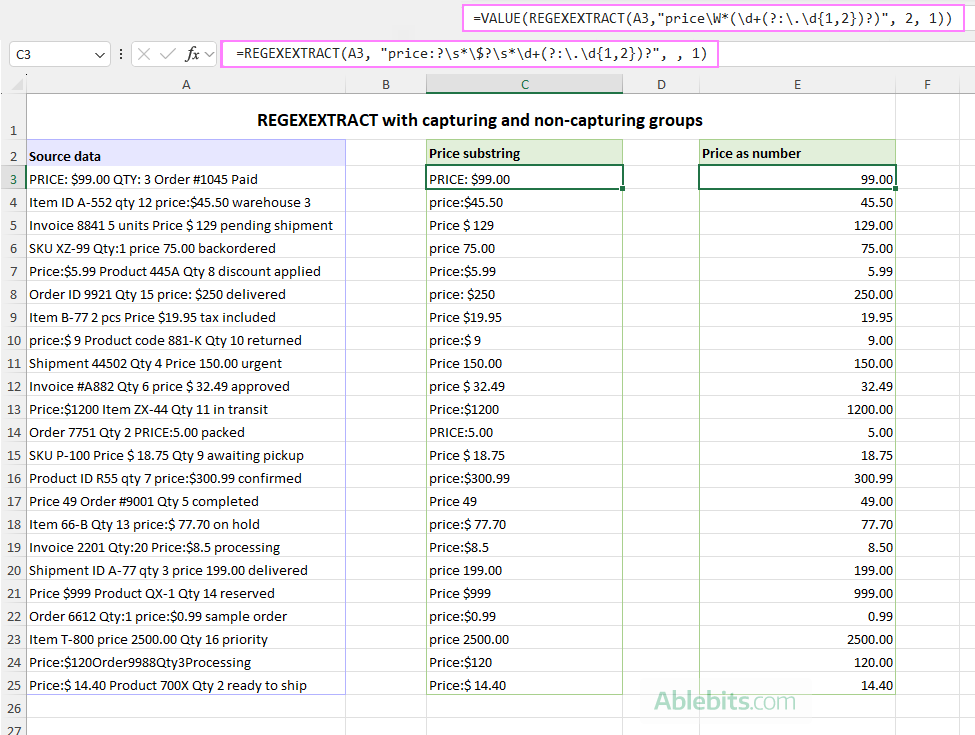
Note. If your t original strings contain multiple prices and you want to return all matches, use the second formula with the lookaround pattern and set the third argument to 1.
A formula based on capturing groups can return only the first match. This is because the return_mode argument controls both the number of matches returned and capture groups, so it's technically impossible to combine two behaviors in the same formula :)
How these formulas work
Pattern: (?i)price:?\s*\$?\s*\d+(?:\.\d{1,2})?
(?i)makes the pattern case-insensitive, so it matches Price, PRICE, or price.pricematches the literal word price.:?matches an optional colon after the word price.\s*matches zero or more whitespace characters after the colon.\$?matches an optional dollar sign. The backslash escapes the special meaning of $ in regex.\d+matches one or more digits.(?:\.\d{1,2})?matches an optional decimal portion such as .99 or .5. The(?:pattern)syntax creates a non-capturing group, which groups the pattern together without returning it as a separate captured result. The final?makes the entire decimal portion optional.
Pattern: price\W*(\d+(?:\.\d{1,2})?)
pricematches the literal word price.\W*matches zero or more non-alphanumeric characters such as spaces, colons, or dollar signs.( )creates a capturing group that returns only the numeric portion of the match.d+(?:\.\d{1,2})?this part is the same as in the pattern above.
Pattern: (?<=price\W{0,3})\d+(\.\d{1,2})?
(?<=price\W{0,3})is a positive lookbehind assertion. It checks whether the current position is preceded by the word price followed by up to three non-word characters (such as spaces, colons, or dollar signs), without including this part in the returned result.\d+matches one or more digits.(\.\d{1,2})?is an optional decimal portion with one or two digits after the decimal point.
Example 6: REGEXEXTRACT formula to extract multiple parts
Finally, let's look at how you can extract multiple parts of a text string at once.
There is no universal regex pattern that works for every situation. The exact solution always depends on the structure of your data and the specific parts you want to extract. The examples below demonstrate a couple of common approaches you can adapt to your own worksheets.
Suppose you have a list of alphanumeric strings, each consisting of four groups of characters separated by dashes.
Get all groups in separate cells
To extract all groups into nonboring cells, use this formula:
=REGEXEXTRACT(A3, "[^-]+", 1) The key point is setting the return_mode argument to 1, which tells REGEXEXTRACT to return all matches instead of only the first one.
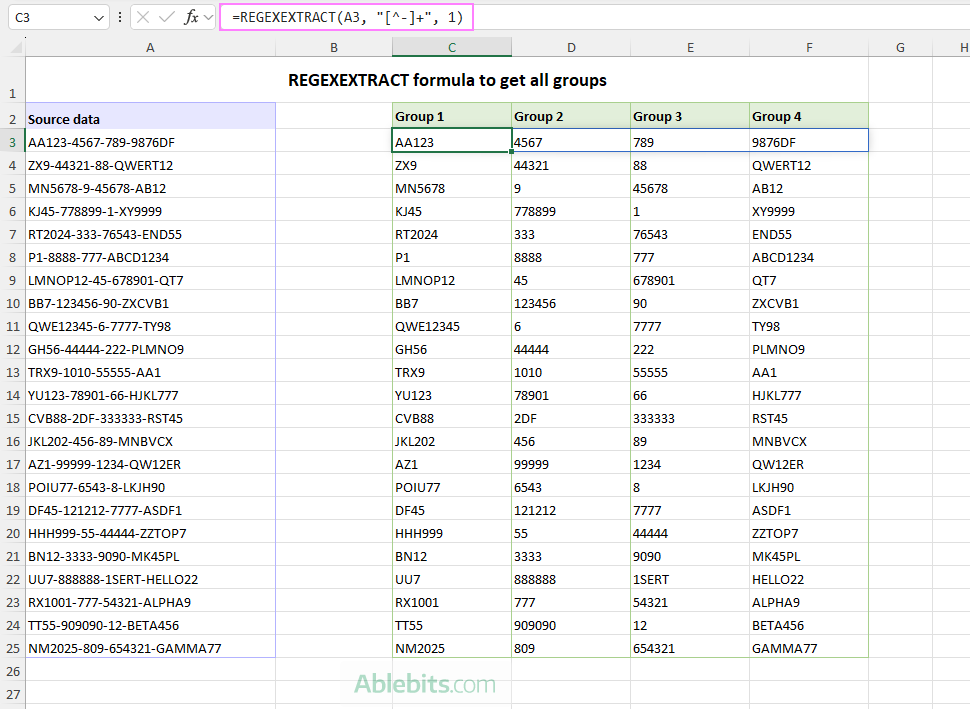
How this formula works
Pattern: [^-]+
The regex used to identify each group simply matches one or more characters that are not dashes:
- square brackets
[]define a character set. - inside brackets, the caret
^means "not". [^-]therefore matches any character except a dash.- the
+quantifier means one or more occurrences.
Get first and last groups
If you only need the first and last groups from each string, use this formula:
=REGEXEXTRACT(A3, "^([^-]+).*-([^-]+)$", 2) Here, parentheses are used around each part of the text you want to extract, creating two capturing groups. Because of that, the third argument is set to 2, telling the function to return only the captured groups instead of the entire matched string.
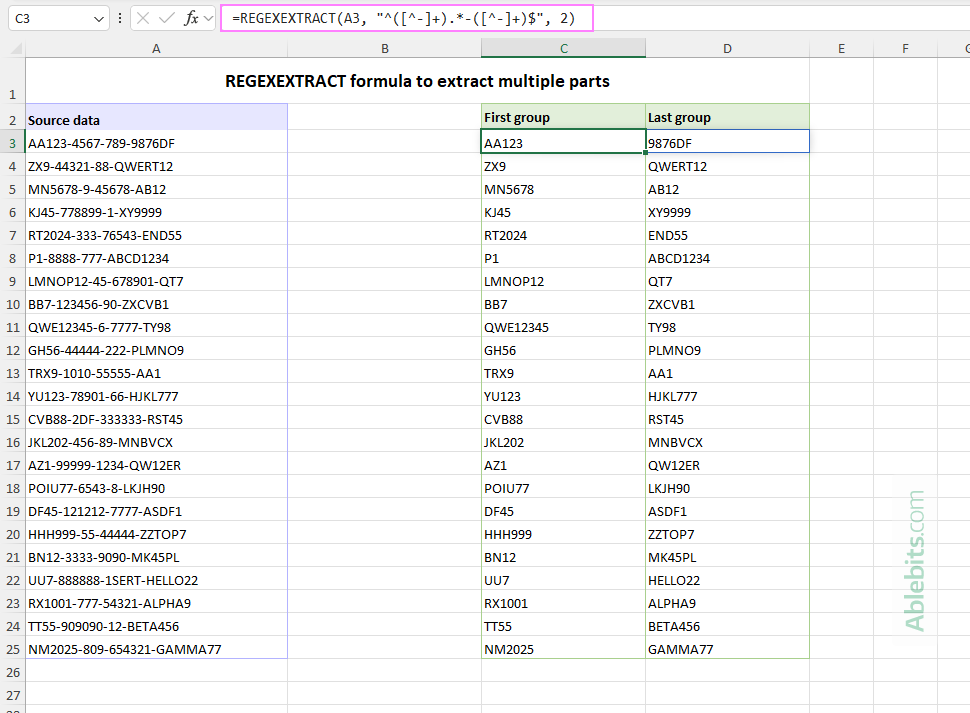
How this formula works
Pattern: ^([^-]+).*-([^-]+)$
Capture the first group:
^anchors the match at the beginning of the string.([^-]+)captures the first group of characters before the first dash.
Skip the middle groups:
.*matches all characters between the first and last groups (a "greedy" quantifier matches as much characters as possible).-matches the final dash before the last group.
Capture the last group:
([^-]+)captures the final group of characters after the last dash.$anchors the match at the end of the string.
Excel REGEXEXTRACT not found or not working
The REGEXEXTRACT function is currently available only in Excel for Microsoft 365 and Excel for the web. It is not supported in standalone versions such as Excel 2024, 2021, 2019, 2016, or earlier.
If you are using Excel 365 but REGEXEXTRACT is still unavailable, your Excel app may not be fully updated yet. Installing the latest Office updates usually resolves the issue and gives you access to the newest Excel functions.
If REGEXEXTRACT is there but returns incorrect results or errors, check your regex pattern first to make sure it matches the exact structure of your source strings. In many cases, the function works correctly, but the pattern is either too broad, too narrow, or not designed for all formats in your data.
Extract text using regular expressions in Excel 365 – 2016
If your version of Excel does not include the REGEXEXTRACT function, you can still work with regular expressions by using the Regex Tools available in our Ultimate Suite.
Here's how to extract text using Ablebits' Regex Tools for Excel:
- On the Ablebits Data tab, in the Text group, click Regex Tools.
- In the Regex Tools pane:
- Select the source data.
- Enter the regular expression pattern.
- To return results as formulas instead of values, select the Insert as a formula check box (enabled by default).
- Click Extract.
In a moment, the AblebitsRegexExtract function is inserted into a new column next to your original data.
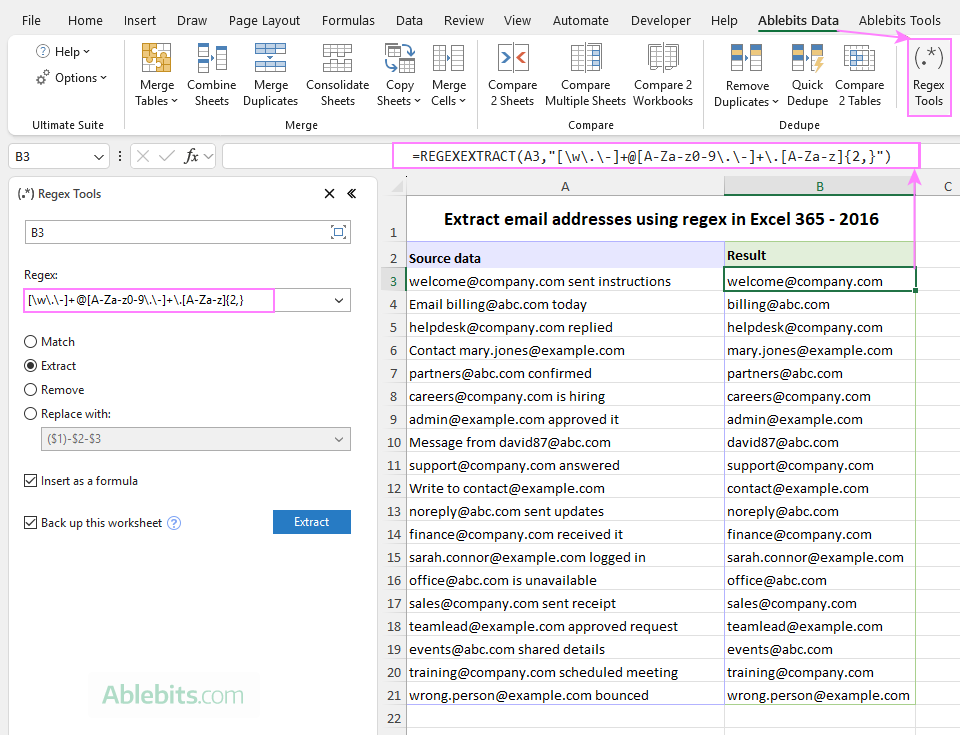
The image above demonstrates how to extract email addresses from text using regex. For a detailed explanation of the pattern, please refer to the above linked example.
A fully functional trial of Regex Tools is available, so you can test it with your actual worksheets.
In conclusion: Regular expressions have a reputation for being complicated, and to be fair, some patterns do look like ancient spells. But once you get comfortable with Regex, many traditional Excel formulas start feeling unnecessarily complicated. It's a bit like discovering that you've been opening cans with a spoon for years when there was a can opener sitting in the drawer the whole time 😊
Available downloads
Excel REGEXEXTRACT function - examples (.xlsx file)
Ultimate Suite – 14-day trial version (.exe file)