 by
by This tutorial explains how to use REGEXREPLACE in Excel with practical examples. You'll learn how to apply patterns to clean data, reformat text strings, change letter case, and mask sensitive data in your real worksheets.
Some Excel tasks are simple. Others involve cleaning up text that looks like it survived a storm. If you often work with messy imported data or inconsistent strings, the REGEXREPLACE function can save a lot of formula gymnastics.
Excel REGEXREPLACE function
The REGEXREPLACE function in Excel replaces text that matches a certain regular expression pattern with new text.
Unlike the REPLACE and SUBSTITUTE functions, which swap exact text, REGEXREPLACE can target variable patterns such as any digit, a group of letters, multiple spaces, or only the first or last occurrence of a match.
REGEXREPLACE syntax
The syntax of REGEXREPLACE is as follows:
REGEXREPLACE(text, pattern, replacement, [occurrence], [case sensitivity])
Where:
- text - The original text string, or a reference to a cell containing the text you want to modify.
- pattern - The regular expression that tells Excel what to look for.
- replacement - The text to replace the matched results with.
- occurrence [optional] - The instance of the pattern you want to replace.
- 0 or omitted (default) - replace all matches.
- Positive number - replace that occurrence, counting from the start of the string.
- Negative number - replace that occurrence, counting from the end of the string.
- case_sensitivity [optional] - controls letter case matching.
- 0 or omitted (default) - case-sensitive
- 1 - case-insensitive
REGEXREPLACE availability
REGEXREPLACE is only available in Excel for Microsoft 365 (Windows and Mac) and Excel for the web. It is not supported in older versions.
Tip. In Excel 2024, 2021, 2019, 2016, and earlier, you can use a custom Regex Replace function as an equivalent of the built-in REGEXREPLACE, or the Regex Tools.
How to use REGEXREPLACE in Excel
Let's begin with a few simple patterns to get a feel for how REGEXREPLACE works before moving on to more complex examples.
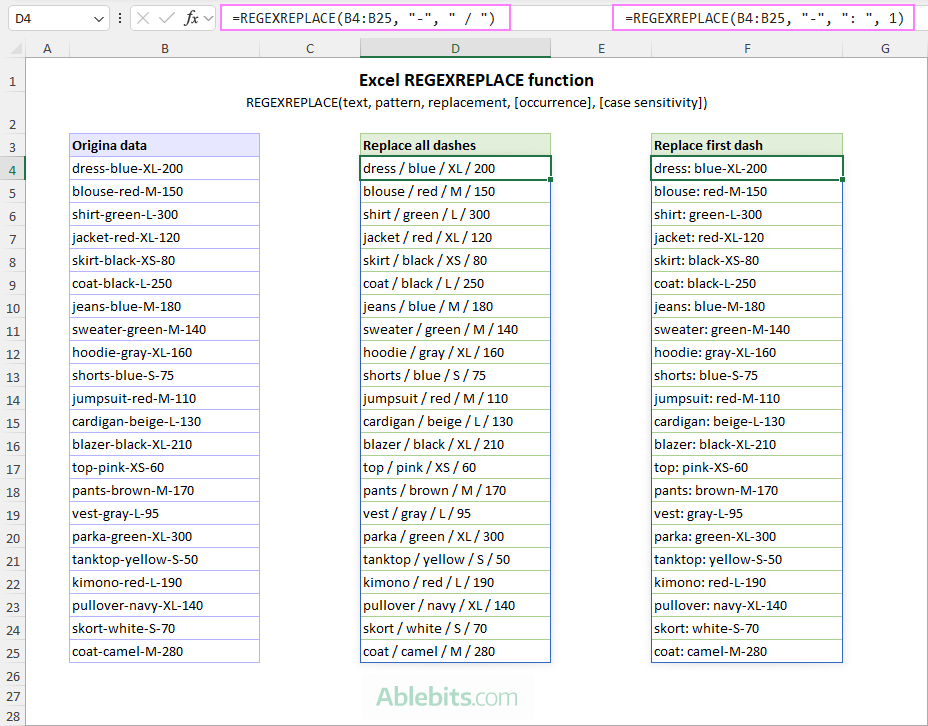
Suppose you have a column of product listings that follow this structure: item–color–size–qty. You aim to replace all dashes with forward slashes.
This is about as easy as it gets :) Just use a dash (-) for the pattern argument and a slash for replacement. To make the result easier to read, you can add spaces around the slash:
=REGEXREPLACE(B4:B25, "-", " / ")
Because Excel 365 supports dynamic arrays natively, you can pass the entire range to the function, and it will return all results at once.
If you want to replace only a specific occurrence, then define the occurrence argument. For example, to replace the first dash with a semicolon and a space, the formula takes this form:
=REGEXREPLACE(B4:B25, "-", ": ", 1)
The screenshot below shows the results of both replacements:
That was really easy, wasn't it? And yes, this could also be done with the standard SUBSTITUTE function without any regexes:
=SUBSTITUTE(B4, "-", " / ", 1)
The goal here is to show how REGEXREPLACE behaves in a familiar scenario before we put it to better use.
Now let's try something a bit more interesting.
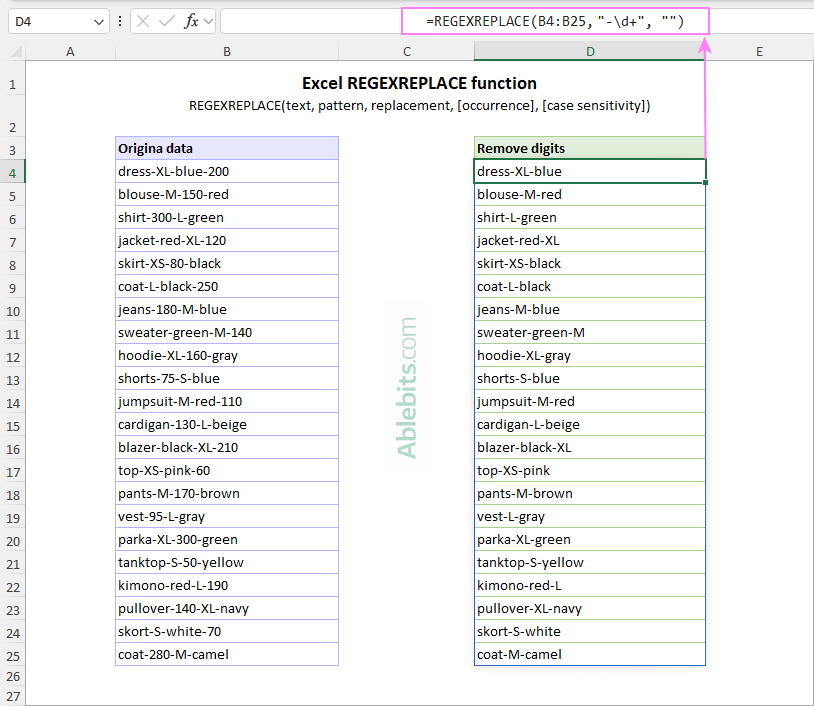
Imagine you have a slightly messy dataset where the item name is always first in a string, but the other attributes (size, color, and stock quantity) appear in different positions. You wish to remove the quantity from each entry. The tricky part is that you also need to remove the dash before the number, so the result looks clean: for example, "dress-XL-blue", not "dress-XL-blue-" or "dress-XL--blue".
To remove both the quantity and the preceding dash, use this formula:
=REGEXREPLACE(B4:B25, "-\d+", "")
How this formula works:
The pattern argument: "-\d+"
-matches the dash before the number.\d+matches one or more digits.
The replacement argument: ""
- A zero-length string, which removes the matched characters.
Excel REGEXREPLACE formula examples
Understanding the syntax is one thing, but seeing a formula in action is another. In this section, you'll find some REGEXREPLACE examples that show how to handle various text challenges in Excel, from simple replacements to more advanced transformations.
Tip. These examples rely on basic knowledge of regular expressions. If you are not fully comfortable with regexes yet, this Regex cheat sheet could be a good place to start.
Example 1: REGEXREPLACE formula to reformat names
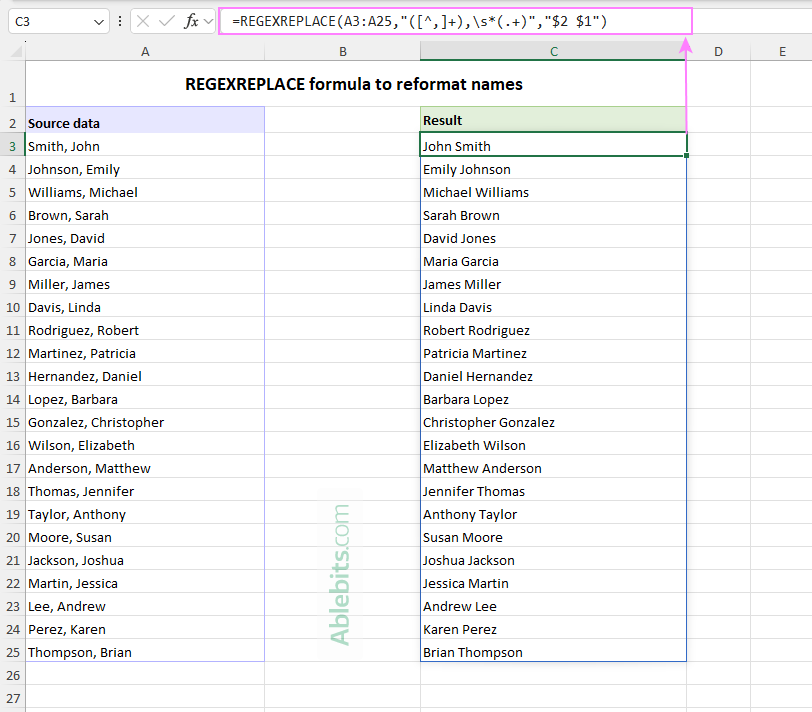
In case your worksheet contains names in the format "Last name, First name", you can easily switch them to "First Last" using REGEXREPLACE.
=REGEXREPLACE(A3, "([^,]+),\s*(.+)", "$2 $1")
To handle all names in the range A3:A25 with a single formula, supply a range reference for the text argument:
=REGEXREPLACE(A3:A25, "([^,]+),\s*(.+)", "$2 $1") For example, if cell A3 contains the name "Smith, John", the result will be "John Smith".
How this formula works:
Pattern: "([^,]+),\s*(.+)"
This pattern includes two capturing groups:
- Group 1:
([^,]+)captures everything before the comma (the last name). \s*matches any number of spaces after the comma, so extra spaces don't break the result.- Group 2:
(.+)captures everything after the comma (the first name).
Replacement: "$2 $1"
$2returns the second captured group (first name).- A
spaceis added between the names. $1returns the first captured group (last name).
As a result, the order is reversed, and the name is displayed in a more common "Name Surname" format.
Example 2: REGEXREPLACE formula to mask sensitive information
When sharing your Excel files, preparing reports, or sending screenshots, you may need to hide personal details while keeping the data recognizable. REGEXREPLACE is a good fit for this because it lets you define patterns to mask only the sensitive part of a text string and leave the rest intact.
Anonymize email addresses
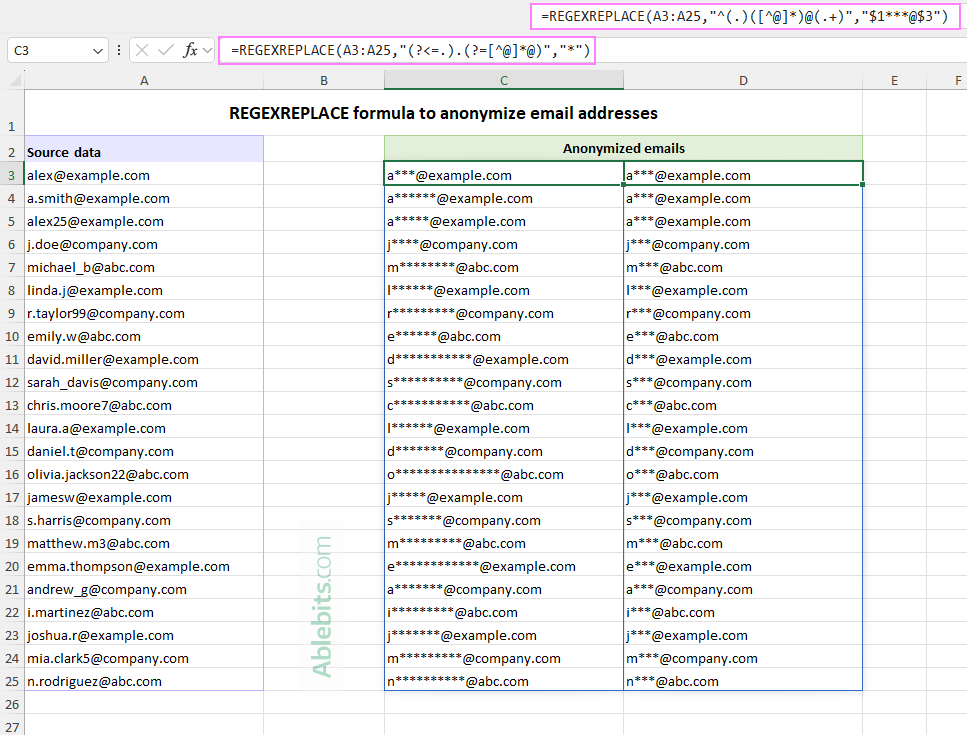
Let's say you have a list of email addresses and want to anonymize each one by replacing the username except the first character with asterisks. For example, change "user@example.com" to "u***@example.com".
Formula 1: Replace with exactly 3 asterisks
To replace all the characters in the local part of the email address with three asterisks, keeping only the first character, use this formula:
=REGEXREPLACE(A3, "(.)([^@]*)@(.+)", "$1***@$3")
How this formula works:
Pattern: "(.)([^@]*)@(.+)"
(.)captures the first character of the username.([^@]*)captures the rest of the username before the @ sign. The caret ^ inside square brackets means "not".@matches the at sign.(.+)captures the domain.
Replacement: "$1***@$3"
$1returns the first captured group: the first character of the username.***adds three asterisks.$3returns the third captured group: the domain.
As a result, alex25@example.com becomes a***@example.com.
Formula 2: Match the number of asterisks to the username length
If you prefer the number of asterisks to match the number of hidden characters, use this formula:
=REGEXREPLACE(A3, "(?<=.).(?=[^@]*@)", "*")
How this formula works:
Pattern: "(?<=.).(?=[^@]*@)"
This pattern doesn't replace the local part of the email at once. Instead, it targets each character in the username (except the first one) and replaces them one by one with *.
(?<=.)is a positive lookbehind. It checks that there is at least one character before the current position. In our case, this skips the first character of the username..matches any single character. This is the character that will actually be replaced.(?=[^@]*@)is a positive lookahead. It checks that an @ sign appears ahead, with no other @ before it. The[^@]*part means "any number of characters that are not @".
Together, the pattern matches every character that is not the first one and is still before the @ sign.
Replacement: "*"
- Each matched character is replaced with one asterisk.
For example, alex25@example.com becomes a*****@example.com.
Anonymize phone numbers
In cases where you need to mask sensitive contact details, you may also want to hide part of a phone number. A common approach is to replace the first three digits in the main number with asterisks.
Assuming all phone numbers follow the same format, such as (123)-456-7890, the formula is quite simple:
=REGEXREPLACE(A3, "\d+", "***", 2)
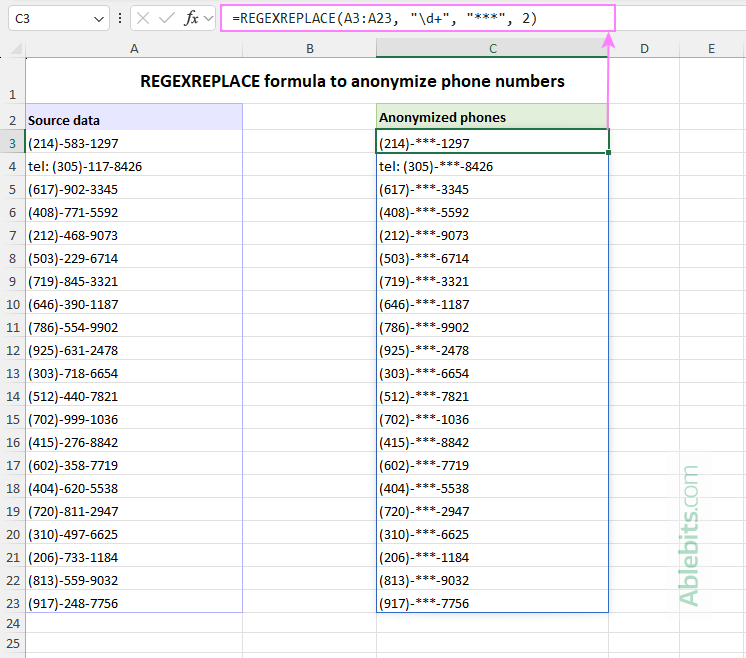
How it works:
\d+matches each group of digits, such as 123, 456, and 7890.- The occurrence argument is set to 2, so only the second numeric group is replaced.
As a result, (123)-456-7890 becomes (123)-***-7890.
Example 3: REGEXREPLACE formula to remove repeated punctuation
Sometimes text contains repeated punctuation like multiple exclamation marks or question marks, which can make it look a bit messy. With REGEXREPLACE, you can quickly clean this up and keep just a single symbol.
To reduce repeated exclamation marks or question marks to one, use this formula:
=REGEXREPLACE(A3, "([!?])\1+", "$1") For example, if cell A3 contains the text string "Wow!!!", the result will be "Wow!".
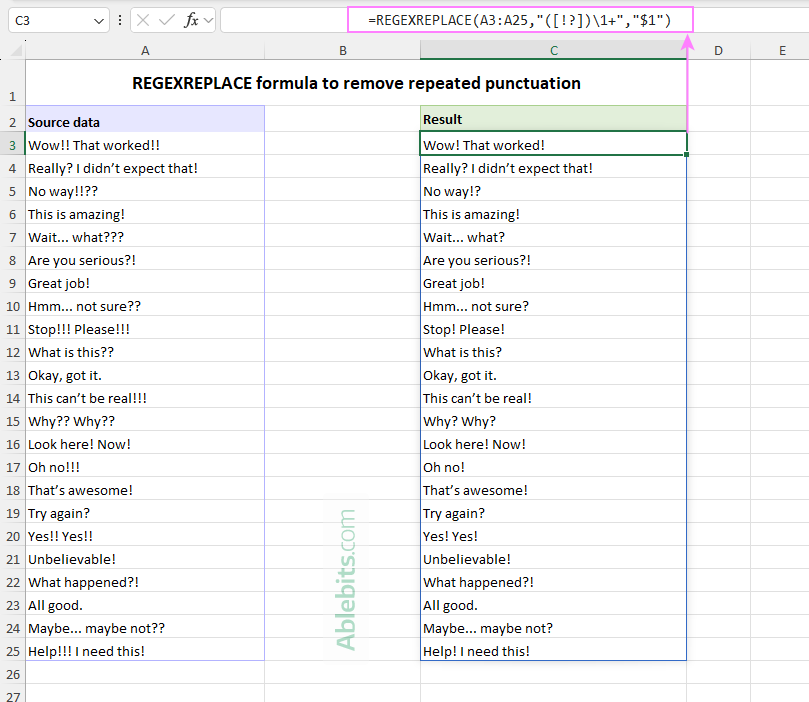
How this formula works:
Pattern: "([!?])\1+"
([!?])captures either an exclamation mark or a question mark.\1+looks for one or more repetitions of the same captured character.
Replacement: "$1"
$1returns just the first occurrence of the punctuation mark.
Tip. You can extend this pattern to include other punctuation marks (e.g. period) by adding them inside the square brackets.
Example 4: REGEXREPLACE formula to extract numbers
Microsoft Excel offers several ways to strip text from a string and keep only numbers, but REGEXREPLACE makes this task really simple. Instead of combining multiple functions, you simply replace anything that isn't a digit with an empty string.
For example, to remove all spaces, punctuation, and text characters from telephone numbers in A3:A25, the formula is:
=REGEXREPLACE(A3:A25, "[^0-9]", "") As a result, a value like "tel. (123) 456-7890" becomes 1234567890.
Keep the plus sign in international numbers
If your phone numbers include a leading plus sign (for example, +1 123 456 7890), you may want to preserve it along with the digits.
To do this, slightly adjust the pattern:
=REGEXREPLACE(A3:A25, "[^0-9+]", "")
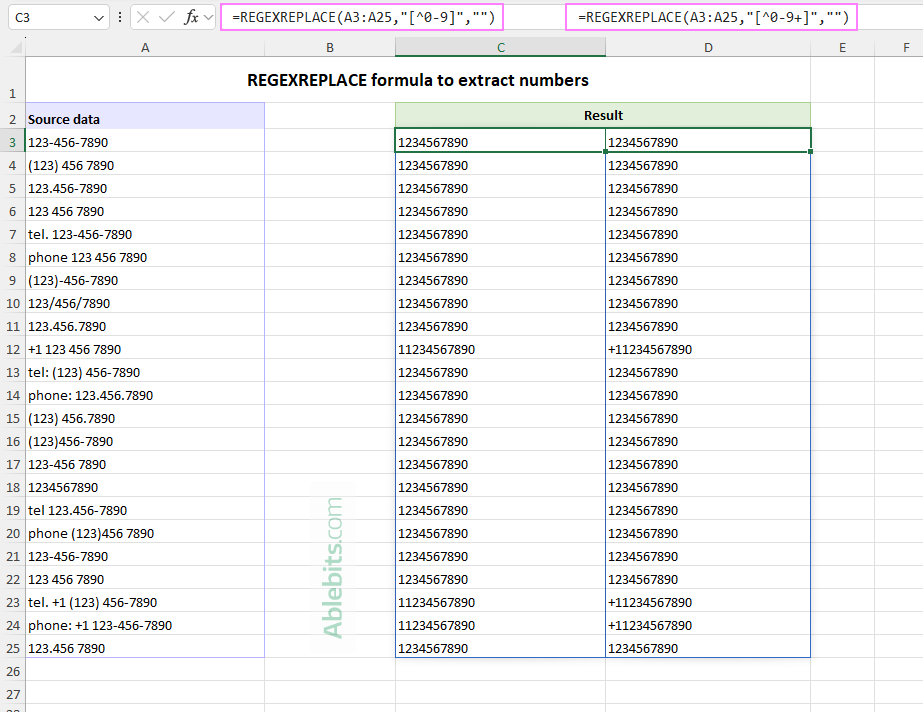
How it works:
[^0-9+]matches any character that is not a digit or a plus sign.- The empty string (
"") replaces those characters with nothing.
As a result, a value like "tel. +1 (123) 456-7890" is changed to +11234567890.
Tip. Be mindful that this formula keeps all plus signs, not just a leading one. If your data might contain extra + characters in the middle, a more precise pattern would be needed.
Example 5: REGEXREPLACE formula to capitalize specific words
Most Excel users are familiar with functions like UPPER, LOWER, and PROPER for changing letter case. What is less known is that Excel's regex functions can also handle case changes by using uppercase and lowercase operators such as:
\u– capitalize the first letter.\U– convert the whole match to uppercase.\l– change the first letter to lowercase.\L– convert the whole match to lowercase.
Imagine you have a list of status messages or log results, and you want those containing the words "error" or "failed" to stand out at a glance.
Capitalize the first letter
To capitalize only the first letter in specific words, use \u in the replacement pattern:
=REGEXREPLACE(A3:A25, "\b(error|failed|)\b", "\u$1", ,1)
Capitalize entire words
To make those words even more noticeable, convert them to ALL CAPS using the \U operator:
=REGEXREPLACE(A3:A25, "\b(error|failed|)\b", "\U$1", ,1)
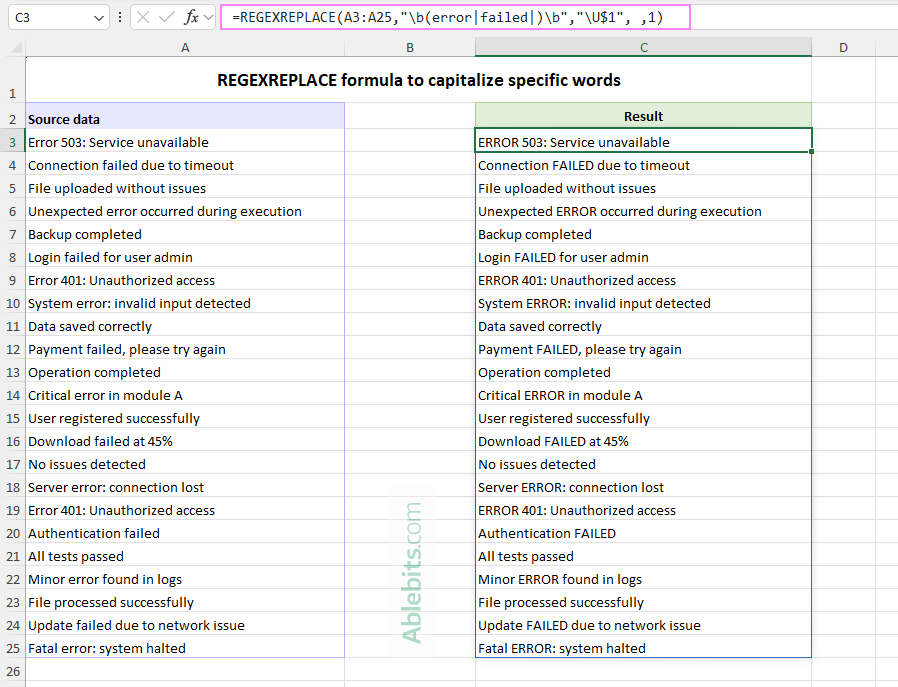
How this formula works:
Pattern: "\b(error|failed|)\b"
\bdefines a word boundary, ensuring only whole words are matched (so error is matched, but terror is not).(error|failed)matches either of the specified words using the OR operator |.
Replacement:
\u$1capitalizes the first letter of the matched word.\U$1converts the entire matched word to uppercase.
Case-insensitive matching:
- The last argument is set to 1, which makes the match case-insensitive. This ensures all variations are caught: error, Error, ERROR, failed, Failed, etc.
Tip. You can extend this pattern by adding more keywords inside the parentheses, for example:
"\b(error|failed|warning)\b"
Note. Not all regex engines support these case operators, so double-check compatibility if you plan to reuse your patterns outside Excel.
Excel REGEXREPLACE missing or not found
The REGEXREPLACE function is available only in Excel for Microsoft 365 and Excel for the web. It is not supported in earlier versions such as Excel 2021, 2019, 2016, or older.
If you are using Excel 365 but still can't find REGEXREPLACE, it's likely that your app is not fully up to date. Try installing the latest updates to get access to the newest functions.
Replace text using regexes in Excel 365 – 2016
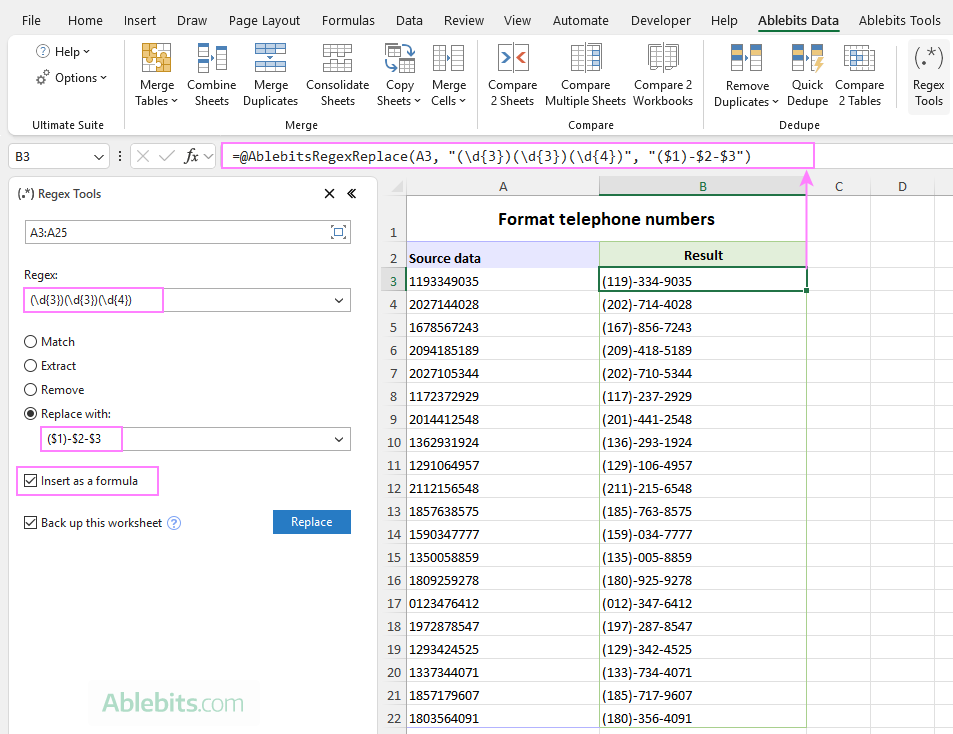
If your Excel version does not support the REGEXREPLACE function, you can still work with regular expressions by leveraging the Regex Tools included with our Ultimate Suite.
Here's how to replace text using Ablebits' Regex Tools for Excel:
- On the Ablebits Data tab, in the Text group, click Regex Tools.
- On the Regex Tools pane:
-
- Select the source data.
- Enter your regex pattern.
- Choose the Replace with option and type the replacement text.
- To return results as formulas instead of values, select the Insert as a formula check box.
- Click Replace.
In a moment, the AblebitsRegexReplace function is inserted in a new column next to your original data, so you can review and adjust the results if needed.
If you often do pattern-based replacements, this tool can save you a lot of time. A fully functional evaluation version is available, so you can explore how it handles your real-world data.
That's how to use the REGEXREPLACE function in Excel. If some of these formulas felt a bit tricky, that's completely normal. Regex takes a little getting used to, but the payoff is worth it :)
Available downloads
Excel REGEXREPLACE function - examples (.xlsx file)
Ultimate Suite – 14-day trial version (.exe file)