 by
by This tutorial shows how to extract all matching entries in Excel using dynamic array functions, multi-criteria lookups, and regex searches, with practical examples and formula breakdown.
Finding a single match in Excel is easy with VLOOKUP or XLOOKUP. The challenge comes when you need to pull all matching values, not just the first one. To accomplish the task in pre-dynamic Excel, you had to rely on several nested functions working together, which was quite complex and far from beginner-friendly. With modern Excel, things are much simpler. In this tutorial, you'll learn clear, easy-to-follow formulas for returning multiple matches from one or several columns that anyone can build.
Lookup multiple matches in Excel - basic formula
It may feel a little unexpected, but the simplest way to return multiple results in Excel doesn't involve the traditional lookup functions at all, as they are designed to return a single result, not many.
The most direct way to retrieve all records that meet a certain condition is the FILTER function. In our case, the second argument checks your lookup value against each entry in the lookup array. Wherever the comparison is TRUE, the formula pulls the corresponding item from the return array. The results spill automatically into as many cells as needed.
To see how it works in practice, consider the following example:
From the dataset below, suppose you want to get a list of participants registered for a particular event. To extract every matching name, use this formula:
=FILTER(B3:B25, A3:A25=F3, "")

Where:
- B3:B25 are the participant names (values to return).
- A3:A25 are the events (values to search for matches).
- F3 is the lookup value.
- "" returns an empty string if no match is found (optional).
How to return matches from multiple columns
To get matching values from multiple columns, you can filter an entire table at once. For this, include all the columns you want to return in the first argument of the FILTER function.
For example, to retrieve all matches from columns B, C, and D for the lookup value in F3, the formula takes this form:
=FILTER(B3:D25, A3:A25=F3, "")
This returns all rows where the value in column A matches F3 and outputs the corresponding entries from columns B through D into the neighboring cells.

How to return non-adjacent columns
Sometimes you only need results from specific columns, and those columns aren't next to each other in the source table. In that case, you can nest one FILTER function inside another to pull only the columns you need.
For example, to return the name from column B and the registration date from column D, omitting the country in columns C, the formula is:
=FILTER(FILTER(B3:D25, A3:A25=F3), {1,0,1})

How this formula works:
- The inner FILTER retrieves all rows from columns B through D where the event in column A matches the value in F3. The result still includes three columns: Participant Name (B), Country (C), and Registration Date (D).
- The outer FILTER with a column selector doesn't filter rows, it filters columns. The horizontal array constant in the second argument acts as a column mask, where 1 (TRUE) means "keep this column" and 0 (FALSE) means "skip this column".
In our case, the array {1,0,1} tells the outer function to return the first and third columns from the inner result (B and D) and excludes the middle one (C).
The final output is a dynamic array showing only the participant names and their registration dates for the selected event.
For more information, see how to filter specific columns in Excel with formulas.
How to find all matches with multiple criteria in Excel
At times, you might need to match several columns at once. In other words, you may have several lookup values, one per column. In these situations, the FILTER function can still do the job as long as you combine multiple criteria into one logical expression.
To make things clearer, imagine you want to get a list of participants who match both of these conditions:
- The event in column A must match the one in F4.
- The country in column C must match the value in G4.
You can filter rows that satisfy both conditions using this formula:
=FILTER(B3:B25, (A3:A25=F4)*(C3:C25=G4), "")

How this formula works:
- Logical comparisons. The second argument of the FILTER formula that defines the criteria includes two logical expressions:
- A3:A25=F4 checks each cell in column A against the event name in F4.
- C3:C25=G4 checks each cell in column C against the country name in G4.
Each comparison produces an array of Boolean values, where TRUE equates to 1 and FALSE to 0.
- Multiplying criteria. Next, we multiply the elements of both arrays in the same positions:
(A3:A25=F4)*(C3:C25=G4)
A row only passes when both results are TRUE. If either condition is FALSE, the product becomes 0, and that row is excluded.
- Returning matching values. The formula returns values from B3:B25 only for rows where the combined condition (the product of multiplication) equals 1. The empty-string ("") in the third argument ensures a blank output if nothing is found.
This approach works with any number of criteria. Use as many comparisons as you need, multiplying each one in the logical test.
Tip. The FILTER function can handle OR criteria as well, letting you return results that match any of several conditions. For a detailed walkthrough, check out Excel FILTER with multiple OR criteria.
Return multiple matches into a single cell
In certain scenarios, returning each match in its own cell isn't ideal. Perhaps, you are building a summary, designing a dashboard, or simply working with limited space. In these cases, it's helpful to get all matching values combined into one cell. Excel offers a couple of effective ways to do this.
Formula 1. TEXTJOIN and FILTER
The most common method is to use FILTER together with TEXTJOIN.
For example, to get a list of participant names for the event in D3, enter this formula in E3:
=TEXTJOIN(", ", TRUE, FILTER($B$3:$B$25, $A$3:$A$25=D3, ""))
This pulls all matching names from B3:B25 and joins them with commas.
To get matches for the lookup values in D4:D7, simply copy the formula downward. Because the lookup and return ranges are fixed with absolute references, the formula adjusts correctly for each row.

How this formula works:
- Pick out the matching records. First, we extract all matching values from column A with a standard FILTER formula:
FILTER($B$3:$B$25, $A$3:$A$25=D3, "")
This creates a dynamic array of all participant names related to the event in D3.
- Combine the results. Next, we use TEXTJOIN to merge the filtered results into one cell:
TEXTJOIN(", ", TRUE, FILTER(…))
- The first argument (", ") defines the separator between items.
- The second argument (TRUE) tells Excel to ignore empty cells.
- The third argument is the filtered list of matching names.
Tip. If you ever need a list of unique values from a specific column, the UNIQUE function can help. In this example, the following formula is used to extract all distinct event names from column A:
=UNIQUE(A3:A25)
Formula 2. GROUPBY and ARRAYTOTEXT
The previous formula works great, but this one is even better! Instead of extracting unique values and copying formulas down, you just enter a dynamic-array formula in one cell (D3 in our case) and get the desired result at once.
=GROUPBY(A3:A25, B3:B25, ARRAYTOTEXT, 0, 0)
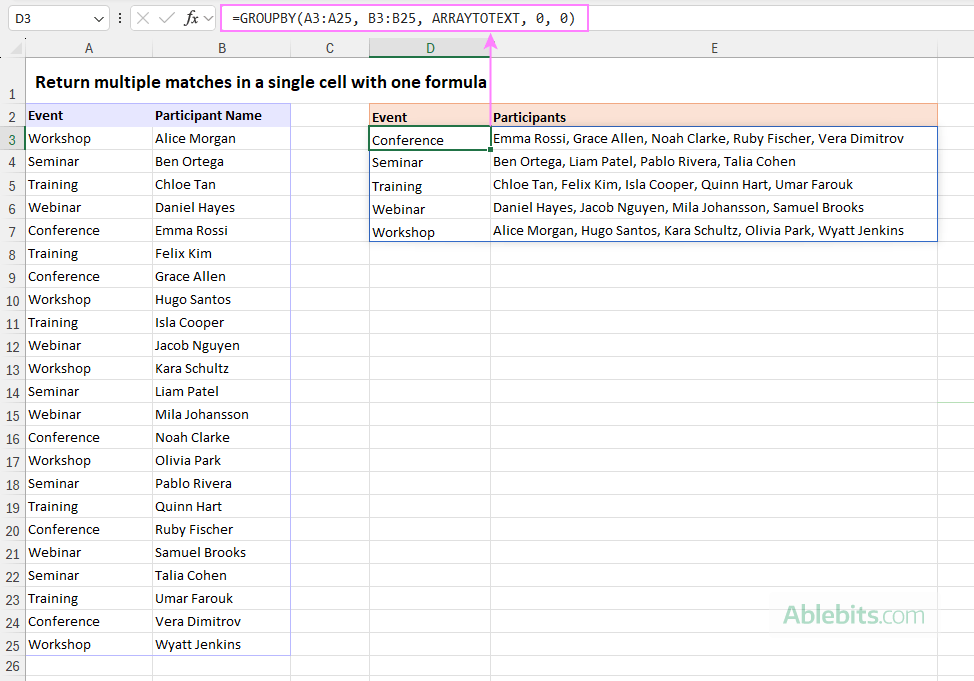
How this formula works:
- A3:A25 are the values to group by (event names).
- B3:B25 are the values to combine (participant names).
- ARRAYTOTEXT is the function to use for grouping. It converts each grouped array into a comma-separated text string.
- The fourth argument (field_headers) controls headers (0 means no headers in the source range).
- The fifth argument (total_depth) determines whether to show totals and subtotals (0 means no totals).
By default, GROUPBY sorts results in ascending order from A to Z by the first column in the source range (row_fields argument). If you'd like a different sort order, adjust the sixth (sort_order) argument accordingly.
Note. The GROUPBY function is only available in Excel 365. And ARRAYTOTEXT does not allow choosing a delimiter for grouped values. So, if you are using a different Excel version or want to separate combined values with a custom delimiter other than a comma and a space, then stick to Formula 1 above.
How to lookup multiple partial matches in Excel
When you need to search for partial matches in Excel, your first thought might be to use wildcard characters. The catch is that FILTER doesn't support wildcards directly. The good news is that Excel provides something even more powerful – the REGEXTEST function. With it, you can match beginnings, endings, specific patterns, or any text fragment you are looking for.
Let's start with a simple example. Suppose column A contains participant IDs that begin or end with a country code, and you aim to pull all entries for a specific country. To get this done, nest REGEXTEST inside the include argument of FILTER like this:
=FILTER(A3:C25, REGEXTEST(A3:A25, E3))
This formula returns all rows where the ID contains the text specified in E3, no matter where it appears in the string.

If you need something more precise, you can use various regex patterns to control exactly what qualifies as a match.
Match entries that start with certain characters
To return only those entries where the ID begins with the code in E3, use the caret ^ anchor, which tells Excel to match the pattern only at the very start of the string.
=FILTER(A3:C25, REGEXTEST(A3:A25, "^" & E3))
Match entries that end with certain characters
To pull all the records where ID ends with a country code typed in E13, use the regex end anchor $:
=FILTER(A3:C25, REGEXTEST(A3:A25, E13 & "$"))

How these formulas work:
- REGEXTEST checks each ID in A3:A25 and returns TRUE for rows that match the pattern and FALSE for those that don't.
- FILTER keeps only the rows where the regex condition is TRUE.
- The output is a full list of rows that satisfy your partial-match condition.
This approach is flexible, powerful, and ideal for situations where simple wildcards just aren't enough.
Now that you've seen how to return multiple matches in many different ways, from simple filters to multi-criteria lookups and regex searches, you can choose the method that fits your worksheet best. Try experimenting with these formulas in your own sheets or download the sample workbook below for hands-on experience.
Practice workbook for download
Lookup multiple matches - formula examples (.xlsx file)
4 comments
Looking for an Excel formula which can create an exact match from the numbers that I select ( that being from 6 to 9 numbers ) when searching an Excel database that has thousands of sequential lines of data - each line has 20 random numbers from 1 to 80. Ideally, I was hoping to get that line number, showing all of the 20 numbers in that line.
I have the database, looking to attain the ability to search it and produce results.
Is this something that Excel can perform ? Or is there an AI bot which can perform the same search and tested to produce the exact match results ?
Please advise accordingly
Hello Remi!
If I understand the question correctly, you can get the numbers of the rows in which your numbers are written at least once using this formula:
=LET(
search, UNIQUE(--TEXTSPLIT(Z1,",")),
data, A2:T5000,
check,
BYROW(data,
LAMBDA(r,
MIN(COUNTIF(r, search))>0
)
),
FILTER(ROW(A2:A5000), check)
)
Your numbers are written in cell Z1, separated by commas. TEXTSPLIT function converts Z1 into an array. -- forces numeric conversion. UNIQUE function removes duplicate numbers from your search list.
BYROW function checks each database row. For each row:
COUNTIF function checks how many times each search number appears. If even one number is missing, MIN function becomes 0. If all numbers exist, then return TRUE.
I also recommend you this article: Excel LAMBDA function: how to write, calculate and use.
For the "Return multiple matches into a single cell" section you are far better using groupby with array to text then dynamic and not one formula for each row,
Hello James,
Thank you for your comment! Yep, for Excel 365 users, that's an excellent solution. We added this formula to the article.