 by
by Discover easy ways to apply formulas to large datasets in Excel without repetitive copying and keep your calculations accurate as your data grows.
Excel formulas often start in a single cell, but your data rarely stays that small. As your dataset grows, manually copying formulas can quickly turn into a tedious task, not to mention how easy it is to make mistakes. Learning how to automatically expand formulas across all rows keeps your calculations consistent and saves you from endless double-checking.
Apply formula to entire column
Manually copying formulas row by row is not only time-consuming but also an easy way to introduce mistakes that are hard to spot later.
Luckily, Excel has offered built-in ways to handle this from the very first versions, so there's rarely a need to copy formulas manually cell by cell.
Traditionally, to copy an Excel formula to multiple cells, you can:
- Drag the fill handle down the column to apply the formula to other rows, or
- Drag it to the right to copy across columns.
If your dataset has no gaps, you can also double-click the fill handle to automatically copy the formula down to the last populated row.
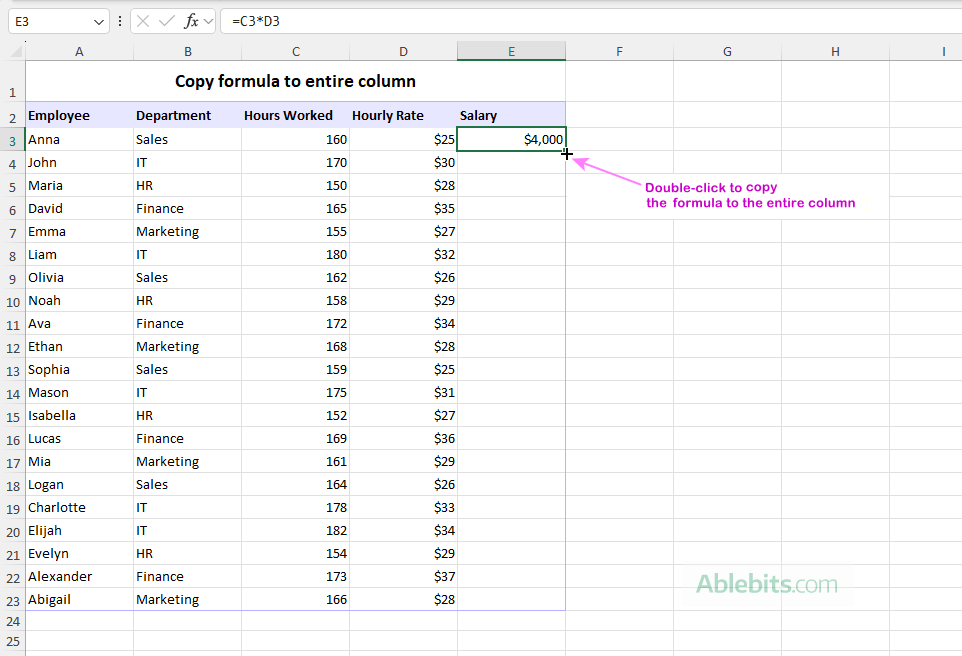
As simple as this method is, it is far from perfect. Each formula exists independently in its own cell, so it's easy to accidentally overwrite, change, or delete one without noticing. Also, for the formula to copy correctly, you need a clear understanding of relative and absolute references.
Advantages:
- Time-tested and familiar
- Works in all Excel versions
- Quick for small to medium datasets
Drawbacks:
- Prone to accidental changes or inconsistencies
- Requires careful handling of cell references
- Needs manual updating if new rows or columns are added
Use whole column references
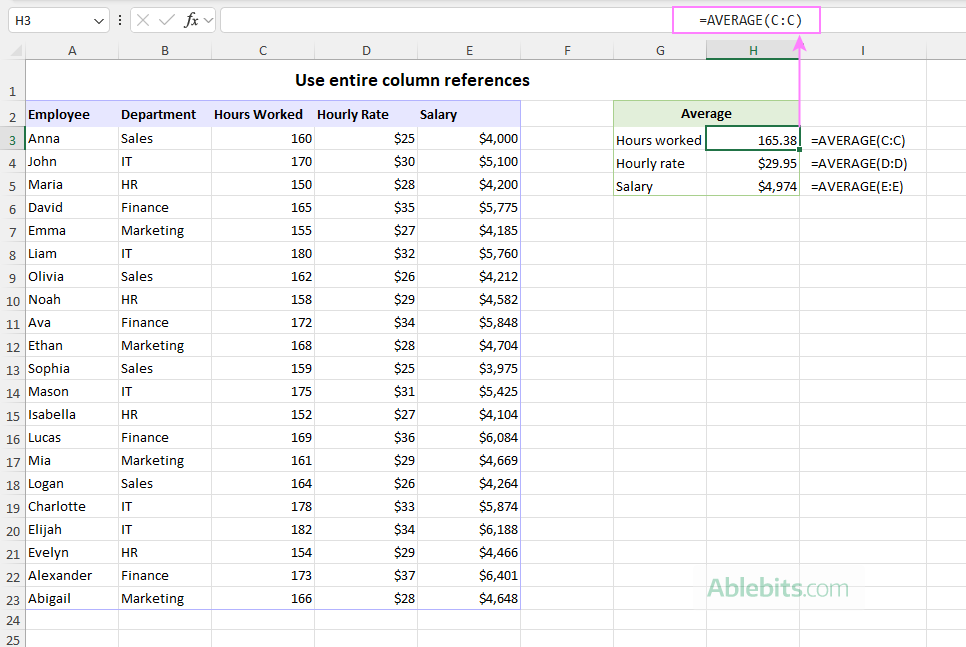
Instead of copying formulas down a range, you can write them to reference an entire column. For example, to calculate the average of all values in column C, you can use:
=AVERAGE(C:C)
At first glance, this approach seems simple and efficient, but in reality, it has too many weaknesses.
When used in another column (for example, in H3), the formula works well and automatically includes both current and future values in the referred column.
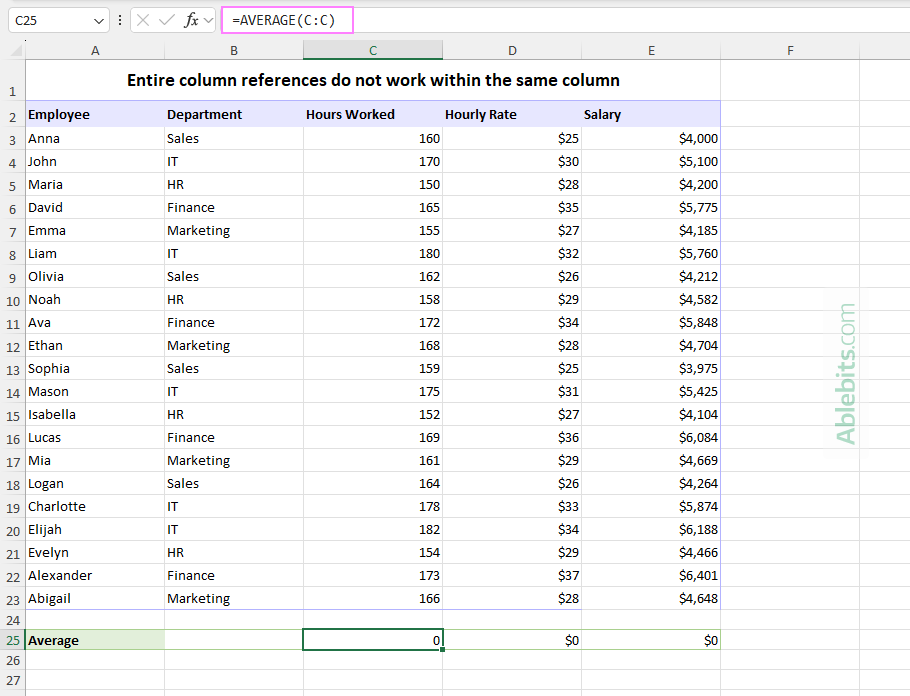
However, if you enter the same formula anywhere within column C (below your data), it will return 0. This happens because of a circular reference when the formula ends up referring to its own cell, which prevents Excel from calculating it properly.
Aside from circular references, entire column formulas can also return incorrect results if the column contains extra data outside your main dataset. For example, column headers, notes, or summary information at the top will be included in the calculation, which can skew the result.
Advantages:
- Automatically includes new data added to the column
- No need to copy or auto-fill formulas
Drawbacks:
- Cannot be used in the same column it references
- May include unintended cells (such as headers or extra values)
- Can slow down performance in large or complex workbooks
Make expandable formulas with Excel Tables
Excel Tables are one of the easiest ways to keep formulas consistent, as they are designed to automatically expand to include all new data, both rows and columns.
To quickly convert a regular range into a fully functional table, simply select your data and press the Ctrl + T shortcut. For more details, see How to create a table in Excel.
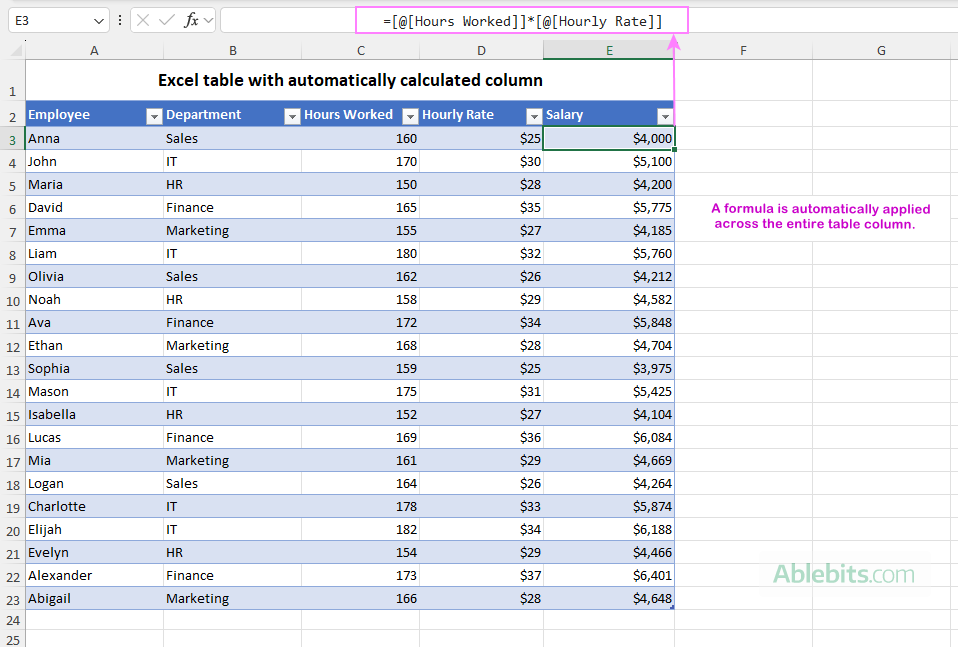
Once your data is in a table, any formula you enter in a single cell is automatically applied to the entire column. Even better, when you add new rows, the formula continues to fill in without any extra moves.
That said, tables do have a few limitations. For example, they do not support dynamic array formulas that spill results into multiple cells. Since an Excel table expects one formula per row, spill ranges can conflict with structured references.
Advantages:
- Formulas expand automatically when new data is added
- Structured references make formulas easier to read and understand
Drawbacks:
- Not compatible with dynamic array formulas inside a table
- Structured references may feel unfamiliar at first
- Less flexible for advanced formula scenarios (e.g. when the logic requires using mixed cell references)
Use Excel dynamic array formulas
Modern versions, including Microsoft 365 and Excel 2024, support dynamic array formulas that can return results across multiple rows automatically (this is called spilling).
For example, to calculate salary for all employees at once, use:
=C3:C23 * D3:D23
Enter this formula in a single cell, say E3, and Excel will return results for all rows in the specified range.
Moreover, dynamic arrays also allow you to reference the entire spilled range within another formula using the # operator.
For instance, to calculate a 10% bonus based on the results in column E, the formula is as simple as this:
=E3#*10%
The spill range reference E3# includes all values returned by the dynamic array formula in E3 and automatically updates as the spilled range changes.
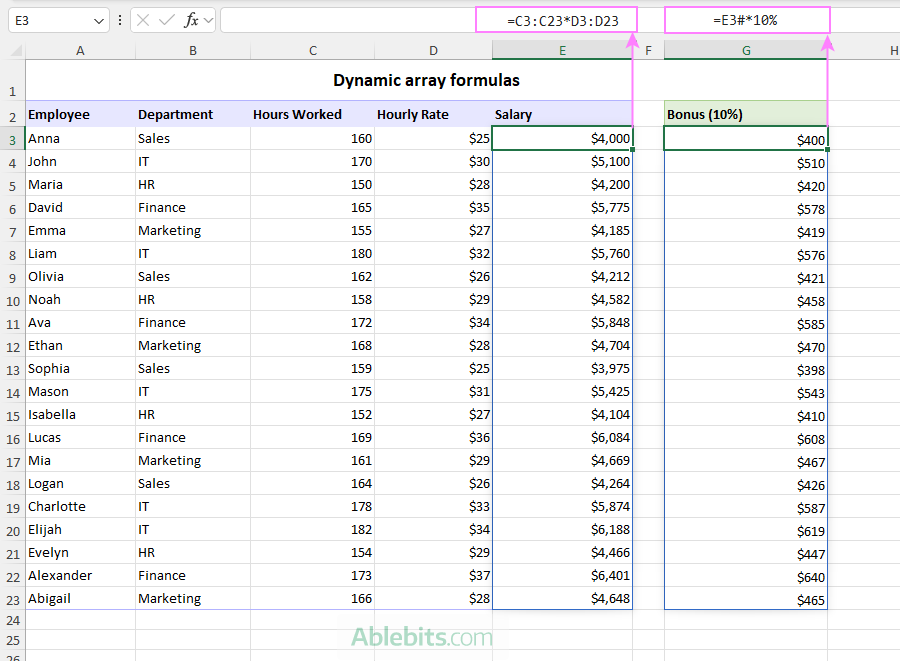
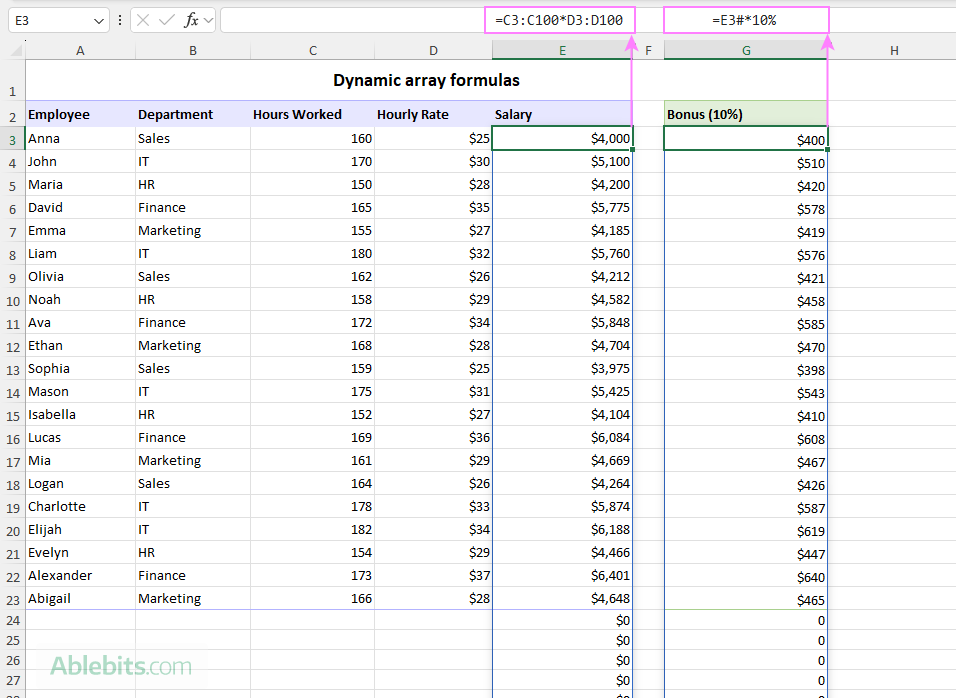
As you can see, dynamic array formulas work beautifully for the referenced range, but the formula won't expand to include new data. Referencing a bigger range (for instance, C3:C100) may produce unwanted zeros or errors due to empty cells.
=C3:C100*D3:D100
Advantages:
- Calculates all rows using a single formula
- Reduces the risk of accidental changes in individual cells
- Makes formulas easier to manage and audit
Drawbacks:
- Not supported in older (pre-dynamic) Excel versions
- Formulas do not expand automatically when new data is added
Make dynamic named ranges
Many Excel users leverage named ranges to assign clear, human-readable names to individual cells or blocks of cells. However, fewer people know how to make those ranges dynamic, so they automatically expand to include new data as it is added.
In Excel, there are two classic approaches to defining a dynamic named range: using the OFFSET or INDEX function. You can find detailed explanations of each method here:
Now, let's apply this in a practical example, by defining two dynamic ranges:
Hours_Worked – includes all values in column C starting from row 3:
=$C$3:INDEX($C:$C, COUNTA($C:$C)+1)
Hourly_Rate – includes all values in column D starting in row 3:
=$D$3:INDEX($D:$D, COUNTA($D:$D)+1)
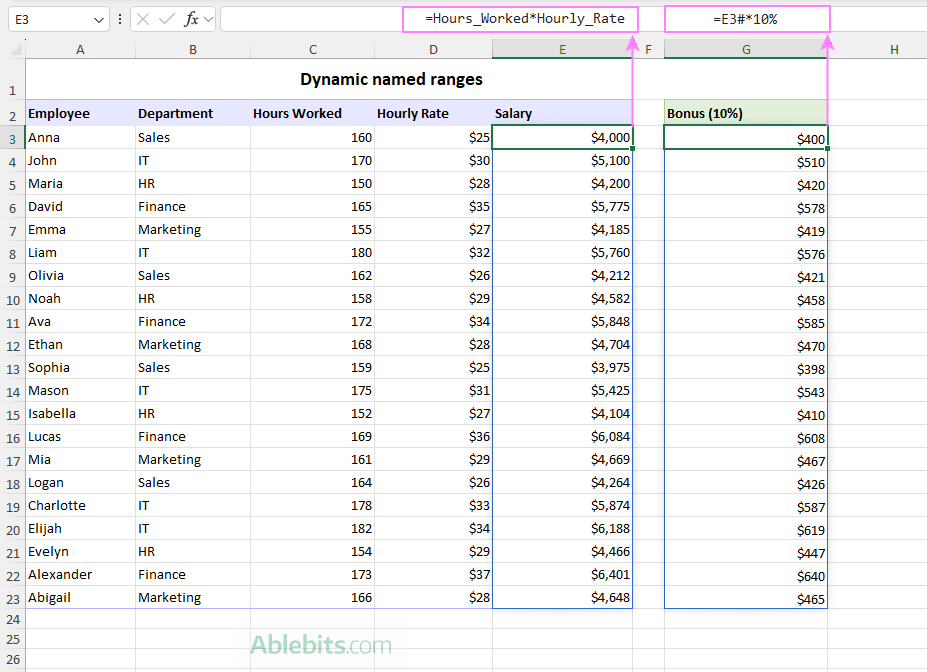
Once ready, you can use these dynamic named ranges in a formula like this:
=Hours_Worked*Hourly_Rate
As both ranges always include the full dataset, the formula extends automatically as new rows are added and contracts when any existing rows are removed.
Advantages:
- Automatically includes newly added data
- Keeps formulas cleaner and simpler to interpret
Drawbacks:
- Setup can be complicated and not very intuitive, especially for beginners.
- Using OFFSET may lead to performance issues, as it is a volatile function that recalculates with every change in the workbook.
Create expandable formulas in Excel using TRIMRANGE
The recently introduced TRIMRANGE function offers an amazingly simple way to make any Excel formula expand automatically. It works by removing blank rows and columns from the outer edges of a range and returning only the cells that contain data. And it handles both formula-driven data and manually entered values equally well.
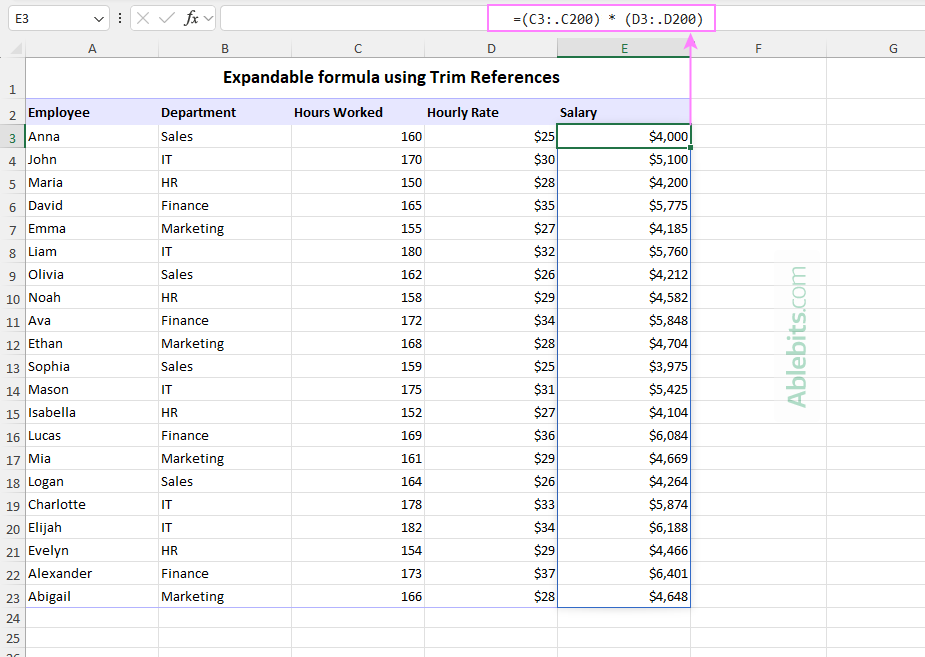
For example, you can calculate the salary for all employes using this formula:
=TRIMRANGE(C3:C200) * TRIMRANGE(D3:D200)
Here, the referenced ranges are intentionally larger to accommodate future data, while the actual dataset may currently occupy only a smaller portion of those ranges. Any unused cells beyond the data are automatically excluded. Newly added rows are immediately included in the calculation, without making a single change to the formula.
What is more, you do not even need to use the function itself! The same result can be achieved using the trim reference operator, which provides a shorter syntax: =C3:.C200 * D3:.D200 Trim references behave the same way as the TRIMRANGE function, trimming blank cells and returning the used data range. The trim references method is my personal favorite because: Advantages: Drawbacks: 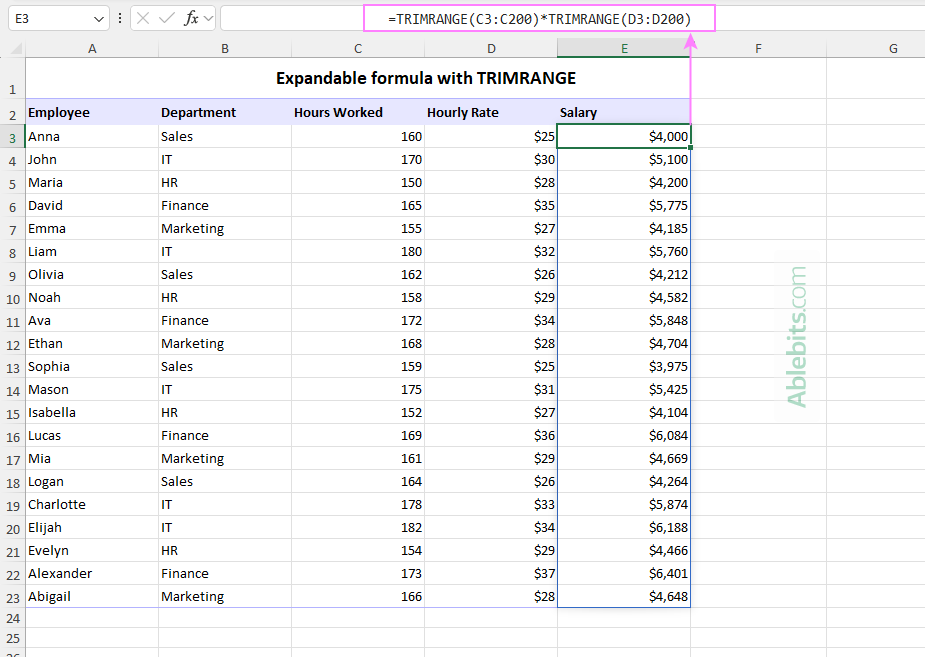
Using trim references
The key to working efficiently in Excel is reducing manual steps wherever possible. By using the right method to expand formulas, you not only save time but also lower the risk of those small errors that somehow take forever to track down 😊
Practice workbook for download
Expand formulas in Excel - examples (.xlsx file)