 by
by In this tutorial, you'll learn how to use UPPER, LOWER, and PROPER functions in Excel with practical examples to change text to uppercase, lowercase, or proper case.
Text in Excel has a funny way of getting out of control. One column is ALL CAPS, another is all lowercase, and somewhere in the middle is a mix that is neither here nor there. If your data looks like it can't decide on a writing style, Excel's case functions are here to bring a little order and sanity back :)
What are Excel case functions?
Excel provides three built-in functions to change the capitalization of text:
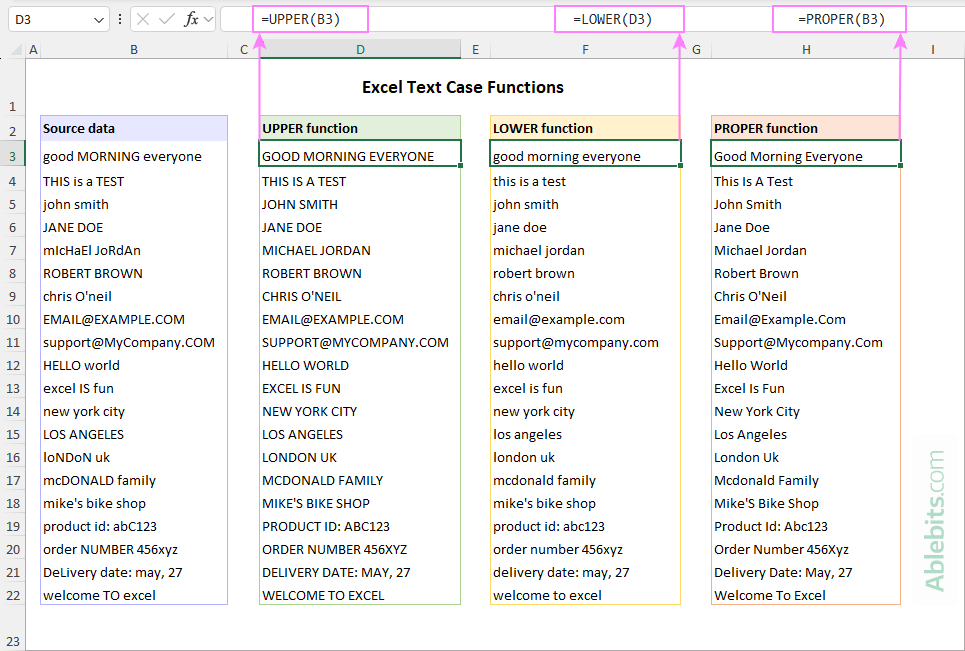
- UPPER – converts all letters to UPPERCASE.
- LOWER – converts all letters to lowercase.
- PROPER – Capitalizes The First Letter Of Each Word.
Each function operates on letters. Numbers, dates, punctuation marks, special characters and spaces are not affected.
These three functions are available in all versions, including Excel for Microsoft 365, Excel 2024 – 2016.
Note. While Excel has no native Sentence case function, you can build your custom formula or use VBA to apply it. For full details, see Change text to sentence case in Excel.
Usage notes
Before you start using the case functions in your Excel worksheets, here are a few helpful things to know:
- Only letters are affected; non-letter characters are left as they are.
- The results are returned in new cells. The original text stays unchanged unless you replace it with the formula result.
- Certain text patterns, like names with prefixes or apostrophes, may not be formatted correctly and can require manual adjustments.
Knowing the basics, let's take a closer look at each function and how it works in practice.
Excel UPPER function - convert text to uppercase
The UPPER function in Excel changes text to all capital letters.
The syntax is as follows:
UPPER(text)
Where:
- text – is the text string to convert to upper case.
For example:
=UPPER(A2)
If cell A2 contains the text "excel functions are useful", this formula will return "EXCEL FUNCTIONS ARE USEFUL".
Excel LOWER function - change text to lowercase
The UPPER function in Excel converts text to all lowercase letters.
The syntax is:
LOWER(text)
Where:
- text – is the text string to convert to lower case.
For example:
=LOWER(A2)
If cell A2 contains the email address "EMAIL@EXAMPLE.COM", the formula will change it to "email@example.com".
Excel PROPER function - capitalize each word
The PROPER function in Excel capitalizes the first letter of each word in a text string and makes the rest lowercase.
The syntax is:
PROPER(text)
Where:
- text – is the text string to convert to proper case.
For example:
=PROPER(A2) If cell A2 contains "john smith", the formula will capitalize it properly as "John Smith".
Note. The PROPER function may not handle certain cases as expected:
- Names with prefixes are treated as a single word, so McDonald will become Mcdonald.
- In possessive forms, the suffix 's is treated as a separate word, so Mike's will be changed to Mike'S.
Using case functions as dynamic array formulas in Excel 365
The traditional way to apply a formula to an entire column is to enter it in the first cell and then drag the fill handle down to copy it. That approach still works perfectly in modern Excel.
However, if you prefer to keep the formula in just one cell, dynamic arrays eliminate the need to copy it down. In Excel 365, Excel 2024, and Excel 2021, many functions (even the ones that were not originally designed to work with arrays) can return multiple results.
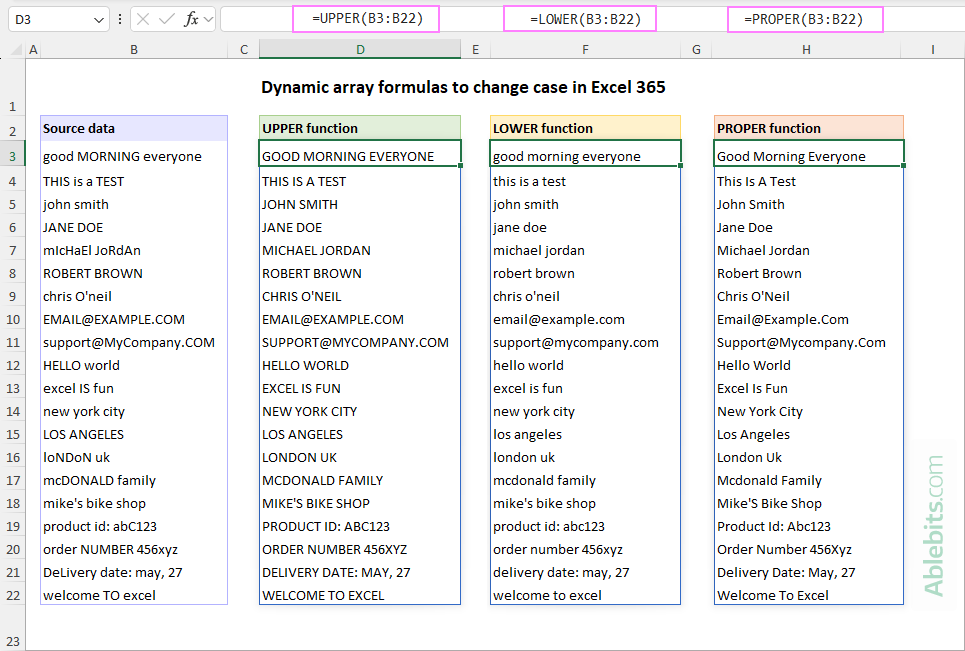
So, if you want to change text case in every cell of a certain range, simply supply that range to the UPPER, LOWER or PROPER function, and Excel will automatically spill the results into as many cells as needed.
For example:
=UPPER(B3:B22) Enter this formula into a single cell (e.g. D3), and it will return the uppercase version for each value in the range B3:B22, filling the same number of rows in column D.
How to change text case in Excel – formula examples
Below are practical examples of how to change text case in Excel using formulas. Each method focuses on a specific type of capitalization, so you can choose the one that fits your data best.
How to change lower case to upper case in Excel
If you have text in lowercase and need it in uppercase, you can do this easily with the UPPER function.
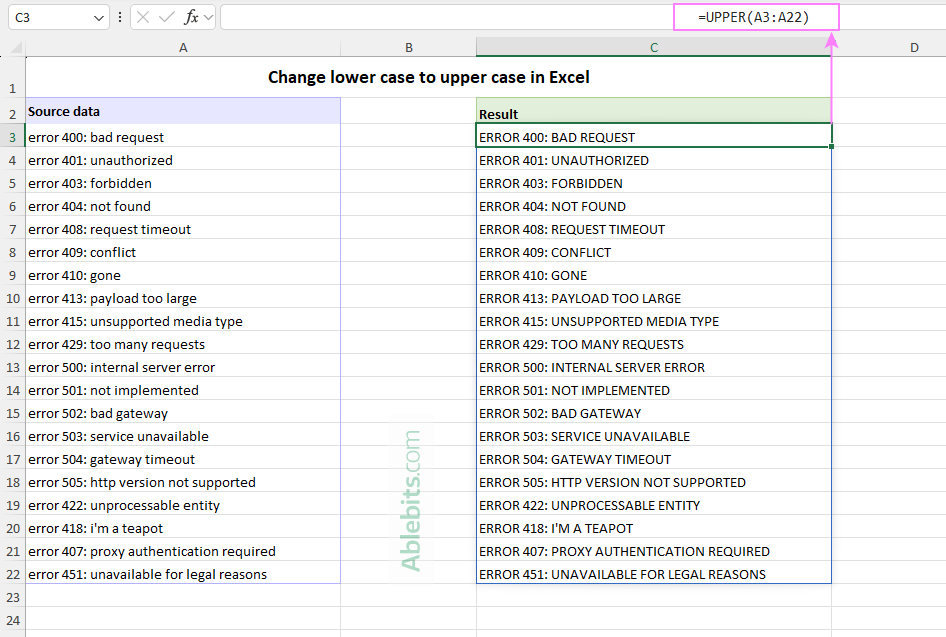
For example, suppose you have lower case error descriptions in column A, and you want to get them converted to upper case as your reporting standards require. This can be done in 2 ways:
Per-cell formula (Excel 365 – 2016):
Write the formula for the first cell (A3 in this example), enter it in C3, and then copy it down to the remaining cells:
=UPPER(A3)
Dynamic array formula (Excel 365 – 2021):
Reference the entire range in a single formula:
=UPPER(A3:A22) As a result, the text strings are converted to upper case, either cell by cell or all at once, depending on the method you choose.
How to change upper case to lower case in Excel
Sometimes text appears in all caps and needs to be converted to lowercase for readability or consistency.
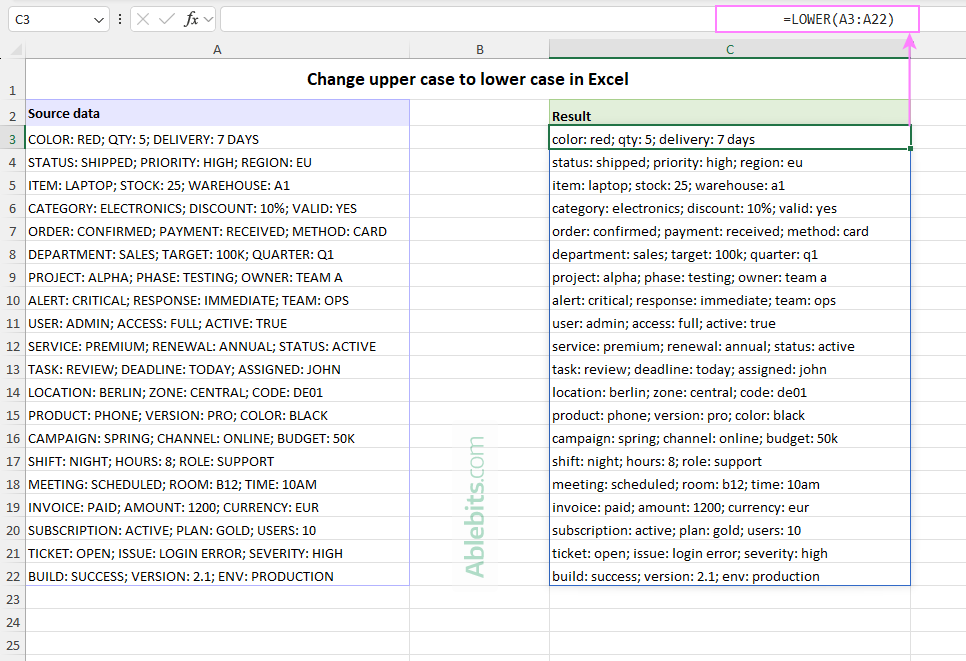
For example, if your data is in uppercase in column A, you can convert the entire range at once using a dynamic array formula in Excel 365:
=LOWER(A3:A22)
If you're using an older Excel version, you can use a per-cell formula instead:
=LOWER(A3)
Then copy it down to apply the change to the rest of the column.
This is especially useful when cleaning data for comparisons, where consistent lowercase text helps avoid mismatches caused by different capitalization.
How to convert words to proper case in Excel
When text comes from different systems, logs, or other exports, it often contains inconsistent capitalization: words may appear in all caps, all lowercase letters, or a mix of both.
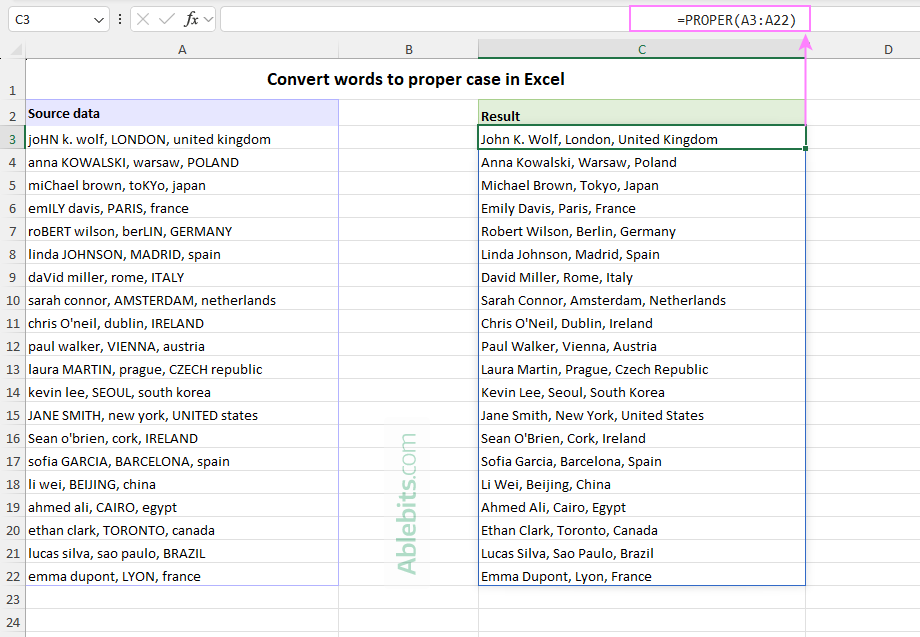
To start each word with a capital letter, use the PROPER function. Depending on your Excel version and the preferred way of working, choose one of these formulas:
=PROPER(A3) =PROPER(A3:A22) In Excel 365, the result looks as follows:
How to change case of different parts of text string in Excel
Sometimes you don't need to change the case of the entire text string, just specific parts of it. For example, if an original string contains a person's name and their state, you may want the name in proper case and the state abbreviation in uppercase.
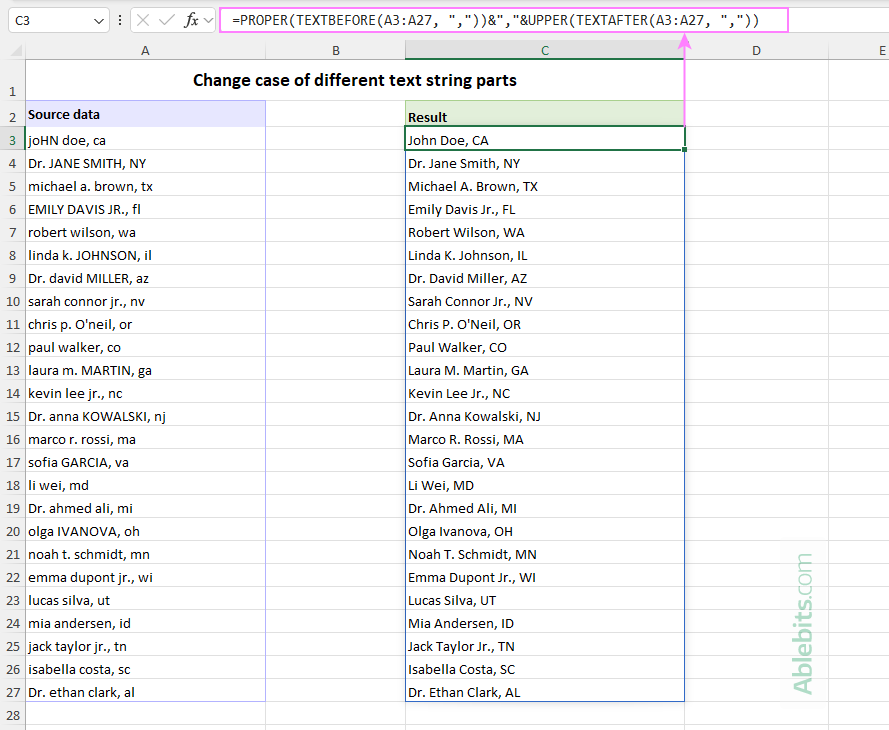
In this example, the source data follows a consistent pattern: full name, state abbreviation. The two parts are separated by a comma and a space, which makes it easy to split and format each part differently.
Dynamic array formula for Excel 365
In Excel 365, which supports the dynamic array TEXTBEFORE and TEXTAFTER functions, you can apply one formula to the entire range:
=PROPER(TEXTBEFORE(A3:A27, ",")) &","& UPPER(TEXTAFTER(A3:A27, ","))
How this formula works:
To format the name:
TEXTBEFORE(A3:A27, ",")extracts everything before the comma (the name).PROPER(…)capitalizes each word in the extracted name.
To format the state:
TEXTAFTER(A3:A27, ",")extracts everything after the comma, including a space character.UPPER(…)converts the state abbreviation to uppercase.
To join the two parts:
&","&concatenates the formatted name and state with a comma between them.
Formula for older Excel versions
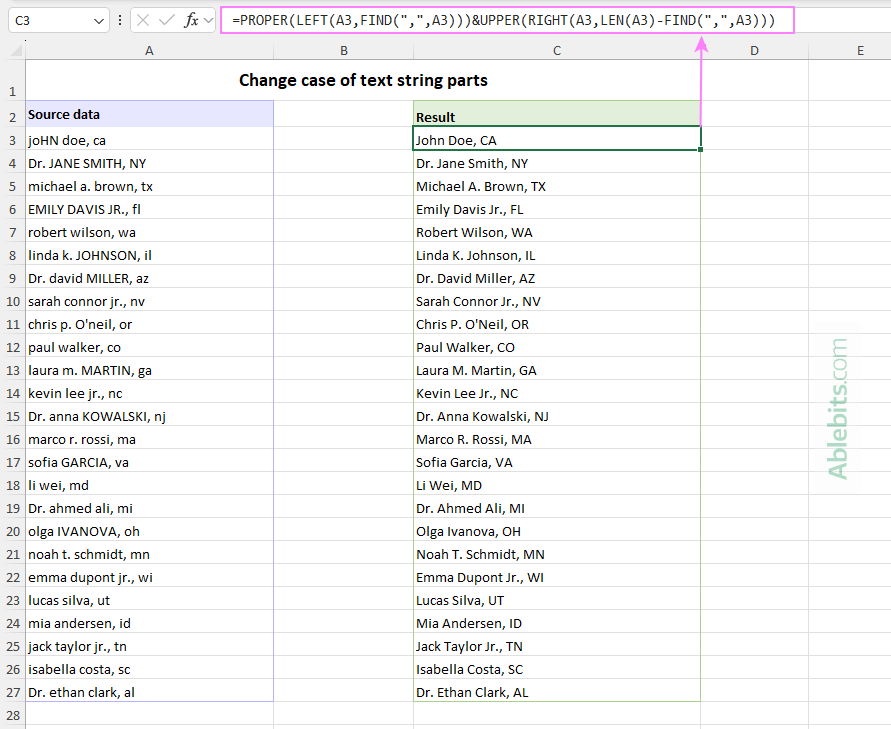
In earlier versions of Excel, you can achieve the same result with a slightly longer formula:
=PROPER(LEFT(A3, FIND(",", A3))) & UPPER(RIGHT(A3, LEN(A3) - FIND(",", A3)))
This formula works on one cell at a time, so you'll need to copy it down the column. The upside is that it works in any Excel version from 365 to 2016.
How this formula works:
To format the name:
FIND(",", A3)locates the position of the comma.LEFT(A3, FIND(",", A3))returns the name along with the comma.PROPER(…)formats the name portion.
To format the state:
RIGHT(A3, LEN(A3) - FIND(",", A3))extracts the state abbreviation, including a leading space.UPPER(…)converts the state to uppercase.
The concatenation operator (&) combines both parts into a single text string.
Note. Since both formulas rely on a consistent delimiter (comma and a space separating the two parts), make sure your entire dataset follows the same pattern.
Combine columns and standardize text case at once
Changing text case doesn't always apply to a single cell. In many real-world scenarios, you may need to combine values from two or more columns and then standardize the output. Instead of merging first and fixing the text case later, you can handle both tasks in one formula.
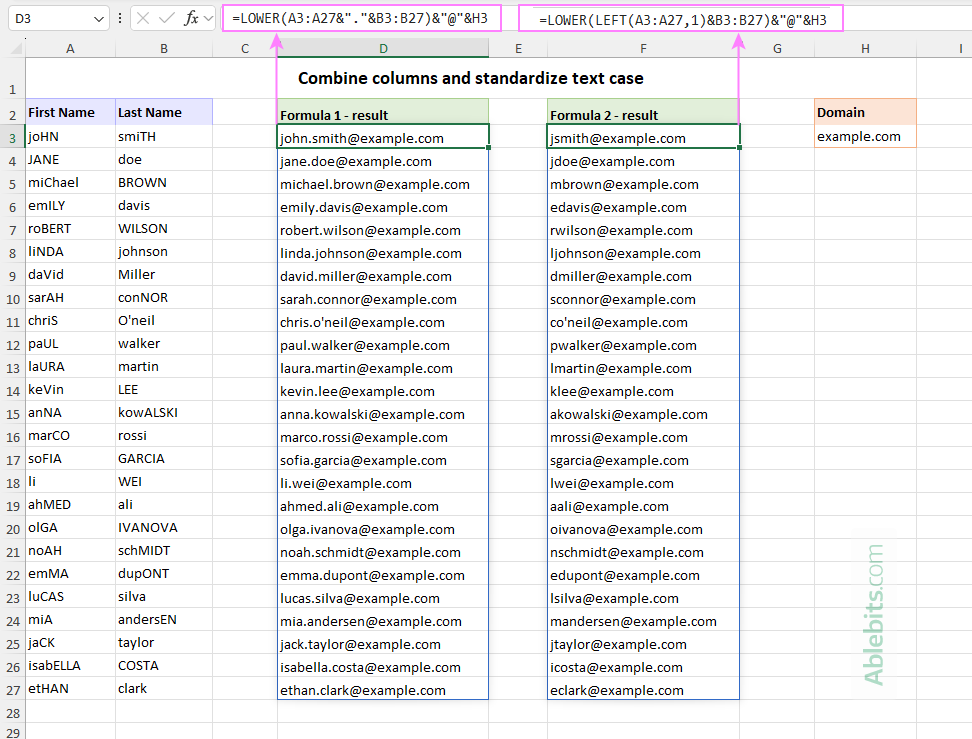
For example, suppose you have first names in column A, last names in column B. Your goal is to generate an email address for each person in a consistent format, using a certain domain name (for example, the one you enter in H3).
Depending on the desired pattern, you can use one of the following formulas.
Pattern: name.surname@domain.com
Per-cell formula:
=LOWER(A3&"."&B3) & "@" & $H$3
Remember to lock the reference to D4 so it doesn't change when copying the formula down.
Dynamic-array formula:
=LOWER(A3:A27 &"."& B3:B27) & "@" & H3
As a result, you will get a list of email addresses like john.smith@example.com.
Pattern: initial.surname@domain.com
Per-cell formula:
=LOWER(LEFT(A3, 1) & B3) & "@" & $H$3
Dynamic-array formula:
=LOWER(LEFT(A3, 1) & B3) & "@" & H3
This formula produces addresses like jsmith@example.com.
How these formulas work:
In all of these formulas, the LOWER function is used to convert the final result to lowercase. The difference lies in how the names are combined.
In the first case, you concatenate the full values from columns A and B, joining the first and last names with a dot.
In the second case, you extract only the first letter from column A using the LEFT function, and then combine it with the full last name from column B.
How to change text case in Excel without formulas
If you are looking for a quick way to change text case in place, without adding helper columns with formulas, there is a practical and time-tested solution – Ablebits Ultimate Suite for Excel. Among its many useful features, it includes a handy Change Case tool.
Here's how to use it:
- Select the cells where you want to change the text case.
- Go to the Ablebits Data tab and click the Change Case button.
- In the pane that opens, choose the desired option: UPPER, lower, Proper, or Sentence case (yep, it also has the option to capitalize the first letter of each sentence).
- Click the Change Case button.
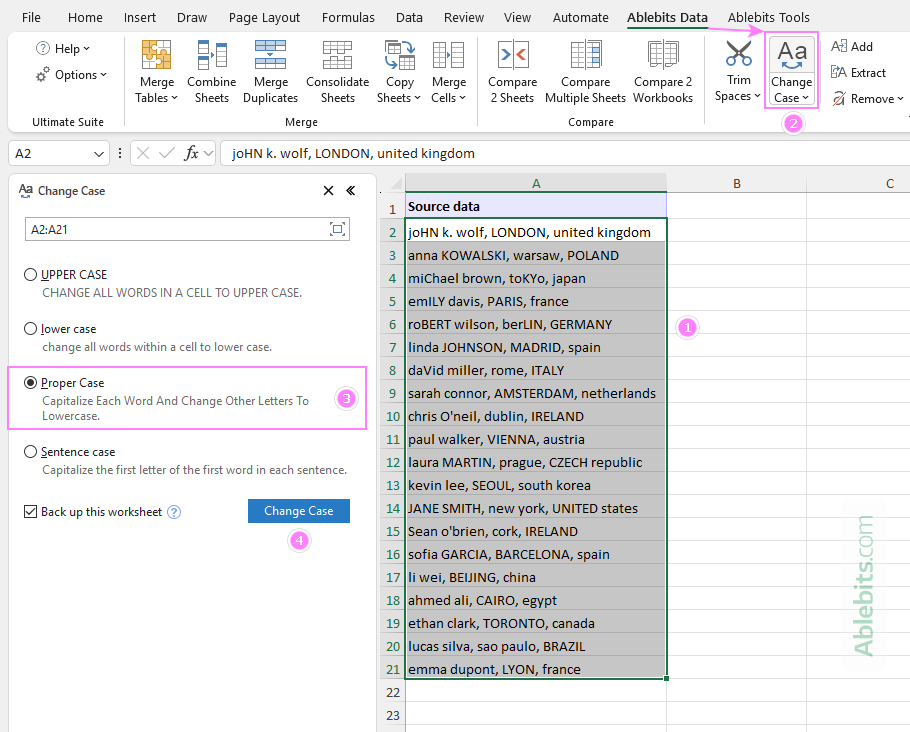
That's it! Your text is properly formatted without an extra hassle.
For extra peace of mind, the Backup this worksheet option is enabled by default, so you will never lose your original data.
Tip. To save even more time, you can apply the desired case directly from the ribbon without opening the pane.
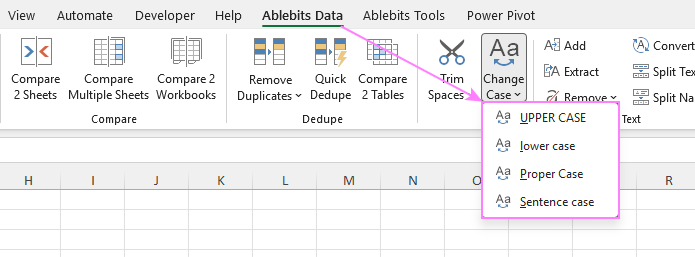
To test it in practice, you can download the evaluation version and see how it handles your data.
That's really all there is to it. From simple formulas to one-click tools, there are plenty of ways to fix inconsistent letter case in Excel. The choice is always yours 😊
Available downloads
Excel case function - formula examples (.xlsx file)
Ultimate Suite - fully-functional trial version (.exe file)