 by
by Struggling with messy text in Excel? The article covers simple and advanced methods to change text from all caps to sentence case, capitalize the first letter, and normalize multi-sentence strings.
Cleaning up text in Excel sheets isn't always as simple as it should be. Especially, when all you want is a normal-looking sentence and not a mix of ALL CAPS and lowercase chaos. Although there is no built-in function for sentence case in Excel, a properly written formula or macro can take care of it in seconds.
What is sentence case?
Sentence case is a capitalization style where only the first letter of the first word in a sentence is capitalized, while all other words remain lowercase. Proper nouns (such as names of people, places, or organizations) are an exception and are always capitalized.
This style is commonly used for improved readability in titles, headings, and long content.
For example: This Excel text string is in sentence case.
Excel sentence case function
Regrettably, Excel does not provide a built-in function for sentence case. There is no button or formatting option that could do this automatically either.
Even in VBA, there is no dedicated sentence case function, although it does have a worksheet function for proper case (capitalizing each word).
To convert font to sentence case in Excel, you can use one of the following approaches:
Change font to sentence case with Excel formulas
If your text is in uppercase, lowercase or has inconsistent capitalization, Excel formulas offer a quick way to convert it to sentence case. While there is no dedicated function for this, a combination of standard text functions can handle the conversion effectively.
Formula 1. Capitalize the first letter in a text string
If all cells in your dataset contain just one sentence, you can get the desired sentence case result by capitalizing the first letter in a cell. The formula is:
=REPLACE(A3, 1, 1, UPPER(LEFT(A3, 1)))
Here, we REPLACE the first character in cell A3 with its UPPER case version. Simple and elegant :)
The same result can be achieved with a slightly longer formula:
=UPPER(LEFT(A3)) & MID(A3, 2, LEN(A3) -1)
Here is how it works:
LEFT(A3, 1)extracts the first character.UPPER(LEFT…))converts that character to uppercase.LEN(A3)returns the total number of characters in the text string.MID(A3, 2 , LEN(A3) -1)returns all remaining characters, starting with the second one.- The concatenation operator (&) joins the two parts together.
In Excel 365, you can also use it as a dynamic array formula to process a whole range at once. For example:
=REPLACE(A3:A25, 1, 1, UPPER(LEFT(A3:A25))) or =UPPER(LEFT(A3:A25)) & MID(A3:A25, 2, LEN(A3:A25) -1)
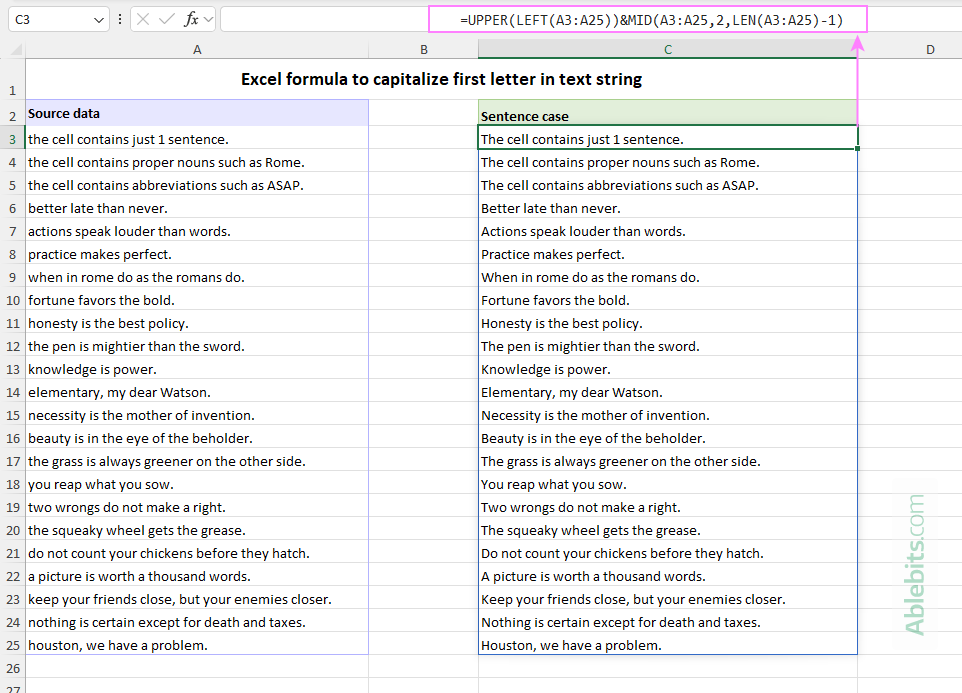
Keep in mind that both formulas only capitalize the first character in a cell. They do not change the rest of the text.
This method works well when:
- Each cell contains only one sentence.
- The text is mostly in lowercase.
- There are proper nouns or abbreviations in uppercase that you want to preserve.
It is not a good fit when the original text is in ALL CAPS or contains inconsistent capitalization. In those cases, the first letter will be corrected, but the rest of the text will stay exactly as it is, messy bits included.
Formula 2. Change all caps to sentence case in Excel
If your text is in ALL CAPS and you want it to look like a normal sentence, you can use the following formula:
=UPPER(LEFT(A3, 1)) & LOWER(MID(A3, 2, LEN(A3) -1))
To convert the whole range from uppercase to sentence case in Excel 365:
=UPPER(LEFT(A3:A25, 1)) & LOWER(MID(A3:A25, 2, LEN(A3:A25)-1))
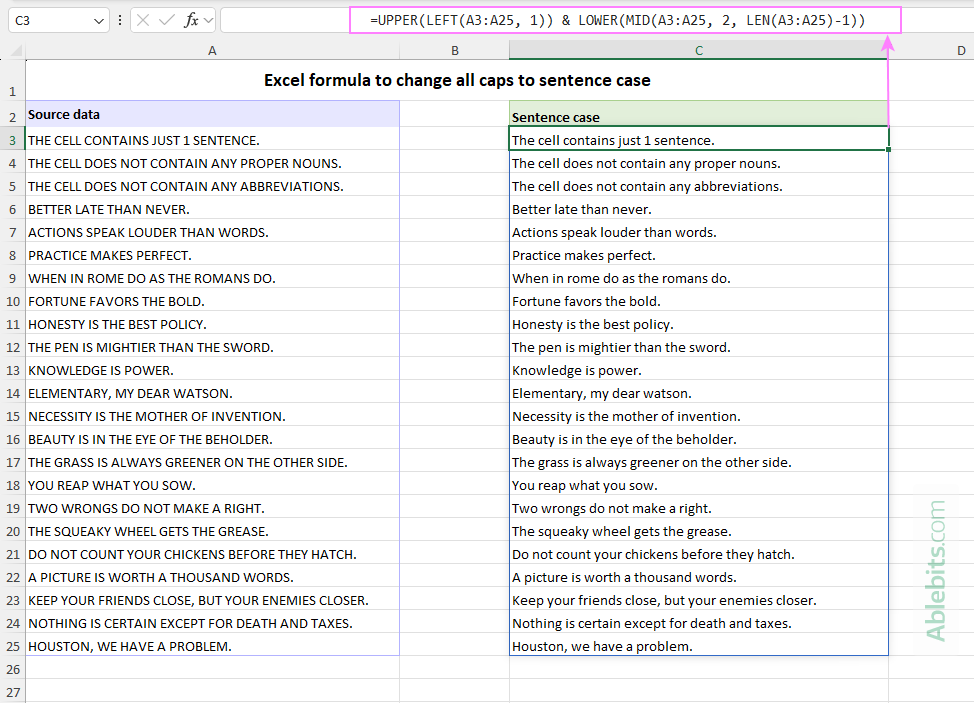
At its core, this formula uses the approach from the previous example but adds the LOWER function as a wrapper over the MID's output. This ensures that everything except the first character is converted to lowercase, producing a proper sentence case result.
It works well with the following caveats:
- Each cell contains just one sentence.
- The original text is in ALL CAPS or a mix of uppercase and lowercase.
- The original text does not contain words that should remain in proper case or uppercase (such as names or acronyms).
Formula 3. Change inconsistent text to sentence case in Excel
In many real-life scenarios, text does not follow a neat pattern. A single cell may contain multiple sentences, a mix of uppercase and lowercase letters, and different punctuation marks.
In this case, the most reliable approach is to use regular expressions. In particular, the following REGEXREPLACE formula can convert text to sentence case more intelligently.
Change one cell to sentence case:
=REGEXREPLACE(LOWER(A3), "([?!.]+\s+|^)([a-z])", "$1\u$2")
Transform a range of cells to sentence case:
=REGEXREPLACE(LOWER(A3:A18), "([?!.]+\s+|^)([a-z])", "$1\u$2")
As you may notice, the formula combines standard regex patterns with the \u operator, which capitalizes the first letter of each matched group. While not included in the standard regex syntax, it is supported in some regex flavors, including Excel.
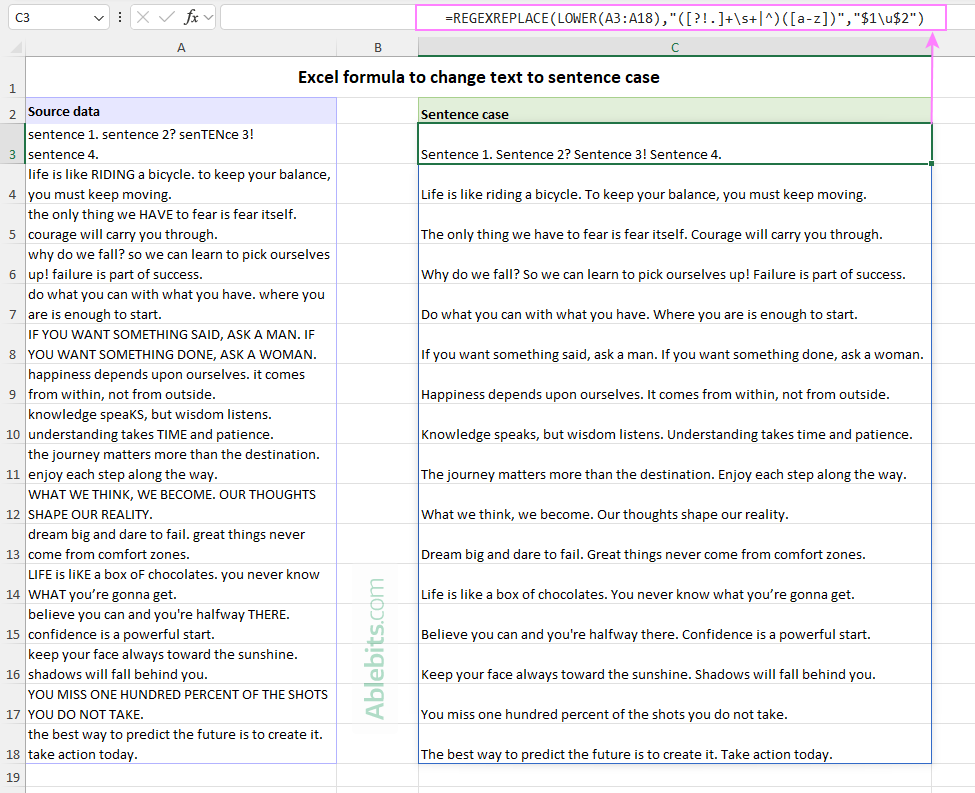
Please note that this formula works only in Excel 365 and Excel for the web, as regex functions are supported only in these versions.
How this formula works:
The formula converts the entire text to lowercase first, and then uses a regular expression to find the first letter of each sentence and capitalize it.
- The text argument:
LOWER(A3)converts the original text to lowercase. - The pattern argument identifies the first letter in each sentence:
"([?!.]+\s+|^)([a-z])"- The parentheses create a capturing group.
- Group 1:
"([?!.]+\s+|^)matches either any sentence-ending punctuation (., ?, !) followed by one or more space characters(\s+), or the start of the text string(^). - Group 2:
"([a-z])matches the first letter of the next word (i.e. the first letter of a sentence).
- The replacement argument:
"$1\u$2"$1keeps the original punctuation or starting position unchanged (where$1is the first capturing group).\u$2converts the matched letter to uppercase (where$2is the second capturing group).
This formula works nicely with:
- Complex text strings containing single or multiple sentences.
- Text with standard end-of-sentence punctuation such as periods, question marks, and exclamation points.
Limitations to be aware of:
- Words in proper case or uppercase (such as names or abbreviations) are converted to lowercase, unless they appear at the beginning of a sentence.
Convert text to sentence case in Excel with VBA
Formulas are great, but sometimes you want a faster solution. VBA gives you exactly that – a way to convert selected cells to sentence case instantly, without adding extra columns and copying results back and forth.
If you are not sure how to add the code to your worksheet, this guide will walk you through it step by step: How to insert and run VBA code in Excel.
How this code works:
The macro processes each selected cell and applies sentence case using a simple logic:
- First, it converts the entire text to lowercase and removes extra spaces.
- Then, it loops through each character in the text.
- When it detects the start of a new sentence, it capitalizes the first letter.
- A new sentence is identified after punctuation marks such as a period
(.), question mark(?), or exclamation point(!).
Limitations:
Like the REGEXREPLACE formula discussed earlier, this macro cannot recognize proper names or abbreviations that should keep their original capitalization. It simply treats all text the same way.
As a result, all proper nouns and acronyms are converted to lowercase, unless they appear at the beginning of a sentence.
In practice, this means you may need to review and adjust the results manually, especially if your data includes brand names, geographical locations, etc. After all, excluding every possible proper name or abbreviation would be a never-ending coding :)
How to use the macro:
- Select the range of cells you want to convert to sentence case.
- Press Alt + F8 to open the Macro dialog box.
- Select the
SentenceCasemacro and click Run.
As a result, the selected cells are transformed in place, with each sentence starting with a capital letter and the rest of the text in lowercase.
Tip. Since macros cannot be undone, it's a good idea to make a copy of your original data beforehand, just in case.
Change to sentence case in Excel in one click
As you've seen, each method has its trade-offs. Traditional formulas have too many limitations, regexes are only available in Excel 365, and VBA is not always allowed, especially in shared or protected workbooks.
So, is there a more flexible option that works across different Excel versions? Yes. Ablebits Ultimate Suite can handle almost every type of task in Excel, from changing text case to cleaning, combining, and transforming complex datasets. It works in all modern versions, including Microsoft for Excel 365, Excel 2024 – 2016.
How to change text to sentence case in Excel in a click
To convert text to sentence case swiftly and effortlessly, just do this:
- Select the cells you want to convert.
- On the Ablebits Data tab, click Change Case > Sentence case.
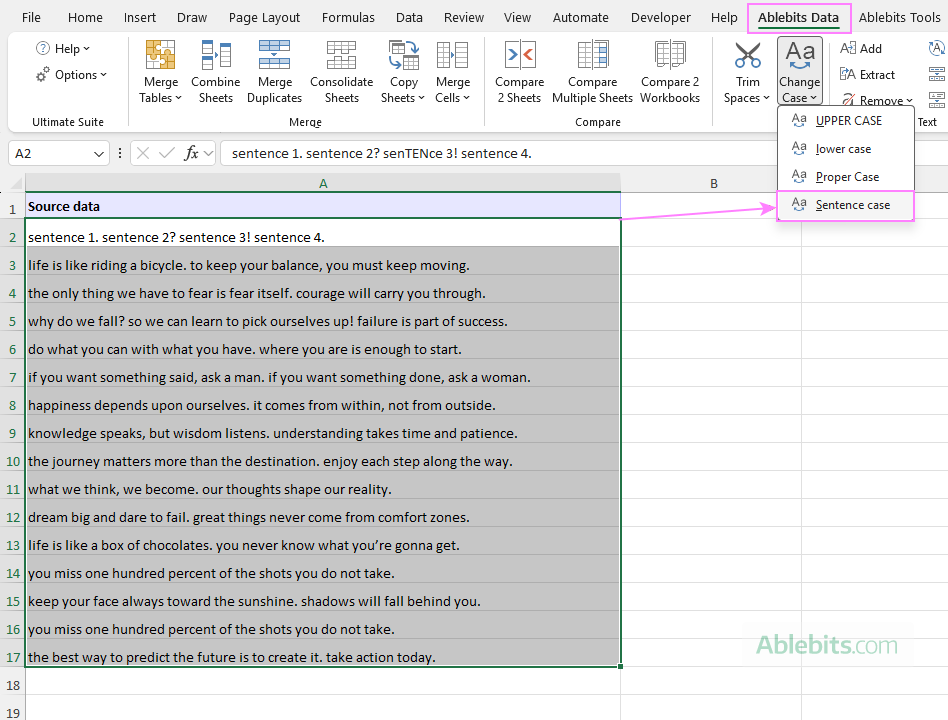
That's all there is to it! The selected text is updated instantly in the same cells.
Use Change Case pane for more control
If you'd like a bit more control over text case in your Excel worksheets, then you can manage it on the Change Case pane:
- Go to the Ablebits Data tab and click the Change Case button.
- In the pane that opens, choose Sentence case or another option.
- Click the Change Case button.
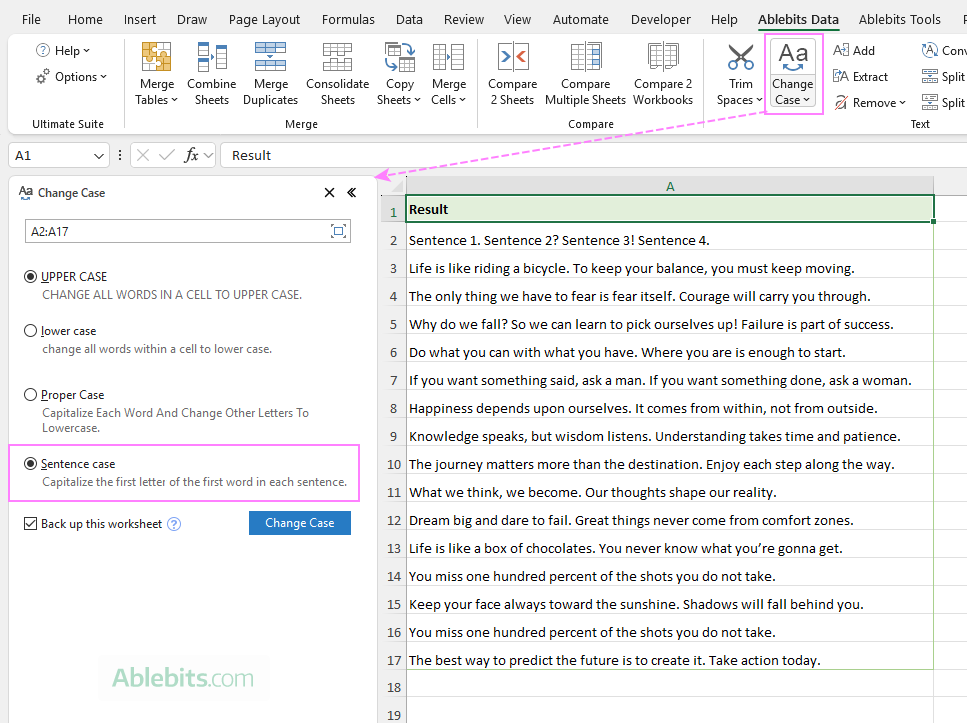
As an extra precaution, the tool creates a backup copy of your worksheet by default (this can be turned off), so your original data will never get lost.
Note. In Ultimate Suite, Sentence case capitalizes only the first letter of each sentence. All other text remains as is, so proper names, abbreviations, and all-caps words retain their original capitalization.
If you are curious how it works in practice, you can download the evaluation version and explore the different features on your own data.
In conclusion: there is no single "best" way to change text to sentence case in Excel. It all depends on your specific data and preferences, and now you've got a few good options to try😊
Available downloads
Ultimate Suite - fully-functional trial version (.exe file)
Excel sentence case - examples (.xlsm file)