 by
by In this tutorial, you'll learn how to use the BYCOL function in Excel to perform calculations on each column of a range using a single formula.
If you ever find yourself writing the same formula for multiple columns, BYCOL can save you time and effort. Instead of copying, adjusting references, and making sure nothing gets accidentally overwritten, BYCOL just takes the entire range and runs the calculation for each column automatically.
Excel BYCOL function
The BYCOL function in Excel applies a specified calculation to each column in a range or array and returns one result per column.
In simple terms, BYCOL is a "repeat this for every column" tool that takes the source array, splits it into separate columns, and feeds them into the specified function.
The result is a dynamic array that spills horizontally into as many cells as there are columns in the source range.
BYCOL works with built-in Excel functions like SUM, COUNT, AVERAGE, MAX, MIN, and it also supports custom logic created with LAMBDA.
Syntax
The syntax of the BYCOL function is as follows:
Where:
- array - the array or range to process.
- function - the calculation to perform on each column.
The function argument can be written in two different ways: eta-reduced and full LAMBDA.
Eta Lambda (short form)
This is the compact version, where you remove the Lambda wrapper and pass the function name directly.
For example, to calculate the average of each column in C5:H22, you can write:
=BYCOL(C5:H22, AVERAGE)
Excel automatically applies AVERAGE to each column in the range.
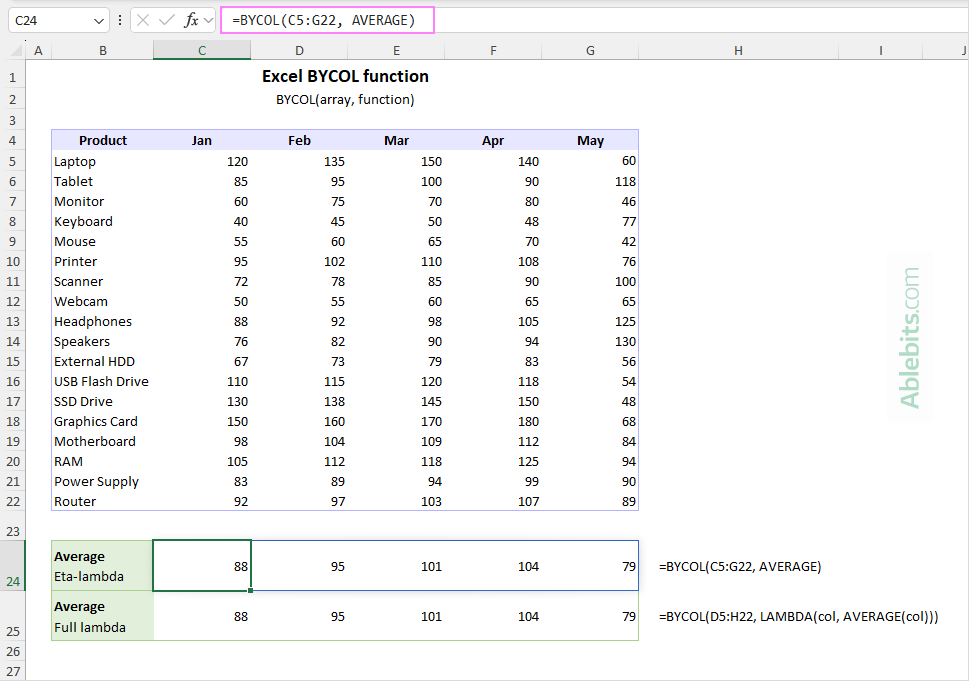
This short form is clean and easy to read. It works well for simple calculations such as SUM, AVERAGE, COUNT, MAX, and similar built-in functions.
Custom LAMBDA (explicit form)
The full syntax using an explicit LAMBDA is as follows:
Where:
- array – the array or range to process.
- col – a name representing the current column passed to the LAMBDA.
- formula – the calculation performed on each column.
In this case, LAMBDA is the little "mini-formula" that tells BYCOL what to do with each column it receives.
For instance, to find the average of each column in C5:H22, the formula is:
=BYCOL(C5:H22, LAMBDA(col, AVERAGE(col)))
In this case, both the short and the full LAMBDA version return the same result.
The long-form isn't really necessary for a simple average, but it becomes essential when you need custom logic. For example, if some cells in your dataset contain zeros, and you want to exclude those zero values from the average, you can use this formula:
=BYCOL(C5:H22, LAMBDA(col, AVERAGEIF(col, ">0")))
That kind of conditional logic can't be written using the short form.
Let's unpack this formula step by step, so you can see exactly what Excel is doing behind the scenes, and why BYCOL + LAMBDA is such a handy combo: If you've worked with the standalone LAMBDA function in Excel before, there are a few important differences to keep in mind when using it inside BYCOL: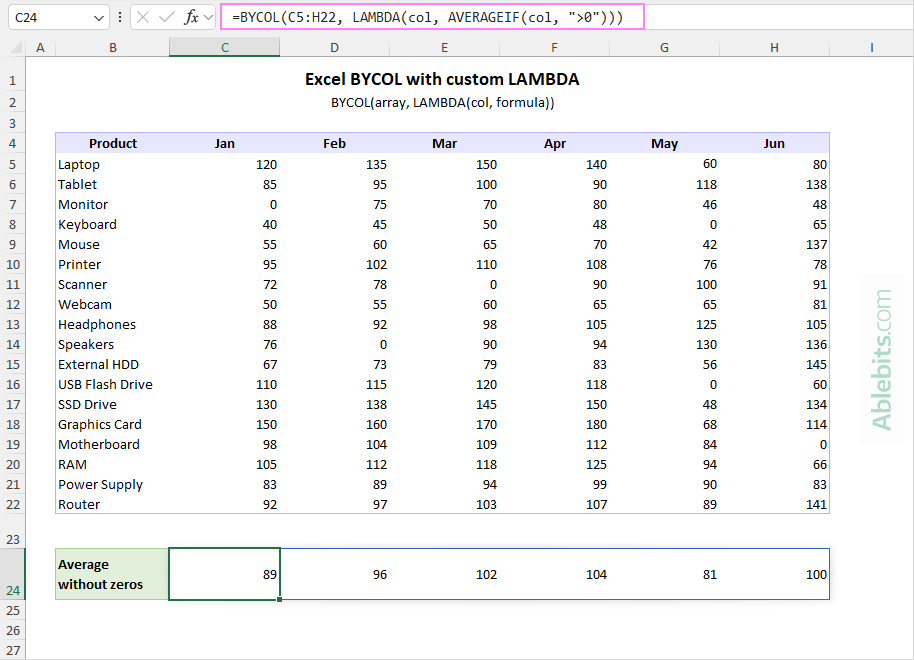
How Lambda-based BYCOL formula works
Usage notes
BYCOL function availability
BYCOL is a dynamic array function available in:
- Excel for Microsoft 365 (Windows and Mac)
- Excel for the web
In older, pre-dynamic versions of Excel, this function is not supported and won't be recognized.
What is BYCOL used for?
BYCOL is designed for situations where you need to perform the same calculation across multiple columns without copying formulas one by one. It's especially helpful for:
- Summarizing data by column (totals, averages, counts, etc.)
- Creating compact summary rows from large datasets
- Applying custom logic to each column
Tip. If you want to calculate results for each row instead, use the BYROW function. It works the same way as BYCOL, just in the opposite direction.
Basic BYCOL formula in Excel
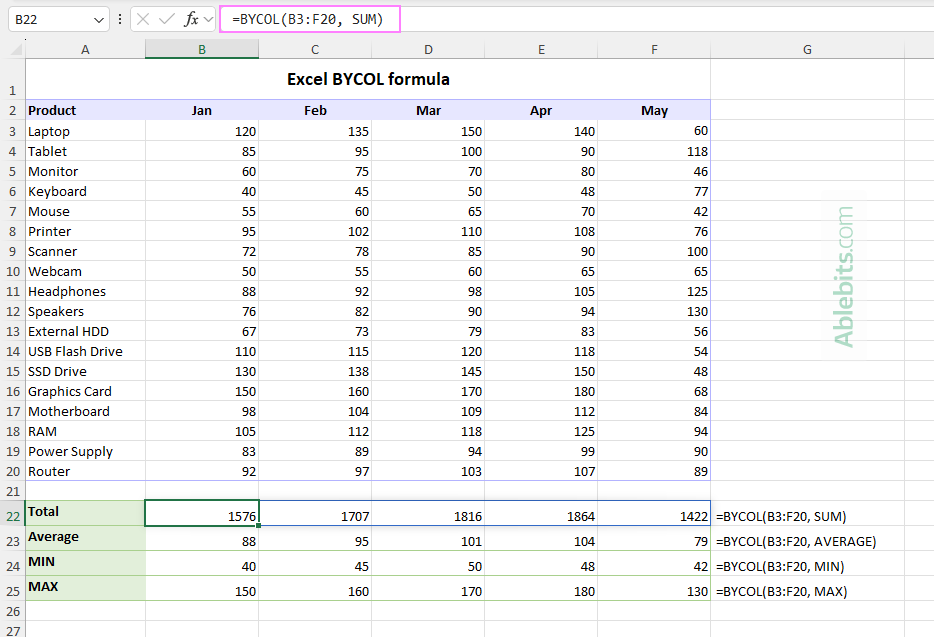
Let's look at a simple, practical example to see BYCOL in action. Suppose you have a dataset in A2:F20 that tracks monthly sales for different products, where:
- Columns B:F represent months (January through May).
- Rows 3:20 represent individual products.
Now you want to summarize the data by month, calculating totals, averages, minimums, and maximums for each column.
To calculate total sales for each month, use this formula:
=BYCOL(B3:F20, SUM)
To find the average monthly sales across products:
=BYCOL(B3:F20, AVERAGE)
To find the lowest sales value per month:
=BYCOL(B3:F20, MIN)
To get the highest sales value per month:
=BYCOL(B3:F20, MAX)
Where to enter a BYCOL formula
Each BYCOL formula is entered once, in the left-most cell of the summary row (in this example, B22 for sums, B23 for averages, B24 for minimum values and B25 for maximum values).
After you press Enter, the results automatically spill across columns B:F, filling the rest of the summary row without copying the formula.
This is one of the biggest advantages of BYCOL: no dragging, no adjusting references, and no risk of inconsistent formulas.
If you prefer, you can write the same calculation using the explicit LAMBDA form. For example:
=BYCOL(B3:F20, LAMBDA(col, SUM(col)))
Both versions return the same result. The short form is ideal for standard calculations, while the full LAMBDA syntax becomes useful when you need more advanced or conditional logic.
How to use BYCOL in Excel – formula examples
Once you're comfortable with the basic syntax, the real power of BYCOL shows up when you combine it with custom logic inside a LAMBDA function.
Below are practical examples that demonstrate how BYCOL can analyze each column's data in different ways, without copying formulas across your sheet.
Example 1: Count numbers and text values in each column
Sometimes you need to understand what type of data each column holds: numeric entries or text entries.
To count numbers in each column in the range B3:F20, the formula is as simple as this:
=BYCOL(B3:F20, COUNT)
The COUNT function includes numeric values only, ignoring text and blank cells.
To count text values per column, you need a custom Lambda like this one:
=BYCOL(B3:F20, LAMBDA(col, COUNTIF(col, "*")))
Here, the asterisk wildcard ("*") represents any sequence of characters. As a result, COUNTIF counts all cells that contain text. Numeric values and blank cells are not included in the count.
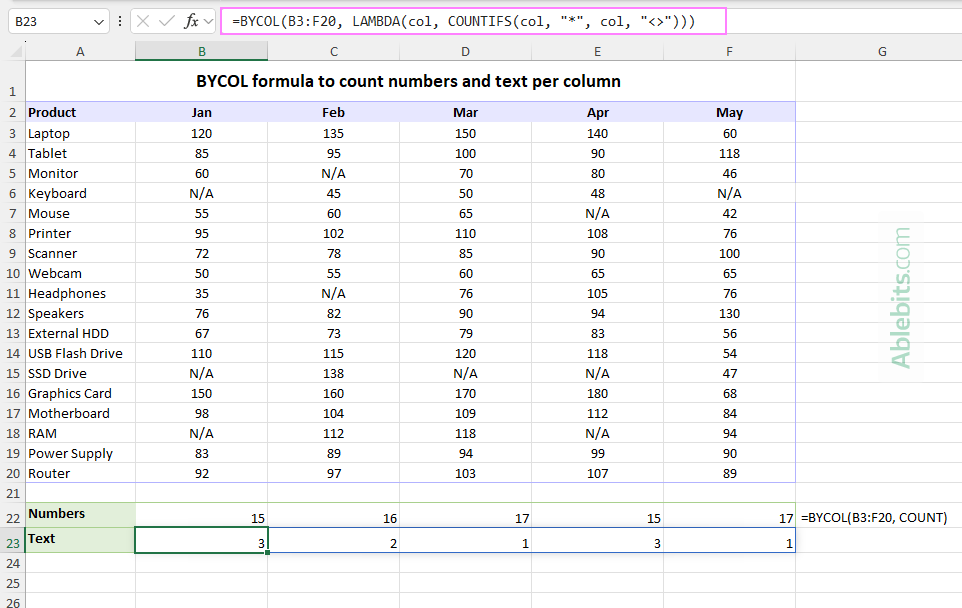
Note. The above formula counts cells containing any text values including spaces and empty strings.
If you want to count only visible text entries and exclude space-only cells and zero-length strings ("") returned by formulas, you can include COUNTIFS with two conditions:
=BYCOL(B3:F20, LAMBDA(col, COUNTIFS(col, "*?*", col, "<> ")))
Here's what each condition does:
- "*?*" ensures the cell contains at least one character. The question mark as a wildcard represents any single character, and the surrounding asterisks allow for any number of characters before and after it. Since an empty string has zero characters, it does not meet this condition and is excluded.
- "<> " (notice the space before the closing quote) excludes cells that contain only a single space.
The expression literally means "not equal to space".
Together, these conditions filter out empty strings and space characters, so only cells containing actual text are counted.
For more information, see Count Excel cells with text excluding spaces and empty strings.
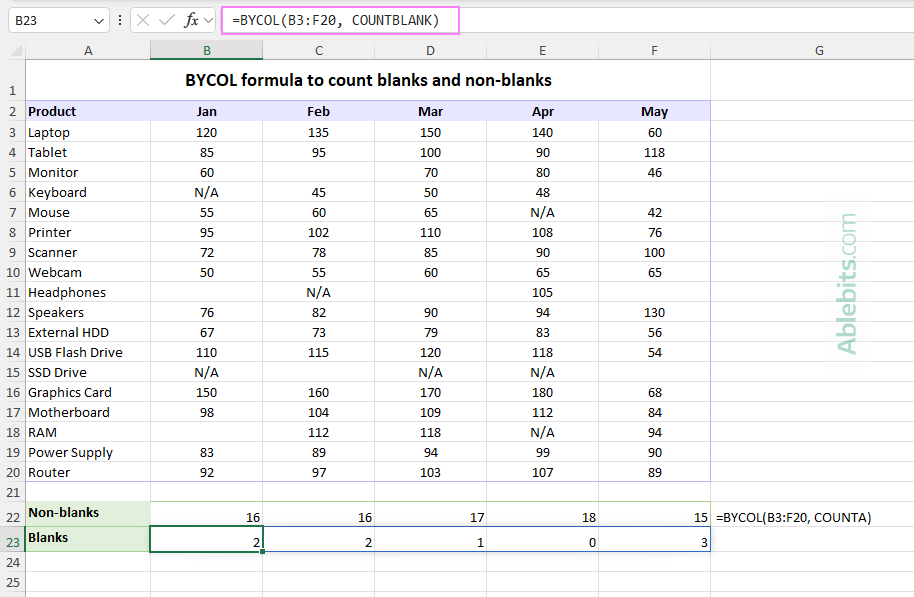
Example 2: Count blanks and non-blanks per column
Another common task is checking data completeness, counting how many cells are filled with data and how many are empty.
To count non-blank cells in each column, use this simple formula with eta-reduced lambda:
=BYCOL(B3:E20, COUNTA)
COUNTA counts every cell that is not empty, including numbers, dates and text.
To count blank cells per column, use the COUNTBLANK function:
=BYCOL(B3:E20, COUNTBLANK)
Example 3. Count values below or above a threshold
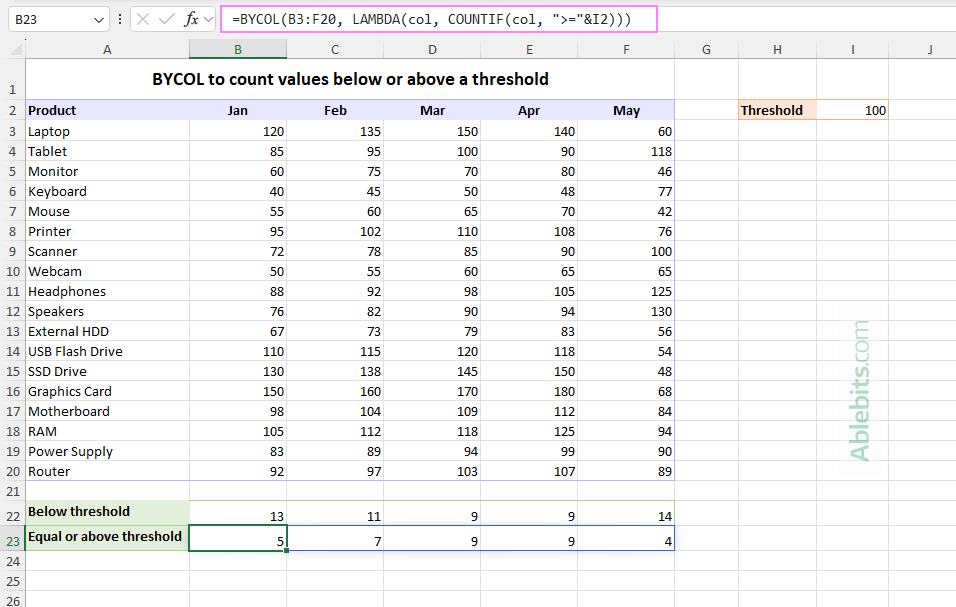
In many situations, you may need to check how many values in each column fall below or above a certain limit, for example 100.
BYCOL makes this easy by applying the COUNTIF function with the corresponding criteria to every column.
Count values below the threshold:
=BYCOL(B3:F20, LAMBDA(col, COUNTIF(col, "<100")))
This counts how many numbers in each column are less than 100.
Count values equal to or above the threshold:
=BYCOL(B3:F20, LAMBDA(col, COUNTIF(col, ">=100")))
This returns the number of values that are 100 or greater in each column.
Make the formula dynamic
To avoid hardcoding the threshold, you can enter the boundary value in a separate cell, say I2, and reference it in the formula:
=BYCOL(B3:F20, LAMBDA(col, COUNTIF(col, "<"&I2)))
=BYCOL(B3:F20, LAMBDA(col, COUNTIF(col, ">="&I2)))
When the value in I2 is changed, the results will update automatically.
Example 4: Retrieve matching items in each column
In the basic BYCOL formula example, we discussed how to find the highest and lowest values per column using MAX and MIN as eta-reduced lambdas.
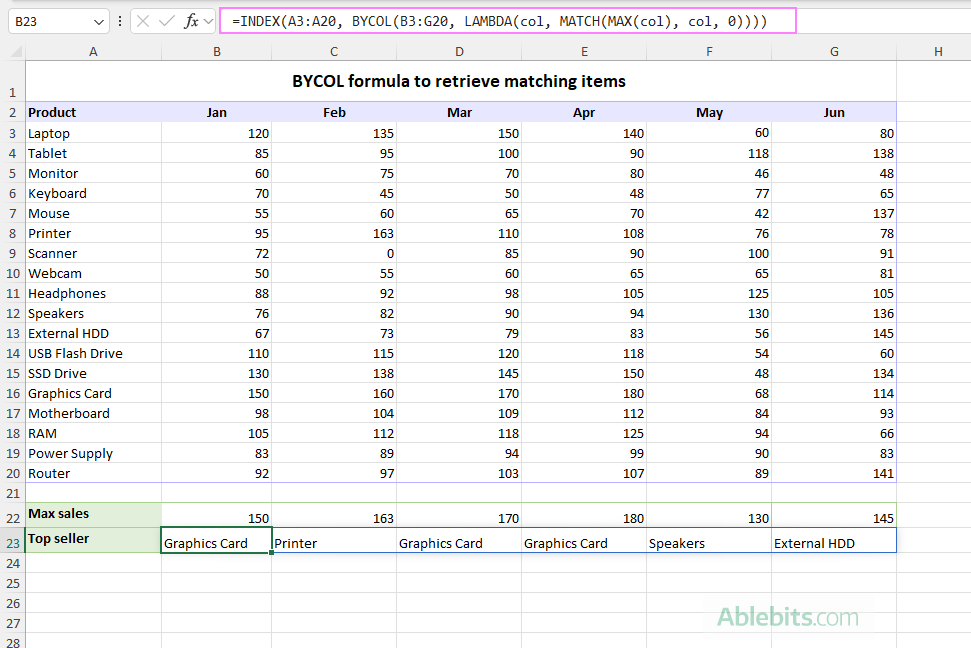
The MAX and MIN functions return the numbers just fine. What if you also want the product name that produced the highest (or lowest) value in each month? This can be done by combining the classic INDEX + MATCH formula with BYCOL, so the lookup runs once per column.
To return the product with the highest sales in each month:
=INDEX(A3:A20, BYCOL(B3:G20, LAMBDA(col, MATCH(MAX(col), col, 0))))
To get the product with the lowest sales in each month
=INDEX(A3:A20, BYCOL(B3:G20, LAMBDA(col, MATCH(min(col), col, 0))))
How these formulas work:
At its core, the formula works like this: MATCH determines the relative position of the max/min value within each column, and INDEX uses that position to return the corresponding product from column A.
Here's the breakdown step-by-step:
- Inside the LAMBDA, the key calculation happens:
- MAX(col) or MIN(col) finds the highest or lowest sales value in the current column.
- MATCH(…, col, 0) locates that value within the same column and returns its relative position (0 in the match_type argument ensures an exact match).
- BYCOL runs this LAMBDA once for each column in the array.
- INDEX takes the row number returned by MATCH and retrieves the product name from column A that sits on that same row.
Put simply: find the target value in each month, identify its row, then return the product from that row.
Note. If two products tie for the max/min in a month, MATCH returns the first one it finds (topmost).
Example 5. Make BYCOL formula expand automatically
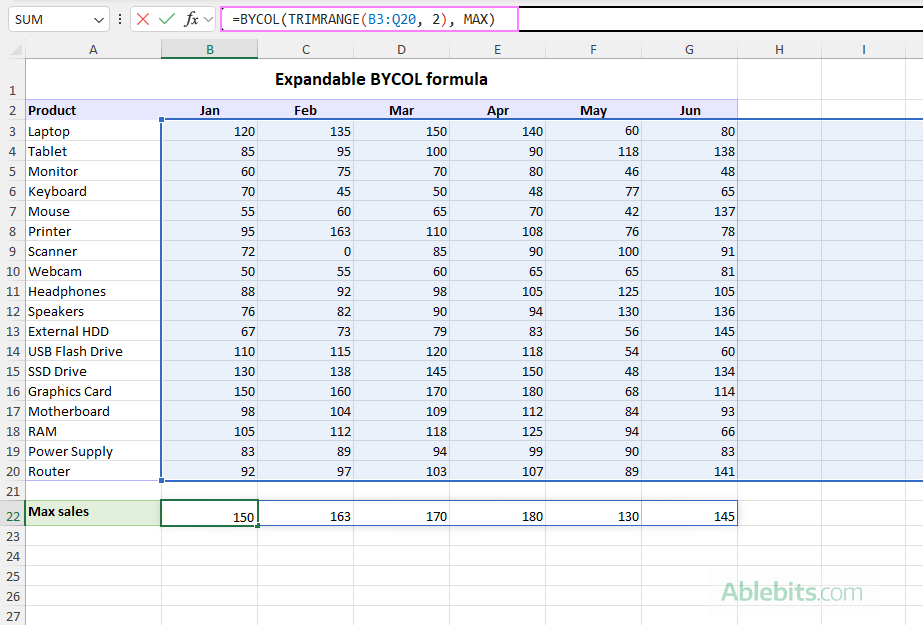
If your dataset is likely to grow over time, you can set up your formula so it automatically includes new columns as they are added.
Suppose your current dataset contains 6 columns to calculate, but you expect additional columns in the future. One way to handle this is to use Excel tables that expand automatically to accommodate new data. Another way is to reference a slightly larger range and remove empty columns before passing the data to BYCOL:
=BYCOL(TRIMRANGE(B3:Q20, 2), MAX)
Here, TRIMRANGE removes trailing blank columns from the specified range before BYCOL calculates the maximum value in each column.
You can achieve the same result with a more compact formula by using the Trim Trailing reference operator (:.) directly inside BYCOL:
=BYCOL(B3:.Q20, MAX)
This tells Excel to reference the range B3:Q20 ignoring trailing blank columns.
Performance tip. Avoid referencing extremely large ranges unless necessary. Even if blank columns are trimmed, Excel still evaluates the entire referenced range. This can affect performance, especially in large workbooks or when using custom LAMBDA functions.
BYCOL function not working – common errors and how to fix them
If your BYCOL formula is not returning the expected results, the issue is usually related to function availability, LAMBDA syntax, or the type of value being returned. Below are the most common errors and how to resolve them.
#NAME? error
This error typically means one of two things:
- BYCOL is not available in your version of Excel. The function is supported in Excel for Microsoft 365 and Excel for the web. If you're using an older version, BYCOL will not be recognized. In that case, you'll need to use a traditional formula instead and copy it manually for other columns.
- The function name was mistyped. Double-check the spelling of BYCOL and any related functions.
#CALC! error
A #CALC! error usually points to a problem inside the LAMBDA function. Common causes include:
- Incorrect LAMBDA. Even a small syntax issue can cause the calculation to fail. Carefully review the logic, parentheses, commas, and function arguments.
- Returning multiple values instead of one. BYCOL expects the LAMBDA function to return a single result per column. If your formula produces multiple values (an array) for each column, a #CALC! error occurs.
- IF-based functions. Keep in mind that functions such as SUMIF, AVERAGEIF, COUNTIF, and other require a range reference. If you supply a calculated array instead of a range, they may not work as expected inside BYCOL.
#VALUE! error
A #VALUE! error often indicates that the LAMBDA parameters are defined incorrectly. When used with BYCOL, LAMBDA must include only one parameter representing the current column such as LAMBDA(column, formula). If you define more than one parameter, or forget the parameter entirely, Excel will return an error.
That's how to use the BYCOL function in Excel to calculate results column by column with a single, dynamic formula. It happily processes each individual column for you, as long as you give it clear directions 😊
Practice workbook for download
Excel BYCOL formula examples (.xlsx file)