 by
by This tutorial explains the most effective techniques to shrink Excel files, identify what is making a workbook large, and improve its performance.
Large Excel workbooks can slow down everything from opening and saving to recalculating and sharing. If your file has grown unexpectedly or takes a long time to work with, don't panic just yet. There are several ways to reduce its size without losing important data.
Why does your Excel file size grow?
If an Excel workbook suddenly grows much larger than expected, some of the following factors may be responsible:
- Multiple sheets containing outdated or unnecessary data.
- Excessive formatting applied to blank cells, entire rows or columns.
- Large numbers of formulas, especially those referencing whole columns or rows rather than the actual data range.
- Unused cells that contain spaces, hidden characters, or residual formatting, causing Excel to treat them as part of the used range.
- High-resolution images, embedded objects, charts, and other visual elements.
- PivotTable caches that store copies of the source data.
- Conditional formatting rules, particularly multiple duplicate rules applied to large ranges.
- VBA macros, UserForms, and user-defined functions, especially those containing poorly written code or inefficient procedures.
- Hidden worksheets, rows, and columns that still contain data.
- External data connections, Power Query imports, and large Power Pivot data models.
Fortunately, workbook size can often be reduced significantly once you identify the main source of the problem. In the sections below, we'll discuss the most effective ways to find and remove unnecessary workbook bloat.
How to reduce Excel file size
The most effective way to reduce a workbook's size depends on the factors contributing to its growth. Some files are enlarged by excessive formatting, others by images, formulas, PivotTables, or hidden data.
Below are the most effective methods for reducing Excel file size, arranged roughly in order of their potential impact. Start with the first few techniques, as they often produce the biggest reduction with the least effort.
Useful tips:
- Before making any changes, save a backup copy of your workbook.
- After each optimization, save the file and compare its size with the previous version. This way, you can quickly identify which changes have the greatest impact.
Save your Excel workbook in binary (.xslb) format
To get the largest immediate drop in file size, try saving your workbook in the XLSB format instead of the default XLSX. In many cases, this single change can noticeably shrink a file, particularly for workbooks with lots of data, formulas, or pivot tables.
The standard Excel format (.xlsx) stores workbook data as XML files compressed into a ZIP container. While XML is widely supported by other applications and services, it is not the most space-efficient format. XLSB stores the same workbook data in a binary format, which usually takes up less space and can make large workbooks calculate faster.
To save an Excel file as XLSB, just do this:
- Go to the File tab.
- If this is the first time you are saving the workbook, click Save As. If the workbook is already saved, click Save a Copy.
- Choose the destination folder and enter a file name.
- In the Save as type list, select Excel Binary Workbook (.xlsb)*.
- Click the Save button.
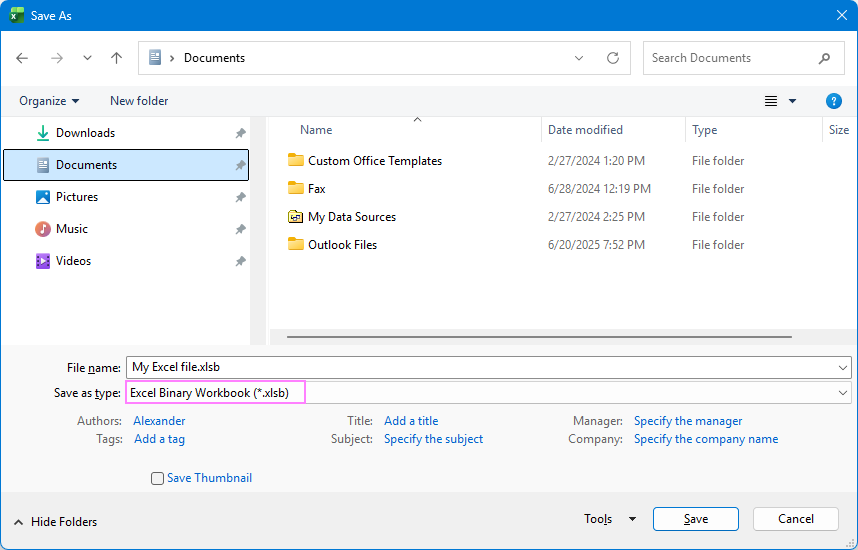
Note. If your workbook is stored in a SharePoint library, the Save As option may not be available. In this case, save a copy of the workbook to your local computer first, convert that copy to XLSB format, and then upload it back to SharePoint if needed.
Set binary format as default for all Excel files
If you frequently work with large workbooks, you can configure Excel to save new files in XLSB format by default:
- Go to File > Options > Save.
- Under the Save workbooks section, select Excel Binary Workbook (.xlsb)* from the Save files in this format list.
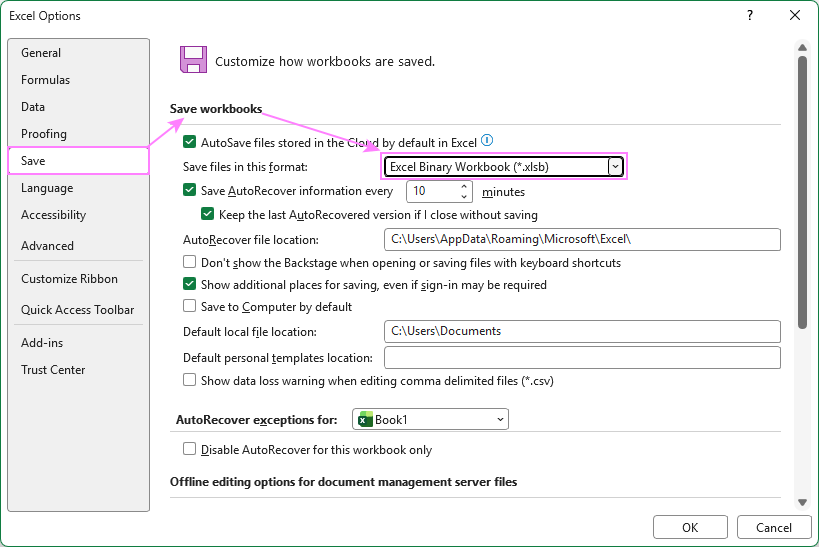
Note. Keep in mind that some third-party applications and services may not fully support the XLSB format, so verify compatibility before using it for shared files.
Remove redundant worksheets
Each worksheet adds to the overall size of a workbook. While a few empty sheets have little impact, workbooks often accumulate old reports, temporary calculations, or duplicate test sheets left behind from earlier work.
To remove a spreadsheet that no longer serves a purpose:
- Right-click the sheet tab.
- Select Delete.
- Repeat for any other sheets that are not needed.
If you wish to keep historical information, consider moving it to a separate archive workbook instead of storing everything in a single file.
Delete unused rows and columns
One of the most common causes of large Excel files is an inflated used range. This happens when Excel continues to treat rows or columns as used even though they visually appear empty. In many cases, those cells still contain formatting, spaces, non-printing characters or other hidden content.
To check whether Excel's used range extends beyond your actual data:
- Press Ctrl + End to jump to the last cell Excel considers in use.
- If this cell is far below or to the right of your actual data, Excel still considers those seemingly empty rows and columns as used, which can unnecessarily increase file size.
Delete unused rows below your data
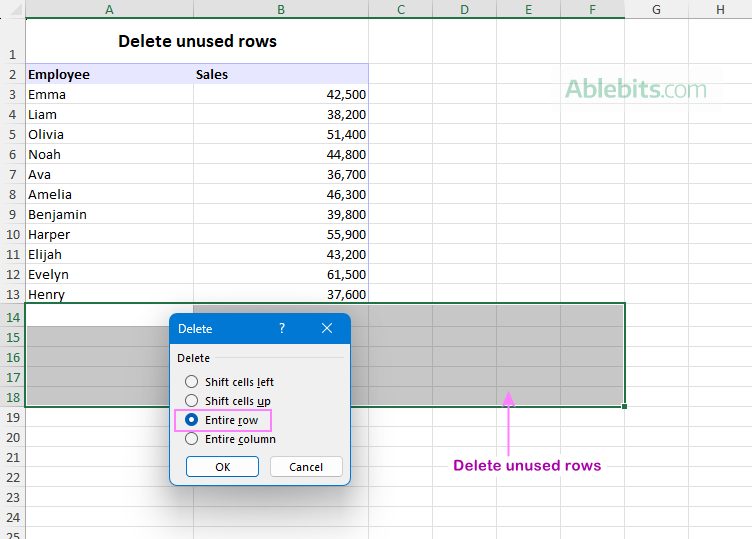
To delete unused "ghost" rows at the bottom of a worksheet below the used range:
- Click the header of the first blank row below your data to select it.
- Press Ctrl + Shift + End to select all rows from that point to the last used row.
- Right-click the selection and choose Delete… > Entire row.
Delete unused columns to the right of your data
Unused columns can be removed in much the same way as unused rows:
- Click the header of the first blank column to the right of your data.
- Press Ctrl + Shift + End to select all columns to the last used one.
- Right-click the selection and choose Delete > Entire column.
After deleting the excess rows and columns, save and reopen the file for Excel to recalculate the used range and reset the file's memory.
Remove excessive formatting
Excessive formatting is another common reason Excel files become larger than necessary. For example, you might have formatted entire columns instead of just the cells with data, applied styles to large unused areas, or copied information from another source along with formatting leftovers. Individually these changes seem harmless, but together they can add a lot of weight to a workbook.
To remove extra formatting:
- Select unused rows and columns.
- On the Home tab, click Clear > Clear Formats.
- Save the workbook.
For more information, see How to clear formatting in Excel.
If formatting issues are widespread, it may be quicker to copy only the actual data and required formatting into a new workbook.
Compress pictures in Excel sheets
Images can take up a surprising amount of space in a workbook, especially if they were inserted directly from a camera, screenshot tool, or image editor. Compressing them can often reduce Excel file size with little impact on image quality.
To compress pictures in Excel:
- Select any image in the workbook. The Picture Format tab will appear on the ribbon.
- On the Picture Format tab, in the Adjust group, click Compress Pictures.
- In the dialog box, configure the options as needed:
- To compress all pictures in the workbook, clear the Apply only to this picture check box. Otherwise, only the selected image will be affected.
- Select Delete cropped areas of pictures to permanently remove any cropped image data that is still stored in the workbook.
- Under Resolution, choose one of the lower resolution options. Or select Use default resolution, if it is set to 150 ppi or lower in your Excel.
- Click OK.
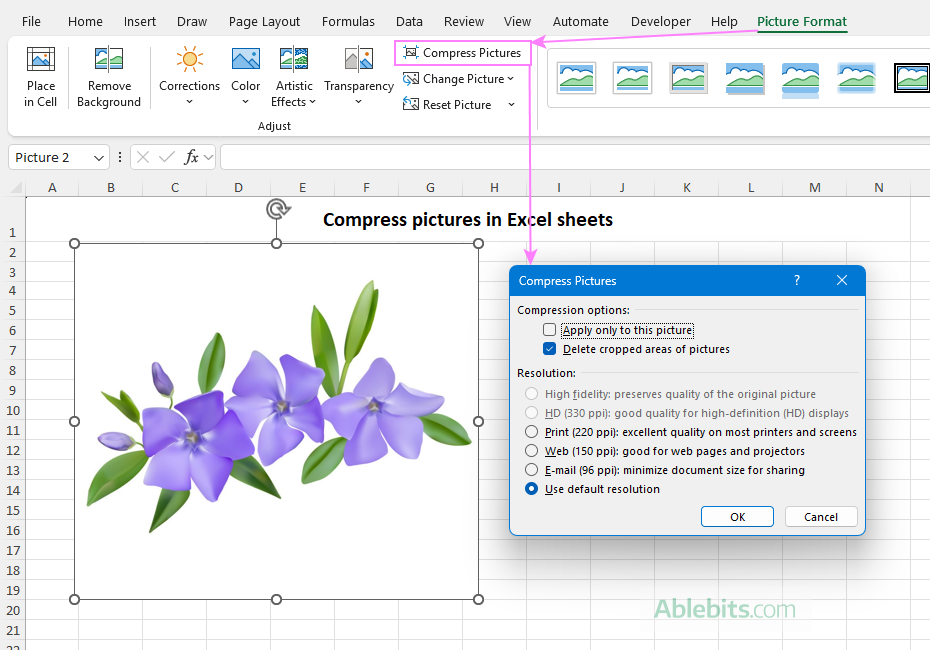
Tip. Whenever possible, resize or optimize images before inserting them into Excel.
Use lower image resolutions
If your workbook contains many images, you can reduce its size further by lowering the default resolution at which Excel stores pictures.
- Go to File > Options > Advanced.
- Under Image Size and Quality, do the following:
- Select Discard editing data. This removes information that Excel uses to restore pictures to their original state after editing.
- Make sure Do not compress images in file is cleared.
- In the Default resolution list, select 150 ppi or a lower value. For most workbooks, higher resolutions provide little benefit.
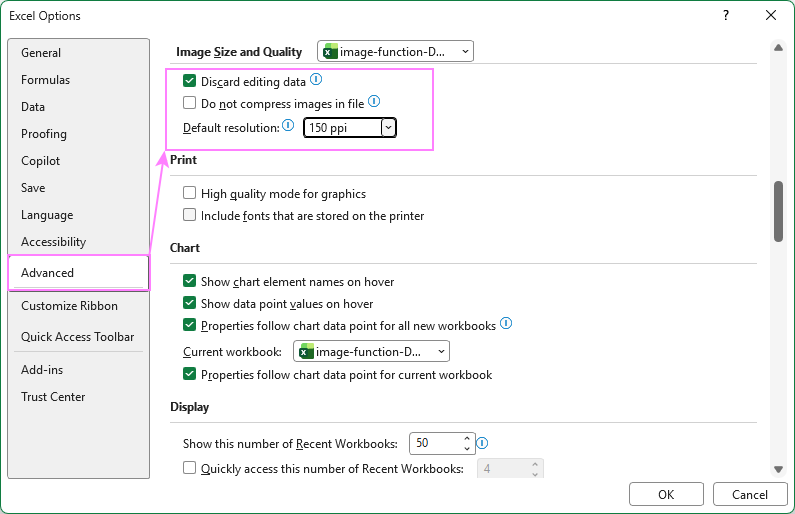
Note. If you choose to discard the editing data, you will not be able to restore the picture to its original state.
Remove unnecessary formulas
Formulas are one of Excel's greatest strengths, but large numbers of them can occupy additional storage space and increase calculation time.
To reduce their impact:
- Replace formulas with values for completed calculations that no longer need updating.
- Avoiding volatile functions such as OFFSET, INDIRECT, RAND, TODAY, and NOW where possible.
- Take advantage of Excel tables and dynamic arrays to reduce formula duplication.
For example, instead of copying the same formula down 1000 rows, a single dynamic array formula may be sufficient in modern Excel versions.
Optimize Excel Pivot Tables
If your workbook contains no complex formulas, no images, but only the source data and a PivotTable that summarizes it, that pivot table may be responsible for much of the file size.
Every time you create a pivot table, Excel automatically creates a cache for it. In plain English, it makes a "replica" of your entire data source. And as you can imagine, storing both the original data and its replica makes the file larger.
Sure, you could delete the pivot table completely. No pivot table, no extra file size problem, right? But that's probably not why you created it in the first place 😊
A better solution is to keep the PivotTable but stop saving its cache with the workbook. Here's how to do this:
- Select any cell in your pivot table.
- On the PivotTable Analyze tab, in the PivotTable group, click Options.
- In the dialog box that opens, switch to the Data tab, and adjust the following settings:
- Clear the Save source data with file check box.
- Select the Refresh data when opening the file check box.
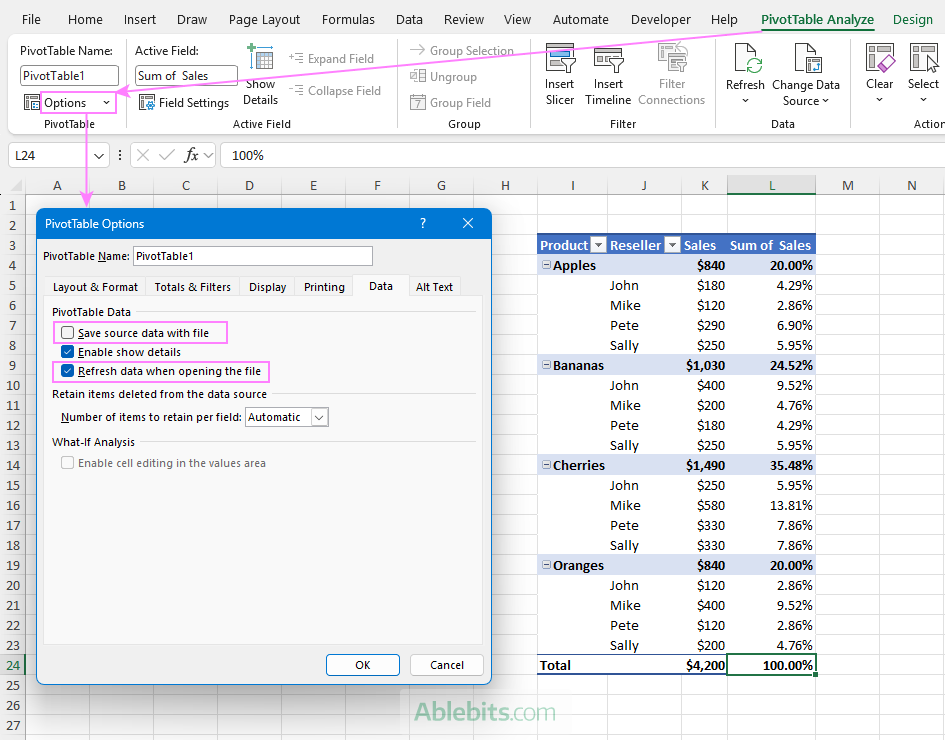
- If prompted, confirm the change.
- Save the workbook and close it.
Once you make this change, Excel won't store the PivotTable cache in the workbook any longer. The cache will be rebuilt automatically when you open the file or refresh the PivotTable.
Note. If the source data is unavailable when the workbook is opened, the PivotTable cannot be refreshed until the connection to the source data is restored.
Remove duplicated conditional formatting
Large numbers of conditional formatting rules can make a workbook both larger and slower.
To review your existing rules:
- Go to Home > Conditional Formatting > Manage Rules.
- Look for duplicate or overlapping rules applied to the same cells or ranges.
- Delete any rules that are not relevant.
Pay special attention to rules applied to entire columns or rows, as these can have the biggest impact on the workbook's size and performance.
For step-by-step guidance, see How to use Conditional Formatting in Excel.
Delete hidden objects and worksheets
Shared, imported or inherited workbooks sometimes contain hidden content that you may not even be aware of. If these elements serve no useful purpose, you can unhide, review and delete them to free up storage space and reduce the file size.
To quickly show or hide all objects (images, charts, or shapes) in the active sheet, press the Ctrl + 6 shortcut on your keyboard.
To manage individual objects:
- On the Home tab, in the Editing group, click Find & Select > Selection Pane.
- A panel will appear on the right listing all objects in the current sheet.
- Click the eye icon next to an object to hide or show it. Or click Show All to display all hidden objects.
- Review the displayed objects and delete any that are not actively used.
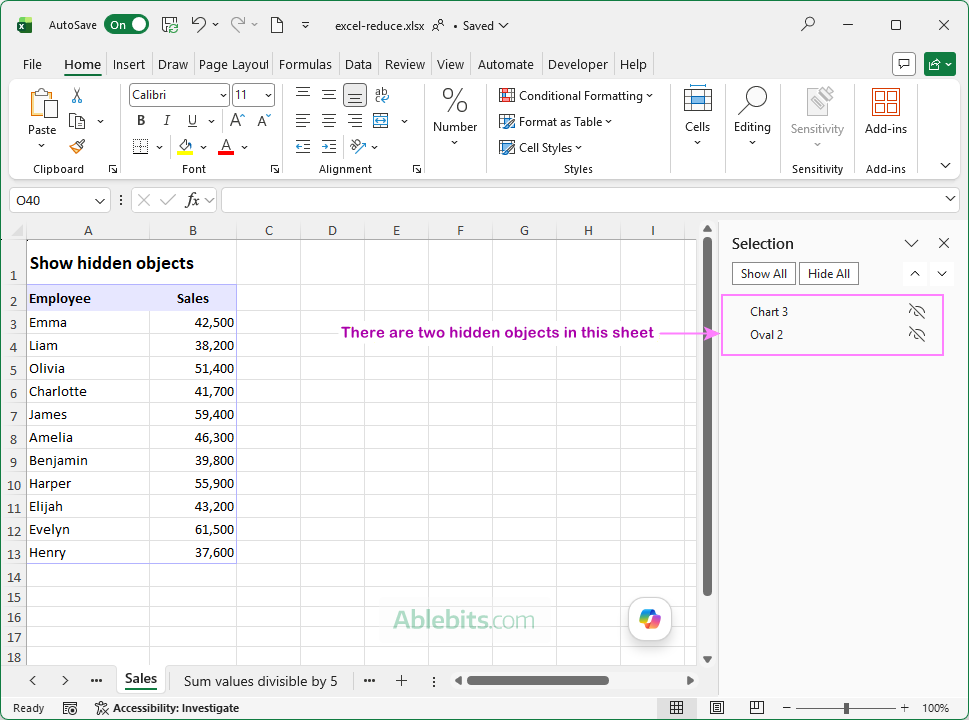
Hidden objects are only part of the story. Excel files can also contain hidden worksheets, rows, and columns that are easy to miss. To find, review and delete them, use the following guides:
Reduce Power Query and Data Model size
If your workbook uses Power Query or Power Pivot, the data model may be taking up more space than all sheets combined.
To keep the data model as small as possible:
- Import only the columns you actually need.
- Filter out unnecessary rows before importing rather than after loading the data.
- Remove tables that have been left behind from earlier work.
- Avoid loading the same dataset multiple times in different queries.
- Do not load into Excel intermediate queries that are only used as data transformation steps.
The less data you load and store, the smaller your workbook will be and the faster it will be to refresh.
Remove or optimize VBA code
VBA macros can add extra bulk to a workbook, especially if it contains old procedures, unused modules, UserForms, etc.
If your workbook is saved as a macro-enabled file (.xlsm), review the VBA project and look for opportunities to tidy up the code. For example:
- Process only the required range instead of entire rows, columns, or worksheets whenever possible.
- Use
Selection.Clearinstead ofSelection.ClearContentswhen appropriate. This removes both the content and formatting, helping Excel reclaim unused space. - Avoid copying cells that contain conditional formatting, as this can create hundreds or even thousands of duplicate formatting rules, so the file size may increase exponentially.
If the workbook can function without macros, save it as a standard Excel workbook (.xlsx). This removes all VBA code and can further reduce the file size. Just remember that macros cannot be recovered after the file is saved in the XLSX format.
Use workbook inspection tool
Not everything stored in a workbook is visible on the spreadsheets. Hidden sheets, columns and rows, comments, embedded objects, personal information, and other content can remain in an Excel file long after their original purpose is forgotten. Document Inspector helps you find these items and decide whether they should be removed.
To inspect a workbook:
- Click File > Info > Check for Issues > Inspect Document.
- Select the types of content you want to check. By default, Excel selects all available categories, which is usually the best choice.
- Click Inspect.
- Review the results and remove any items that are not needed.
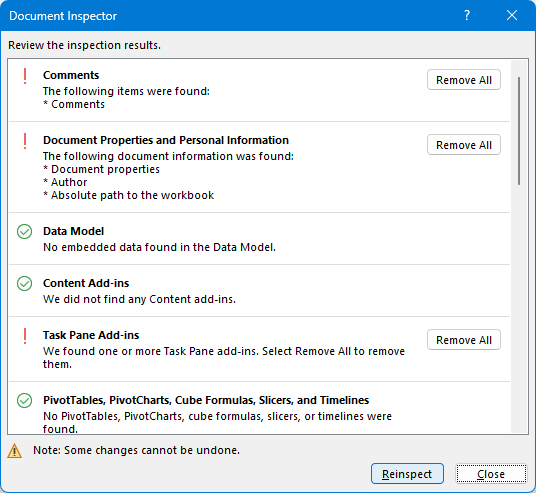
Note. Review the inspection results carefully before removing anything, as some items may be difficult or impossible to restore after they are deleted.
Save a fresh copy of the workbook
As workbooks are edited over time, they can accumulate hidden metadata, unused objects, obsolete named ranges, and other internal clutter. Sometimes the easiest way to clean things up is to start with a fresh workbook and copy over only what you actually need.
Here's how:
- Create a new blank workbook.
- Copy only the worksheets you need from the original file.
- Save the new workbook under a different name.
This simple technique can help you remove hidden "baggage" that builds up after years of edits and imports.
Useful tips for keeping Excel files small
Once you've cleaned up an oversized workbook, these simple practices can help prevent future files from growing:
- Store source data in separate files when possible.
- Avoid formatting entire rows and columns when only part of them contains data.
- Compress or resize images before inserting them into Excel.
- Move old data that is not used in daily work to archive workbooks.
- Delete temporary worksheets, test formulas, and duplicate reports.
- Use Excel tables instead of regular ranges. Automatically expanding structured references can help reduce formula duplication.
- Periodically review workbooks for hidden content, unused named ranges, and obsolete connections.
As you've seen, Excel files can increase in size for many different reasons, which means there are plenty of opportunities to trim them back down. You don't need to apply every technique in this article to every workbook. Often, one or two changes are enough to reclaim a lot of space. The trick is figuring out what's taking up room in your particular file and getting it to move out 😊