 by
by In this article you'll learn how to print comments in Excel 365, 2021, 2019, 2016, and other versions. Read this post if your task is to get cell notes printed at the end of the spreadsheet or if you need to copy them to paper as displayed in your table.
Excel comments work perfectly if you need to add a note to remind somebody about the changes you made. This feature also streamlines work if you want to provide additional information without modifying your worksheet data. If cell notes is a vital part of your Excel documents then printing comments along with other data may be one of your day-to-day tasks. This can make handouts more informative and add helpful information to the daily reports for your boss.
It's possible to print comments at the end of your Excel worksheet or display them all and copy to paper exactly as they appear in your table, next to the cells they relate to.
Print comments at the end of your Excel worksheet
If notes in your Excel table are informative and their contents are clear even isolated from the commented cell, you can easily get them to paper at the end of the page. It's also better to print cell notes below the rest of the data if they overlap important details when displayed. It's doesn't involve any copying and pasting, just follow the steps below:
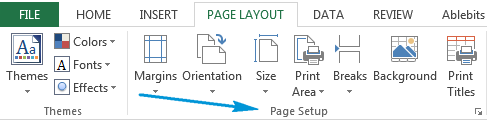
- In Excel go to the Page Layout tab and find the Page Setup section.
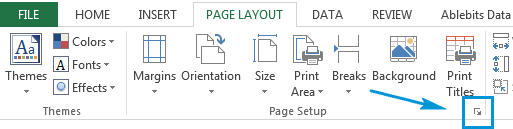
- Click on the bottom-right expand arrow icon to get the Page Setup window appear.
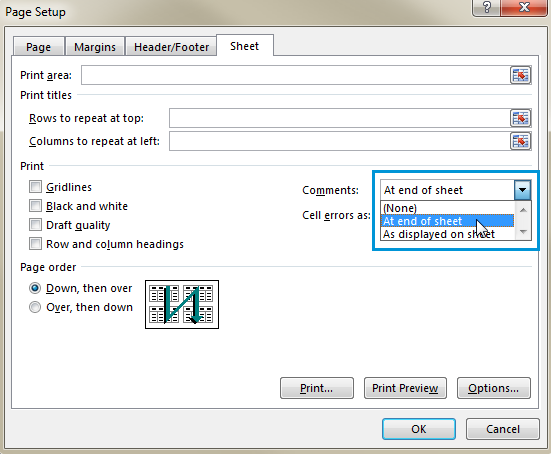
- On the Page Setup window click on the Sheet tab, then click on the down arrow and select the option At end of sheet from the Comments drop-down list.
- Click the Print... button.
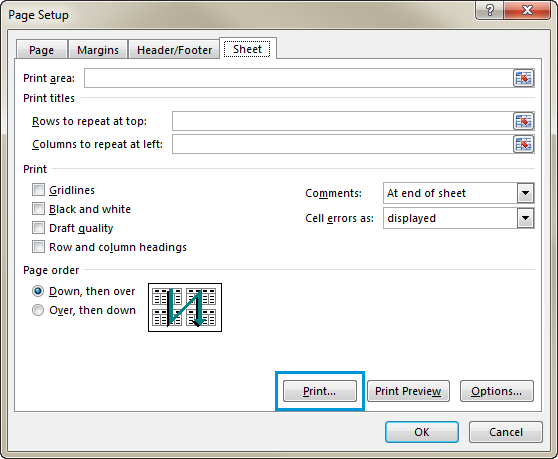
You'll see the Print Preview page in Excel. If you scroll down, you'll find the comments with their cell addresses ready for printing.

Use this option for the comments that contain complete information you need to get visible on paper.
Excel - print comments as displayed
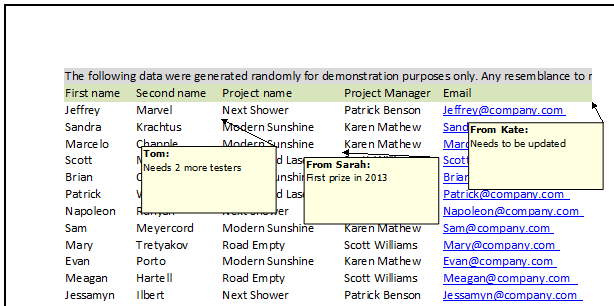
If your notes closely relate to the cell information, it may be ineffective to print them at the end of a sheet. In this case you can print comments in Excel 2010-2016 as displayed in your table.
- Open your table in Excel, go to the Review tab and click on the Show All Comments option.
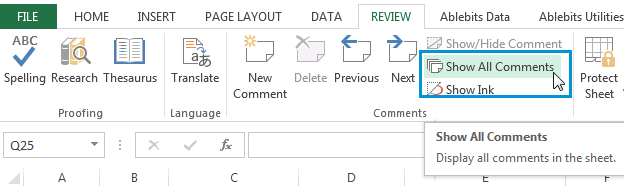
You'll see your cell notes displayed.
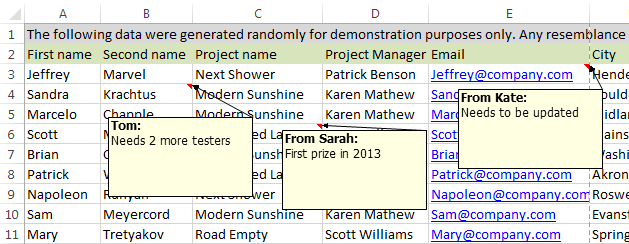
Tip. On this step you can also change the way the comments are shown by drag-n-dropping to make sure that important details are visible and not overlapped.
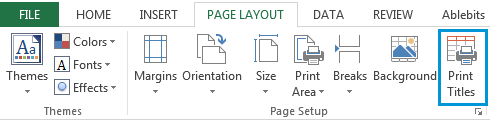
- Go to the Page Layout tab and click on the Print Titles icon.
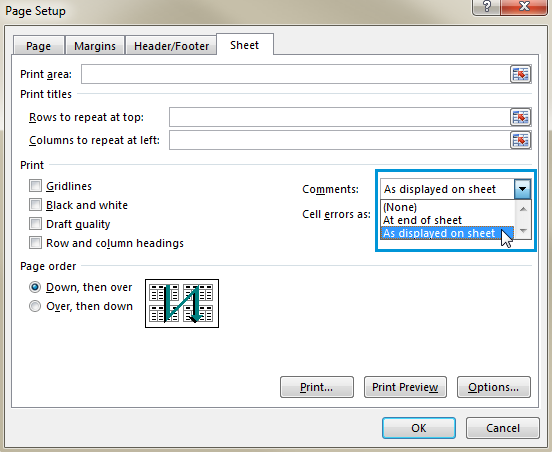
- You will see the Page Setup window. Click on the small down arrow next to the Comments drop-down list and select the option As displayed on sheet.
- Press the Print button to preview the page. You will get the comments at a glance.
Now you know how to print comments in Excel 2016-2010 as displayed or at the bottom of the table. If you want to become a real comments guru and learn how to make the best of cell commenting, check out the post we published not so long time ago named How to insert comments in Excel, add pictures, show/hide comments.
That's it! My comments have been successfully printed. Now I'm looking forward to your comments and questions. Be happy and excel in Excel!