 by
by This article explains how to expand Excel columns and rows so text fits properly horizontally or vertically, and how to make individual cells larger.
If your worksheet looks fine until you start typing and then words suddenly get cut off or hidden, you've discovered one of Excel's favorite tricks. When text doesn't fit inside a cell, it can feel like you are fighting the spreadsheet instead of working with it. Though Excel doesn't automatically resize every cell, it does offer a few easy ways to fix that.
Excel cell size: default and maximum limits
Excel uses a point-based system to define column width and row height. In simple terms, one point roughly equals the width of one standard character in Excel's default font. These limits explain why cells stop expanding after a certain size.
The table below shows the default and maximum sizes for columns and rows in Excel.
| Type | Default | Max |
|---|---|---|
| Column | 8.43 points (64 pixels) | 255 points (1790 pixels) |
| Row | 15 points (20 pixels) | 409.5 points (546 pixels) |
The minimum width or height is 0 for both columns and rows. When set to zero, the column or row is hidden rather than resized.
Tip. If your text still doesn't fit after increasing the column width or row height to the maximum size, consider using Wrap Text or splitting data across multiple cells.
How to make Excel cells expand to fit text automatically
The fastest way to expand columns and rows in Excel to make all text visible is by using the AutoFit feature.
Expand a column in Excel
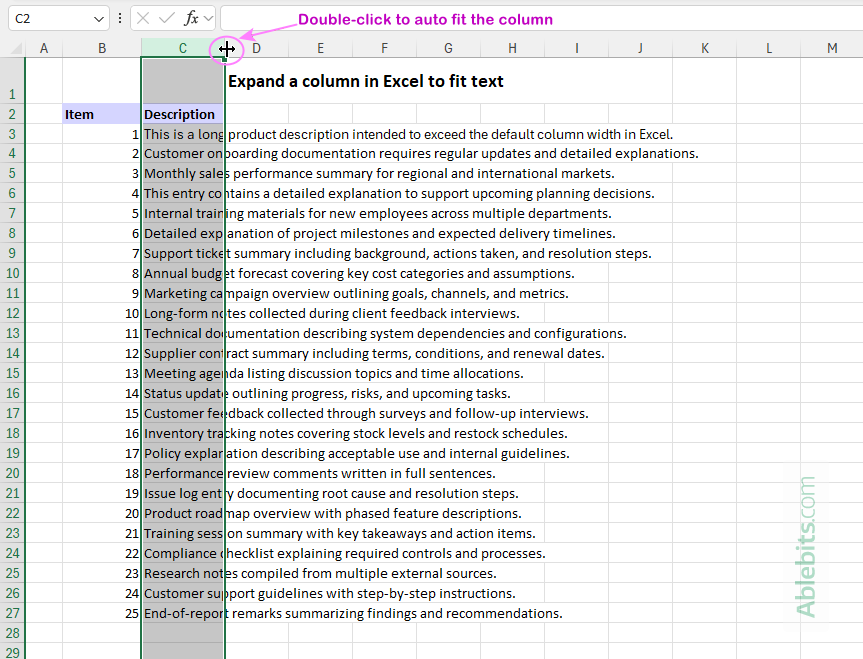
If text is cut off or spilling into the next cell, here's how to quickly make the column automatically expand to encompass its contents:
- Select the column you want to expand.
- Move the cursor to the right edge of the column header.
- When the cursor changes to a double-headed arrow, double-click.
The column will be made wider or narrower to match the longest piece of text in that column.
Expand a row in Excel
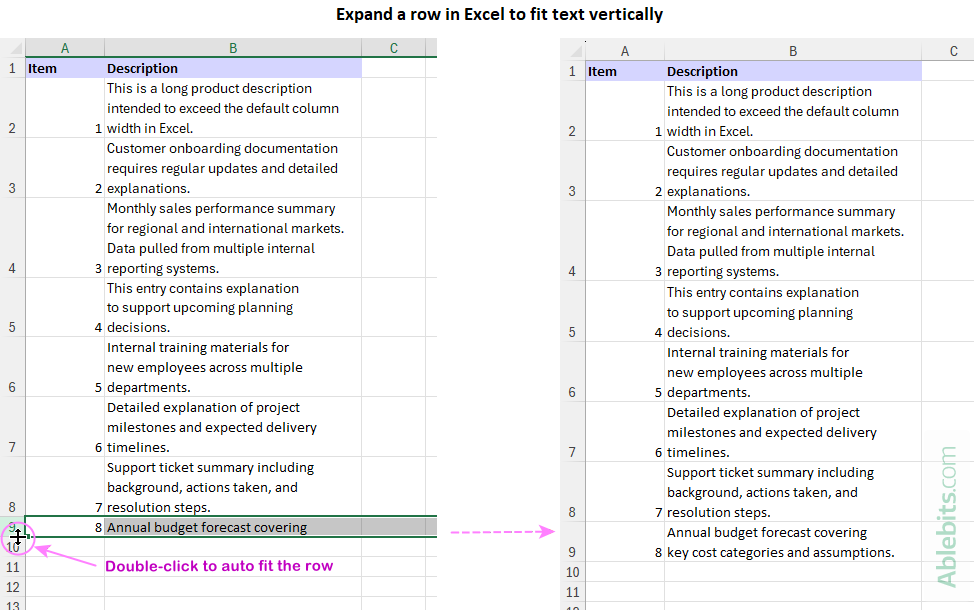
To make Excel cells expand to fit text vertically, use the AutoFit feature for rows. This is especially helpful when cells contain wrapped or multi-line text.
- Select the row you wish to resize.
- Hover over the bottom edge of the row number.
- Double-click when the double-arrow appears.
Excel will adjust the row height so all text in each cell is fully visible.
Auto fit multiple columns or rows at once
You can adjust several columns or rows in one step by selecting them first and then using AutoFit.
- Select the columns or rows you want to resize.
- Move your cursor to the boundary between any two selected column headers or row numbers.
- When the double-headed arrow appears, double-click.
Excel will resize all selected columns or rows to fit their content.
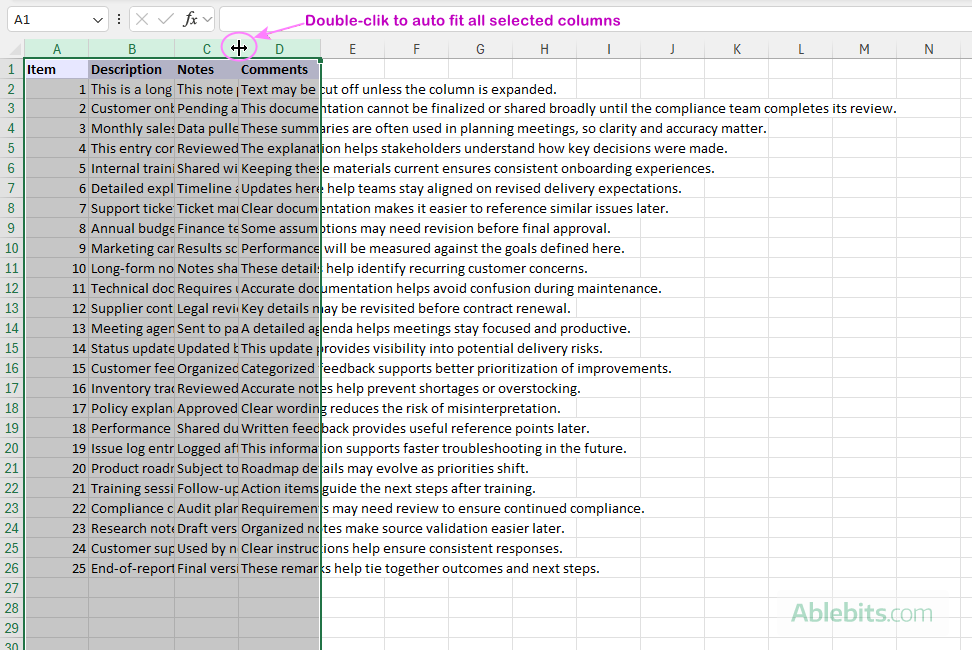
Note. Make sure you double-click the boundary between columns (or rows) within the selection. If you click the right edge of only the last selected column (or the bottom edge of the last row), Excel will resize just that one instead of the entire group.
Manually resize Excel columns and rows by dragging
If you want more control over spacing, you can resize columns and rows manually by dragging their borders. This approach works well when you want to adjust cell sizes visually rather than relying on automatic settings.
- Select the target column or row.
- Hover your cursor over the right border in the column header or the bottom edge in the row number area.
- When the cursor changes to a double-headed arrow, click and drag to your preferred size.
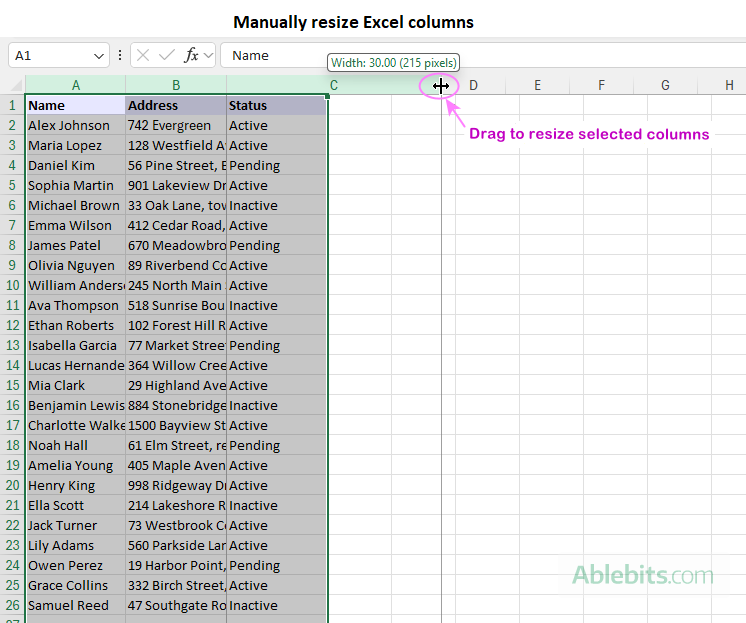
This method is useful when you are designing the layout of a worksheet, for example aligning columns evenly or leaving extra space for readability.
Tip. To resize multiple columns or rows in one go, select them first and then drag any border within the selection. All selected columns or rows will adjust together.
Expand Excel cells using the Format menu
If you want to set column / row sizes to a specific value, regardless of the content inside the cells, the Format menu gives you more control than dragging or double-clicking.
Resize columns
To set the precise column sizing, follow these steps:
- Select one or more columns you want to resize.
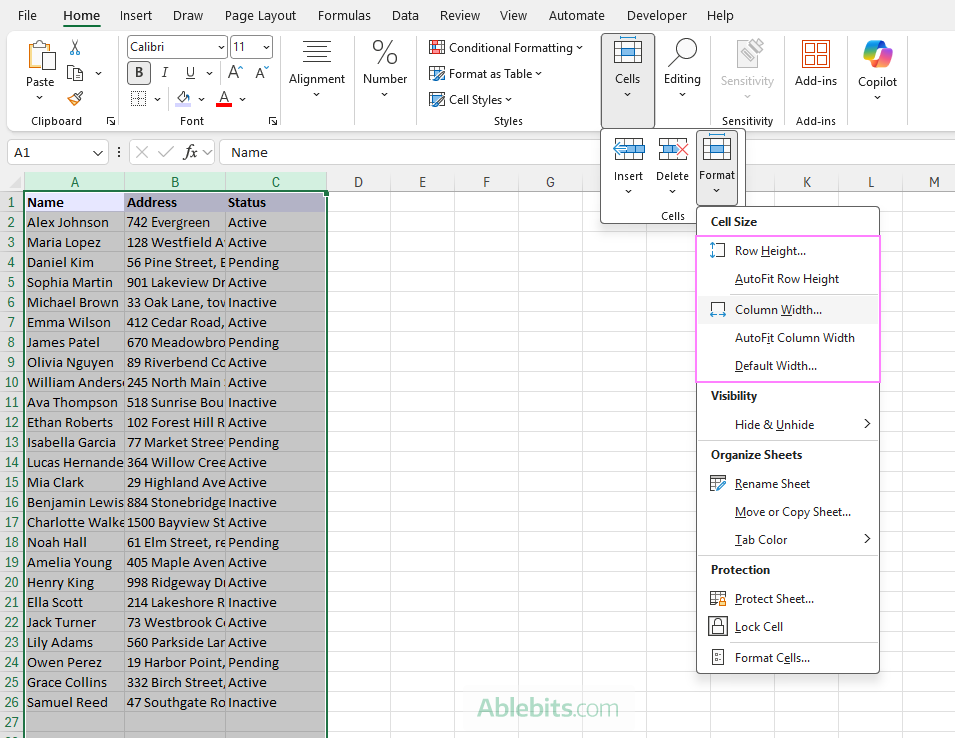
- On the Home tab, in the Cells group, click Format.
- From the drop-down menu, choose one of the following options:
- Column Width - opens a dialog where you enter an exact width value. This sets the selected columns to the same width, regardless of their data.
- AutoFit Column Width - automatically adjusts the selected columns to fit the longest cell value in each column. This works the same way as double-clicking the column border.
- Default Width - changes the default width of new or currently blank columns in the worksheet. Existing columns that already contain data are not affected. You can also apply a default column width to multiple worksheets at a time by selecting their tabs before using this option.
Resize rows
The same Format menu also lets you control row height:
- Row Height - lets you enter an exact height for the selected rows.
- AutoFit Row Height - adjusts row height automatically to show all wrapped or multi-line text.
For more information, see How to change column width in Excel.
How to make Excel cells expand to fit text vertically
Sometimes the problem isn't the column width – it's that text is all on one very long line. In these cases, Excel's Wrap Text feature can help. It breaks the text into multiple lines within the same cell and increases the row height to fit the content. This works especially well for paragraphs, notes, and long descriptions.
How to wrap text in Excel:
- Select the cells you want to expand vertically.
- On the Home tab, in the Alignment group, click Wrap Text.
That's it. Excel wraps the text and adjusts the row height automatically.
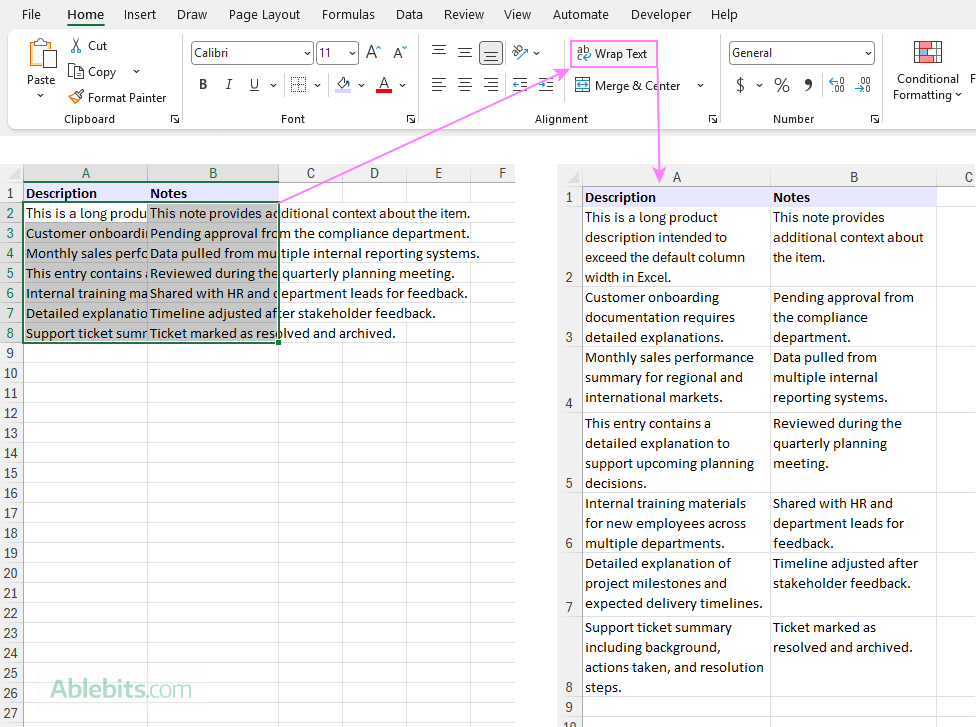
Tip. If the text still isn't fully visible after applying Wrap Text, try AutoFit on the affected rows. This usually happens when the row height was previously set to a fixed size. Wrapping the text prevents it from spilling over into adjacent cells, and AutoFit ensures the entire wrapped content is shown.
Make Excel columns the same size as another column
If you want multiple columns to have the same size, you can copy the width from an existing column and apply it to others using Paste Special.
To copy a column's width:
- Select the column that already has the width you want, or click any cell within that column.
- Press Ctrl + C to copy it.
- Select the target columns.
- Right-click the selection, click Paste Special, then select Column Widths and click OK.
The selected columns now have the exact same width as the source column.
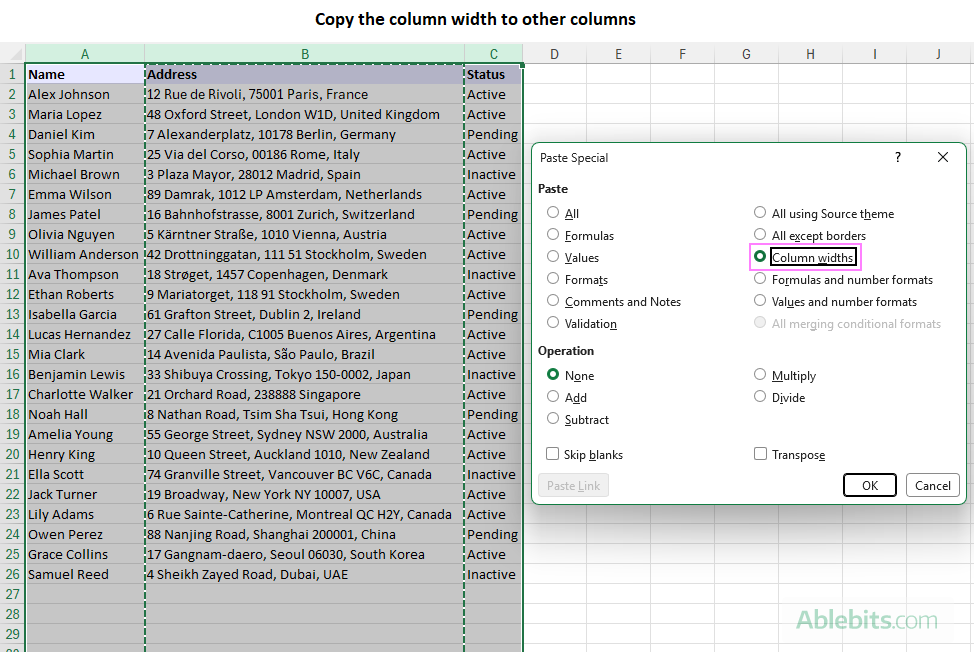
If you prefer using shortcuts, you can do the same thing without opening menus:
- Press Ctrl + Alt + V to open the Paste Special dialog.
- Press W to choose the Column Widths option.
- Press Enter to apply the width.
This works really well for large tables or reports, where consistent column widths create an attractive visual layout and make the data easier to scan.
For more information, see How to copy column width in Excel.
How to expand all columns in Excel sheet
If your spreadsheet contains many columns with the same standard width, and you wish to expand all columns at once, there are a few ways to do so depending on your final goal.
- Select all columns. First, select the columns you want to expand.
- To select all columns in the worksheet, press Ctrl + A (Windows) or Cmd + A (Mac).
- You can also click the Select All button (a small gray triangle) in the top-left corner of the grid, between the row numbers and column letters.
- Choose how to expand columns. Once all columns are selected, use one of the following methods to expand them:
- AutoFit. Double-click any column boundary in the header row. This will expand each column to fit the longest string in it.
- Drag to resize. Click and drag any column boundary to the right. All selected columns will resize to the same width.
- Set a specific width. Go to the Home tab > Format > Column Width, enter a number, and click OK. This applies an exact width to every selected column.
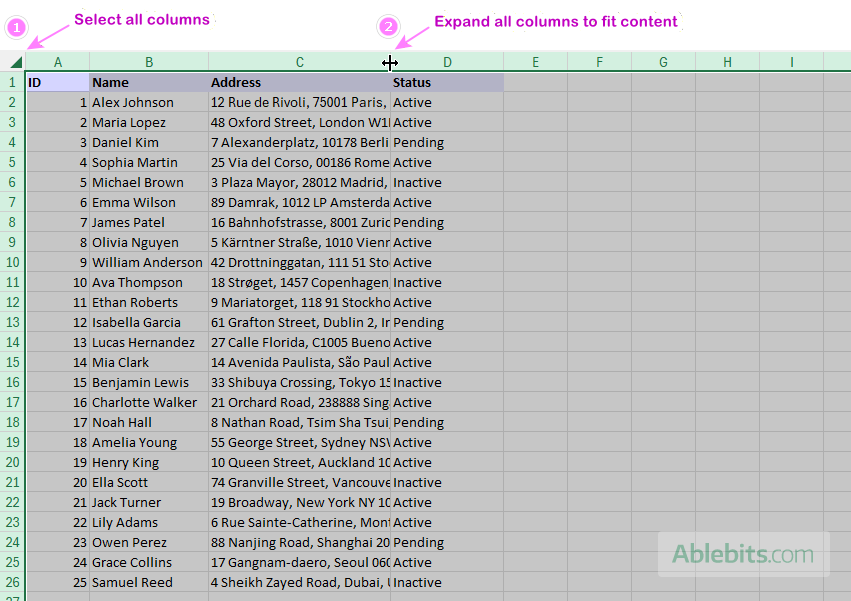
Tip. AutoFit is ideal when you want each column sized based on its data, while setting a numeric width or dragging works better when you are looking for a uniform layout across the entire sheet.
How to enlarge specific cells
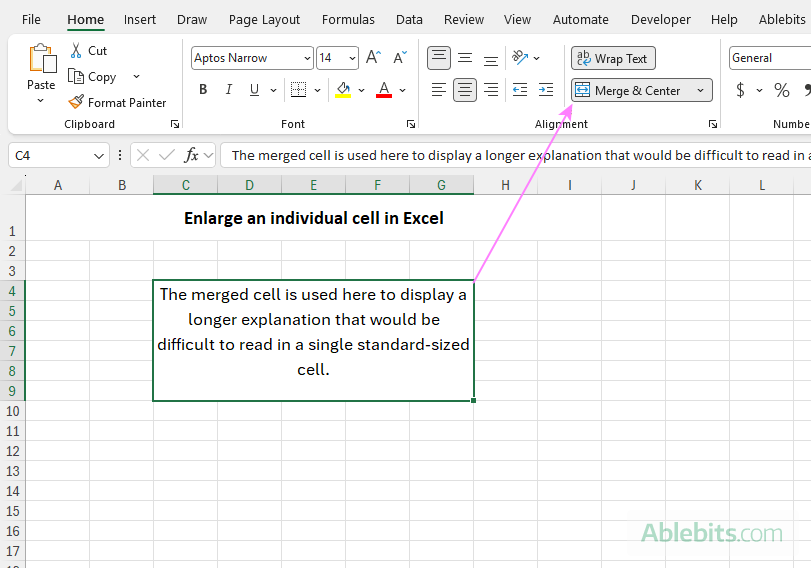
In some situations, you may want to make just one cell, or a small group of cells, larger without affecting surrounding cells. However, Excel doesn't allow resizing a single cell on its own. When you change a cell's width using any of the previously described techniques, it makes the entire column wider or narrower. Likewise, changing a cell's height applies to the entire row. In other words, each cell is part of Excel's grid, so there's no direct way to expand just one individual entry.
If you need one cell to take up more space, the most common workaround is to merge it with adjacent cells.
- Select a block of contiguous cells you want to combine.
- On the Home tab, in the Alignment group, click Merge & Center.
As a result, the selected cells are merged into a larger one, and the text is centered by default. You can change text alignment later if needed.
Note. When merging cells in Excel, only the value from the upper-left cell is kept. Any content in other selected cells is removed. To avoid losing data, merge only empty cells, or copy the existing content to another location before merging. To discover other solutions, see how to merge Excel cells without losing data.
Perfect cell sizing won't solve every Excel problem, but it does fix the very visible ones. Excel may never read your mind, but it can expand cells, columns and rows if you tell it how. Once your text fits where it's supposed to, your worksheet instantly feels calmer and a lot more cooperative 😊