This is a short step-by-step tutorial for beginners showing how to add VBA code (Visual Basic for Applications code) to your Excel workbook and run this macro to solve your spreadsheet tasks.
Most people like me and you are not real Microsoft Office gurus. So, we may not know all specificities of calling this or that option, and we cannot tell the difference between VBA execution speed in different Excel versions. We use Excel as a tool for processing our applied data.
Suppose you need to change your data in some way. You googled a lot and found a VBA macro that solves your task. However, your knowledge of VBA leaves much to be desired. Feel free to study this step-by-step guide to be able to use the code you found:
Insert VBA code to Excel Workbook
For this example, we are going to use a VBA macro to remove line breaks from the current worksheet.
- Open your workbook in Excel.
- Press Alt + F11 to open Visual Basic Editor (VBE).
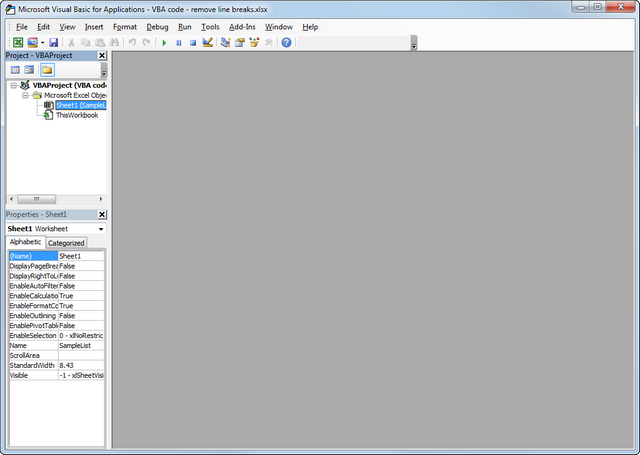
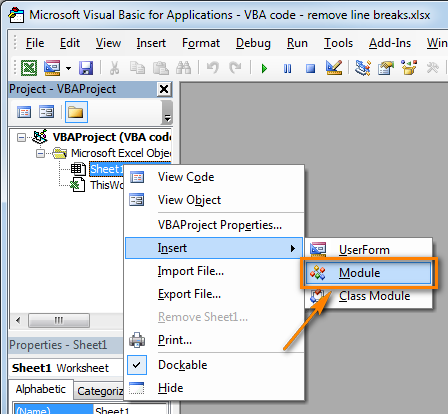
- Right-click on your workbook name in the "Project-VBAProject" pane (at the top left corner of the editor window) and select Insert -> Module from the context menu.
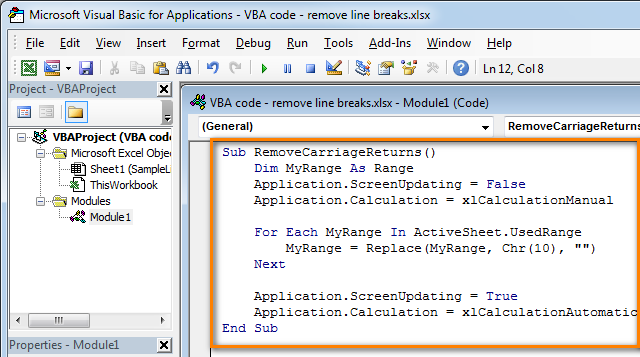
- Copy the VBA code (from a web-page etc.) and paste it to the right pane of the VBA editor ("Module1" window).
- Tip: Speed up macro execution
If the code of your VBA macro does not contain the following lines in the beginning:
Application.ScreenUpdating = False
Application.Calculation = xlCalculationManualThen add the following lines to get your macro to work faster (see the screenshots above):
- To the very beginning of the code, after all code lines that start with Dim (if there are no "Dim" lines, then add them right after the Sub line):
Application.ScreenUpdating = False
Application.Calculation = xlCalculationManual - To the very of the code, before End Sub:
Application.ScreenUpdating = True
Application.Calculation = xlCalculationAutomatic
These lines, as their names suggest, turn off screen refresh and recalculating the workbook's formulas before running the macro.
After the code is executed, everything is turned back on. As a result, the performance is increased from 10% to 500% (aha, the macro works 5 times faster if it continuously manipulates the cells' contents).
- To the very beginning of the code, after all code lines that start with Dim (if there are no "Dim" lines, then add them right after the Sub line):
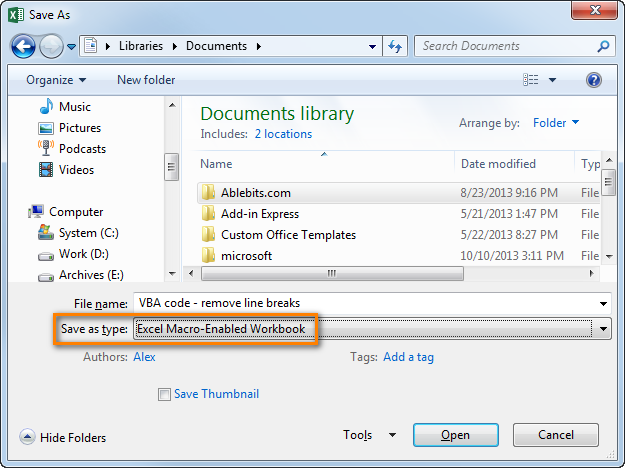
- Save your workbook as "Excel macro-enabled workbook".
Press Crl + S, then click the "No" button in the "The following features cannot be saved in macro-free workbook" warning dialog.

The "Save as" dialog will open. Choose "Excel macro-enabled workbook" from the "Save as type" drop-down list and click the Save button.
- Press Alt + Q to close the Editor window and switch back to your workbook.
How to run VBA macros in Excel
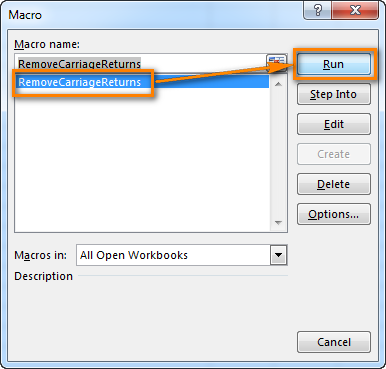
When you want to run the VBA code that you added as described in the section above: press Alt+F8 to open the "Macro" dialog.
Then select the wanted macro from the "Macro Name" list and click the "Run" button.
by
6 comments
Sub GenerateWordFiles()
'Declare Word application and document objects
Dim wdApp As Object 'Word application instance
Dim wdDoc As Object 'Word document instance
'Paths for template, output folder, and 2nd workbook
Dim TemplatePath As String
Dim SavePath As String
Dim Macro2Path As String
'Excel variables
Dim lastRow As Long, i As Long
Dim contract_keys As String, contract_name As String
'Word Table variables
Dim tbl1 As Object, tbl2 As Object
Dim wb2 As Workbook
Dim wsCP As Worksheet 'Connected Parties sheet
Dim CP_LastRow As Long 'Last row of CP output
Dim CP_Row As Long 'Loop counter
Dim tbl1_Row As Long, tbl2_Row As Long
'Read paths from RUNNNN sheet
''Change below ThisWorkbook.Sheets("RUNNNN") with your Workbook1 sheet name
'''Change H2,J3,J4 to your path addresses
Set wb1 = ThisWorkbook.Sheets("RUNNNN")
TemplatePath = wb1.Range("J4").Value 'Word template
SavePath = wb1.Range("J3").Value 'Output folder
Macro2Path = wb1.Range("J2").Value '2nd workbook file path
startNum = wb1.Range("J1").Value
'Create output folder if not exists
If Dir(SavePath, vbDirectory) = "" Then MkDir SavePath
'Get last row in column A
lastRow = Cells(Rows.Count, "A").End(xlUp).Row
'Create Word application
Set wdApp = CreateObject("Word.Application")
wdApp.Visible = True 'Show Word
'Open the second workbook containing the macro
Set wb2 = Workbooks.Open(Macro2Path)
'Loop through input rows starting from value in RUNNNN J1
For i = startNum To lastRow
'Read contract values
contract_keys = wb1.Cells(i, "A").Value
contract_name = wb1.Cells(i, "B").Value
'Send contract key into wb2
''Change sheet name where it want to place the contract_keys, mention that sheet name
''If you want to place it in multiple places, copy the same below line code extra and
''change the sheet name and range below.
wb2.Sheets("Sheet1").Range("D2").Value = contract_keys
'Run macro in second workbook
Application.Run "'" & wb2.Name & "'!PopulateAndSortCPsDetails"
'Set reference to CP output sheet after macro runs
''If the output needs to pull from different sheet then change the name below
''If the output wants to pull from multiple sheet replace the same line
''again below with different Set Variable
Set wsCP = wb2.Sheets("Connected Parties Check")
'Open the Word template for this contract
Set wdDoc = wdApp.Documents.Open(TemplatePath)
'Replace the tag with contract name
ReplaceTag wdDoc, "<>", contract_name
'------------------ TABLE PROCESSING BEGINS ----------------------------
'Get references to Table 1 and Table 2
Set tbl1 = wdDoc.Tables(1)
Set tbl2 = wdDoc.Tables(2)
'Find last row of data from A11 downward
CP_LastRow = wsCP.Cells(wsCP.Rows.Count, "A").End(xlUp).Row
'-----------------------------------------------------
' TABLE 1 ? Insert/Delete rows based on CP output
'-----------------------------------------------------
'Ensure table has correct number of rows
AdjustWordTableRows tbl1, CP_LastRow - 10 'Subtract 10 because data starts at row 11
'Fill Table 1 rows
tbl1_Row = 2 'Assuming row 1 is header
For CP_Row = 11 To CP_LastRow
tbl1.Cell(tbl1_Row, 1).Range.Text = wsCP.Cells(CP_Row, "F").Value
tbl1_Row = tbl1_Row + 1
Next CP_Row
'-----------------------------------------------------
' TABLE 2 ? Only authorised rows (Column M)
'-----------------------------------------------------
'Clear all existing data rows in Table 2 (except header)
AdjustWordTableRows tbl2, 0
tbl2_Row = 2
For CP_Row = 11 To CP_LastRow
If wsCP.Cells(CP_Row, "M").Value = "Authorised" Then
'Add new row in Table 2
tbl2.Rows.Add
'Write Column L value into Table 2
tbl2.Cell(tbl2_Row, 1).Range.Text = wsCP.Cells(CP_Row, "L").Value
tbl2_Row = tbl2_Row + 1
End If
Next CP_Row
'------------------ TABLE PROCESSING ENDS ----------------------------
'Construct file name
''Here contract_name will be your output extra sub folder will create
Dim FileName As String
FileName = SavePath & "\" & contract_name
'Create subfolder if missing
If Dir(FileName, vbDirectory) = "" Then MkDir FileName
'Final file path
''File name will pick first 2 characters
FileName = FileName & "\CDD_" & Left(contract_name, 2) & ".docx"
'Delete existing file if already exists
If Dir(FileName) "" Then Kill FileName
'Save Word file
wdDoc.SaveAs2 FileName
'Close Word file
wdDoc.Close False
Next i
'Quit Word application
wdApp.Quit
MsgBox "All Word files generated successfully!", vbInformation
End Sub
Sub ReplaceTag(doc As Object, findText As String, replaceText As String)
With doc.Content.Find
.Text = findText
.Replacement.Text = replaceText
.Forward = True
.Wrap = 1
.Execute Replace:=2
End With
End Sub
Sub AdjustWordTableRows(tbl As Object, requiredRows As Long)
Dim currentRows As Long
currentRows = tbl.Rows.Count - 1 'Minus header
'Add missing rows
While currentRows requiredRows And requiredRows >= 0
tbl.Rows(tbl.Rows.Count).Delete
currentRows = currentRows - 1
Wend
End Sub
Sub CleanWordTableEmptyRows(tbl As Object)
Dim r As Long
For r = tbl.Rows.Count To 2 Step -1 'Skip header row
If Trim(tbl.Cell(r, 1).Range.Text) = "" Or _
Trim(Replace(tbl.Cell(r, 1).Range.Text, Chr(13), "")) = "" Then
tbl.Rows(r).Delete
End If
Next r
End Sub
I want to use the same VBA code in a few workbooks. Is there a way to enable it across multiple workbooks? Or can I save a VBA as a "favorite" somehow so it is always available?
Hello Roberta!
Here is the article that may be helpful to you: Excel Personal Macro Workbook: how to create, use and share.
Very good try the best
Hi Team,
I would like to inquire about a specific task. In a particular Excel sheet, there exists a dataset. If the data includes the number 4146, it should be transferred to Sheet1. If the data contains the number 4148, it must be moved to Sheet2. Additionally, if the data features the number 4145, it should be relocated to Sheet3.
How to write formula for this??
Thank you in advanc3
Hello Komala!
For each of your three worksheets, you can extract data that matches a specific condition using the FILTER formula.
You can find the examples and detailed instructions here: Excel FILTER function - dynamic filtering with formulas.