 by
by The article shows how to add both national holidays and specific company days off to your Outlook calendar.
When your Outlook calendar is packed with different meetings, deadlines, and appointments, public holidays are easy to overlook. Fortunately, you don't have to enter federal or regional days off one by one as Outlook has ready-made holiday calendars for many countries.
If your organization has its own days off, for example company-specific anniversaries or an extra holiday around Christmas, you can add those to Outlook too. Let's see how both options work in different Outlook versions.
Outlook holiday calendar
Microsoft Outlook provides built-in holiday calendars for many countries and regions. For your primary account, a separate Holiday calendar is often included automatically based on your Windows Regional settings. You can show or hide it at any time by selecting or unselecting it in the Folder pane on the left.
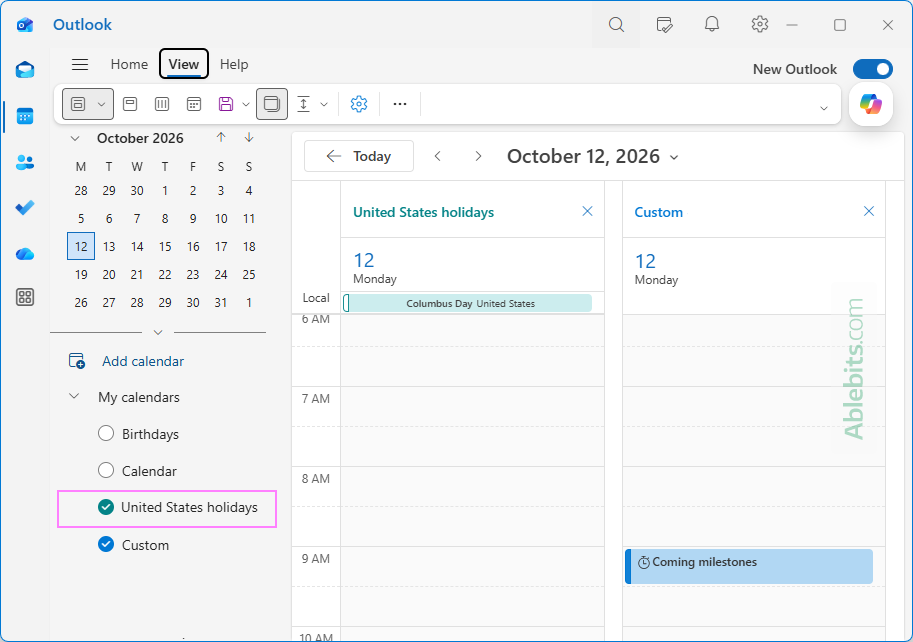
If public holidays aren't showing in your Outlook calendar, you can add them in just a few steps. And if you work with colleagues, customers, or offices in different parts of the world, you can add national holidays for several countries.
Tip. When you have multiple calendars open, you can view them side by side in Split View or combine them into a single calendar using Overlay View.
Adding holidays to Outlook: things to know
Before you start adding holidays, it helps to know how Outlook handles them in different versions.
- Different Outlook apps display holidays differently:
- New Outlook and Outlook on the web add a separate holiday calendar for each country that you can show, hide, or remove.
- Classic Outlook adds holiday events directly to your main calendar, where they appear alongside your regular appointments and meetings.
- Syncing between Outlook apps isn't consistent. Holidays added in classic Outlook are also displayed in the primary calendar in new Outlook and Outlook on the web. However, separate holiday calendars added in new Outlook or web don't show up in classic Outlook.
- Work or school Microsoft 365 account. If you want your holiday calendar to receive updates when items are added or changed, add it through Outlook on the web.
How to add holidays to classic Outlook calendar (365 – 2016)
In classic Outlook, holidays are added directly to your default calendar. Here are the steps:
- In Outlook 365 – 2016, click File > Options.
- In the Outlook Options window, select Calendar.
- Under the Calendar options section, click Add Holidays.
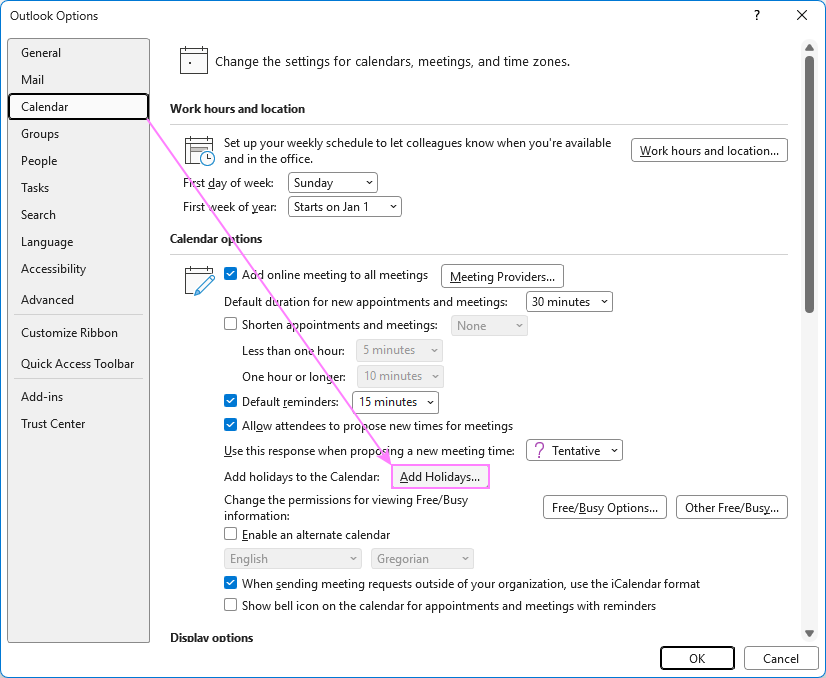
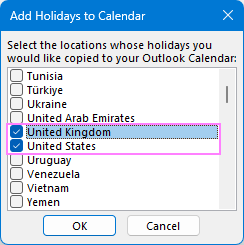
- In the pop-up window that appears, select the checkbox next to each country whose holidays you want to add, and click OK.
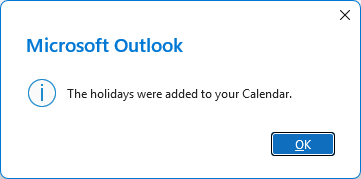
- Outlook will start importing the holidays for the selected countries. When the process is complete, you'll see a confirmation that the holidays have been added to your calendar.
As a result, the official national holidays for the selected countries are added to the main Outlook calendar as all-day events.
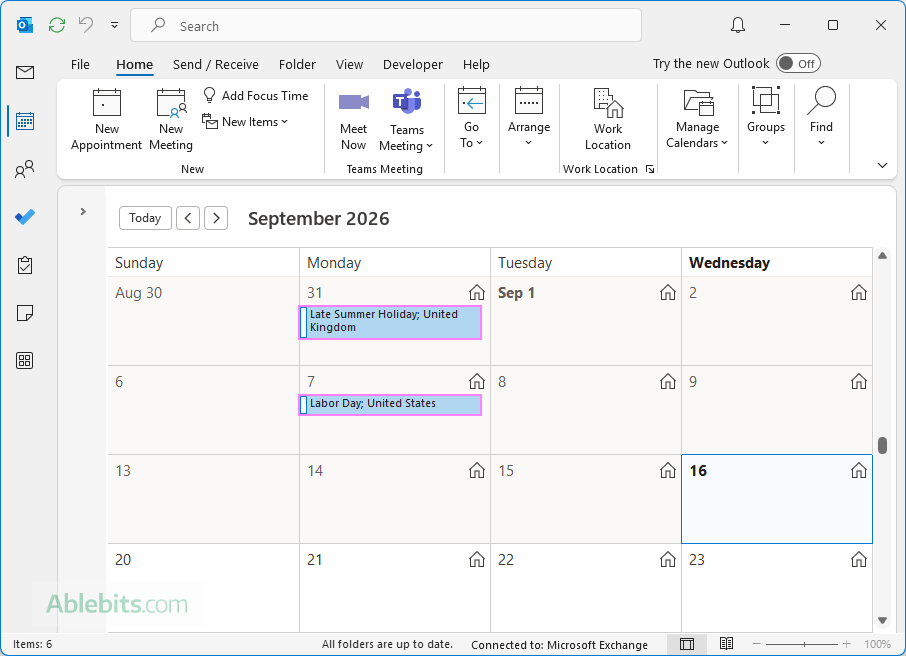
Notes:
- If holidays for a specific country have already been added and you select that country again, Outlook may add a second copy of the same events. Outlook 365 warns you when holidays are already present and asks whether you want to install them again. Click No to avoid duplicate holidays.
- If you added holidays earlier but don't see dates through 2026, remove the existing holiday events, update Outlook to the latest version, and then add the holidays again.
How to add holiday calendar to new Outlook and web
In new Outlook for Windows and Outlook on the web, adding national holidays is even easier:
- In the Outlook Navigation pane, switch to Calendar.
- In the left pane, below the mini-calendar, click Add calendar.
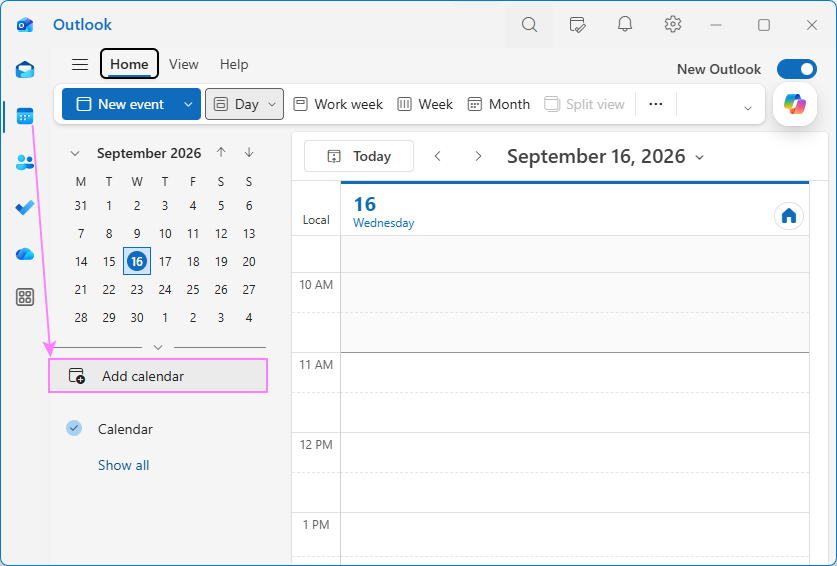
- In the Add calendar window, choose Holidays in the left pane.
- Select one or more countries or regions whose holidays you want to add.
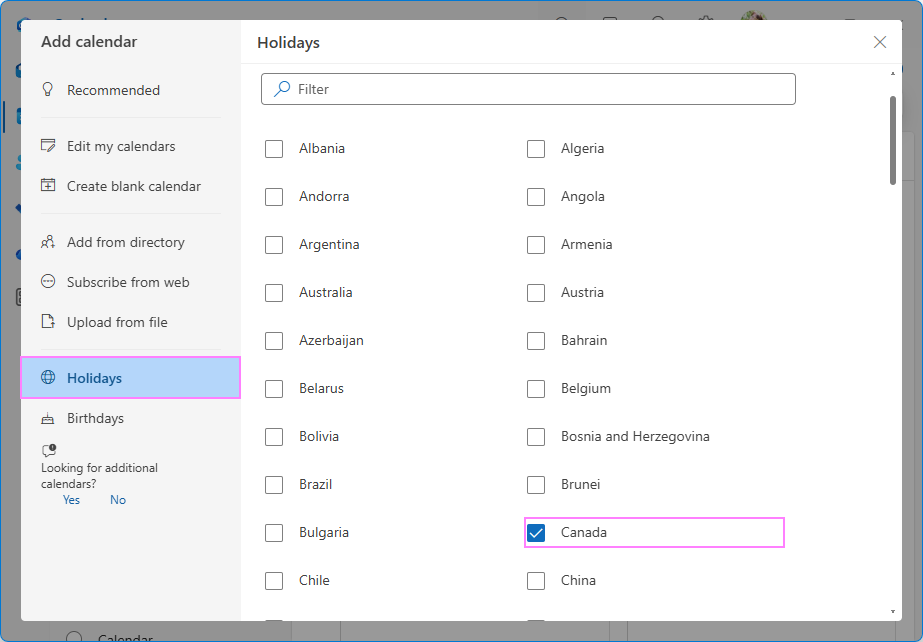
- When you're done, close the Add calendar window by clicking the X button in the upper-right corner.
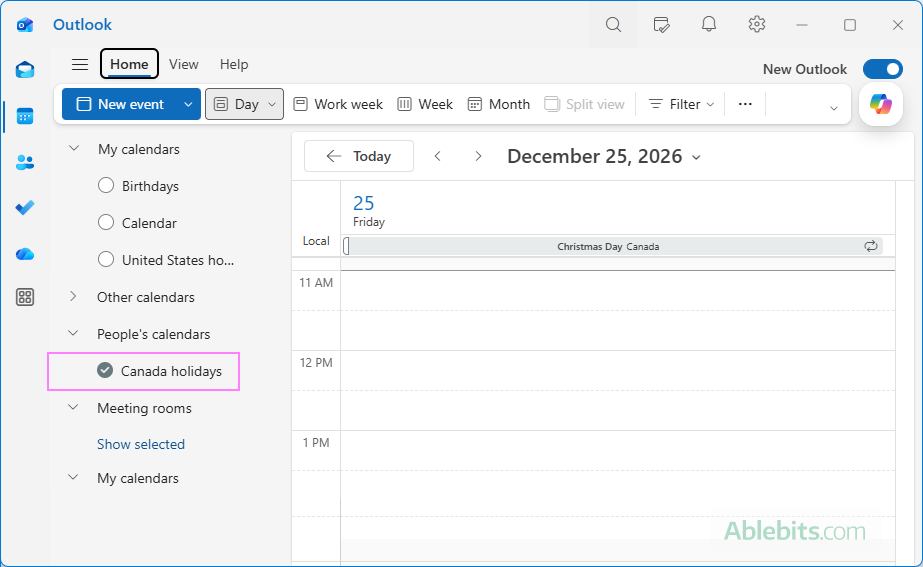
In new Outlook and Outlook on the web, each holiday calendar is added separately under People's Calendars. You can show or hide it at any time by selecting or clearing the checkbox next to its name.
How to remove holidays from Outlook calendar
How you remove holidays depends on your Outlook version.
Remove holidays from Outlook 365 – 2016
Because classic Outlook adds holidays into your main calendar, you need to delete the events themselves. Here's how to do this:
- In the Navigation pane, select Calendar.
- On the ribbon, go to the View tab and choose Change View > List.
- In the Arrangement group, select Categories to group your calendar events by category.
- In the list of events, find the Holidays category. To remove holidays from a specific country, use the Location column to identify the relevant events.
- Select one or more holidays to remove. To select a continuous range, click the first item, hold down Shift, and click the last item.
- Right-click the selection and choose Delete. Alternatively, click Delete on the Home tab or use the Ctrl + D shortcut.
- To return to the standard calendar layout, go to View > Change View > Calendar.
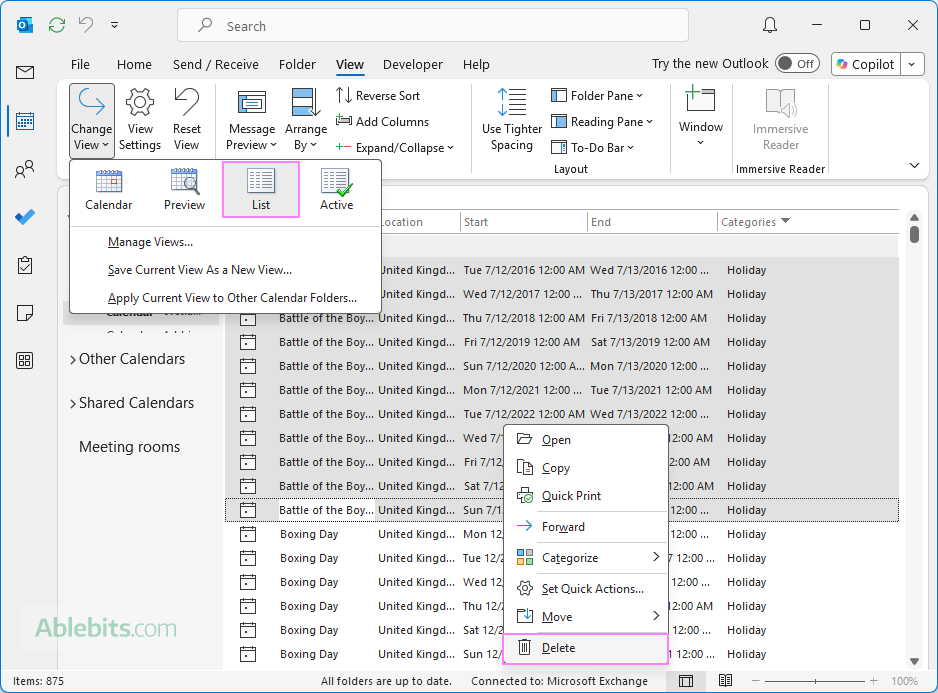
Tip. If duplicate holidays were added by mistake, this List view makes it much easier to find and remove them in bulk.
Remove holidays from new Outlook and web
In new Outlook and Outlook on the web, holidays are stored in their own calendar, so you can remove the entire holiday calendar at once:
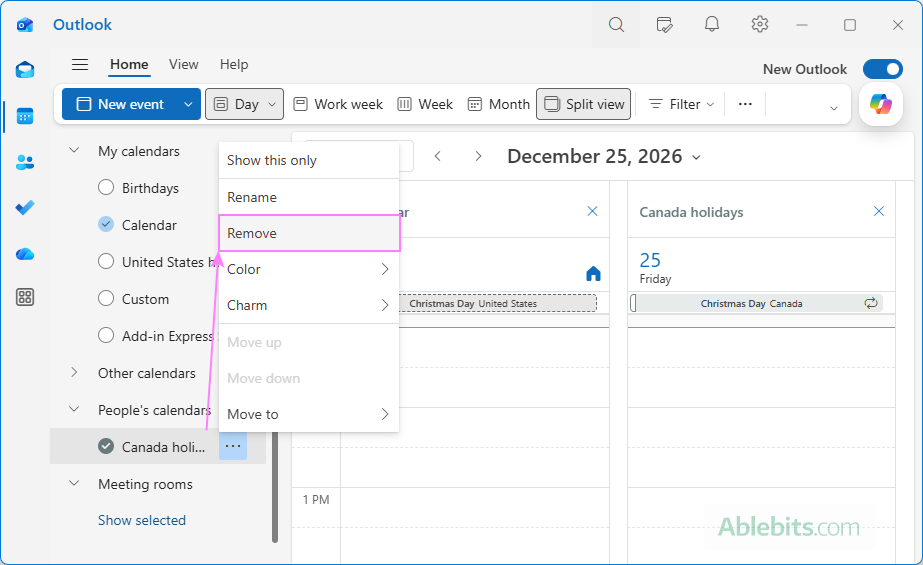
- In the folder pane on the left, right-click the Holiday calendar, or click the three dots next to it.
- Choose Remove from the context menu.
- When prompted, click Remove again to confirm.
How to add company holidays to Outlook calendar
National holidays are built into Outlook, but internal company holidays are a different story. If your organization closes between Christmas and New Year, gives employees an additional wellness day, or observes a local holiday that Outlook doesn't include, those dates need to come from another source.
There are several ways to do this:
- Add a shared company calendar maintained by your organization.
- Import company holidays from an .ics file.
- Subscribe to an online company calendar.
- Create a separate calendar and add the dates yourself.
- In classic Outlook, create a custom holiday set using an .hol file.
The best method depends on whether the dates may change and whether one person or the whole company needs to maintain them.
Method 1: Add a shared company holiday calendar
For an organization with Microsoft 365 subscription, a shared calendar is often the most practical option. If such a calendar is already available in your organization's directory, you can add it easily to your Outlook:
- In classic Outlook 365 – 2016: On the Home tab, click Add Calendar > Open Shared Calendar.
- In new Outlook or web: Click Add calendar in the left panel, choose Add from directory, and search for the company calendar, room, or resource.
This method has one big advantage: when the calendar owner adds a new or changes an existing holiday, everyone viewing that shared calendar sees the updated information without importing another file.
For a more detailed explanation, see How to add a shared Microsoft 365 or Exchange calendar.
Method 2: Import company holidays from an ICS file
If your HR department provides an .ics calendar file containing all company holidays for the year, you can import it to your Outlook as a one-time copy of the current events, without further syncing.
- In classic Outlook 365 – 2016: Go to File > Open & Export > Open Calendar. Browse to the target .ics file, select it, and choose whether to create a separate calendar for the imported holidays or add them to your main calendar.
- In new Outlook or web: Click Add calendar in the left panel, select Upload from file, choose your .ics file, select the destination calendar, and click Import.
Importing an ICS file is useful when the holiday dates are already finalized and aren't expected to change.
For a complete walkthrough, see How to import ICS file to Outlook.
Method 3: Subscribe to an online company holiday calendar
If your company publishes a holiday calendar on the web, subscribing to it using an ICS link is usually better than downloading an ICS file, as a connected calendar receives updates automatically.
- In classic Outlook 365 – 2016: On Calendar's Home tab, click Add Calendar > From Internet, and then paste an .ics link.
- In new Outlook or web: Click Add calendar in the left panel, choose Subscribe from web, and paste the ICS link into the URL field.
If the source calendar changes, Outlook periodically refreshes the subscribed calendar. Updates aren't immediate and can sometimes take up to 24 hours.
For a detailed guide, see How to subscribe to online calendar in Outlook.
Method 4: Create your own company holiday calendar
If your organization doesn't provide a shared holiday calendar or an ICS file, you can create one yourself. There are two ways to organize company days off:
- Create a separate holiday calendar if you prefer to keep company holidays apart from your own meetings, appointments, and personal events.
- Add company holidays to your main calendar if you want those days to affect your availability and be visible alongside your regular schedule.
If you choose to create a separate calendar, follow all the steps below. If you prefer to add company holidays to your main calendar, skip the first two steps and go straight to Step 3.
Step 1. Create a new calendar
Start by creating a blank calendar for company holidays:
- In classic Outlook 365 – 2016: On the Home tab, select Add Calendar > Create New Blank Calendar.
- In new Outlook or web: In the folder pane, click Add calendar > Create blank calendar.
Enter a name for the calendar, for example Company Holidays, choose where to place it, and click Save.
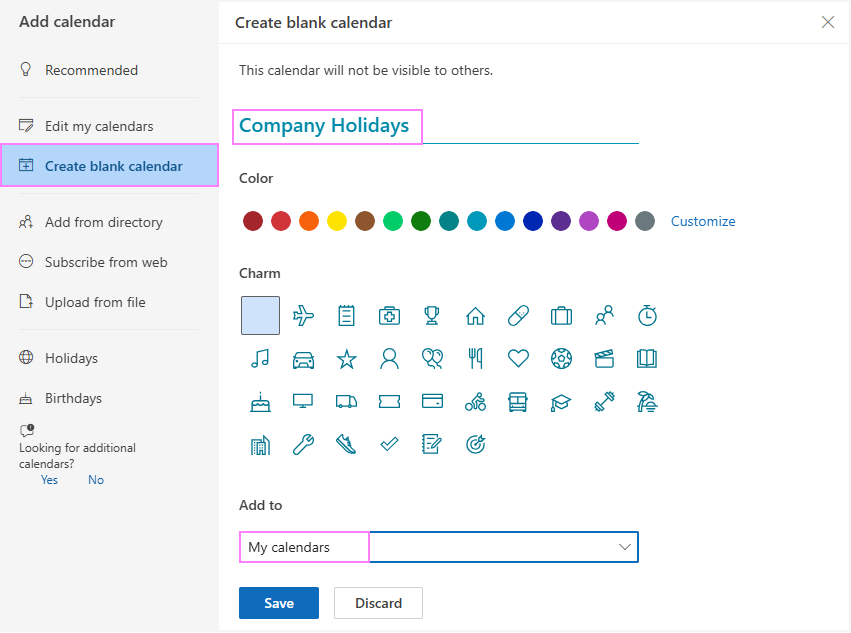
For detailed instructions, see How to create a new calendar in Outlook.
Step 2. Open the newly created calendar in Outlook
Once saved, the new calendar will appear in the folder pane under the calendar group (folder) you selected in the previous step. Select the checkbox next to its name to display it.
Step 3. Add company holidays as all-day out of office events
Company holidays usually take up the entire working day, so it makes sense to add them as All-day events. Setting them to Out of Office signals to coworkers that you will not be available for meetings.
- Create a new calendar event:
- In classic Outlook 365 – 2016: Right-click the date in the calendar grid and choose New All Day Event. Or you can follow a more traditional route and click New Appointment on the ribbon.
- In new Outlook or web: Click New event on the ribbon.
- In the title field, enter the name of the day off, for example Company wellness day or Winter company shutdown.
- Turn on the All day option.
- Change the Show as setting to Out of Office.
- If the holiday falls on the exact same date every year, make it a recurring event and set the Recurrence to Yearly.
- Click Save.
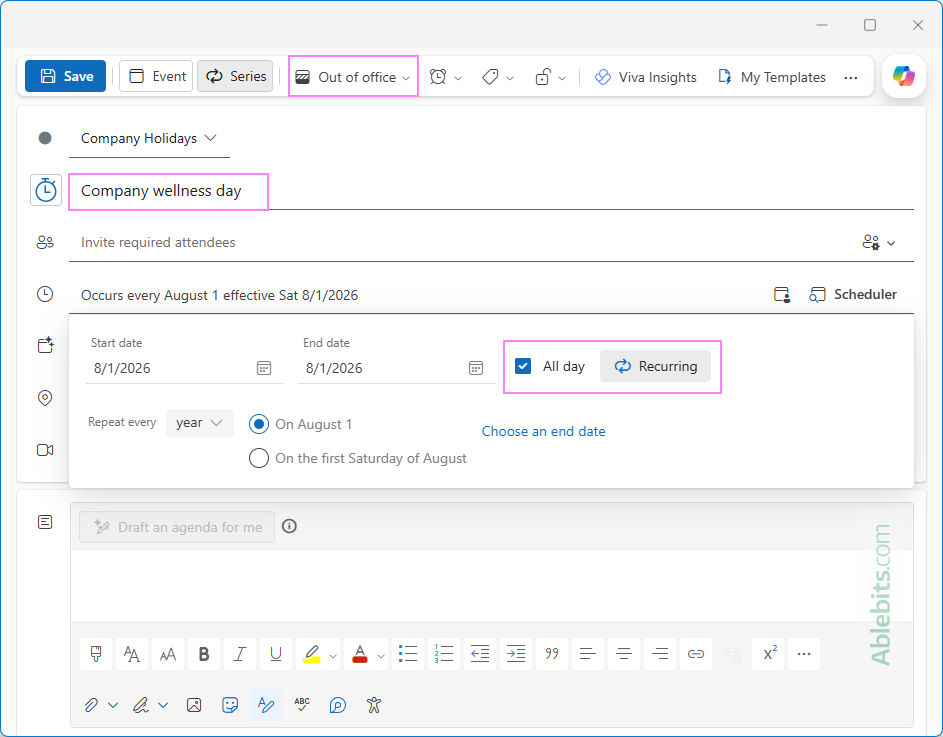
Repeat these steps for any other company holidays you want to add.
Tips and notes:
- If the same event covers several dates, for example, a winter company shutdown from December 24 – 31, you can schedule it for the entire date range at once instead of creating multiple events.
- If colleagues also need access to the company holiday calendar, you can share it with them instead of asking everyone to add the same dates individually.
- In classic Outlook, events stored on a secondary calendar generally don't affect your free/busy availability. If a company day off should block your availability for meeting scheduling, add an all-day out of office event to your primary calendar instead.
How to add .hol file to Outlook
In classic Outlook, holiday definitions are stored in the Outlook.hol file. This gives you another way to add custom holidays that aren't included in Outlook by default.
You can either replace the existing Outlook.hol file with your own version or edit the current file and add a custom holiday section.
Add your own HOL file to Outlook
If you already have a prepared Outlook.hol file, you can add it to classic Outlook by replacing the existing one:
- Close Outlook.
- Locate the OUTLOOK.HOL file on your computer.
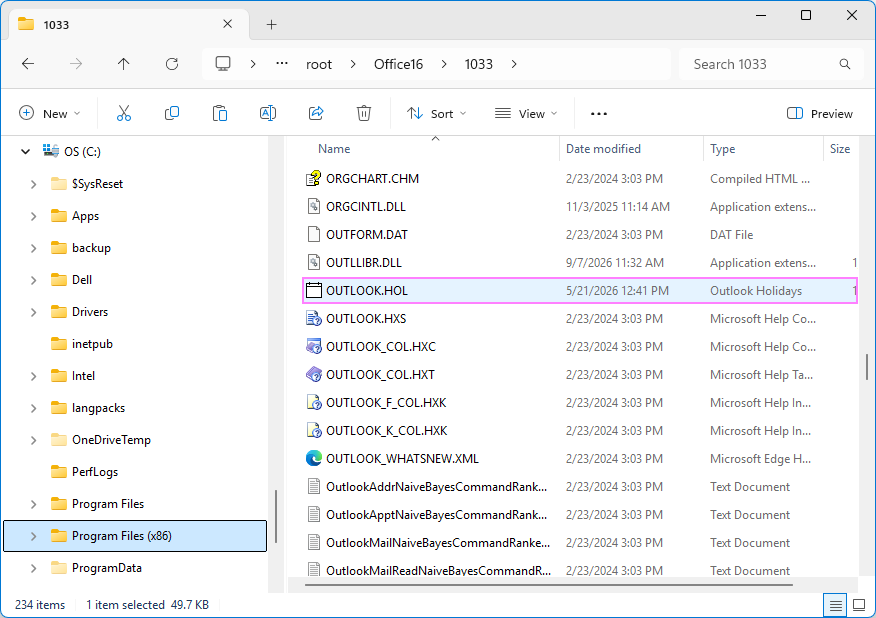
- Make a backup copy of the original Outlook.hol file. Save it in another folder or keep it in the same folder under a different name.
- Copy your custom Outlook.hol file into the same folder.
Customize Outlook HOL file
If you only need to add a few custom holidays, you can edit the existing Outlook.hol file to include them.
- Make a backup copy of the file before making any changes.
- Open Outlook.hol in a plain-text editor such as Notepad.
- Add your custom holiday section at the end of the file using this format:
[Custom Holidays] 4
Company Wellness Day, 2026/5/15
Summer Friday, 2026/7/3
Company Day, 2026/9/18
Winter Shutdown, 2026/12/24
The number after the section name must match the number of holiday entries listed below it. In this example, 4 means the section contains four events.
- Save the file.
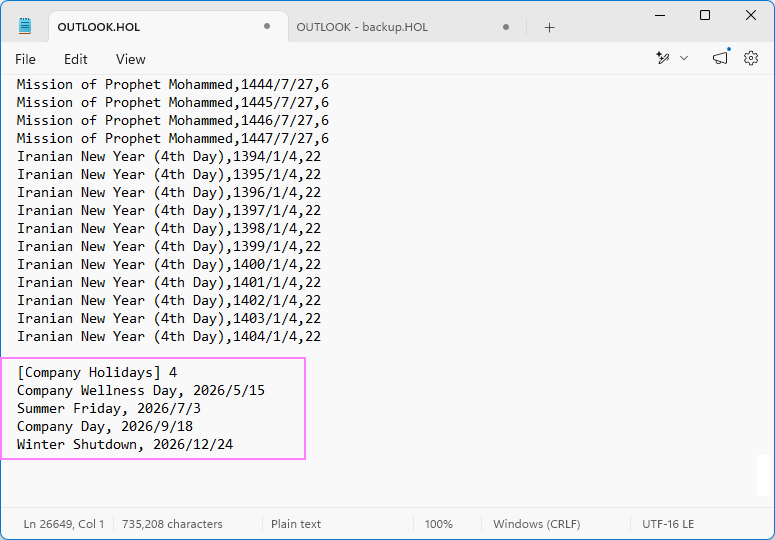
Once you've added or updated the file, your custom holiday set of events will be available in the standard Add Holidays dialog, which is accessible via File > Options > Calendar > Add Holidays.
Important notes:
- This method applies only to classic Outlook for Windows.
- Replacing or editing the Outlook.hol file is not supported for Microsoft 365 and Click-to-Run Office installations.
- Because of these limitations, a shared or subscribed company holiday calendar is usually easier to maintain, especially when dates need to be updated centrally.
Where is the Outlook.hol file located?
The location of the Outlook.hol file depends on your Windows and Outlook versions and language.
The most common locations are:
32-bit Outlook on 64-bit Windows
C:\Program Files (x86)\Microsoft Office\root\Office16\1033
64-bit Outlook on 64-bit Windows
C:\Program Files\Microsoft Office\root\Office16\1033
For older Windows versions, you may find the file in one of these folders:
C:\Program Files (x86)\Microsoft Office\Office16\1033
C:\Program Files\Microsoft Office\Office16\1033
Here is what the main parts of the path mean:
- Office16 is the internal version folder used for all releases from Office 2016 onward, including Microsoft 365. Earlier versions use different folders, such as Office15 for Office 2013 and Office14 for Office 2010.
- 1033 is the locale ID for English - United States. Other languages use their own four-digit locale IDs, for example 1031 for German and 1036 for French. You can find the locale ID for your language in Microsoft's language identifier table.
Tip. If you cannot find the file in any of these locations, search for Outlook.hol or *.hol in File Explorer.
These are the most practical ways to manage holidays in Outlook. Just pick the method that works for you best, and you'll always have public and company days off at hand when planning your schedule.