 by
by Learn how to make your Outlook calendar public, subscribe to internet calendars, and import ICS files into Outlook. This tutorial covers Outlook 365 – 2016, new app and web, with step-by-step instructions, practical tips, and solutions to common calendar import issues.
Need to share your Outlook calendar with people outside your organization or wish to follow someone else's calendar from the internet? Microsoft Outlook supports both. You can publish your own calendar online and share it using an HTML or ICS link. Also, you can subscribe to public calendars, so their events appear directly in your Outlook.
What does it mean to publish Outlook calendar?
Publishing an Outlook calendar online means creating a web link that other people can use to view your calendar. Currently, Outlook generates two types of links:
- HTML link — opens your calendar as a read-only webpage in a browser.
- ICS link — lets people subscribe to your calendar in Outlook and other applications.
Unlike regular Outlook calendar sharing, publishing does not require recipients to be part of your organization or even use Microsoft accounts. Anyone with the link can access the calendar according to the permission level you selected.
For example, you can publish a work calendar to share vacation schedules with external partners or let customers view appointment availability. You can also publish a personal calendar to share sports schedules or club activities.
To avoid confusion later, keep these limitations and requirements in mind:
- Publishing calendars online is supported for Microsoft 365, Exchange, and Outlook.com accounts.
- Currently, the calendar publishing feature is available in new Outlook and Outlook on the web. Classic Outlook (365 – 2016) lets you subscribe to online calendars and import ICS files, but it does not support publishing calendars.
- Published calendars are read-only for viewers, so other people cannot edit your events. Users who receive the link can only see the level of detail you allow.
- Depending on your organization's policies, external calendar publishing may be restricted or disabled.
Tip. If you want to allow access only to specific people, then share your Outlook calendar with them instead of publishing it online.
What is an .ics file in Outlook?
ICS (Internet Calendaring and Scheduling), also known as iCalendar or iCal, is a standard file format used to store and exchange calendar information between different apps and services. Because it is widely supported, ICS files work across different email clients and platforms, including Outlook, Google Calendar, Apple Calendar, and other.
Many websites provide public ICS links for calendars such as national holidays, conference events, school schedules, TV shows, etc.
In Outlook, you can either subscribe to an ICS calendar to receive automatic updates or import an ICS file as a static copy of the calendar events.
How to make Outlook calendar public
To make your calendar available to other people, you can publish it online. Currently, this option is available in the new Outlook app, Outlook on the web (for Microsoft 365 work and school accounts) and Outlook.com.
To publish your Outlook calendar, follow these steps:
- Open the new Outlook app or sign in to Outlook online.
- Click the Settings gear icon in the upper-right corner.
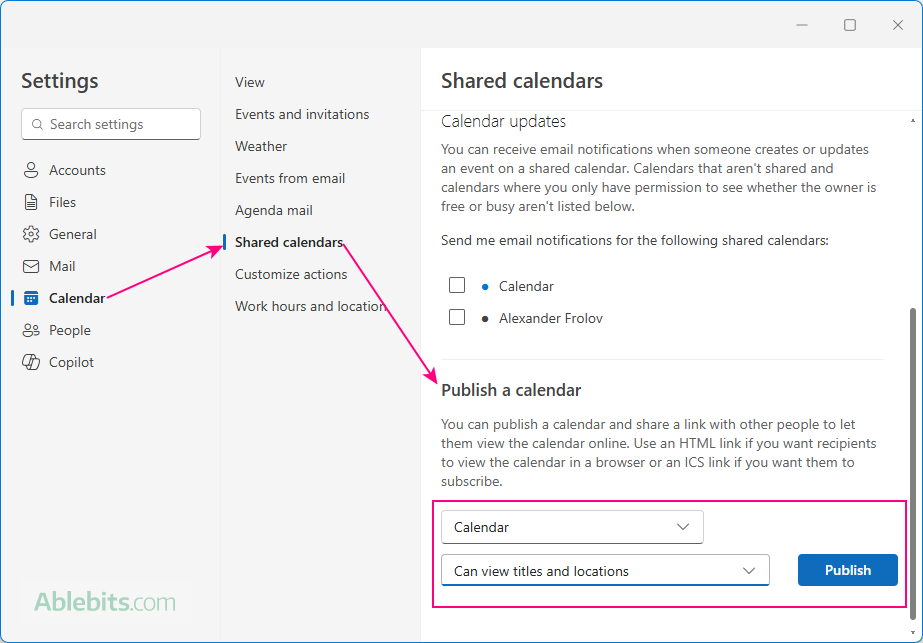
- In the Settings window, go to Calendar > Shared calendars.
- Under Publish a calendar, select the calendar you want to make public.
- Choose the permission level you want to allow:
- Can view when I am busy (default) – shows only your availability status, such as Busy, Tentative, or Free, without revealing event details.
- Can view titles and locations – displays event names and locations but hides descriptions, attendees, and other info.
- Can view all details – gives people full read-only access to your calendar events.
- Click Publish.
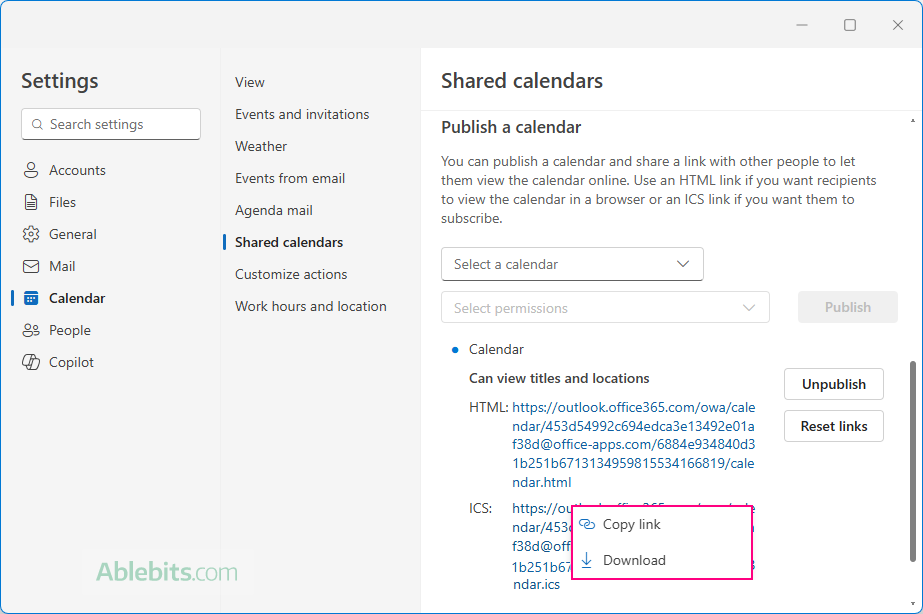
- In a moment, the HTML and ICS links will appear in the same window.
- Share the appropriate link with other users, depending on how they plan to access your calendar. To copy the link or download the .ics file, click the link and choose the desired action:
- HTML link – allows people to open a read-only calendar in a browser.
- ICS link – lets other users subscribe to your calendar in Outlook or another app.
- ICS file – can be imported into Outlook as a one-time copy of the current events without future synchronization.
From now on, anyone with the link can view your calendar without needing a separate invitation.
How to stop publishing an Outlook calendar
If you decide to stop sharing your calendar publicly, you can unpublish it at moment. Here is how:
- In the new Outlook or web app, go to Settings > Calendar > Shared calendars.
- Under the Publish a calendar section, locate the calendar, and click Unpublish next to it.
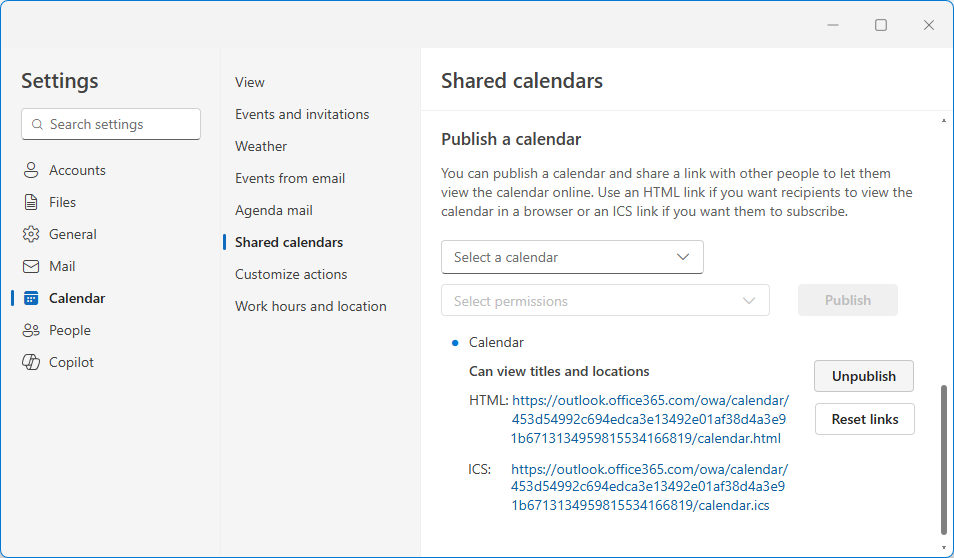
After unpublishing, people cannot access your calendar through the previously shared HTML and ICS links.
Tip. If you suspect the calendar links were compromised or shared with unauthorized people, click the Reset links button to generate new links and disable the old ones.
2 ways to add online calendar to Outlook
Internet calendars can be added to Outlook in two different ways: as live subscriptions or one-time imports.
- Subscribe to an online calendar – when you subscribe to a calendar using an ICS link, it appears alongside your own calendars in Outlook and updates automatically whenever the owner makes changes.
- Import an online calendar – when you import an ICS file, Outlook copies the current events into your calendar as a point-in-time copy. Future changes made to the original calendar are not synced automatically.
Below you will find the detailed guidance on each method.
How to subscribe to someone's calendar in Outlook
If someone shares a published Outlook calendar with you using an ICS link, you can subscribe to it in Outlook and view it together with your own calendars. The calendar stays synced automatically, so you always see the latest published version.
Subscribe to calendar in new Outlook and Outlook on the web
Adding someone else's public calendar works the same way in both new Outlook and web app. Here's how to subscribe to it using an ICS link:
- In the Calendar view, click Add calendar in the left pane.
- Select Subscribe from web.
- Paste the ICS link into the URL field.
- Enter a name to help you identify the subscribed calendar in Outlook.
- Choose a color and icon if desired.
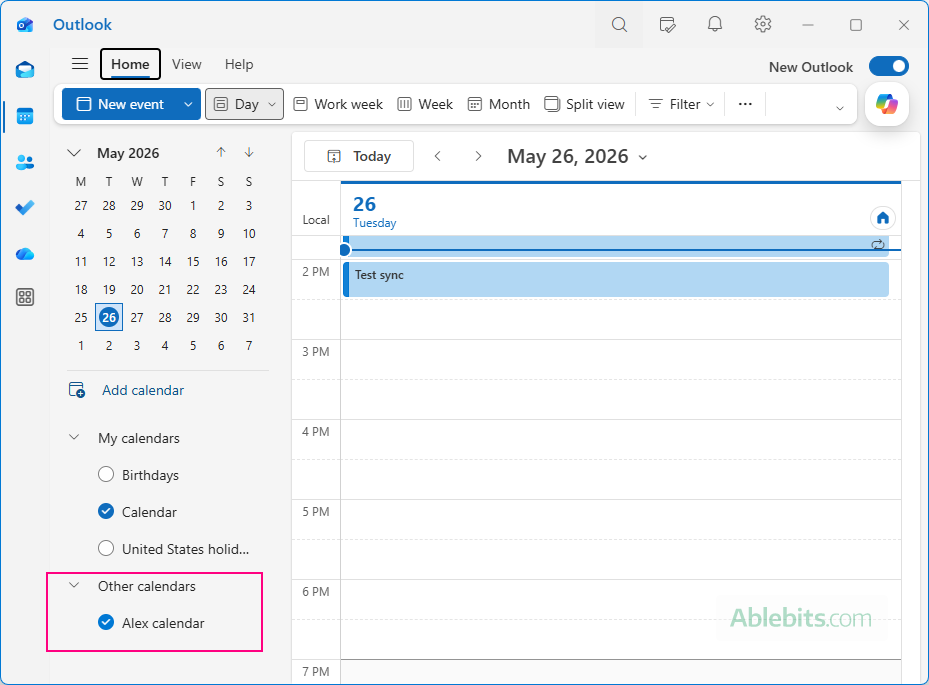
- Select the folder/group where you want to add the calendar. By default, it is added under Other calendars.
- Click Import.
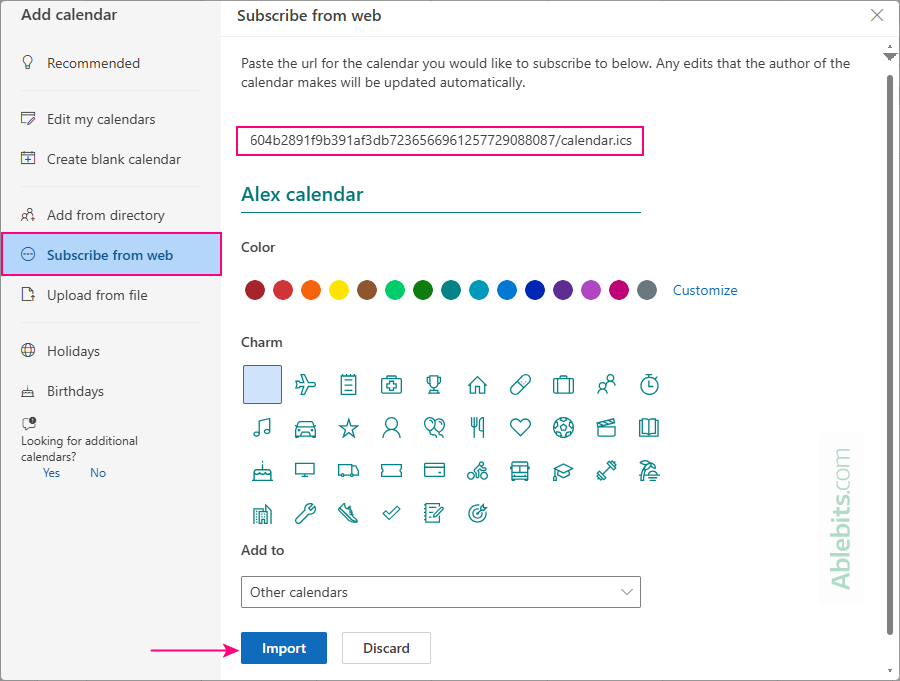
The subscribed calendar will appear in your Outlook under the group you selected. To view its events, just select in the list of calendars on the left pane.
Note. Syncing delays are possible even for calendars within the same organization. For external internet calendars, updates may be delayed even longer, depending on the publisher's refresh interval and Outlook's synchronization cycle.
Add Internet calendar to Outlook 365 – 2016
To subscribe to a public calendar in the classic (old) Outlook application, proceed in this way:
- Open your Outlook calendar.
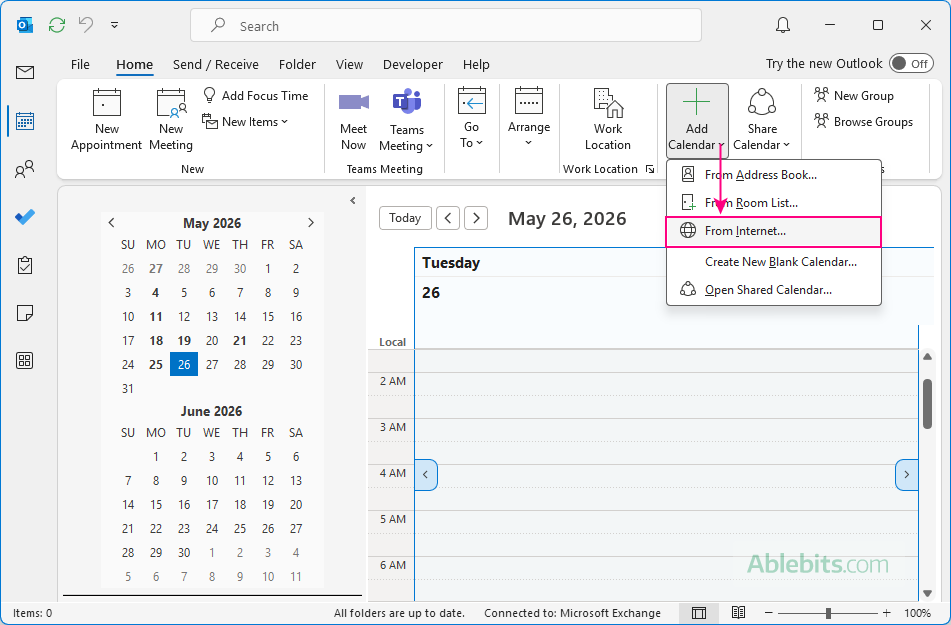
- On the Home tab, in the Manage Calendars group, click Add Calendar > From Internet…
- In the New Internet Calendar Subscription dialog box that opens, paste an .ics link.
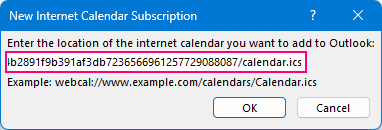
That's it. In a moment, the Internet calendar will appear under Shared Calendars in your Outlook.
Tip. If you don't need a subscribed calendar in your Outlook any longer, you can remove it at any time. Simply right-click the calendar in the folder pane and choose Remove (in new Outlook and web) or Delete Calendar (in classic Outlook).
How to import ICS file to Outlook
Importing an ICS file is helpful when you want to copy events from another calendar into Outlook without re-creating them manually. For example, you may want to transfer meetings and appointments from your Google Calendar, add a conference schedule, or save someone else's shared event list.
A few things to keep in mind before you begin:
- Download the .ics file to your device or save it to cloud storage if needed.
- Importing creates a frozen copy of the current schedule without ongoing synchronization.
- Importing an .ics file is only supported for Microsoft 365 accounts.
Upload ICS file to new Outlook and web
Importing events from an ICS file works the same way in both new Outlook and Outlook on the web. Follow these steps:
- In the Calendar view, click Add calendar in the left pane.
- Select Upload from file.
- Browse for the .ics file or drag the file directly from File Explorer into the upload window.
- Choose the calendar where you want to import the events.
- Click Import.
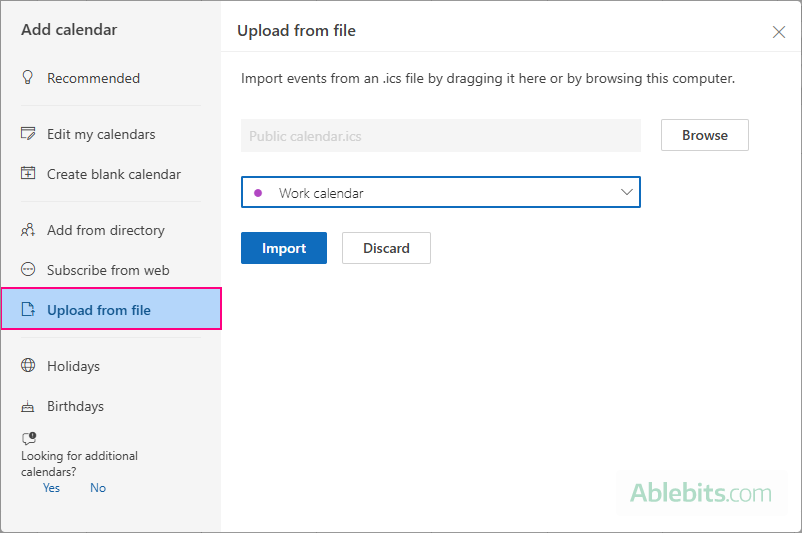
The import may take a minute or two depending on the size of the calendar. Once completed, the events from the ICS file will appear in the selected Outlook calendar.
Tip. In the new Outlook and web, events from an ICS file can only be added to an existing Outlook calendar. If you want them in a separate calendar, create a new blank calendar first, and then import the ICS file into it.
Import an ICS file into Outlook 365 – 2016
Classic Outlook also allows you to import events directly from an .ics file. Here's how:
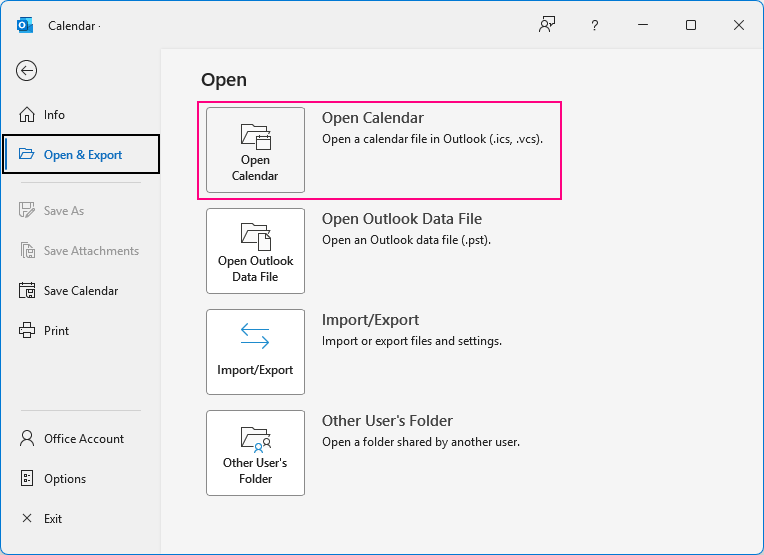
- Go to File > Open & Export > Open Calendar.
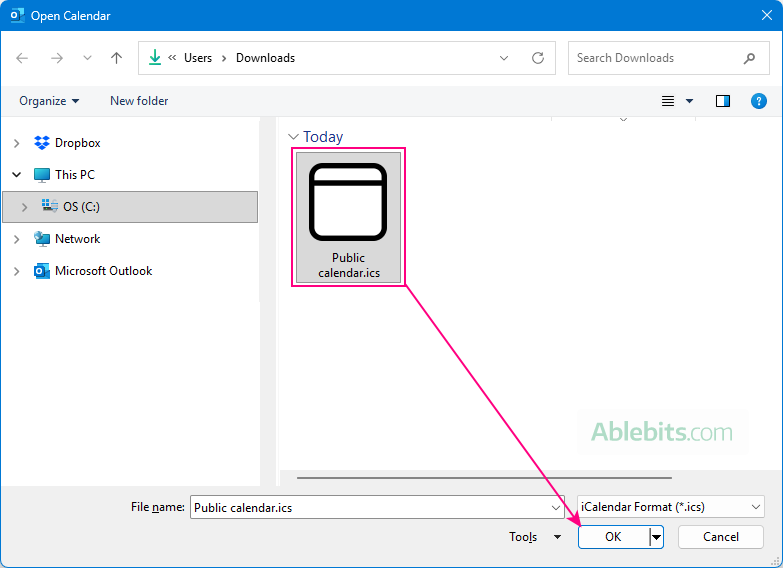
- Browse to the .ics file, select it, and click OK.
- Choose one of the following options depending on what you want to do:
- Open as New — creates a separate calendar for the imported events.
- Import — copies the events into your main (default) Outlook calendar.
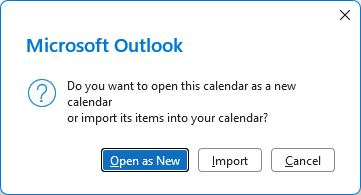
After that, go to your Outlook calendar. Depending on the option you selected, you will either see a new calendar under My Calendars or find the imported events added to your existing calendar.
Why published calendars are not working in Outlook
Internet calendars in Outlook do not always work smoothly. Depending on the calendar source, Outlook version, and sync timing, you may run into various import, update, or display issues. Below are the most common problems and how to solve them.
ICS file not opening in Outlook
If Outlook refuses to open an imported ICS file, one of these issues may be the cause:
- Large ICS file. Very large ICS files can fail to import properly in Outlook. Keeping the file size under roughly 10 MB usually helps avoid corruption and import errors.
- Compatibility issues. Older Outlook versions may not fully support newer ICS file structures or features. Make sure Outlook is updated to the latest version or try using Outlook on the web.
- Corrupted or incomplete ICS file. If the file is damaged or was generated incorrectly, Outlook may not be able to read it. Ask the publisher to provide a new copy of the ICS file.
- Issues with new Outlook or Outlook for Mac. New Outlook can sometimes struggle with ICS imports due to incomplete feature support. Outlook for Mac may fail to open certain ICS files because of stricter security controls or unsupported calendar file structures.
Outlook published calendar not updating
If you subscribed to a calendar using an ICS link but new events are not appearing, Outlook may simply not have refreshed the subscription yet. Internet calendar syncing is not real-time and updates can sometimes take several hours.
Try these steps first:
- Wait a little longer for Outlook to sync the latest changes.
- Restart the app or refresh the browser.
- Remove and re-add the calendar subscription.
If the issue continues, the ICS link may be invalid, expired, or no longer publicly accessible.
Internet calendar not showing in Outlook
Sometimes a public calendar is added successfully but does not appear in the Outlook calendar list. If this happens:
- Try adding the calendar in Outlook on the web first.
- Then restart the desktop Outlook app.
This often resolves visibility and syncing issues in classic and new Outlook.
Imported calendar appears empty
If the imported calendar opens but contains no events, check the following:
- The ICS link or file is correct and accessible.
- The calendar actually contains events within the selected date range.
- The ICS file downloaded completely without corruption.
Cannot publish Outlook calendar
If Outlook does not allow you to publish your calendar online, possible reasons include:
- Calendar publishing is disabled by your Microsoft 365 or Exchange administrator.
- Your account type does not support publishing. It is only supported for Microsoft 365, Exchange, and Outlook.com accounts.
Now you know how to publish your Outlook calendar and import ICS files without getting lost in Outlook settings. And once everything is set up correctly, Outlook usually behaves… in its own way 😊