 by
by Learn how to open and view someone else's calendar in Outlook. The guide covers how to add a shared calendar from an invite or menu, switch between different calendar views, and fix common issues.
Being granted access to someone's calendar is only half the process. The next step is figuring out where to find it in Outlook. There are several ways to open another person's calendar depending on how it was shared and which version of Outlook you use. This tutorial explains all available options and shows how to view shared calendars once they're added.
What you need before adding someone's calendar to your Outlook
Before you can view another person's calendar in your Outlook, one of the following conditions must be met:
- The person has shared their calendar with you.
- You have been granted delegate access to the calendar.
- Your organization allows viewing calendars of coworkers through Exchange or Microsoft 365.
- The calendar belongs to a room or shared mailbox that you have access to.
The level of information you can see depends on the permissions assigned to you. You may be able to view only free/busy information, see full event details, or even manage meetings and appointments on the owner's behalf.
How to add a shared calendar in Outlook
When someone gives you access to their calendar, the easiest way to open it is from the sharing invitation that Outlook sends automatically.
- Open the calendar invitation email and click Accept.
- Outlook will process the request in the background and add the shared calendar to your account.
- To view the calendar, select it in the folder pane on the left.
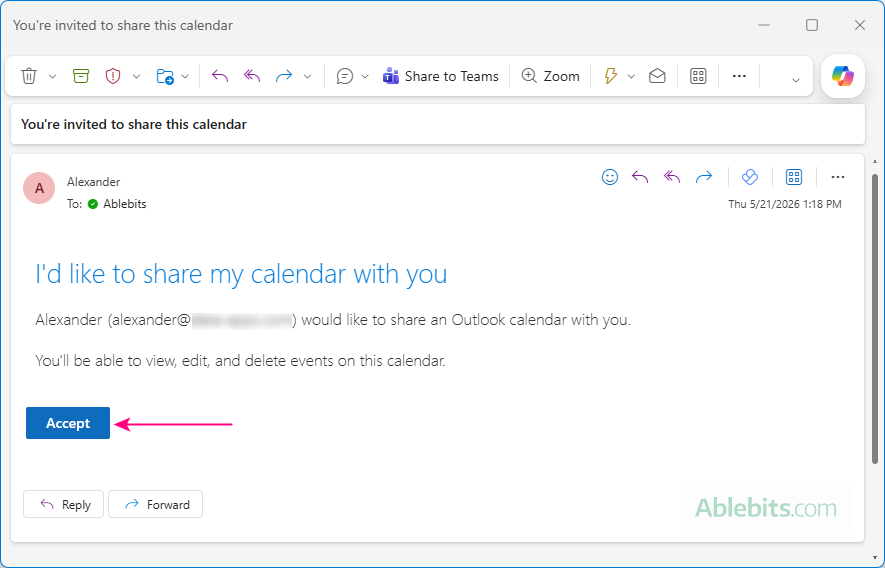
Simple enough, right? Almost. As is often the case with Outlook, the experience depends on the version you use and sometimes on your account type.
Adding someone's calendar in new Outlook and web
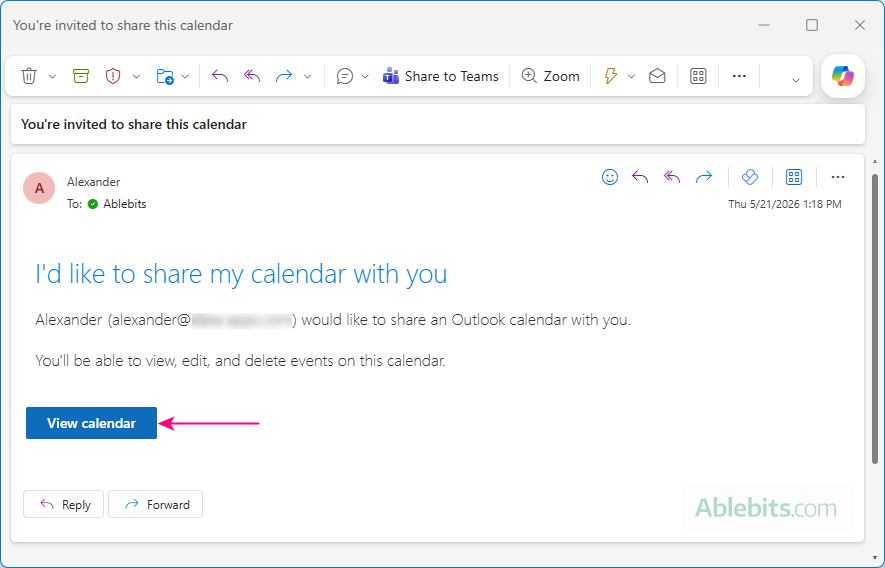
In new Outlook and Outlook on the web, the process is swift and easy. The invitation includes a prominent Accept button at the bottom. After you click it and the invitation is processed, the button changes to View calendar. Clicking it opens your Outlook calendar in a separate window. The shared calendar is also added to the folder pane, where you can show or hide it just like your personal calendars.
Adding a shared calendar in Outlook 365 – 2016
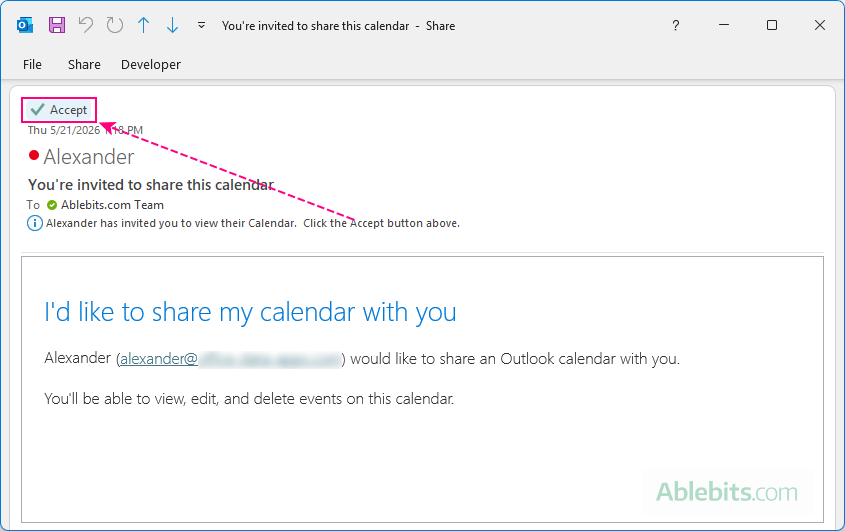
In classic Outlook, the sharing invitation can be less obvious. Instead of a large Accept button, you may see a small Accept button with a check mark near the top of the message, above the email header. A small note explains that you need to click that button to add the calendar. The problem is that explanation is written in an even smaller font than the button itself, so it's often the last thing users notice.
To make matters worse, that tiny Accept button sometimes only appears in the Reading pane. When you open the calendar invite a separate window, it may be missing entirely.
It is not exactly the clearest design choice, but once you spot the button, it usually works as expected 😊
Adding an external calendar to Outlook
Adding a calendar shared by someone outside your organization requires a couple of extra clicks.
- In the sharing invitation, click Accept.
- You will be redirected to either Outlook on the web (for Microsoft 365 business accounts) or Outlook.com (for personal accounts). If prompted, sign in to your account.
That's all there is to it. The shared calendar will appear immediately in Outlook online. It will also sync to the desktop Outlook app shortly afterward. If you don't see it right away, restarting Outlook can help speed up the synchronization.
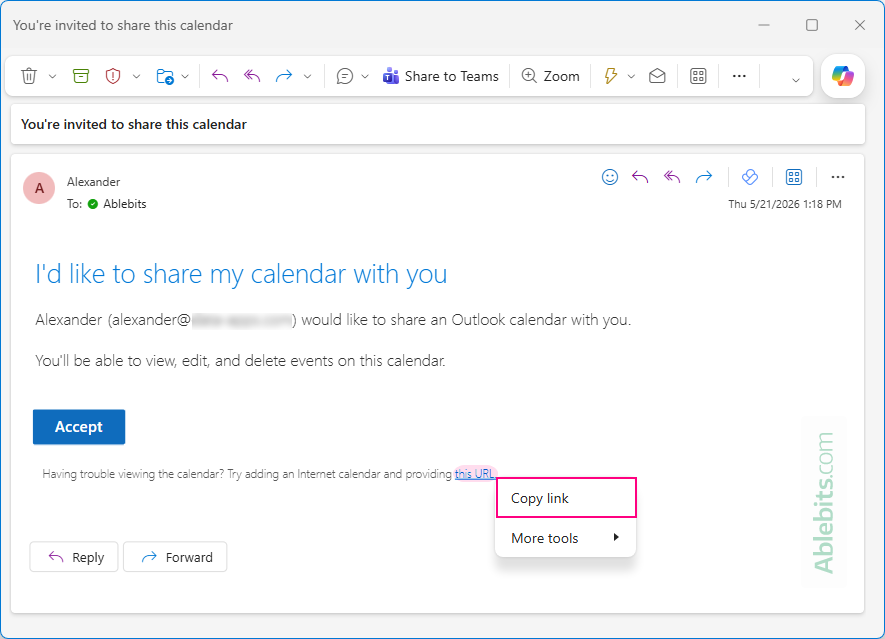
If you're having trouble adding an external user's calendar from the invitation, copy the ICS link from the email and subscribe to the calendar instead.
Tips and notes
- You can accept the invitation in any Outlook app, desktop or web. As long as you're signed in with the same Microsoft account, the shared calendar will sync automatically and appear in all Outlook apps you use.
- If you do not see an Accept button in the invitation email in desktop Outlook, try opening the invite in Outlook on the web, where it works more consistently.
- If you never received the invitation email, ask the calendar owner to resend the calendar invite, preferably from Outlook on the web.
Open Microsoft 365 or Exchange calendar of another person
To view a calendar of your co-worker, you do not actually need an invitation. In many organizations, the view level of access is provided to all internal users by default (though, this setting can be changed by your Microsoft 365 or Exchange administrator).
Add an Exchange calendar in new Outlook and web
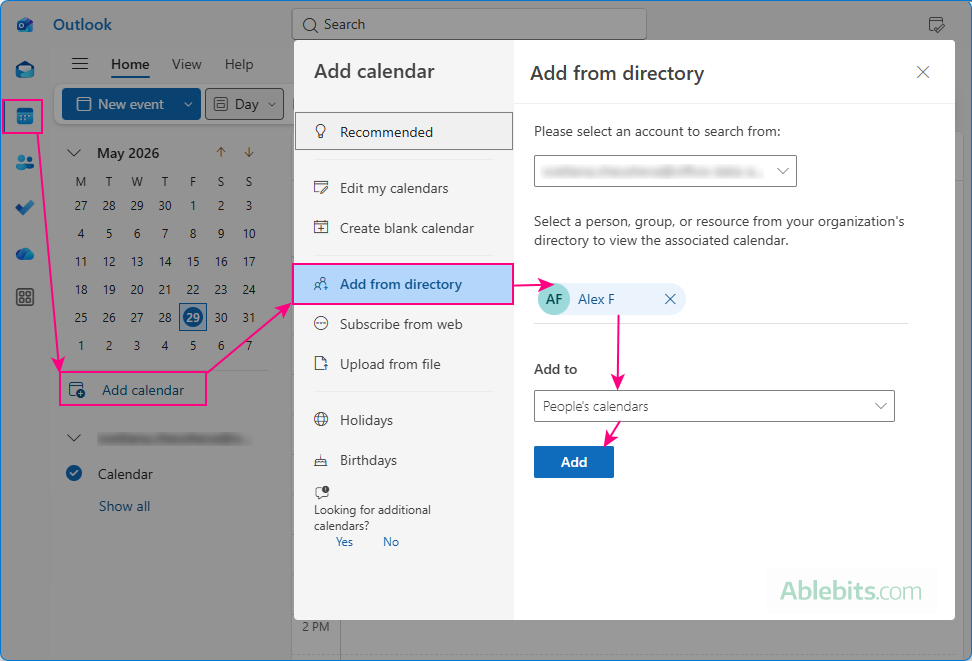
To open a calendar that belongs to someone in your organization in the new Outlook app or Outlook on the web, perform these steps:
- In the Outlook Navigation pane, select Calendar.
- In the left pane, click Add calendar.
- In the window that opens, choose Add from directory.
- If you have multiple accounts configured in Outlook, select your work or school account from the drop-down list at the top.
- In the search line, enter the person's name or email address, and then pick the correct user from the search results.
- From the Add to dropdown list, select the calendar group where you'd like to place the shared calendar. The default location is People's calendars.
- Click Add.
Open a shared calendar in Outlook 365 – 2016
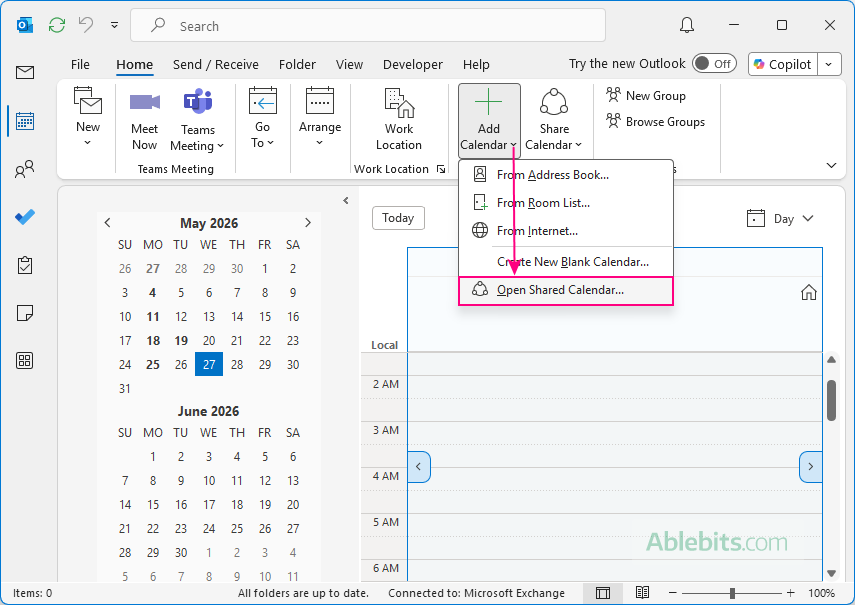
In classic Outlook, you can open another person's calendar in this way:
- Open the Calendar view.
- On the Home tab, in the Manage Calendars group, click Add Calendar > Open Shared Calendar.
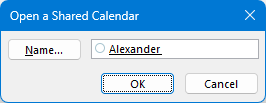
- In the small dialog window that opens, type the person's name in the box, or click the Name button and pick a user from the address book. Then click OK.
What happens next:
- If you have permission to view the selected calendar, it is added to the folder pane in your Outlook.
- If you do not have permission, you will be prompted to request access from the calendar owner. If you agree, Outlook automatically creates a calendar sharing request.
Notes:
- This method works only for users within your Microsoft 365 or Exchange organization. To open a calendar belonging to an external user, you'll need either a sharing invitation or an ICS subscription link.
- If the person shared their calendar directly with you, it will open with the permissions granted; otherwise – with the permissions set by the administrator for all users in your organization.
- You can only open another person's default calendar, not any additional calendars they may have created.
How to find a shared calendar in Outlook
Once someone's calendar has been added to your account, Outlook places it in a separate calendar group. The exact location depends on which Outlook version you use.
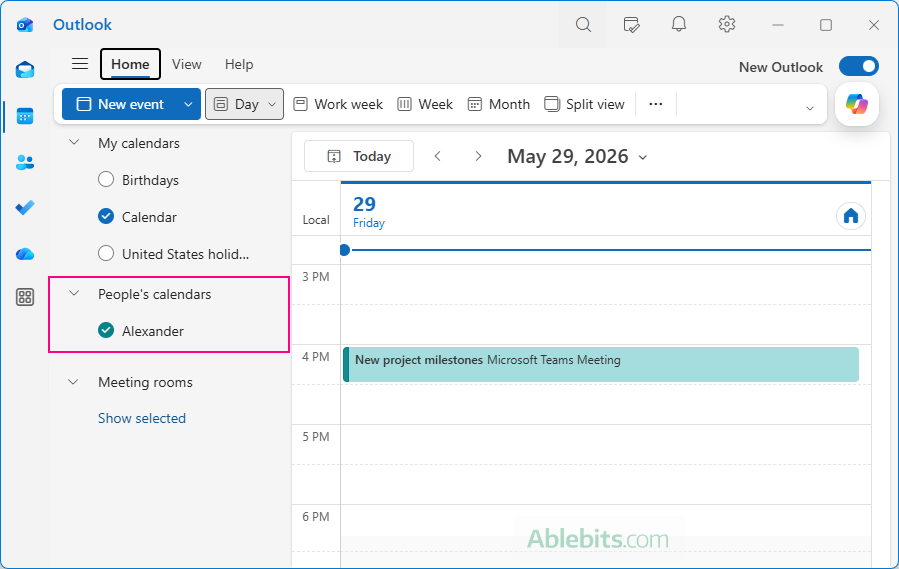
In new Outlook and Outlook on the web, shared calendars appear under People's calendars in the folder pane.
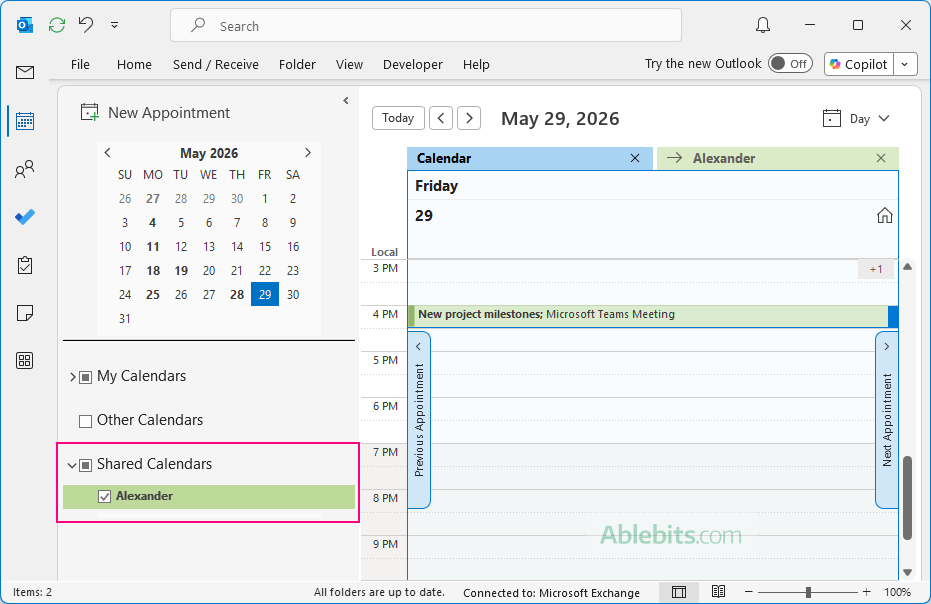
In classic Outlook (365 – 2016), they are displayed under Shared Calendars.
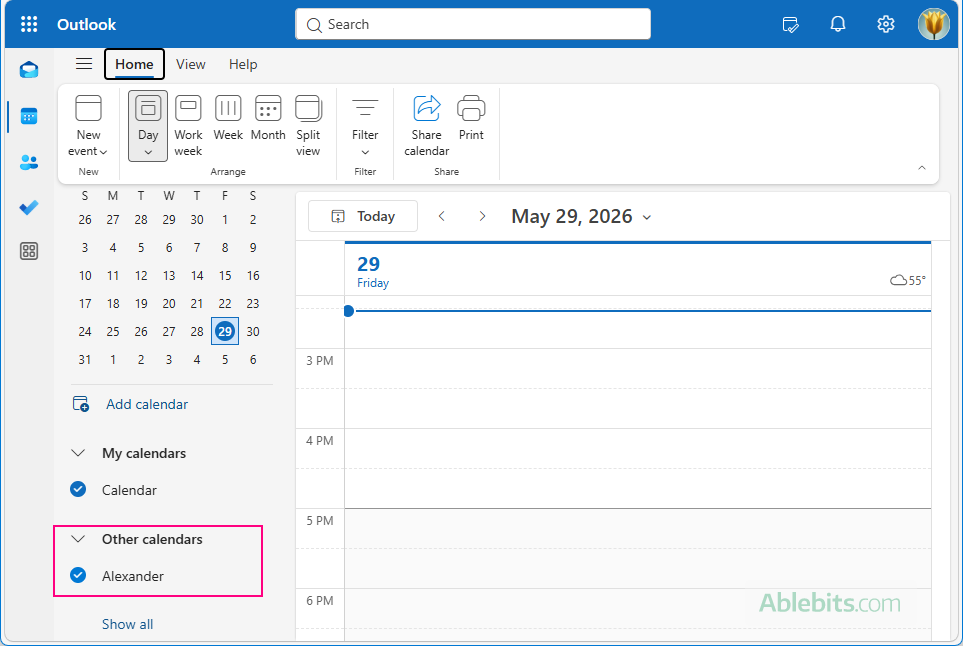
In Outlook.com, shared calendars are located under Other calendars.
After someone's calendar is added to Outlook, you can:
- Select or clear its check box to show or hide it from view.
- Use the right-click menu to rename the calendar, change its color, move up or down in the list, or remove it from Outlook.
- View it side by side with your own calendar or combine multiple calendars into a single view.
How to view someone else's calendar in Outlook
After a shared calendar is added to Outlook, it is not always displayed automatically. This can make it seem as though the calendar wasn't added successfully, when in reality it just needs to be selected from the calendar list.
To view a shared calendar in new Outlook or Outlook on the web:
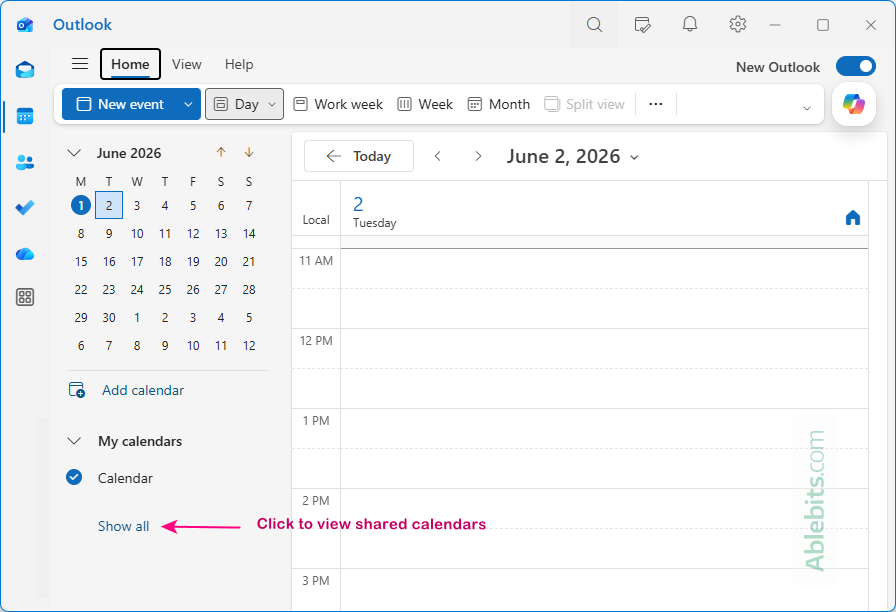
- In the folder pane, click Show all at the bottom of the calendar list. By default, Outlook displays only the calendars that are currently selected.
- Expand the People's calendars group to see all calendars that have been shared with you and added to your account.
- Select the calendar you want to view.
In classic Outlook, the process is even simpler. Expand the Shared Calendars folder and select the calendar you want to view.
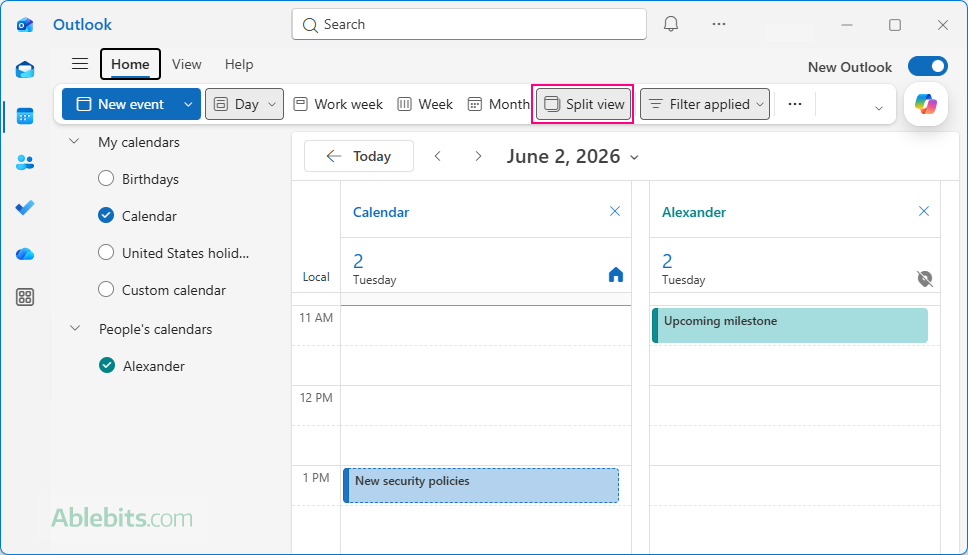
Once the shared calendar is selected, you can control how Outlook displays its events by switching between Split and Overlay view:
- Split View – each calendar is displayed in its own column side by side.
- Overlay View – all selected calendars are combined into a single view, with each calendar's events shown in a different color.
You can easily toggle between the two views by using the Split View ribbon button in new Outlook and web, or the Overlay button in classic Outlook (365 – 2016).
How to hide or remove a shared calendar in Outlook
If you don't need to see a shared calendar all the time, you can either hide it temporarily or remove it from Outlook completely.
To hide a shared calendar, clear its check box in the folder pane. Alternatively, click the X in the upper-right corner of the calendar tab to close it. The calendar remains in Outlook and can be displayed again at any time by selecting it in the folder pane.
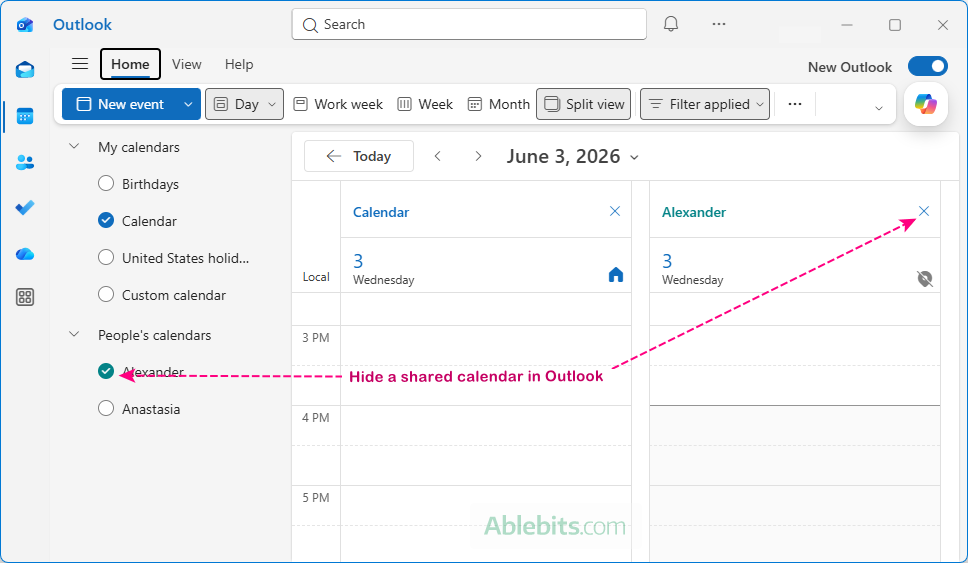
To remove a shared calendar from Outlook, right-click it in the folder pane and select:
- Remove in new Outlook and Outlook on the web.
- Delete Calendar in classic Outlook.
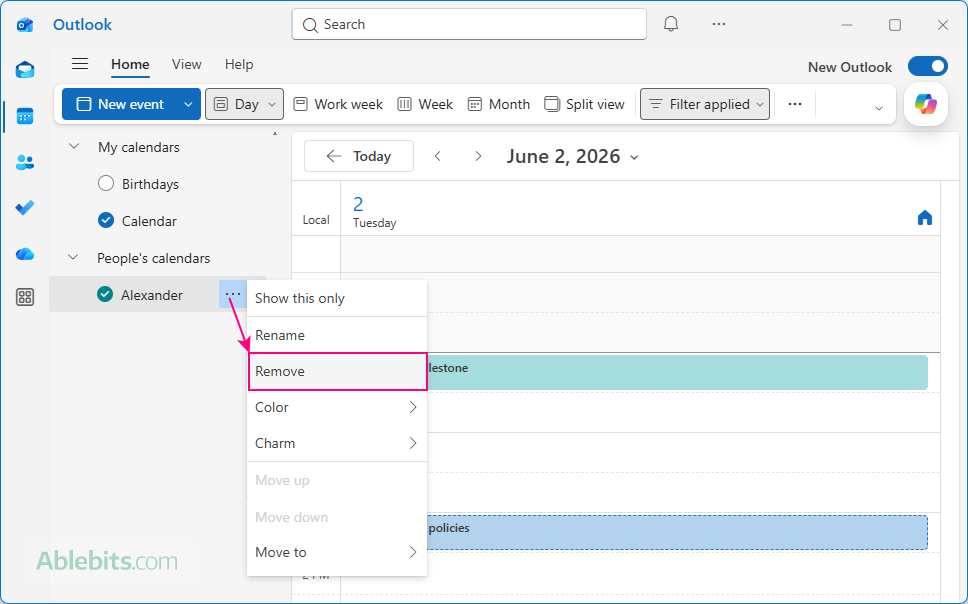
Keep in mind that this only removes the calendar from your Outlook. It does not revoke the sharing permissions granted by the calendar owner. As long as your access remains valid, you can add the calendar again, either from the original sharing invitation or through Outlook's calendar menu.
How to quickly schedule a meeting with multiple people
Here's a handy trick that very few users know about. If you need to schedule a meeting with several people whose calendars you can view, Outlook can add them to a meeting request automatically.
Here is how it works in classic Outlook 365 – 2016:
- Open the calendars of all the people you want to invite.
- On the Home tab, in the New group, click New Meeting > New Meeting with All.
- A new meeting request is created, and all calendar owners are added as required attendees.
This can be a real time-saver when scheduling meetings with the same team.
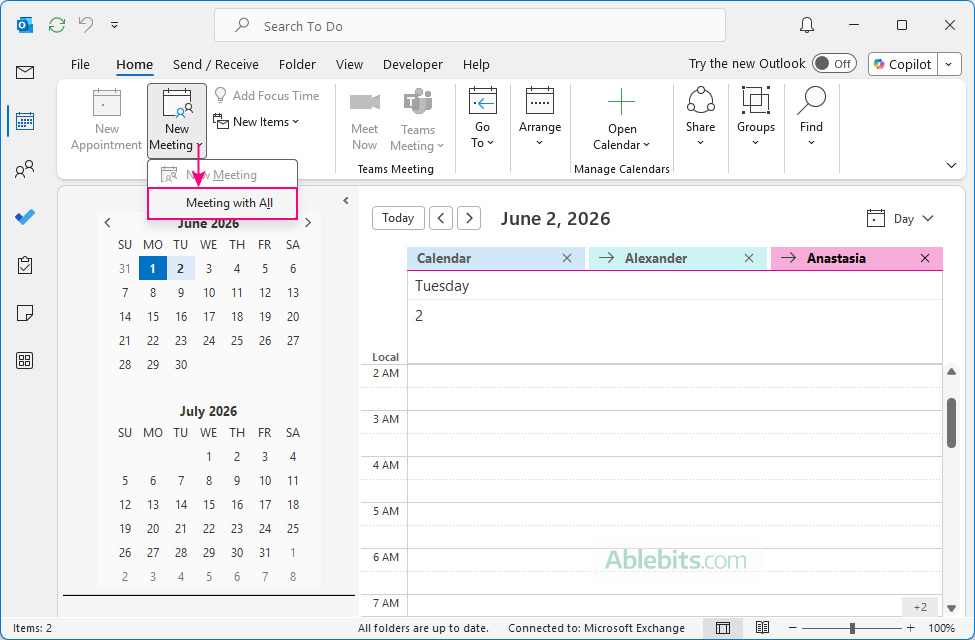
Note. This feature is available only in classic Outlook 365 – 2016 and works only for users in the same Microsoft 365 or Exchange organization whose calendars you have permission to view.
Outlook shared calendar not showing
Shared calendars do not always show up immediately after being added, and sometimes Outlook makes it surprisingly difficult to figure out whether the problem is with permissions, synchronization, or simply a hidden calendar. If you cannot add, open, or view a shared calendar, the following troubleshooting steps can help.
Cannot add a shared calendar to Outlook
If Outlook refuses to add a shared calendar, try these checks first:
- Make sure you are signed in to the correct Microsoft account.
- Confirm with the calendar owner that the calendar is still shared with you and that your access has not been removed.
- Ask the owner to review the sharing permissions. Old, duplicate, or corrupted permission entries can sometimes cause synchronization issues. Removing your access and then sharing the calendar with you again often resolves the problem.
- If you are trying to open a coworker's calendar from the Outlook menu, check with your Microsoft 365 administrator that you have permission to view calendars within your organization.
If Outlook displays a "You do not have permission" message, that means you have not been granted access rights. Contact the calendar owner or your Microsoft 365 administrator to request access.
Cannot open a shared calendar in Outlook
First, make sure you completed all required setup steps. The shared calendar must be added to Outlook and selected in the calendar list in the folder pane.
A practical workaround from personal experience: If you added the calendar in the desktop Outlook app but it never appears, try adding it in Outlook on the web, and then restart the Outlook app on your computer. In many cases, this triggers syncing and causes the calendar to show up in the desktop application as well.
A shared calendar opens but shows limited information
If you can open the calendar but only see availability blocks, the calendar owner has likely granted permissions to only see when they are busy. To view more details, ask the owner to change the sharing permissions and grant a higher level of access.
If the shared calendar does not show latest events:
- Give Outlook some time to synchronize. Calendars shared by external users often take longer to sync.
- Remove the calendar and add it again.
- Restart Outlook after re-adding the calendar.
For more information, see Why Outlook's shared calendar is not updating.
General troubleshooting tips
If the above solutions do not help, try these common Outlook fixes:
- Turn off Cached Exchange Mode – forces Outlook to work directly with the server instead of relying on locally cached calendar data.
- Update Outlook – installing the latest updates can resolve known calendar syncing and sharing issues.
- Open Outlook in Safe Mode – starts Outlook without add-ins, helping you determine whether a third-party add-in is causing the problem.
If none of these solutions worked, the problem may be related to your organization's Microsoft 365 or Exchange configuration. In that case, contact your IT administrator for assistance.
Add more calendars in Outlook
Aside from calendars shared by other people, Outlook lets you add several other calendar types to keep related schedules in one place:
- Custom personal calendars. You can create extra calendars for specific purposes, such as personal plans, project deadlines, family events, etc.
- Room calendars. Room calendars show the availability of meeting rooms, conference spaces, and other bookable resources in your organization. Once added, you can check availability and plan meetings without leaving Outlook.
- Internet calendars. These are online calendars published with a subscription link, often used for holidays, sports schedules, school calendars, or public events. When you subscribe to an internet calendar, Outlook can receive updates from the original source.
- ICS files. An ICS file lets you import calendar events into Outlook from another app or service. This is useful for one-time event lists, but unlike a subscribed internet calendar, imported ICS events do not update.
- Shared mailbox calendars. If you have access to a shared mailbox, you can also view its calendar. Once the mailbox is added to your Outlook, its calendar shows up under My Calendars in the account that has permission to access it.
Hopefully, this tutorial has made adding and viewing shared calendars in Outlook less mysterious. The next time someone shares a calendar with you, you won't have to wonder where it went or why it isn't showing up.