 by
by This tutorial explains how to add birthdays to Outlook contacts and calendar, enable or disable reminders, troubleshoot common issues, and create a shared birthday calendar for your team or family.
Most of us can remember a few birthdays by heart. But as your list of friends, colleagues, and acquaintances grows, keeping track of everyone becomes much harder. Instead of relying on memory alone, let Outlook help. It can automatically create birthday events from your contacts, remind you before the big day, and save you from some awkward "I knew it was around this time of year..." moments later :)
What is the Birthday calendar in Outlook?
Microsoft Outlook includes a special Birthday calendar that automatically collects birthdays stored in your contacts and displays them as recurring annual events.
When you fill in the birthday field in a contact, Outlook creates an all-day event on that date. That event can be viewed in both the Birthday calendar and the primary calendar alongside your other meetings and appointments.
The Birthday calendar is available in all Outlook applications, including classic Outlook 365 – 2016, the new Outlook app, Outlook on the web, and Outlook.com.
A few helpful details about birthdays in Outlook:
- The Birthday calendar is only available for Microsoft accounts, including Microsoft 365 work or school accounts, Outlook.com, and Hotmail. It is not available for third-party accounts such as Gmail, Yahoo, etc.
- Birthday events are synchronized across all Outlook apps connected to the same email account.
- Besides the calendar, upcoming birthdays are displayed in the To-Do Bar (in classic Outlook) and the My Day pane (in new Outlook and Outlook on the web).
- Birthdays in Outlook are recurring yearly events that automatically appear each year on the same date.
- Birthdays are all-day events, but they do not block your availability or mark you as busy.
- In classic Outlook, a birthday reminder is created automatically, and you can customize or turn it off at any time.
- If needed, you can remove individual birthday events from the calendar or delete the birthday from the associated contact.
How to add birthdays to Outlook calendar
The Birthday calendar gets its information from your Outlook contacts. Birthday events are created automatically for any contacts that already have a birthday set. If the person is not in your contacts yet, simply create a new contact and add their birthday information.
Note. It may take a few minutes for a birthday added to a contact to appear in your Outlook calendar.
How to add a birthday to calendar in Outlook 365 – 2016
If someone's birthday is missing in your Outlook calendar, you can add it by updating their contact information as shown below.
- In the Outlook Navigation pane, select People.
- Depending on whether the contact already exists, do one of the following:
- To add a birthday to an existing contact, double-click it or right-click and select Edit Contact.
- To create a new contact, on the Home tab, in the New group, click New Contact or press the Ctrl + N shortcut.
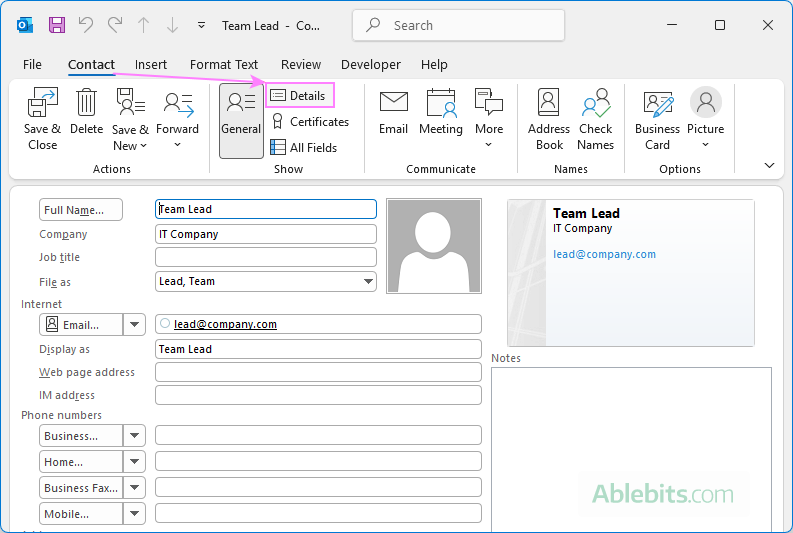
- On the Contact tab, in the Show group, click Details.
- Enter the date in the Birthday box and, if desired, in the Anniversary box.
- Click Save & Close.
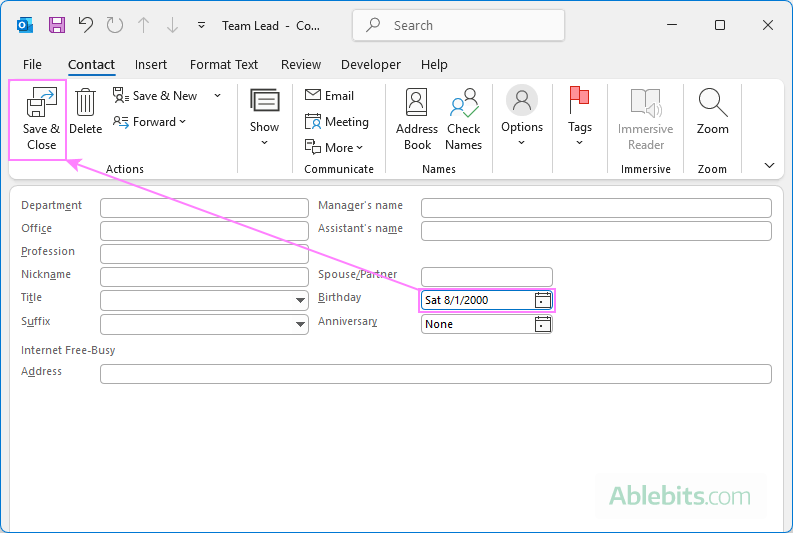
The birthday is automatically added to both the Birthday calendar and to the main Outlook calendar as a recurring yearly event.
How to add birthdays in new Outlook and web
In new Outlook and Outlook on the web let you start either from a contact or from the Birthday calendar itself. Both methods lead to the same result.
Method 1: Add a birthday to an Outlook contact
If the person already exists in your contact list, simply update their information.
- In the navigation pane, go to People.
- To add a birthday to an existing contact, right-click it and select Edit. To create a new contact for the person, click New Contact on the ribbon.
- In the contact form, select Others in the left pane.
- Enter the birthday and, optionally, anniversary information.
- Click Save.
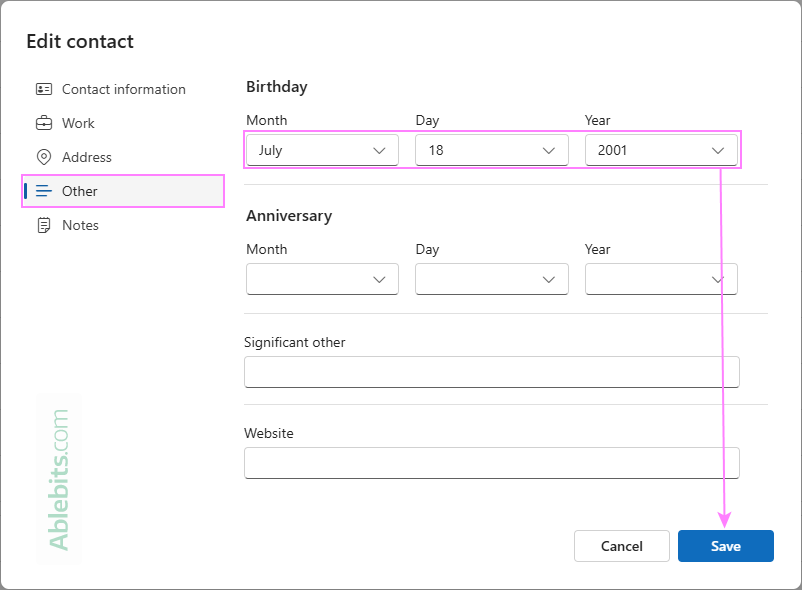
After you save the contact, the birthday will appear in your Birthday calendar and repeat annually.
Method 2: Add birthday to Outlook calendar
If you are already in Calendar view, you can add a birthday there and let Outlook automatically create the contact for you.
- In the navigation pane, select Calendar.
- Right-click the Birthdays calendar and choose New birthday.
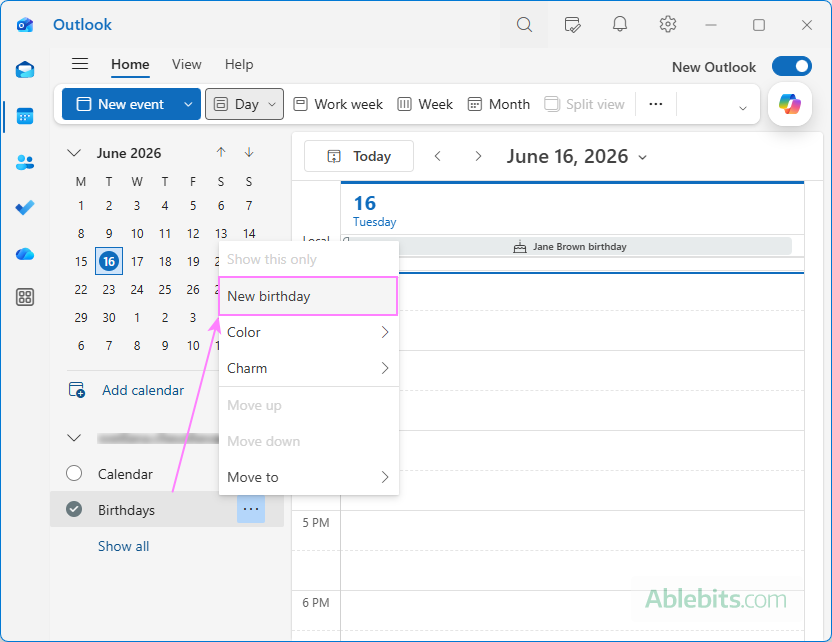
- A new contact form will open.
- On the Contact information tab, enter the person's name and email address.
- Switch to the Other tab and enter the date of birth.
- Click Save.
This method is especially handy when you want to add a birthday quickly without first going to your contacts list.
Birthday reminders in Outlook
In Outlook terms, birthdays are regular all-day calendar events. Like other events, they can include reminders, but the behavior differs depending on the Outlook version you use.
How to add birthday reminder to Outlook calendar
In classic Outlook 365 – 2016, birthday reminders are created automatically along with the birthday event. As soon as you add a birth date to a contact, Outlook sets up a reminder, so no additional actions are required. You can, however, adjust the reminder settings or disable them whenever you wish.
New Outlook and Outlook on the web also include birthday reminder settings, but the feature is currently not functioning as expected.
How to change birthday reminders in Outlook
To adjust the reminder time for a birthday event in Outlook:
- Double-click the birthday event in your calendar to open it for editing.
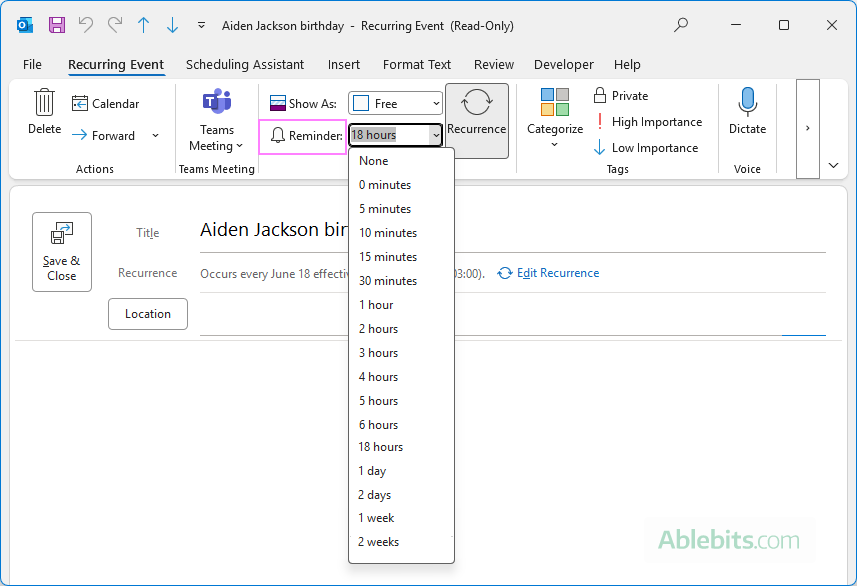
- From the Reminder drop-down list, select the desired option.
- Click Save & Close.
Once saved, the new reminder setting will apply to future occurrences of that birthday event.
The screenshot below shows the reminder options in classic Outlook 365:
Compared to classic Outlook, new Outlook offers fewer reminder options. However, it includes an option to send a birthday reminder to a specified email address.
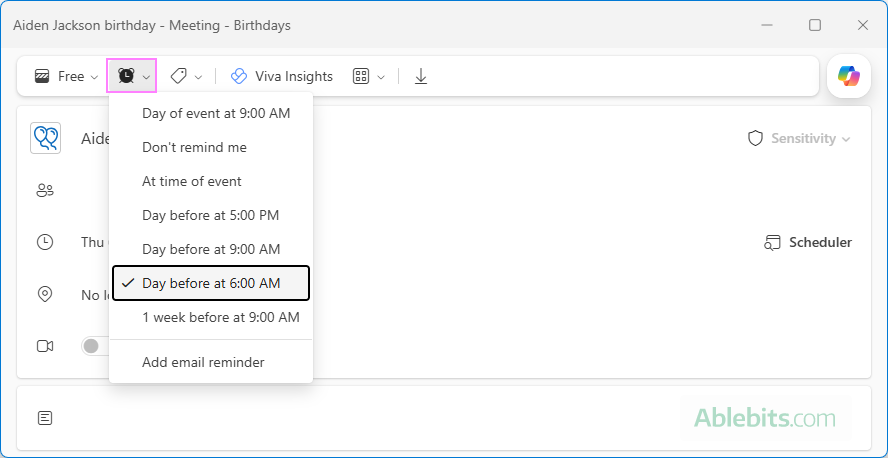
Note. At the time of writing, pop-up birthday reminders do not work in the new Outlook. Hopefully, this issue will be fixed in a future update.
How to stop birthday reminders in Outlook
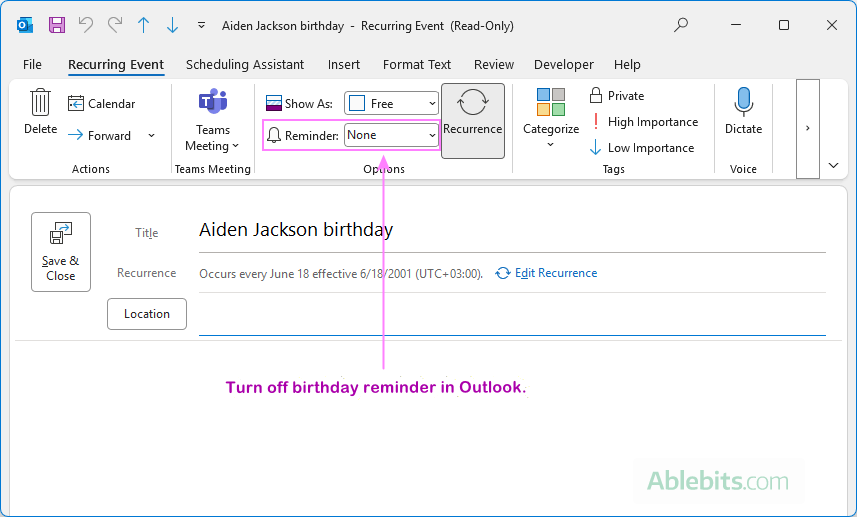
Outlook does not provide a single setting to turn off all birthday reminders at once. You will need to remove a reminder from each birthday event individually. Here is how:
- Double-click a birthday event in your calendar.
- From the Reminder dropdown list, select None.
- Click Save & Close.
Repeat these steps for any other birthday for which you do not want reminders.
How to view birthdays in Outlook
All birthdays saved in your contacts are displayed in the Birthdays calendar. Outlook creates this calendar automatically for each email account, and it only shows birthdays from contacts stored under that account.
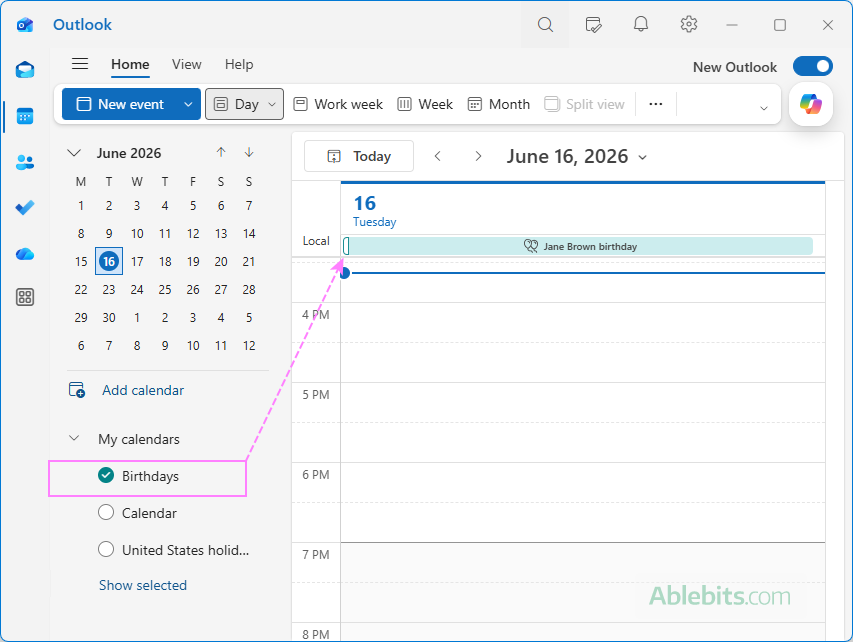
The Birthdays calendar is not displayed by default. As with any other Outlook calendar, you need to select it before its events become visible:
- In Outlook 365 – 2016, select the Birthdays calendar in the folder pane under My Calendars.
- In new Outlook and Outlook on the web, click Show all to expand My calendars, and then select Birthdays.
When the calendar is selected, birthdays saved in your contacts appear as all-day events. They are shown in your calendar but do not affect your availability.
Note. Birthday events are also displayed in your main calendar, even when the Birthdays calendar is hidden in Outlook.
How to change a birthday in Outlook calendar
As birthday events in Outlook are generated from contact information, the Birthday calendar itself is essentially read-only. To change a birthday, you need to update the corresponding contact record.
In new Outlook and Outlook on the web, the Birthday calendar includes an Edit option, but it does not currently work as it's supposed to. Depending on your account type, selecting Edit from a birthday event may produce unexpected results:
- With a Microsoft 365 work or school account, Outlook opens your own profile information instead of the contact whose birthday you selected.
- With a personal Outlook.com account, Outlook opens a blank contact form.
Because of this behavior, the only reliable way to change a birthday is to edit the contact directly:
- In the navigation pane, select People.
- Locate the contact, right-click it, and select Edit.
- Change the birth date in the same field where it was originally added.
- Click Save.
The Birthday calendar is updated automatically, and the new date will be reflected across all Outlook apps connected to the same account.
How to delete a birthday in Outlook
To remove a birthday from your Outlook calendar, follow these steps:
- Open the calendar from which you want to remove a birthday: the Birthdays calendar or your main calendar.
- Right-click the birthday you want to remove and select Delete.
- If Outlook asks how much of the recurring event to delete, choose one of these options:
- This event – deletes only the selected occurrence.
- This and all following events – removes the selected occurrence and all future birthdays in that series.
- All events in the series – deletes the birthday from your calendar completely.
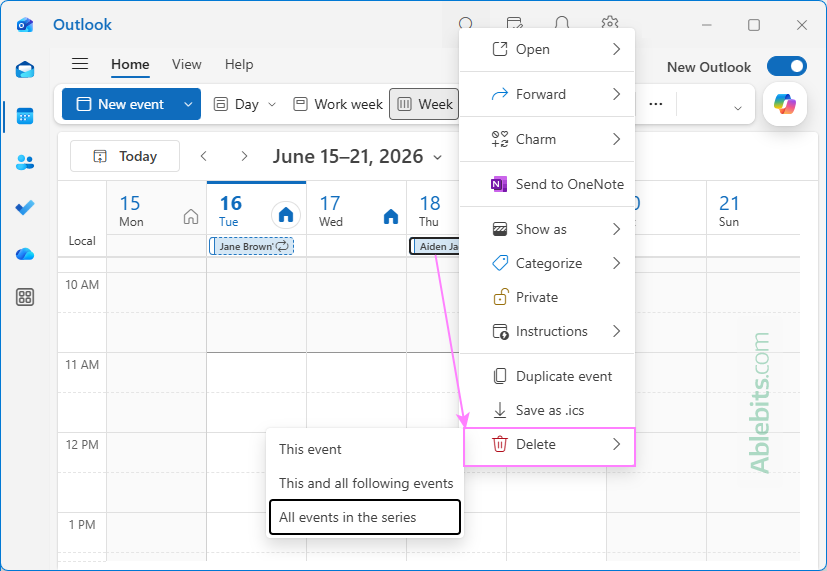
Deleting birthdays in Outlook 365 – 2016
Deleting a birthday in classic Outlook works the same way: right-click the event, select Delete, and choose whether you want to remove this particular occurrence or the entire series.
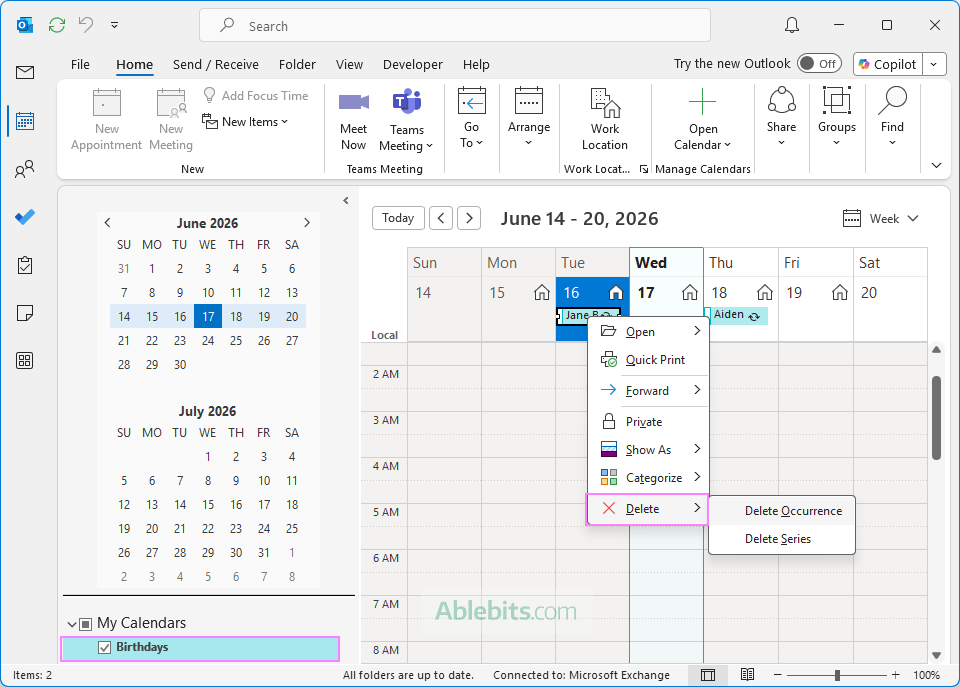
Sometimes, Outlook 365 may refuse to remove an event from the Birthday calendar, showing a message like "You cannot make changes to contents of this read-only folder".
When this happens, try deleting the birthday in Outlook on the web, and then wait a little bit for the changes to sync back to Outlook desktop.
If that does not work, the surest fix is to remove the birth date from the contact.
Tips and notes:
- Deleting a birthday removes it from your calendar, but the date of birth remains stored in the contact.
- To delete multiple birthdays at once, select the events while holding the Ctrl key, then right-click and choose Delete.
- A birthday is removed from a specific calendar. For example, if you delete it from your primary calendar, it is still visible in the Birthdays calendar.
How to add a birthday calendar in Outlook
If the Birthdays calendar is missing from My Calendars, you may be able to add it manually. This option is currently available in new Outlook and Outlook on the web.
- In the Outlook Navigation pane, switch to Calendar.
- In the folder pane on the left, click Add calendar.
- In the Add calendar window that opens, select Birthdays in the left pane.
- Under Birthdays, select the account where you want to add the calendar.
- Select the Turn on the birthday calendar check box.
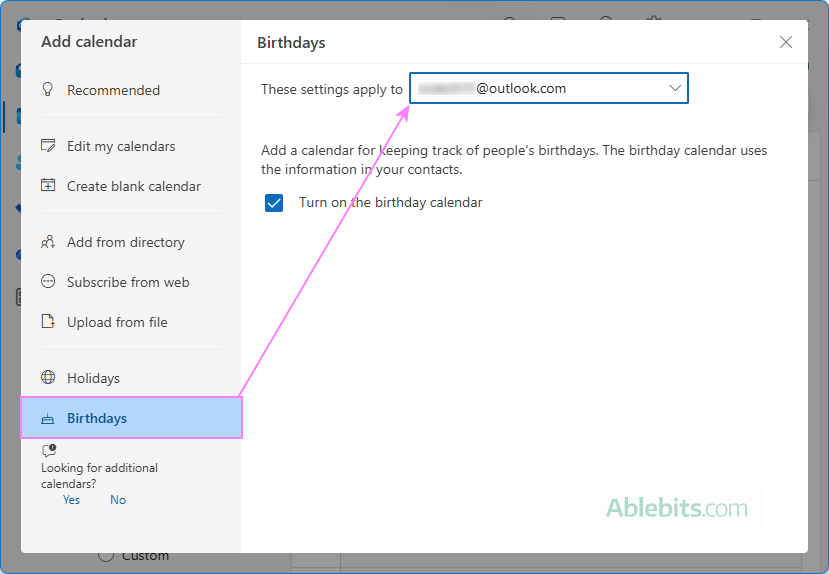
Close the window and look under My calendars. The Birthdays calendar should now appear and be ready to use.
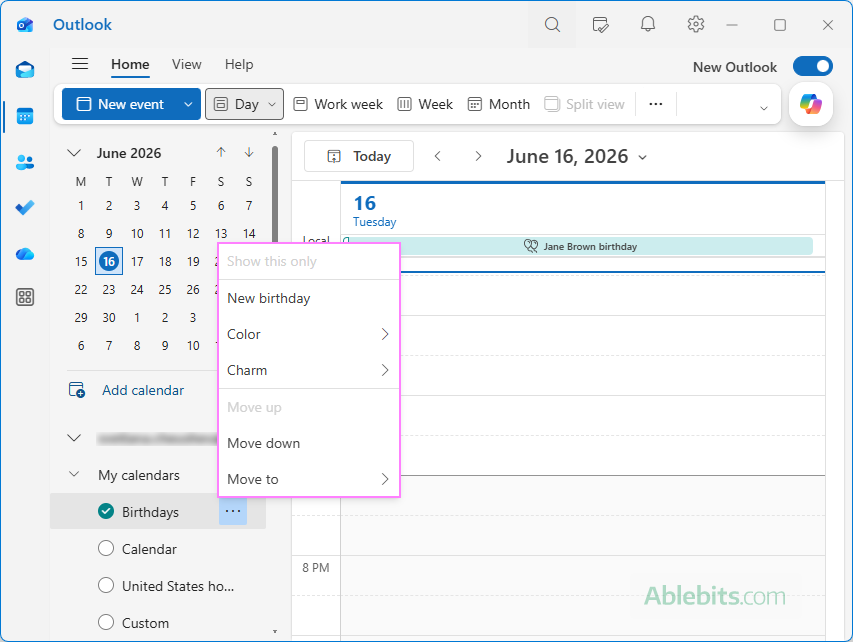
Once added, you can customize Birthdays just like any other Outlook calendar. Right-click the calendar to access options such as changing the color, charm (an icon assigned to the calendar events), and more.
How to delete Birthday calendar in Outlook
The short answer is: you can't. Birthdays is a built-in Outlook calendar that is automatically generated from your contacts and cannot be permanently deleted.
Although the Delete option is included in the right-click calendar menu in classic Outlook, it only removes the calendar temporarily. After you switch to another Outlook module such as Mail or People, or restart Outlook, the Birthdays calendar reappears in the folder pane.
Instead of deleting the calendar, you can simply uncheck it to hide it from view.
How to create a shared birthday calendar in Outlook
Unfortunately, there is no quick way to share birthdays in Outlook, because the built-in Birthday calendar does not have the sharing option. The practical solution is to create a new blank calendar, add birthdays to it manually, and then share that calendar with others. The steps are:
- Create a new calendar. Add a blank calendar in your version of Outlook. For step-by-step instructions, see How to create a custom Outlook calendar.
- Add birthdays as recurring events. For each birthday, make an all-day event and configure it to repeat every year. For detailed guidance, refer to How to schedule a recurring event in Outlook.
- Share the calendar. Share the custom birthday calendar with other people. For colleagues within the same organization, you can grant either viewing or editing permissions, so they can add their own birthdays to the shared calendar. For external users, you can only provide view access, allowing them to see the birthdays but not modify them. For the complete steps, see How to share Outlook calendar.
Admittedly, this approach requires a bit more setup than Outlook's auto-generated Birthday calendar. On the bright side, you only need to do it once. After that, Outlook takes care of the yearly recurrences for you.
Outlook contact birthdays not showing in calendar
If a birthday saved in a contact does not appear in your Outlook calendar, the issue is usually related to synchronization delays, account settings, or a problem with the contact itself. Here are a few things to check:
- Wait a few minutes after adding or updating the birthday. Outlook does not always create the corresponding birthday event immediately.
- Restart the Outlook desktop app or refresh the browser page if you are using Outlook on the web.
- Verify that the birthday is entered correctly in the contact record and that the contact has been saved.
- If you have multiple email accounts configured in Outlook, make sure the contact is stored under the correct account and that you are viewing the Birthdays calendar for that same account.
- If the birthday still does not appear, try deleting the contact and creating it again. Occasionally, Outlook fails to generate or update the birthday event for an existing contact, but recreating the contact usually solves the problem.
Frequently asked questions about birthday calendar
If you still have questions about how birthdays work in Outlook, the answers below cover some of the most common situations.
Can I add a reminder several days before a birthday?
Yes. In classic Outlook 365 – 2016, you can set a reminder for any predefined interval, from a few minutes to several days or weeks before the birthday. In the new Outlook, birthday reminders are also available, but they do not currently work.
Can I share the Birthday calendar on Outlook?
No. Outlook's built-in Birthdays calendar cannot be shared with other people. If you need a shared birthday calendar, create a separate custom calendar, add birthdays as recurring annual events, and then share that calendar with others.
How do I turn off birthday reminders in Outlook?
There is no single setting to disable all birthday reminders at once. In classic Outlook, you need to open each birthday event individually and set its Reminder option to None.
Why don't I see a birthday calendar in Outlook?
The Birthdays calendar may simply be hidden. To view birthdays, just select the calendar in the folder pane. If it is missing entirely, verify that you are using a supported Microsoft account. The Birthday calendar is not available for third-party accounts such as Gmail or Yahoo added to Outlook.
Why doesn't a birthday appear in my calendar?
Birthday events are not always created immediately. Wait a few minutes, then restart the desktop Outlook or refresh Outlook in a browser. If it still doesn't show up, try these troubleshooting steps.
Now that you know how to handle birthdays in Outlook, there's one less thing to keep in your head and one less chance to miss an important celebration. The Birthday calendar isn't perfect, of course, but unlike some of us, it never forgets an event once it's been added 😊