 by
by In this article, you'll learn how to add different types of calendars to Outlook, including shared calendars, internet subscriptions, and ICS files.
Between work meetings, personal appointments, tasks, birthdays, holidays, and various "don't forget this" reminders, one calendar is often not enough. Luckily, Outlook makes it possible to add multiple calendars and view them side-by-side in one place.
How to add a calendar in Outlook
Microsoft Outlook is not limited to just your default calendar. It lets you connect almost anything, from a coworker's shared schedules to public holidays, sports events, TV shows, and other activities.
Depending on the account type, you can add:
- Your own custom calendars
- Shared calendars from coworkers, family members, or groups
- Microsoft 365 and Exchange calendars
- Holidays and birthdays
- Rooms and resources
- Internet ICS/iCal subscriptions
- Events from downloaded ICS files
The exact steps depend on two things: which Outlook app you are using (classic, new, or web) and what type of calendar you want to include. Thankfully, Microsoft keeps most calendar options grouped in one place, even if the buttons occasionally like to play hide-and-seek :)
Here are the main starting points:
Classic Outlook 365 – 2016
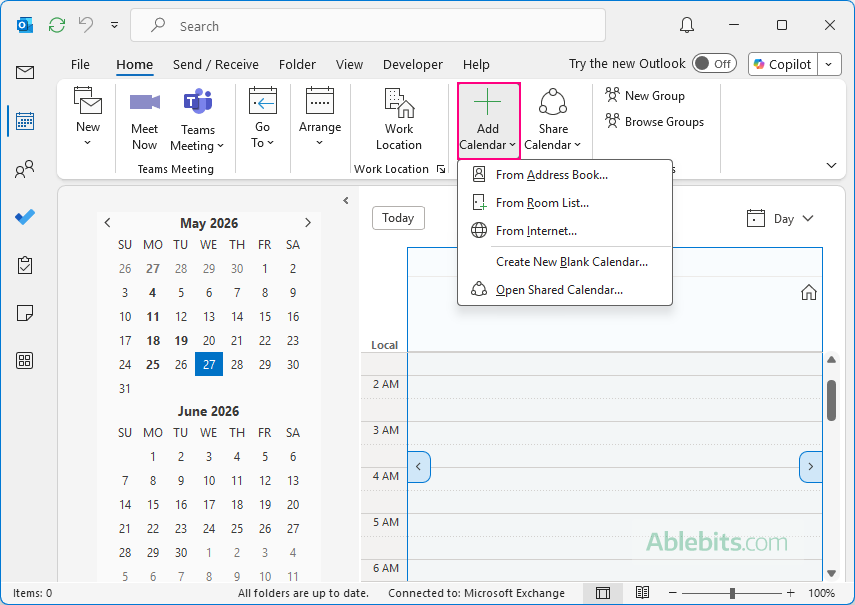
To add a calendar in classic (old) Outlook, go to the Home tab > Manage Calendar group > Add Calendar and choose the appropriate option.
New Outlook, Outlook on the web, and Outlook.com
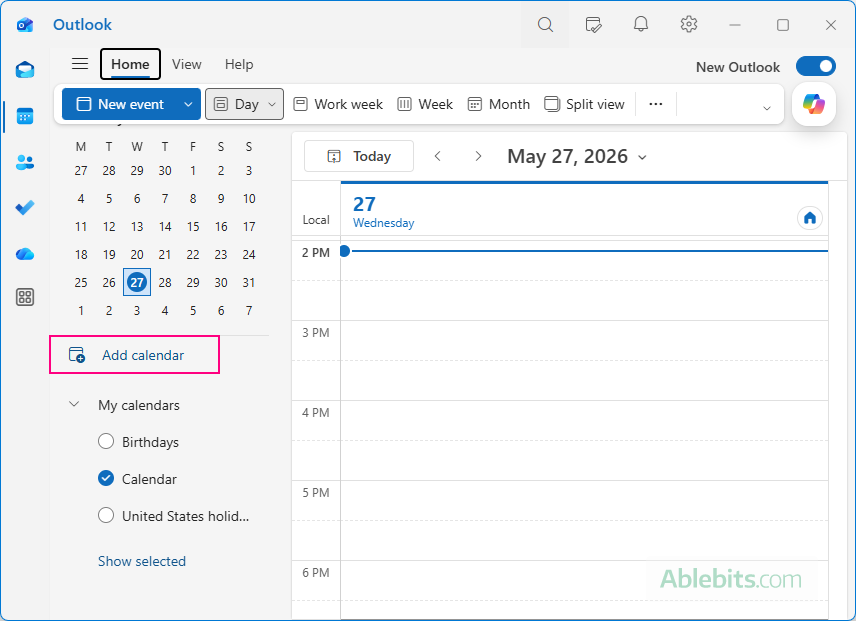
To add a calendar in the new Outlook app and Outlook online, click Add calendar in the left pane and select the type of calendar you wish to connect.
Below, you'll find step-by-step instructions for creating, opening, subscribing to, and importing the most common calendar types in Outlook.
How to create a new calendar in Outlook
In addition to the default Outlook calendar that is created automatically for each account, you can create your own custom calendars. For example, you might want one calendar for personal appointments, another for project deadlines, or a separate schedule for travel plans.
Add a new blank calendar to new Outlook and web
To create an additional calendar in the new Outlook or web app, follow these steps:
- In the Outlook Navigating pane, switch to Calendar.
- In the folder pane on the left, click Add calendar.
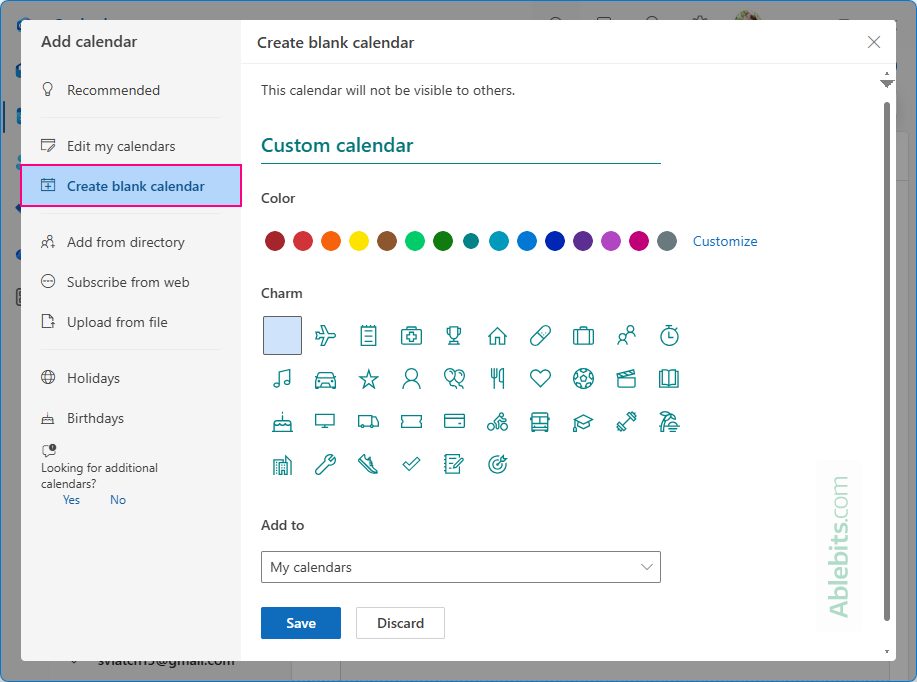
- Select Create blank calendar.
- Enter a name for your new calendar.
- Optionally, choose a custom color and icon.
- Under Add to, select the account (if you have more than one) and calendar group where you want to place this one. By default, it is added under My calendars in your primary account.
- Click Save.
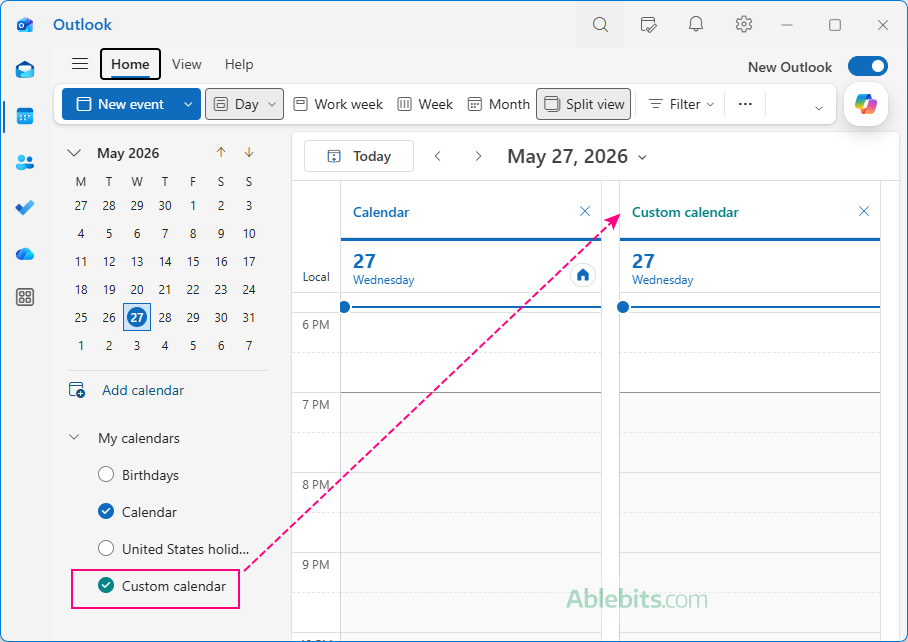
In a moment, the new calendar appears under the selected group in the left pane.
Tip. To edit a custom calendar, click Add calendar > Edit my calendars, then choose the one you want to modify from the dropdown list.
Add a new calendar in Outlook 365 – 2016
In classic Outlook, you can create additional calendars from either the Home tab or the Folder tab. Here's how:
- In the Navigation pane, switch to the Calendar view.
- On the Home tab, click Add Calendar > Create New Blank Calendar. Alternatively, on the Folder tab, in the New group, click New Calendar.
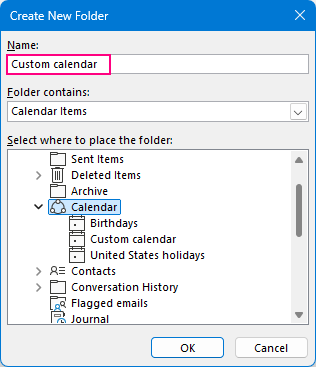
- In the dialog box that opens, do the following:
- In the Name box, enter a name for the new calendar.
- Under Folder contains, select Calendar Items (usually selected by default).
- In the Select where to place the folder list, choose the Calendar folder under the desired account, then click OK.
The new calendar is now created. To view its events, select the check box next to its name in the folder pane. Outlook will show it side-by-side with your existing calendar. If preferred, you can switch to overlay mode to combine events into a single calendar view.
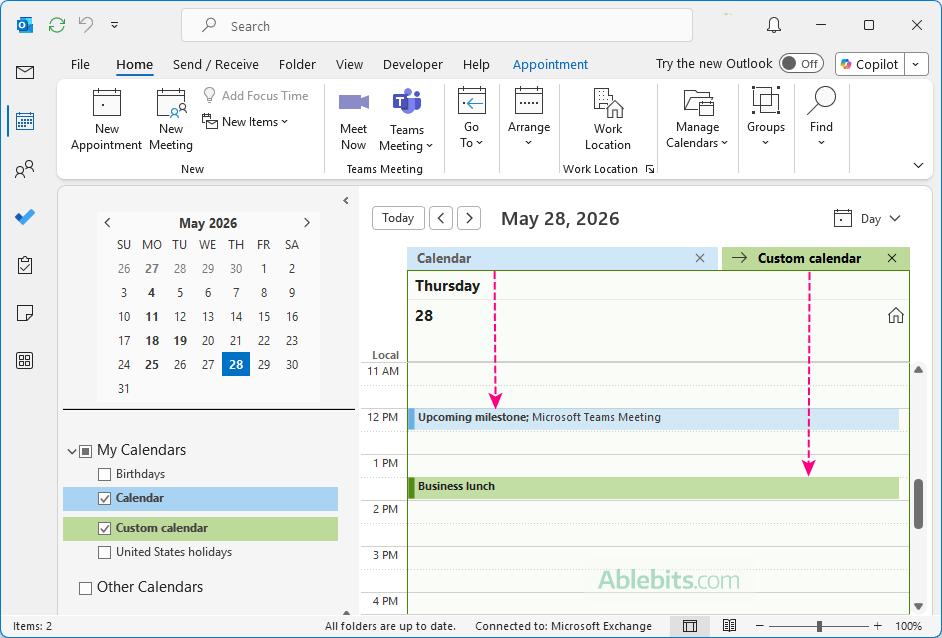
Important note about secondary calendars!
When you create additional calendars in Outlook, you would naturally expect their events to affect your availability. Unfortunately, Microsoft has its own vision :)
Events stored in secondary calendars are not shown to other people in Scheduling Assistant. Moreover, they are not visible to you when scheduling meetings in your main calendar. Because of this, it is surprisingly easy to double-book yourself without noticing.
To avoid scheduling conflicts, make it a habit to check all relevant calendars before confirming important meetings or appointments.
How view a room calendar in Outlook
A room calendar is a shared calendar associated with a meeting room or workspace in your organization. It helps employees see when a room is available, view existing reservations, and schedule meetings without conflicts.
Add a room calendar in new Outlook and web
In new Outlook and Outlook on the web, room calendars are added through the directory search, just like other shared calendars.
- In Calendar view, click Add calendar in the left pane.
- Select Add from directory.
- Search for the meeting room by name or email address, then select it from the results.
- Choose which calendar group to place the room calendar in. By default, it is added under People's calendars, but you can select any built-in or custom calendar group.
- Click Add.
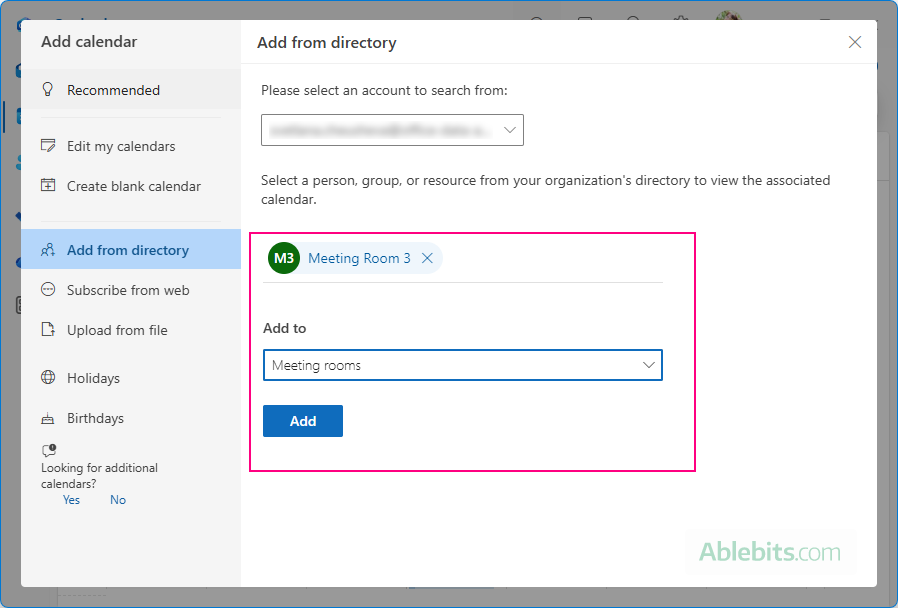
The room calendar will appear in the left pane under the chosen calendar group. From there, you can open it alongside your own schedule to check room availability and existing bookings.
Add a meeting room calendar in Outlook 365 – 2016
In classic Outlook, room calendars are usually added from your organization's room list in this way.
- In Calendar view, go to Home > Add Calendar > From Room List.
- A dialog box will appear showing the available meeting rooms.
- Double-click the room you want to open, then click OK.
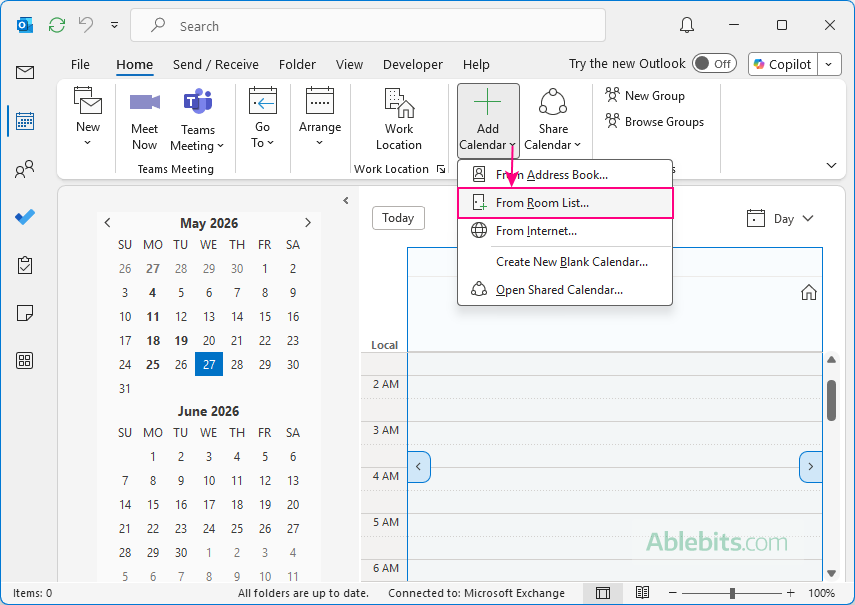
The selected room calendar will appear in the folder pane alongside your other calendars.
Tip. If the list is empty, open the Address Book dropdown and check that All Rooms is selected under the correct account (Microsoft 365 or Exchange). If no rooms appear even then, your organization may not have room mailboxes configured, or you may not have permission to view them.
How to open a shared calendar in Outlook
The easiest way to add someone's calendar to Outlook is to accept the sharing invitation. This invitation is usually sent automatically when another person shares their calendar with you or grants you delegate access to their calendar.
Simply open the invitation email and click Accept. Once you do this, the shared calendar is added to your Outlook calendar list.
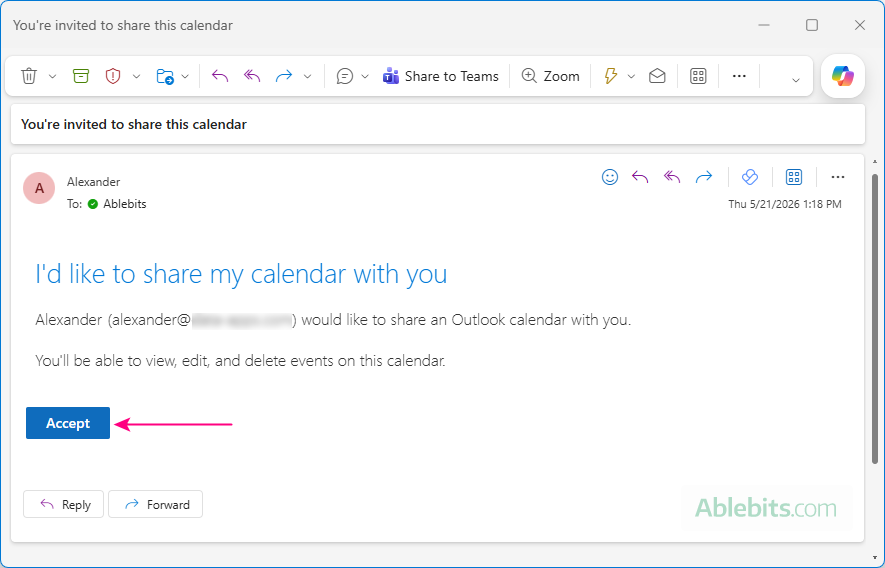
If you did not receive the invitation or cannot find it, you can ask the calendar owner to resend it. If the calendar belongs to someone in your organization, you can also add it manually:
- In Outlook 365 – 2016, go to Home > Add Calendar > Open Shared Calendar, then enter the person's name or email address.
- In new Outlook and web, click Add calendar in the left pane, choose Add from directory, then search for the calendar owner's name or email.
For detailed instructions, see How to add someone's calendar in Outlook.
Note. Adding a shared calendar manually from the menu usually works only for internal users with Microsoft 365 or Exchange accounts.
How to add an internet calendar (ICS subscription) to Outlook
An internet calendar, also called an ICS or iCal subscription, lets you view events from an online source directly in Outlook. This is commonly used for public holidays, sports schedules, school events, conference schedules, and other shared event feeds.
Unlike imported ICS files, calendar subscriptions update automatically whenever the calendar owner makes changes.
To subscribe to an internet calendar, you need its .ics link. If you do not have the link, check the website or service that publishes the calendar, or contact the calendar owner and ask them to share it with you.
Once you have the ICS link:
- In Outlook 365 – 2016, go to the Home tab > Add Calendar > From Internet, paste the ICS link, and confirm the subscription.
- In new Outlook and web, click Add calendar > Subscribe from web, paste the ICS link, optionally customize the name, color, or icon, and then click Import.
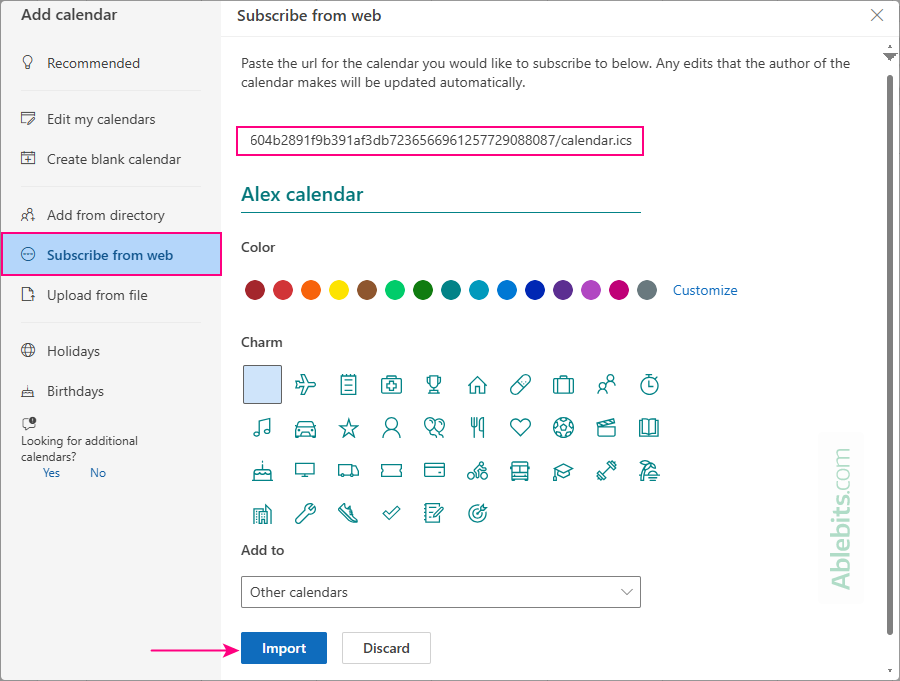
For a detailed guide, see How to subscribe to someone's calendar in Outlook.
How to import events from another calendar into Outlook
Importing a calendar into Outlook lets you add events from another person's calendar as snapshot of the current schedule. This method is useful when someone sends you a calendar as an email attachment or downloadable file instead of sharing a calendar.
Unlike internet calendar subscriptions, imported calendars do not update automatically. If the original calendar changes later, you will need to import it again.
To import a calendar, you first need the .ics file from the owner.
- In Outlook 365 – 2016, go to File > Open & Export > Open Calendar, select the .ics file, and then choose whether to import it into a new or existing calendar.
- In new Outlook and web, click Add calendar > Upload from file, browse to the .ics file, choose the destination calendar, and click Import.
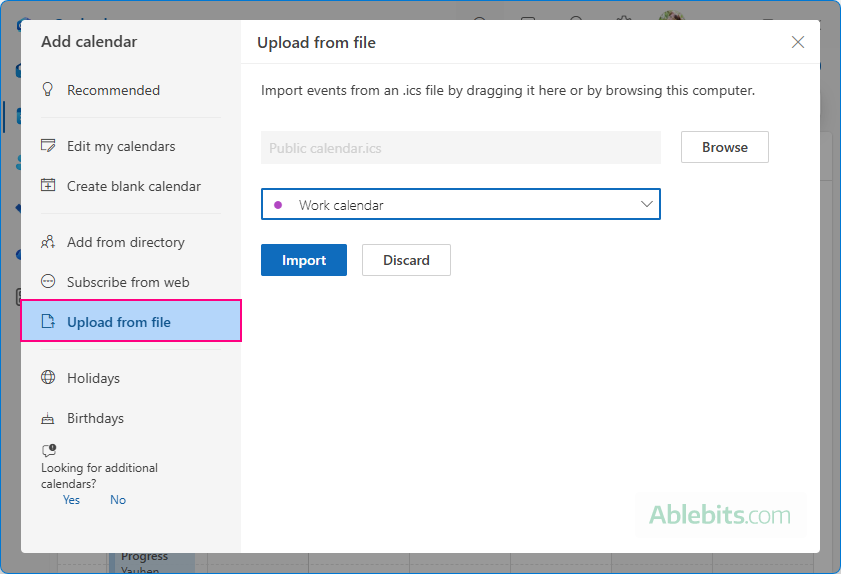
For a more detailed explanation, refer to How to import an ICS file into Outlook.
How to remove calendar from Outlook
If you no longer need a calendar that you previously added to Outlook, you can remove it from your calendar list at any time.
To remove a calendar, right-click its name in the left pane and select Remove in new Outlook and Outlook on the web or Delete Calendar in classic Outlook.
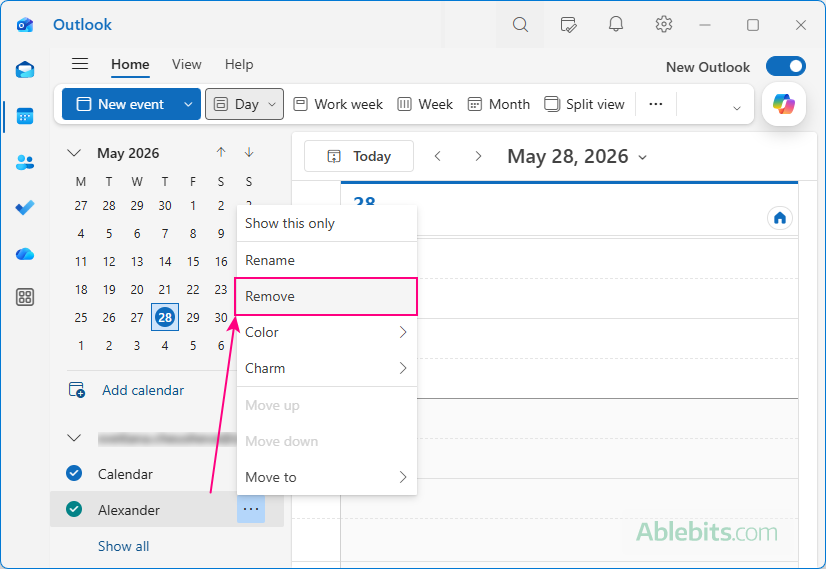
Note. If the Remove or Delete option is grayed out, that usually means it is a primary calendar associated with your account, which cannot be deleted.
What's next?
After adding a calendar, Outlook does not automatically display its events. To view and work with the calendar, select it in the folder pane on the left.
That sounds simple enough, but there are a few genuinely useful features hidden behind tiny buttons and menus, so they are easy to miss. For example, you can display multiple calendars side-by-side, overlay them into a single combined view, or quickly schedule meetings with all people whose calendars are shared with you.
Here's a helpful guide to continue with: How to view someone's calendar in Outlook.
Hopefully, this tutorial helped make Outlook calendars feel a little less confusing. Between personal schedules, shared calendars, and internet subscriptions, Outlook supports a lot more options than most people realize. The trickiest part is figuring out where Microsoft decided to place the buttons this week 😊