 by
by In this tutorial, you will learn what a dynamic named range is, why it is useful, and how to create one in Excel using different methods. You will also learn how to use it in formulas to have new data included in calculations automatically.
If your Excel formulas break every time your dataset grows, a dynamic named range can solve the problem by automatically adjusting to the current size of data. Instead of constantly updating cell references in formulas, you define a range once and let Excel handle the changes as your tables expand or shrink.
Excel dynamic named range
A dynamic named range in Excel, sometimes called simply a dynamic range, is a named range that automatically adjusts when data is added, removed, or changed. Rather than manually updating formulas, charts, or drop-down lists each time your dataset grows, you can define one flexible range that keeps pace with your data.
In simple terms, an Excel named range is a custom name assigned to a group of cells. For example, instead of referencing A2:A100, you can name that range sales and use it in a formula like this:
=SUM(sales)
A dynamic named range takes this concept further. It automatically changes its size based on the amount of data in the source range. If you add new sales records below the existing list, the named range expands to include them. If you remove some entries, the range contracts accordingly.
This is the main advantage of a dynamic range: it responds instantly to changes in your worksheet without requiring you to update the range reference. As a result, Excel works only with the relevant cells, which helps keep formulas accurate and your workbooks fast.
A dynamic named range is always defined by a formula. There are several ways to create a dynamic range in Excel, depending on your version and the specific task. In the following sections, we'll look at the most common methods.
Why use a dynamic named range in Excel?
Dynamic ranges are especially helpful in files where data changes often. Common uses are:
- Creating formulas that include newly added entries automatically
- Building charts that update as source data grows
- Making dynamic drop-down lists
- Making formulas easier to read by replacing cell references with meaningful names
- Reducing the need for manual range updates
How to create a dynamic named range in Excel
A classic way to build a dynamic named range in Excel is by combining OFFSET or INDEX with the COUNTA function. This approach works in all modern versions, from Excel 2010 through 365.
To make a dynamic range in Excel, follow these steps:
- On the Formula tab, in the Defined Names group, click Define Name. Or, press Ctrl + F3 to open the Excel Name Manager, and then click New.
- In the New Name dialog box that opens, enter the following details:
- In the Name box, type the name for your dynamic range.
- In the Scope dropdown, choose the level, within which the name should be recognized. Workbook (default) is recommended in most cases.
- In the Refers to box, enter either the OFFSET + COUNTA or INDEX + COUNTA formula.
- Click OK to create the name.
Example: dynamic named range for a single column
For this example, we are going to build a dynamic range consisting of a single column and a variable number of rows.
In particular, we define a range named items that accommodates all cells with data in column A, except for the first two rows (the sheet title and column headers):
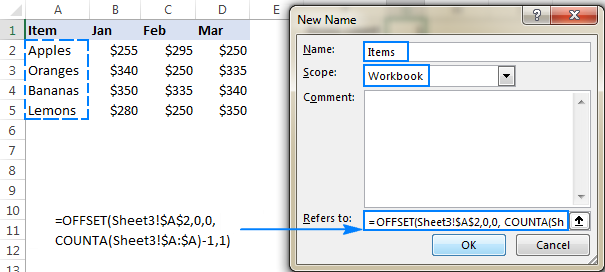
Now, let's examine the formulas that can define such a range.
OFFSET formula
One way to make a dynamic named range in Excel, is by using the OFFSET function together with COUNTA. The generic formula is:
Where:
- first_cell – the first cell included in the named range (for example $A$3).
- range – an absolute reference for the range where to count non-empty cells. This can be an entire column ($A:$A) if the data starts in row 1, or a fixed range such as $A$3:$A$2000 if your data begins in some other row.
The formula uses COUNTA to count non-blank cells in the specified column. This number becomes the height argument of OFFSET, determining how many rows the range should include.
For instance, if the data starts in A1 on Sheet3, the dynamic range can be defined as:
=OFFSET(Sheet3!$A$1, 0, 0, COUNTA(Sheet3!$A:$A), 1)
Adjusting for header rows
If there is data above the topmost cell of your range, adjust for it by subtracting the corresponding number of rows from COUNTA's result.
One header row (data starts in A2):
=OFFSET(Sheet3!$A$2, 0, 0, COUNTA(Sheet3!$A:$A) -1, 1)
Two header rows (data starts in A3):
=OFFSET(Sheet3!$A$3, 0, 0, COUNTA(Sheet3!$A:$A) -2, 1)
Instead of counting an entire column, you can specify a range that exceeds the maximum expected number of values. For example:
=OFFSET(Sheet3!$A$2, 0, 0, COUNTA(Sheet3!$A$2:$A$2000), 1)
Tip. If you enter the formula without specifying a sheet name, Excel automatically inserts the name of the current worksheet into all references. Therefore, before creating a name, be sure to open the sheet with your source data.
INDEX formula
Another way to create a dynamic range in Excel is using COUNTA in combination with the INDEX function. The generic formula is:
This formula builds the range in two parts:
- The left side of the range operator (:) specifies the starting cell (for example $A$3).
- The right side uses INDEX to determine the last used cell in the column.
For our sample dataset that starts in row 3, the formula goes as follows:
=$A$3:INDEX($A:$A, COUNTA($A:$A))
In our case, column A contains 24 non-empty cells, including the sheet title in A1 and the column header in A2. That means:
- COUNTA($A:$A) returns 24
- INDEX($A:$A, 24) returns $A$24
Because $A$3 is the starting point, the final range becomes $A$3:$A$24.
Normally, the INDEX function returns a value. In this formula, however, the range operator (:) forces it to return a reference, which defines the end of the dynamic range.
Adjusting for blank rows at the top
If there are any blank cells above the first data cell in the range, the formula needs to be adjusted. For example, if there is one blank cell (for example A1), you should add 1 to the result of COUNTA so that the last row is determined correctly.
Without this adjustment, the final value in the range will be missing.
=$A$3:INDEX($A:$A, COUNTA($A:$A)+1)
Test the dynamic named range
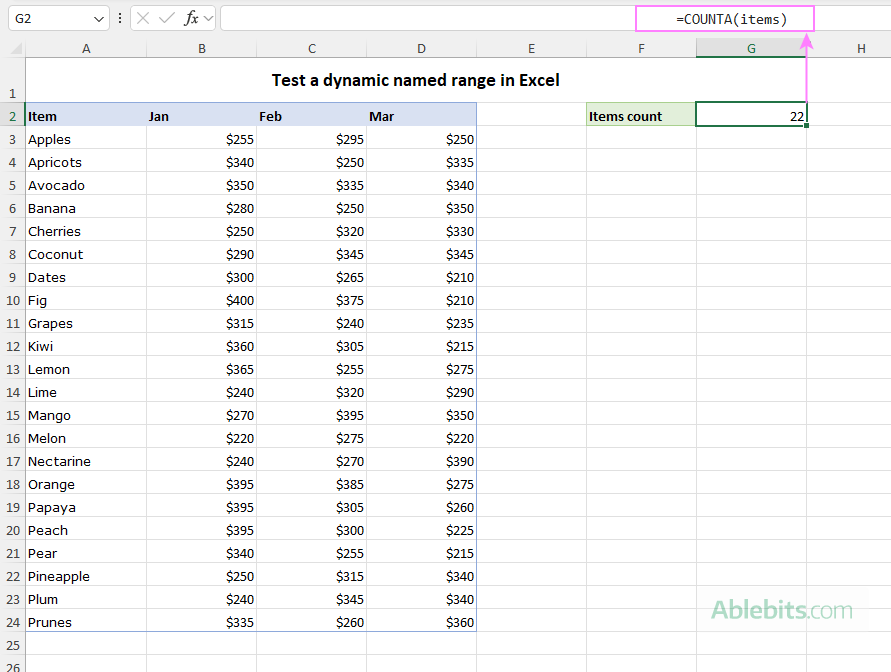
After creating the named range, it is a good idea to test it. A simple way is to use the COUNTA function to get the items count:
=COUNTA(items)
If everything is set up correctly, the result will change as you add or remove items from the list.
Tips and notes:
Keep these points in mind when working with dynamic named ranges in Excel:
- Ensure that the referenced column does not contain extra data below your list, otherwise those cells may be included in the dynamic range.
- When editing a formula in the Refers to field, press F2 first. Then use the arrow keys to move within the formula. Without pressing F2, Excel may unexpectedly change cell references.
- The OFFSET and INDEX methods return the same result, but they differ in performance. OFFSET is a volatile function, meaning it recalculates whenever the worksheet changes. On modern computers with moderate datasets this usually isn't noticeable, but in large workbooks or on low-capacity machines it may slow calculations. In such cases, creating a dynamic named with the non-volatile INDEX function is a more efficient option.
How to make two-dimensional dynamic range in Excel
In some situations, you may want a dynamic named range that expands both vertically and horizontally. In other words, the range should adjust not only when new rows are added, but also when new columns appear. This type of range is often called a <dfn>two-dimensional dynamic range</dfn>.
To create one, you can use this generic INDEX + COUNTA formula:
Where:
- first_cell – the top-left cell of the range.
- first_column – the top-left column of the range.
- first_row – the topmost data row.
How this formula works:
In this formula, two COUNTA functions identify the position of the last non-empty cell:
- COUNTA(first_column) returns the last used row in the dataset.
- COUNTA(first_row) returns the last used column.
The above values are passed to the row_num and column_num arguments of the INDEX function, respectively. The array argument contains the entire worksheet (1048576 rows in Excel 365 - 2007; 65535 rows in Excel 2003 and lower). As a result, INDEX returns a reference to the cell located at the intersection of the last row and last column.
Example: two-dimensional dynamic range
Let's define another dynamic range for the same dataset: a range named sales that includes monthly sales figures for 3 months (Jan to Mar in columns B:D). Naturally, the range should expand automatically when new items (rows) or months (columns) are added to the table.
Assuming that our dataset resides in Sheet4, with sales data beginning in column B, row 2, the formula takes the following shape:
=Sheet4!$B$2:INDEX(Sheet4!$1:$1048576, COUNTA(Sheet4!$B:$B), COUNTA(Sheet4!$2:$2))
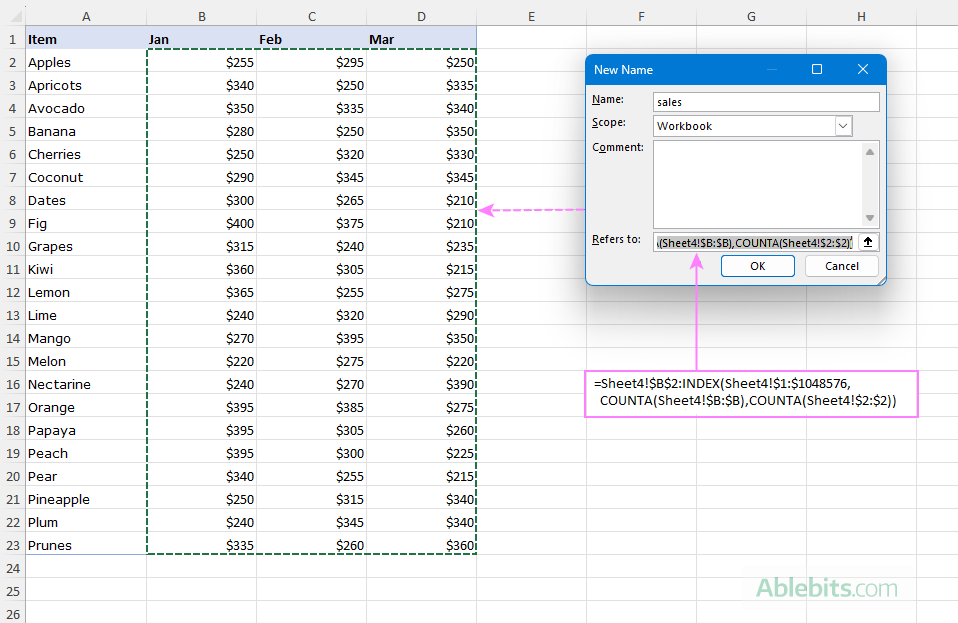
Note. This formula works correctly only when the following conditions are met:
- The referenced column and row (column B and row 2 in this example) contain no extra data. If any values appear below the dataset or to the right of it, COUNTA will include them in its count, causing the dynamic range to return incorrect results.
- There are no blank rows or merged cells above the dataset, and no blank columns to the left. If any are present, you will need to modify the formula to match your layout.
Testing the dynamic range
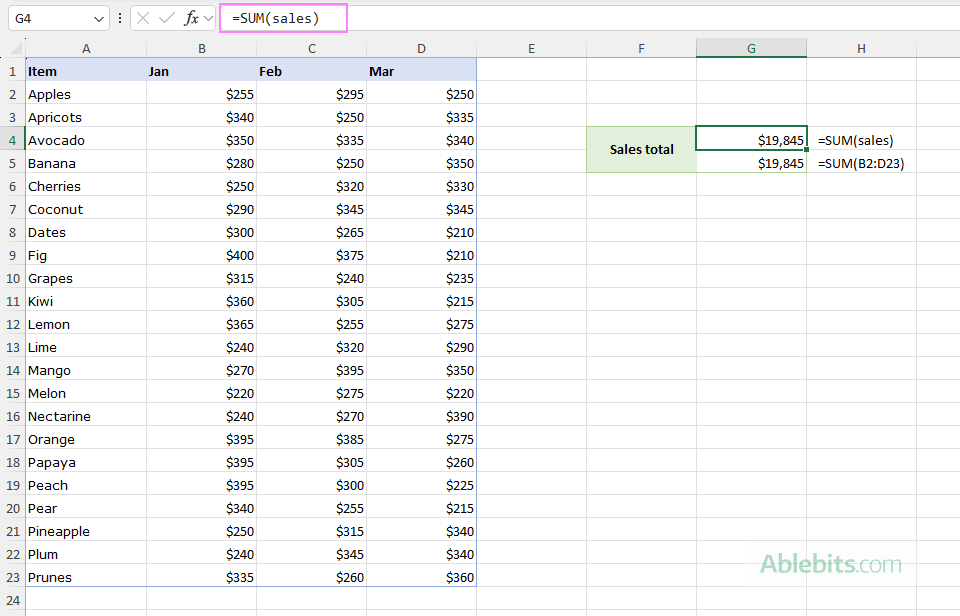
To make sure your dynamic range works as it is supposed to, enter the following formulas somewhere on the sheet:
=SUM(sales)
=SUM(B2:D23)
At first, both formulas return the same result because they reference the same cells. The difference reveals itself in the moment you add new entries to the source table:
- SUM(sales) recalculates automatically because the dynamic named range expands.
- SUM(B2:D23) continues to reference the original cells and must be updated manually with each change.
That makes a huge difference, uh?
How to create a dynamic named range in Excel 365
In Excel 365, creating a dynamic named range is much easier than in earlier versions. You no longer need complex OFFSET or INDEX formulas.
The TRIMRANGE function, introduced in Excel 365, offers a much simpler approach by automatically removing empty rows and columns around the outer edges of the used range. This behavior lets you easily make dynamic ranges of any size that expand both downward and across.
Below are two practical ways to define a dynamic range for our sample table that includes all sales figures in columns B, C, and D, starting in row 3.
Method 1: Start with the topmost cell and trim trailing blanks
Start with the top-left data cell and reference a range that is large enough to accommodate future entries. Then let TRIMRANGE remove any trailing blank rows or columns.
=TRIMRANGE($B3:$D200)
Using the trim reference operator, the same solution can be written more compactly as:
=$B3:.$D200
How it works:
- The formula references a block of cells from B3 to D200, which is large enough to hold future rows of data.
- TRIMRANGE examines that block and removes any completely empty rows or columns from the outer edges.
- The result is a dynamic range that includes only the cells that actually contain data.
As you add new rows within the defined area, the dynamic range automatically expands to include them.
Method 2: Use whole-column references and exclude header row
Another approach is to reference entire columns and remove header rows with the DROP function.
=DROP(TRIMRANGE($B:$D), 1)
Or using the trim reference syntax:
=DROP($B.:.$D, 1)
How it works:
- $B:$D references entire columns B through D.
- DROP(…, 1) removes the header row, which contains column headers. If there are more than one header row in your sheet, adjust the second argument accordingly.
- TRIMRANGE then trims any empty rows or columns around the dataset.
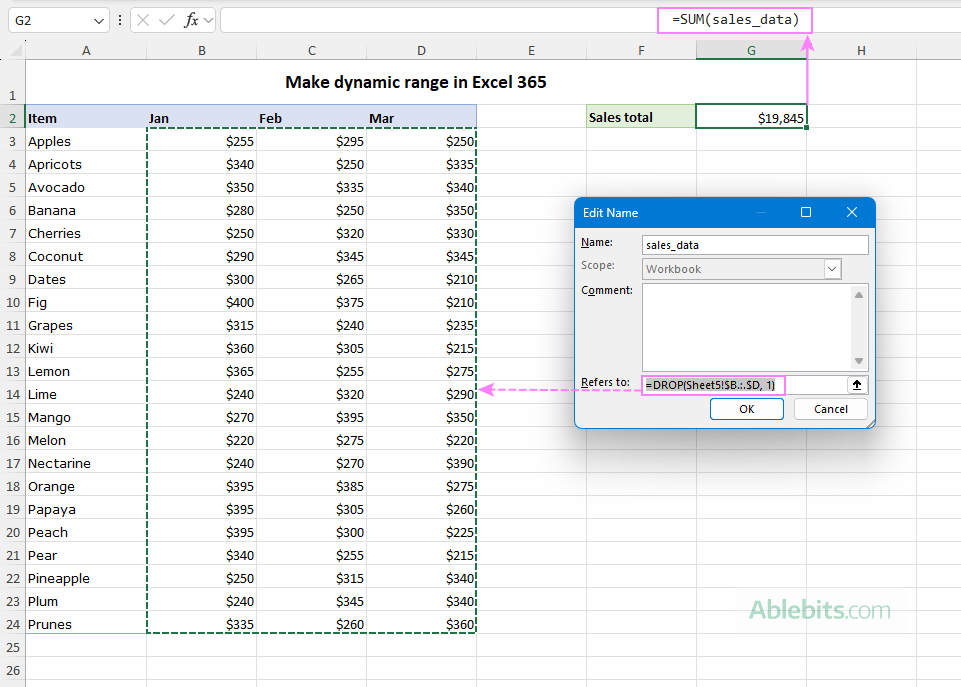
Note. At first glance, the screenshot above may suggest that both row 1 and row 2 contain data. In fact, row 1 consists of merged cells spanning A1:G1. In Excel, a merged range stores the value only in its upper-left cell (A1 in this case), while the remaining cells in the merged area are technically empty. For this reason, the DROP function removes only one non-empty row containing the column headers (row 2).
Why this approach is useful
For Excel 365 users, this method is usually the simplest way to build dynamic named ranges for growing datasets because:
- The formulas are shorter and easier to read.
- They automatically adjust to both new rows and new columns.
- There is no need to count rows or adjust offsets manually.
How to use dynamic named ranges in Excel formulas
In the previous sections of this tutorial, you saw a few simple examples of dynamic ranges in action. Now let's apply them in a more practical scenario.
Suppose you have a dataset that lists orders for different products over a certain time period. Your goal is to calculate the total sales for a specific product, while ensuring that the formula automatically includes any new records added later.
Step 1. Create dynamic named ranges
Start by creating two dynamic named ranges, one for the product names and another for the order amounts.
Range 1: products
Here are the formulas to define a dynamic range named products in column B:
Excel 2016 – 2024:
=$B$3:INDEX($B:$B, COUNTA($B:$B))
Excel 365:
=TRIMRANGE($B3:$B200)
Range 1: amounts
To make a dynamic range named amounts in column D, the formulas are:
Excel 2016 – 2024:
=$D$3:INDEX($D:$D, COUNTA($D:$D))
Excel 365:
=TRIMRANGE($D3:$D200)
Step 2. Enter the lookup value
Enter the product of interest in a predefined cell, G2 in our case.
Step 3. Build the formula using dynamic ranges
Next, enter the following formula in G4:
=SUMIF(products, G2, amounts)
The SUMIF function checks the products range for the value in G2 and sums the corresponding values from the amounts range.
When entering the formula, you can simply type the first few letters of a named range. Excel will display a list of matching names, allowing you to select the correct one with a double-click.
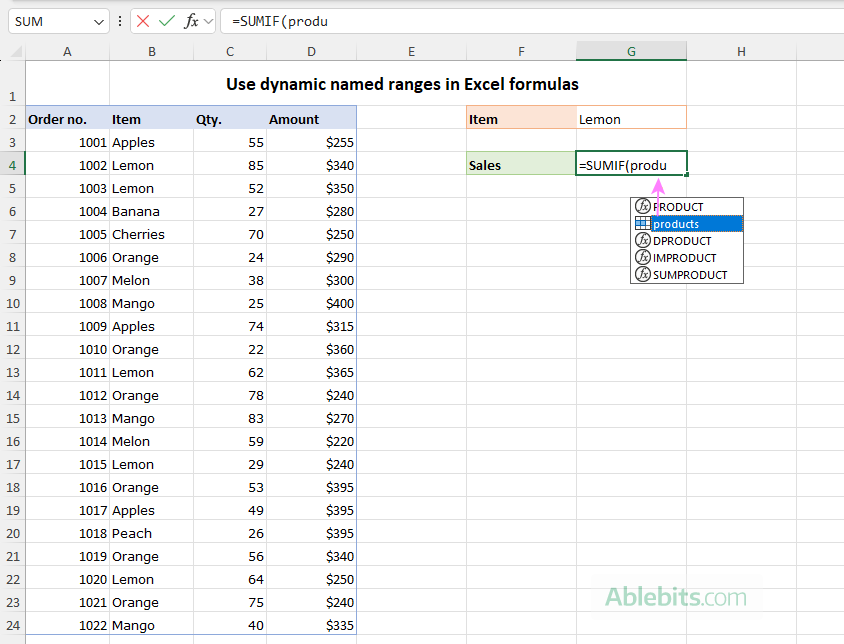
The completed formula works exactly like a standard SUMIF, but with an important advantage: the referenced ranges adjust automatically as the dataset grows. Whenever new orders are added to the table, they are included in the calculation at once, without you having to make a single change to the formula!
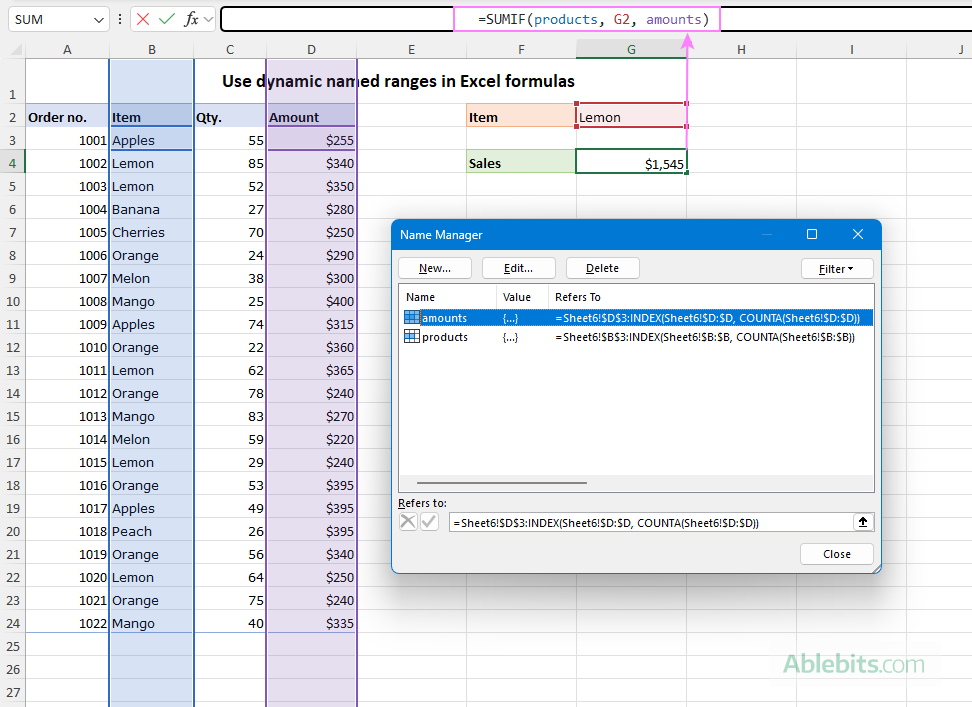
This is how you create and use dynamic named ranges in Excel. To have a closer look at the formulas discussed in this tutorial, you are welcome to download our sample workbook below. I thank you for reading and hope to see you on our blog next week!
32 comments
I have a sheet that pulls data from another sheet and place them in column A, B, C and D, starting from row 10 to row 513, where names are in column B. The rows 515 and 517 are chosen for writing signatures.
The list of names (B10:B513) in this sheet can expand or contract thus, leaving blank cells with empty string (" ").
Which formula can help me to print a range A1:F517 by excluding all blank cells but the rows 515 and 517 should appear automatically just below the last name and, what can I handle this just when I am about to print a document?
Hi! If I understand what you're asking correctly, the formula below will help you with your task:
=FILTER(A1:D517,B1:B517<>"")
You can find the examples and detailed instructions here: How to filter out blanks in Excel.
Hello.
Please I'd like to create a dynamic range from two separate ADDRESS functions for use in an INDEX & MATCH function. I'd then like to use this range in the MATCH function. I'm doing this so that I can automate the process of collating different items based on the dynamic lookup-item in MATCH function.
The ADDRESS functions are working good, so also is the MATCH and INDEX functions; but it all falls apart when I try to combine them like:
INDEX(b3: w30, MATCH(c4, (ADDRESS((d5-1),7)) : (ADDRESS((d5+10),7)), 0), 20).
Please how can I achieve creating the dynamic range for the MATCH Function?
Thank you.
Hello! To create a dynamic range reference, use the INDIRECT function. For example, for your data:
=INDIRECT(ADDRESS((D5-1),7)&":"&ADDRESS((D5+10),7))
Hello. Is it possible to store the values of a dynamic array in a named range already calculated? For example, when I enter this formula for a new named range, the name manager shows the values as an ellipsis:
=ABS(INDEX(A$1:A$1000,0,1))
I'm assuming this means Excel will recalculate that formula each time the name is referenced. Is there a way to avoid this without first having to create a column with the absolute values already calculated, and then pointing the new name to that column?
Thank you.
Hi! If I understand the question correctly, such a formula can work:
=ABS(namedrange)
or
=ABS(INDEX(namedrange,0,1))
I'm trying to add a formula in the cell following a sequence formula that is dynamic. The sequence formula can autofill in 6 cells (I want to add the formula in the 7th cell) of the sequence formula can autofill in 8 cells (I want to add the formula in the 9th cell).
Is there a way to do that automatically?
Hi! You cannot automatically add a formula to a cell.
I'm trying to do a graph to display the last 6 days worth of data using OFFSET. The formula works if I have 6 or more days in my table, but I'm receiving reference errors if I have less than 5 days.
E9=01Jan2023
F9=02Jan2023
G9=03Jan2023
H9=04Jan2023 .....
this is my formula.
=OFFSET($E$9,,IF(COUNTA($E$9:$GA$9)<6,0,COUNTA($E$9:$GA$9)-6),,IF(COUNTA($E$9:$GA$9)<6,COUNTA($E$9:$GA$9),6))
would you be able to identify where my problem lies or how I can display the graph with only 1, 2, 3, 4 or 5 days worth of data without error message?
I tested your formula with three dates in cells E9:G9 and got no error.
Hi,
I have production report with two columns one column for dates and second column is for case number so I need result how many case number completes for the date.
Example.
A column B column
03/13/23 AS123
03/13/23 AS234
03/14/23 AS768
I need countifs formula for with match date on second sheet.
Hi!
For the answer to your question and examples of formulas, see here: Using Excel COUNTIF function with dates.
Good day, I need some assistance please...I have an excel sheet with Dynamic columns. I display the total Working hours in columnD and only display the overtime hours if there are any. If there isn't any overtime hours then I display the week in days starting from either column E or columnG. I need to sort the days of the week according to a date range which I have just specified. So, If my Monday falls on the 19th and my Thursday falls on the 13th, I need to sort the columns so that Thursday comes first and Wednesday comes last. I don't know the column letter (could be D or E or F or G or so on) but I can determine the letter. I don't want to use the letter but when I substitute, I get an error. When I run the hardcoded substitution, it works fine "Sheets(sheetName).Range("I2:O132").Sort Key1:=Range("I2:O2"), Order1:=xlAscending, Orientation:=xlLeftToRight". When I use the following, I get an error Sheets(sheetName).Range(("""" & strColumnStart & "" & ":" & "" & strColumnEnd & """")).Sort Key1:=Range("""" & strColumnStart & "" & ":" & "" & strColumn & """"), Order1:=xlAscending, Orientation:=xlLeftToRight. When I use the immediate window, """" & strColumnStart & "" & ":" & "" & strColumnEnd & """" equates to "I2:O132" but it just doesn't work. Does anyone have a solution to this?
Hi!
Unfortunately, we can only help with writing Excel formulas. Your problem cannot be solved with formulas.
HI,
I have created a table using dynamic range. I would like to format(meaning color/borders) like a when I create a table with alternating fill colors for row. Is there a simple method?
The button Labeled "Format as Table" creates a table them my Dynamic range goes to Spill Error...
Thanks,
Jmarc
Hello!
You cannot create an Excel table from a named range. You need to convert formulas to values. Or use standard Excel formatting tools.
Here is the article that may be helpful to you: Highlight every other row in Excel using conditional formatting.
I'm having trouble entering the formula for a dynamic range.
=Sheet1!ADDRESS(MATCH(TODAY():$P:$P,0),16):INDEX($P:$P, COUNTA($P:$P))
or
=Sheet1!ADDRESS(MATCH(TODAY(),P10:P374,0),16):$P$374
Keeps giving me a message about am I trying to enter a formula, must start with= or -.
When I enter only the cell formula, it takes it, but I need a range.
=Sheet1!ADDRESS(MATCH(TODAY():$P:$P,0),16) Works to give the cell address of today's date.
This creates dynamic range starting at today's date in column P and I want to extend it to the end of the data in column P. Column P is a list of dates.
I need this to then find the next value in a different column after the today's date row.
This different than most dynamic ranges that only extend the bottom. I want to do both. One to move the top based on today's date and the bottom to extend it based on data being added.
I hope you can help me. I've learned a lot from you.
Thanks,
Colt
Hello!
If your list of dates starts in cell A1, then you can use the formula to create a dynamic range starting from the current date:
=OFFSET(A1,MATCH(TODAY(),A1:A300,0)-1,0, COUNTA(A1:A300)-MATCH(TODAY(),A1:A300,0)+1,1)
This should solve your task.
Hi,
How can I get the Defined Name to work for a dynamic range when I have both Blank and Non-Blank cells within my range?
Hello!
Try using the COUNTBLANK function in your dynamic range formula:
OFFSET(first_cell, 0, 0, COUNTA(column)+COUNTBLANK(column), 1)
I hope it’ll be helpful.
I don't think this will work. The COUNTBLANK function will also count all of the blanks below the last item in the column giving you a very large value for modern versions of Excel.
Hi!
Of course, you can use a range of cells instead of the entire column in the formula.
For example - Instead of COUNTA(column) use COUNTA(A1:A100)
This will seriously speed up the calculations.
I would like to add numbers in a column
using sum, offset, counta and the column has a name.
For practice, I have column E and beginning with row 3 the title: salary. Rows 4, 5, 6,etc are the salaries. Column E3:E10 has been named as "monthly_salaries". I need to use that so I can place the sum(monthly_salaries) function on any worksheet, while the monthly-salaries will be on a seperate worksheet.
Each month the length of this vertical column E changes as more or less people draw salaries. Also, I use different worksheets so data, like the salaries may be located on worksheet 2 and the actual sum on worksheet 1.
I have offset(e3,0,0,counta(E:E),1.
Question: How to combine the column name with the sum function to accommodate the dynamic nature of this problem.
Thank you for your assistance.
Chris
Hello!
Create a dynamic named range “monthly_salaries” using a formula
=OFFSET($E$3, 0, 0, COUNTA($E$3:$E$10), 1)
Use it like this:
=SUM(monthly_salaries)
I hope I answered your question.
hi there.. hope someone could help me. I want to create a name in my file which is getting values from a single column table. I want to exclude one specific value and don't want it to be part of the name range. Not sure how can I do that? Column data is:
Fruits (table header)
Apple
Banana
Orange
Grapes
Want to have a list that exclude "Orange". As it's a table I will be adding new names after Grapes in near future.
Pls refer to: FILTER(A1:INDEX(A:A,COUNTA(A:A)),A1:INDEX(A:A,COUNTA(A:A))"Orange") in the New Name dialog
I have a simple table: 7 columns, 4 rows. Can I create a formula just adding Hrs of bananas?
Jan 1 Jan 2 Jan 3
Hrs Cases Hrs Cases Hrs Cases
Bananas 1 10 3 30 0 0
Apples 5 20 1 4 3 12
_______|___Hrs_|_Cases_|_Hrs_|_Cases_|_Hrs_|_Cases
Bananas|____1__|___10__|__3__|___30___|_0__|___0__
Apples_|____5__|___20__|__1__|___04___|_3__|___12_
No sure if this will help to understand the table...
An easy way to do it if you need a range is to use indirect in the name.. eg example for A2:G10
There is 20 rows in coloumn A
=Indirect(Sheet_name!A2:G"&CountA(A:A))
since indirect "translate" the expression - so it reads the name to be refered to this
Sheet_name!A2:G10
Correction - There is 20 rows in coloumn A - should ofcourse be 10 rows ;)
I'm trying to create a dynamic range showing client names only if their status is Active in another column. Can someone help me with the formula for this?
Pls refer to: FILTER(A1:INDEX(A:A,COUNTA(A:A)),B1:INDEX(B:B,COUNTA(B:B))="Active") in the New Name dialog