 by
by In this tutorial, you'll learn several ways to build running total and running count by category in Excel using modern dynamic array functions as well as formulas compatible with older versions.
When working with sales records, transactions, inventory movements, or project data, you may need a running total or running count that restarts for each category. For example, you might want to produce a cumulative sum for each product, track the number of orders per customer, or assign sequential numbers within each group.
What is a running total by category?
Running total by category is a cumulative sum that calculates independently for each group or time period. Each new value is added to the previous total for the same category, while a new category starts its own running total from scratch.
As new records are added, the running total continues to accumulate values only within each specific category.
Unlike a simple running total across an entire dataset, a running total by category lets you monitor each group independently.
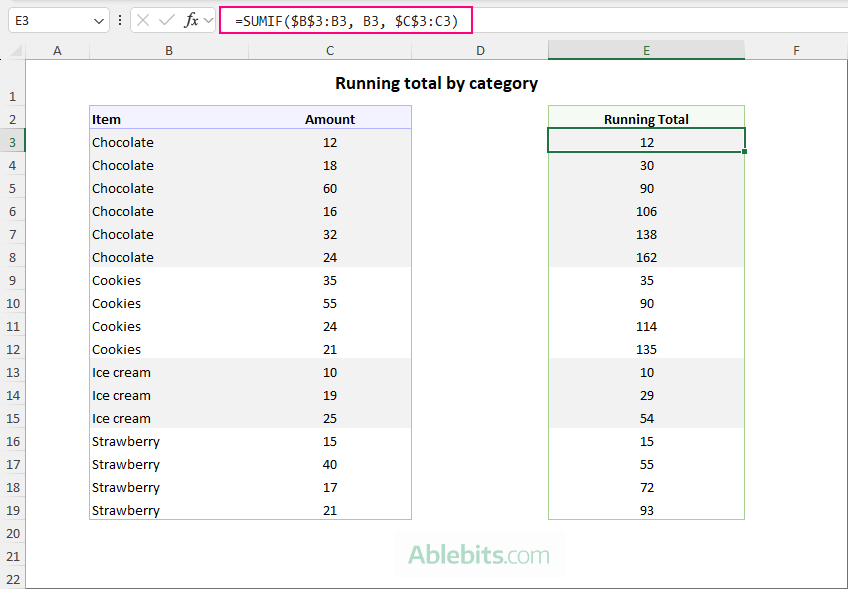
The example below shows category-specific cumulative sums. Notice how the total accumulates within each item group and resets when the item name changes.
What is a running count by category?
A running count by category is a cumulative count that assigns a consecutive number to each occurrence of a specific item or group.
Every time the same category appears in a dataset, its count increases by 1. As new records are added, the sequence continues independently for each group, indicating the position of a record within that group.
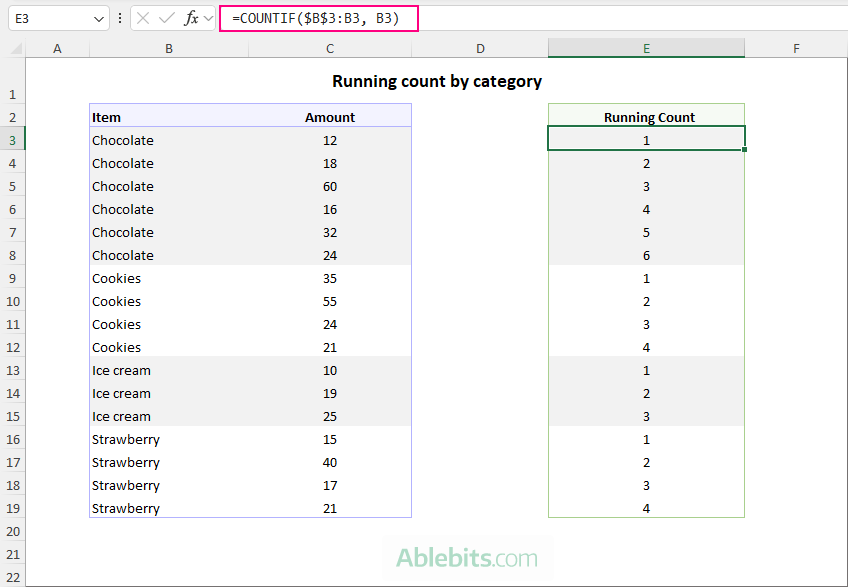
The example below shows how occurrences are numbered within each item category. Notice that the count increases from 1 to 6 for chocolate, then starts again at 1 for cookies, ice cream, and strawberry.
How to calculate running total by category in Excel
A simple and efficient way to calculate a running total by category in Excel is using the SUMIF function. This approach works well in all versions, from Excel 365 to Excel 2016 and earlier.
The key to making it work is the clever use of expanding ranges. For our sample dataset, with items in A3:A19, the formula is:
=SUMIF($A$3:A3, A3, $B$3:B3)
Enter the formula in D3 and copy it down the column.
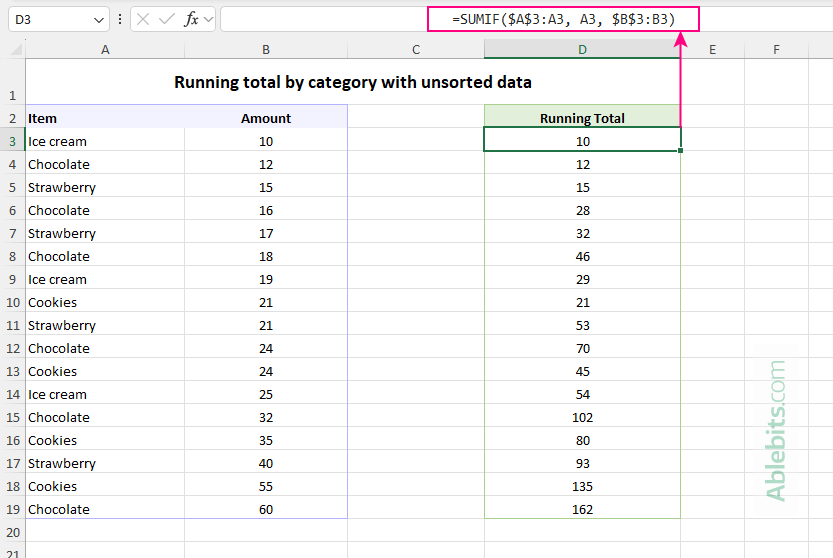
Where: The formula operates by gradually expanding both ranges as it moves down the worksheet: For example, in D4, the formula becomes One of the biggest advantages of this approach is that it does not require the data to be sorted. Because the formula searches the expanding range for matching categories, it correctly accumulates values even when the same category appears in different parts of the dataset. The example below shows the same formula applied to data where items are mixed rather than grouped together. Just compare the results with the previous example to make sure they are true.
As useful as the SUMIF approach is, it follows the traditional copy-down approach. This is usually not a problem for small tables, but in larger worksheets copied formulas can be accidentally overwritten, deleted, or left out when new data is added. If you use Excel 365, the next example shows how to calculate the entire running total by category with a single dynamic array formula.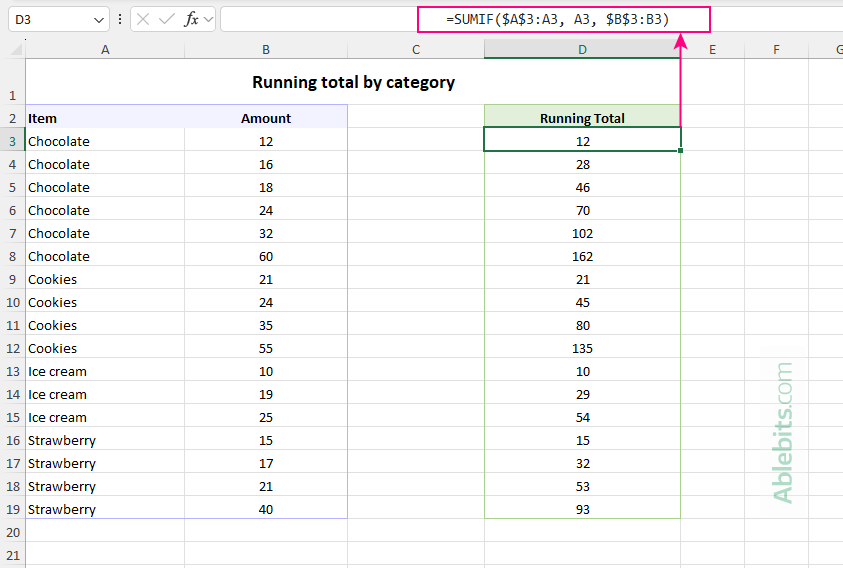
How this formula works:
=SUMIF($A$3:A3, A3, $B$3:B3)
$A$3:A3 is the criteria range.A3 is the criteria.$B$3:B3 is the sum range.
$A$3:A3 includes all items (categories) from the first record down to the current row. This happens because $A$3 is an absolute reference that always points to the topmost cell in the range (excluding the column header), while A3 is a relative reference that changes for the current row as the formula is filled down.A3 tells SUMIF to sum only the rows that belong to the current category (the value in column A in the current row).$B$3:B3 expands in the same way, including all amounts from the first row through the current row.SUMIF($A$3:A4, A4, $B$3:B4), and so on for each subsequent row. As a result, Excel continually adds amounts belonging to the current category while ignoring all others.
Running total by category with unsorted data
Get cumulative totals by category with dynamic array formula (Excel 365)
Excel 365 offers a more elegant alternative: one formula that returns all running totals at once. This formula is far more complex than the SUMIF version and may look intimidating at first glance.
Fortunately, you don't need to memorize every detail to use it. Simply grab it from here and adjust the references for your own dataset 😊
For our sample dataset, where items are in A3:A19 and amounts are in B3:B19, the formula is:
=LET(items, A3:A19, sales, B3:B19, changes, IF(items<>VSTACK("", DROP(items, -1)), 1, 0), SCAN(0, SEQUENCE(ROWS(items)), LAMBDA(a, i, IF(INDEX(changes, i)=1, INDEX(sales, i), a + INDEX(sales, i)))))
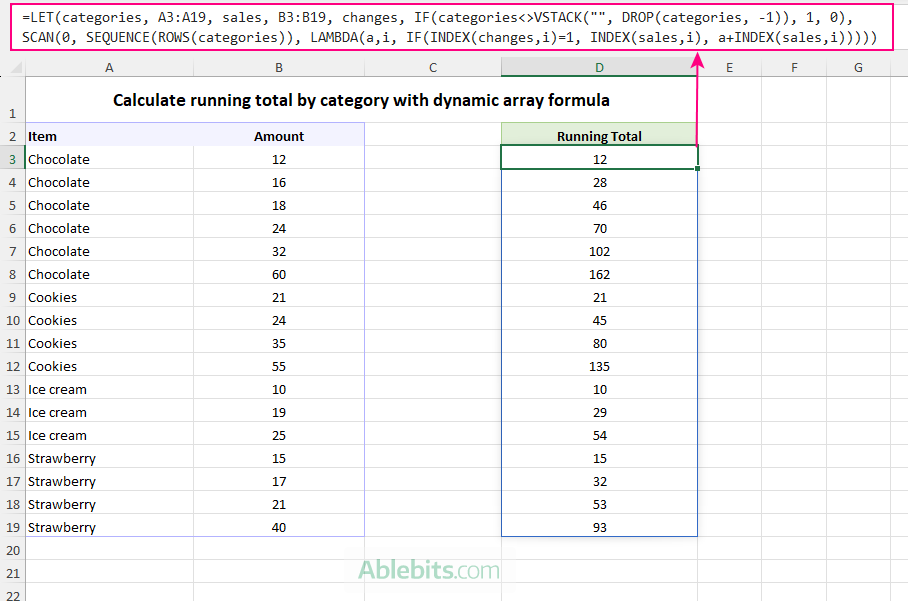
Note. This formula works when the data is grouped by category, because it resets the total whenever the item name changes.
How this formula works
To make the logic easier to follow, let's rewrite it in a more readable format:
=LET(

    items, A3:A19,

    sales, B3:B19,

    changes, IF(items<>VSTACK("", DROP(items, -1)), 1, 0),

    SCAN(0, SEQUENCE(ROWS(items)),

        LAMBDA(a, i,

            IF(INDEX(changes, i)=1, INDEX(sales, i), a + INDEX(sales, i))

        )

    )

)
There are three main parts in this formula.
LET block: Defines reusable variables
The LET function gives short names to parts of the formula, making it easier to read and edit:
- items – refers to the item names in
A3:A19. - sales – refers to the amounts in
B3:B19. - changes – checks where a new category begins.
IF statement: Detects category changes
This part identifies whether the current row starts a new category:
IF(items<>VSTACK("", DROP(items, -1)), 1, 0)
Here is what happens:
The DROP function removes the last item from the original items array. Then VSTACK adds an empty value at the beginning. Together, these functions create a new items array of the same size that is offset or "shifted" from the original array by one position.
In our case, the original item list:
{Chocolate; Chocolate; Chocolate; Cookies; Cookies; …}
becomes:
{""; Chocolate; Chocolate; Chocolate; Cookies; …}
Next, the formula compares the two arrays:
items<>VSTACK("", DROP(items, -1))
In effect, this checks each item against the value in the previous row:
- If the values are different, the formula returns
1, meaning a new category starts. - If the values are the same, it returns
0, meaning the current category continues.
The resulting changes array looks like this:
{1; 0; 0; 1; 0; 0; 0; 0; 1; 0; 0; 0; 0; 0; 1; 0; 0;}
Here, each 1 marks the first row of a new category: the first 1 is the first Chocolate, the second 1 is the first Cookies, and so on.
SCAN function: Builds the running total
The SCAN function processes the rows one at a time:
SCAN(0, SEQUENCE(ROWS(items)), LAMBDA(a, i, IF(INDEX(changes, i)=1, INDEX(sales, i), a + INDEX(sales, ))))
Here is the logic:
0is the initial value, so the running total starts from zero.SEQUENCE(ROWS(items))creates row numbers 1, 2, 3, … 17, so SCAN can iterate through each row.
With each iteration, the LAMBDA receives:
a– the accumulated running total so fari– the current row number
At each row, this part decides what to do:
IF(INDEX(changes, i)=1, INDEX(sales, i), a+INDEX(sales, i))
- If
INDEX(changes, i) = 1, a new category has started, so the running total resets to the current amount. - If
INDEX(changes, i) = 0, the category is the same as the previous row, so the current amount is added to the accumulated total.
As the final result, SCAN spills the complete column of running totals.
How to calculate running count by category in Excel
If you don't mind copying a formula down the column, COUNTIF can create a quick sequential count for each group of data. The formula is very simple and works in all Excel versions.
=COUNTIF($A$3:A3, A3)
Enter the formula in D3 and copy it down through as many rows as needed.
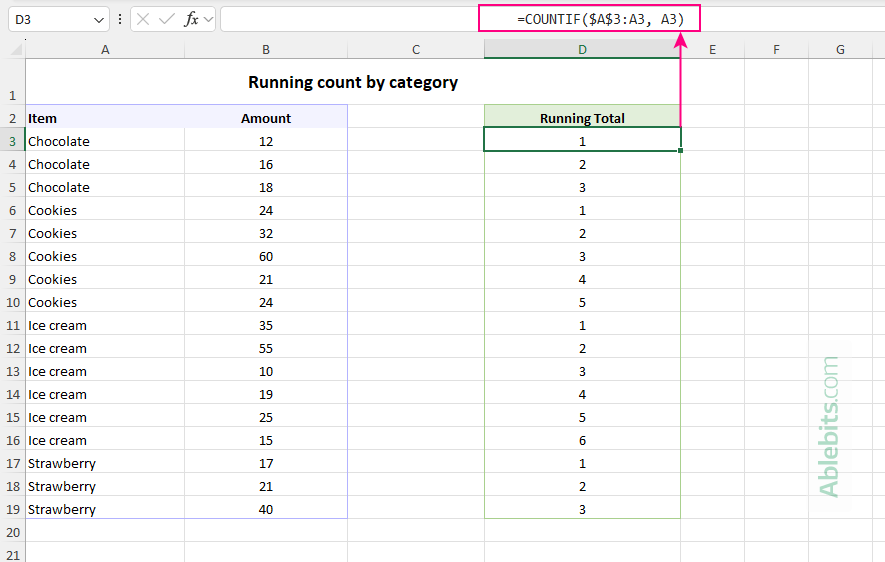
Like the SUMIF formula used for running totals, this solution also leverages an expanding range ($A$3:A3). As the formula is copied to the rows below, the first reference ($A$3) remains fixed while the second one (A3) adjusts to the current row. As a result, the range always includes all items from the first row through the current row.
This approach works beautifully for both datasets grouped by category and unsorted data.
Create running count by category with dynamic array formula (Excel 365)
In Excel 365, you can replace multiple copied COUNTIF formulas with a single dynamic array formula that generates the full set of counts in one go.
For our sample dataset, you can use the following BYROW formula:
=BYROW(A3:A19, LAMBDA(r, COUNTIF(A3:INDEX(A3:A19, ROW(r)-ROW(A3)+1), r)))
Or this SCAN formula:
=LET(items, A3:A19, changes, IF(items<>VSTACK("", DROP(items, -1)), 1, 0), SCAN(0, changes, LAMBDA(a, v, IF(v=1, 1, a+1))))
Enter either formula in the topmost destination cell (D3), and Excel will automatically spill the complete sequence of counts into the cells below.
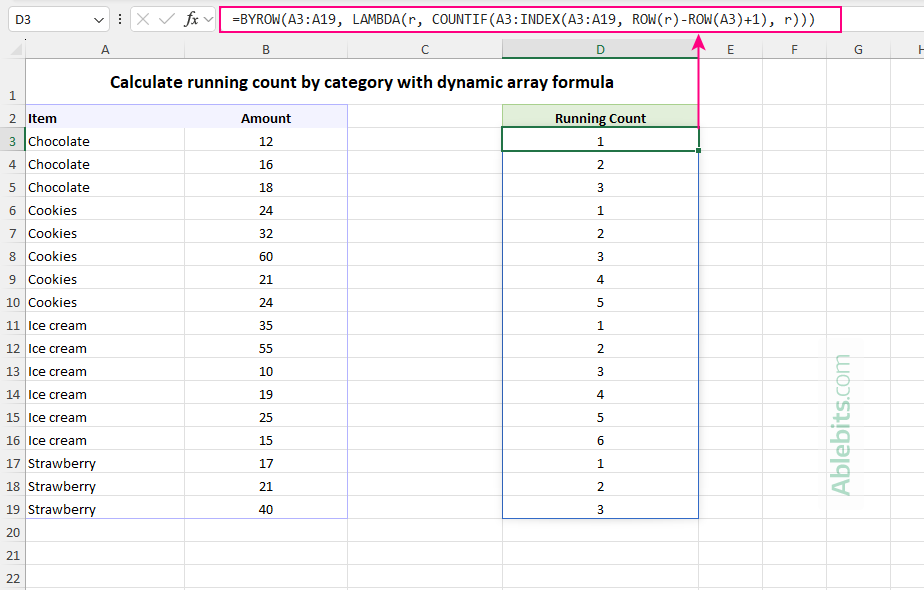
Note. These formulas are designed for data grouped by category. If identical categories are scattered throughout the dataset, the formulas will start a new count rather than continue the existing one (because they only compare the current row with the row immediately above it).
How these formulas work
While both formulas produce the same result, they solve the problem in different ways. Understanding the logic behind each approach can help you adapt them to various scenarios.
BYROW formula
The BYROW formula processes the item range one row at a time.
For each item, COUNTIF counts how many times that same item has appeared from the first row of the dataset up to the current row.
COUNTIF(A3:INDEX(A3:A19, ROW(r)-ROW(A3)+1), r))
The key part is this expanding range:
A3:INDEX(A3:A19, ROW(r)-ROW(A3)+1)
The INDEX function returns the current cell within the items range, so the COUNTIF range grows row by row. For the first row, it checks A3:A3; for the second row – A3:A4; for the third row – A3:A5; and so on.
As a result, each item receives its occurrence number within the category.
SCAN formula
At the core, this formula uses the same category-change logic as the running total formula:
IF(items<>VSTACK("", DROP(items, -1)), 1, 0)
The IF statement compares each item with the item in the row above. If the item is different, it returns 1, meaning a new category starts. If the item is the same, it returns 0, meaning the current category continues.
The remaining part is simpler than the running total formula, because in this case there are no amounts to add:
SCAN(0, changes, LAMBDA(a, v, IF(v=1, 1, a+1)))
Here, SCAN processes the changes array one value at a time. When it encounters 1, it resets the counter to 1 because a new category begins. When it encounters 0, it adds 1 to the previous count because the same category continues.
As a result, the formula returns a sequential count within each category.
That's how to calculate running totals and counts by category in Excel. The next time you need to see how values accumulate within certain groups, you won't have to resort to filtering, sorting or manual calculations. A couple of your preferred formulas can do all the work for you. Which is great, because spreadsheets are much happier doing repetitive counting than people are. 😄
Practice workbook for download
Running totals and counts by category - examples (.xlsx file)