 by
by Learn how to add an HTML signature to Gmail. In this guide, you'll discover how to create an HTML signature using our free templates, professional tools, or your own code. Whether you want to insert your HTML signature manually or via an extension, we cover every method.
Adding an HTML signature is the secret to a professional Gmail signature. But it's not as simple as copy-pasting code, because Gmail uses a visual editor. In this article, I'm breaking down the best ways to create and add an HTML signature in Gmail for any skill level.
Why use HTML signatures in Gmail?
An HTML email signature is pretty much what it sounds like — a signature built with HTML code. So instead of typing your name and number as plain text, you're sticking a tiny, clickable webpage at the bottom of every email.
You might be thinking — why go through all that trouble? You could just type a signature right in Gmail's editor or create and copy-paste your signature from Google Docs. So what's the point? Consistency. An HTML signature looks the same on a desktop, a tablet, and a phone. Whether your recipient reads it on a Mac or an old Android, there won't be broken layouts or weird shifting.
So does Gmail actually let you use HTML signatures? Short answer: yes. But as it usually happens with Gmail, there's a catch 🙄.
Here's the thing — Gmail's editor is visual (fancy term: WYSIWYG). So you can't just paste raw HTML code into the signature box. Try it, and your recipients will see a mess of <table> and <div> tags instead of a nice signature.
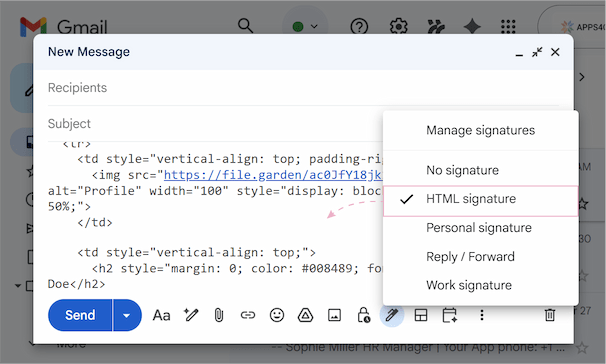
Your best bet? To add an HTML signature to Gmail, you have two choices:
- Import a fully rendered HTML design (copying the visual result from a browser).
- Use an extension like Shared Email Templates & Signatures, which features a dedicated HTML editor. Just paste your code, and it renders your professional signature right away — adding it where Gmail's editor fails.
In this case, you get way more than just plain text and basic links. So — how do you actually build one and stick it into Gmail? Let's see.
How to create an HTML signature for Gmail
Before you can add a signature to your settings, you need the actual HTML code. Depending on your technical skills and how much time you have, there are five main ways to get it.
Option 1: Code it yourself
If you want total control over every pixel, coding your own signature is the best route. However, to stop your signature from falling apart, you've got to play by these rules:
- Use tables for layout. Forget about
<div>-s. Gmail just doesn't handle them well. Stick with nested<table>tags to keep everything aligned. - Use inline CSS only. Gmail often strips out styles from the
<head>section. So you need to slap styles directly onto each tag — like<td style="font-family: Arial; color: #007B91;">. - Host your images somewhere. You can't upload a photo directly into the code. Your logo and social icons must be hosted on a public, secure server (HTTPS) and linked via a full URL.
Note: Always add display: block; to your images and set line-height on your table cells. That's the best fix for that annoying double spacing issue when you drop an HTML signature into Gmail.
Option 2: Customize my free HTML email signature templates
Not ready to write code from scratch, but comfortable swapping out some text and links? Then a template is your best friend.
Template 1: Simple HTML signature template
I put together a simple HTML template: profile photo on the left, contact details on the right. Here's how to customize it to create your own signature.
To use this HTML signature template:
- Host your headshot using reliable image hosting services like FileGarden or PostImages.
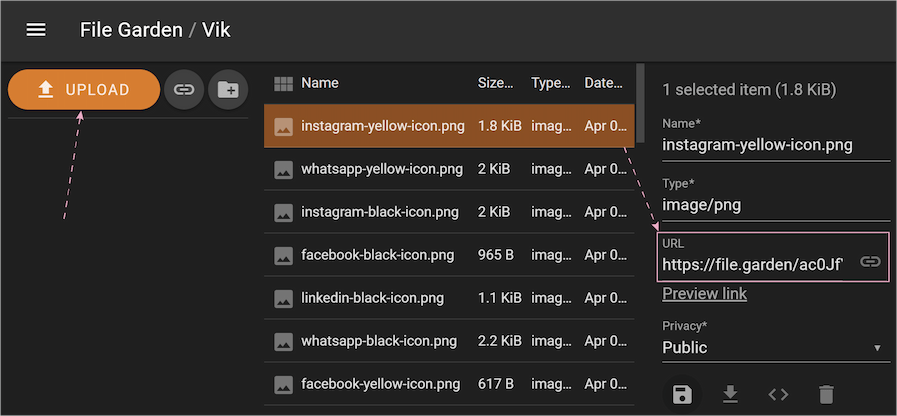
- Copy the code:
<table cellpadding="0" cellspacing="0" border="0" style="font-family: Arial, sans-serif; color: #3F3F3F; line-height: 1.4;">

<tr><td style="vertical-align: top; padding-right: 20px;">

<img src="https://file.garden/ac0JfY18jk1XQsym/photo.png" alt="Profile" width="100" style="display: block; border-radius: 50%;">

</td><td style="vertical-align: top;">

<h2 style="margin: 0; color: #008489; font-size: 18px;">Jane Doe</h2>

<p style="margin: 0 0 10px 0; font-size: 14px; font-weight: bold;">Technical Writer | Ablebits</p>

<table cellpadding="0" cellspacing="0" border="0" style="font-size: 13px; color: #666868;">

<tr><td style="padding-bottom: 5px;">📞 +48 609 596 105</td></tr>

<tr><td style="padding-bottom: 5px;">✉️ <a href="mailto:jane.doe@gmail.com" style="color: #666868; text-decoration: none;">jane.doe@gmail.com</a></td></tr>

<tr><td style="padding-bottom: 5px;">🌐 <a href="https://www.ablebits.com/" style="color: #666868; text-decoration: none;">ablebits.com</a></td></tr>

</table></td></tr></table> - Paste it into a text editor (Notepad, TextEdit — whatever). But honestly, I highly recommend to use Squarefree instead — it shows you your changes as you type.
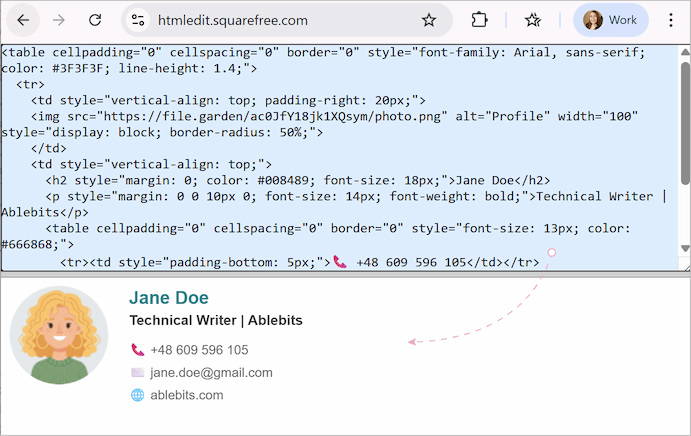
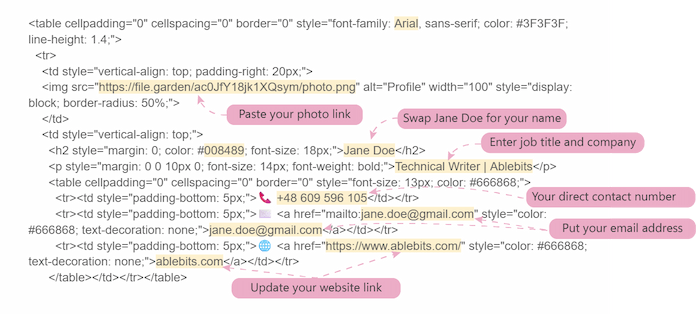
- Replace the placeholders with your own info:
- Image URL:
https://file.garden/ac0JfY18jk1XQsym/photo.pngwith the link to your hosted photo.Note: Use the direct link (the URL that ends in .png or .jpg). Viewer page links won't work.
- Name & Title: Replace Jane Doe and Technical Writer | Ablebits with your name and job details.
- Phone: Update the phone number to your own.
- Email & Website: In these lines, you need to update two things:
- The link: Replace
jane.doe@gmail.comandhttps://www.ablebits.com/inside the quotes with your own email address and website URL. - The text: Replace
jane.doe@gmail.comandablebits.comwith the actual text that will be visible to your recipients.
- The link: Replace
- Image URL:
Note: Need different font colors but clueless about codes? Try Image Color Picker.
And your HTML signature is ready to be inserted into Gmail settings.
Template 2: Modern Gmail signature HTML template with social icons
If a simple template isn't enough, here's a more advanced one — with a divider line and social media icons.
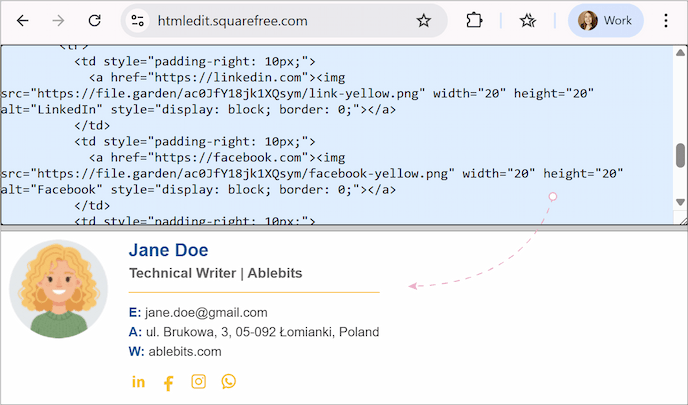
The HTML code to use as a signature template:
<table cellpadding="0" cellspacing="0" border="0" style="font-family: Arial, sans-serif; color: #444444; line-height: 1.5; min-width: 300px;">
<tr><td style="vertical-align: top; padding-right: 20px;">
<img src="https://file.garden/ac0JfY18jk1XQsym/photo.png" alt="Profile" width="100" style="display: block; border-radius: 50%;">
</td><td style="vertical-align: top;">
<h2 style="margin: 0; color: #00509A; font-size: 18px; line-height: 1.2;">Jane Doe</h2>
<p style="margin: 2px 0 8px 0; font-size: 14px; color: #666666; font-weight: bold;">Technical Writer | Ablebits</p>
<table cellpadding="0" cellspacing="0" border="0" width="100%" style="margin-bottom: 12px;">
<tr><td height="1" bgcolor="#FFC300" style="font-size: 1px; line-height: 1px;"> </td></tr></table>
<table cellpadding="0" cellspacing="0" border="0" style="font-size: 13px; color: #444444;">
<tr><td style="padding-bottom: 4px;"><span style="color: #00509A; font-weight: bold;">E:</span> <a href="mailto:jane.doe@gmail.com" style="color: #444444; text-decoration: none;">jane.doe@gmail.com</a></td></tr>
<tr><td style="padding-bottom: 4px;"><span style="color: #00509A; font-weight: bold;">A:</span> ul. Brukowa, 3, 05-092 Łomianki, Poland</td></tr>
<tr><td style="padding-bottom: 12px;"><span style="color: #00509A; font-weight: bold;">W:</span> <a href="https://www.ablebits.com" style="color: #444444; text-decoration: none;">ablebits.com</a></td></tr></table>
<table cellpadding="0" cellspacing="0" border="0"><tr>
<td style="padding-right: 10px;"><a href="https://linkedin.com"><img src="https://file.garden/ac0JfY18jk1XQsym/link-yellow.png" width="20" height="20" alt="LinkedIn" style="display: block; border: 0;"></a></td>
<td style="padding-right: 10px;"><a href="https://facebook.com"><img src="https://file.garden/ac0JfY18jk1XQsym/facebook-yellow.png" width="20" height="20" alt="Facebook" style="display: block; border: 0;"></a></td>
<td style="padding-right: 10px;"><a href="https://instagram.com"><img src="https://file.garden/ac0JfY18jk1XQsym/inst-yellow.png" width="20" height="20" alt="Instagram" style="display: block; border: 0;"></a></td>
<td><a href="https://www.whatsapp.com/"><img src="https://file.garden/ac0JfY18jk1XQsym/watsapp-yellow.png" width="20" height="20" alt="WhatsApp" style="display: block; border: 0;"></a></td>
</tr></table></td></tr></table>
Customize it the same way as the simple template, but with a few more steps:
- Divider Line: To change the color of the horizontal line, replace the HEX code in
bgcolor="#FFC300"with your brand's color. - Social media icons: Two things to update here — the link and the icon.
- The link: Replace the
href="https://..."placeholder with your actual profile URLs. - The icon: I've designed and hosted some social icons for you, so feel free to use them as-is or replace them with another variant from the list below.
- The link: Replace the
Free social media icons for your email signature:
- Modern yellow set: LinkedIn | Facebook | Instagram | WhatsApp

- Classic black set: LinkedIn | Facebook | Instagram | WhatsApp









Just copy the URL of the icon you like and drop it into the src="" attribute of the corresponding social network in the code. Or hunt for other icons on Flaticon, Freepik, or Icons8.
Option 3: Create with a visual editor (Google Docs or WordHTML)
So you want a custom signature, however digging through someone else's code makes you want to scream. But writing your own from scratch is not a real option, because you prefer a visual editor. You still have other options:
- Google Docs: Create a table, drag in your photos, format your text. It's the most hands-on way to do it without touching code.
Note: Learn how to format a signature using a Google Docs layout table in one of our previous guides 😉.
- WordHTML: This is a great free tool. Looks like a standard word processor, but it generates clean HTML in a side panel as you work.
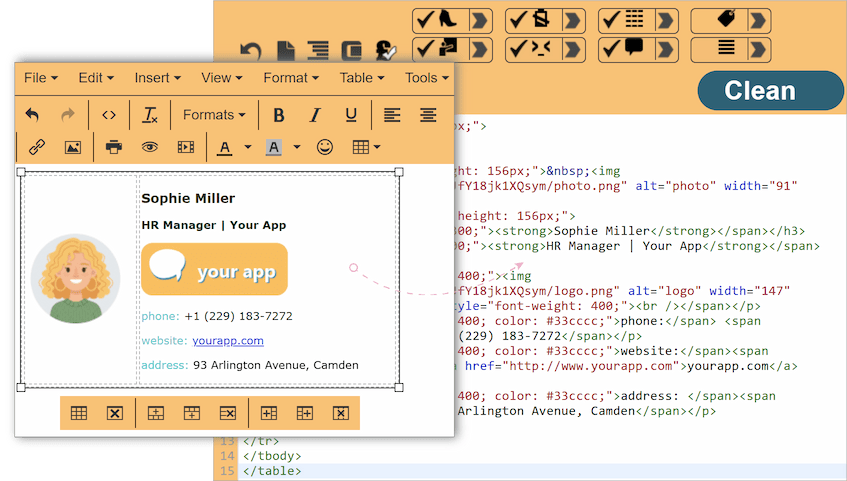
Keep these rules in mind for the best result:
- Use tables for the layout. This is the secret to a professional look that won't "break" on mobile devices.
- Host your images first. Just like with manual coding, your photos must be saved on the web (not just your hard drive) to show up in your recipient's inbox.
- Add your links manually. Before you finish, make sure to highlight your icons and text to link them to your social media profiles or website.
- Fix gaps. Visual editors often add extra padding or "white space" around images. To keep everything tight, you’ll need to change your code a bit:
- Swap
<p>for<span>and<br>for zero-padding text. - Use
display: block;on images to remove the tiny 5px gap under icons. - Set
line-height: 1.2;&vertical-alignto your<td>tags. - Set
cellpadding="0"andcellspacing="0"in your<table>tag.
- Swap
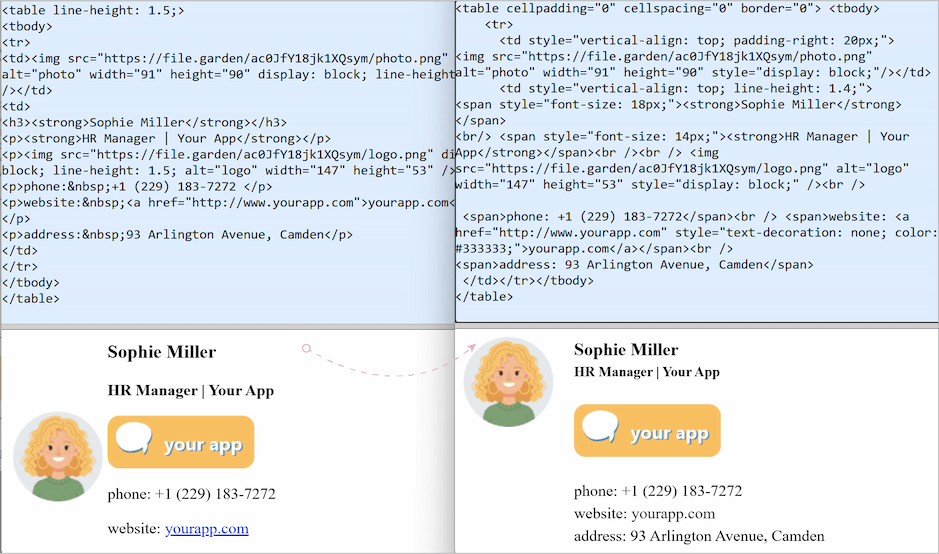
Option 4: Use a dedicated HTML signature generator
If you don't want to design anything at all, you should try a Gmail HTML signature generator. There are plenty out there.
Here's how they usually work:
- Pick a template.
- Add your info.
- Export and drop it into Gmail.
Sounds easy, right? Yeah, but this method has its pros and cons:
- Pros: Fast, looks good out of the box, zero coding needed.
- Cons: Free versions usually slap their own branding on there and don't let you tweak much.
Option 5: Design an HTML email signature with Shared Email Templates & Signatures
Shared Email Templates & Signatures is honestly the best tool for making a custom HTML signature.
It handles all the messy rendering in the background — so your design stays exactly how you built it. Just pick a layout and paste in your info.
Note: Learn how to design and build your professional signature with Shared Email Templates & Signatures.
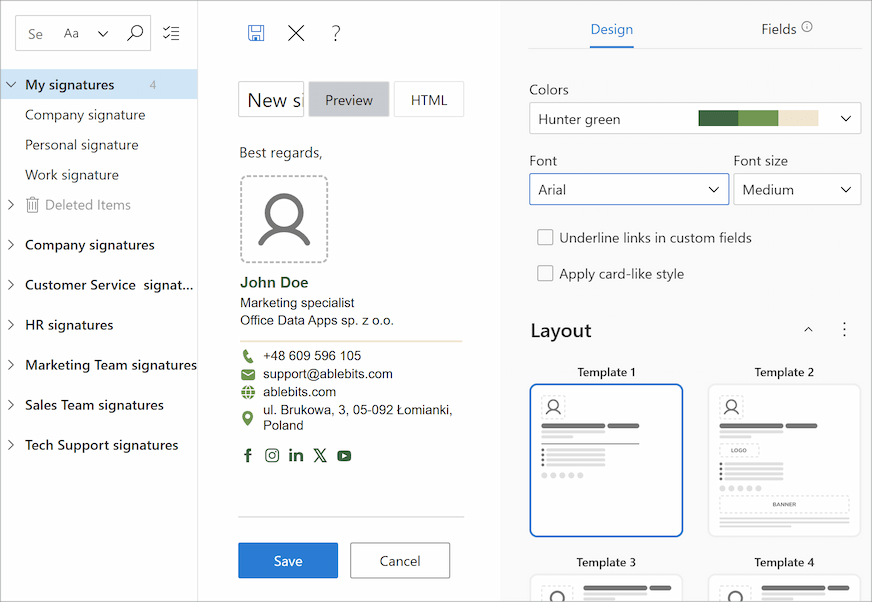
It also has an HTML editor mode — so you can code your signature, paste your code, or edit right there.
How to add HTML signature to Gmail
Once you have your HTML code ready and your images hosted, it’s time for the final step: getting that design into your emails.
As I mentioned before, Gmail’s signature editor doesn't have a "Paste code" button or HTML mode. Some people try to hack it with developer tools. And sure, it shows up. But the moment you click Save Changes, your signature disappears.
To insert an HTML signature in Gmail, you need to import a fully rendered HTML design or use special extensions like Shared Email Templates & Signatures.
How to insert HTML into Gmail using a browser preview
Step 1: Render your HTML
You can turn your code into a visual in two ways:
Use Squarefree:
- Open Squarefree in your browser.
- Paste your code. You'll see the result right there in the bottom pane.
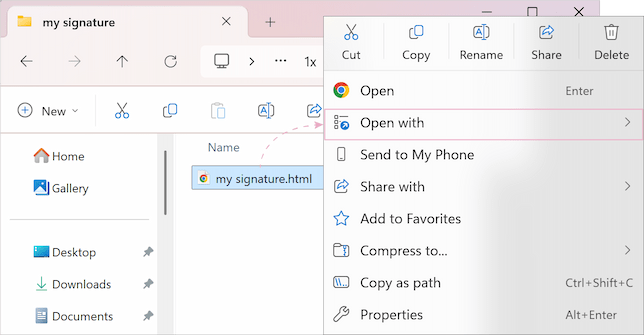
Save locally:
- Save your code as an
.htmlfile. - Right-click it.
- Choose Open with > pick your browser. Your signature will pop up in a new tab.
Step 2: Copy the result
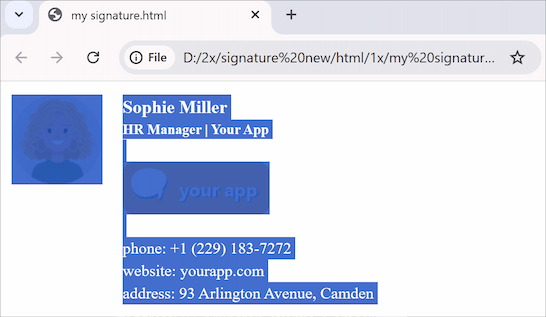
- Highlight the entire signature in the preview window — press Ctrl + A (or Cmd + A on Mac).
- Copy it with Ctrl + C (or Cmd + C).
Step 3: Paste it into Gmail Settings
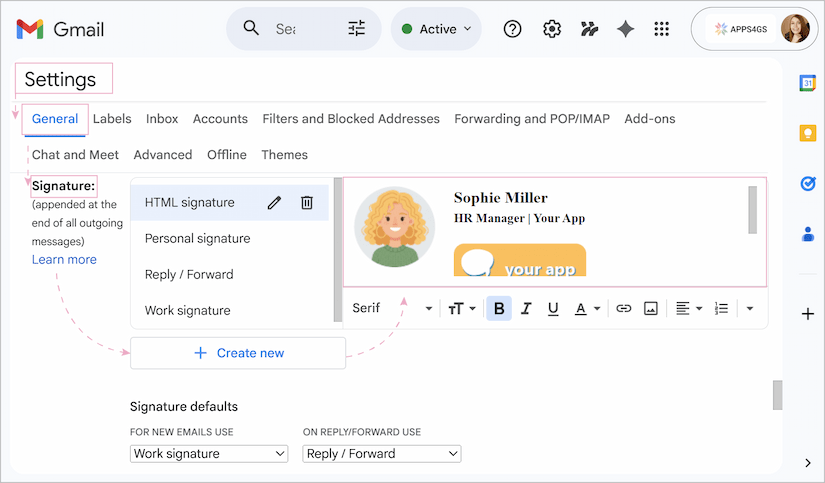
- Go to Gmail > Settings > See all settings.
- On the General tab, scroll down to the Signature section.
- Click + Create new and give your signature a name.
- In the Signature editor, press Ctrl + V (or Cmd + V) to paste.
Step 4: Save your changes
Scroll all the way down and click Save Changes.
Oh, and send yourself a test email before you start using it. Gmail has a mind of its own sometimes 🫠.
Note: More on adding, managing, editing, and setting default signatures in our full guide.
Use HTML editor mode in Shared Email Templates & Signatures
With Shared Email Templates & Signatures, you can skip the "copy-paste-hope-it-works" routine, as it has a dedicated HTML mode built for exactly this. You can tweak your design and see the changes instantly without jumping between text editors, browser tabs and signature settings.
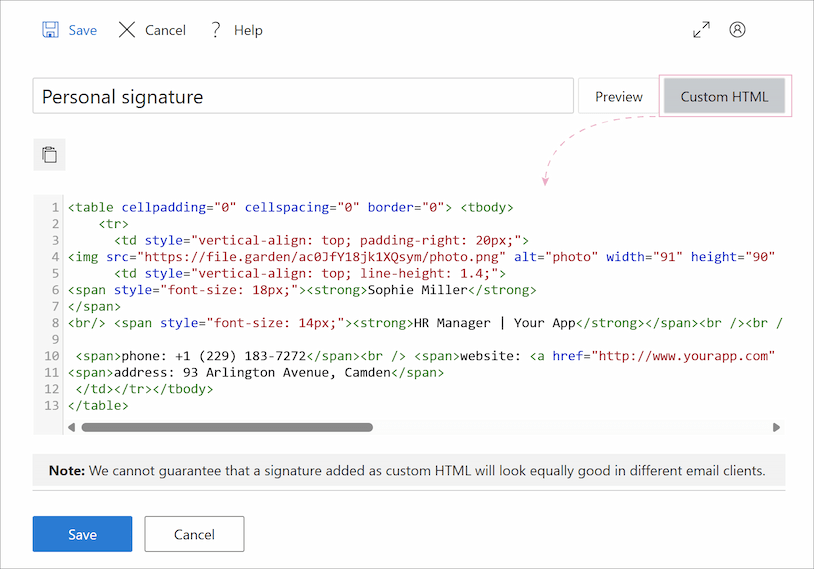
Instead of fighting with Gmail's settings, you can insert your signature directly into any email.
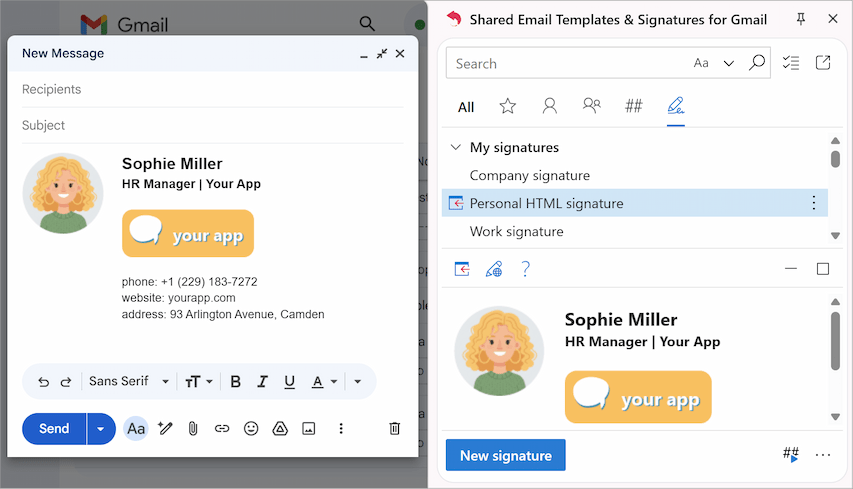
Shared Email Templates & Signatures isn't just for one person — it's great for teams. You can update the company logo or a promo banner for everyone at once, rather than asking 50 employees to manually update their Gmail settings.
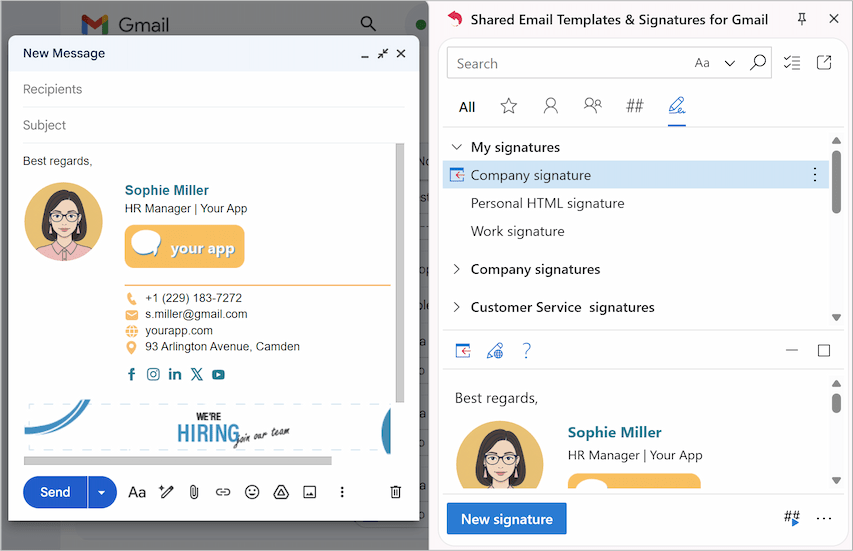
Shared Email Templates & Signatures is perfect for both sides — people who don't want to deal with code and those who want to inspect every pixel. Want to try it? Download the free trial.
Troubleshooting: Why isn't my Gmail signature working?
If your signature looks like a mess or won't save — don't panic. Here are the most common issues and how to fix them.
Double spacing when adding HTML signature to Gmail
You paste your signature, and suddenly there are giant gaps between every line. It's likely because Gmail's editor is converting line breaks into paragraph <p> or <div> tags, which include default margin spacing.
How to fix it: Avoid using <p> tags for your contact info. Use <span> or just plain text with a <br>. Also, like we said earlier — always add display: block; to your images and set a specific line-height in your table cells. That'll keep everything tight.
Your signature doesn't save
You click Save Changes and nothing happens. Or your signature just vanishes. A few factors could be at play here.
The first one is a massive code. Gmail has a hidden limit — about 10,000 characters for your signature's HTML code. Gmail will refuse to save it if there are too many complex styles or massive image URLs.
Another culprit: local file paths like C:/Users/Admin/Desktop/photo.png. The mail server needs an online image — otherwise it'll reject the attachment or your signature will break.
How to fix it: Keep your code clean. Use short, direct links for your images.
Broken images
Your recipient sees a small broken image icon instead of your professional headshot.
How to fix it: Gmail often blocks images hosted on HTTP sites. Double-check that your image links start with https://…. Also, if you're using Google Drive, the "Share" link won't work. You need a direct link that ends in .png or .jpg.
Formatting glitch
Sometimes after you copy-paste from a browser, the fonts look... off. Maybe a little different, maybe completely wrong.
How to fix it: Use standard web-safe fonts like Arial, Georgia, Verdana, or Helvetica. Almost every device and browser supports them natively.