 by
by Need to set up multiple signatures in Gmail? This guide provides step-by-step instructions on how to create multiple signatures for different Gmail accounts. This is particularly useful if you need distinct signatures for professional, personal, or multi-lingual correspondence, and manage it all from a single inbox.
Adding a signature in Gmail is a great way to personalize your emails, but sometimes a single signature just isn’t enough. Fortunately, Gmail allows you to create multiple signatures not only for your primary address, but for several linked accounts at once. After reading this article, you will be able to use multiple signatures with ease!
Can you have multiple signatures in Gmail?
Gmail allows you to create and manage different signatures for various situations within one or several accounts. It can be useful for both work and personal emails. Here are the key benefits:
- Firstly, with this feature you can switch automatically between personal and business correspondence, keeping an appropriate tone for the message. It doesn’t look good if you sign your official email with “Cheers!” or send your business information to family members.
- Secondly, for initial emails, it’s important to include your full contact information. But for forwards and replies, it could be overkill; and you may need a shorter version of the signature. This way, your email looks neat without losing its meaning.
- Thirdly, you may exchange emails with a lot of people around the world in different languages. It would be a polite gesture to use a separate signature in each language. Moreover, this will help to avoid misunderstandings due to cultural differences.
- Finally, this feature can save the time you spend on correspondence. You just need to create the necessary signatures in advance. So, you won’t need to update your signatures every time you send a different type of email.
While you can have multiple signatures within one account, in this article, we will focus on how to set up and manage signatures across multiple linked Gmail accounts.
Note: For a basic guide on setting up, editing, and removing signatures in a single account, check out our dedicated article.
How to set up multiple signatures in Gmail for different accounts
If you have several Gmail accounts, you can create different signatures for each account.
Note: Haven't created your signatures yet? Stay tuned — a new article on how to create a professionally looking signature coming to our blog very soon 😉.
To set up multiple signatures for different Gmail accounts, just follow these steps:
- Open Gmail and click on the Gear icon > See all settings.
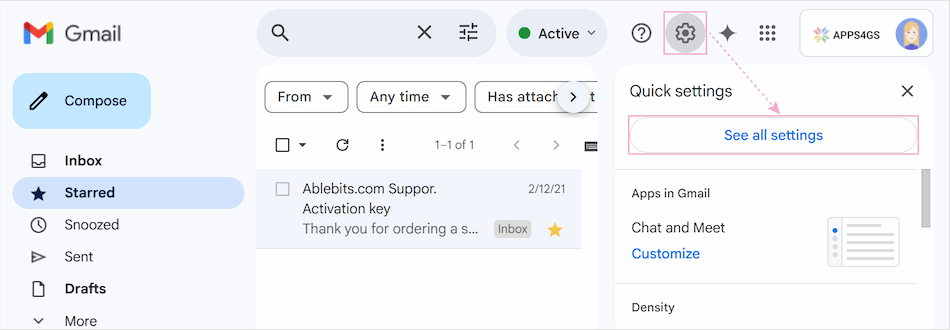
- In the General tab, scroll to the Signature section, where all your previously created signatures are stored.
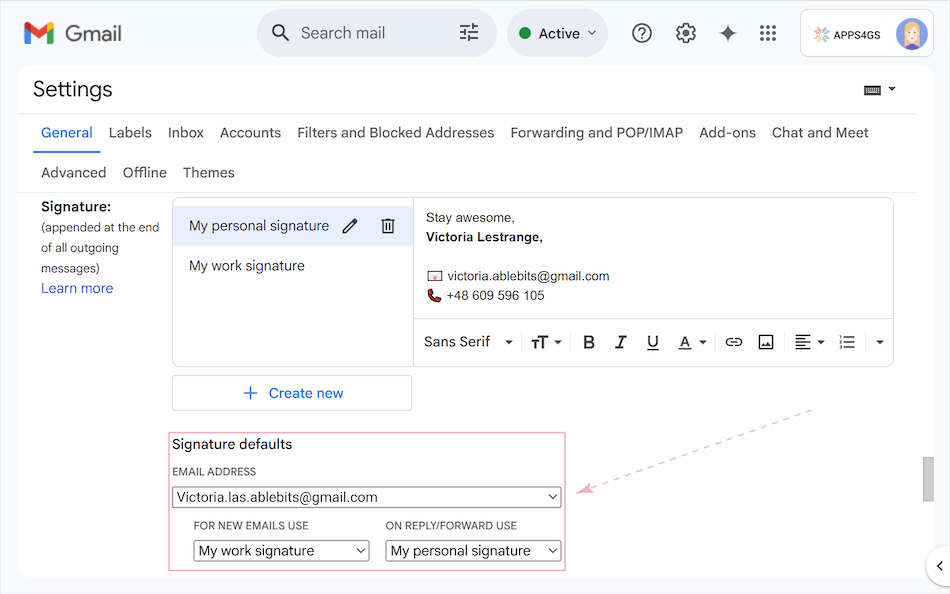
- In the Signature section, you will see a drop-down menu under the Signature defaults settings. Click here and select the email address for which you want to create or edit a signature.
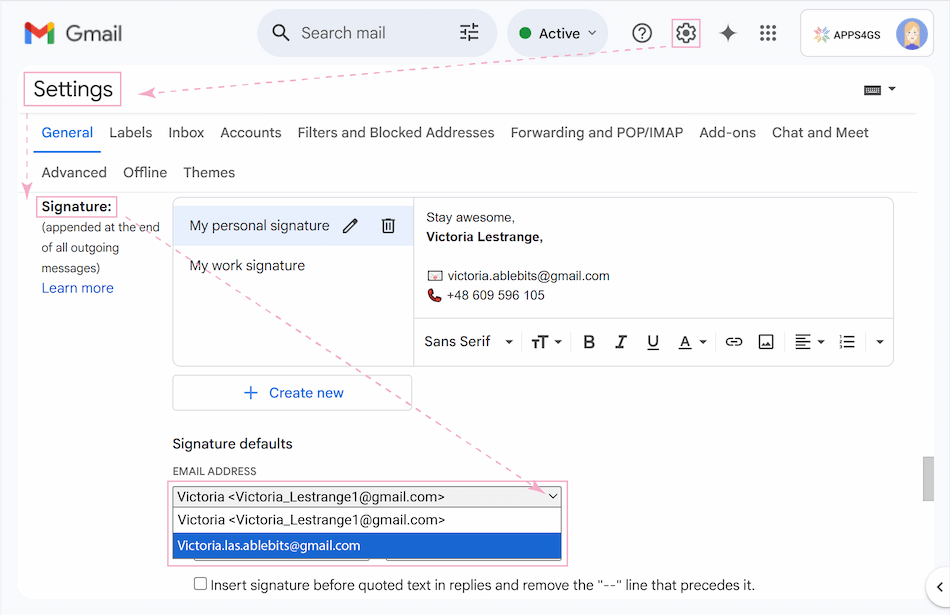
- If you cannot see the drop-down menu or any additional email addresses, don’t worry. This means there’s only one account in your settings, the others need to be added separately. Go to the Accounts and Import settings page (or the Accounts for corporate emails with restrictions).
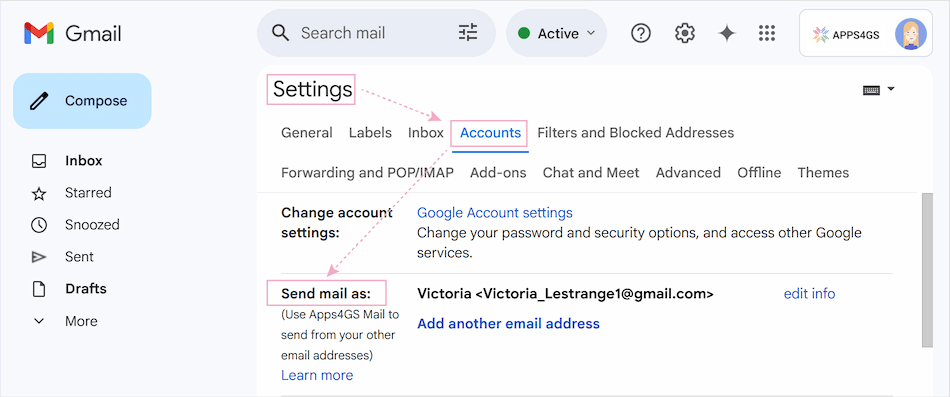
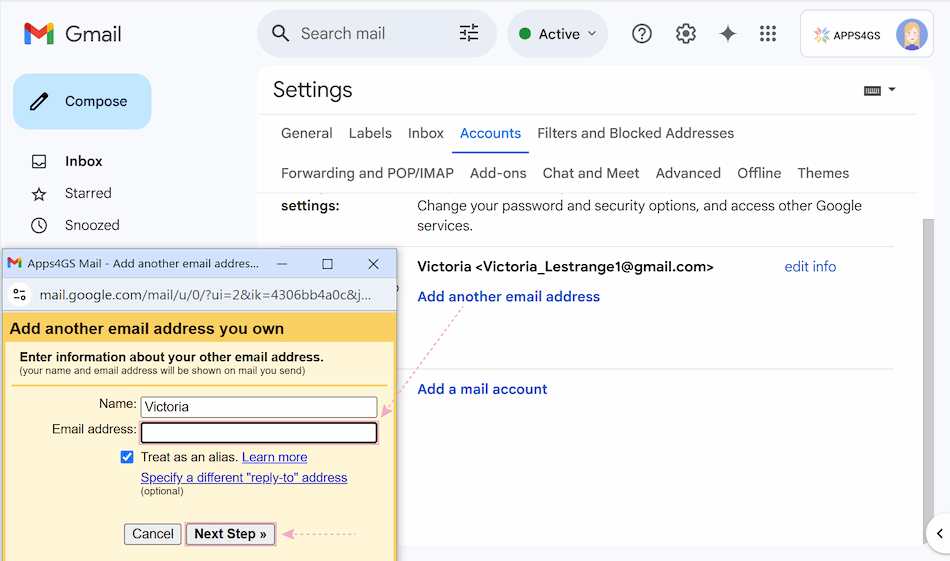
- In the Send mail as section, select Add another email address.
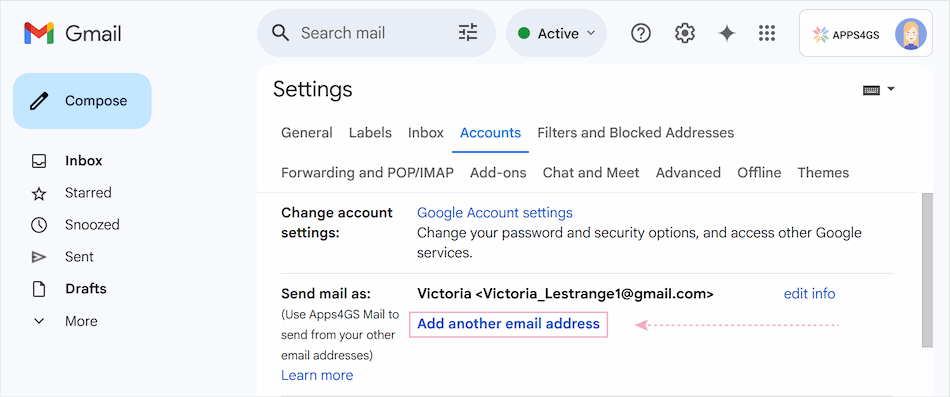
- Enter the required details (Name and Email address) in the pop-up window and click the Next Step >> button.
- Go through the verification by clicking Send verification. To complete the verification, check the inbox of the attached account. Find the email with the confirmation, click on the link in the email to confirm your request. If you have difficulties with verification, you can find more detailed information at the link.
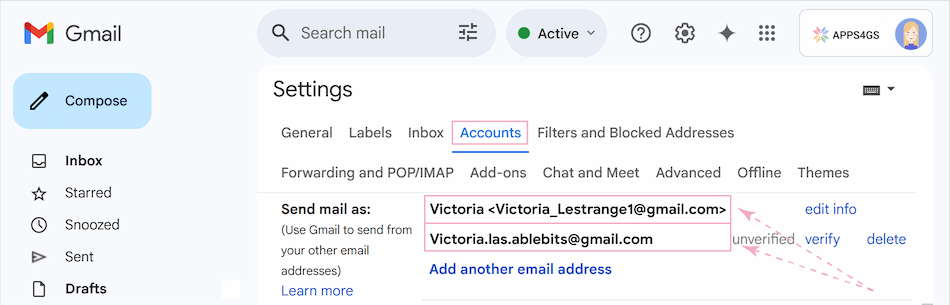
- After confirmation, come back to the Accounts and Import settings page (or the Accounts for corporate emails with restrictions). Now, once verified, several addresses will be linked to your account. Make sure all alternative email addresses are correctly listed in the Send mail as section.
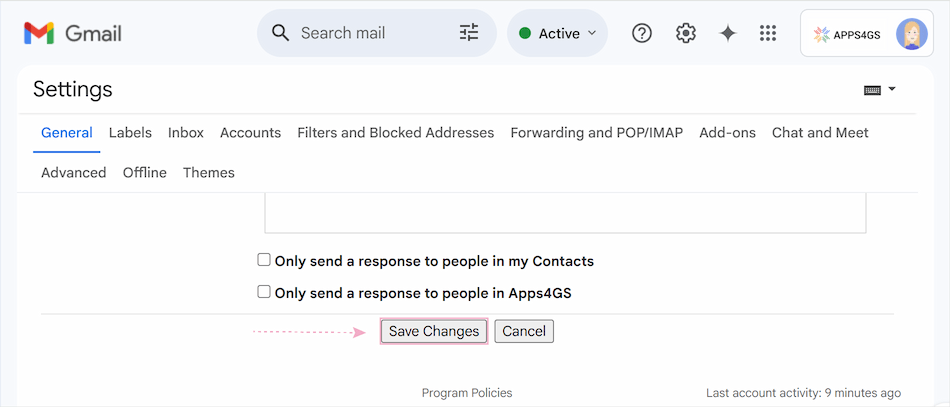
- Click the Save Changes button at the bottom of the page.
- Now, you can set up unique signatures for each email address associated with your Gmail account. Select the email address you want to create or edit a signature for. Adjust your default signature settings as needed, and don't forget to click Save Changes to apply them.
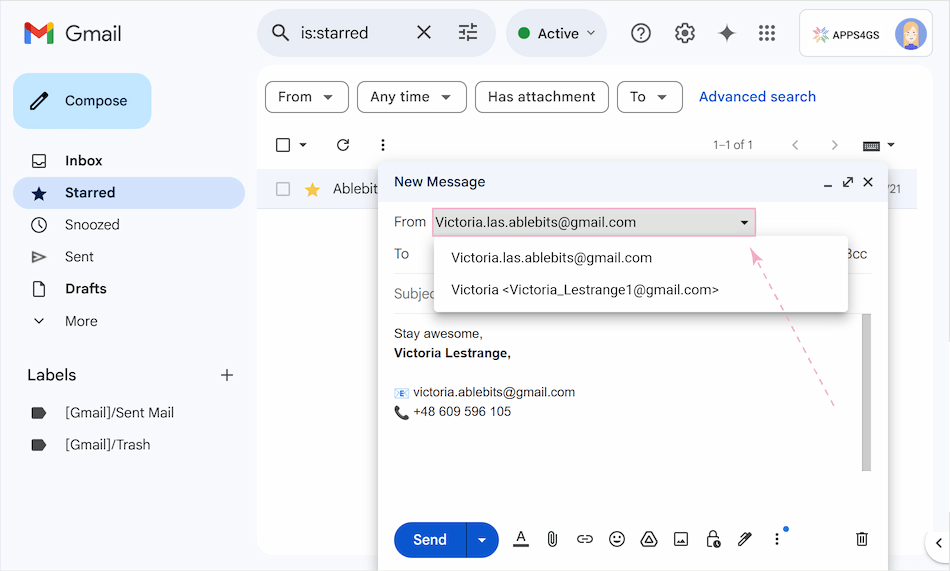
From now on, when composing a message, you can simply click the From field and select the address you want to send from. Gmail will automatically switch to the right signature for that address.
How to use multiple signatures in Gmail effortlessly
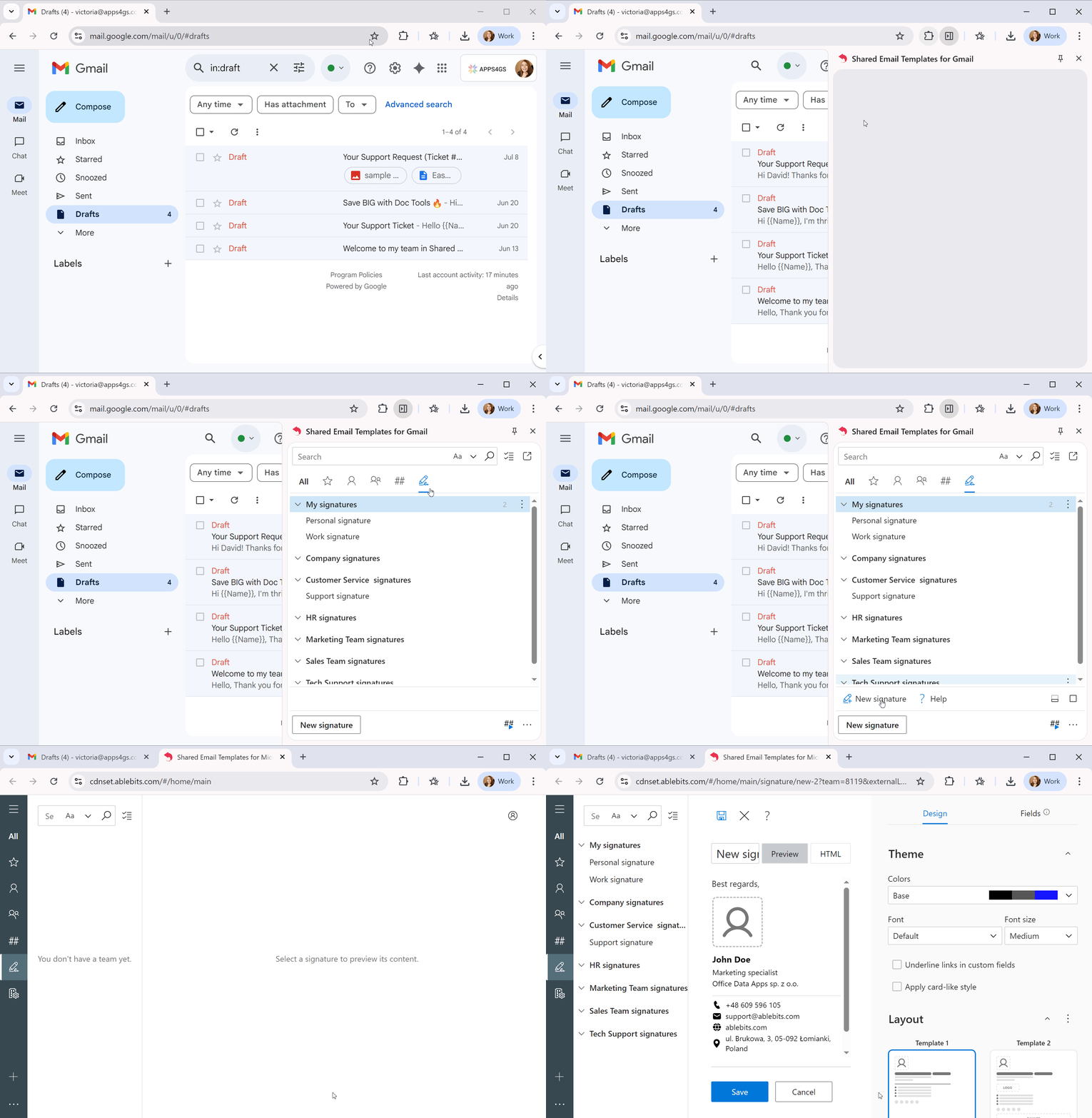
While Gmail offers basic signature options for creating and managing multiple signatures, the process can still be a bit time-consuming, especially for teams. This is where Shared Email Templates & Signatures for Gmail steps in, offering more intuitive and feature-rich solutions.
Shared Email Templates & Signatures lets you create multiple signatures for personal use, a specific team, or your company. For example, you can make a library of signatures for your team and add your corporate logo or promotional banners. Every team member will have the correct signature version with your company branding automatically.
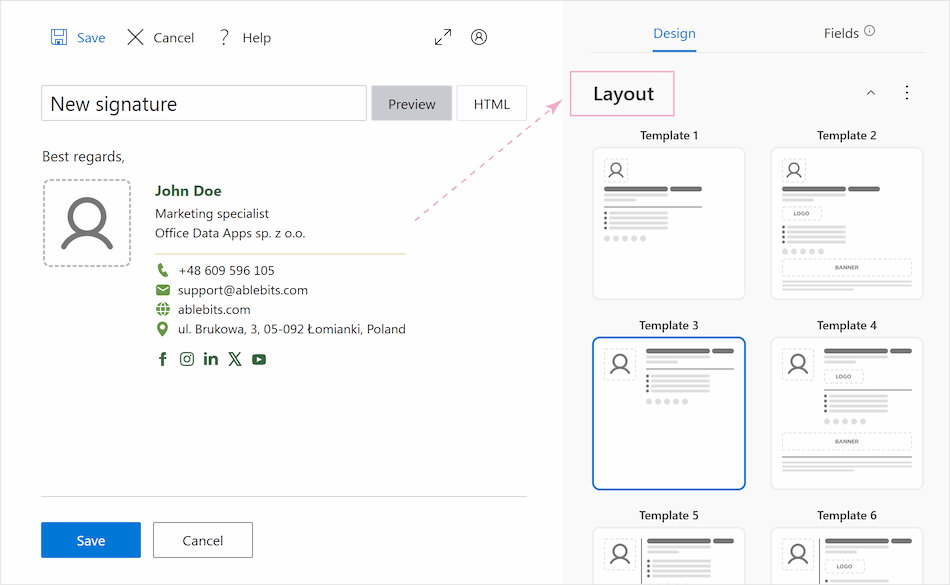
For your convenience, there is a library of 14 available templates for your signatures.
You’ll have advanced design tools like color themes, a wide range of fields for contact details, social media, and promotional banners.
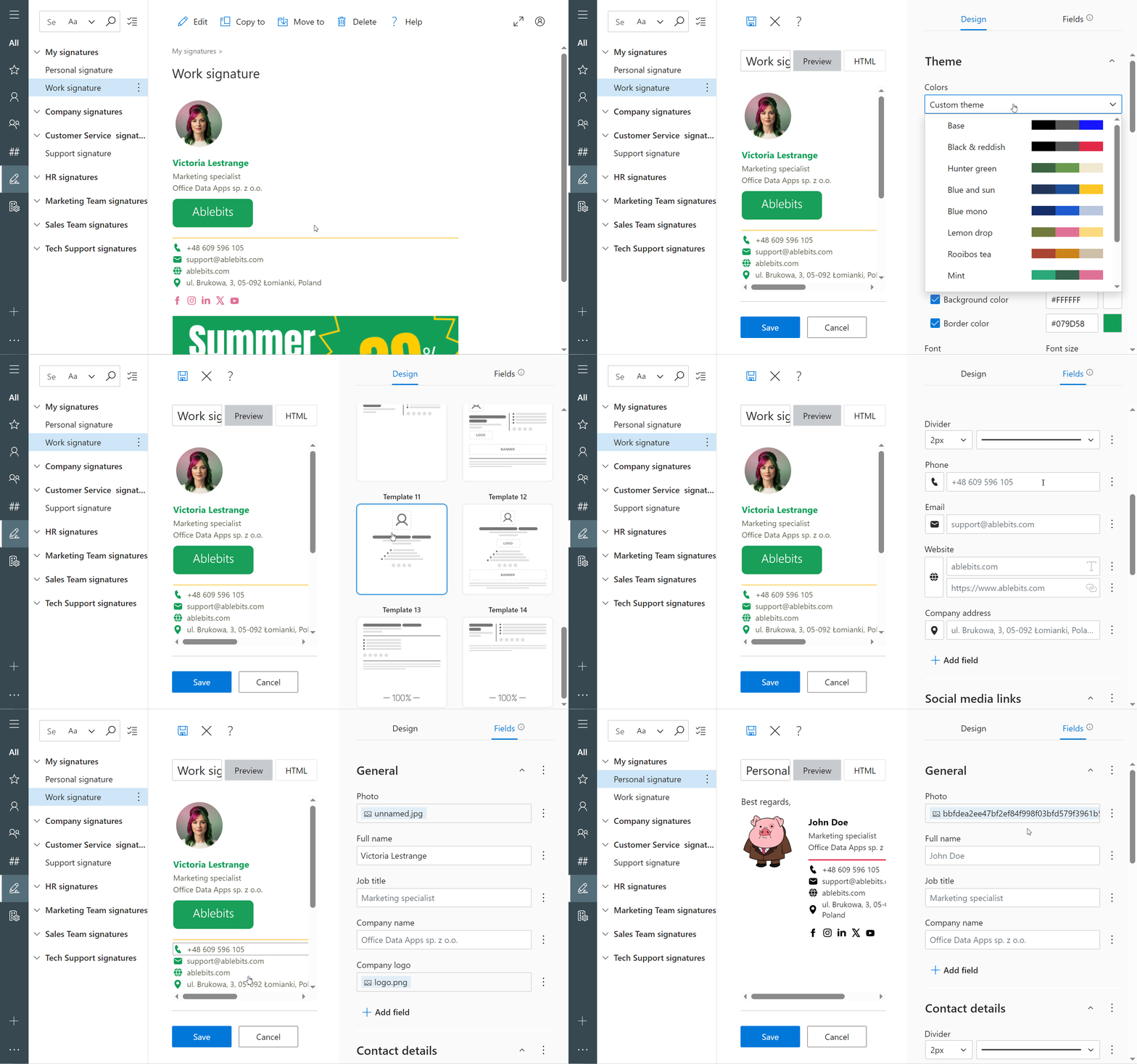
As you can see, while you can handle these tasks through Gmail’s native settings, Shared Email Templates & Signatures for Gmail is the perfect tool for teams and companies to manage various signatures across your entire organization within one cloud environment.
Want to try it? Download the free trial and craft perfect signatures in minutes!