 by
by In this guide, you’ll learn how to add signatures in Gmail, edit them as needed, and either remove them from a specific email or delete them entirely. You'll also discover how to create multiple signatures and switch between them. I’ll also show you how to automate the entire process for your organization using a Shared Email Templates & Signatures add-on.
Adding a signature in Gmail is a great way to personalize your communication. However, setting it up can seem a little tricky. That’s why this guide is here to help. I’ll walk you through every step of creating your perfect professional signature 😉.
Quick Summary: How to manage Gmail signatures
To add a signature
Go to Settings > See all settings > General > Signature. Click + Create new, type your text, and click Save Changes at the bottom of the page.
To insert a signature
In Gmail > Compose > Click the Pen icon > Select your signature.
To edit a signature
Go to Settings > See all settings > General. Scroll down to Signature, select the name of the signature to update, modify the text, and click Save Changes.
Alternatively, go to Gmail > Compose > Click the Pen icon > Manage signatures.
To set auto-signature
Go to Settings > See all settings > General. Scroll down to Signature, and set your defaults in the Signature defaults menu.
To manage signatures for a company
Install Shared Email Templates & Signatures > create professional signatures from templates > configure access rights > assign default signatures to each user.
To remove a signature
- From a single email: Gmail > Compose > Click the Pen icon > No Signature.
- Permanently: Settings > See all settings > General. Scroll down to Signature, select your signature, and click the Trash icon > Save Changes.
- Remove auto-insertion: Settings > See all settings > General > Signature > Signature defaults. Select No signature and click Save Changes.
How to add a signature in Gmail
Note: This feature must be configured in your web browser, not the Gmail app.
To set a signature in Gmail, follow these simple steps:
- Open settings: Go to Gmail > Settings (gear icon) > See all settings.
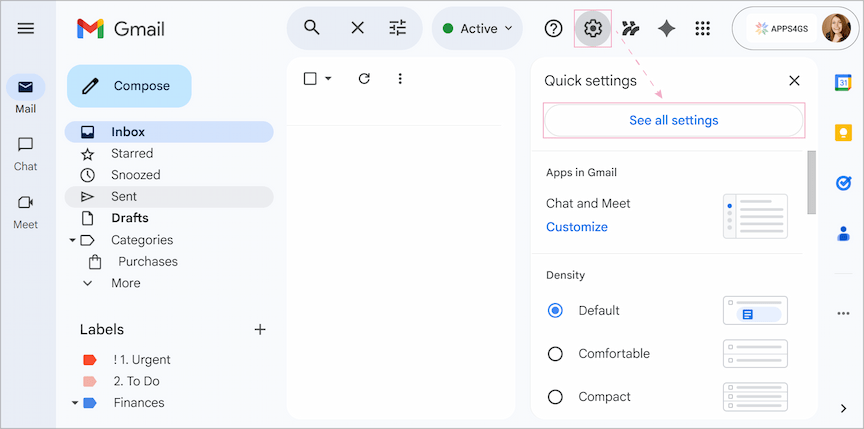
- Find signature section: On the General tab, scroll down to the Signature section.
- Start creation: Click the + Create new button.
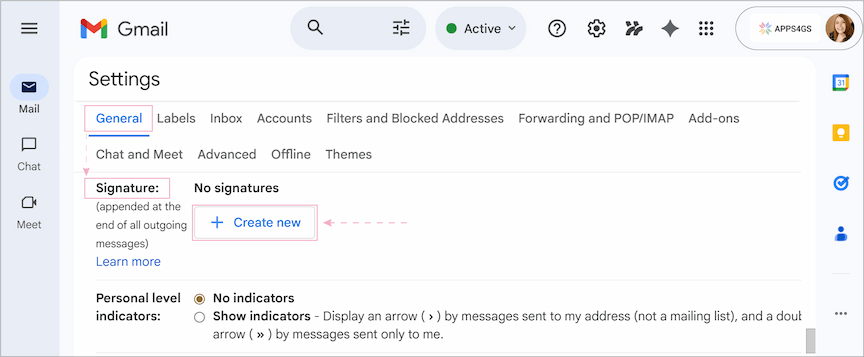
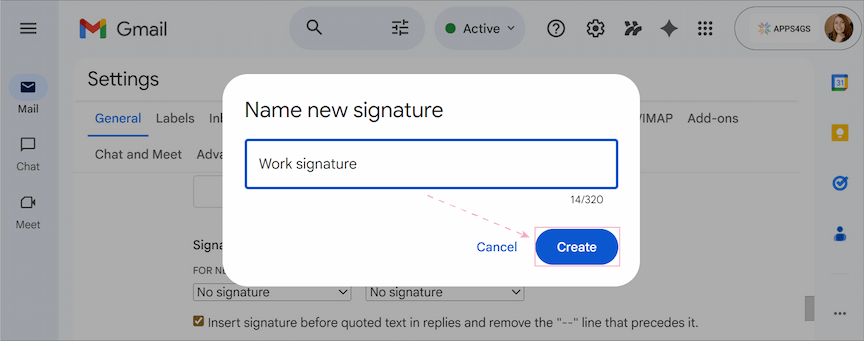
- Name your signature: In the pop-up window, enter the name of your new signature and hit Create.
- Design your content: An editor will appear. Type the content of your signature block in the box on the right.
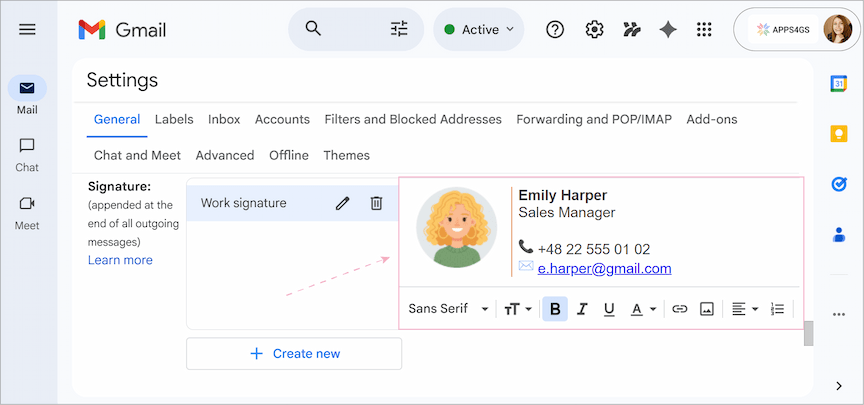
Tip: The character limit is up to 10,000 characters and also applies to your image. Try resizing it if you go over the limit.
Note: To learn how to create professional Gmail signatures with photos, social media icons, and custom links read this article.
- Save changes: Once your signature is ready, scroll to the very bottom of the page and click the Save Changes button.
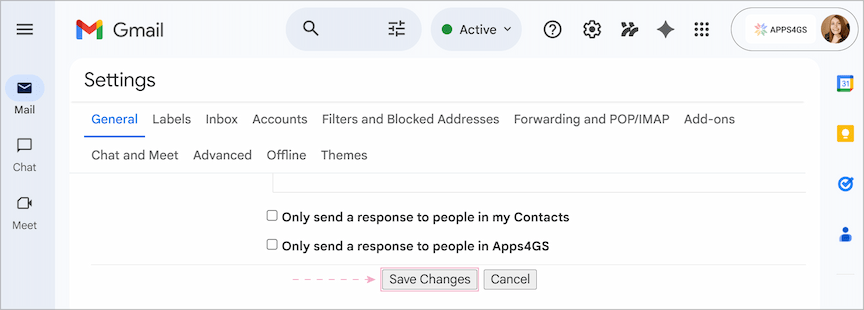
To create additional signatures, follow all the previous steps and click the + Create new button again in the Signature settings. Create as many signature blocks as you like and simply switch between them when needed.
How to insert or change your signature in Gmail
In Gmail, you can manually insert or switch to any of your pre-written signatures right from the compose window.
To insert or switch between your signature blocks:
- In Gmail, open a new message or a reply/forward.
- Click the Pen icon at the bottom of the compose window.
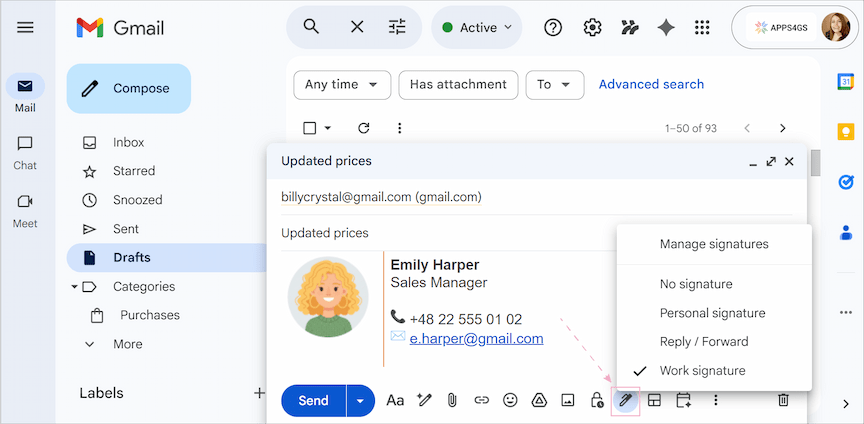
- Select the signature by clicking on it. It will automatically appear in your email.
Tip: If you misclicked and selected the wrong signature, simply click the Pen icon again and select a different one.
Note: The Pen icon also gives you access to the Signature settings. Just click the Pen icon > Manage signatures.
How to set up signatures in Gmail for replies/forwards: auto signature
If you want your signature to appear automatically when you write a new email or follow up on a thread, you need to configure your signature defaults.
To add an auto signature in Gmail:
- Go back to Settings > See all settings.
- On the General tab, scroll down to the Signature defaults section.
- Under the For new emails use and On reply/forward use options, click the drop-downs and select the preferred signature for each of them.
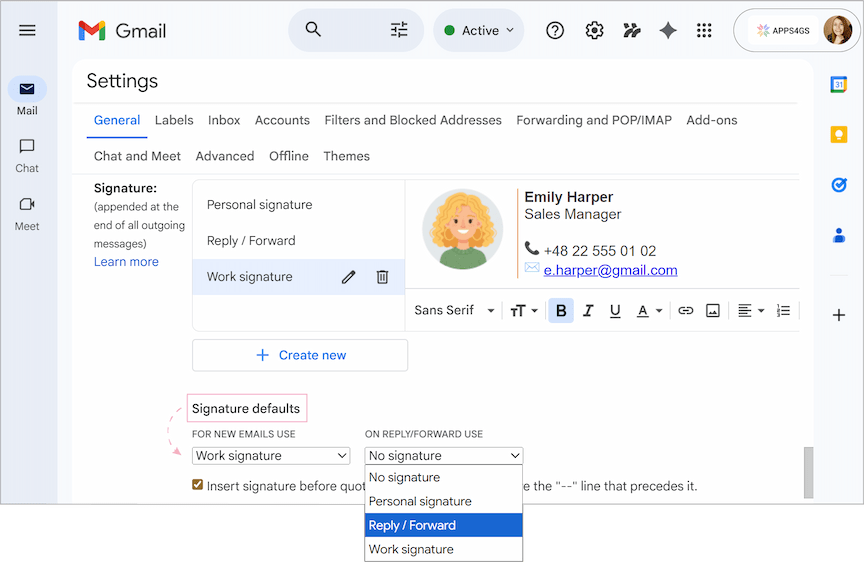
Tip: Check the box that says: "Insert signature before quoted text in replies and remove the "--" line that precedes it." to place your signature directly below your reply text rather than at the bottom of the thread.
- Scroll down and click Save Changes.
Now you have a fully functional Gmail automatic signature for every interaction ✍️.
Tip: You can even have different default signatures to different Gmail accounts if you use the "Send mail as" feature.
How to edit and update your Gmail signature
To edit an existing signature, follow these steps:
- Open Gmail and go to Settings > See all settings.
- On the General tab, scroll down to the Signature section.
- Click on the signature name you wish to update.
- Use the editor box to edit your Gmail signature.
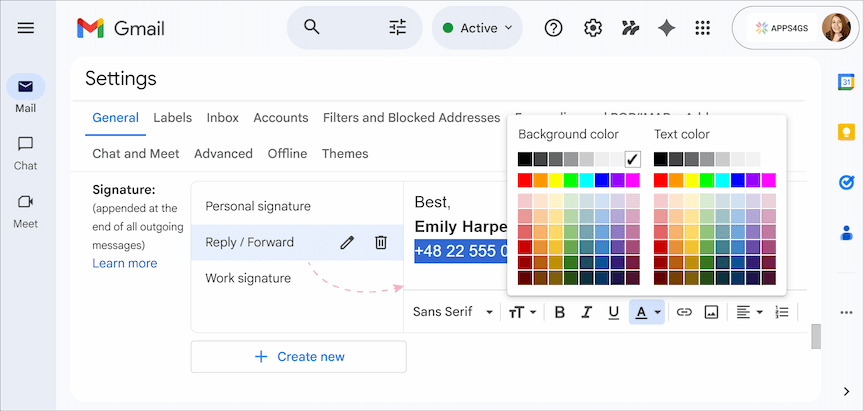
- Scroll to the bottom of the page and click Save Changes.
Note: If you want to change the name of the signature itself, click the Pencil icon and type a new name in the pop-up.
How to remove a signature from Gmail
Remove a Gmail signature from an email
You can disable your signature for a single email if you don't need it just this once:
- While composing your message, click the Pen icon in the message box toolbar.
- Select the No signature option.
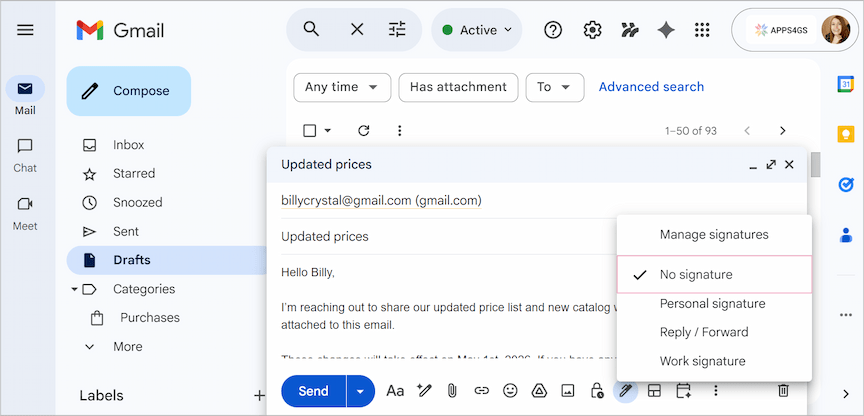
Your signature will only be removed from this specific message.
Fully delete a signature from Gmail
If you no longer need your signature, you can remove it completely:
- Open Gmail > Settings > See all settings > General tab > Signature section.
- Find the name of the signature you want to remove and click the Trash icon next to it.
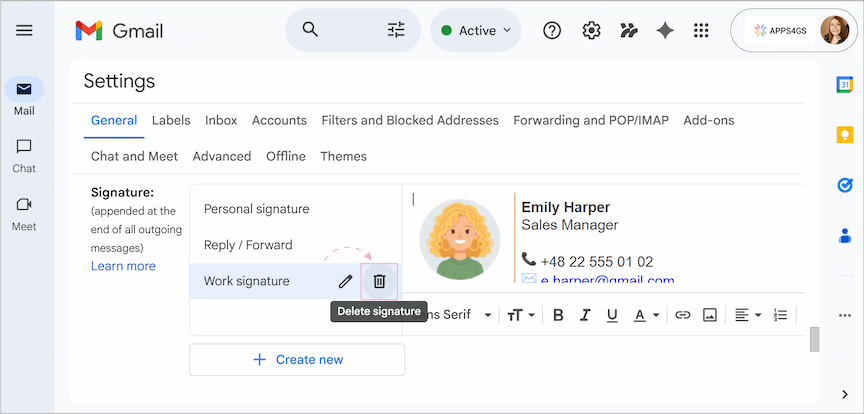
- In the pop-up window, confirm the deletion.
- Click Save Changes at the bottom of the page to complete the removal.
Note: Your deleted signature cannot be recovered, so make sure to copy any crucial links or text.
Remove automatic signatures in Gmail
To turn off auto signatures:
- Return to Gmail > Settings > See all settings > General tab > Signature section.
- Scroll down to the Signature defaults.
- Under the For new emails use and On reply/forward use options, select No signature from the drop-downs.
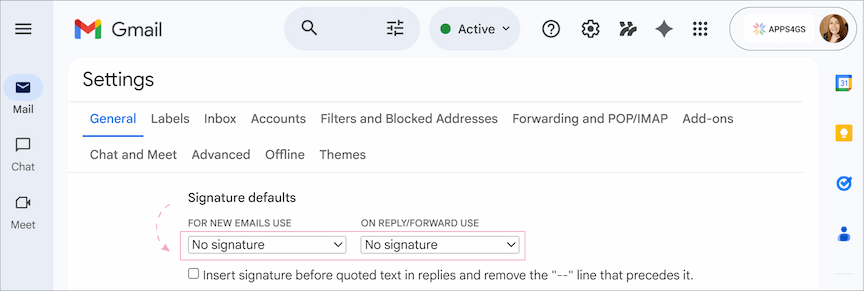
- Don’t forget to click Save Changes.
All of your pre-written signatures stay saved, but Gmail will no longer automatically add them.
Centrally manage email signatures with a signature generator
Manually adding a signature is easy, but doing this for an entire team may not be that simple. Instead of asking every employee to copy-paste signature layouts, tailor them properly and insert into the Gmail settings, you can use a centralized email signature manager.
Shared Email Templates & Signatures is a perfect signature generator where you can create and manage professional email signatures. It acts as a cloud-based template and signature hub with security certifications. Let’s see how you can improve your work with it.
Add a signature with Shared Email Templates & Signatures
To create a professional signature:
- Open Shared Email Templates & Signatures.
- Go to the Signatures tab.
- Click New signature.
- Select a template and customize it.
- Click Save.
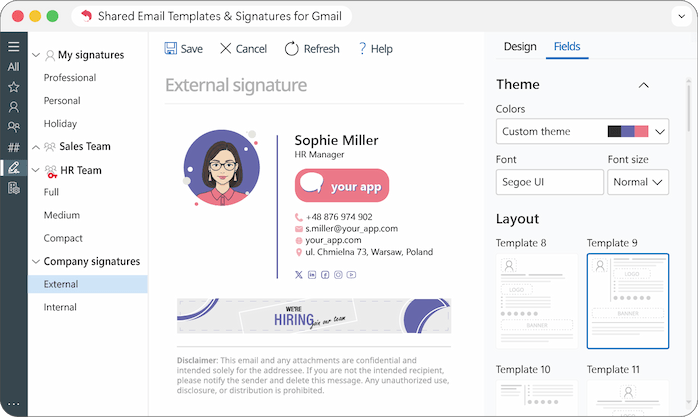
While Gmail’s editor is limited, with Shared Email Templates & Signatures you can choose from easy-to-customize signature layouts that include:
- Photos
- Contact information
- Clickable social icons
- Disclaimers
- Banners
Adjust the template to your company color scheme and fonts, and add or delete dynamic fields.
Note: We don’t have access to your templates or signatures, as security is our top priority.
Set up company-wide email signatures in Gmail
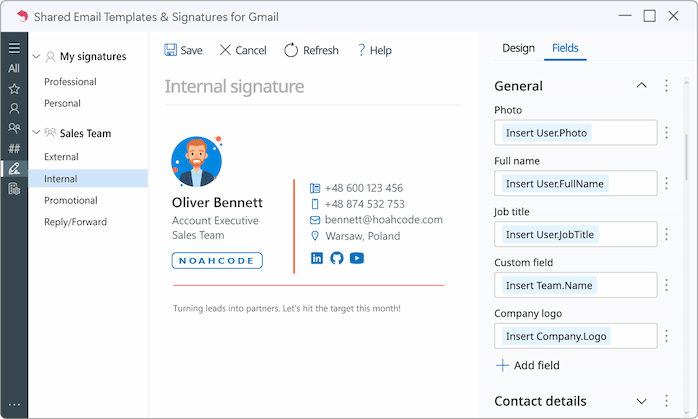
Unlike the standard Gmail process, you don't need to go to the settings to create every new signature. You can deploy personal, team or company-wide email signatures and save them right in our secure cloud-based library. Add team properties like a logo or banner, to keep email branding consistent.
To set up team or corporate email signatures: Open Shared Email Templates & Signatures > Signatures > right-click a folder intended for your team’s signatures > New signature.
Improve collaboration & access control
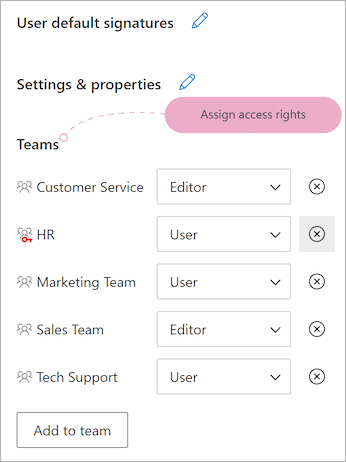
In Gmail, every user has to create their own signature and can't see or edit others' signatures. Shared Email Templates & Signatures allows you to create folders per team and assign access rights.
To set permissions: Open Shared Email Templates & Signatures > click the three dots icon in the corner > Company account > select the folder > choose a user > Edit user > configure access controls.
Insert your signature in Gmail
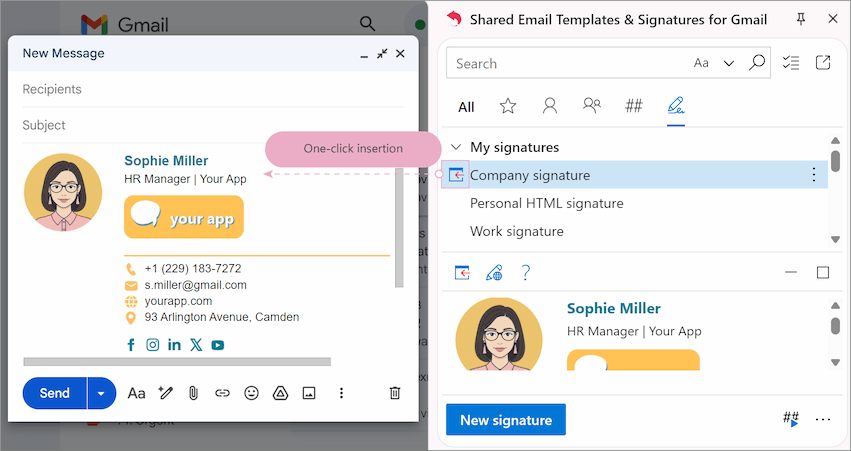
As we have a full Gmail integration, you can insert any of the saved signatures into your Gmail compose window just with one click.
To insert a signature: In Gmail, click Compose > Open Shared Email Templates & Signatures > go to the Signature tab > select the signature > click Insert.
You can also set a default signature for your team or company so it's added automatically.
To set default signatures for a team: Open Shared Email Templates > Signatures > Team’s folder > select the target signature > right-click and choose between Default for new messages and Default for replies/forwards.
Update an email signature
With Shared Email Templates & Signatures, you can not only modify your signatures whenever you need, but even make bulk updates. You renew one signature according to the new campaign, and it updates instantly for the whole team.
To update a signature: Open Shared Email Templates > Signatures > select the signature > right-click and choose Edit in browser.
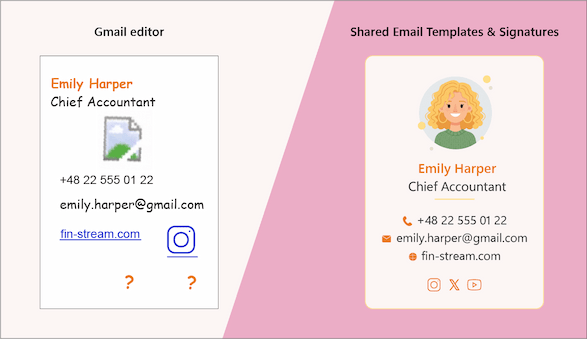
Moreover, whereas Gmail's layout can fall apart, our signatures always stay perfectly aligned.
Delete a signature in Gmail
In standard Gmail, once you delete a signature, it's gone forever. With Shared Email Templates & Signatures, removing a signature is safer.
To delete a signature: Open Shared Email Templates & Signatures > Signatures > select the signature > right-click and choose Delete.
Deleted signatures go to the recycle bin, so you can restore them if needed.
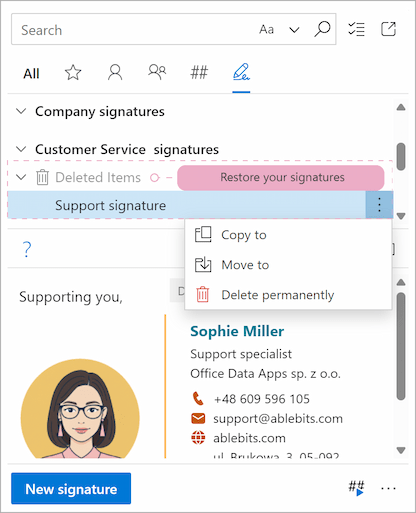
Note: Only users with access permissions can delete signatures.
Google lets you create and use a signature, but Shared Email Templates & Signatures is a centralized email signature management tool. Simply install the add-on, choose your template, tailor it as you like, and manage your corporate email signature automatically across your entire organization.
Just give it a try and see the benefits for yourself!
I hope you found this article useful and that you already have several professional signatures added to your Gmail account! If you’ve got any questions, just drop them in the comments – I’ll be sure to get back to you 😊.
FAQ
What is an email signature in Gmail?
A signature block in email is a personalized short section of text, images, or links that's automatically added to the end of outgoing messages as a footer.
How does a signature work in Gmail?
In Gmail, you first create or paste a previously designed signature in the settings and save it for future use. Then, you can easily insert it while composing a new email. You can also set default ones, create multiple signatures, format them as you like, and control when each signature appears.
What is an auto signature in Gmail?
An automatic signature is a Gmail feature that adds your pre-written signature block to every message you compose without manual effort. This feature makes it possible to even append different signatures to new emails and replies/forwards.
Can I have multiple signatures in Gmail?
Yes, you can. Gmail allows you to have different signatures for different purposes and change them accordingly. Moreover, there is also a possibility to assign multiple signatures to various Gmail accounts managed from one inbox (if you have several).
How do I see my signature in Gmail?
There is no special folder where you can check all your signatures in Gmail. All your signatures are saved directly to the Gmail settings. So, if you need to see them, go to Gmail > Settings > See all settings > General > Signature section.
Does Gmail automatically add signatures?
Yes. You just need to configure Gmail default settings correctly to have auto signatures.
Why is my Gmail signature not showing up?
- Missing Save Changes: Most likely, after adding your signature in the settings, you forgot to click Save changes. It’s a common oversight, because this setting is hidden at the very bottom of the page and is easy to miss.
- Plain Text Mode: If you’ve added images or fancy formatting and they aren't appearing, check if your compose window is in Plain Text Mode. You need to disable it to see your full signature.
- Signature Defaults not set: Even if you've created a signature, you must tell Gmail to use it. In the Signature defaults section, ensure your signature is selected for "New emails" and "Replies/Forwards."
Does Gmail have signature templates?
Unfortunately, no. But you can try our great tool, Shared Email Templates & Signatures, where you can find pre-designed professional layouts and customize them as you like.
Why does my signature have a double dash above it?
Gmail adds these dashes by default to separate your message from your signature. To remove them, go to Settings and check the box that says: "Insert signature before quoted text in replies and remove the "--" line that precedes it."