 by
by In this article, you'll learn how to use the CLEAN function in Excel to remove non-printable characters, and how to combine it with other functions to clean up messy data.
Sometimes Excel data looks perfectly normal, until a simple task turns into a head-scratcher. You import some data into your worksheet, everything looks fine… and then suddenly your formulas stop working, searches fail, and nothing matches. Welcome to the world of nonprintable characters. The CLEAN function will help you eliminate those invisible troublemakers and restore order to your worksheets.
Excel CLEAN function
The CLEAN function in Excel removes nonprintable characters and line breaks from text strings.
Its purpose is to clean up data in Excel worksheets by stripping out characters that are not normally visible on the screen but may still exist in imported or pasted data. In particular, CLEAN can remove hidden characters such as carriage returns, line feeds, vertical or horizontal tabs, and others.
The CLEAN function was introduced in Excel 2000 and is available in every version since, including Excel 2000 – 2024 and Excel for Microsoft 365.
CLEAN syntax
The syntax of the CLEAN function is as simple as it can possibly be:
Where:
- text is the text string you want to clean up.
In practice, the text argument is usually a cell reference or another formula that returns an alphanumeric string.
What CLEAN function removes and what it does not
This is the part that matters most when working with real-world data. Before relying on CLEAN in your worksheets, it helps to understand exactly what it clears out and what it leaves behind.
CLEAN removes
The CLEAN function strips out the following characters:
- The first 32 control characters from the 7-bit ASCII character set (values 0 through 31).
- Line breaks, including line feed (10) and carriage return (13) characters.
If the text does not contain any of these chars, CLEAN simply returns it unchanged.
CLEAN does not remove
Not all unwanted characters fall within CLEAN's reach. Some common troublemakers remain untouched:
- Extra spaces (leading, trailing, or multiple spaces between words)
- Non-breaking spaces (value 160 representing the html character )
- Printable special characters such as *, ^, #, etc.
- Additional non-printable characters (such as 127, 129, 141, 143, 144, and 157)
So, if your data contains any of the above, CLEAN alone may not help. That is why it is often combined with TRIM (to handle spacing) and SUBSTITUTE (to replace specific characters) for a more complete cleanup.
Basic CLEAN formula in Excel
To clean up text in a certain Excel cell, all you need is a simple formula like this one:
=CLEAN(C4)
This formula removes non-printable ASCII characters (codes 0 – 31) from the text in C4. If needed, you can copy it down the column to handle other cells.
Take a closer look at the screenshot below to see which characters are removed and which ones are left intact.
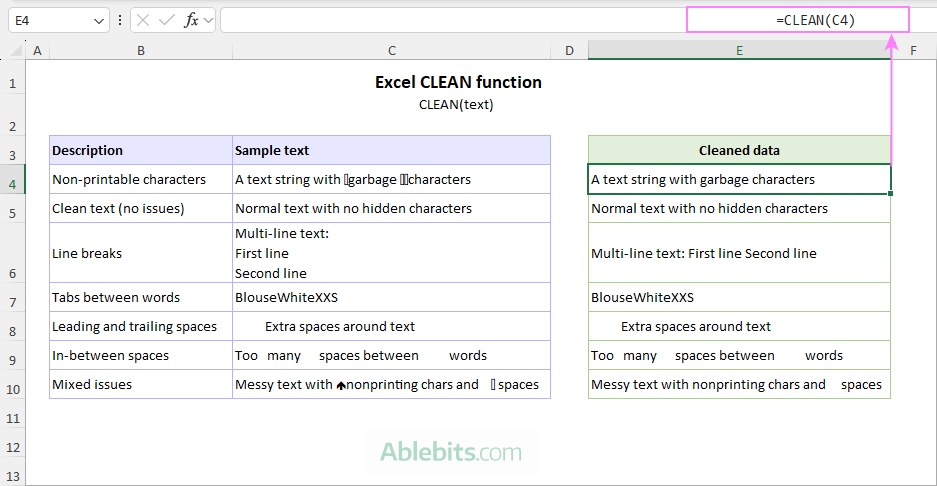
As you can see, a CLEAN formula does not resolve every issue with messy data. If some problems remain, try the following solutions:
How to use CLEAN function in Excel – formula examples
The following examples show how to use the CLEAN function in common situations you're likely to run into when working with text data in Excel.
Example 1: Clean non-printable characters
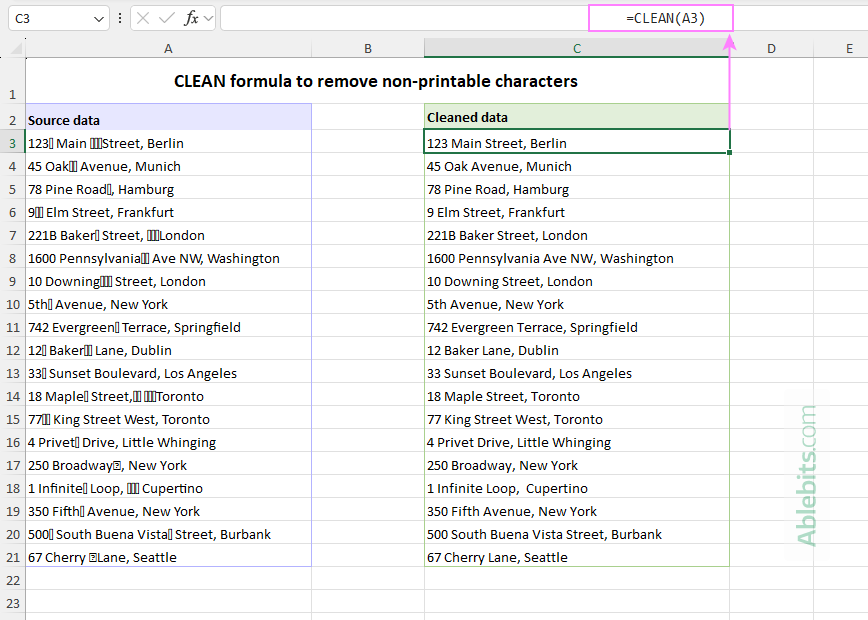
Suppose you have a list of addresses imported from another source that contain various non-printable characters. To clean them up, enter this formula in C3 and then copy it down through C21:
=CLEAN(A3)
CLEAN removes both visible and hidden nonprinting characters, returning readable text.
Example 2: Remove line breaks
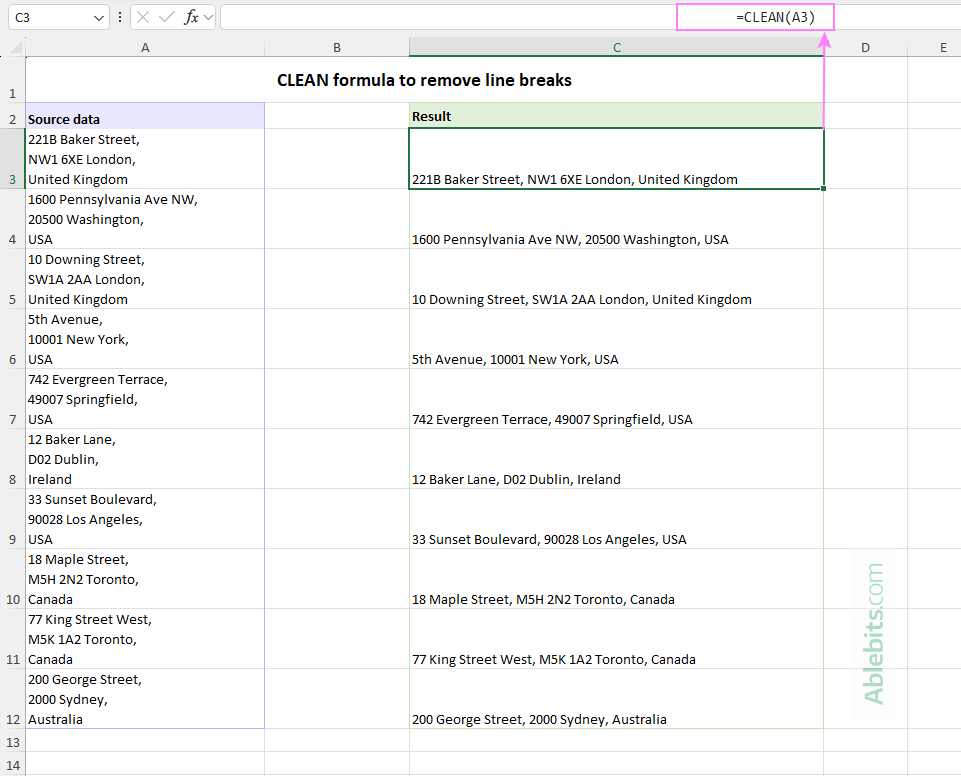
Line breaks often appear in imported or manually formatted text, but they are not always needed.
You can remove them using the same simple formula:
=CLEAN(A3)
As a result, the line breaks disappear, leaving the text on one line.
Besides the CLEAN function, Excel offers several other ways to eliminate carriage returns and line feeds. For full details, see How to remove line break from Excel cells.
Example 3: Clean text strings before comparing
Hidden characters can make two cells look identical, even though Excel treats them as different. On the flip side, visible non-printable chars can make values appear different when they are actually the same.
To compare the actual values in two imported lists in columns A and C, clean them first:
=CLEAN(A3)=CLEAN(C3)
This formula returns TRUE if the cleaned values match and FALSE if they do not.
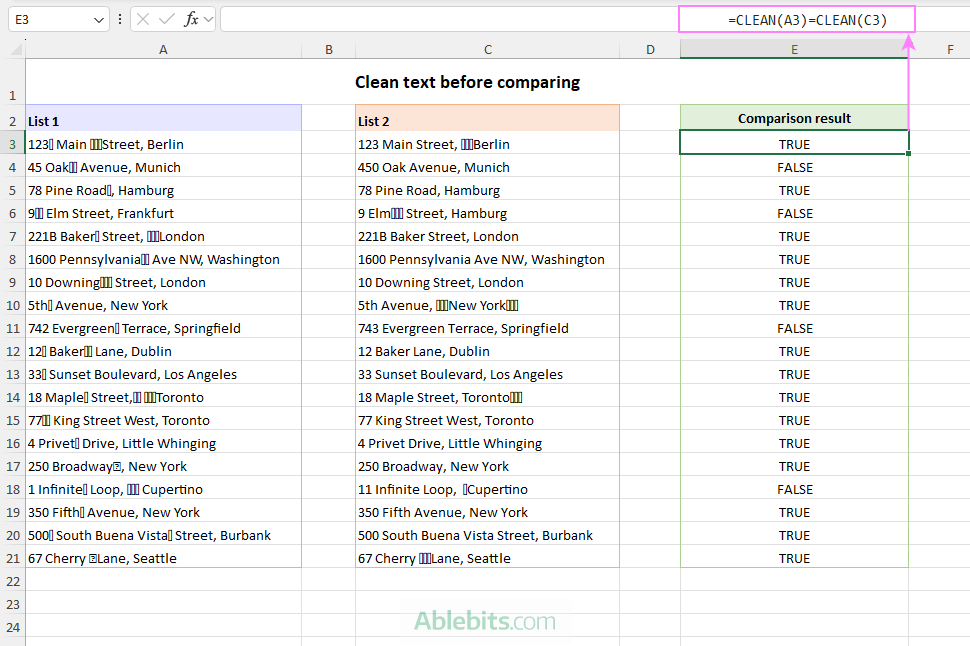
This approach is helpful when checking imported lists or comparing text strings coming from different systems.
Example 4: Clean Excel data before search or lookup
Unwanted characters often interfere with Excel searches and lookups, causing formulas to return errors or incorrect results.
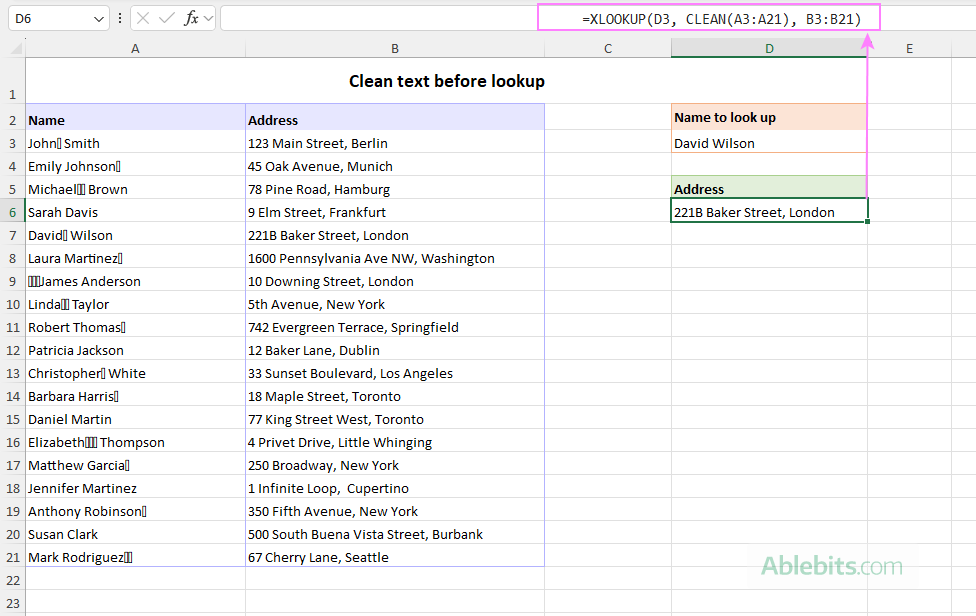
For example, suppose you want to retrieve an address from column B based on the name in D3. The standard XLOOKUP formula will fail because the names in column A are cluttered with various garbage characters:
=XLOOKUP(D3, A3:A21, B3:B21)
Once you clean the lookup range, the formula starts to work perfectly:
=XLOOKUP(D3, CLEAN(A3:A21), B3:B21)
Example 5: Apply CLEAN formula to entire range
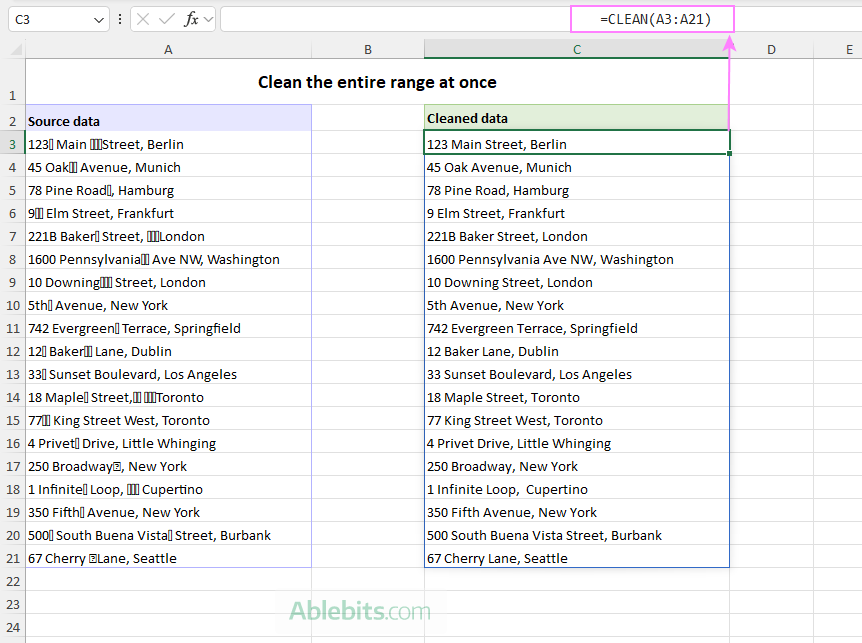
In dynamic array Excel, including Excel 365, 2024 and 2021, you can clean multiple cells with a single formula. Simply pass an entire range to the function:
=CLEAN(A3:A21)
In modern Excel versions, all formulas are dynamic by nature, even those that were not originally designed to work with arrays. In other words, if a formula can return an array, it will.
In this case, the CLEAN function processes each cell in the specified range and returns a matching array of cleaned values. The results automatically spill into the corresponding cells (C3:C21).
In older versions of Excel, you'd need to enter this formula by pressing Ctrl + Shift + Enter to explicitly make it an array formula.
Example 6: Clean nonprinting characters and trim extra spaces at once
In many cases, data from external sources contains both non-printable characters and extra spaces. To handle both issues in one step, combine the CLEAN and TRIM functions:
=TRIM(CLEAN(A3))
Used together, they make a very practical cleanup formula.
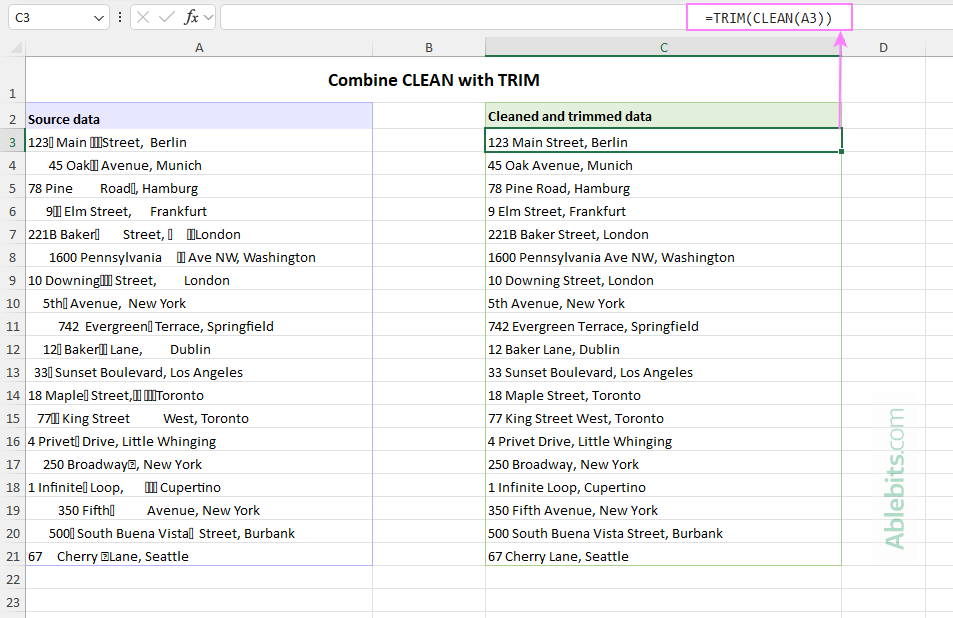
This formula:
- Removes non-printable characters.
- Trims leading and trailing spaces.
- Reduces multiple spaces between words to a single space.
This is often the best formula to try when your text data looks fine but behaves unexpectedly in formulas.
Tip. If your data includes non-breaking spaces, use the TRIM, CLEAN, and SUBSTITUTE functions together, as shown in this example.
Excel CLEAN function – key takeaways
The CLEAN function is simple, but knowing its limits helps you use it more effectively.
- CLEAN removes the first 32 non-printable characters from the ASCII character set (values 0 – 31), including line breaks.
- It does not remove additional non-printable characters (such as 127, 129, 141, 143, 144, and 157). To handle these, use SUBSTITUTE with the appropriate character codes, as shown in this example.
- CLEAN does not fix spacing issues. To remove extra spaces, use the TRIM function. To eliminate both non-printable characters and excess spaces, combine CLEAN and TRIM in a single formula.
In conclusion, the CLEAN function may not fix every possible issue, but it's a good first step when you suspect hidden characters are causing trouble. Pair it with TRIM and a few other functions, and you'll be well-equipped to handle even the messiest imports, without losing your patience along the way 😊
Practice workbook for download
Excel CLEAN formula examples (.xlsx file)