 by
by Want to send encrypted or digitally signed emails in Outlook? This article explains what you need to get started: how to obtain an S/MIME certificate, install it, and enable in Outlook.
When it comes to sending secure Outlook messages, most instructions begin with сlicking the Encrypt or Sign button on the ribbon. But those buttons don't work by themselves. Before you can use them, you need a valid S/MIME certificate installed and configured correctly on your computer. This tutorial walks you through the entire process step by step and helps you avoid common mistakes along the way.
What is S/MIME in Outlook?
S/MIME (Secure/Multipurpose Internet Mail Extensions) is a security standard that allows you to encrypt and digitally sign emails in Outlook. It's designed to protect sensitive information and confirm the authenticity of your messages:
- Encryption ensures message privacy. Only the intended recipients can read it.
- Digital signature proves the sender's identity. It confirms the email really came from that specific sender and the message content hasn't been altered in transit.
Both encryption and digital signing require a valid S/MIME certificate installed on your computer and added to Outlook.
The certificate is issued for a certain period, usually 1 or 2 years. After the expiry date, the cert becomes invalid, so be sure to timely reissue it.
The S/MIME protocol is supported by most email clients, including Outlook, Gmail, Apple Mail, and others.
Is the S/MIME certificate secure?
The short answer is "Yes, it is very secure". It is based on mathematically complex cryptographic algorithms that make unauthorized data access practically impossible within a reasonable timeframe (years).
Why Certificate Authority matters
You might wonder what prevents someone from creating their own certificate and pretending to be you. The answer lies in the role of a Certificate Authority.
A Certificate Authority (CA) is a trusted organization that issues digital certificates, but only after verifying your identity. They don't simply generate a file and send it to anyone who asks. Depending on the certificate type, they may confirm your email access or perform additional identity checks.
These are the same organizations that issue S/MIME certificates for email, SSL certificates for websites, and code-signing certificates for software.
How digital cert's trust chain works
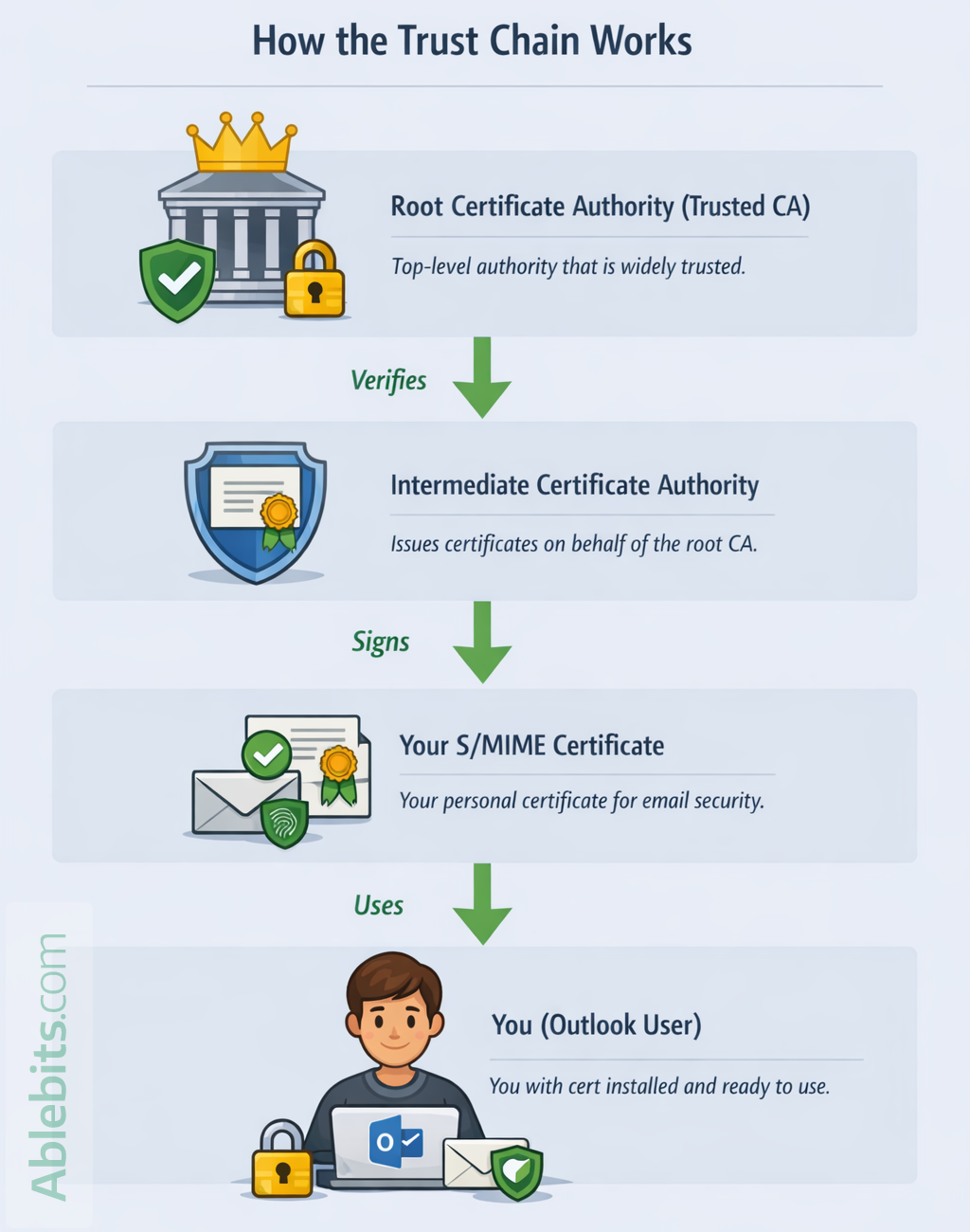
The S/MIME security relies on a structured chain of trust:
- The Certificate Authority has a root certificate, which is widely trusted by operating systems and email clients.
- The CA uses that root cert to sign intermediate certificates.
- Those intermediate certificates are then used to issue individual user certificates, including a personal S/MIME cert that you will receive for the specified email address.
Because each personal certificate is linked back to a trusted root authority, email clients can verify that it's legitimate. If someone tries to create a fake certificate without a trusted CA behind it, Outlook and other email systems would flag it as untrusted.
Does the email provider matter?
For S/MIME, the email provider itself (Microsoft, Gmail, Verizon, AT&T, etc.) is not the main factor. What really matters is the email application you are using.
S/MIME must be supported at the app level. Many web-based interfaces, such as Gmail in a browser, don't let you install and manage your own digital certs directly. However, if you add your Gmail account to Outlook, S/MIME will work for it as long as you have a valid certificate for your Gmail address and you've enabled it in the Outlook app.
In other words, it's less about where your mailbox is hosted and more about whether your email client supports certificate-based encryption and signing.
Note. S/MIME is generally not supported for personal Outlook.com, Hotmail.com, or Live.com accounts.
What do I do if my email certificate is compromised or stolen?
If you suspect that someone has gained access to your S/MIME certificate or its private key, revoke the certificate immediately. Usually, you can do this by logging into your account on the Certificate Authority's website.
Once a cert is revoked, email systems will treat it as invalid going forward. Previous messages that were signed and sent before the revocation date, will still show the cert as valid. However, an unauthorized user will no longer be able to use your certificate to encrypt or digitally sign emails on your behalf.
After revocation, you'll need to request and install a new certificate to continue using S/MIME.
What you need to start sending secure emails in Outlook
Before you can encrypt or digitally sign emails in Outlook, you'll need three essential things in place:
- Get an S/MIME cert from a trusted Certificate Authority.
- Install the certificate on your computer so Windows can access it.
- Configure the S/MIME certificate in Outlook so it knows which certificate to use for signing and encryption.
The next sections cover each step in detail.
How to get an S/MIME certificate for Outlook
The first step toward sending secure email is getting a digital certificate from a trusted CA.
Step 1: Choose a Certificate Authority
You can obtain an S/MIME certificate from:
- Commercial providers such as DigiCert, GlobalSign, Sectigo, etc.
- Free provider. Today, there's just one universally recognized CA who offers free S/MIME certificates - Actalis.
From my own experience: I've checked dozens of entities that issue S/MIME certificates. Years ago, there were plenty of free options. Now, surprisingly, the only choice is Actalis. You can get their free S/MIME certificate for one year here.
Step 2: Request the certificate
The exact process depends on the provider, but generally you will:
- Fill out an online application/order form.
- Verify your identity. This might be as simple as confirming your email address.
- Download the certificate once it's issued.
Usually, the customer area where the download link is provided also contains the options to reissue and revoke the certificate:
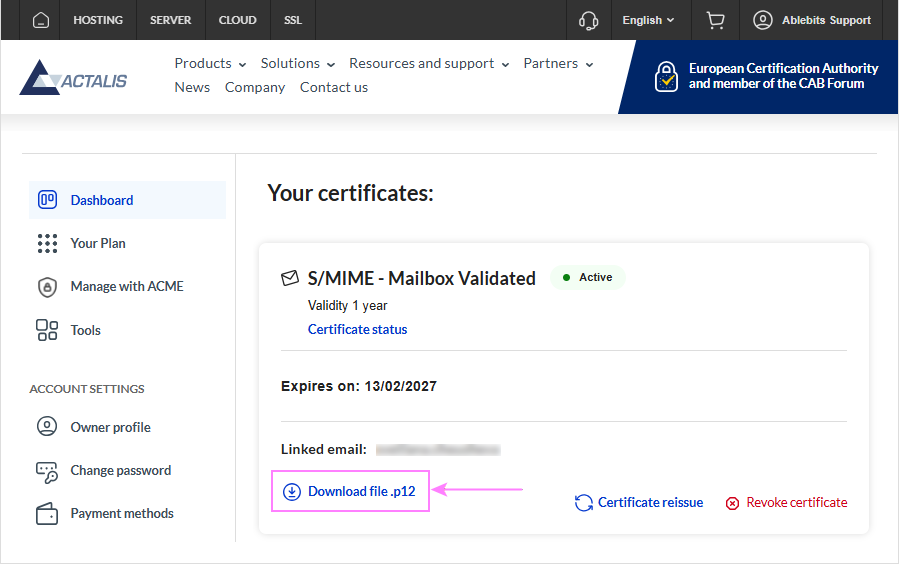
Most providers will give you a file with a .pfx or .p12 extension (binary file formats used in Windows and other systems to store cryptographic information, including S/MIME certificates and their public and private keys) and a password for the private key. You'll need both when installing the certificate on your computer. Save the file in a separate easy-to-find folder for convenience and keep the password safe.
Tips:
- Private key password. S/MIME cert providers, including Actalis, provide a separate password for opening the private key. Store this password securely. If you lose it, there's no way to recover it, and you would need to request a new certificate.
- If you are not sure which provider to choose, review the list of CA certificates trusted by Gmail for S/MIME. This gives you a good reference point, since Gmail only accepts certificates issued by recognized and trusted CAs.
- If you are using Outlook at work, check with your IT department first. In many organizations, they handle everything, from obtaining an email cert to setting up the S/MIME Outlook configuration for each user. If that's your case, lucky you are :)
Getting an email certificate is the most time-consuming part. Once you have it, the rest is much easier.
How to install the S/MIME certificate on Windows
After downloading your S/MIME certificate, you need to install it on your computer so Outlook can use it.
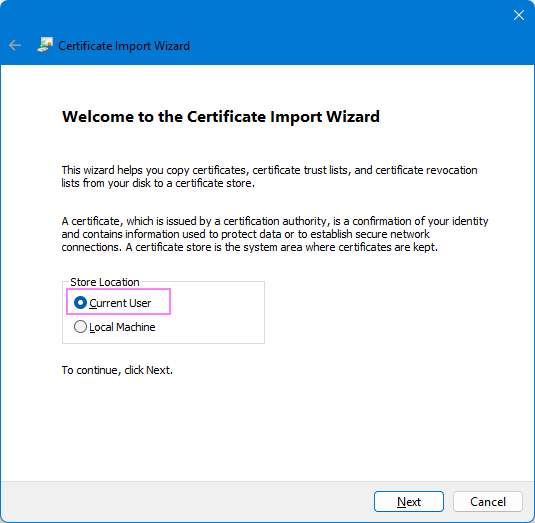
- Double-click the .pfx or .p12 file you downloaded earlier. This will open the Certificate Import Wizard.
- Choose the certificate store location. The default Current User option is usually correct, so you can simply click Next.
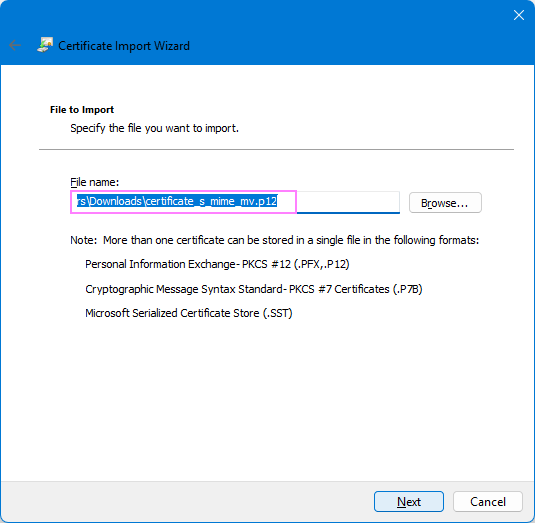
- Select the file to import. The file that you double-clicked in the first step is selected by default, so just click Next.
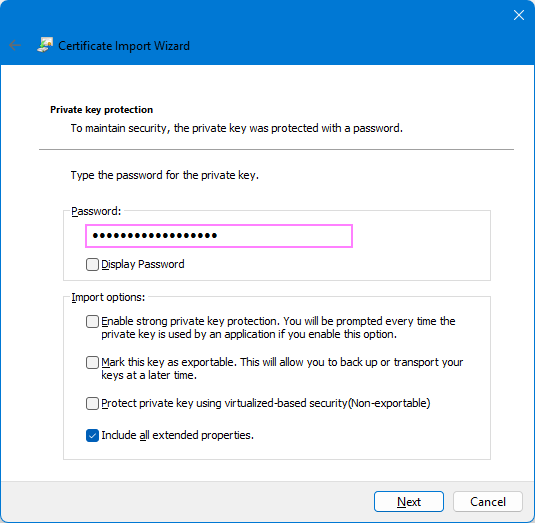
- Enter the password you received for the certificate and configure the Import options:
- Make sure Include all extended properties is selected. You can leave other settings as they are by default.
- To be able to change the private key password later or install that same certificate on another device, enable Mark this key as exportable.
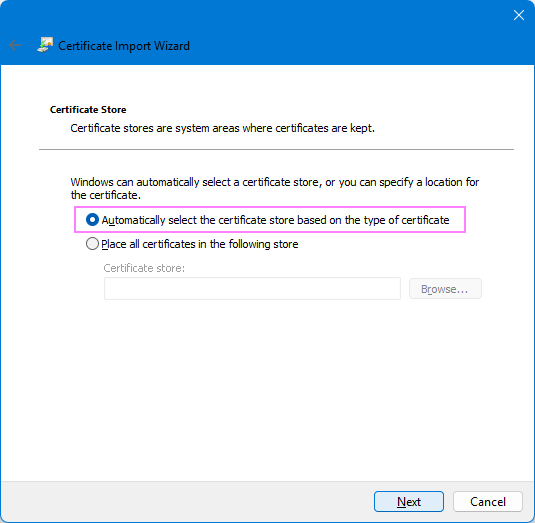
- Let Windows automatically select the certificate store. Click Next, then Finish.
If everything goes well, you'll see a message confirming that the import was successful.
Note. The choices you make during installation apply only to this computer. They don't modify the original certificate file itself, they just tell Windows how to handle it on this device.
How to add S/MIME certificate to Outlook
Once your S/MIME certificate is installed on your computer, the next step is to connect it to Outlook. The setup process is different in classic Outlook and the new Outlook app, so follow the instructions that match your version.
Configure S/MIME in classic Outlook
In Outlook 365 - 2016, an email cert is configured through the Trust Center settings. Here's how to do it:
- Go to File > Options > Trust Center > Trust Center Settings.
- In the left pane, click Email Security.
- Under Encrypted email, click Settings.
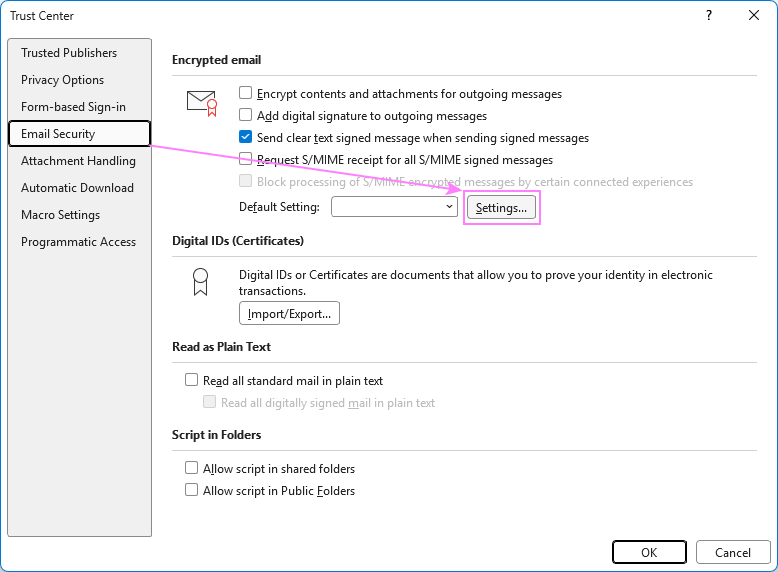
Note.By default, the Encrypted email, make sure Send clear text signed message when sending signed messages is selected in Outlook. This was done to ensure that recipients can still read digitally signed messages if their email client doesn't fully support the S/MIME protocol. But all modern email clients have supported S/MIME for over two decades, so you can safely uncheck it to prevent any intermediate mail servers from making changes to your email.
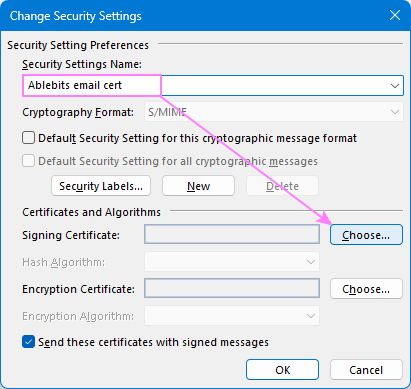
- The Change Security Settings window will appear. If you don't have any certificates enabled yet, the window will be blank, and you can start configuring your S/MIME settings right away. If you already have one set up, click New to create a separate entry instead of overwriting the existing one.
- In the Security Settings Name box, enter a name you'll easily recognize.
- Check Default Security Settings for this cryptographic message format to set S/MIME as the default format for email encryption and digital signing.
- Under Certificates and Algorithms, click Choose.
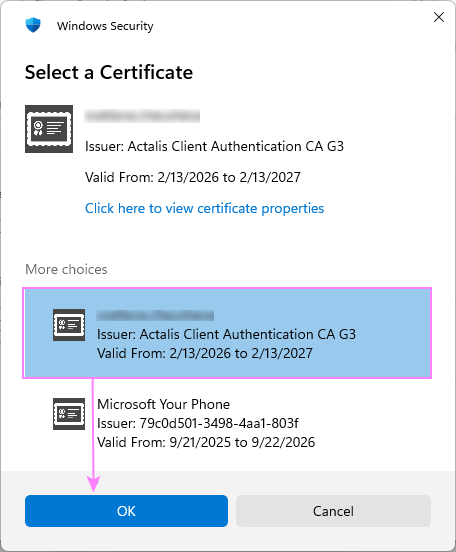
- In the Windows Security dialog window that opens, click More choices. Then, select the email certificate you installed on Windows earlier (the one showing your email address), and click OK.
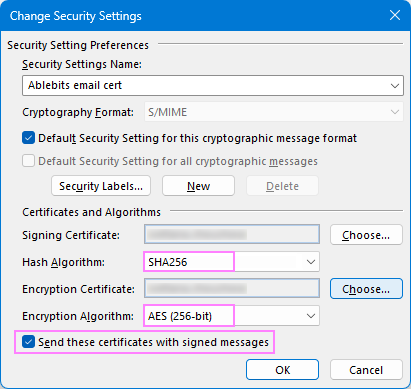
- Back in the Change Security Settings window, most fields will now fill in automatically. There are a few important things to check:
- Set Hash Algorithm to SHA256. The default SHA1 option is outdated and may not work properly with some email clients, including Gmail.
- Make sure the Encryption Algorithm is set to AES (256 bit).
- Verify that Send these certificates with signed messages is enabled.
- Click OK, then close all open windows.
Your S/MIME certificate is now connected to Outlook and you can start sending secure emails.
Import S/MIME certificate to new Outlook
In the new Outlook app, your digital certificate isn't picked up automatically. You need to import it manually inside Outlook settings. Here's how:
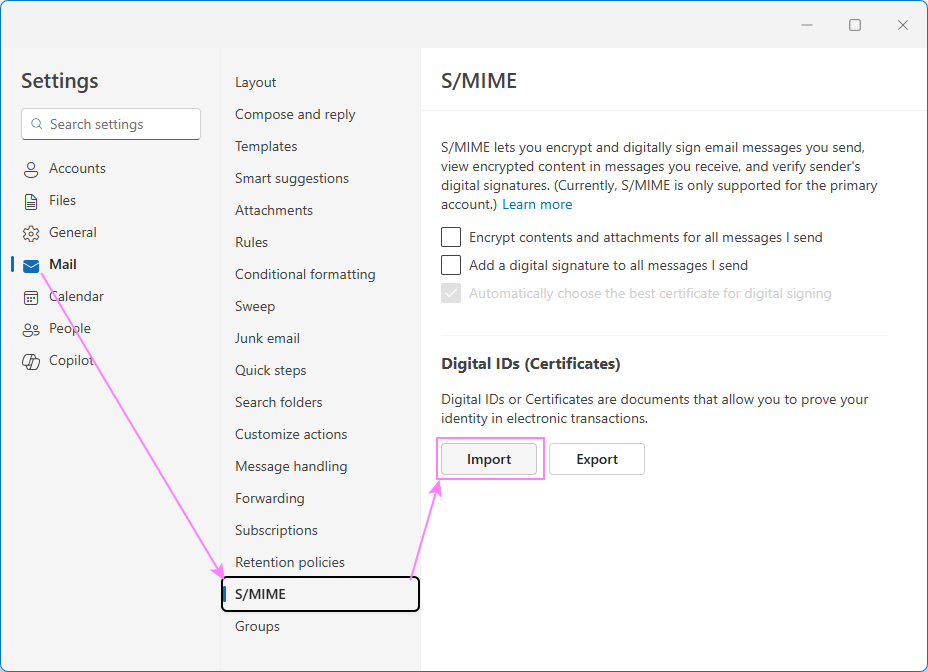
- Go to Settings > Mail > S/MIME.
- Under Digital IDs (Certificates), click Import.
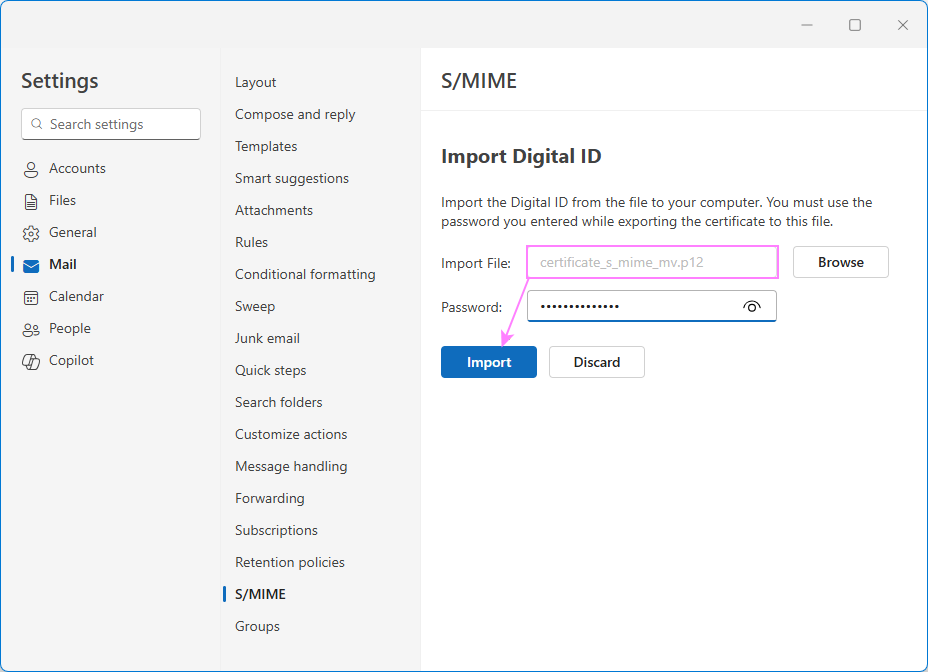
- Click Browse, locate your certificate file (.p12 or .pfx) and enter the password you received when the certificate was issued.
- After the cert is imported, select Automatically choose the best certificate for digital signing.
Once imported, your certificate is ready to use for encrypting and digitally signing messages in the new Outlook app.
Notes:
- In the new Outlook, S/MIME is currently supported only for the primary account.
- If the Automatically choose the best certificate for digital signing option is grayed out, it means your organization manages digital IDs centrally and has disabled manual changes. In that case, you may need to contact your IT administrator.
- Although the new Outlook includes an option to import an S/MIME certificate, there are ongoing issues with it. In many cases, a certificate that works perfectly in classic Outlook is reported to be untrusted in the new Outlook or in Outlook on the web. This appears to be a problem on Microsoft's side rather than with the cert itself, and hopefully they will fix it in future updates.
Invalid Certificate error in Outlook – reasons and solutions
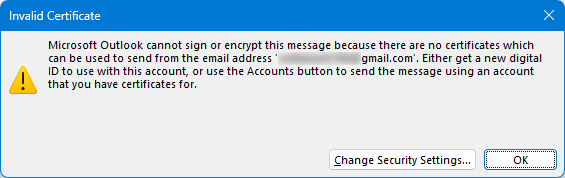
If Outlook shows an Invalid Certificate error when you try to sign or encrypt an email, possible reasons are:
- No certificate is added to Outlook. Make sure your S/MIME certificate is installed on Windows and properly configured in the Outlook app.
- The certificate is invalid or can't be validated. Outlook may not trust the issuing CA, or the cert is revoked, or the certificate chain is incomplete.
- The certificate has expired. Check the validity date in the certificate details and reissue it if needed.
- The certificate belongs to a different email address. The email address in the certificate must match the account you're sending from. If it doesn't, request a new S/MIME cert for that account or send from the account tied to the certificate.
If you've made it this far, the hardest part is behind you. From now on, sending secure encrypted or digitally signed emails is just one extra click 😊