 by
by Instead of copying formulas across multiple rows and columns, the MAP function lets you process entire arrays in one go. In this article, you'll learn how it works, when to use it, and how to build practical formulas step by step.
Microsoft Excel has an annoying habit of making us repeat ourselves. If you've ever copied the same formula down a column and thought "There has to be a better way", you are absolutely right. The MAP function is that better way. It applies your logic to every value in a range automatically, saving you from all that copying and pasting.
Excel MAP function
The MAP function in Excel runs a custom calculation on each value in an array and returns the transformed results. The logic of the calculation is defined with a LAMBDA function.
In other words, the MAP function is "mapping" your LAMBDA to each value in a specified range. The result is a dynamic array of the same shape (having the same number of rows and columns) as the original array.
From a user's perspective, MAP lets you write a formula once and apply it to an entire range at the same time, without repeating the same formula across multiple cells.
MAP function syntax
The official syntax provided by Microsoft is:
However, this notation can be a bit misleading.
In practice, the MAP function requires two essential components:
- at least one array
- Lambda function (always the last argument)
You can also include additional arrays if your calculation needs them.
Given the above, a more accurate representation of the syntax is this:
Where:
- array1 – the array to process.
- array2, …, arrayN – [optional] additional arrays used in the Lambda calculation.
- lambda – the custom LAMBDA function to apply to each array.
Note that LAMBDA must always be the final argument in the formula and it must include one parameter for each array passed to MAP.
Excel MAP function in action
To see how the MAP function works in practice, let's start with a simple example.
Suppose you want to increase each value in the range B4:E26 by 10%. Using the traditional one cell – one formula approach, you calculate the upper-left cell of the source range first:
=B4*1.1
The formula goes in the top-left cell of the output range, and then you copy it down and to the right to as many cells as necessary.
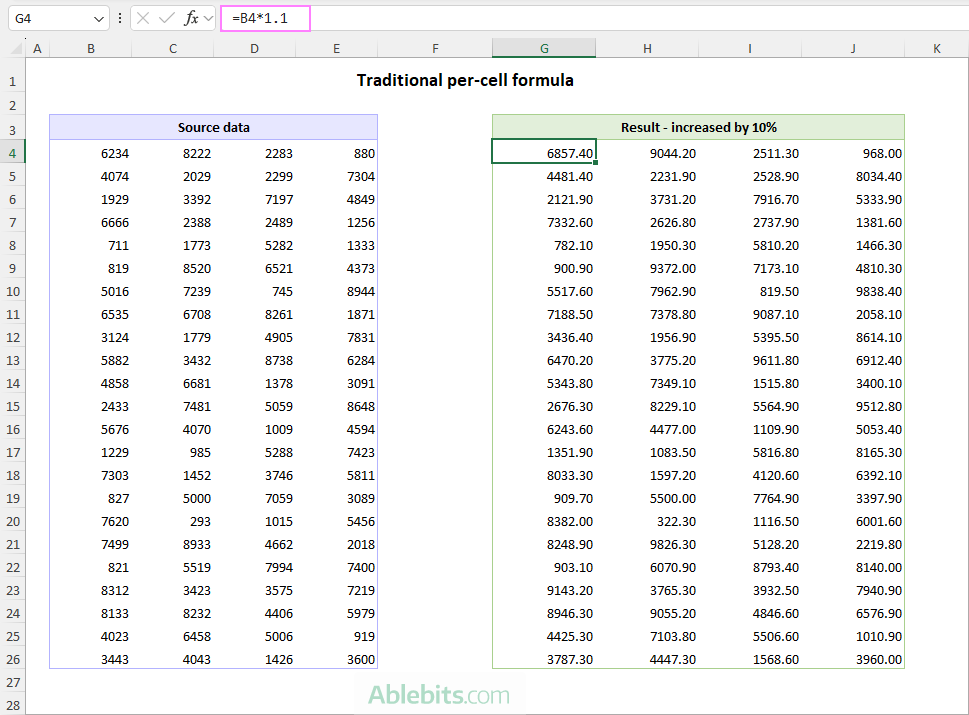
In dynamic-array Excel, this can be done with a single formula:
=MAP(B4:E26, LAMBDA(x, x*1.1))
The MAP function applies the calculation to every value in the range and returns a new array with the same dimensions. The results spill automatically into the neighboring cells.
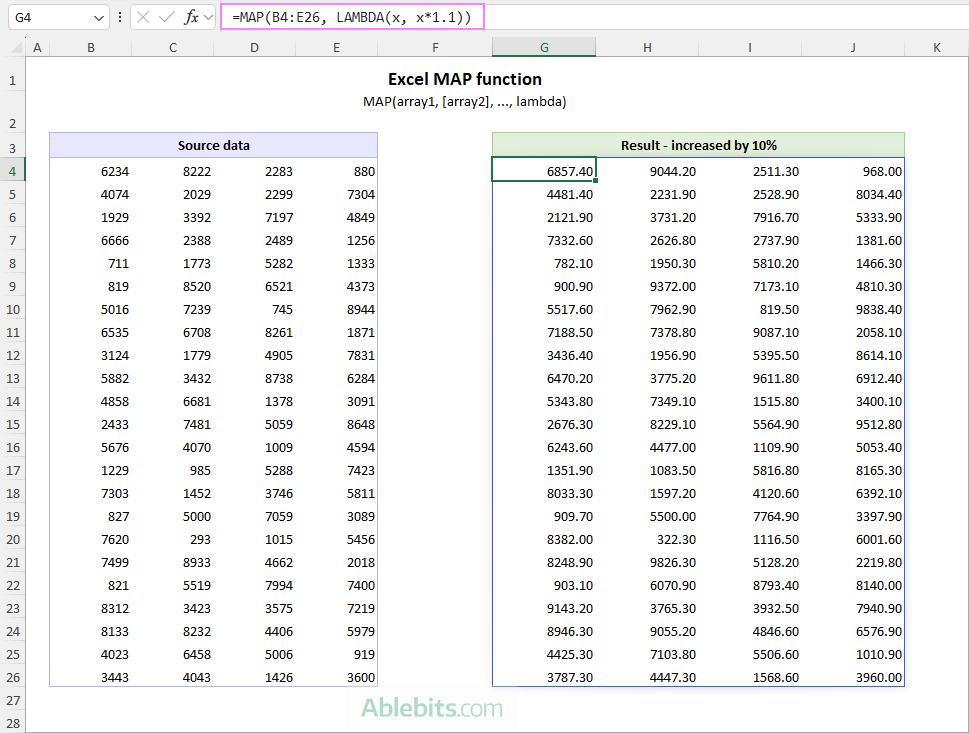
This simple example shows the general idea behind MAP – replacing many repeated formulas with one dynamic formula that handles the entire range.
Tips:
- Inside LAMBDA, parameters are simply variable names, and you can choose any name you like. For example, if your array contains prices, naming the parameter "price" makes perfect sense.
- the LAMBDA function lets you define custom logic directly within your MAP formula. You don't need to create a named function in the Name Manager unless you plan to use the same logic somewhere else.
What is Excel MAP used for?
The MAP function comes handy when you want to process each value in an array individually but get the results as a single dynamic array.
This is especially useful when you want to:
- Update the formula in one place instead of editing multiple cells.
- Handle matching values from multiple arrays (for example, combine or compare them row by row).
- Replace helper columns with a single, more compact formula.
MAP function availability
MAP belongs to the newer Excel function set that supports dynamic arrays and LAMBDA. It is available in:
- Excel for Microsoft 365 (Windows and Mac)
- Excel 2024 (Windows and Mac)
- Excel for the web
It is not available in older Excel versions such as Excel 2016 or Excel 2019. If you try to use it there, the function won't be recognized and will return an error.
How to use MAP function in Excel
The MAP function lets you apply a custom calculation to each value in one or more arrays using a single formula. Once you understand the basic pattern, you can adapt it to a wide range of tasks, from simple transformations to more advanced logic.
Using MAP function with one array
When working with a single range or array, the MAP function requires two arguments:
- array – the range of values to process.
- lambda – the custom LAMBDA function applied to each value.
The generic formula can be written as follows:
Where x represents each individual value from the array.
Suppose you have numeric values in B4:E26 and want to turn them into item IDs by adding a prefix such as "Item-" to each value. It can be done using this formula:
=MAP(B4:E26, LAMBDA(x, "Item-"&x))
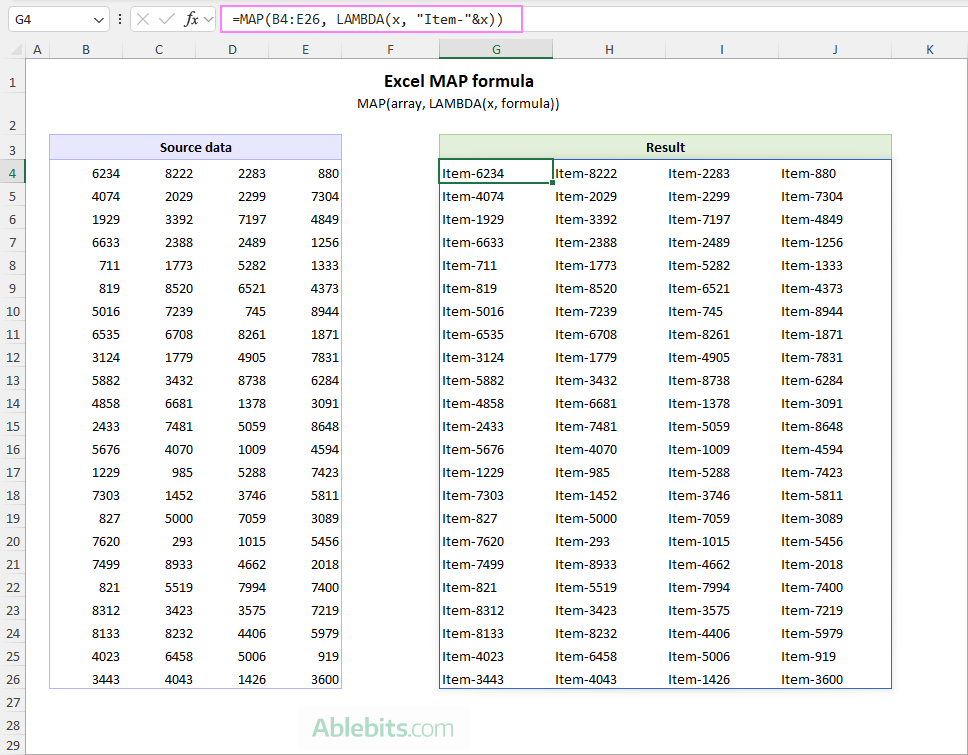
How this formula works:
- MAP takes each value from B4:E26, one at a time.
- The LAMBDA function adds the text "Item-" in front of each value.
- The results are returned as a dynamic array with the same shape as the source range.
So, a value like 123 becomes "Item-123", and Excel spills all results automatically into the output range.
Using MAP function with multiple arrays
When you want MAP to work with more than one array, you can include all the arrays as arguments. To do this:
- Place additional arrays after the first one.
- Define matching parameters in the LAMBDA function so each array has its own placeholder. The LAMBDA parameters must follow the same order as the array arguments: first array, first parameter; second array, second parameter, and so on.
- Ensure the LAMBDA is always the last argument.
The generic MAP formula with two arrays is as follows:
=MAP(array1, array2, LAMBDA(x, y, formula))
Where:
- x represents values from array1.
- y represents corresponding values from array2.
Let's say you have two arrays of the same size, the first one (B4:E12) containing text prefixes and the other one (G4:J12) containing numbers. You want to combine the corresponding elements from both arrays into a single value like UK-100.
The task can be performed using this formula:
=MAP(B4:E12, G4:J12, LAMBDA(x, y, x&"-"&y))
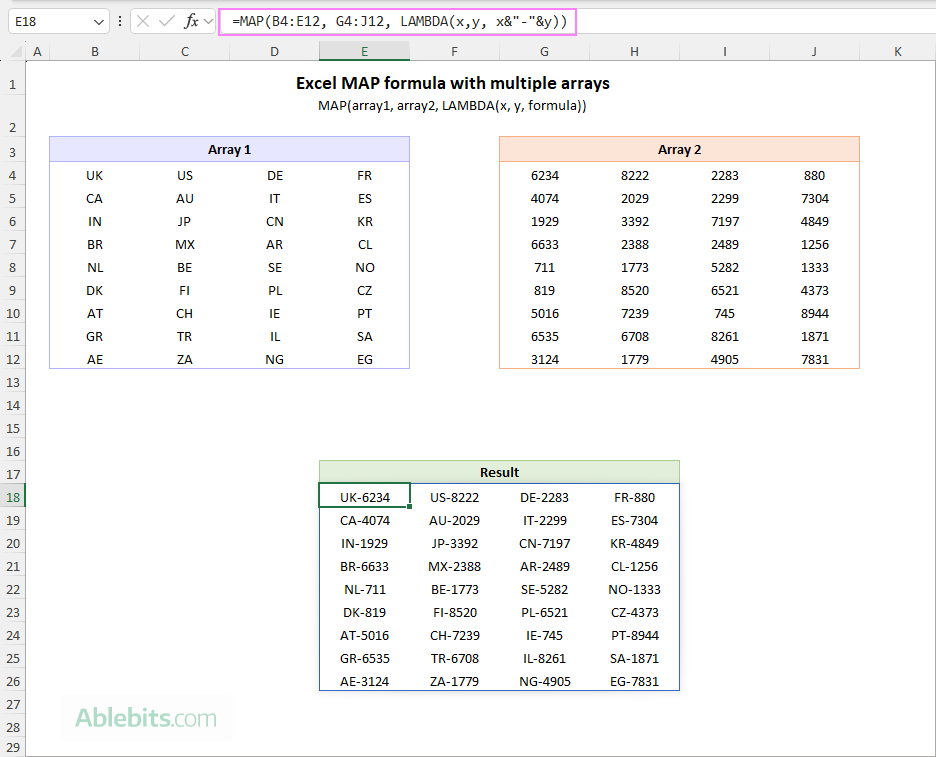
What this formula does:
- MAP processes both arrays element by element.
- For each position, it takes a prefix from B4:E12 and a number from G4:J12.
- The LAMBDA joins them with a hyphen.
- The result is a new array where each item is a combination of the corresponding values from the source arrays.
Once you get comfortable with this basic pattern, you can extend it further by adding more arrays or more complex logic inside LAMBDA.
Excel MAP formula examples
The best way to master the MAP function is to see it in action. Below are a few practical examples that show how to use it with multiple arrays to combine values, apply custom logic, and return clean results.
Example 1: MAP formula to combine columns
MAP is not limited to one or two arrays. It can work with three, four, or as many arrays as your logic requires, as long as each array has a matching parameter in the LAMBDA function and they appear in the same order.
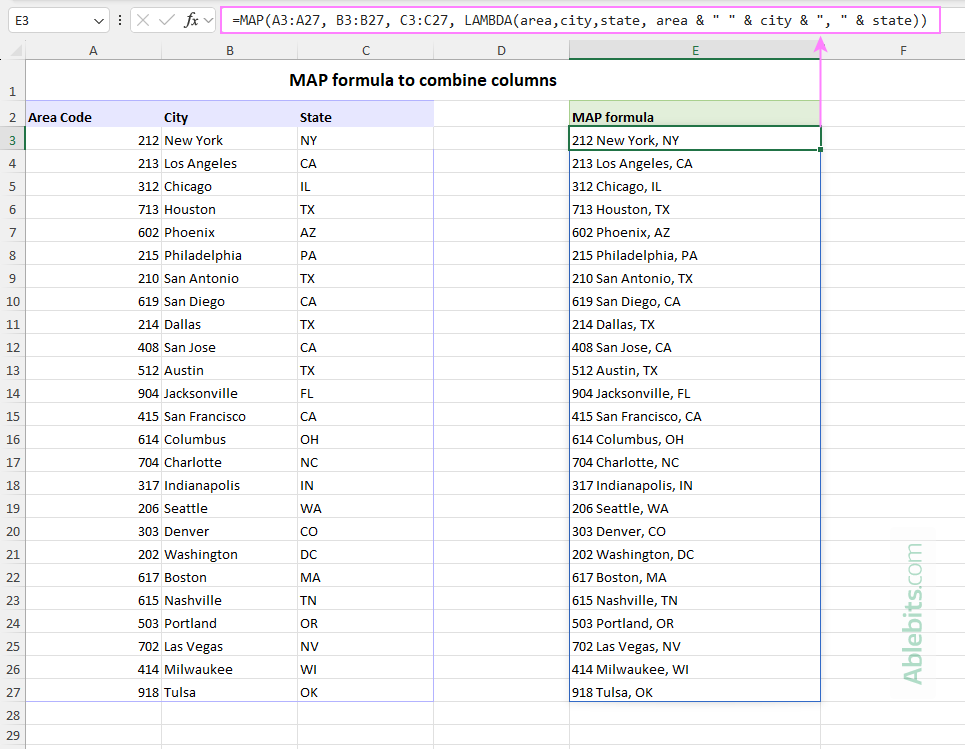
For example, suppose you want to combine the three columns in the dataset below into text strings like 212 New York, NY, where the area code and city are separated by a space, and the state is added after a comma.
You can do that with this formula:
=MAP(A3:A27, B3:B27, C3:C27, LAMBDA(area, city, state, area & " " & city & ", " & state))
Where:
- A3:A27 contains the area codes.
- B3:B27 contains the city names.
- C3:C27 contains the state abbreviations.
- area, city, and state are the corresponding LAMBDA parameters.
The MAP function takes one value from each range at the same position and LAMBDA combines those values into a single text string using the concatenated characters. The results are returned as a dynamic array, one combined entry per row.
Example 2: MAP formula to clean data
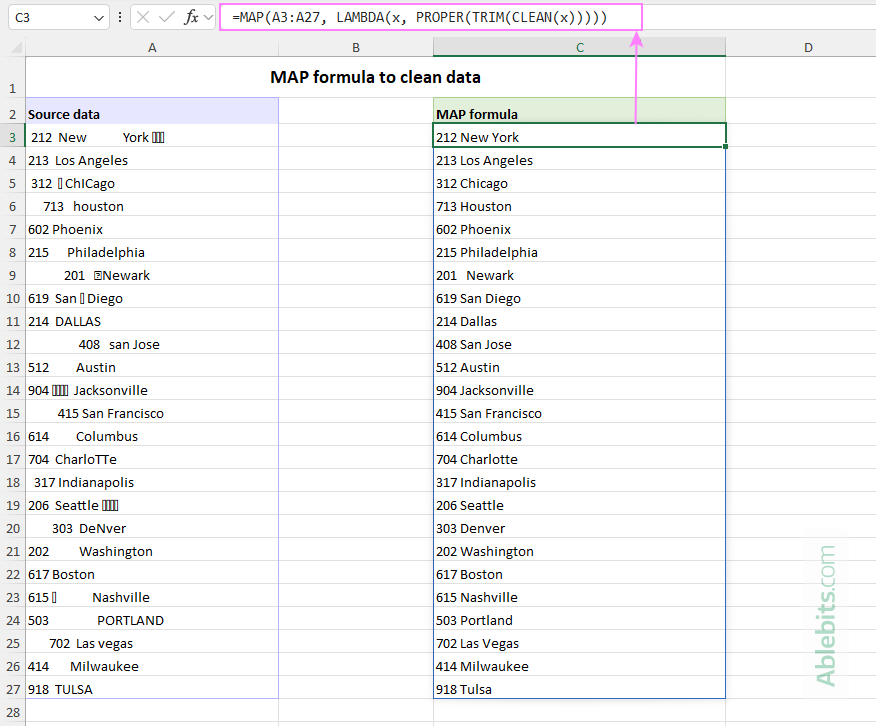
Real-world data is not always tidy. You might get values from external sources that include extra spaces, non-printing characters, or inconsistent capitalization (UPPER, lower, mixed). Cleaning that data manually can be a real challenge, but MAP copes with it perfectly.
For example, to clean up data in A3:A27 and convert everything to Proper case, use this formula:
=MAP(A3:A27, LAMBDA(x, PROPER(TRIM(CLEAN(x)))))
What this formula does:
For each value in the range:
- CLEAN removes non-printing characters.
- TRIM removes extra spaces (leading, trailing, and reduces multiple spaces between words to a single one).
- PROPER capitalizes each word.
MAP applies this sequence to every cell in the range and returns a dynamic array of the cleaned results. So, a messy entry like "212 New York" becomes a properly formatted string "212 New York".
Example 3: MAP calculation with multiple inputs
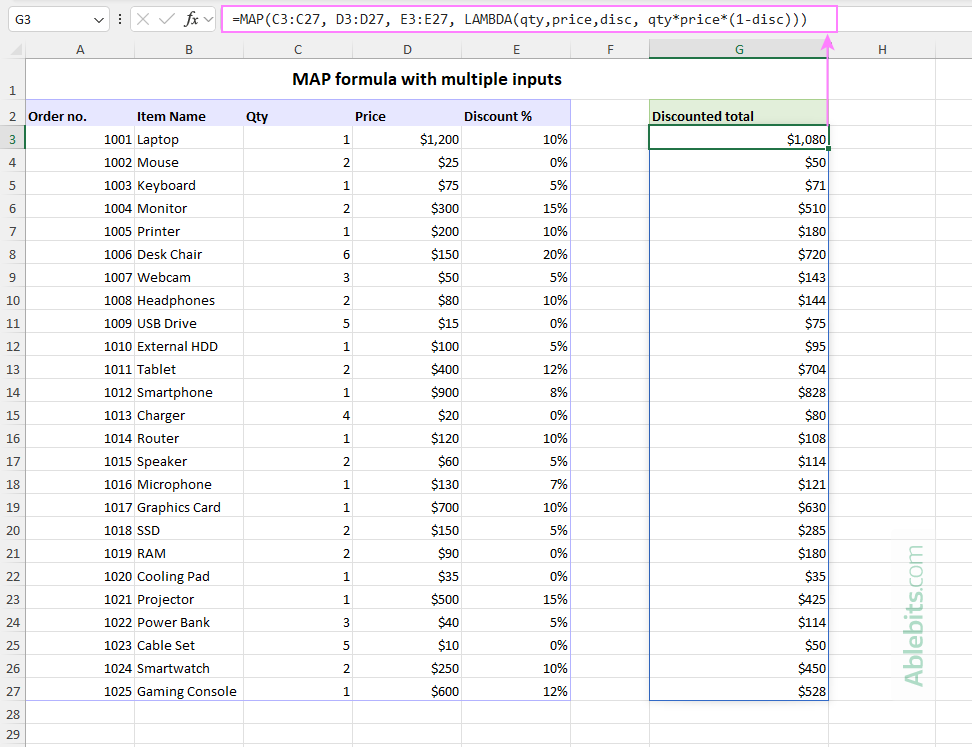
This example shows how Excel MAP can work with several inputs at once, ideal when your result depends on multiple related values.
If quantities are in C3:C27, prices in D3:D27, and discount percentages in E3:E27, you can calculate discounted totals with this formula:
=MAP(C3:C27, D3:D27, E3:E27, LAMBDA(qty, price, disc, qty*price*(1-disc)))
How this formula works:
- MAP processes all three arrays together, one row at a time.
- The LAMBDA calculates the total as: quantity * price * (1 - discount)
For example, if a row contains qty 2, price $100, and discount 10%, the result is: 2 * 100 * (1 - 0.1) = 180
Example 4. MAP with multiple AND / OR conditions
Excel users often rely on logical functions like AND and OR to test various conditions.
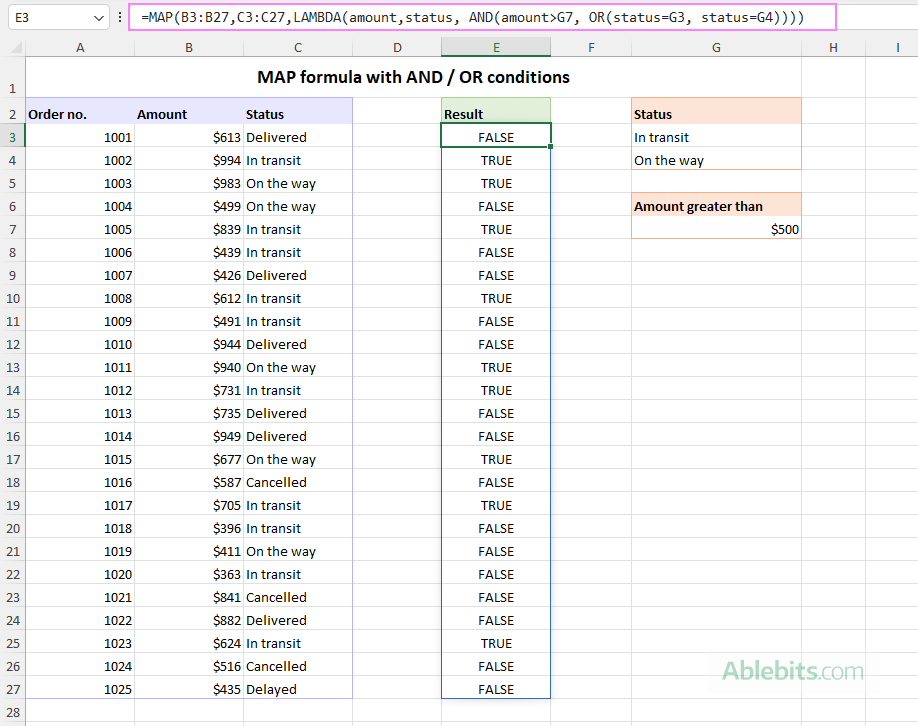
In this example, we are going to check each order in A3:C27 using the following logic:
- The amount in column B is greater than 500, and
- The status in column C is either "In transit" or "On the way".
For each row, we want a TRUE or FALSE result depending on whether both conditions are met.
A traditional formula like this will not work as expected:
=AND(B3:B27>500, OR(C3:C27="In transit", C3:C27="On the way"))
This is because, when applied to ranges, AND / OR functions return a single result.
MAP solves this problem by evaluating each row individually:
=MAP(B3:B27, C3:C27, LAMBDA(amount, status, AND(amount>500, OR(status="In transit", status="On the way"))))
To make the solution more flexible and easier to maintain, you can enter the conditions in separate cells and reference them in your formula:
=MAP(B3:B27, C3:C27, LAMBDA(amount, status, AND(amount>G7, OR(status=G3, status=G4))))
Where G7 contains the threshold value; G3 and G4 contain the statuses of interest.
This approach lets you adjust the criteria without editing the formula, which is especially helpful in large worksheets.
MAP vs. BYROW and BYCOL
MAP, BYROW, and BYCOL are related dynamic array functions, but each is designed for a different type of calculation.
- Use MAP when you want to process each individual value in an array or matching values from multiple arrays.
- Use BYROW when you want one result per row.
- Use BYCOL when you want one result per column.
Here's how they differ in practice:
To multiply each value in the range by 2, use MAP:
=MAP(A2:C10, LAMBDA(x, x*2))
To calculate twice the sum of each row, use BYROW:
=BYROW(A2:C10, LAMBDA(row, SUM(row)*2))
To get twice the sum of each column, use BYCOL:
=BYCOL(A2:C10, LAMBDA(col, SUM(col)*2))
Excel MAP not working - common errors
Like any function, MAP can return errors if something is not set up correctly. Here are a few common issues you may run into and how to avoid them:
Incorrect number of LAMBDA parameters
The number of parameters in the LAMBDA function must match the number of arrays supplied to MAP. If they don't match, Excel returns a #VALUE! error.
For example, this formula is correct:
=MAP(A2:A5, B2:B5, LAMBDA(x, y, x+y))
But this one is not:
=MAP(A2:A5, B2:B5, LAMBDA(x, x+1))
Because two arrays are provided, LAMBDA needs two parameters, one for each array.
Arrays with incompatible sizes
When using multiple arrays, they should have matching dimensions (same number of rows and columns) so Excel can process corresponding items together. If they don't align properly, MAP cannot pair values correctly, which may lead to unexpected results or errors.
Not enough space for the result (SPILL error)
Because MAP returns a dynamic array, the result needs enough empty cells to spill into. If something is blocking the output range, a #SPILL! error is returned.
In conclusion, MAP is one of those features that makes Excel feel a little smarter. You focus on the logic, and the function applies it everywhere it's needed. It might not replace every formula you use, but when it fits, it really simplifies things 😊
Practice workbook for download
Excel MAP formula examples (.xlsx file)