 by
by In this tutorial, you'll learn how to use the BYROW function in Excel, understand the difference between short-form and full LAMBDA syntax, explore practical examples and solutions for common errors.
When working with large datasets in Excel, you often hit the same question: "How do I apply this calculation to every row in a range without copying formulas down?". BYROW is made for exactly that. It takes a multi-row range or dynamic array and runs a given function on each row.
Excel BYROW function
The BYROW function in Excel applies a specified calculation to each row in a range or array and returns one result per row. The output is a dynamic array of values that spills vertically, the same height as the input array.
BYROW can work with native Excel functions such as SUM, COUNT, AVERAGE, as well as custom logic created with LAMBDA. It's designed for situations where you want consistent, row-by-row results without copying formulas down a column.
Syntax
The syntax of the BYROW function is as follows:
Where:
- array - the array or range to process.
- function - the calculation to be performed on each row.
Excel BYROW supports two forms of syntax for its function argument: Eta-reduced and explicit LAMBDA.
Eta Lambda
This is a short-form syntax where you remove the Lambda wrapper and call the applied function directly by name.
For example, to sum each row in the range C6:G30, the formula is as simple as this:
=BYROW(C6:G30, SUM)
The short-form syntax is used for simplicity and convenience. It's concise, easy to understand, and perfect for basic tasks like calculating a row's sum or average.
Full LAMBDA
The full-form syntax uses an explicit LAMBDA definition and allows custom calculations. In the generic form, the syntax is as follows:
Where:
- array - an array or range to apply the formula to.
- row- a name representing the current row as it is passed into the LAMBDA.
- formula – a calculation to perform on each row in the array.
For example, here's how you can sum each row in the range using an explicit LAMBDA:
=BYROW(C6:G30, LAMBDA(row, SUM(row))
The long-form LAMBDA syntax is for flexibility. It allows you to customize calculations, apply conditions, and create more sophisticated formulas.
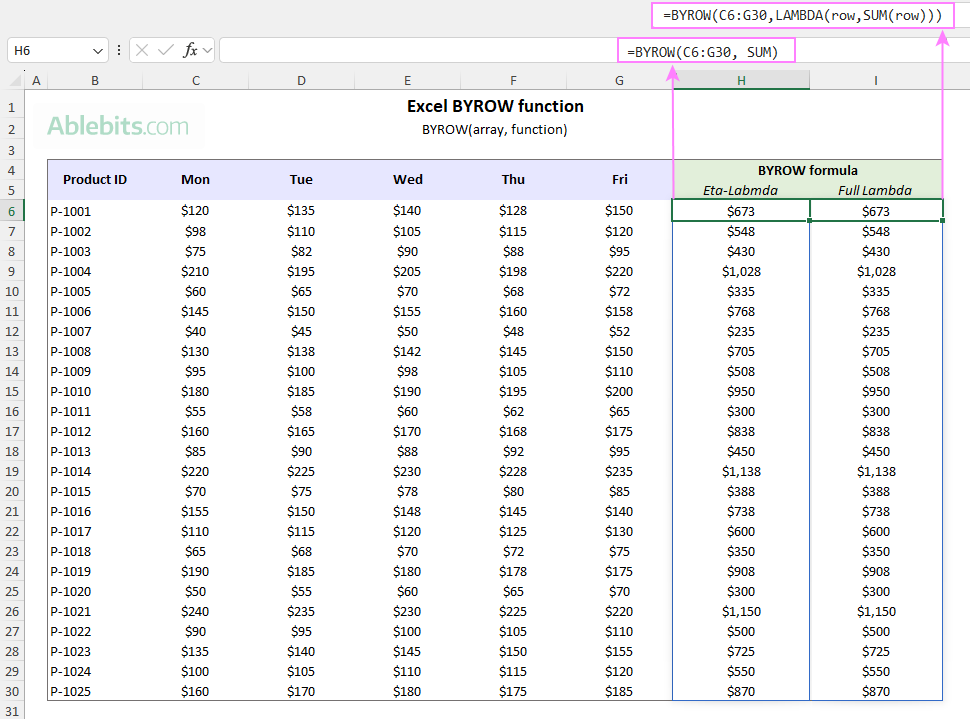
What BYROW does in plain English:
- You give BYROW a range or array with multiple rows.
- You tell it what function to apply.
- BYROW performs that calculation for every row and spills the results automatically.
- Each row is processed independently, but the output stays linked to a single formula.
Usage notes
If you are familiar with the standalone Excel LAMBDA function, keep these essential differences in mind:
- You do not need to define a LAMBDA function in the Name Manager when using it inside BYROW, although you can if you want to reuse it elsewhere.
- You can use any name you like for the row parameter. For example, both of these will work: LAMBDA(row, SUM(row)) and LAMBDA(r, SUM(r)).
- The classic LAMBDA function can take multiple parameter names, but when used with BYROW, LAMBDA only accepts one parameter - the current row.
BYROW function availability
BYROW is a dynamic array function available in:
- Excel for Microsoft 365 (Windows and Mac)
- Excel for the web
It is not supported in older versions of Excel.
Why use the BYROW function?
To appreciate the advantages of BYROW, it helps to look at how row-based calculations were handled before it. In older versions of Excel, you would typically:
- Write a formula for the first row. For example, to sum values in C5:G5:
=SUM(C5:G5)
- Copy the formula down for all remaining rows.
This method works, but it leaves more chances to overwrite something accidentally, mismanage cells references, or forget to extend the formula when new rows are added. BYROW replaces all of that with a single formula.
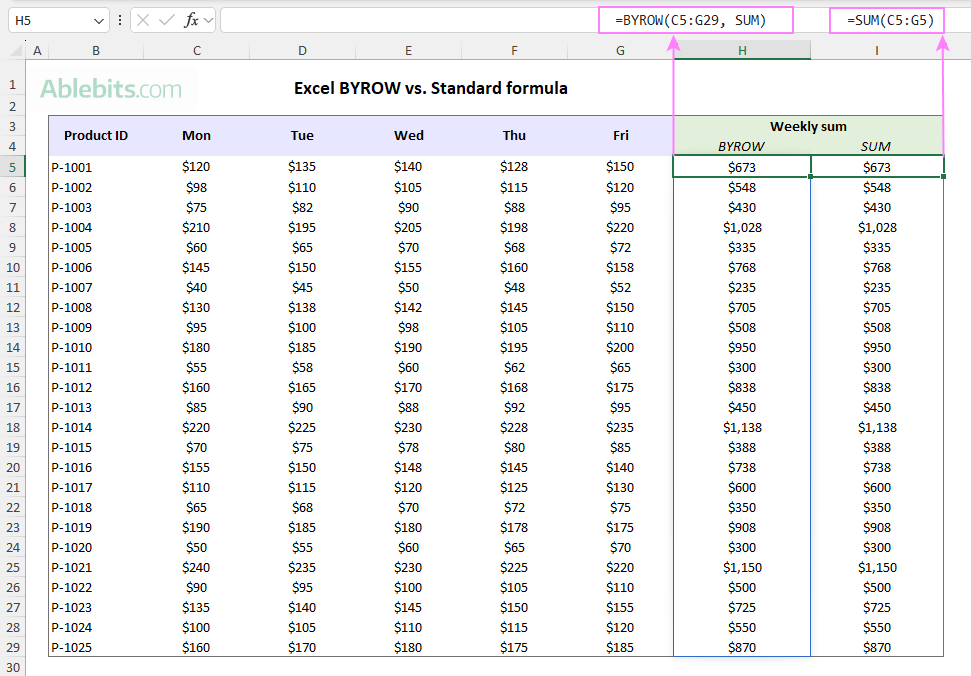
Compared to traditional copied formulas, BYROW has some clear advantages:
- One formula instead of many. The logic lives in a single cell, making worksheets easier to maintain.
- Built-in protection. If someone tries to type anything into a spilled range, Excel shows a #SPILL! error instead of silently overwriting an existing formula. It's a helpful warning that the current formula should not be changed.
- No reference mismatch. You don't need to worry about the proper use of relative vs. absolute references so the formula copies correctly to other rows. BYROW automatically passes each row into the calculation.
Tip. If you want to calculate results column-by-column, use the BYCOL function instead.
Basic BYROW formula in Excel
To understand the basic use of a BYROW formula in Excel, let's start with a simple, practical example.
Suppose you have a dataset where each row represents a product. Column A contains the product ID, and columns B, C, and D hold monthly sales figures. Your goal is to calculate totals and averages per product.
To calculate total sales for each product across three months, the formula is:
=BYROW(B3:D27, SUM)
To get the average monthly sales per product, use:
=BYROW(B3:D27, AVERAGE)
In a similar manner, you can compute the smallest and largest value in each row:
=BYROW(B3:D27, MIN)
=BYROW(B3:D27, MAX)
Each BYROW formula is entered once, in the top-most cell of the output column (E3 for sums and F3 for averages) and the results automatically populate for every row in the specified range.
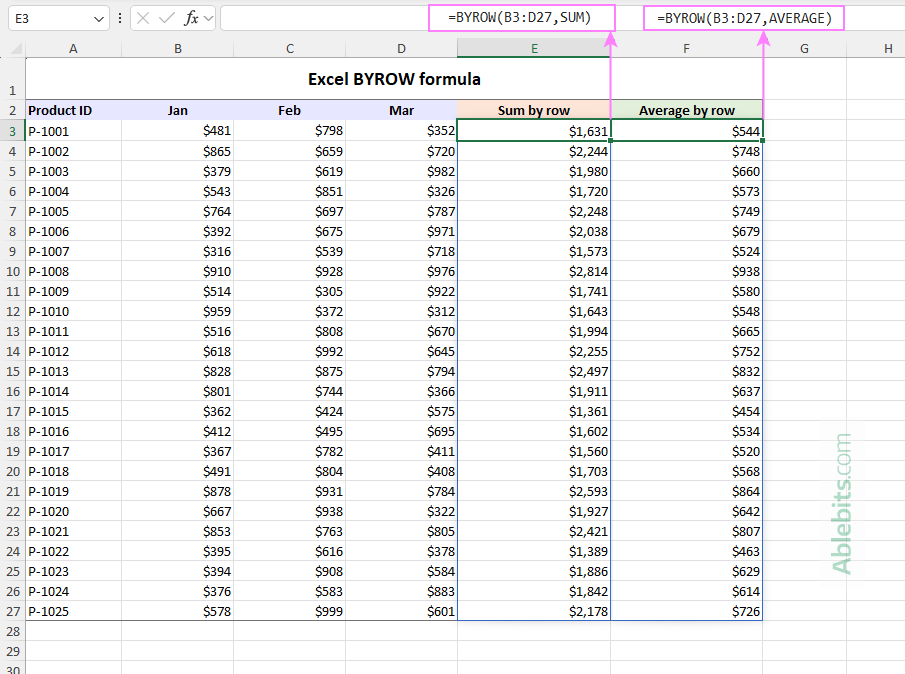
If you prefer, you can write the same formulas using the regular LAMBDA syntax:
=BYROW(B3:D27, LAMBDA(row, SUM(row))
=BYROW(B3:D27, LAMBDA(row, AVERAGE(row))
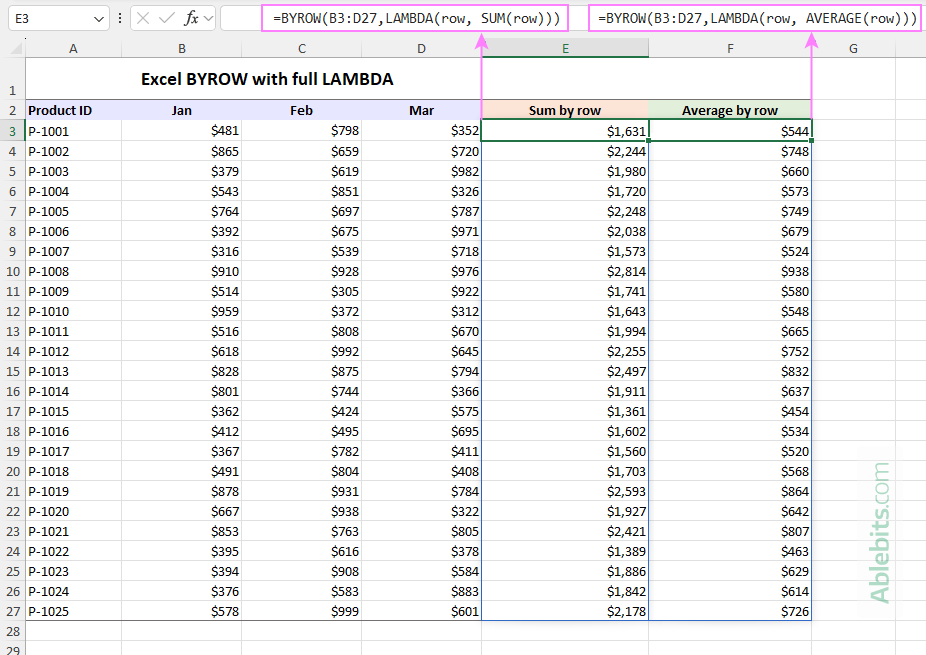
How Lambda-based BYROW formulas work
Let's break down the following formula step-by-step to better understand its logic:
=BYROW(B3:D27, LAMBDA(row, SUM(row))
- B3:D27 - this is the input range. BYROW processes it one row at a time, starting with row 3 (B3:D3), then row 4 (B4:D4), and so on through row 27.
- row - this is simply the parameter name for the current row being processed. It's defined inside the LAMBDA and can be named anything you like (for example, r or currentRow).
- SUM(row) - this is the calculation performed on each row. It adds up the values in the current row and returns a single total.
- LAMBDA - lets you define a custom calculation right inside the formula. You don't need to create a named function in the Name Manager unless you want to reuse it elsewhere.
- BYROW - loops through each row in the input range and applies the calculation defined by LAMBDA. Because the range B3:D27 contains 25 rows, BYROW returns 25 results. These results spill into the range E3:E27, with one calculated value for each row.
In this basic example, explicit Lambdas produce the same results as their eta-reduced versions. The real advantage of the full LAMBDA form is that it allows adding custom logic as demonstrated in the following examples.
How to use BYROW in Excel – formula examples
Once you understand the syntax and basic uses, the best way to master BYROW is to see it solve real problems. Below are a few practical examples that show how to combine BYROW with custom logic inside a LAMBDA function.
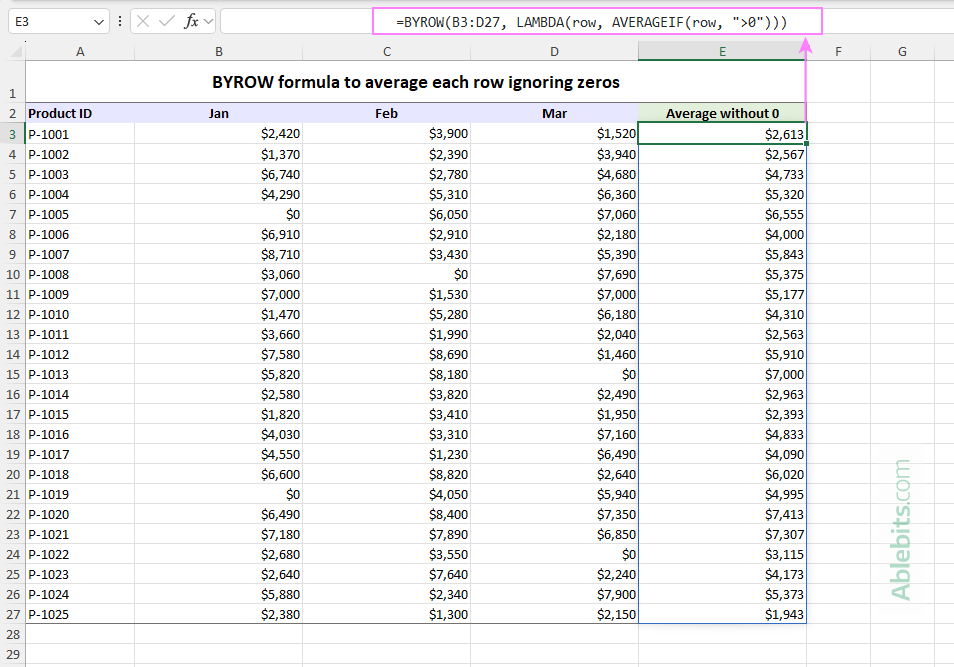
Example 1. BYROW to average each row ignoring zeros
Suppose each row in B3:D27 contains monthly sales figures. Some months may have 0 values that you don't want included in the average.
To calculate the average per row while ignoring zeros, use this formula:
=BYROW(B3:D27, LAMBDA(row, AVERAGEIF(row, ">0")))
How this formula works:
This is a very simple example of custom logic:
- AVERAGEIF(row, ">0") calculates the average of only the values greater than zero.
- BYROW repeats this calculation for each row in B3:D27 and spills the results down to as many cells as there are rows in the array argument.
Arrays vs ranges in BYROW formulas
The formula above works correctly because B3:D27 is a normal range. If the first argument of your BYROW function is an array (e.g. the result of another formula), the calculation will fail because AVERAGEIF as well as other Excel "If" functions such as SUMIF or COUNTIF requires a range.
In this case, you will need another LAMBDA function that uses an array-based approach. For example:
=BYROW(array, LAMBDA(row, AVERAGE(FILTER(row, row<>0))))
Why this works:
- FILTER(row, row<>0) removes zeros from the row.
- AVERAGE(…) calculates the average of the remaining values.
- Since FILTER is a dynamic array function by nature, this version handles both ranges and calculated arrays correctly.
Example 2. Count how many values in each row are below a threshold
Let's say you are working with a dataset that contains monthly expenses or sales figures, and you want to count how many values in each row are below a certain number, say 4000.
The simplest solution using the COUNTIF function:
=BYROW(B3:D27, LAMBDA(row, COUNTIF(row, "<4000")))
If the threshold is entered in a predefined cell (H2):
=BYROW(B3:D27, LAMBDA(row, COUNTIF(row, "<"&H2)))
This makes the formula dynamic. When the value in H2 changes, the row counts update automatically.
Another way to solve the same problem is: =BYROW(B3:D27, LAMBDA(row, SUM(--(row<4000)))) How this formula works: At first glance, this formula may seem more complicated. However, it has one important advantage - it works with both ranges and arrays. The COUNTIF version is simpler, but it only works when the first argument of BYROW is a range. If your data comes from another formula (e.g. FILTER or SORT), the SUM-based approach is more flexible.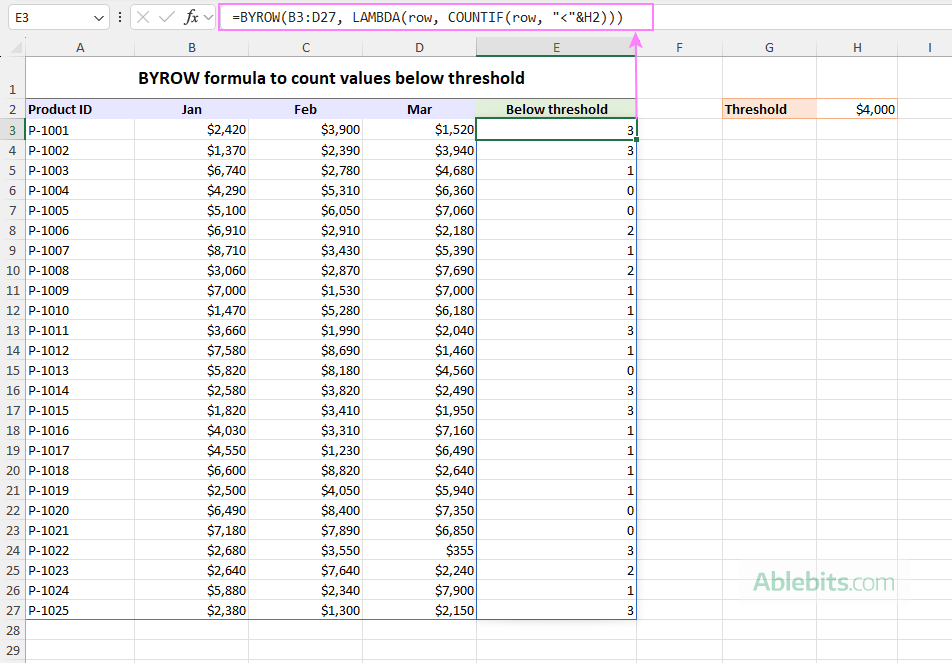
Alternative solution that works with arrays
Why use the second method?
Example 3. Add per-row labels based on condition
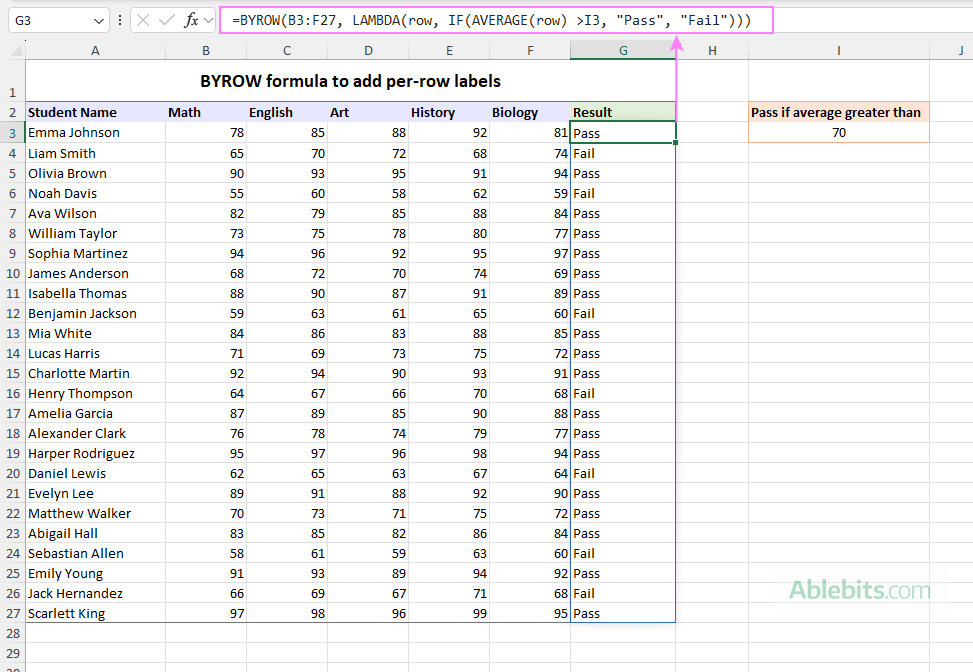
Imagine you have a dataset with students' exam results in several subjects. Column A contains a student name and columns B to F hold their exam scores. Your goal is to return a "Pass" or "Fail" label for each student, based on their overall average score.
Let's say a student passes if their average score is above 70. The task can be fulfilled using this formula:
=BYROW(B3:F27, LAMBDA(row, IF(AVERAGE(row) >70, "Pass", "Fail")))
If needed, you can enter a minimum required score in a certain cell and reference it in your formula. This makes the calculation flexible and easy to adjust without editing the formula itself.
Now, whenever you change the value in I3, the Pass/Fail results update automatically for all students.
=BYROW(B3:F27, LAMBDA(row, IF(AVERAGE(row) >I3, "Pass", "Fail")))
Tip. If the passing mark cell should stay fixed when copying the formula elsewhere, use an absolute reference like $I$3.
How this formula works:
- AVERAGE(row) calculates each student's average score.
- IF(AVERAGE(row) >70, "Pass", "Fail") checks whether the average meets the required threshold.
- BYROW repeats this logic for every student.
Example 4. Using BYROW with checkboxes
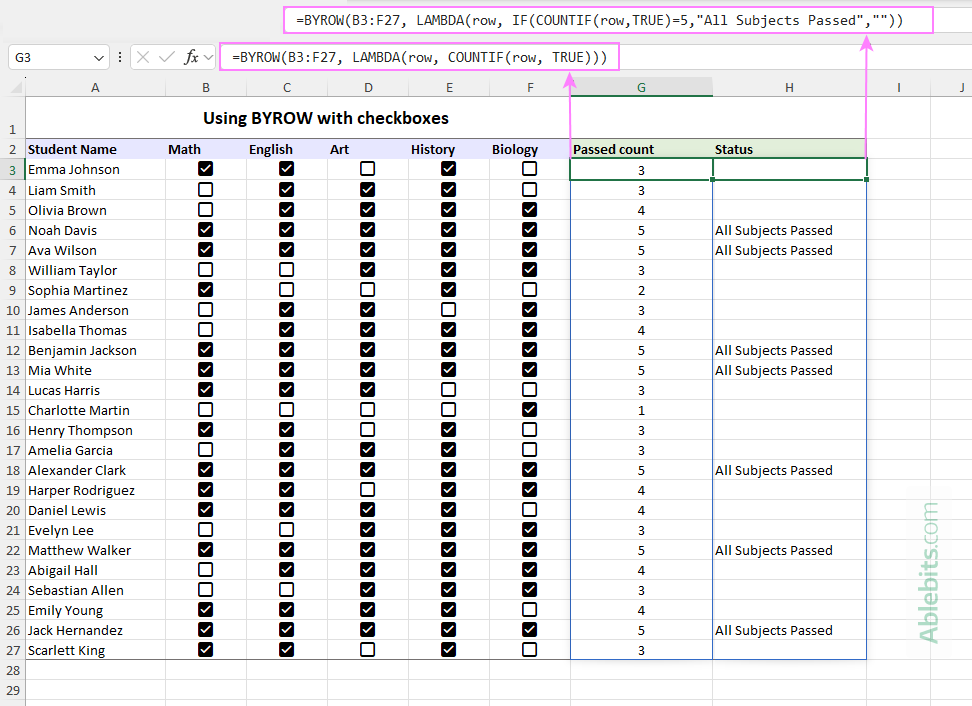
Building on the previous example, consider a slightly different setup. Instead of numeric scores, suppose columns B to F contain checkboxes that indicate whether a student has passed a certain subject. A checked box (TRUE) means the exam is passed; an unchecked box (FALSE) means it isn't.
You now have two goals:
- Count how many subjects each student has passed so far.
- Identify students who have passed all subjects.
To find out how many subjects a student has passed, just count the TRUE values (checked boxes) in each row:
=BYROW(B3:F27, LAMBDA(row, COUNTIF(row, TRUE)))
To mark students who passed all subjects, you can extend the logic slightly:
=BYROW(B3:F27, LAMBDA(row, IF(COUNTIF(row, TRUE)=5, "All passed", "")))
What this formula does:
In short, the formula checks whether every checkbox in a row is selected and labels the student accordingly.
- COUNTIF(row, TRUE) counts the checked boxes in each row.
- Then, you compare that count to 5, since there are five subjects (five checkboxes per row).
- If the count equals 5, the IF function returns "All Subjects Passed", otherwise, it returns an empty string (blank).
Tip. If the number of subjects might vary, replace 5 with COLUMNS(row) to make the formula adjust automatically:
=BYROW(B3:F27, LAMBDA(row, IF(COUNTIF(row, TRUE)=COLUMNS(row), "All passed", "")))
That way, the formula stays accurate even if you add or remove subjects later.
Example 5. Make BYROW formulas expand automatically
When working with data that grows over time, you may want your formula to handle future rows without constant adjustments. Instead of editing the range reference every time new data is added, you can define a larger range upfront and trim the unused rows automatically using the TRIMRANGE function. Let's see how this works in practice.
Suppose your current dataset contains 25 rows, but you expect more rows to be added later. You can reference a larger range, such as B3:D100, and use TRIMRANGE to remove the empty rows before passing the data to BYROW.
=BYROW(TRIMRANGE(B3:D100, 2), SUM)
This approach ensures your BYROW formula automatically includes new rows as they are added, without returning extra blank results.
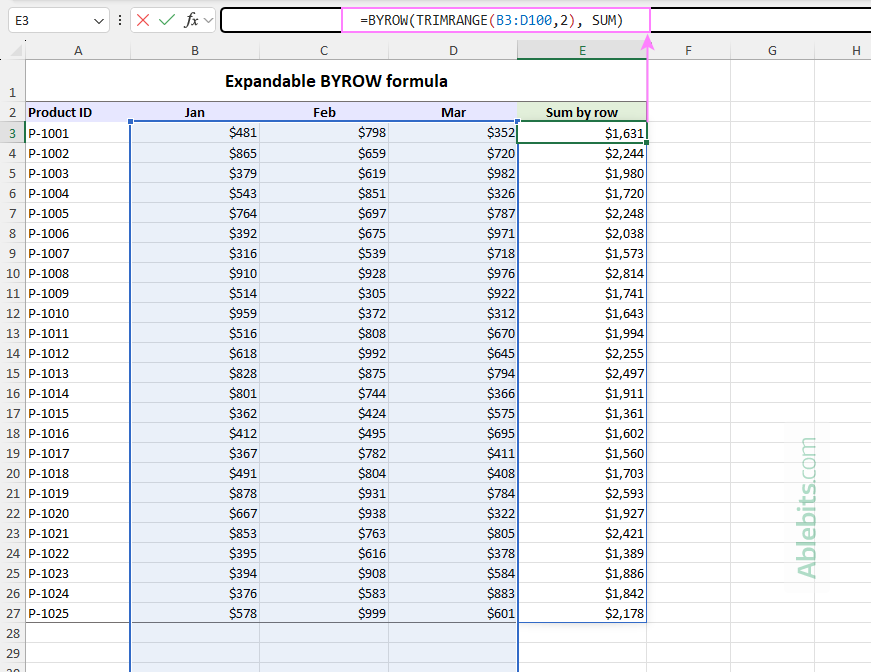
The same effect can be achieved more compactly using the Trim Trailing reference operator (:.) directly inside BYROW:
=BYROW(B3:.D100, SUM)
This tells Excel to reference the range from B3 to D100 but ignore trailing blank rows.
Performance tip. Avoid using extremely large ranges like entire columns unless truly necessary. Even if blanks are trimmed, Excel still has to process the full range, which can slow down large workbooks, especially when using custom Lambda. A good practice is to define a reasonably sized buffer range that leaves room to grow (for example, 100 extra rows).
Excel BYROW function not working – fixes for common errors
If your BYROW formula isn't behaving properly, below are the most common problems and how to fix them.
#NAME? error
Most often, this error means that the BYROW function is not supported in your version of Excel or you mistyped its name.
BYROW is only available in Excel for Microsoft 365 and Excel for the web. If you are using an older version of Excel, the only option is to write a traditional per-row formula and copy it down manually.
#CALC! error
A #CALC! error usually indicates one of the following:
Incorrect logic inside LAMBDA. Review your formula carefully. A small syntax mistake inside LAMBDA can cause the calculation to fail.
Returning multiple values instead of one. BYROW expects your LAMBDA to return one result per row. If your formula returns an array instead of a single value, you may see a #CALC! error. Make sure the expression inside LAMBDA produces a single result.
Also note that SUMIF, AVERAGEIF, COUNTIF, and other IF-based functions require a range reference. If you pass a calculated array instead of a range, they may not work as expected inside BYROW.
#VALUE! error
A #VALUE! error often means your LAMBDA parameters are incorrect. When used with BYROW, LAMBDA must have exactly one parameter to represent the row: LAMBDA(row, formula). If you define more than one parameter, or forget the parameter entirely, Excel will return an error.
That's how to use the BYROW function in Excel to build formulas with centralized logic. Once you get comfortable with it, copying formulas down starts to feel a little old-fashioned. Why repeat yourself 100 times when Excel is perfectly capable of doing it for you? Write the logic once, let it spill, and enjoy your sleek worksheet 😊
Practice workbook for download
Excel BYROW formula examples (.xlsx file)