 by
by Discover simple ways to turn important emails into actionable tasks in Outlook with just a few clicks.
Some emails are just messages. Others are really tasks in disguise. We've all read one, thought "I'll handle this later", and then… completely forgotten about it. Instead of letting them pile up, you can turn such messages into actionable to-do items and track them alongside your other tasks.
How to create a task from an email in Outlook
Classic Outlook (365 – 2010) offers a quick and easy way to turn any email into a task. Just drag the message to the Task module, and Outlook does most of the work for you.
To convert an Outlook email into a task, do the following:
- Open your Inbox or any other folder that contains the email of interest.
- Click and hold the message you want to turn into a task.
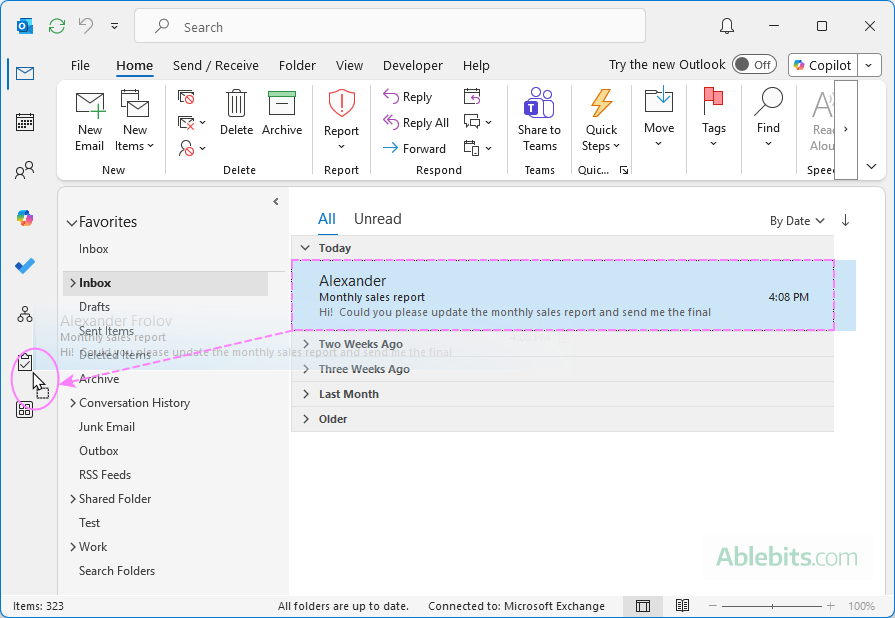
- Drag it to the Tasks icon in the Navigation pane, then release the mouse button.
- A new task window opens. Here, you can set the usual details such as start date, due date, and reminder. The email text is automatically added to the task body, and you can edit it if needed.
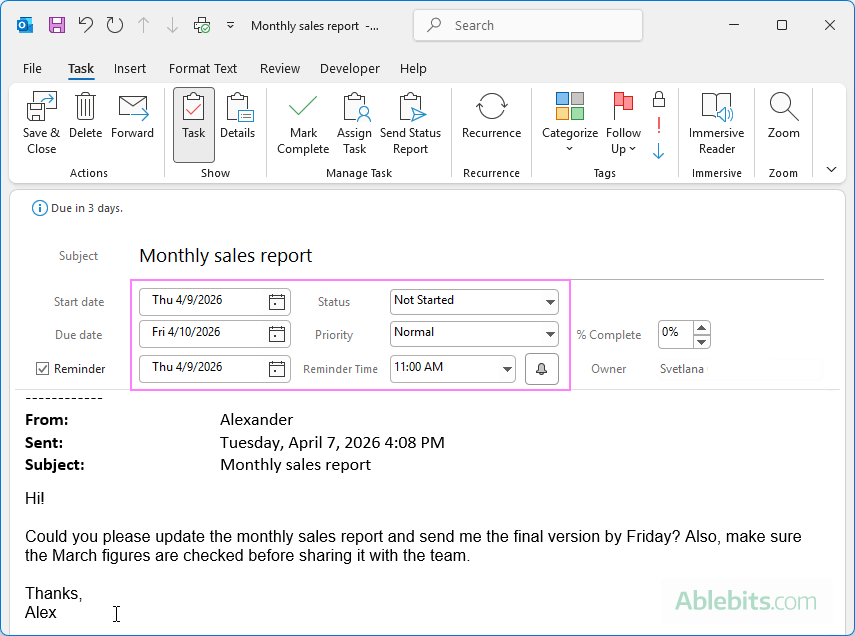
- When everything is set, click Save & Close on the Task tab.
Your new task is ready. It will appear in your Outlook task list, where you can track progress and manage it alongside your other tasks.
Note. If the Tasks icon isn't available in the Navigation bar in your Outlook, click the More Apps button, then right-click Tasks and choose Pin. For more information, see How to customize Outlook navigation pane.
Tip. In a similar manner, you can create a task from any other Outlook item such as a calendar event, contact, or note. Simply drag the item to the Tasks module in the Navigation pane, and Outlook will convert it into a task.
How to attach an email to a task in Outlook
If you'd rather attach the original email to the task (instead of pasting its text into the task body), there are two ways to do this in classic Outlook.
Create a new task with a message attached
Here's how to create a task and attach the email in one go:
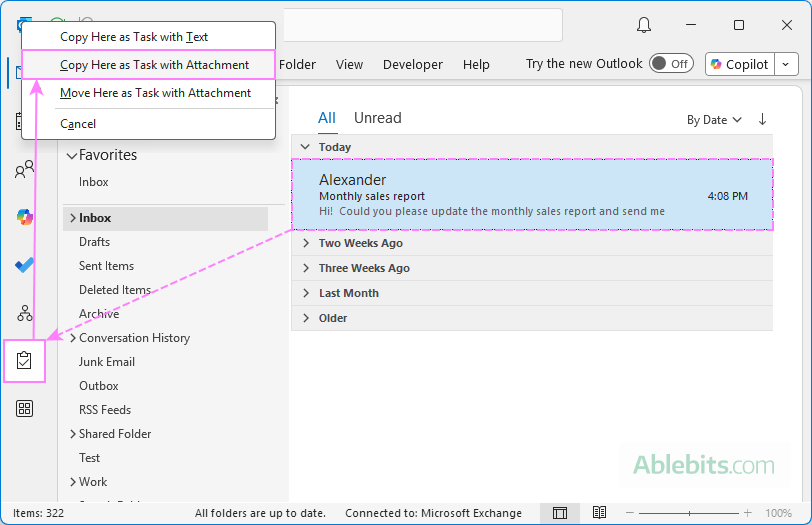
- In your Inbox or another folder, right-click the email and drag it to the Tasks module in the Navigation pane.
- Release the mouse button, then choose one of the following options:
- Copy Here as Task with Attachment – creates a task with a copy of the email attached, while keeping the original message in your mailbox.
- Move Here as Task with Attachment – moves the original message from your mailbox into the task as an attachment.
Attach an email to an existing Outlook task
If you already have a task and want to include an email in it, you can add the message as an attachment:
- Open your Tasks list in Outlook.
- Double-click the target task to open it in a separate window.
- Switch to your mail list and select the email.
- Drag the email into the open task window.
- Click Save & Close to update the task.
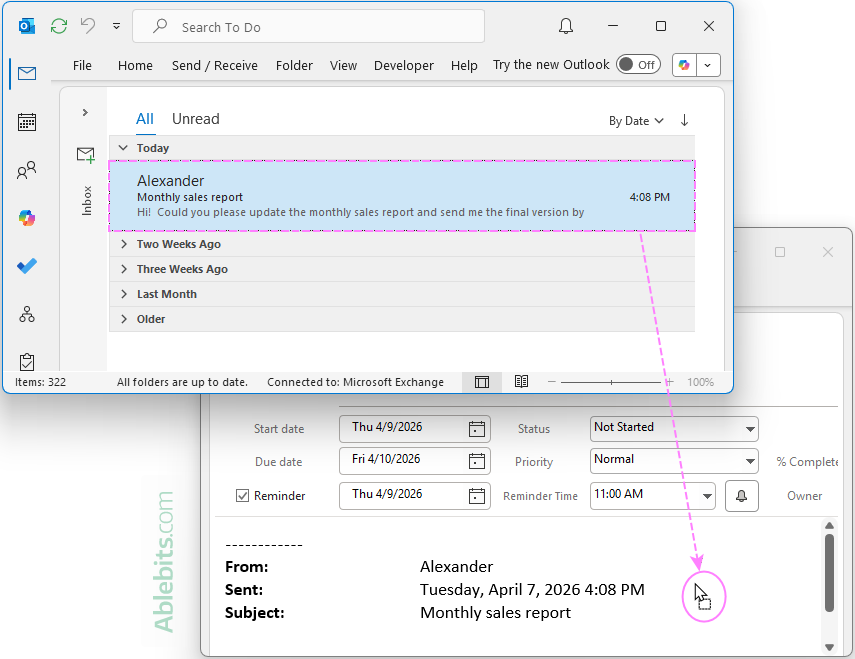
A copy of the email will be attached to the task, while the original message remains in your mailbox.
How to create task from email in new Outlook and web
In the new Outlook app and Outlook on the web, tasks are managed through Microsoft To Do. You can quickly turn an email into a task and keep it linked to the original message for easy reference.
To create a task from an email in the new Outlook and web app, follow these steps:
- Go to Mail and open the folder that contains the email.
- Click the My Day icon in the upper-right corner of the Outlook window to open its pane.
- In the My Day pane, switch to the To Do tab.
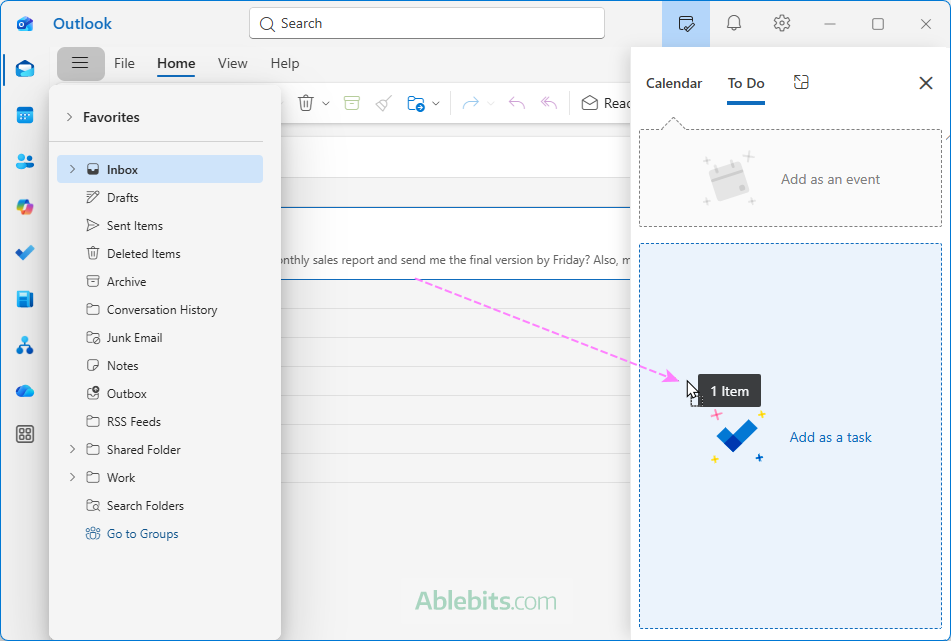
- In the message list, find the email you want to turn into a task.
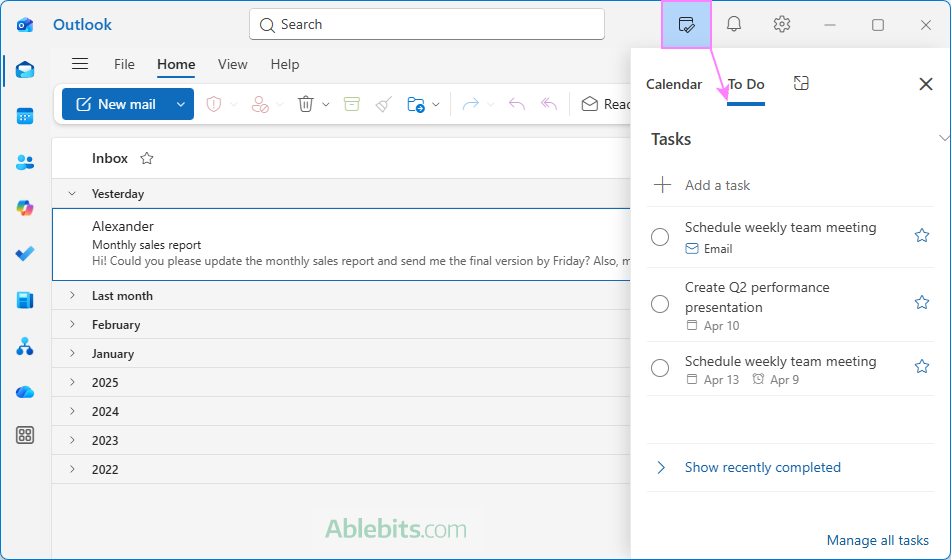
- Drag the message to the Add as a task section in the My Day pane.
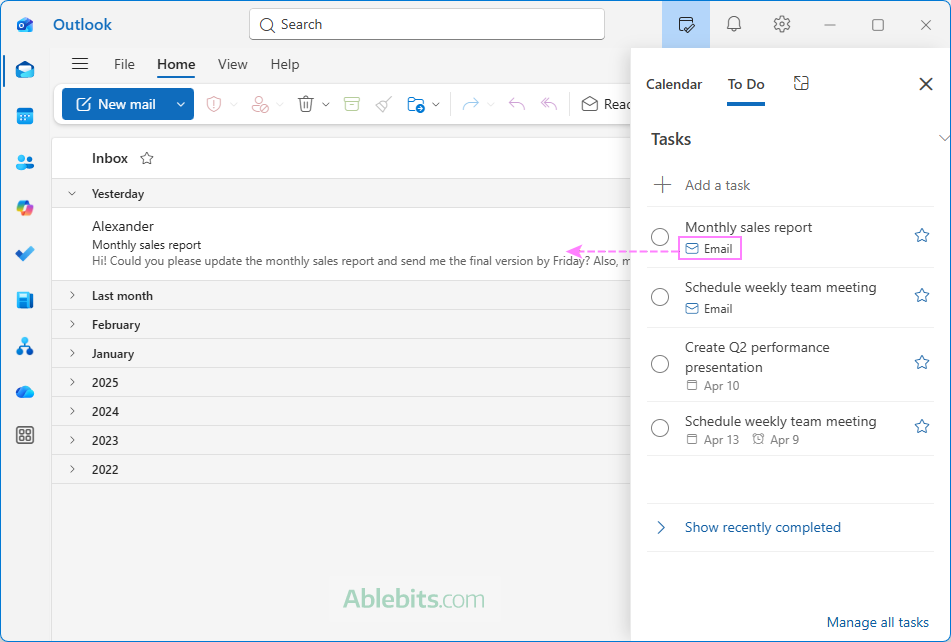
As a result, a new task is created and automatically linked to the email. When you click the email icon below the task, the original message opens in a separate window, so you can quickly check the details whenever needed.
Tip. After creating a task from an email, the next logical step may be adding the task to your Outlook calendar, so you can schedule time for it and see it alongside your other events.
What happens to the email after converting it into a task
When you create a task from an Outlook email, the original message usually stays right where it is, unless you choose otherwise.
- The original email remains in your inbox (or its current folder) unless you choose Move Here as Task with Attachment when creating a task. In that case, the email is moved and stored as an attachment inside the task.
- Depending on the method and Outlook version, the task may include:
- A task in classic Outlook (365 – 2016): The email text is added to the task body, or the original message is attached to the task.
- A To-Do item in the new or web Outlook app: A link to the email is added, allowing you to open the original message directly from the task.
Creating a task from email vs. flagging a message
Flagging an email and creating a task from it may look similar at first, but they work quite differently.
When you flag a message, Outlook does not create a separate task. The flagged email simply appears in your To-Do List and Tasks view, but it stays tied to the original message. When you delete the flagged email, it also disappears from your task list.
When you create a task from a message, Outlook creates a separate, independent task. This task includes a copy of the email content, but it no longer depends on the original message. If you delete the email, the task remains and can still be tracked and completed.
In short, flagging is quick and lightweight, while creating a task gives you something more permanent and flexible to work with.
That's how to create a task from a message in Outlook. Give it a try next time an email needs action. It only takes a second but helps turn "don't forget this" into something you can actually manage 😊