 by
by This tutorial shows how to flag emails in Outlook for yourself and the recipient, so important messages don't get lost in your inbox, and your contact knows when action is needed.
"I'll reply later" sounds like a solid plan, until later never comes. Not every message needs a reply or action right away, but some definitely need a reminder. Flagging in Outlook is a simple way to mark important emails and come back to them at the right time.
What does flagging an email do in Outlook?
Flagging an email in Outlook turns it into something that's hard to miss. It acts as both a visual reminder and a simple to-do item, helping important messages stand out from the rest of your mailbox.
When you flag a message:
- It is highlighted in your mail folders.
- It is added to your To Do and Tasks.
- It can include a due date and reminder, depending on how you set it up.
The most common use is to flag an email for follow-up. However, you can also choose other actions, such as Reply, Review, Forward, or options like For your information or No response necessary.
Flagging works a bit differently depending on the Outlook app you are using:
- Classic Outlook (365 – 2016): You can flag both incoming and outgoing messages. This includes emails already in your folders as well as messages you're composing, and you can set flags for yourself, recipient, or both.
- New Outlook and Outlook on the web: You can only flag emails that are already in your mail folders. The option isn't available while composing a message.
Does flagging an email in Outlook notify the original sender?
No, flagging an incoming email in Outlook does not notify the original sender. Such flag is for your own use, and it is only visible to you.
When you flag someone's email in your Inbox or your response in the Sent Items folder, Outlook does not send any kind of notification or alert to the other person.
If you want the recipient to see a flag on a message, you need to choose this option before sending.
How to flag an email as important in Outlook
When a certain email needs attention, flagging it is a quick way to make sure it doesn't get buried in your inbox. You can mark it for follow-up, assign a due date, and set a reminder so nothing slips your mind.
To flag an Outlook message as important, perform these steps:
- In the message list, locate the email you want to flag.
- To apply the default flag, click the flag icon next to the email. This usually sets both the start date and due date to today (unless you've changed the default flag settings in Outlook).
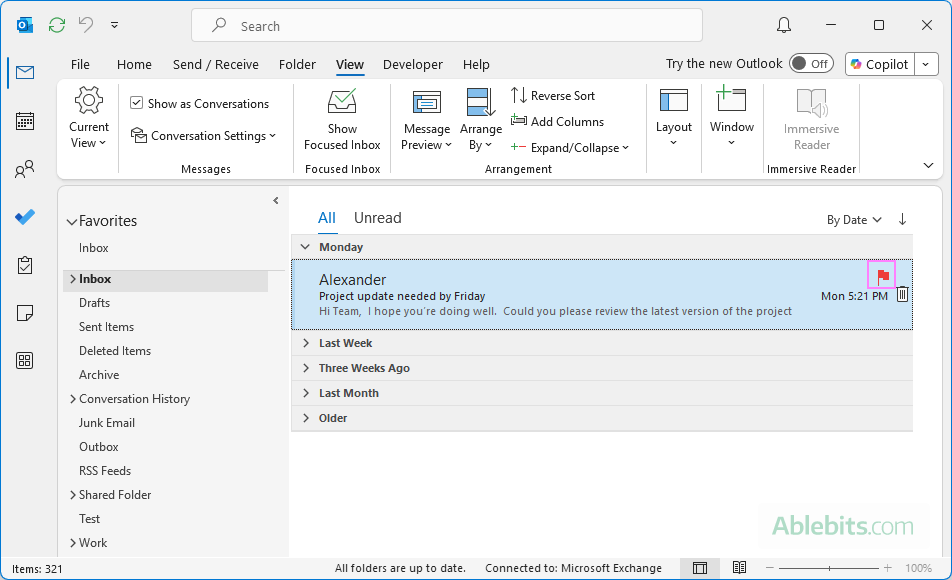
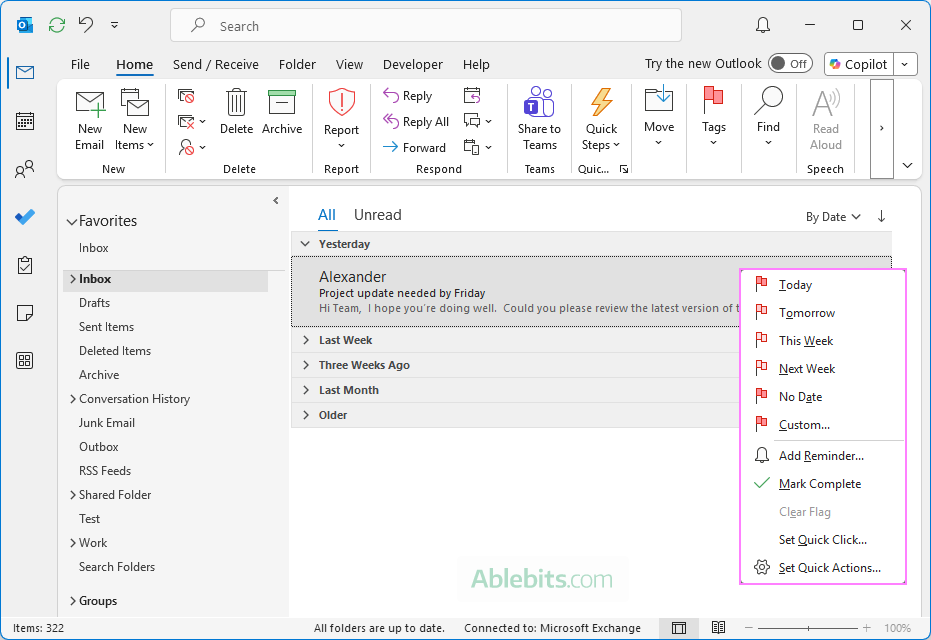
- For more options, right-click the flag icon, and then choose:
- One of the predefined time frames, such as Today, Tomorrow, or This Week.
- Custom to set your own start and due dates, and optionally choose a different action (for example, Review or No response necessary).
- If needed, add a reminder. To do this, right-click the flag icon, select Add Reminder, and choose the preferred date and time.
Tip. You can flag emails in any Outlook folder, not just your Inbox. For example, if you decide that a sent message needs follow-up, open the Sent Items folder and flag it from there.
How to flag Outlook email before sending
The classic Outlook application (365 – 2016) allows you to flag outgoing emails for yourself as well as for the person you're sending the message to. Below, you will find step-by-step instructions for both options.
Flag outgoing email for you to follow up
If you know that an email you are about to send will need attention later, you can flag it before sending.
Here's how to flag an outgoing email for follow-up:
- In the message you are composing, on the Message tab, in the Tags group, click Follow Up.
- Choose a date: Today, Tomorrow, This Week, Next Week, or No Date.
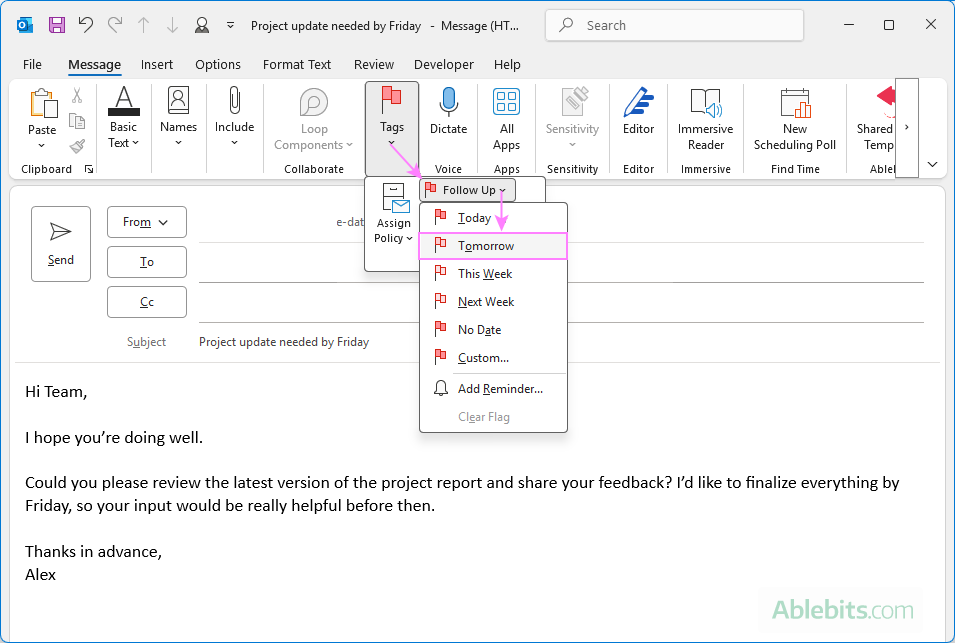
- If you'd like a reminder, open the Follow Up dropdown again and select Add Reminder, then set the date and time.
- Once the flag is set, a notification appears at the top of the message showing your follow-up details.
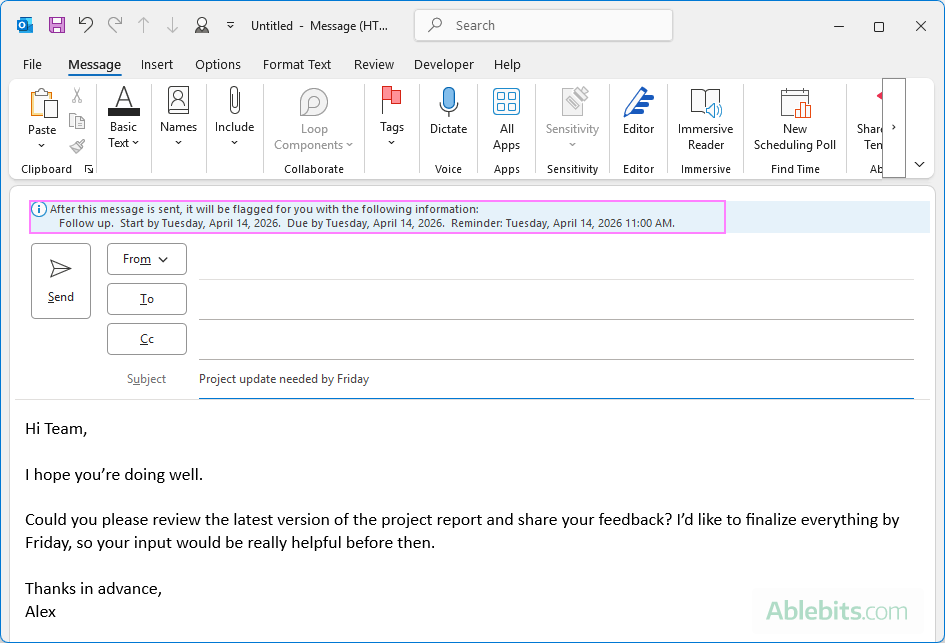
- If everything looks good, click Send.
After sending, Outlook will:
- Highlight the message as flagged in your Sent Items folder.
- Add it to your Tasks and To Do lists.
- Set the start and due dates based on your selection.
- Trigger a reminder if you set one.
How to add custom flag
The predefined Follow Up options in Outlook cover common scenarios, but sometimes you need something more specific. If you want to choose a different action or set your own dates, you can create a custom flag.
To add a custom flag to the email you are composing, follow these steps:
- On the Message tab, click Follow Up > Custom.
- Select Flag for me to track the message yourself.
- From the Flag to dropdown, choose the appropriate action, such as Follow up, Call, Forward, Review, or other.
- Set the Start and Due dates.
- If a reminder is needed, select Reminder and choose when you'd like to be notified.
- Click OK to apply the custom flag.
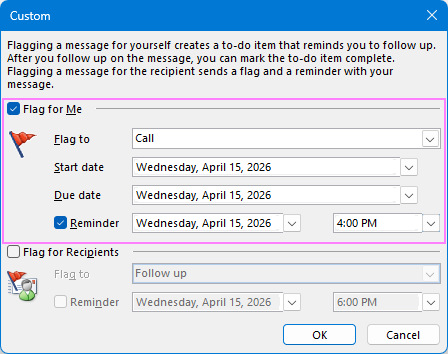
This way is a little longer, but it gives you more control over how emails are flagged in Outlook.
Flag message for the recipient
When you need a timely response to a message or want to prompt someone to take action, you can flag the email for the recipient to attract their attention.
- In the message you're composing, on the Message tab, in the Tags group, click Follow Up > Custom.
- In the Custom window that opens, check Flag for Recipients, and then:
- Select the desired action in the Flag to list.
- Optionally, select Reminder and specify the date and time.
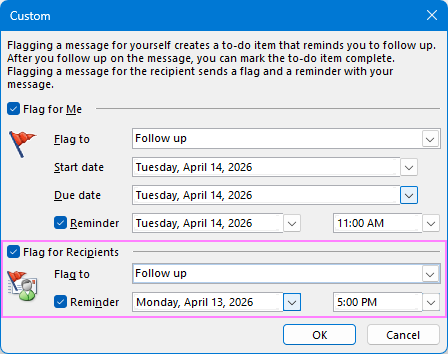
- Review the flag details shown in the info bar at the top of the message, then send the email.
Tips and notes:
- You can use the Custom option to flag the message for both yourself and the recipient at the same time.
- Flagging an email for the recipient only works inside Outlook. If your contact uses another email client, such as Gmail or Yahoo, the message will arrive without the flag.
- Use recipient flags thoughtfully, as not everyone will like reminders added to their Outlook by someone else.
How to flag emails in new Outlook and Outlook on the web
In the new Outlook and web app, there is no flag option while composing a message. You can only flag emails after they appear in your folders. Here's how to do it:
- Go to the folder that contains the email. For example, open Inbox for received messages or Sent Items for emails you've already sent.
- Hover over the email you want to flag, then choose one of the following:
- Click the flag icon to apply the default flag. This sets the Start date to today and the Due date to tomorrow, using the current time for both.
- Right-click the flag icon and select a specific follow-up date and time, such as Today, Tomorrow, or This week.
- Right-click the flag icon and choose Add reminder if you want to be notified at a certain date and time.
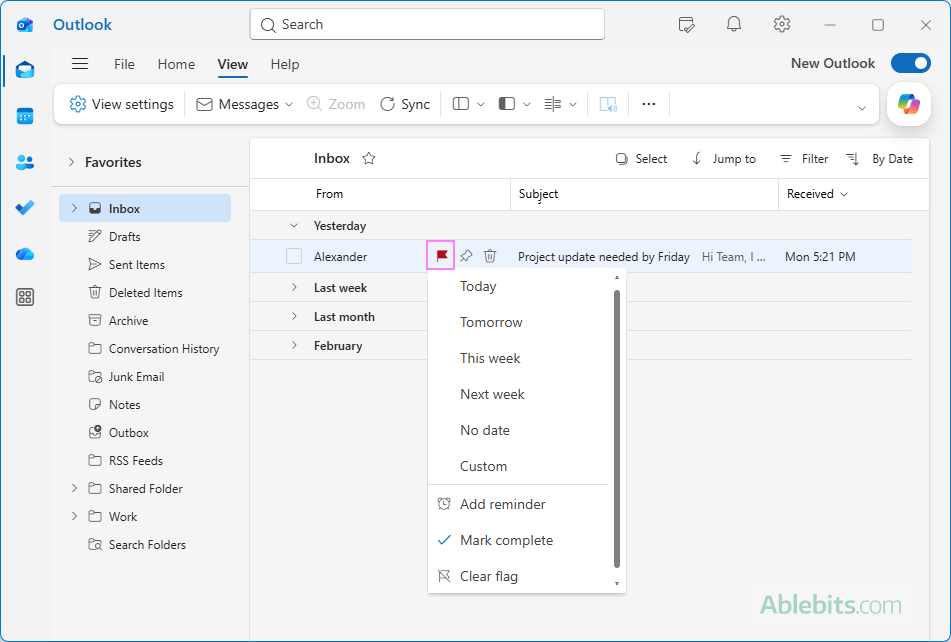
Once flagged, the email gets highlighted in its folder and is added to the To Do list.
How to automatically flag emails in Outlook
In Outlook 365 – 2016, you can flag emails automatically using Outlook email rules. For example, you can create a rule to flag messages from a specific sender or with certain keywords, so they are marked for follow-up as soon as they arrive.
Here is how to set up an Outlook rule to automatically flag emails:
- On the Home tab, click Rules > Manage Rules & Alerts. The Rules Wizard will open.
- Under Step 1: Select a template, choose Flag messages from someone for follow-up.
- Under Step 2: Edit the rule description, specify:
- The sender (one or more people).
- The follow-up timing (for example, Today or Tomorrow).
- Finish or customize the rule:
- If you only need to flag messages from a specific sender, click Finish.
- To adjust conditions (for example, flag emails with certain words in the subject), add exceptions, or refine the rule, click Next and follow the wizard steps.
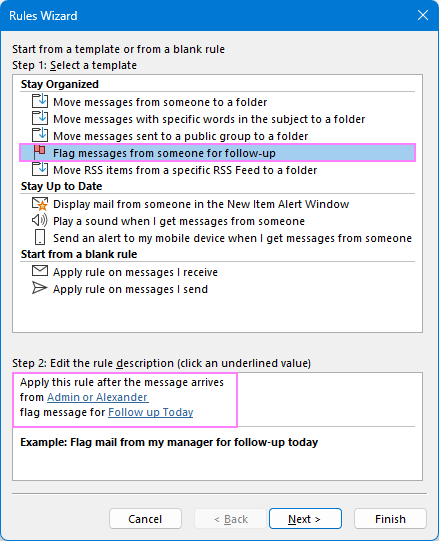
Note. Flagging emails is a client-side rule, meaning it runs only when Outlook is open on your computer. This type of rule is available in classic Outlook only. The new Outlook and Outlook on the web do not support client-side rules.
How to automatically move flagged emails to folder in Outlook
In addition to flagging emails for follow-up, Outlook can also automatically move or copy flagged messages to a specific folder. There are two ways to set this up, depending on your needs.
Flag emails and move to folder (classic Outlook)
In Outlook 365 - 2016, you can create a rule that both flags incoming messages and moves (or copies) them to a chosen folder.
To do this, set up a rule to flag specific emails (as shown in the previous section), and then add an additional action to move or copy those messages to a certain folder.
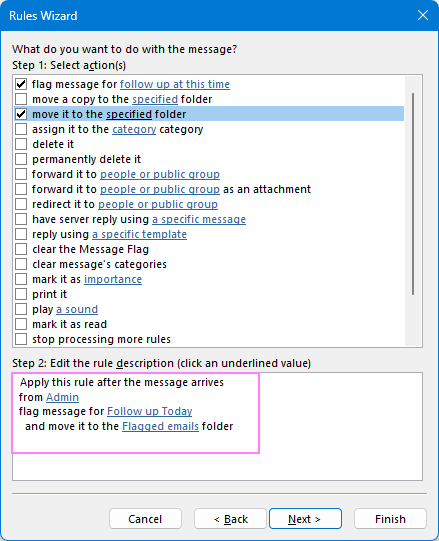
This approach works well when you want to automatically organize emails into folders based on sender, subject, or other criteria, and flag them at the same time.
For more information, see How to create email rules in Outlook 365 - 2016.
Move flagged emails you receive to folder (Outlook classic, new and web)
You can also create a rule to move or copy emails that are already flagged by the sender. This type of rule works in all Outlook versions (classic, new, and web) because it runs on the server.
Here's how to set it up in the new Outlook:
- For the condition, choose Flag, and select Any to apply the rule to all flagged messages (or pick a specific flag type if needed).
- As the action, choose Move to or Copy to and select the desired folder.
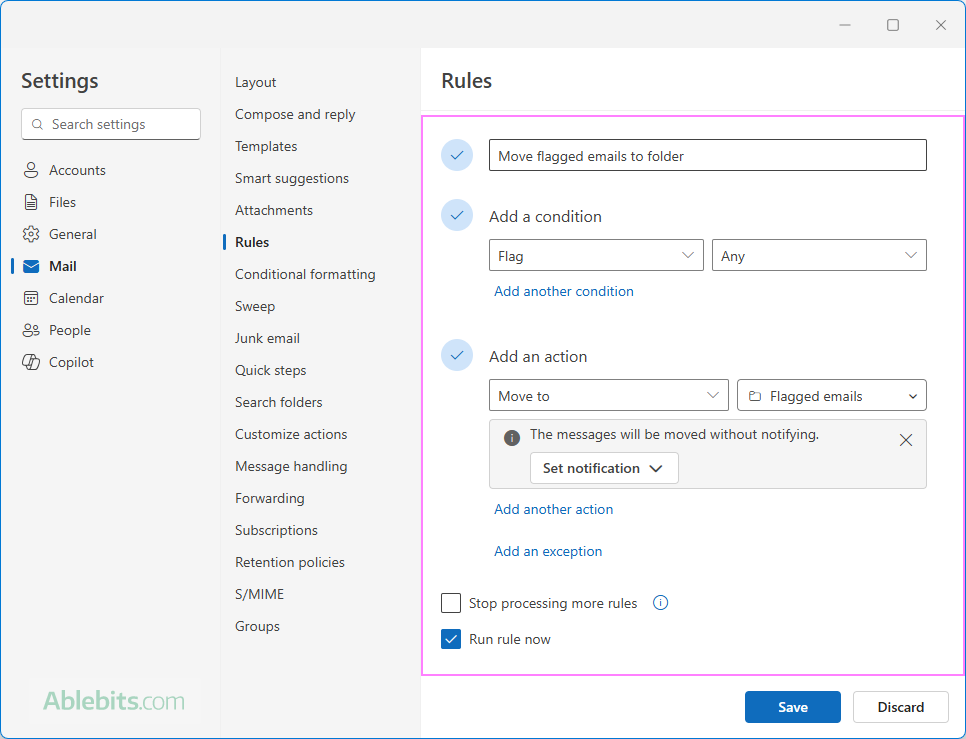
For the detailed steps, see How to set up email rules in new Outlook.
Note. This rule applies only to incoming emails that were flagged by the sender, not to messages you flag yourself after they arrive in your Inbox.
Tip. To see all emails that need your attention in one place, you can create a Search Folder for flagged items.
How to clear flag in Outlook
If you no longer need to follow up on a message, you can remove the flag at any time. There are two ways to do it:
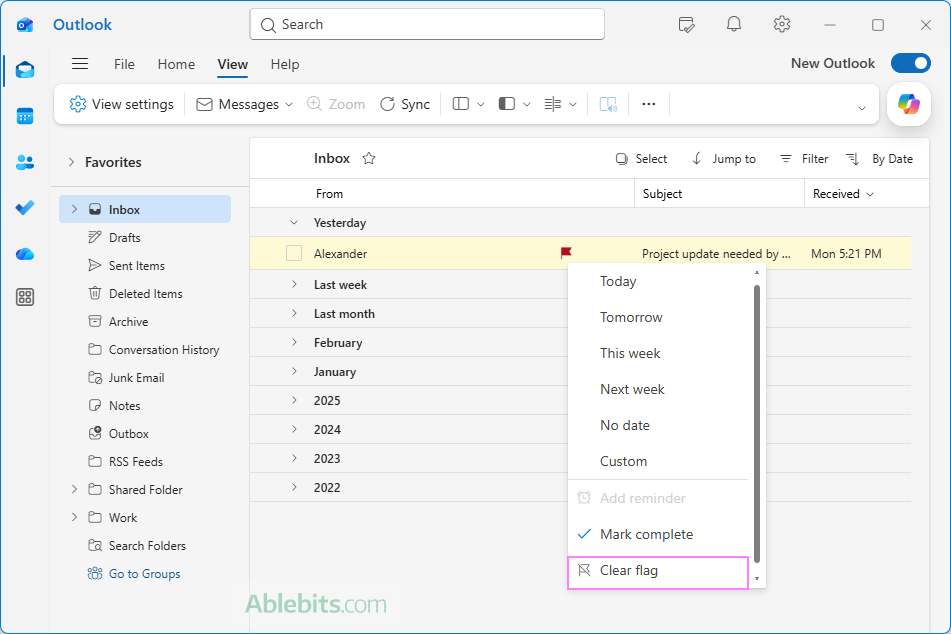
- In all Outlook versions: In the message list, right-click the flag icon and select Clear Flag.
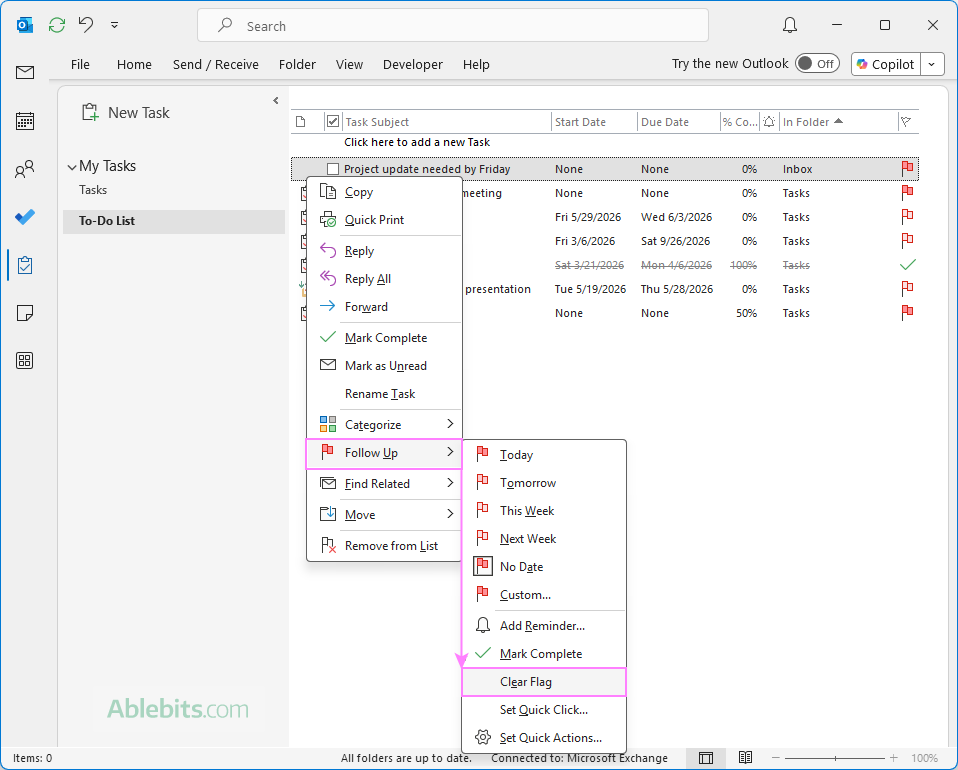
- In classic Outlook: In the task list, right-click the flagged email and choose Follow Up > Clear Flag.
Whichever method you use, the result is the same: the flag is removed from the message, and the email is removed from the Task list.
How to mark flagged email as complete
If you simply clear a flag, Outlook removes any sign that the email was ever a task. If you'd like to keep a record of what you've already handled, it is better to mark the message as complete instead. In this case, the flag changes into a check mark, showing that the action has been finished.
In Tasks, you can also switch views to display completed items, so you can review what's been done (at least until you delete them).
Marking an email as complete works the same in Outlook classic, new, and web. In the message list, locate the flagged email, and then do one of the following:
- Click the active flag icon (it will turn into a check mark).
- Right-click the flag, and then click Mark Complete.
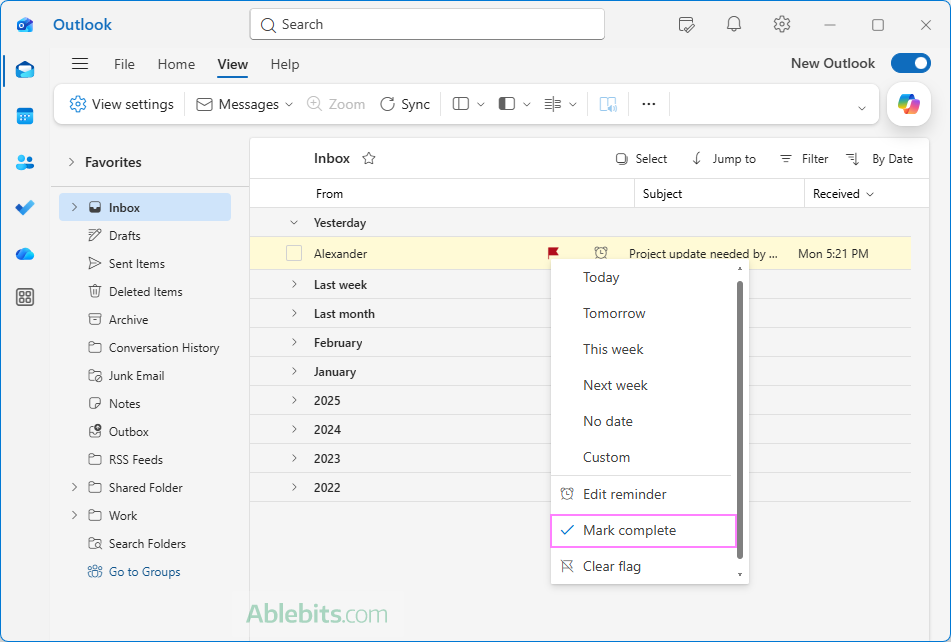
Once done, the email remains in your task list with a check mark, indicating it has already been taken care of.
Note. In classic Outlook, clicking the flag icon toggles between Flagged and Complete based on the default Quick Actions settings. If you've customized this behavior, the result may differ depending on your setup.
How to change default flag setting in Outlook
By default, Outlook applies a Today follow-up flag when you click the flag icon. In classic Outlook, you can change this behavior to better match your workflow.
- Right-click any email in your inbox or another folder.
- Select Set Quick Click.
- In the small dialog box that appears, choose your preferred default flag option.
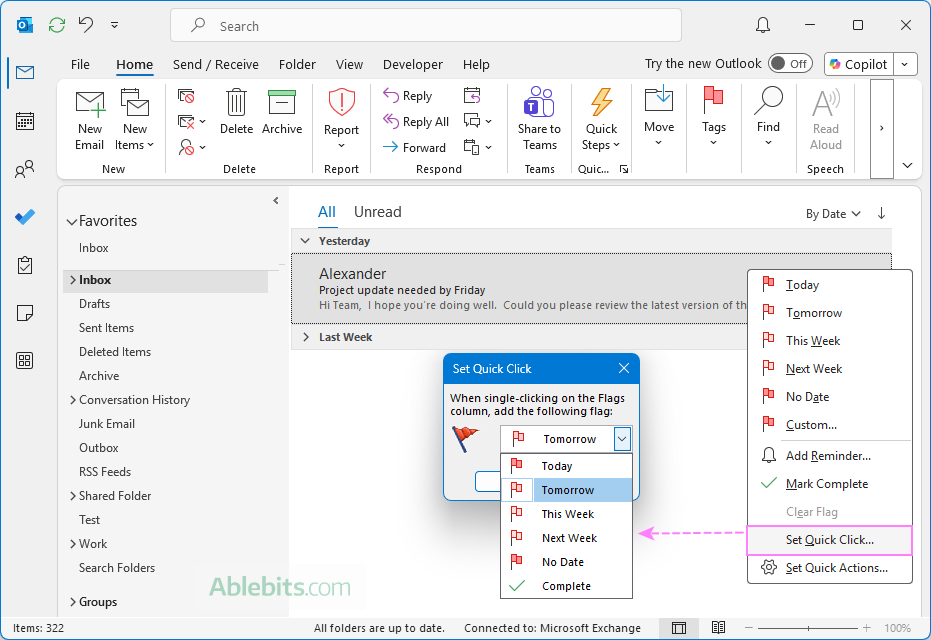
From now on, a single click in the Flag column will apply your chosen default instead of the standard today follow-up setting.
How to view flagged emails in Outlook
In your Outlook mail folders, flagged emails are easy to spot – they are highlighted with light yellow background. If a message is overdue, it typically appears in red font, making it stand out even more.
The quickest way to find flagged emails in Outlook is:
- Sorting messages by the Flag column.
- Filtering to show only flagged items.
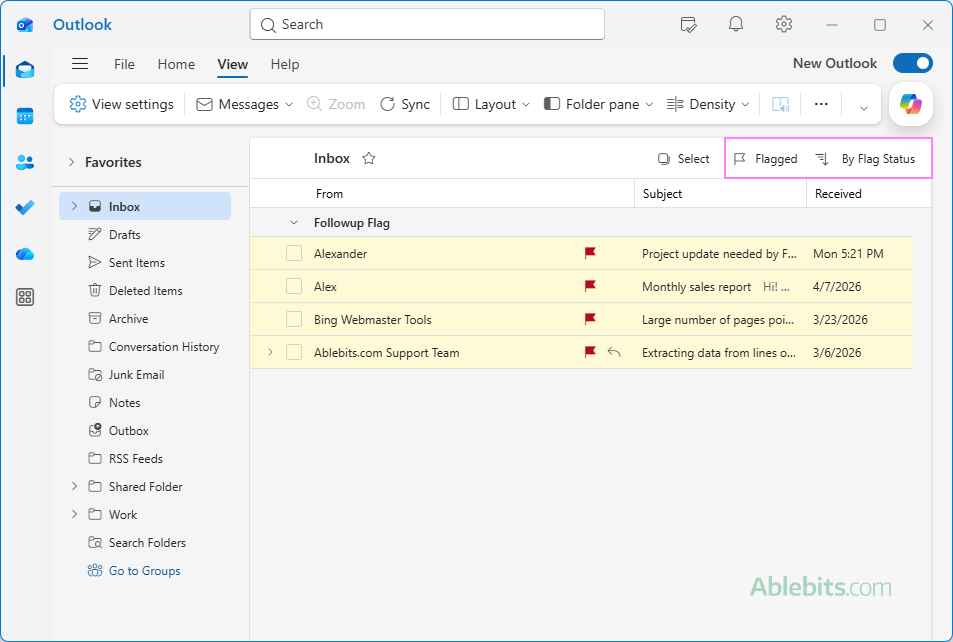
If you need more control, you can also:
- Create a Search Folder to collect all flagged emails in one place.
- Use text filters to display specific items, such as flagged emails due this week.
For more information, see How to find flagged emails in Outlook.
How to highlight flagged emails in Outlook
Flagged emails are automatically highlighted in all Outlook apps (classic, new, and web) without any extra setup.
In classic Outlook, there is also a setting that controls this behavior. If flagged messages don't appear highlighted, you can check the following:
- Go to File > Options > Mail and scroll all the way to the bottom.
- Under the Other section, make sure the Highlight flagged items in the message list option is selected.
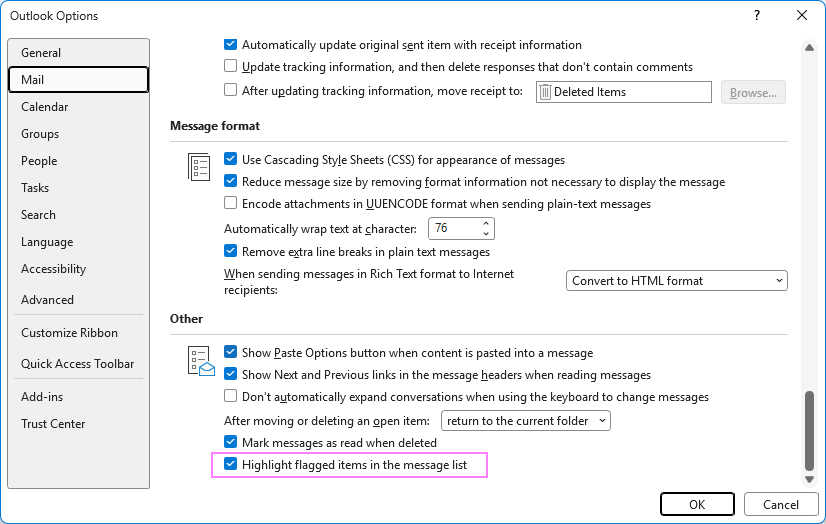
Now, your flagged emails are highlighted automatically with a light yellow background.
Outlook follow up flag not showing
If the flag icon is not showing when you hover over an email in Outlook, it's usually due to a view setting or Quick Actions configuration. Here are the two most common causes and how to fix them.
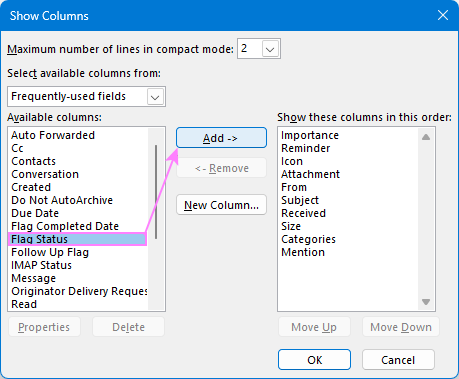
The Flag Status column is missing
If the Flag Status column isn't included in your current view, the flag icon may not be visible. To add it:
- Go to the View tab on the ribbon.
- In the Arrangement group, click Add Columns.
- In the Show Columns dialog box, under Available columns, select Flag Status and click Add.
For more details, see Add or remove columns to Outlook view.
Flag is not set in Quick Actions
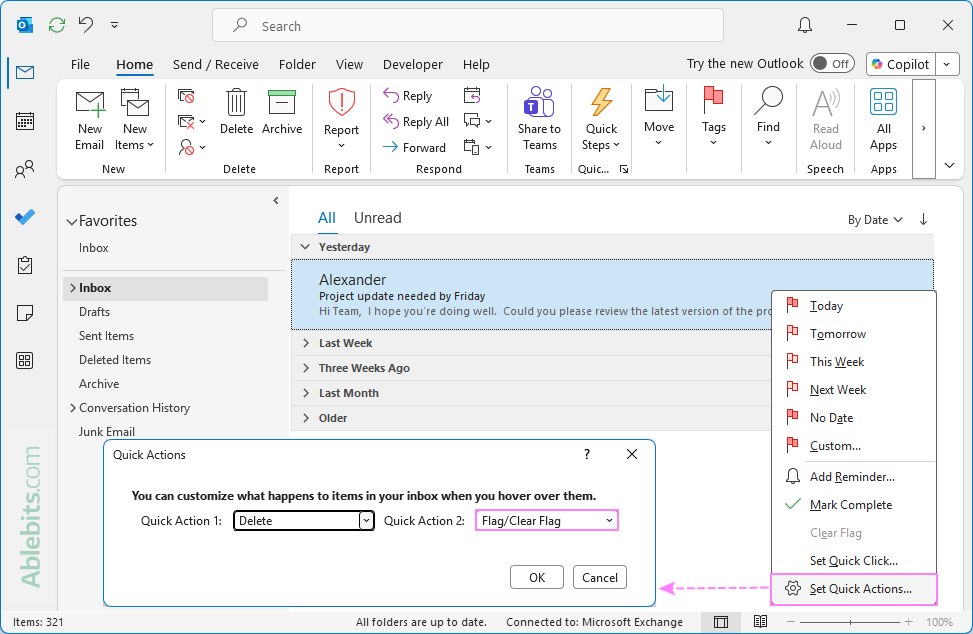
In classic Outlook (365 – 2016), the icons shown when you hover over an email are controlled by the Quick Actions settings. If the flag isn't assigned there, it won't appear.
By default:
- Quick Action 1 is set to Delete, so the trash bin icon appears.
- Quick Action 2 is set to Flag/Clear Flag, meaning the first click flags the message and the second click marks it as complete (not clears the flag despite the option name).
To check and restore this setting:
- Hover over any email and right-click the trash bin or whatever icon appears.
- Select Set Quick Actions.
- In the Quick Actions dialog box, make sure Quick Action 2 is set to Flag/Clear Flag.
If the flag icon still doesn't show after updating these settings, restart Outlook to apply the changes.
That's how flagging emails works in Outlook. While follow-up flags won't magically take action for you, they will remind you when it's time to. 😊