 by
by Learn how to set up Outlook calendar permissions to let another person schedule meetings and appointments on your behalf in Outlook 365, the new Outlook app, and web.
Need someone to handle Outlook meetings on your behalf? Simply delegate calendar access to another person, so they can schedule meetings, respond to invitations, and organize your calendar according to the permissions you grant.
What does delegate mean in Outlook calendar?
Calendar delegation in Outlook allows one person to access another person's calendar and manage its events.
Depending on the assigned permissions, a delegate can simply view the calendar or fully coordinate another person's schedule, including:
- Viewing the shared calendar
- Creating, editing, and deleting calendar events
- Scheduling meetings and appointments on behalf of someone else
- Responding to meeting requests on another person's behalf
- Receiving copies of meeting-related emails and notifications
Delegate access is commonly used by managers and assistants, team members, or anyone who needs help maintaining the calendar.
Note.Delegate access is only available for Exchange Online and Microsoft 365 work or school accounts. It is not supported for personal Outlook.com accounts.
How Outlook calendar delegation works
Setting up delegate access to an Outlook calendar is a 3-step process:
- Calendar owner: grants access. The owner provides delegate access to their Outlook calendar, giving another person permission to handle meetings on their behalf.
- Delegate: adds the shared calendar to Outlook. After accepting the invitation, the shared calendar appears alongside the delegate's own calendars in Outlook.
- Delegate: manages the calendar on the owner's behalf. Depending on the assigned permissions, the delegate can work with calendar items, schedule meetings on behalf of the owner, and respond to meeting invitations sent to them.
How to delegate access to Outlook calendar
Before someone can schedule meetings or respond to invitations on your behalf, you need to grant them delegate permissions. This is done differently in different Outlook applications.
Note.The calendar owner can provide delegate access from any Outlook version: classic, new app, or web. After receiving the invitation, the delegate can add the shared calendar to any Outlook app.
How to delegate calendar access in new Outlook and web
The new Outlook and Outlook on the web control delegation through calendar sharing settings.
To allow someone to administer the calendar on your behalf, follow these steps:
- Open the new Outlook app, or sign in to Outlook on the web using your Microsoft 365 account.
- In the navigation pane, select Calendar.
- In the left pane, right-click your primary calendar (named "Calendar") and choose Sharing and permissions. Alternatively, on the Home tab, click Share, and then select your primary calendar.
- In the Sharing and permissions window, enter the person's name or email address in the corresponding box.
- From the dropdown list next to the invitee's name, select Delegate.
- Choose whether the delegate can view your private events and manage categories by enabling or disabling the corresponding options.
- Click Share.
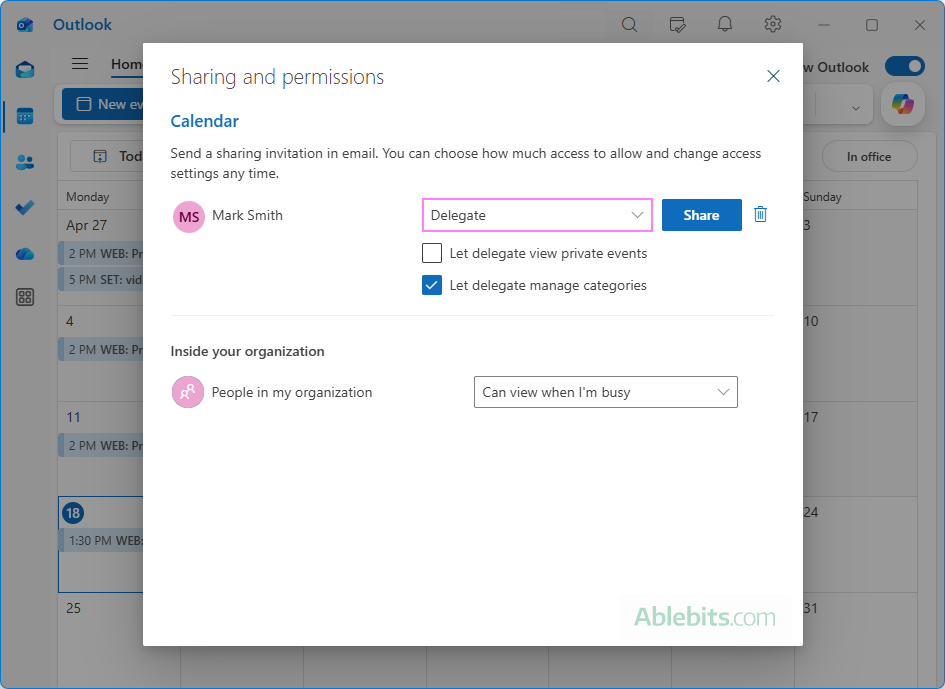
That's it for the calendar owner. The delegate will receive an invitation email, which they need to accept to have the delegated calendar automatically added to their Outlook.
For more details about shared calendar settings, see How to share calendar in new Outlook and web.
How to delegate calendar in Outlook 356 – 2016
The classic desktop Outlook application provides two ways to grant access to another person’s Outlook data:
- Delegate Access settings – let you grant access to multiple Outlook folders (such as Calendar, Mail, Contacts, Tasks, Notes, and more) from one place, assigning different permissions for each. Use it when you need maximum flexibility and control.
- Share Calendar settings – enables you to delegate access to calendar only. Use it when you want speed and simplicity.
In this tutorial, we'll focus on the first method because it includes more advanced settings and configuration options. For detailed instructions on each approach, follow the links to the corresponding tutorials above.
To grant delegate access in Outlook 365 - 2016, follow these steps:
- Navigate to File > Account Settings > Delegate Access.
- In the Delegates dialog box, click Add.
- Select the person from the Global Address List and click OK.
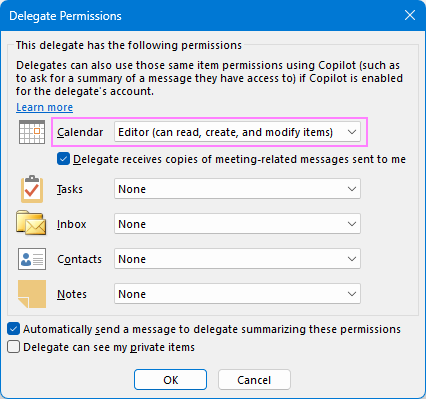
- In the Delegate Permissions dialog box, choose the permission level for the Calendar folder (the default and recommended is Editor):
- Reviewer – can only view calendar items.
- Author – can read and create items.
- Editor – can read, create, and modify items.
- Select the Delegate receives copies of meeting-related messages sent to me box if you want them to be delivered directly to the delegate's Inbox. This option is only available for Editor
- To give access to meetings, appointments and other items marked as private, select the Delegate can see my private items check box.
- To notify the delegate about assigned permissions, leave the Automatically send a message to delegate summarizing these permissions check box selected.
- When all desired settings are configured, click OK.
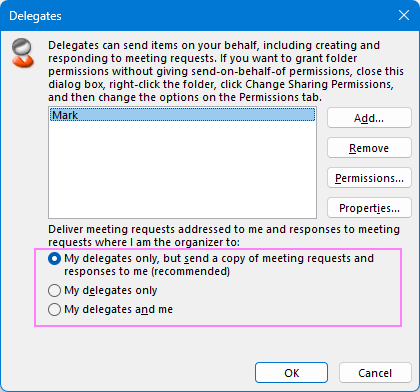
- You will return to the main Delegates window, where you can choose who should receive meeting requests sent to you:
- My delegates only but send a copy to me (default and recommended)
- My delegates only
- My delegates and me
- Click OK again to save the settings and close the window.
The calendar sharing invitation will be sent to the delegate. After accepting it, they will be able to manage your calendar according to the permissions you granted.
Tip. If you do not want to provide access to your Inbox and other folders, set their permissions to None. This will still enable the delegate to send emails on your behalf, but nothing more.
For more detailed instructions with screenshots for each step, see How to grant delegate access in Outlook.
How to add a delegated calendar to Outlook
After the calendar owner provides delegate access, the ball is in the recipient's court. The delegate will receive a calendar sharing invite that summarizes the assigned permissions and provides a quick way to add the shared calendar to Outlook.
To add a delegated calendar to your Outlook, this is what you need to do:
- Open the calendar sharing invitation email and click Accept.
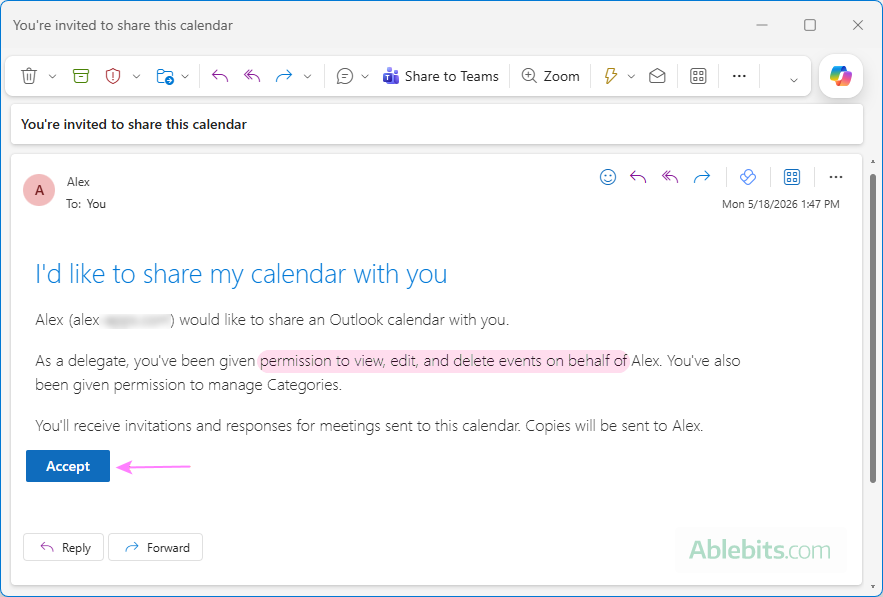
- Outlook will process the request in the background and add the shared calendar to your account. Once completed, the Accept button will change to View Calendar.
- Click View Calendar to open the shared calendar immediately. To access it later, simply switch to Calendar in the Navigation pane.
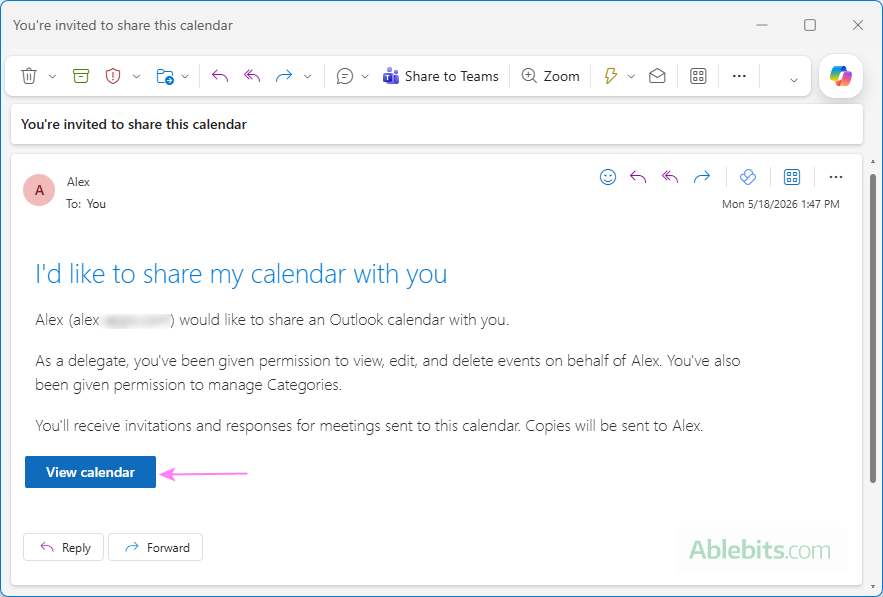
For full details, see How to view someone's calendar in Outlook.
Tips and notes:
- You can accept the invitation in any Outlook version, desktop or web. As long as you sign in with the same Microsoft 365 account, the delegated calendar will sync automatically and appear in all Outlook apps you use.
- In classic Outlook, calendar sharing invitations may not have a large, noticeable Accept button. Instead, a small Accept button with a check mark appears near the top of the message, above the email header. It's easy to miss, but it usually works just fine 😊
- If you never received the sharing invite, ask the calendar owner to resend it, preferably from Outlook on the web.
How to access a delegated calendar in Outlook
The process of adding a delegated calendar is very similar in Outlook 365 – 2016, the new Outlook app, and Outlook on the web. The main difference is where the shared calendar appears after it is added.
To access a delegated calendar, look in the following locations:
- In classic Outlook (365 – 2016), it is placed under Shared Calendars.
- In the new Outlook and Outlook on the web, a delegated calendar is displayed under People's calendars.
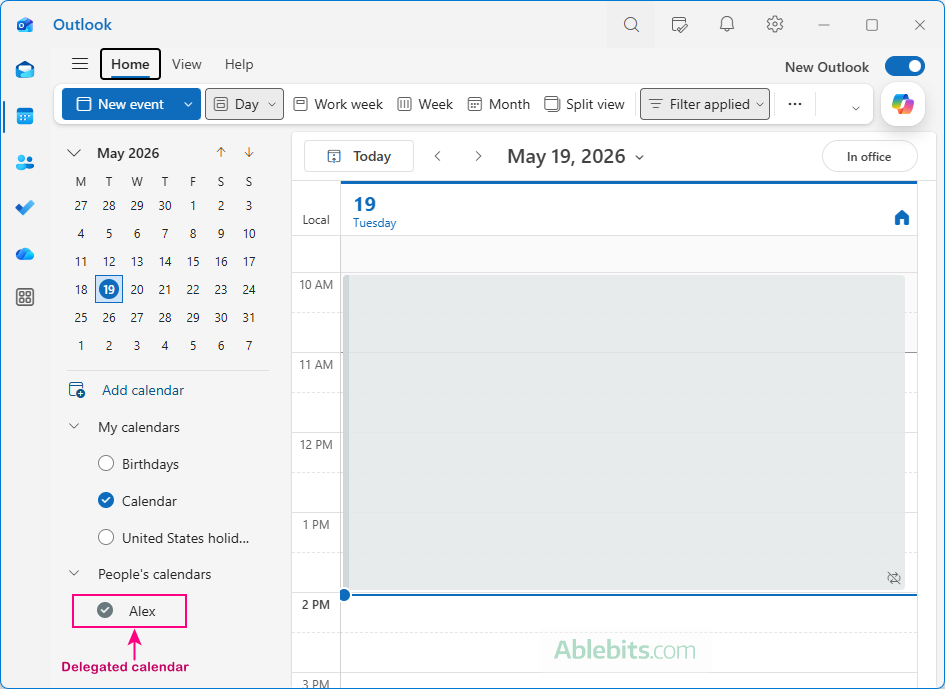
After the delegated calendar is added to Outlook, you can show or hide it from view by selecting / unselecting it in the Folder pane. You can also rename the calendar, change its color, or remove it from your Outlook completely using the calendar's right-click menu.
How to create a meeting on behalf of someone in Outlook
Now we are getting to the most important part :)
With the delegate permissions granted by the owner and their calendar added to your Outlook, you are ready to schedule meetings on their behalf. The process is almost the same as creating a regular meeting in your own calendar. The key point is that you create the event in the delegated calendar instead of your own.
Create on-behalf meeting in new Outlook and web
To schedule a meeting on behalf of someone else in the new Outlook and on the web, proceed in this way:
- In Outlook, switch to Calendar.
- In the left pane, select the delegated calendar.
- Click New event on the ribbon or double-click the desired slot on the calendar grid. Either way, a new calendar item window will open.
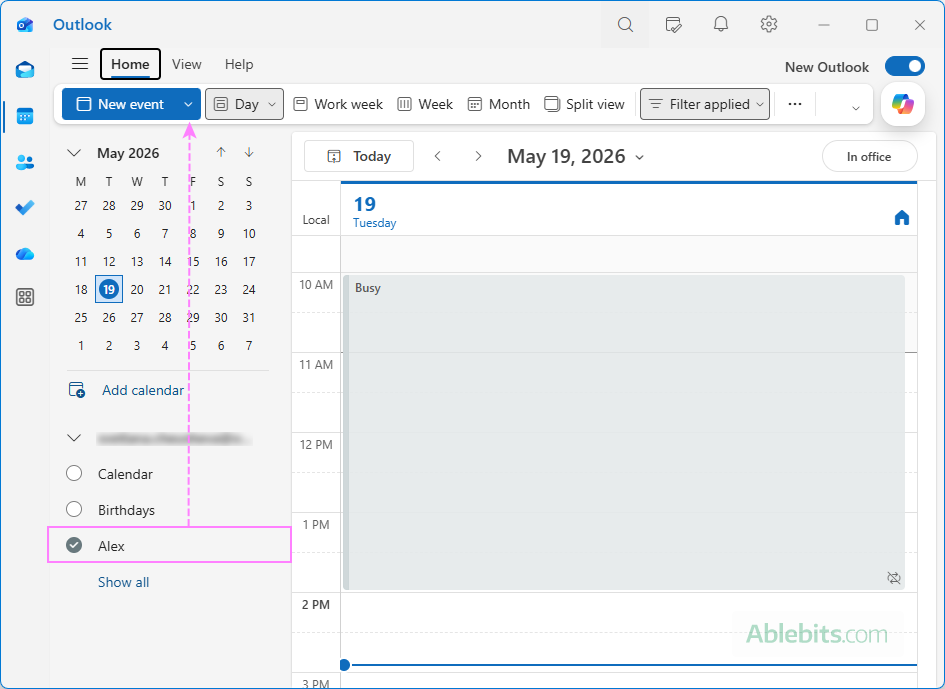
- In the Save to calendar dropdown list at the top of the meeting window, select another person's calendar. This list only includes calendars for which you have Editor or Delegate permission.
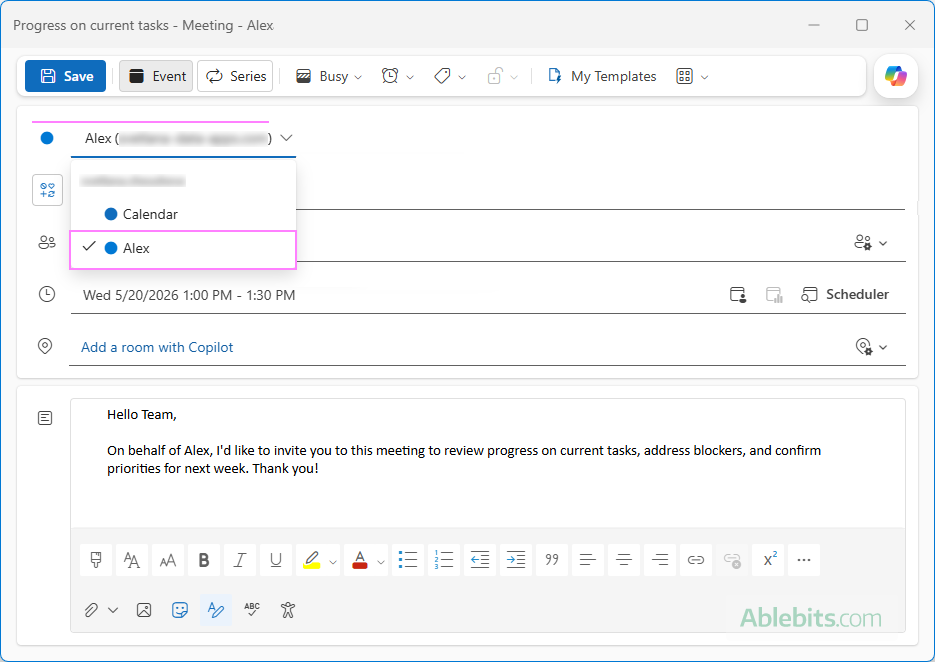
- Enter the meeting details, such as the title, attendees, date, time, location, etc.
- Send the meeting request.
The event will be added to the delegated calendar, and the attendees will receive an invitation sent by you on behalf of the calendar owner.
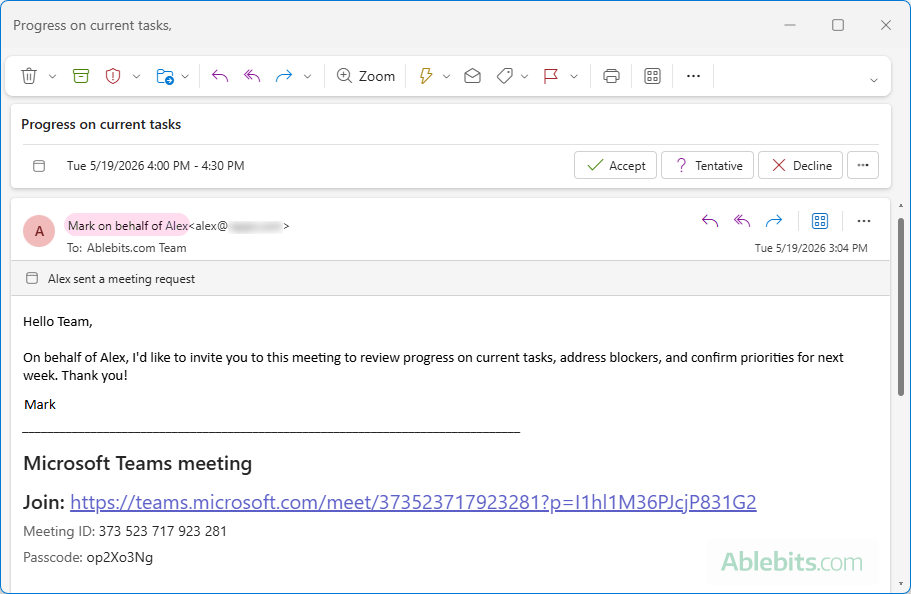
For more information, see how to send a calendar invite in new Outlook and web.
Notes:
- If the delegated calendar is not available in the Save to calendar dropdown list, make sure it is currently selected in the folder pane in your Outlook.
- After a meeting invitation has been sent, you cannot change the calendar where it was originally scheduled or move it to a different calendar.
Schedule a meeting on behalf of someone in Outlook 365 – 2016
In classic desktop Outlook (365 – 2016), scheduling a meeting on behalf of another person works a bit differently. Technically, it works fine, but the interface is far less clear and intuitive.
The main confusion is that the calendar owner's email address doesn't show up in the From field of the meeting request, even when the meeting is being created in their calendar. Oddly enough, this seems to be a feature, not a bug 😊
Here is the step-by-step process:
- In the left pane, select the delegated calendar.
- Click New Meeting on the ribbon.
- In the new meeting window, the From dropdown only shows your own email accounts. The delegated calendar owner's address is not there.
The only indication that you are creating the meeting on behalf of another person is a small label at the bottom of the window showing that the event is being scheduled in the shared calendar.
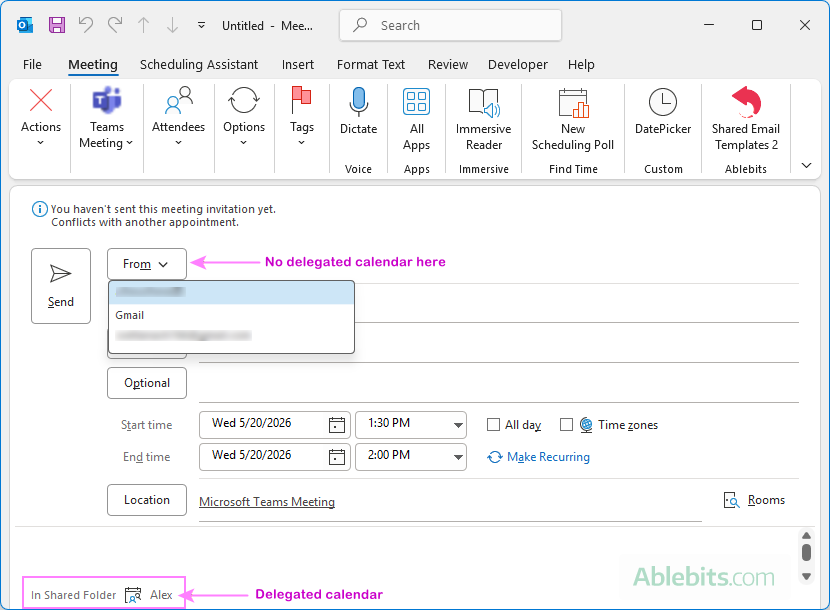
The funniest part is that the meeting request will still be sent correctly on behalf of the calendar owner. But you cannot really be sure unless you send it to your own secondary email every time for testing purposes 😊
Because of this extremely confusing and user-unfriendly behavior, we do not recommend using classic Outlook for delegated meetings. Instead, sign in to Outlook on the web with your Microsoft 365 account and schedule on-behalf meetings from there.
For more details, see how to schedule meetings in Outlook 365 – 2016.
How to manage Outlook meetings on behalf of someone else
If you are granted permission to receive copies of meeting-related messages as a delegate, invitations and updates will be delivered directly to your Inbox. They look like regular meeting requests but include a note indicating that the invite is for another person (the calendar owner).
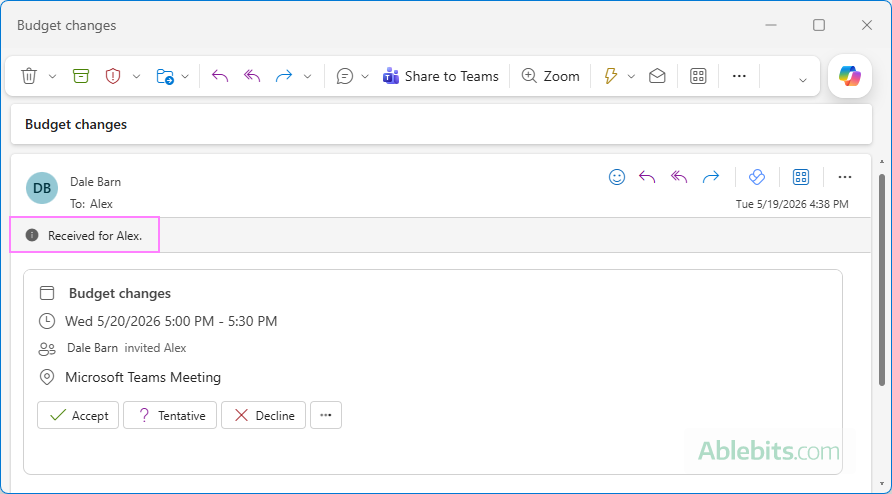
As a delegate, you can manage meetings in several ways:
Respond to meeting requests on someone else's behalf
You can respond to calendar invites just like you would for your own meetings by selecting Accept, Tentative, or Decline.
If you accept the invitation, the meeting time will appear as Busy on the calendar owner's schedule. If you send a response, the meeting organizer will see that it was sent by you on behalf of another person.
Edit or cancel meetings on behalf of someone else
Delegates can also edit or cancel meetings for the calendar owner.
To do this:
- Open the meeting from the delegated calendar.
- Make the necessary changes or choose to cancel the meeting.
- Send the meeting update or cancellation notice.
The updated invitation or cancellation message will be sent by you on behalf of the calendar owner.
How to remove a delegate from Outlook calendar
If you no longer want someone to handle your calendar, you can remove their delegate access using the same settings where it was originally granted.
Remove delegate access for new Outlook and web calendar
To stop sharing your calendar with a delegate in the new Outlook or web app:
- Next to your primary calendar, click the three-dot menu and choose Sharing and permissions.
- Under Delegates, find the person of interest and click the Remove (trash bin) icon next to it.
The delegate will immediately lose access to your calendar, and it will disappear from their Outlook.
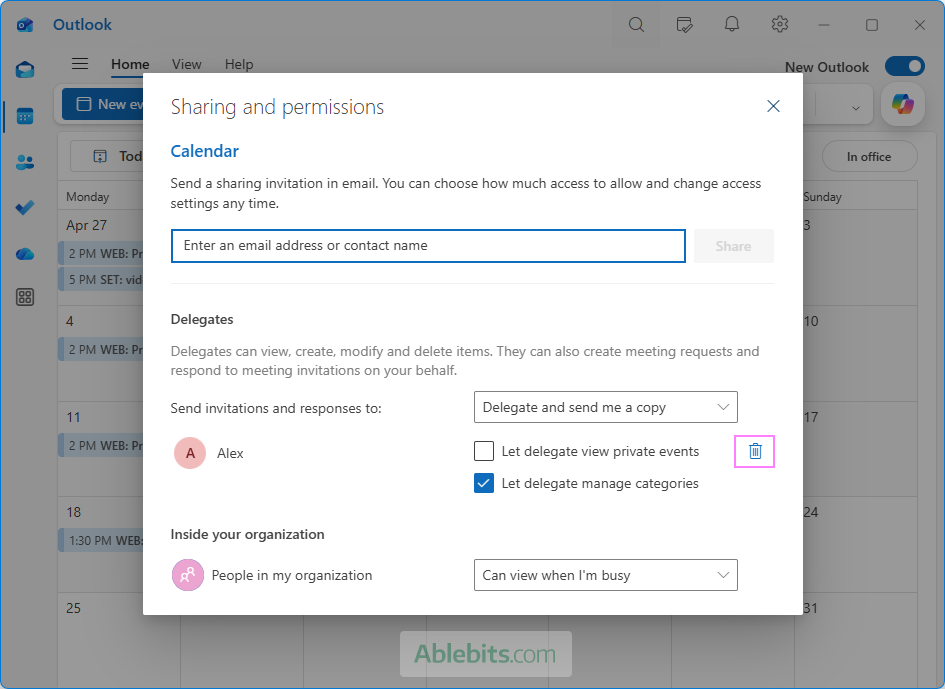
Remove calendar delegate access in Outlook 365 – 2016
In classic Outlook, you can either completely remove delegate access or change the delegate's permissions. To do this:
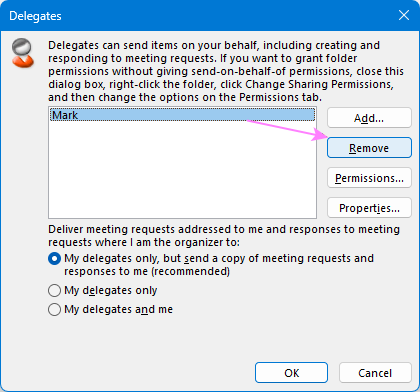
- In Outlook, go to File > Account Settings > Delegate Access.
- Select the delegate whose permissions you want to change or revoke.
- To completely remove delegate access, click Remove.
- To modify permissions, click Permissions. Then, adjust the permissions for the Outlook folders the delegate has access to.
- Click OK to save the changes.
How to remove yourself from someone's delegated calendar in Outlook
It is not possible to remove delegate or sharing permissions from a calendar owned by another person. You will need to ask the calendar owner to remove your access, as only they can revoke these rights.
The best you can do is to remove the delegated calendar from your own Outlook. Here is how:
- In Outlook, switch to Calendar.
- In the left pane, right-click the delegated calendar.
- Depending on your Outlook version, select:
- Delete in classic Outlook.
- Remove in the new Outlook and Outlook on the web.
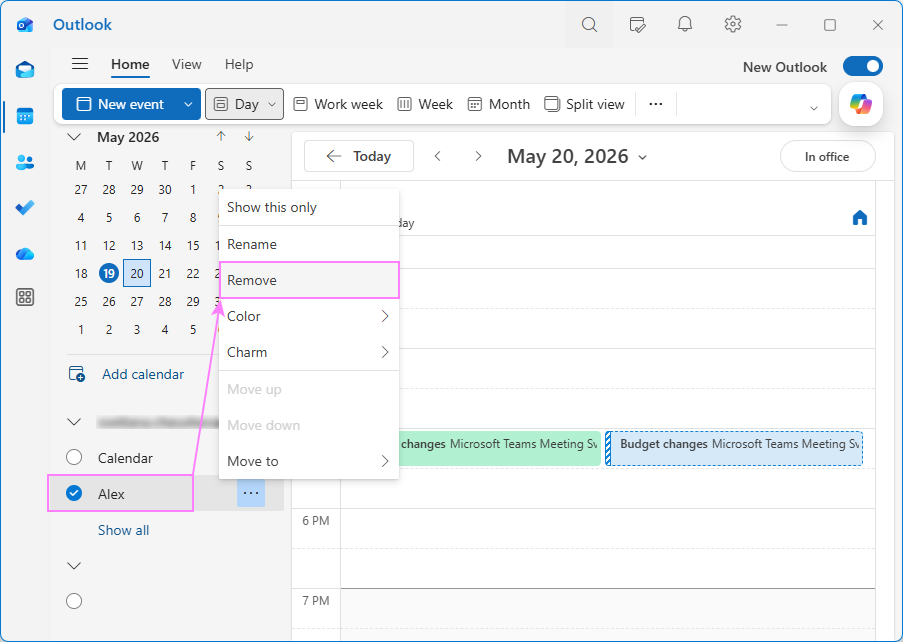
The delegated calendar will disappear from your Outlook at once.
Keep in mind that this only removes the calendar from your Outlook view. The delegate permissions remain active until the calendar owner revokes them. That means, you can re-add the delegated calendar at any time from the sharing invitation.
Delegate vs edit in Outlook calendar
When sharing your Outlook calendar, you can grant either Edit or Delegate permissions. While both allow another person to make changes to your calendar, there is an important difference between them.
- With edit permissions, the person can view your calendar and create, edit, or delete its items.
- With delegate access, the person can also manage events on your behalf, including scheduling meetings and appointments as well as responding to invitations for you.
In other words, delegate access includes all editing capabilities and, in addition, lets someone act on your behalf.
Another difference is which calendars these permissions can be applied to:
- Edit permissions can be assigned to your primary calendar as well as to any custom ones that you created.
- Delegate access can only be assigned to your primary calendar.
Here's a quick comparison of edit and delegate permissions in Outlook calendar:
| Feature | Edit permissions | Delegate access |
|---|---|---|
| View calendar | Yes | Yes |
| Create, edit, and delete calendar items | Yes | Yes |
| Schedule meetings on your behalf | No | Yes |
| Respond to meeting invitations for you | No | Yes |
| Receive meeting-related messages | No | Yes, if enabled |
| Can be assigned to the primary calendar | Yes | Yes |
| Can be assigned to custom calendars | Yes | No |
| Commonly used for | Shared team calendars and collaborative editing | Assistants or coworkers managing another person's schedule |
Note. Both Edit and Delegate permissions are only available for people inside your organization. For external users, a shared Outlook calendar only provides the "view" level of access.
Now that you know how to set up delegate access to an Outlook calendar, you can hand off meeting management to your assistant. Or, looking at it from the other side, you can now handle your boss's schedule with much more confidence 😊