 by
by In this guide, you’ll learn how to create and format a professional Gmail signature. You’ll find instructions on how to add pictures (logos, headshots, or banners) and how to turn social icons into clickable links. You'll also discover the fastest way to build your signature using Shared Email Templates & Signatures, along with best practices to make your design look perfect.
A simple signature block with your name and phone number is a solid starting point. However, while plain text is functional, it often lacks visual impact. To create a professional email signature, you should aim for a balance of information and design. Well-structured, it becomes your digital business card. Read on to learn how to transform your email signature into a powerful branding tool.
How to make a signature in Gmail
In Gmail, you can create a short signature block with your contact information, a headshot, and links that automatically appear at the bottom of your emails. To do this, Gmail offers a basic editor in the signature settings section:
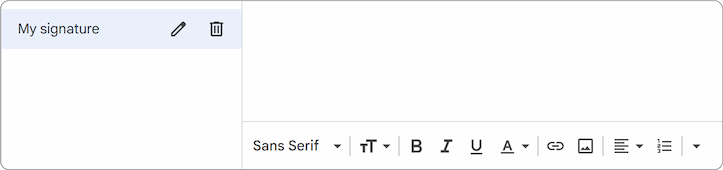
Note: This guide focuses on the structure and visual elements. If you need the basics – how to add, change, or turn off your signature – check out the guide on managing a signature in Gmail first.
But once you start clicking around in that editor, it hits you: "basic" is the code word here 😬.
You can type in your contact details, mess with fonts and colors, even throw in a picture or a link. Sounds good, right? But if you just go for it without a plan, the image ends up floating somewhere it shouldn't, your contact info turns into a messy wall of text, and the whole thing starts looking like you built it in a panic at 11 PM on a Sunday.
I spent way more time than I'd like to admit trying to get a logo to actually sit next to a phone number instead of hovering awkwardly above it. So I figured I'd just show you how to make a signature that doesn't make you want to apologize every time you hit send.
What to include in an email signature?
Besides your name (obviously, that's non-negotiable), what goes into your signature really depends on who you're emailing.
For personal correspondence, keep it simple. Your full name, a phone number, maybe a link to your blog or your favorite social media profile – that's usually plenty.
For a professional signature, it's more about finding the right balance between looking good and actually being useful. You don't want to overload it, but you also don't want to leave out the stuff people are looking for. At a minimum, I'd say include:
- Full name – no explanation needed here.
- Job title – so people know who they're talking to.
- Company name and website – adds context and gives people a way to learn more.
- Email address – Gmail shows names instead of email addresses, it's worth including separately.
- Phone number – for when email just isn't cutting it.
- Company logo – helps with brand recognition.
- Social media icons – especially LinkedIn, so people can connect elsewhere.
You can throw in a company slogan, a heads-up about upcoming holidays, or a legal disclaimer if you really need to. Just keep it reasonable. It gets weird when your signature is longer than the actual email.
How to add a picture or logo to your Gmail signature
Plain text with your contact info works just fine. But if you want something that actually catches the eye, you should add a visual element to your signature. Let's walk through the process of inserting a logo, a professional headshot, or maybe even a GIF into Gmail signature block. Whatever fits your style.
How to insert an image in your Gmail signature settings
You can insert a picture directly into the signature settings:
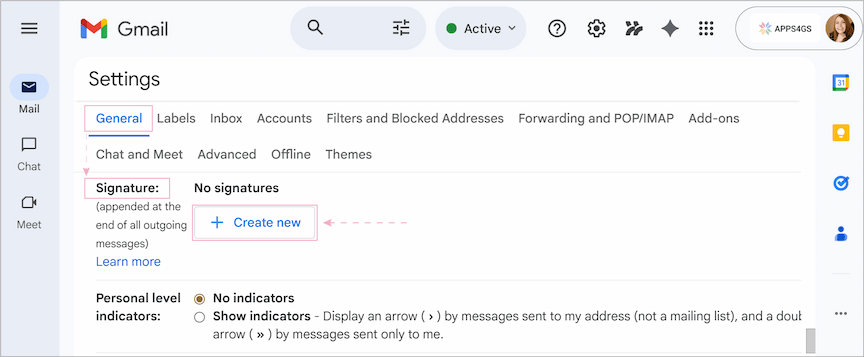
- Go to the Settings > See all settings > General tab. Here scroll down to the Signature settings section.
- In the signature editor box, put your cursor where you want the image to go.
- Click the Insert image icon in the text editor menu.
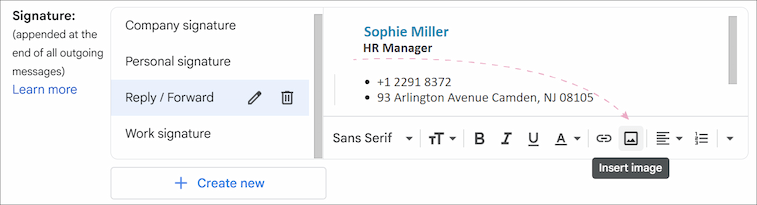
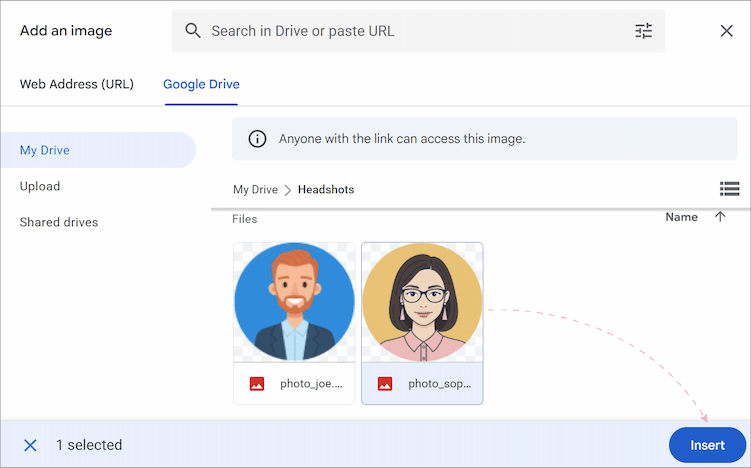
- In the pop-up, pick where your image is coming from:
- Web Address – paste a URL if the image is already online somewhere.
- My Drive/Shared drives – grab something you've already got saved there.
- Upload – pull a file straight from your computer.
- Hit Insert, and the image drops right into your signature.
- Click Save changes at the bottom of the page.
Note: Click the +Create new button, if you haven't got a signature yet.
Note: To change the image’s size, click on it after it’s been inserted and choose Small, Medium, Large, or Original size.
So actually at this moment you realize that even though the process is straightforward, the result is not 😅.
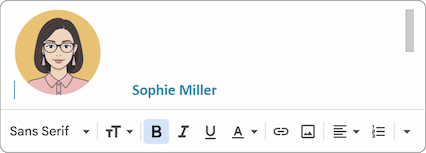
If you try to align your photo with the name and company logo near the website, you’ll most likely fail.
So, how do you actually fix it? If you cannot get your logo and contact info to sit side-by-side in Gmail, you have two solid options:
- Google Docs Tables: Create a 2x1 layout table in Google Docs, insert your image in one cell and text in the other, then copy-paste the table into Gmail settings.
- Shared Email Templates & Signatures: Simply plug in your info, pictures and links, and the tool automatically handles the alignment and formatting for you.
Let’s look at how both methods work.
How to format a Gmail signature using a layout table
If you want to save yourself some trouble, just create your signature in Google Docs first and only then paste it inside the Gmail signature editor.
To format an email signature with pictures using Google Docs:
- Open a new Google Doc.
- Go to Insert > Table. Select a 2x1 grid.
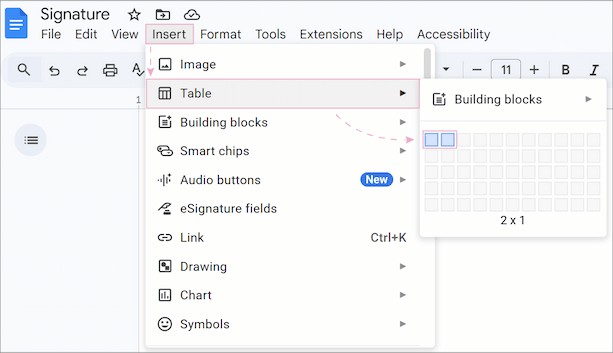
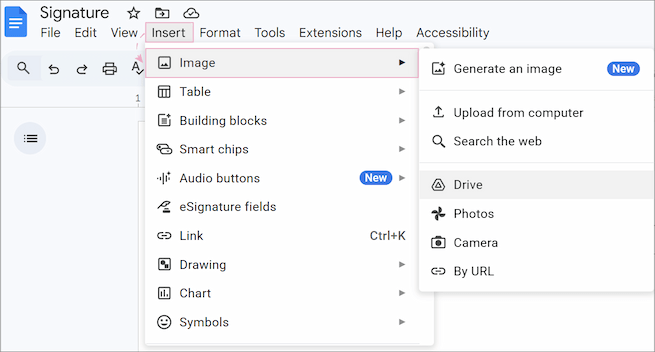
- Click in the left column, then Insert > Image. Find and upload your headshot.
Tip: If you want your photo in a circle, crop it in Illustrator, Photoshop, or Canva first.
- In the right column, type your signature text. Fine-tune it the way you’d like to (e.g. fonts, colors, sizes).
Tip: Stick to Gmail-supported fonts, or Gmail will quietly swap them out for you.
- Need a logo or banner? Want to include a GIF? You can insert it inside your table the same way as a headshot. Or, put it in a separate cell: right-click the table and select Insert row below. Merge cells if needed.
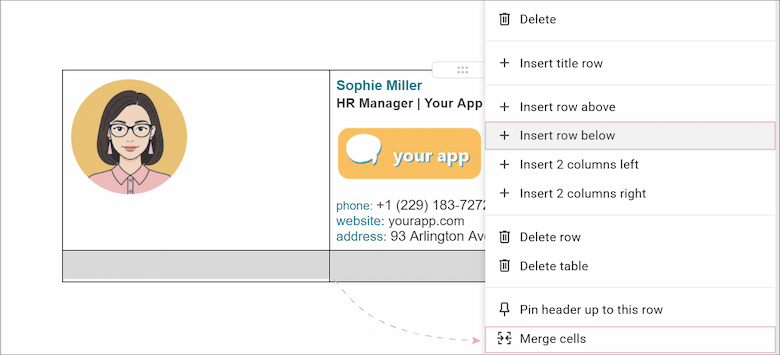
- Drag the column borders until everything sits the way you want.
- To remove the table borders, highlight the table, click the Border width icon, and set the border to 0pt.
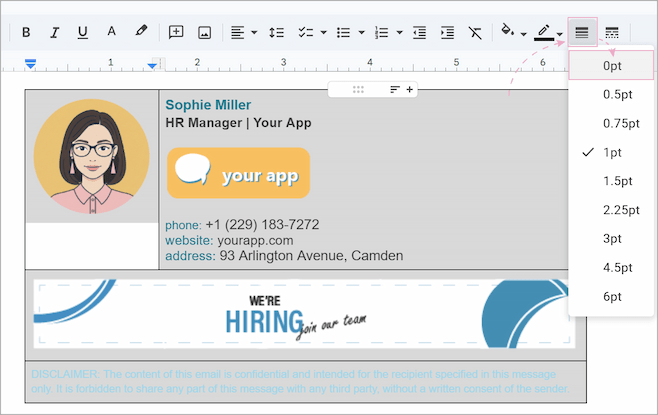
Now your signature layout is ready! You could copy and paste it into Gmail signature settings right now, save and use it as a signature block. But it’s still missing those interactive elements that make a signature truly professional.
So, before you move this table to the Gmail signature settings, read the next sections to include not only pictures but social icons and hyperlinks, too 😉.
How to add social media icons for email signature
Social media icons in your signature make it easier for people to connect with you elsewhere. Cleverly added, they also improve the visual appeal of your signature and increase your social following. And yeah, search engines notice that kind of thing too.
You could add them directly in Gmail's signature settings, but you'll run into the same alignment headaches as before. Way easier to put them inside the Google Docs table you already set up – same as you did with your pictures.
To add social media icons to an email signature, follow these steps:
- Download the icons themselves. You can find them on sites like Flaticon, Freepik, or Icons8.
Tip: Choose a unified style and size (usually 20x20px or 24x24px) so they look uniform.
- Return to your Google Docs table and add a new row/column/table for your social media icons.
Note: You can insert a new table for icons inside a big signature table, use one wide cell for all your icons, or give each icon its own individual cell to control spacing. Try different formatting options to find your style.
- Put your cursor in a cell, go to Insert > Image, and upload your icon. Repeat this for each one.
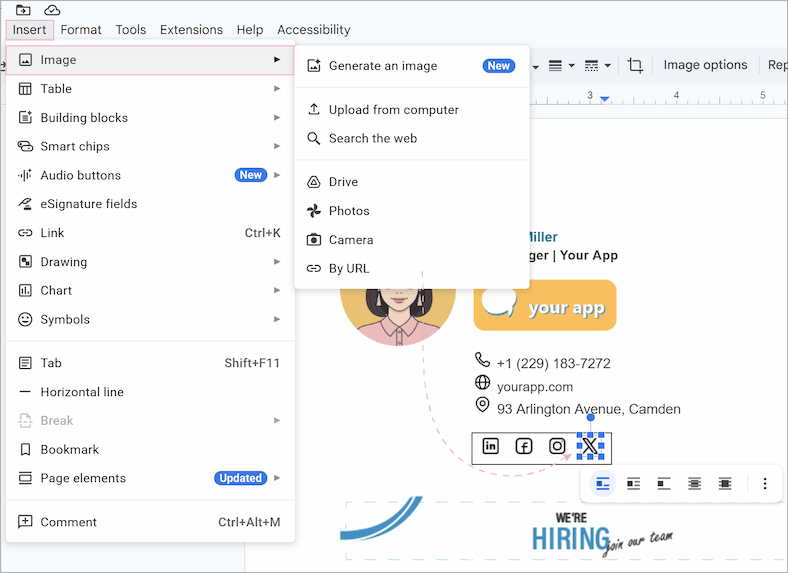
Tip: You can also add communication icons instead of typing "phone:" or "website:". A tiny phone or map icon makes the signature much easier to read and saves precious space.
Your social media icons are ready, the next step is to make them clickable.
How to make clickable icons for email signature
Links are probably the most useful part of your signature. Whether it's your portfolio, a scheduling link, or your socials, you need to make them clickable.
To turn an icon into a link:
- Highlight the element in Google Docs.
- Click the Insert link icon in the toolbar, or right-click your selection and choose Insert link.
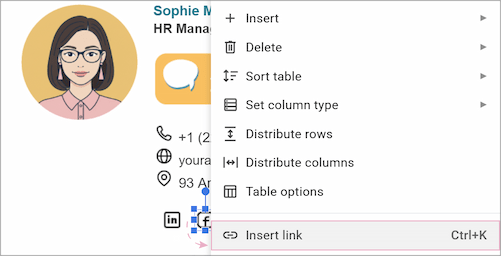
- Paste your profile URL and click Apply.
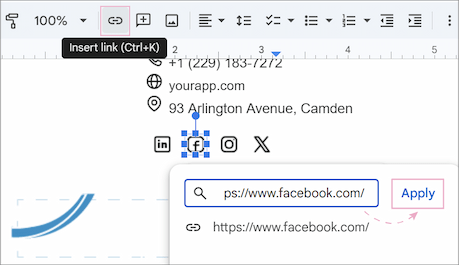
Now you can copy and paste the whole table into the Gmail signature settings. Add it, set it as your default for new emails, hit Save, and your perfectly formatted professional signature is ready!
How to add a hyperlink to your Gmail signature in settings
If you need to add or change links later directly in Gmail signature settings:
- Select the text or image in the editor.
- Click the Link icon.
- A small window will appear where you can add or edit the link destination.
- Hit Apply.
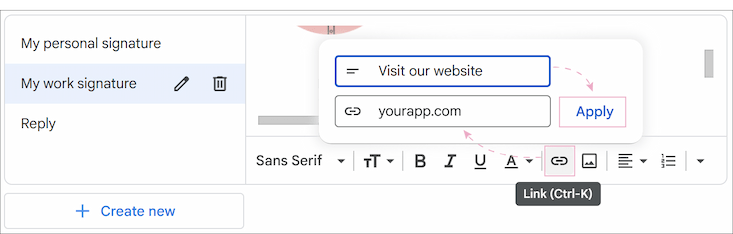
Don’t forget to scroll to the bottom and click Save changes.
An easy way to design a signature block
If you'd rather skip the whole manual formatting, there's a faster route. Shared Email Templates & Signatures is the best tool to create your custom signature in minutes, whether it’s a simple personal one or a complex company signature. Everything's already aligned, tested, and actually works with Gmail.
To set up your professional signature in seconds:
- Open the Shared Email Templates & Signatures pane right inside Gmail.
- Go to the Signatures tab and click New Signature.
- Browse the templates library and pick a layout that fits your vibe.
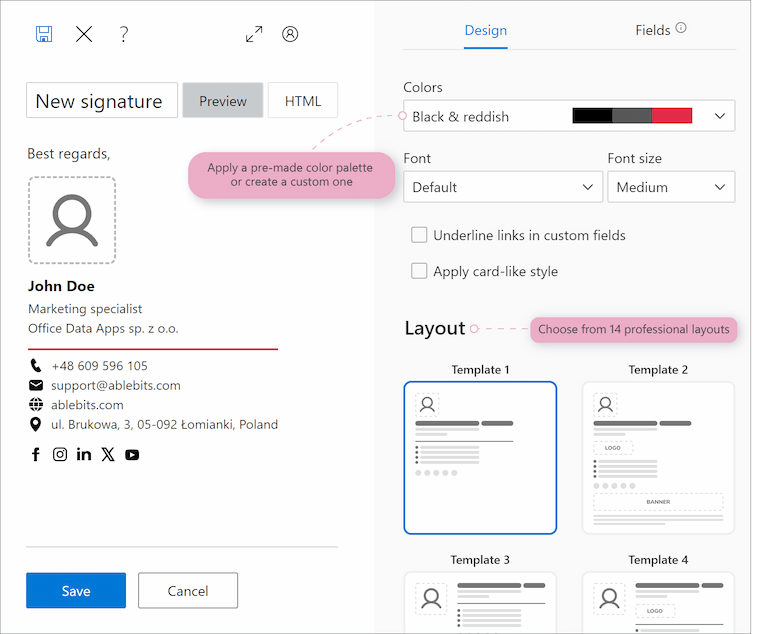
- Tweak the branding: colors and fonts are easy to adjust with a couple of clicks.
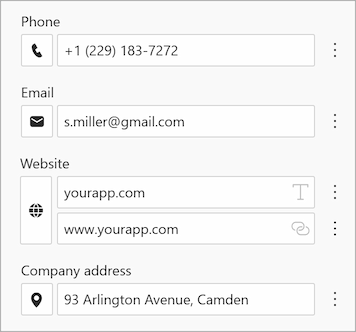
- Fill in your contact information. Add or remove fields depending on what information you want to show.
- All popular social icons are built-in. Just select the ones you need, add your links, and they’ll align, and match your color automatically.
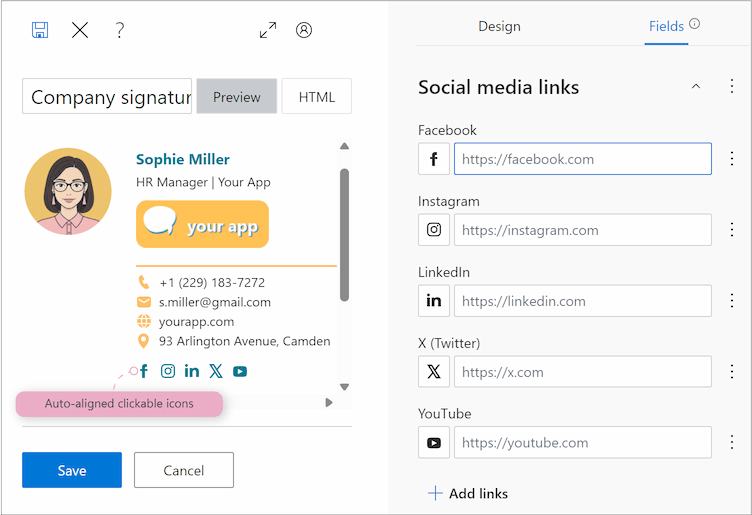
- Hit Save, and you're done. Your signature is ready to go.
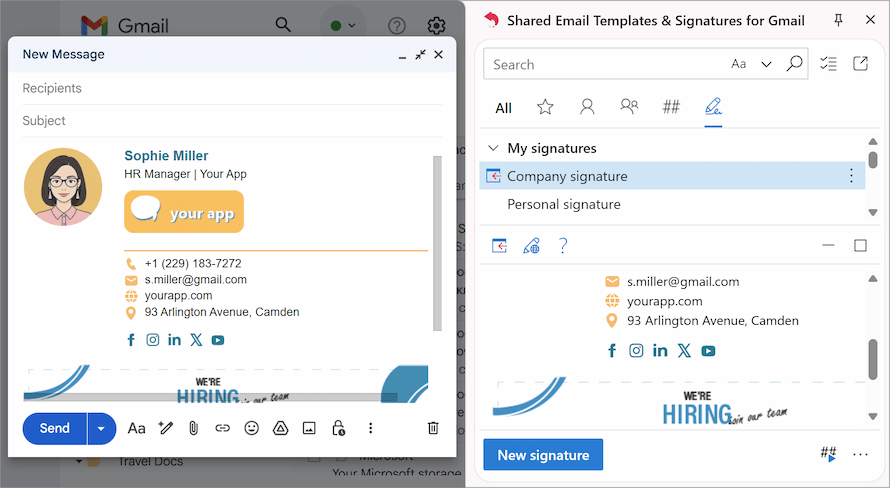
With Shared Email Templates & Signatures you can create as many signatures as you want, each tailored to a specific purpose. Just customize the layout, colors, and contact details and you'll have a professional email signature in your pocket.
Want to try it? Download the free trial and craft perfect signatures in minutes!
Best practices for professional email signatures
- Keep it simple. Don’t clutter your signature with every piece of information about yourself. Less really is more here.
- Make it easy to read. Throw in some dividers or white space between elements. It gives the eyes a break.
- Be careful with fonts. Stick to one or two simple, web-safe fonts like Arial or Helvetica. Bold your name or title if you want it to stand out, and use a smaller font for legal info.
- Add some color. Pick colors which are closely associated with your brand, but not more than three. You can search for a color palette to make sure they match.
- Optimize images and banners. High-res is good, but keep the file size under 30kb. Your signature shouldn't weigh a ton. Images should be optimized so they load quickly.
- Use standard image formats. We recommend JPG, JPEG, PNG, or GIF files for logos and icons. Use consistent sizing, and always include descriptive alt text in case images don’t load.
- Test it on mobile. Plenty of people read emails on their phones, so make sure your signature stays readable on a small screen. Simple layout, clean text, and icons big enough to tap.
- Place key information at the beginning. Contact details should appear at the top of the signature. Banners or promotional content should be placed below.
- Use Shared Email Templates & Signatures. The most reliable way to manage signatures is to use a dedicated tool like Shared Email Templates & Signatures. With Shared Email Templates & Signatures, you just pick a layout, plug in your info, and let the tool handle the work for you.