 by
by If you need to send an existing message along with a new email, Outlook lets you attach emails just like regular files. In this tutorial, you'll learn a few easy ways to do this.
There are times when forwarding an email the usual way is not enough. When accuracy is important, it's better to share the original message exactly as it was received, with all formatting, headers and attachments intact. Outlook makes this possible by letting you attach an existing email to a new message, so the recipient can open it separately in its original form.
How can I attach an email in Outlook?
Outlook offers several ways to attach an email to another message, depending on how you prefer to work and which version you are using. Below is a quick overview of the main techniques, with links to step-by-step instructions for each one.
- Drag and drop – the quickest method; simply drag an email into a new message window to attach it instantly.
- Forward as attachment – enables you to share the message you're currently viewing.
- Send as Outlook item – a dedicated option in classic Outlook that lets you browse folders and attach one or more emails.
What recipients see when you attach an email
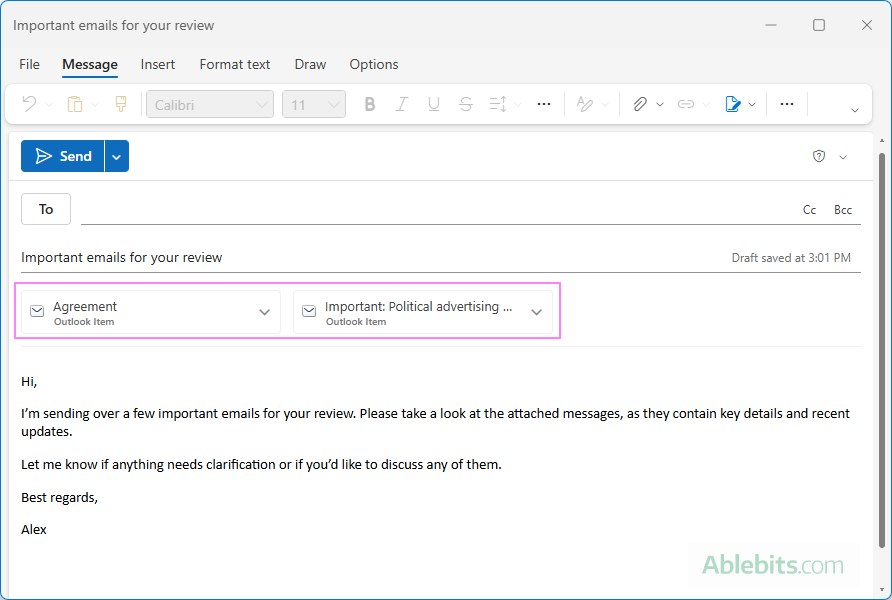
When you attach an email, Outlook includes it as a file:
- In classic Outlook (365 – 2016), an email is attached as an .msg file. More about MSG file format.
- In the new Outlook and Outlook on the web, it is attached as an .eml file. More about EML file format.
In both cases, the recipient can open the file to view the original message.
Why send emails as attachments?
Attaching an email preserves the original message exactly as it was received. The recipient can view full details, including when the email was sent, who sent it, its original formatting, and any attachments it contains.
This is especially important when sharing emails for documentation, compliance, or discussions where accuracy and full context matter.
Attach email by dragging it into an Outlook message
The fastest way to attach an email in Outlook is to drag it into a new message window. This method works in all Outlook versions and takes just a few seconds.
- Create a new email.
- In your Inbox or another folder, find the email you want to attach.
- Drag the email into the body of the new message.
- Release the mouse button.
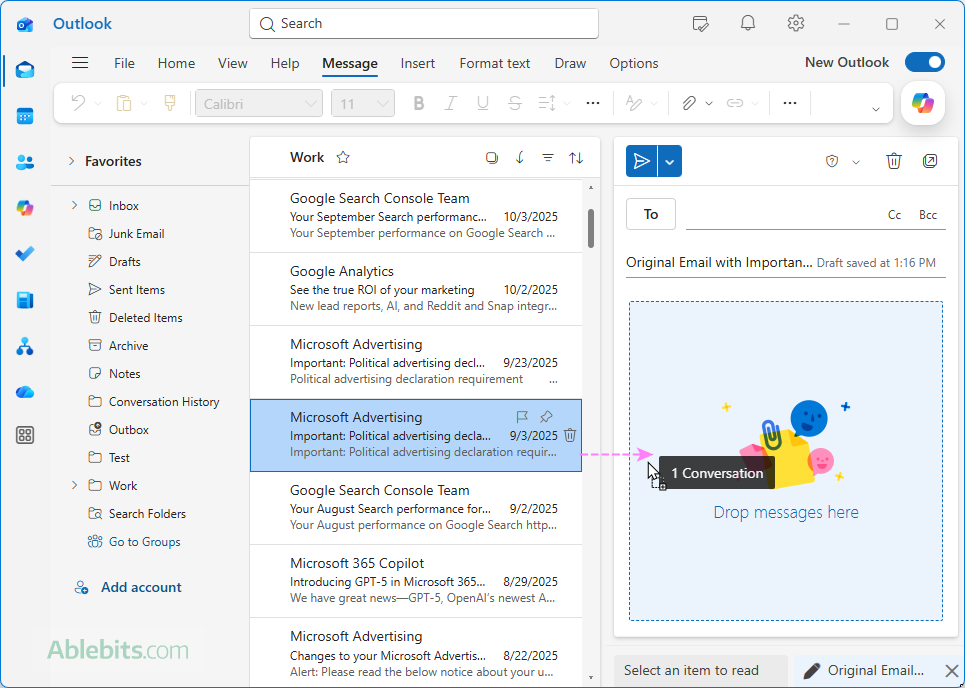
Outlook adds the email as an attachment to your current message right away.
Advantages:
- Simple and intuitive; no menus or extra steps.
- Works in all versions, including classic Outlook (365 – 2010), the new app, and web.
- Allows attaching multiple messages at once.
Forward Outlook email as an attachment
Another way to resend a full copy of an email is to forward it as an attachment instead of forwarding it in the usual way. This preserves the original message exactly as it was sent including its formatting, headers, and any attachments. The steps are:
- Open the email you want to send.
- Depending on your Outlook version:
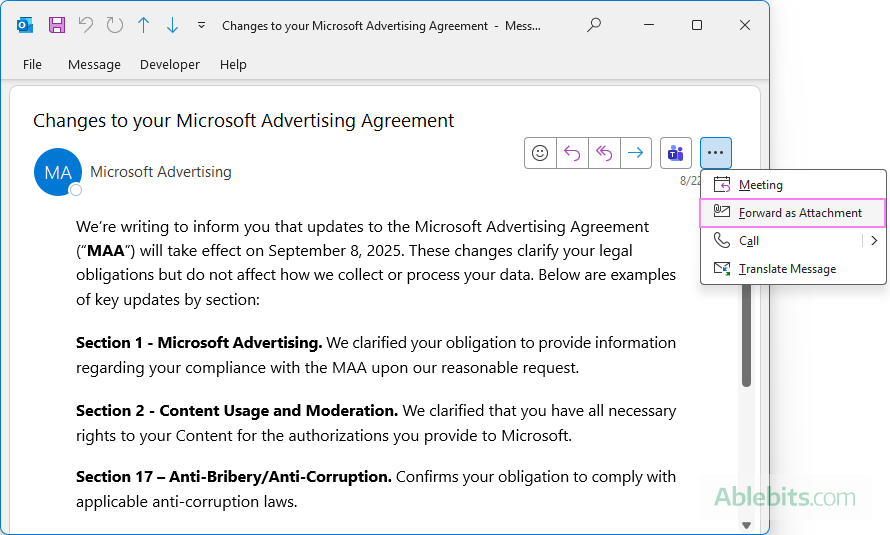
- Classic Outlook (365 – 2016): Click Other Actions (three dots) in the upper-right corner of the message, then choose Forward as Attachment.
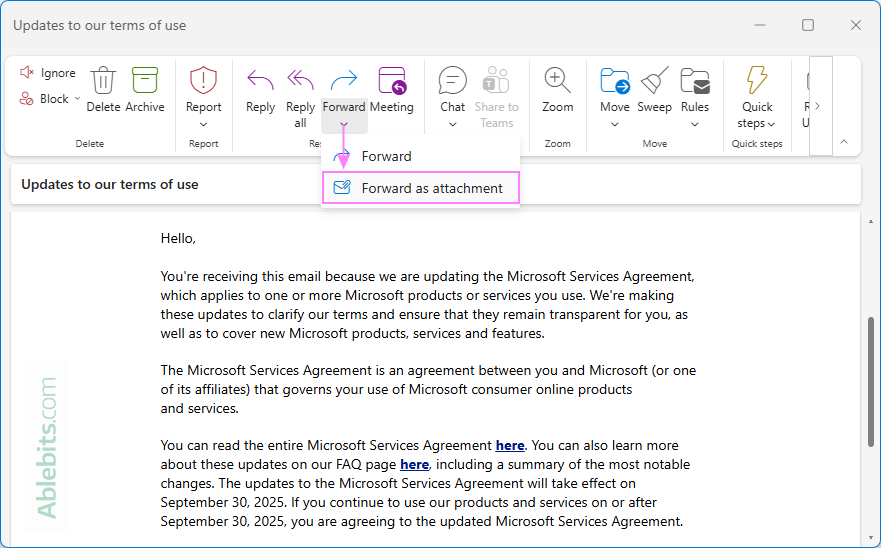
- New Outlook and Outlook on the web: On the ribbon, click Forward > Forward as Attachment.
- Classic Outlook (365 – 2016): Click Other Actions (three dots) in the upper-right corner of the message, then choose Forward as Attachment.
A new message window will open with the selected email already attached. Just enter the recipients, add any notes if needed, and send your message.
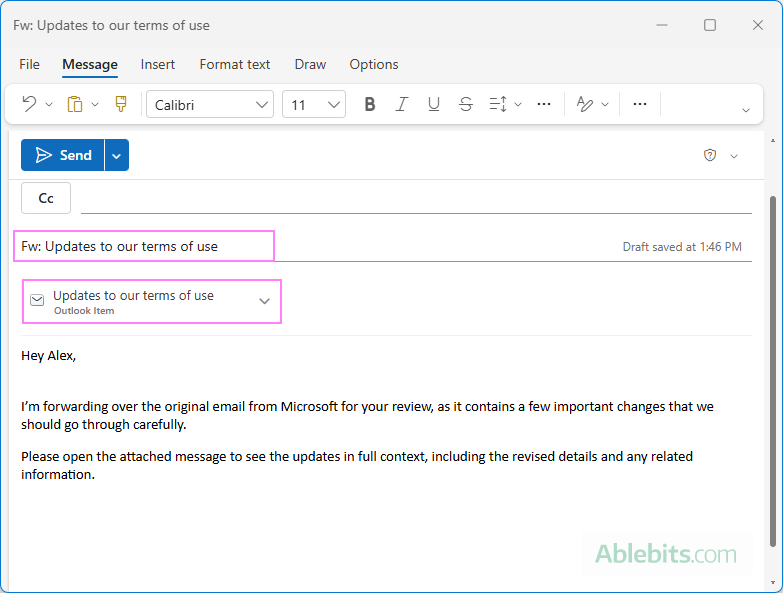
This method comes in handy when you want to share the email you are viewing without modifying its content.
Tip. In classic Outlook, you can use the Ctrl + Alt + F shortcut to forward the selected email as an attachment.
Attach an email as Outlook item
In addition to the drag-and-drop and forward-as-attachment methods, the classic Outlook app (365 – 2016) includes a built-in option for attaching emails. Here's how to use it:
- Create a new email message or reply to an existing one.
- Go to the Insert tab and, in the Include group, click Outlook Item.
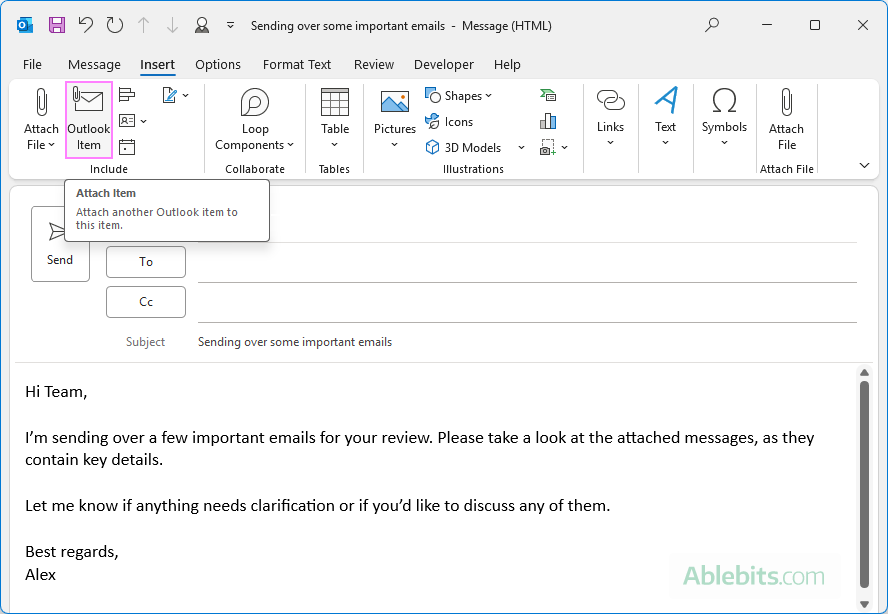
- In the Insert Item dialog window, select the folder containing the email of interest.
- Choose one or more messages you want to attach. To select multiple emails, hold Ctrl while clicking each one.
- Make sure the Attachment option is selected under Insert as (this is the default option).
- Click OK.
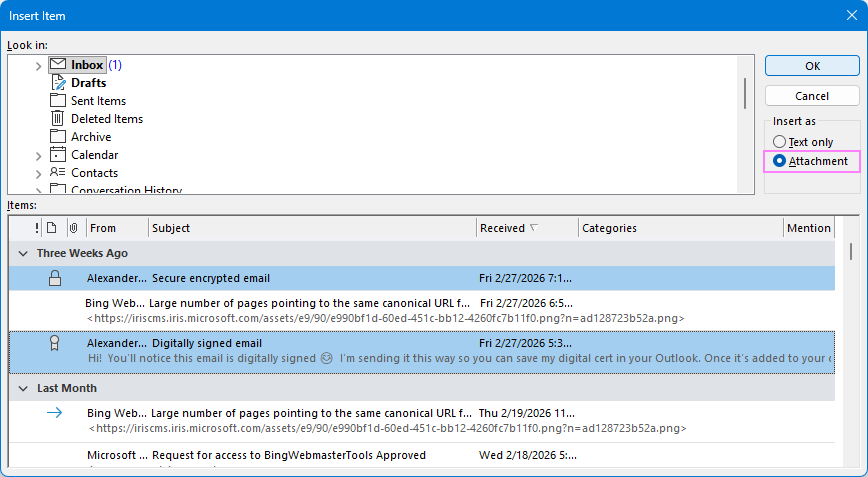
The selected email(s) will be added to the message you are composing as attachments.
Advantages:
- Works for any message type: new emails, replies, or forwards
- Easy multi-selection: attach several emails in one step
- Structured and precise: browse folders to find exactly what you need
Attach multiple emails in Outlook
If you need to send several emails together, Outlook lets you attach them all in a single step using drag and drop.
- Start a new email.
- Open Inbox or another folder.
- Select the emails you want to attach:
- Classic Outlook (365 – 2016): Hold the Ctrl key and click each individual email.
- New Outlook and web: select the checkbox next to each message.
- Drag the selected messages into the email window.
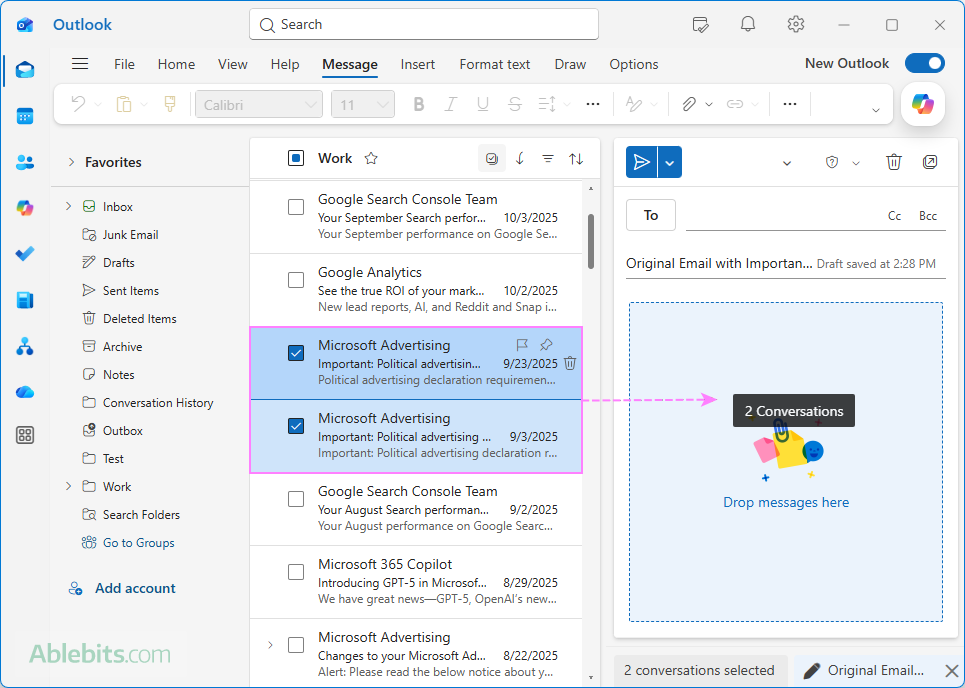
All selected emails will be added as separate attachments. This is particularly helpful when you need to send all related messages or provide someone with a complete email thread for full context.
Things to consider when attaching emails in Outlook
Before sending emails as attachments, it's worth taking a moment to check a few practical details.
Check attachment size
Attached emails can quickly increase the total message size, especially if they include large files or long threads.
- Outlook as well as other email clients have message size limits (usually around 20 – 25 MB).
- Multiple attached emails can quickly increase the total size, especially if each message includes its own attachments.
- If your message is too large, consider sharing it via a cloud link instead.
More about Outlook max attachment size limits.
Check recipient compatibility
Not all email platforms handle Outlook attachments the same way.
- MSG files (from classic Outlook) may not open properly in Gmail, Apple Mail, or other non-Outlook clients.
- If needed, use the new Outlook or web app, which attaches emails as EML files that are more widely supported.
- Alternatively, you can share the message content as plain text or PDF for maximum compatibility.
See how to save Outlook email as PDF.
Be mindful of sensitive information
Attached emails may include more than just the message itself.
- Email signatures, internal notes, and contact details may be visible.
- Attachments inside the original email are included as well.
- Forwarding entire threads can expose information not intended for the recipient.
Take a quick look before sending to make sure you're only sharing what's appropriate.
As you've seen, Outlook offers multiple ways to attach emails, each suited to different situations. Think of email attachments as the "original source" version of your messages. Instead of retelling the story, you just hand it over exactly as it happened. Fewer misunderstandings, fewer follow-ups, and fewer “wait, which email are you referring to?” moments 😊