 by
by This article shows three easy and effective ways to add Google Calendar to Outlook: subscribe for automatic updates, import a snapshot, or set up two-way access.
Google Calendar and Microsoft Outlook often go hand in hand. Many people use Google Workspace in one part of their life and Microsoft 365 in another. For example, one for personal plans and the other for work commitments.
If you're one of those busy users juggling schedules across two platforms, keeping both calendars up to date can be a real headache. Fortunately, there are several ways to add a Google Calendar to Outlook. The right method depends on whether you need a one-time copy of your events, a live subscription that updates automatically, or a full two-way syncing.
How to add Google Calendar to Outlook as subscription
For most users, subscribing is the simplest way to add Google Calendar to Outlook. It creates a one-way connection, meaning Outlook can display your Google events but does not allow you to create, edit, or delete them. Here is how to set it up:
Step 1: Get the Google Calendar link
Before you can add your Google Calendar to Outlook, you'll need to obtain its iCal link from Google Calendar. Here's how to do this:
- Open Google Calendar at calendar.google.com.
- In the left pane, under My Calendars, open the Options menu (vertical three dots) next to the calendar you wish to add to Outlook, and then click Settings and sharing.
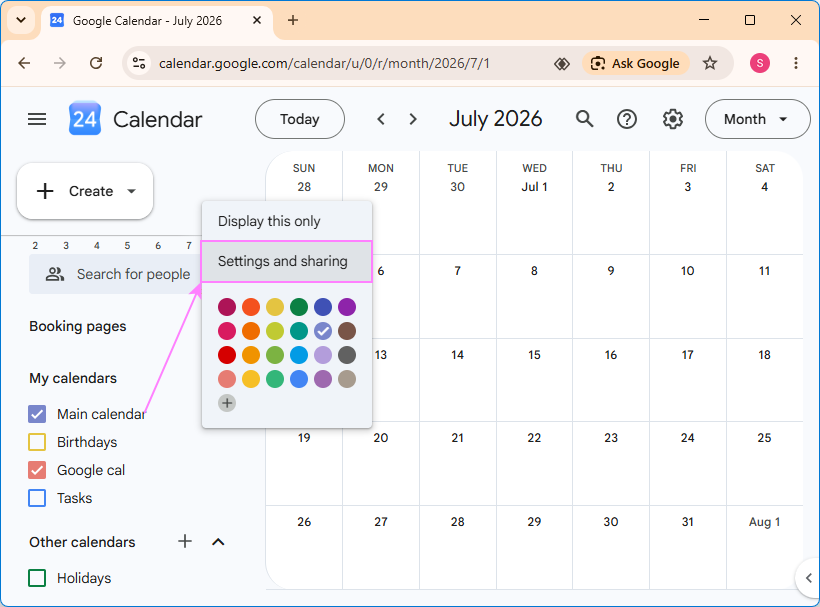
- Under the calendar settings in the left panel, select Integrate calendar.
- Copy the Secret address in iCal format link by clicking the Copy to clipboard icon next to it.
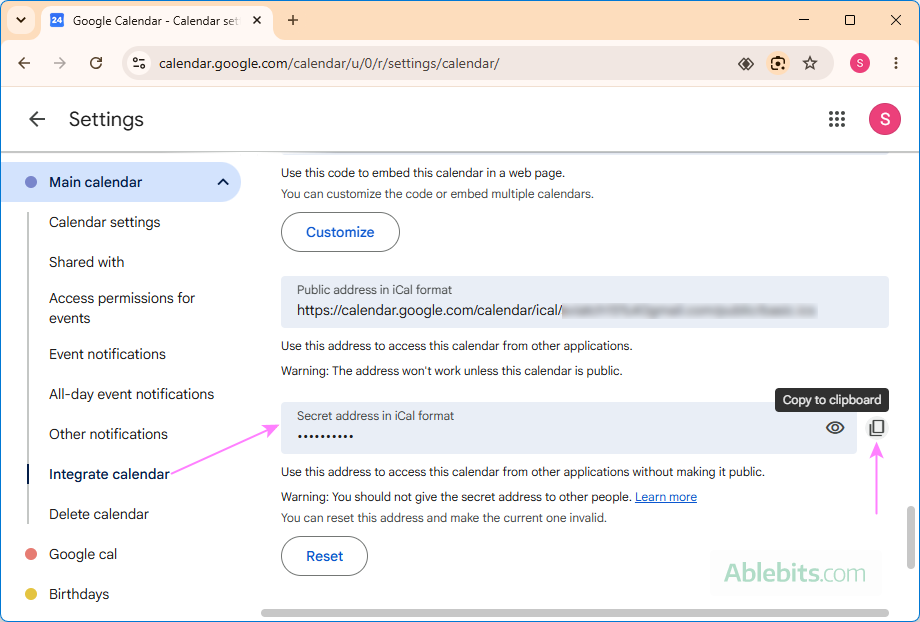
That's it for the Google Calendar side. Next, you'll add the copied iCal link to Outlook to create the calendar subscription.
Important note! The Secret address in iCal format provides access to your Google calendar. Treat this link like a password and do not share it publicly.
Step 2: Add the Google calendar iCal link to Outlook
Once you've copied the iCal link from Google Calendar, the next step is to add it to Outlook. You can do this in Outlook online or desktop – it will connect to Google Calendar either way.
The below steps apply to the new Outlook app and Outlook on the web. If you use the classic Outlook application (365 – 2016), then follow these instructions.
- Open the new Outlook desktop app or sign in to Outlook in browser.
- In the navigation pane, select Calendar.
- In the folder pane, click Add calendar.
- In the pop-up window, choose Subscribe from web.
- Paste the iCal link (with the .ics extension) you copied from Google Calendar.
- Enter a name for the calendar. Optionally, choose a color and charm (icon) to easier identify its events.
- Choose the calendar group where you want to add your Google Calendar. By default, Outlook places it under Other calendars in your primary account.
- Click Import.
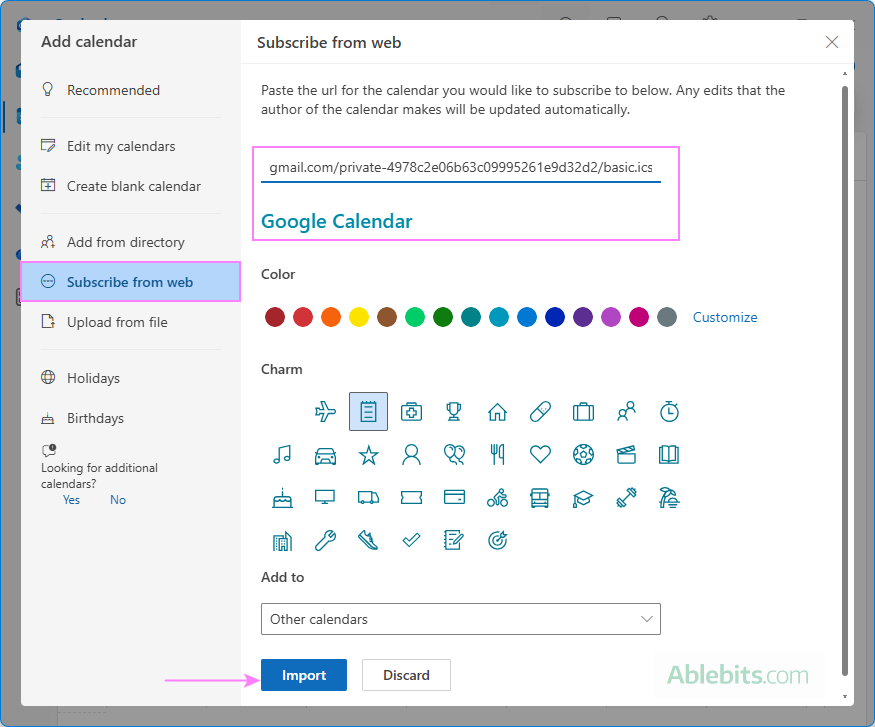
If all goes well, Outlook shows a small confirmation message near the bottom of the window. The pop-up window remains open in any case, ready for you to add other calendars. Close it and you'll find your Google Calendar under Other calendars or another group you selected.
Now, you can choose how to view your calendars in Outlook: side by side (Split View) or all events in one calendar (Overlay view).
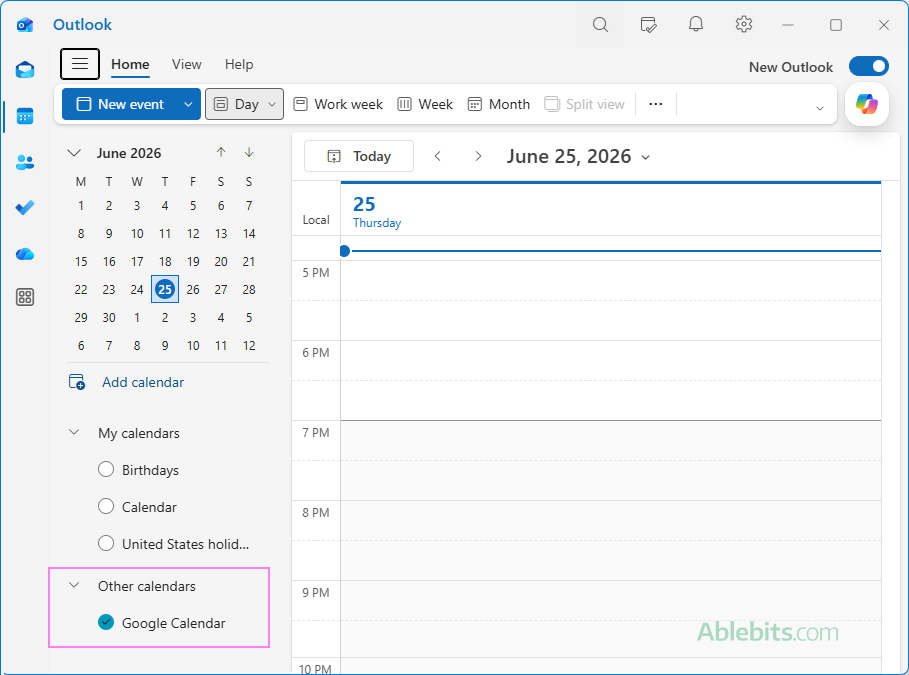
Note. Keep in mind that updates are not immediate. Outlook refreshes subscribed calendars periodically according to Microsoft synchronization cycle, so changes made in Google Calendar may take several hours to appear in Outlook.
How to import Google Calendar to Outlook
Importing creates a static snapshot of your Google Calendar in Outlook. Unlike a subscription, imported events do not stay connected to the original calendar in Google Workspace, so any changes made after the import won't be carried over to Outlook. To view the latest version of your Google events, you'll need to repeat the process.
This method is most useful if you're moving from Google to Microsoft 365 permanently or if you want to import a fixed set of events that is unlikely to change.
Step 1: Export your Google Calendar
The first step is to export your Google calendar data as an .ics file that Outlook can import.
- Open your Google Calendar.
- Click the gear icon in the upper-right corner and select Settings.
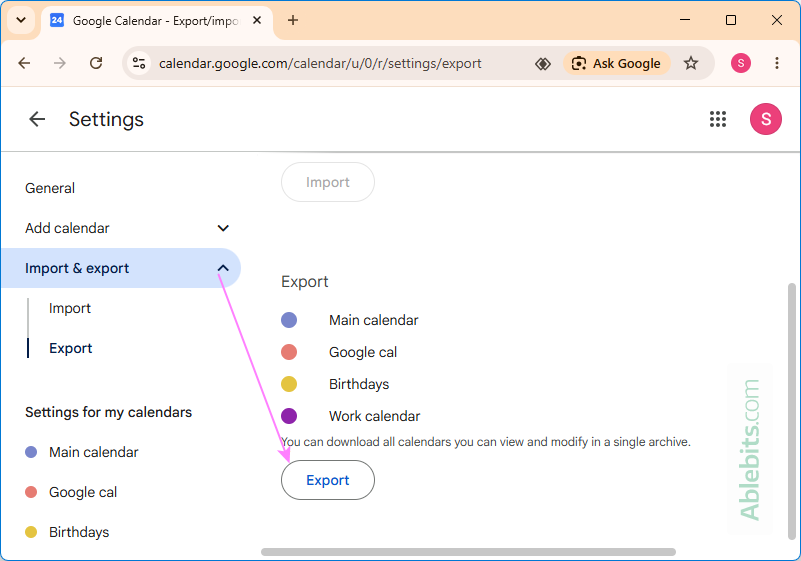
- In the left-side panel, click Import & export.
- In the main panel, under the Export section where your calendars are listed, click Export. This will download a ZIP file containing all of your Google calendars. It is not possible to export only a specific one at this point.
Step 2: Extract the exported ICS files
Before importing your Google calendars into Outlook, you'll need to extract the ICS files from the downloaded ZIP archive.
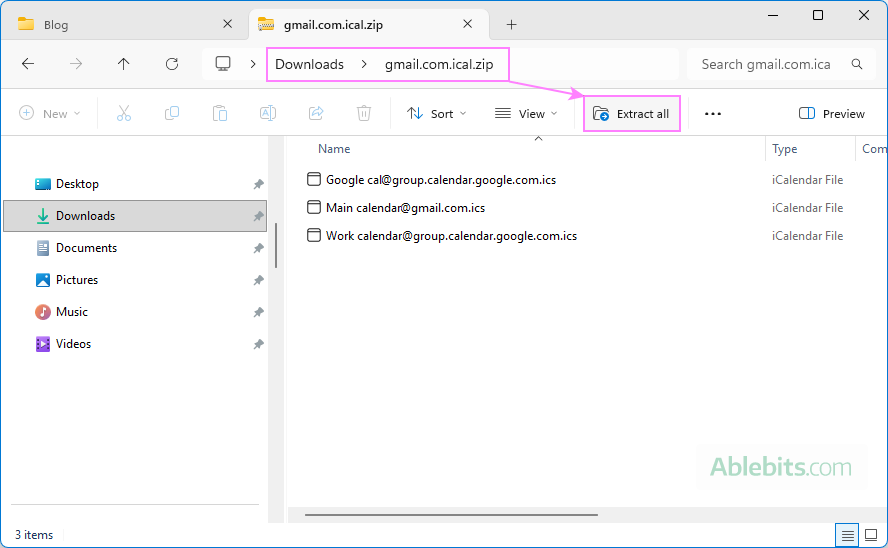
- In File Explorer, open your Downloads folder (or another folder where you saved the export).
- Find the downloaded .zip file, typically named something like gmail.com.ical.zip.
- Extract the contents of the .zip file.
- Make a note of the folder where the ICS files are extracted, as you'll need it in the next step.
Step 3: Import Google calendar into Outlook
With the ICS files ready, you can now import the desired Google calendar into Outlook.
The instructions below apply to the new Outlook app and Outlook on the web. If you're using classic Outlook (365 – 2016), then follow these steps.
- Open the new Outlook desktop app or sign in to Outlook on the web.
- In the navigation pane, select Calendar.
- In the folder pane, click Add calendar.
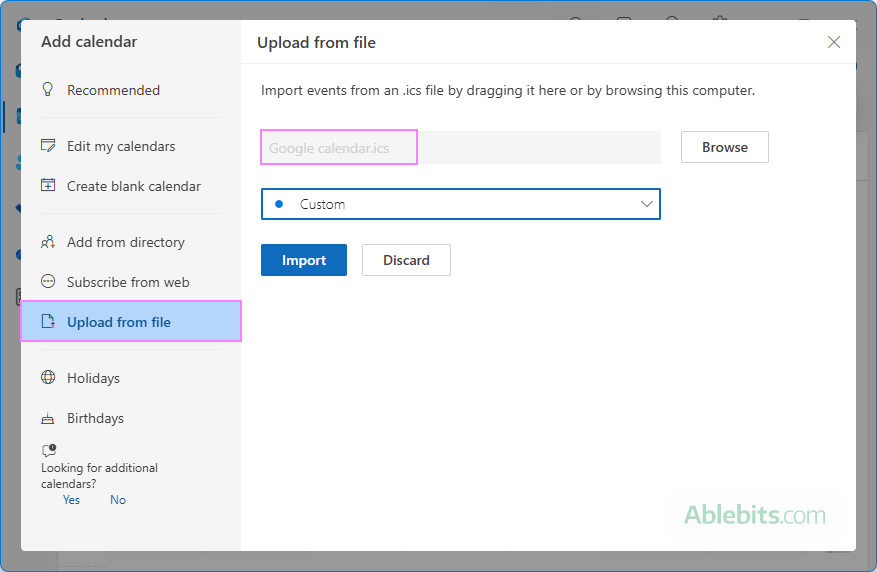
- In the pop-up dialog box, select Upload from file.
- Click Browse, navigate to the folder containing the extracted ICS files, and select the calendar you want to import. The files are typically named after the corresponding calendars, so there should be no problems identifying the needed one.
- Choose the Outlook calendar where you want to import the events. By default, the main calendar of your primary account is selected.
- Click Import.
After the import is complete, the selected Outlook calendar will be populated with the events from your Google calendar. Keep in mind that importing creates a one-time copy of the data. The Google and Outlook calendars remain independent, so any changes made later in either calendar won't be reflected in the other.
Note. The new Outlook app and web version can only import events to an existing calendar. If you'd like to have them in a separate calendar, first create a new blank calendar and then import the ICS file into it. Alternatively, import the ICS file in classic Outlook and choose the Open as New option, which automatically creates a separate calendar for the imported events.
Two-way syncing of Google and Outlook calendars
Unfortunately, Google and Outlook do not offer any built-in syncing. In practice, there are two main ways to share and sync calendars in both directions: add your Gmail account to Outlook or use a third-party sync tool.
Adding Gmail account to Outlook
If you regularly use both email clients, adding your Gmail account to Outlook may be the most convenient option. When you connect the email account, your Google calendar is automatically added to Outlook as well.
Unlike calendar subscriptions or imports, this setup lets you view and edit Google Calendar events directly from Outlook. And any changes you make are usually reflected in the other calendar almost immediately. For a closer look, see How to add Gmail account to Outlook.
Third-party tools for syncing Google and Outlook calendars
There are many third-party tools and services that can keep Google and Outlook calendars synchronized in both directions. Most are paid, though a few free options are available. For example:
Outlook Google Calendar Sync – a free open-source application for two-way syncing that runs on your desktop. It is pretty easy to install and set up, and includes a handful of useful features:
- Choosing the sync direction: Outlook to Google, Google to Outlook, or two-way sync.
- Setting how often updates are checked and transferred.
- Defining how many past and future days to sync.
- Selecting which event details to transfer: locations, descriptions, attendees, categories, reminders, etc.
- Excluding certain event types, such as private, tentative, or all-day appointments.
Google Workspace Sync for Microsoft Outlook – Google's own synchronization tool. It also supports two-way syncing and works with various items, including calendar, mail, contacts, tasks, and notes. However, this tool is available only for paid Google Workspace subscriptions and does not work with free personal Gmail accounts.
Hopefully, this guide has helped you find the best way to add your Google Calendar to Outlook. After all, maintaining one calendar is challenging enough. Keeping two calendars in sync shouldn't have to be a full-time job 😊
One comment
The warning about the Secret address in iCal format is really helpful. Many might not realize how sensitive that link truly is. Treating it like a password is excellent advice for calendar security.