 by
In this guide, we'll explore different ways to set up Focus Time in Outlook, edit your schedule, and remove focus blocks when your plans change.
Ever had one of those days when your Outlook calendar is packed with meetings, leaving barely enough time to get any actual work done? That's where Focus Time comes to the rescue. By booking dedicated time in your calendar, you can work on important tasks without constant interruptions.
What is Focus Time in Outlook?
Focus Time in Outlook is a dedicated period in your calendar reserved for uninterrupted, high-priority work. Instead of constantly switching between meetings, emails, and chats, you can use this time to concentrate on tasks that need your full attention.
Focus Time is typically scheduled through the Viva Insights add-in, which automatically looks for available slots in your Outlook calendar and reserves them for focused work. These appointments appear in your calendar with the label Focus time. Viva Insights works around your existing schedule, so it will never book focus sessions over any existing calendar events.
Unlike recurring Outlook meetings, automatically scheduled focus sessions are individual calendar events. You can move, reschedule, or delete any session without affecting the others.
To set up Focus Time, you can use the Viva Insights app in Outlook or Microsoft Teams. This requires an eligible Microsoft 365 work or school account, and some features depend on your organization's subscription.
Alternatively, you can reserve focus time manually using regular Outlook appointments. However, this won't automatically change your Teams status or silence notifications.
What happens during Focus Time?
Focus Time does more than simply block out time in your calendar. When scheduled through Viva Insights, it helps you stay focused in several ways:
- Protects your availability. Your Outlook calendar shows you as Busy, so colleagues can see that you're unavailable when scheduling meetings.
- Reduces interruptions. Microsoft Teams automatically changes your status to Focusing and silences notifications except urgent messages and those from your priority contacts. You can check and change your current priority settings in Teams via Settings > Privacy > Manage priority access.
- Helps you manage tasks. During a focus session, you can open Viva Insights Focus mode to see your To-Do tasks, use a focus timer, and take short mindfulness breaks.
How to Add Focus Time in Outlook
You can schedule Focus Time as an automatic recurring event or add a single block to your calendar manually.
Method 1: Set Focus Time in Outlook with Viva Insights
The easiest way to automatically reserve time for focused work directly in Outlook is through the Microsoft Viva Insights add-in. It works in classic Outlook for Microsoft 365, new Outlook, and Outlook on the web, provided the add-in is available for your account.
Here's how to set it up:
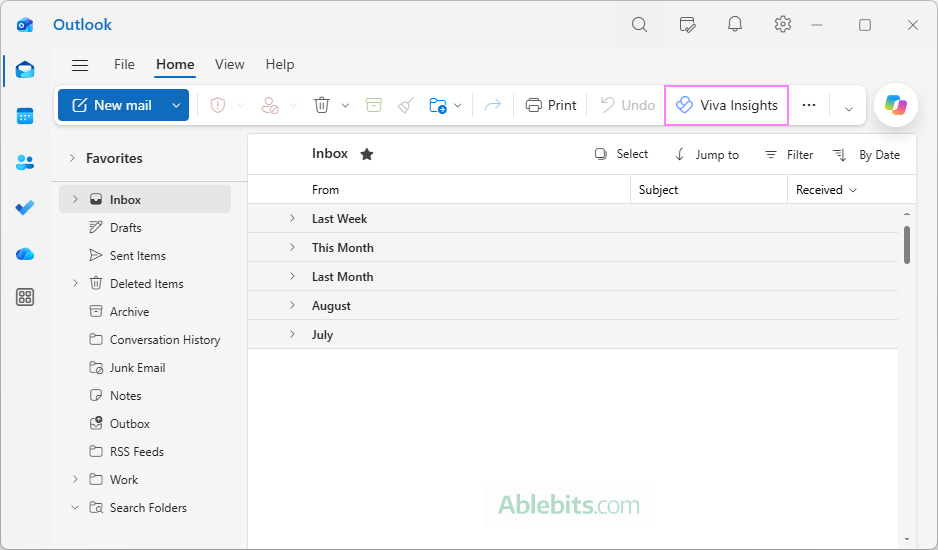
- Open Viva Insights. In Outlook, select any email, then click Viva Insights on the Home tab of the ribbon.
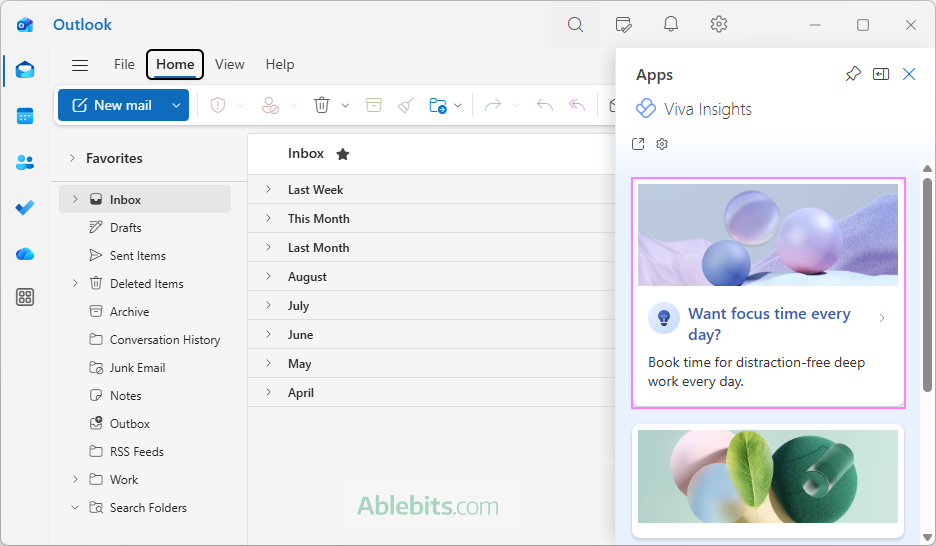
- Start a focus plan. In the Viva Insights pane, find and select the Want focus time every day? insight.
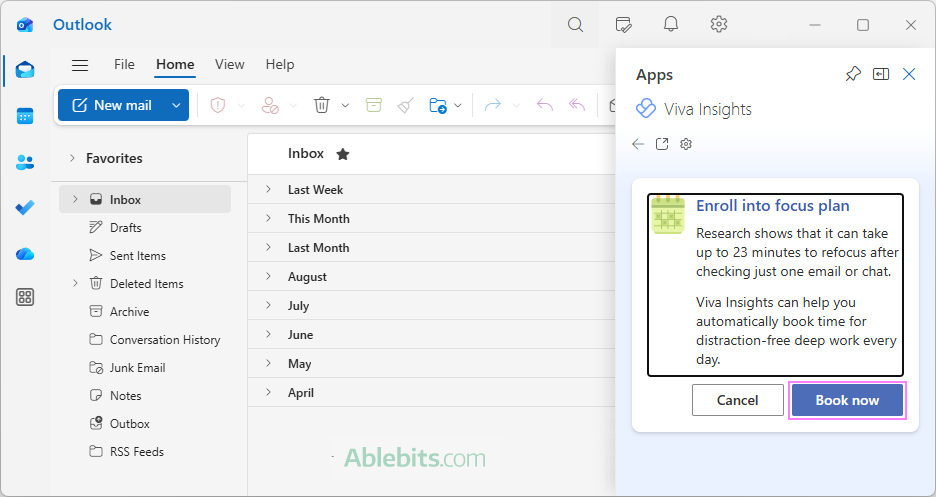
- Confirm your enrollment. When prompted to enroll in a focus plan, click Book now.
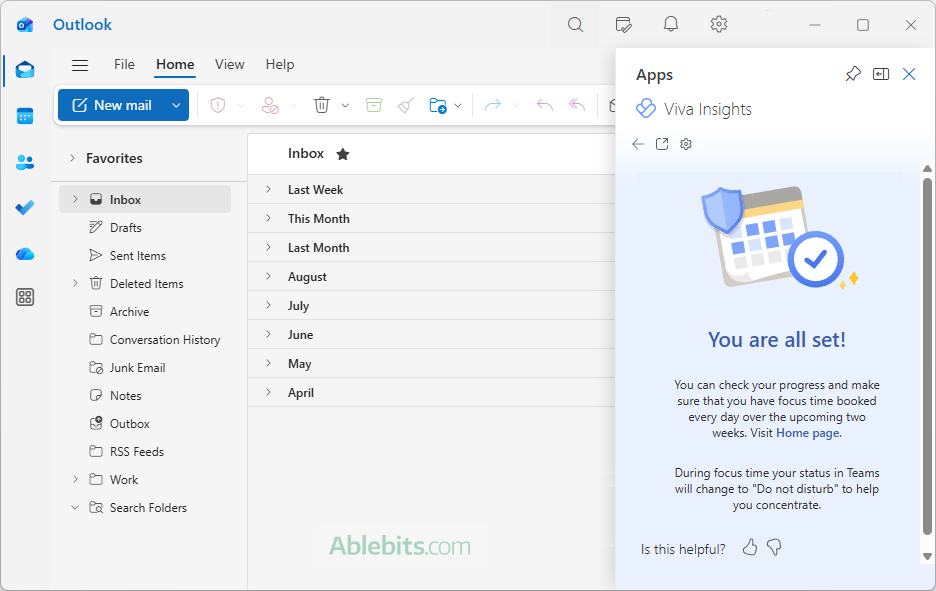
- Check the confirmation. Viva Insights displays a message confirming that your plan has started and focus-time blocks have been added to your Outlook calendar.
- View focus time in Outlook calendar. Switch to your Outlook calendar. You'll see the newly created Focus time appointments during your working hours, shown as Busy.
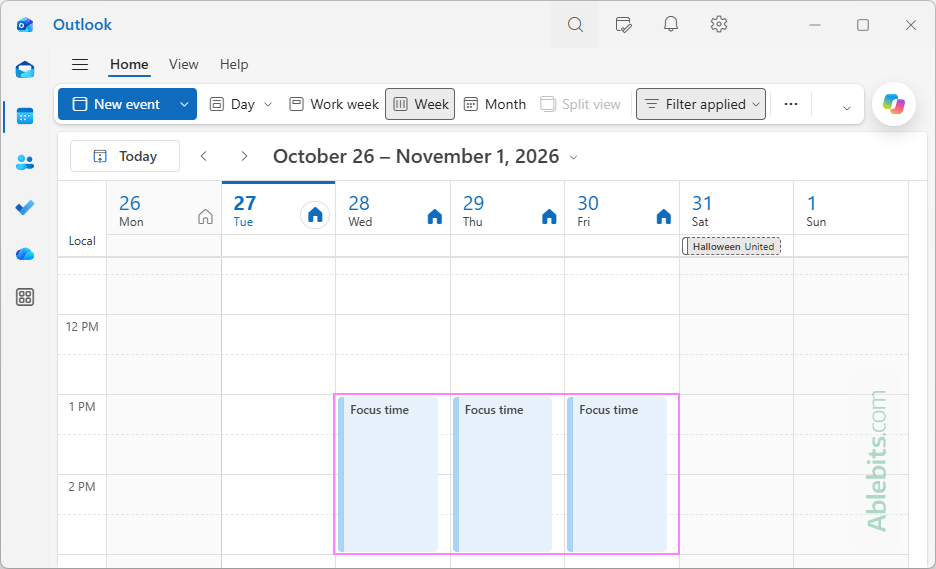
Normally, Viva Insights books focus time two weeks in advance. Each focus block is an individual calendar event, so you can move or delete it without affecting the rest of your plan.
Tip. If the Viva Insights button is missing from your Outlook ribbon, don't worry. The add-in may simply be hidden or not installed. See how to find and enable Viva Insights in Outlook.
Method 2: Schedule Focus Time in Microsoft Teams
With the Viva Insights app in Microsoft Teams, you can reserve time for focused work in two ways:
- Daily focus plan. Let Viva Insights find available slots in your calendar and automatically schedule up to four hours of focused work each day.
- One-time focus sessions. Book individual time slots whenever you need to concentrate on important tasks without distractions.
Set up a daily focus plan
If you'd like to make focused work part of your daily routine, Viva Insights can take care of scheduling it for you. Here's how to get started:
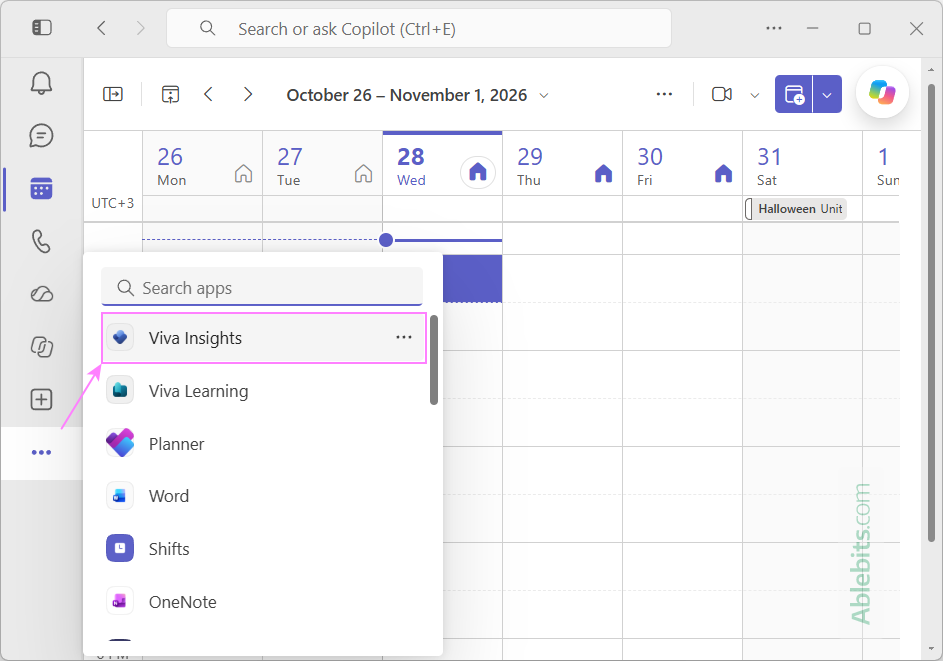
- Open Viva Insights in Teams. Select Viva Insights from the left sidebar. If you don't see it, click View more apps (…), search for Viva Insights, and open the app.
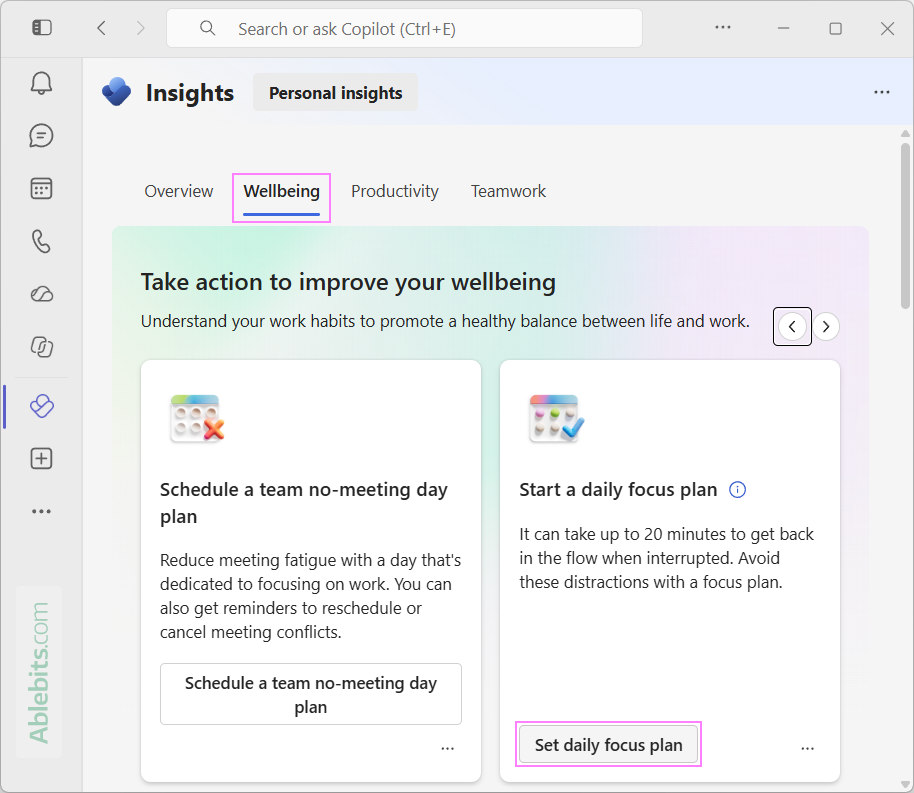
- Start a daily focus plan. On the Wellbeing tab, find to the Take action to improve your wellbeing section. Locate the Start a daily focus plan card and click Set daily focus plan.
- Confirm your focus plan. Viva Insights will automatically schedule time for focused work. If this is your first plan, you may be asked to set your preferred focus duration, time of day, reminders, and notification preferences. If you've used a focus plan before, your previous preferences will be applied automatically. Once the plan is active, a confirmation card appears in the same section.
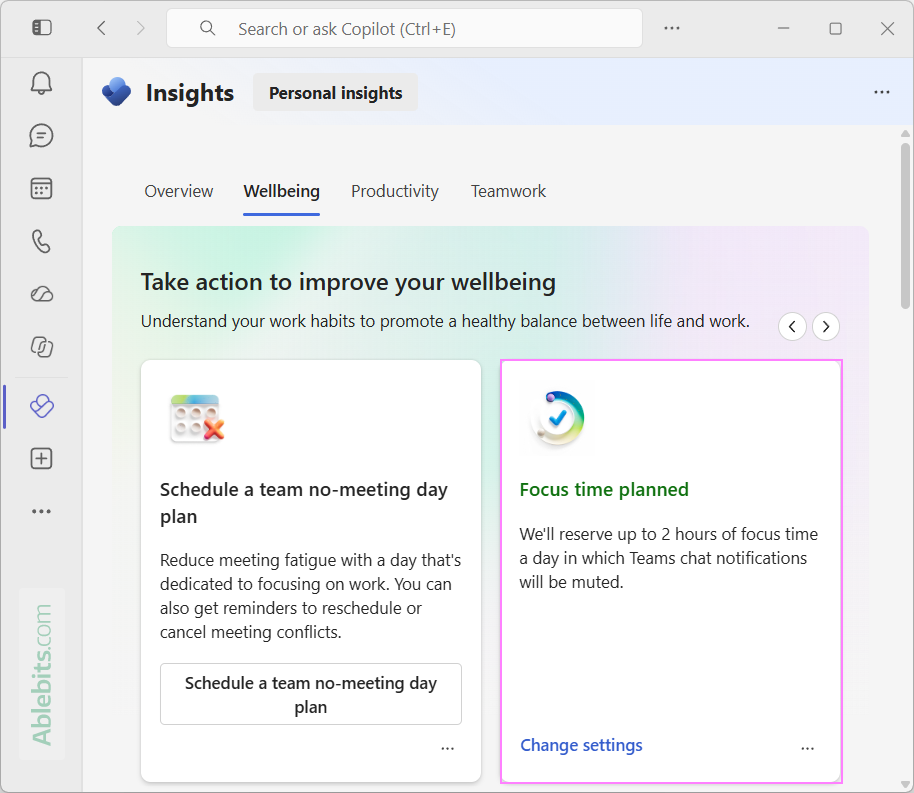
You can adjust your preferences at any time. To do so right away, click Change settings on the confirmation card. You can also make these adjustments later, as described in How to change Focus Time settings.
That's it! Your focus sessions scheduled in Teams will automatically appear in your Outlook calendar, giving you dedicated time for important work.
Book a one-time focus session with Viva Insights
If you only need an occasional break from meetings and messages, there's no need to set up a daily plan. You can schedule individual sessions instead.
To book a one-time focus session:
- Launch the Viva Insights app in Microsoft Teams.
- On the Wellbeing tab, go to the Act with intention section. Under Focus, find the Book focus time card.
- Choose a time slot. Use the arrows beside the date to browse available days and review the suggested time slots. Click Book next to the one that suits you. The button will change to Booked, confirming that your focus session has been scheduled.
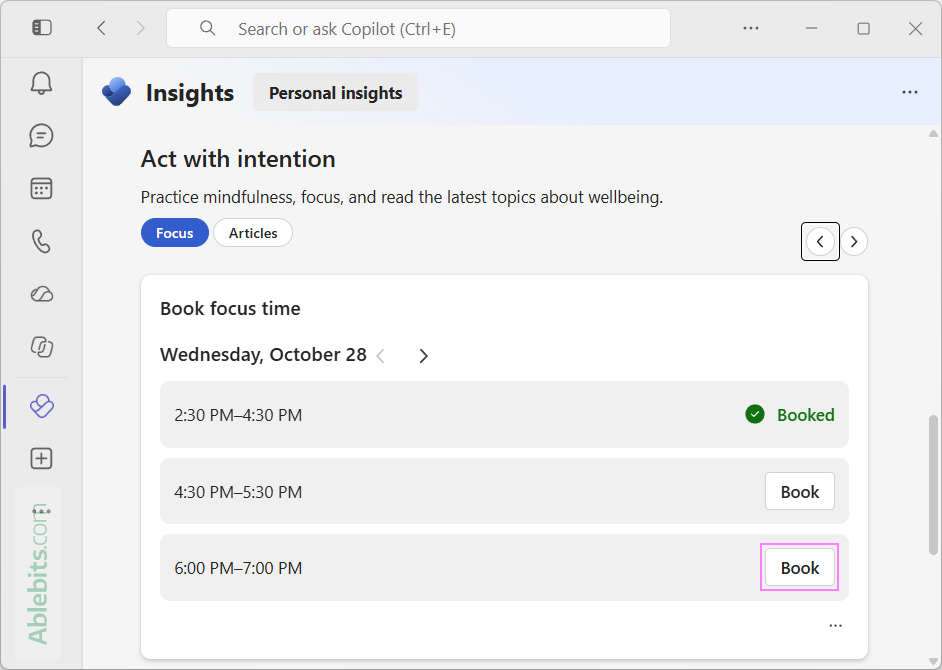
The selected session will appear in your Outlook calendar as a one-time focus event, without creating a recurring schedule.
Method 3: Add Focus Time in Outlook manually
If you don't have Viva Insights or prefer to choose exactly when to focus, you can block out time in your Outlook calendar manually. This method works for all accounts in any Outlook version (classic, new and web).
To create a manual focus block:
- Create a new event. In your Outlook calendar and click New event (or New Appointment in classic Outlook). Alternatively, double-click an empty time slot in the calendar grid.
- Name your focus session. Enter a descriptive title, such as "Focus Time".
- Set the time. Choose the start and end times for your session. For tasks that require deep concentration, consider reserving 60 – 90 minutes rather than squeezing everything into a short break between meetings.
- Mark yourself as busy. Under Show as, select Busy, so colleagues can see that you're unavailable when scheduling meetings.
- Make it recurring (optional). If you want to reserve the same time every day or on certain weekdays, set up a recurring event. This also helps colleagues get used to your regular focus hours.
- Save your event. Click Save or Save & Close, depending on your Outlook version.
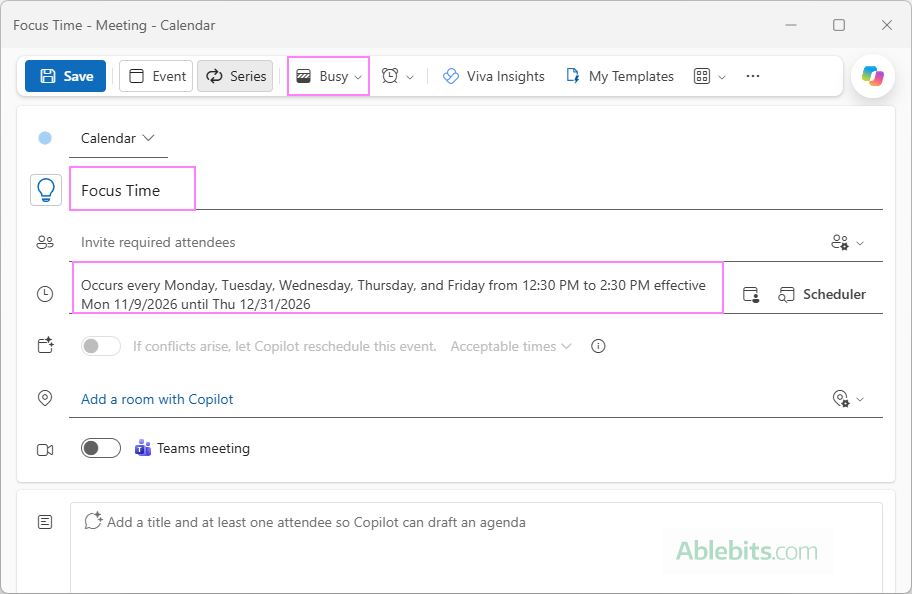
The focus time events will now appear in your Outlook calendar, and anyone checking your availability will see that you're busy.
The main advantage of this method is complete control over your schedule. You decide exactly when and how long to focus, without relying on automatic scheduling.
Note. Unlike Focus Time booked through Viva Insights, a regular Outlook appointment won't automatically change your Teams status or silence notifications. If you want to avoid interruptions, you can manually enable Do not disturb in Teams during your session.
How to change or reschedule Focus Time in Outlook
Sometimes an important meeting comes up, or you simply need to shift your focused work to another part of the day. Luckily, you can adjust your focus plan or reschedule individual sessions without starting over.
Change automatic Focus Time schedule
If you've set up an automatic focus plan through Viva Insights, you can edit your preferences in this way:
- Open Viva Insights. Depending on where you prefer to work:
- In Outlook: Open the Viva Insights add-in and click Go to Home page. This opens Viva Insights (insights.cloud.microsoft) in your default browser.
- In Teams: Select the Viva Insights app from the left sidebar.
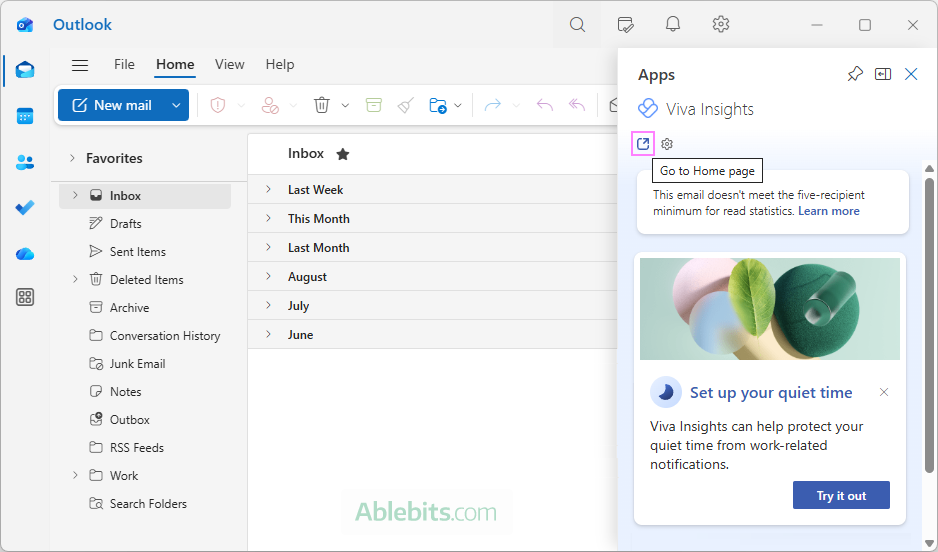
- Go to your focus plan settings. Click the three-dot menu (…) at the top-right of Viva Insights, select Settings, choose Protect time from the left pane, and scroll down to the Configure your recurring plan for focus section.
Alternatively, on the Wellbeing tab, find the Focus plan card under Track your progress, and click Change settings at the bottom of the card.
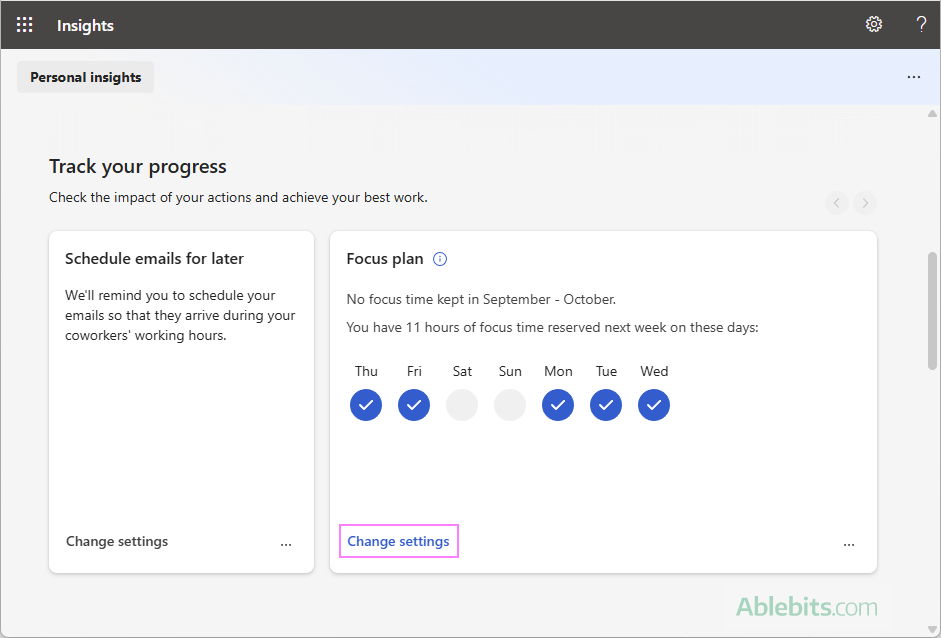
- Adjust your focus plan. Under Configure your recurring plan for focus, you can change the following options:
- Daily focus duration. Choose how much time to reserve each day, from 1 to 4 hours.
- Preferred time of day. Select Morning or Afternoon.
- Earliest start time. Specify when Viva Insights can begin scheduling your focus sessions.
- Teams reminders. Choose whether to receive a reminder when it's time to start focusing.
- Teams notifications. Select Mute notifications to avoid interruptions during focus time or Allow notifications to keep receiving messages as usual.
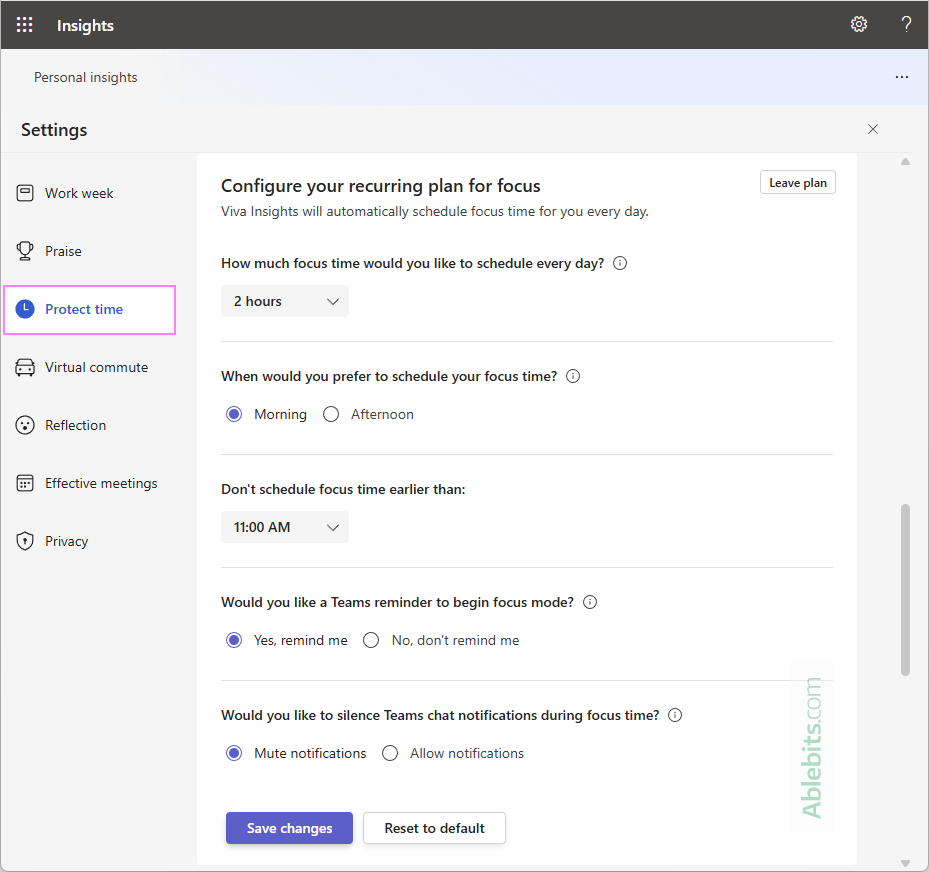
- Save your changes. Click Save changes. A green confirmation message will appear, letting you know that your new settings have been saved and will be reflected in your Outlook calendar within 24 hours.
Your updated preferences will be used for automatic focus scheduling going forward. If you ever want to start fresh, click Reset to default to restore the original settings.
Reschedule an individual Focus Time session in Outlook
If you only need to move one focus session to a different time or day, you can do it directly in your Outlook calendar. Here's how:
- In your Outlook calendar, click the focus block you want to change and select Edit from the pop-up window.
- Change the start or end time, or move the session to another date.
- Click Save to update the appointment.
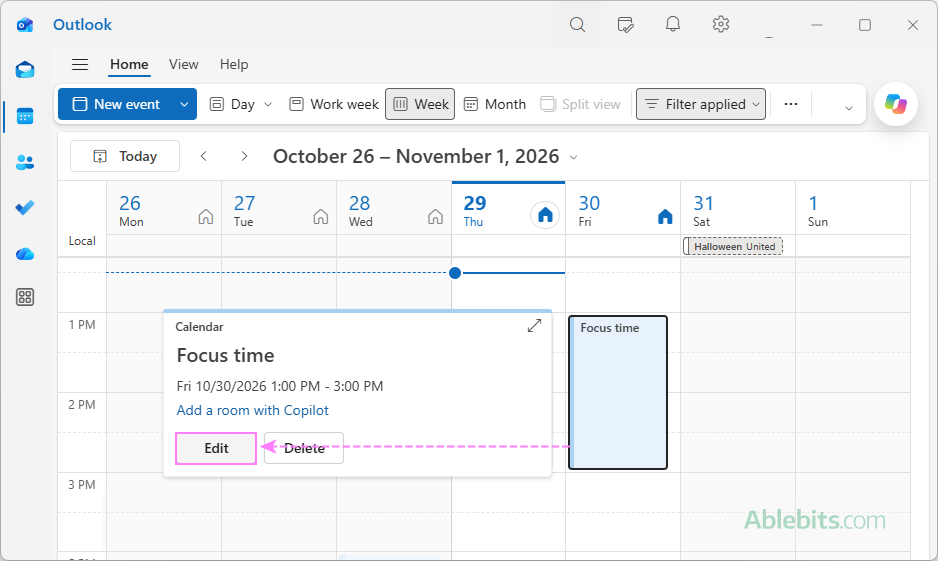
The modified focus block will appear at its new time in your calendar. Since Viva Insights creates each session as an individual appointment, rescheduling one won't affect your other focus blocks or the automatic daily plan.
Tip. For a quicker way to reschedule, simply drag the focus block to another available time slot in your Outlook calendar.
Note. If you created Focus Time manually as a recurring appointment, you can edit it just like any other Outlook calendar event. For the detailed instructions on changing a single occurrence or the entire series, see How to update a multi-date event in Outlook.
How to remove focus time from Outlook
If you no longer need your scheduled focus hours, you can easily remove them from your Outlook calendar. The steps depend on whether you want to cancel the entire automatic focus plan or delete just one session.
Cancel the entire Focus Time plan
If Viva Insights automatically schedules Focus Time every day, deleting individual appointments won't stop new ones from appearing. To turn off automatic scheduling, you need to disable your focus plan. Here's how to do this:
- Launch the Viva Insights app in Microsoft Teams or open it in your browser at insights.cloud.microsoft.
- Click the three-dot menu (…) at the top-right, select Settings, and choose Protect time from the left pane.
- Find the Configure your recurring plan for focus section and click Leave plan.
- If prompted, share your reason for leaving the plan with Microsoft, or click Cancel to skip the survey.
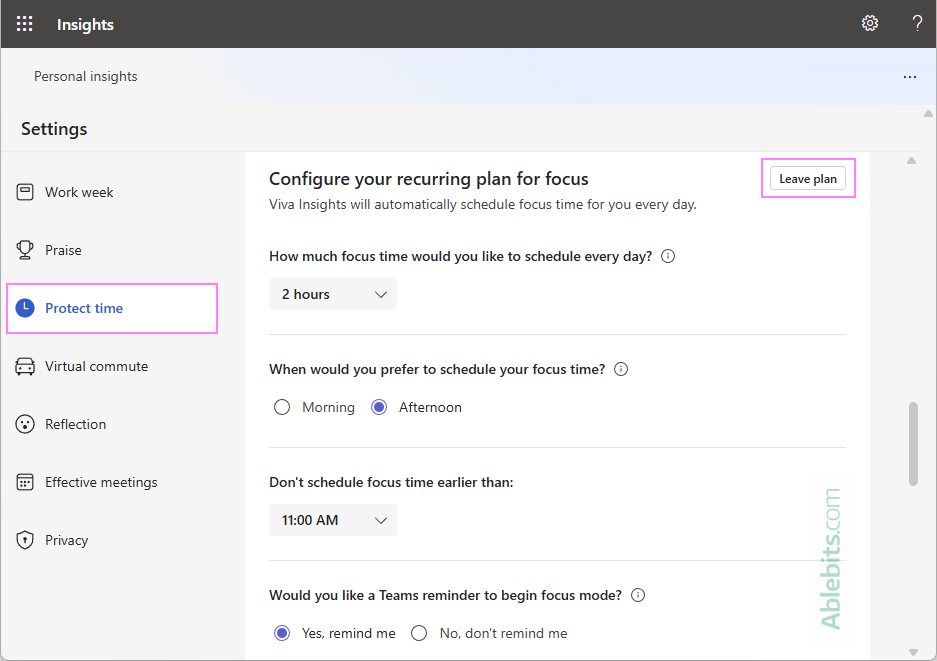
Viva Insights will stop scheduling new focus sessions. The change may take a few hours to appear in Outlook, so don't worry if you still see focus blocks in your calendar. Any appointments that remain can be deleted manually.
Remove an individual Focus Time session in Outlook
If you only want to remove one focus session, there's no need to change your entire plan. You can delete the appointment directly from your Outlook calendar:
- Open your Outlook calendar, find the Focus time event you want to remove, and click it.
- In the pop-up window, click Delete.
- When asked to confirm the deletion, click Delete again.
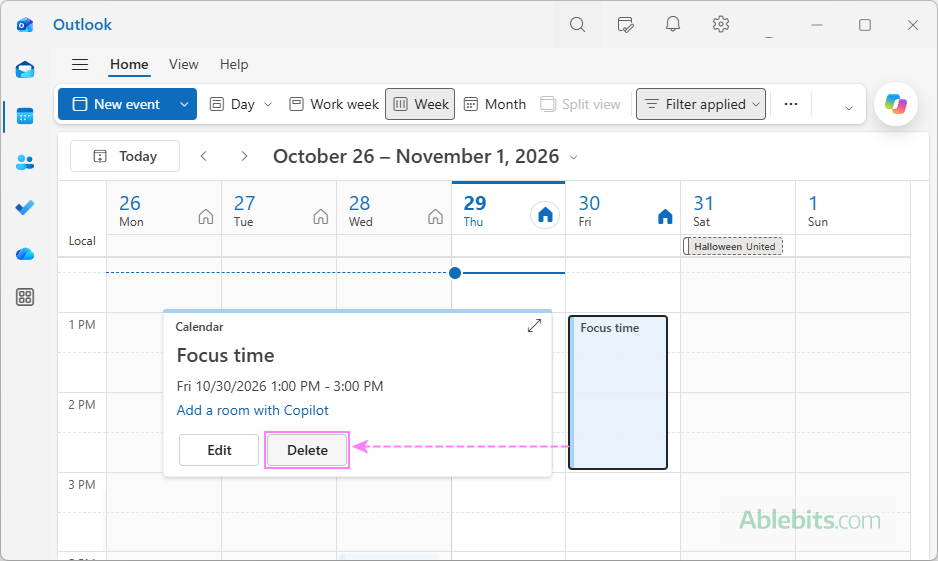
The selected focus block will disappear from your calendar. Your remaining focus sessions and automatic scheduling preferences won't be affected.
Tip. If a focus time event was created manually, you can delete it like any other Outlook appointment. For recurring focus blocks, you can remove just one occurrence or the entire series as explained in How to delete recurring calendar events in Outlook.
Focus Time vs. regular calendar appointments
At first glance, a focus block looks much like an ordinary Outlook calendar event. However, there are some essential differences.
| Feature | Regular Outlook appointment | Viva Insights Focus Time |
|---|---|---|
| Blocks calendar availability | Yes, when marked Busy | Yes |
| Can be scheduled manually | Yes | Yes, by adjusting daily plan settings or scheduling one-time session |
| Supports automatic scheduling | Through recurring events | Through daily focus plan |
| Can activate Do not disturb (Focusing) status in Teams | No | Yes, when enabled |
| Can be rescheduled or deleted | Yes | Yes |
Frequently asked questions about Outlook Focus Time
Wondering who can use Focus Time, how it works with Teams, or why it keeps appearing in your calendar? Let's clear things up.
Which Outlook versions support Viva Insights?
Viva Insights is available in classic Outlook for Microsoft 365, new Outlook, and Outlook on the web, provided you're using an eligible Microsoft 365 work or school account with an Exchange Online mailbox.
It's available with various Microsoft 365 business, enterprise, and education plans. Personal Outlook.com, Hotmail, and third-party account like Gmail or Yahoo are not supported.
For the complete list of eligible subscriptions, see Microsoft's Viva Insights licensing requirements.
Can't find Viva Insights in Outlook?
If the Viva Insights button is missing from your Outlook ribbon, the add-in may simply be hidden or not installed. Here's how to find or add it:
- Check the hidden commands. On the simplified ribbon, click More commands (…) and look for Viva Insights under Add-ins. On the classic ribbon, click the overflow control (>) at the far right to reveal additional commands.
- Install the add-in. If it isn't listed, click More apps (new Outlook) or All Apps (classic Outlook), then select Add apps. Search for Viva Insights and click Add if available.
If you still can't find Viva Insights, your Microsoft 365 administrator may have disabled the add-in, restricted its installation, or your account may not support it. Contact your IT team to check its availability.
How far ahead does Viva Insights schedule Focus Time?
Viva Insights books focus sessions approximately two weeks in advance and continues adding new blocks as your calendar moves forward.
For example, if you start your plan on Tuesday, you may see focus sessions beginning that day or Wednesday (depending on when you enroll) and continuing through Friday of the following week. As time passes, Viva Insights looks for available slots further ahead and automatically reserves additional sessions.
How many hours of Focus Time can I schedule per day?
Viva Insights can reserve up to four hours of Focus Time per day. Usually, automatic scheduling defaults to two hours. You can increase or decrease that duration in Viva Insights > Settings > Protect time, choosing from the available options.
Why does Focus Time keep appearing in my Outlook calendar?
The most likely reason is that you've enrolled in a Microsoft Viva Insights focus plan, which automatically books time for focused work.
To stop new sessions from being added, open Viva Insights and leave the plan. If you've also created recurring focus appointments manually, you'll need to delete those separately.
Does Focus Time automatically turn on 'Do not disturb' in Teams?
It depends on how you schedule it.
Focus sessions created through Viva Insights can automatically change your Microsoft Teams status to Focusing and silence notifications, except those from priority contacts. You can control this behavior in your focus plan settings.
Regular Outlook calendar appointments don't have this capability, even if they're named "Focus Time".
Can other people see my Focus Time in Outlook?
Yes, coworkers who can view your free/busy information will see that you're unavailable during focus sessions.
Whether they can see the appointment's title and other details depends on your calendar sharing permissions. If you want to keep the details hidden, mark the appointment as Private.
Can I schedule Focus Time in Outlook without Viva Insights?
Yes! You can create a regular calendar appointment, name it "Focus Time", and mark it as Busy. This works in classic Outlook 365 – 2016, new Outlook, and Outlook on the web.
However, manually created focus blocks won't provide Viva Insights features such as automatic scheduling or Teams notification management.
Does Focus Time prevent meeting invitations?
No. Focus Time marks you as Busy but doesn't automatically reject meeting invitations. Other people can still invite you to meetings during those hours.
If a meeting conflicts with a focus block, you can simply reschedule the session to another available time.
Wrapping up: That's how to add, edit, and remove Focus Time in Outlook. And remember, booking time for important work is only half the battle. The other half is resisting the temptation to check your inbox every five minutes. 😊