 by
by The article explains how to set up Microsoft Teams meetings in Outlook, customize default settings, and solve problems when the Teams option is not showing.
Microsoft Outlook and Teams work closely together, giving you a simple way to set up online meetings without jumping between the apps.
That said, the steps vary depending on which Outlook version you are using, and at times certain settings or glitches can cause the Teams option to disappear. This guide explains how to create a Teams meeting in each Outlook app and shows how to troubleshoot the common issues.
How to add Microsoft Teams add-in to Outlook
In most cases, you don't need to install anything manually. The Microsoft Teams plug-in is built into Outlook by default, including the classic desktop app and the new Outlook. What you can do is confirm that Teams is properly integrated and available in your version.
Check Teams integration in classic Outlook 365 – 2024
To verify that the Microsoft Teams add-in is installed on your computer, start by looking for its command on the Calendar ribbon.
- Open Outlook and switch to your Calendar.
- On the Home tab, look for the Teams Meeting button.
If you see it, the plug-in is active and ready to use.
Check if Teams is added in new Outlook and web
To confirm that Teams is enabled in the new Outlook app and the browser version, do this:
- Create a new calendar event.
- Look for the Teams meeting toggle.
If you can switch it on, Teams is already connected to your account.
Compatibility
Microsoft Teams works with all modern Outlook versions, including:
- Outlook for Microsoft 365
- Outlook 2024 – 2016
- New Outlook app
- Outlook on the web
Older versions, such as Outlook 2013 or earlier, are not compatible.
How to schedule a Teams meeting in Outlook
Setting up a Teams meeting in Outlook works similarly across all versions, with only small differences in where the Teams option is located.
Here are the steps to schedule a Teams meeting in Outlook:
Step 1. Create a calendar event
Begin by creating a new meeting request. Depending on your version:
- New Outlook and web: Open your calendar and click New event in the top left of the Home
- Classic Outlook (365 – 2016): On the Home tab, click New Items > Meeting, or use the Ctrl + Shift + Q shortcut.
Step 2. Set up a Teams meeting
Next, turn your regular event into a Teams meeting so Outlook can generate the join link.
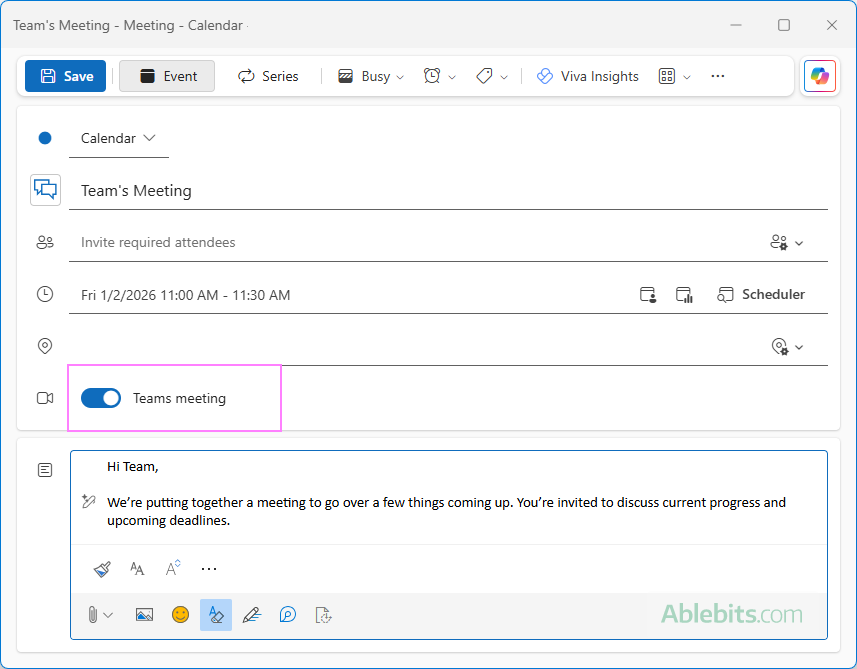
- New Outlook and web: In the field marked with a video camera icon, turn on the Teams meeting toggle
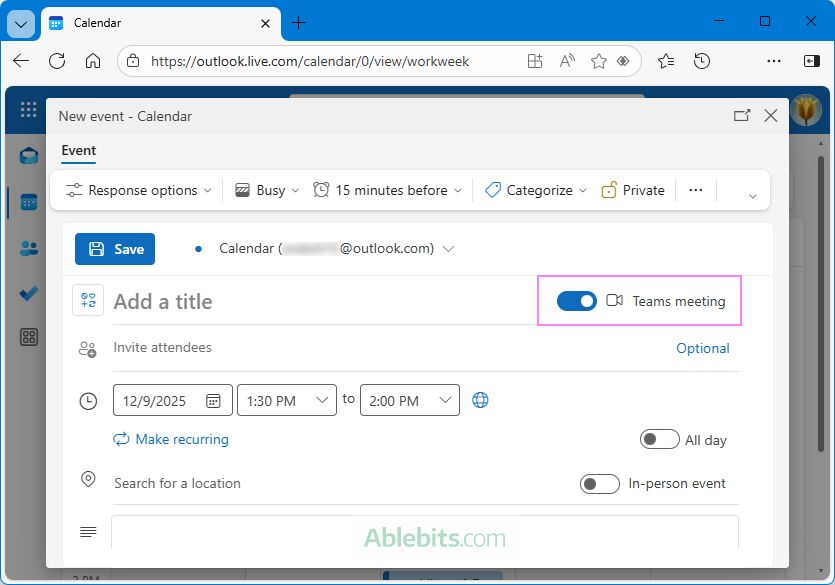
- Outlook.com: Next to Title, switch on the Teams meeting toggle.
- Classic Outlook (365 – 2016): On the Meeting tab, select Teams Meeting > Schedule meeting.
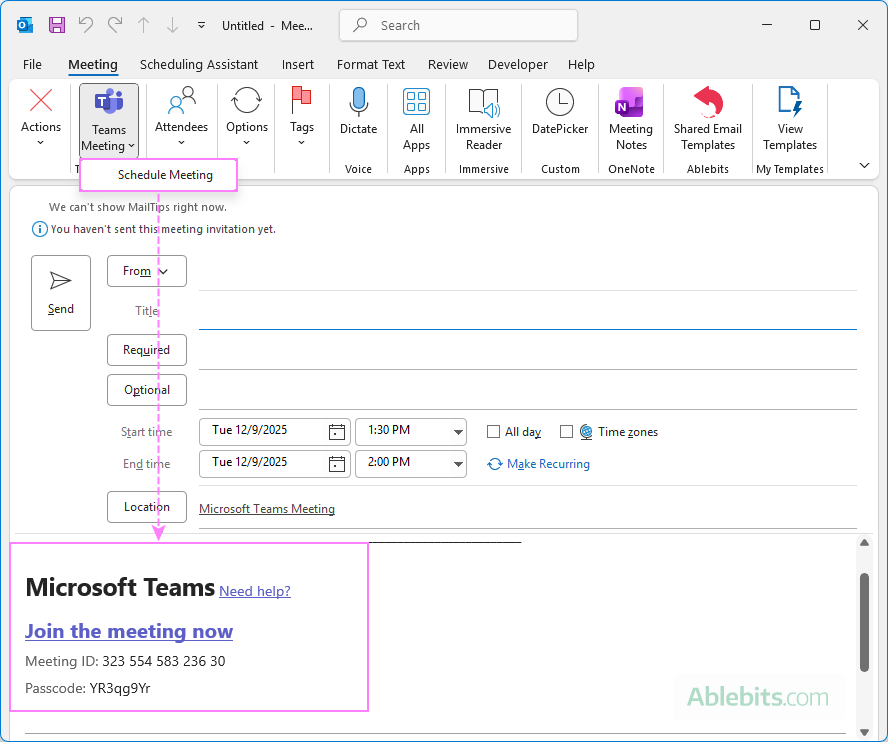
A Teams meeting link will be generated and added to the invite automatically.
Step 3. Send the invite
Add your meeting title, attendees, agenda, and any other details you want to include. When everything is ready, click Send.
All attendees will receive the meeting request with the correct Teams link, so they can enter the meeting with a single click. Once they accept the invite, the event will be added to their calendar.
For more information, see how to send a calendar invite in Outlook.
Note. Currently, Outlook lets you schedule Teams meetings, but it doesn't offer a way to select a specific channel for them.
How to remove Teams from an Outlook meeting invite
Sometimes you may start creating a meeting and realize it doesn't need to be held online or you prefer using another video conferencing tool. In that case, you can remove the Teams meeting link before sending the invitation.
To remove Teams from an Outlook meeting invite:
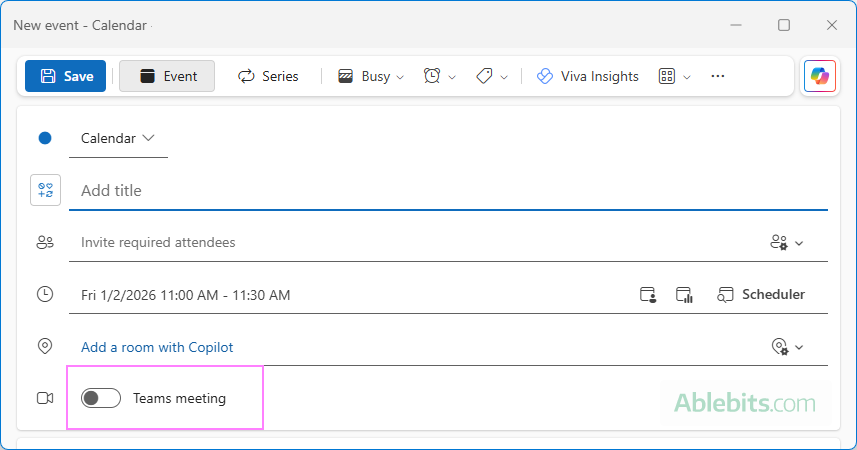
- New Outlook and web: Turn off the Teams meeting toggle in the event.
- Classic Outlook (365 – 2016): On the Meeting tab, in the Teams Meeting group, select Don't Host Online.
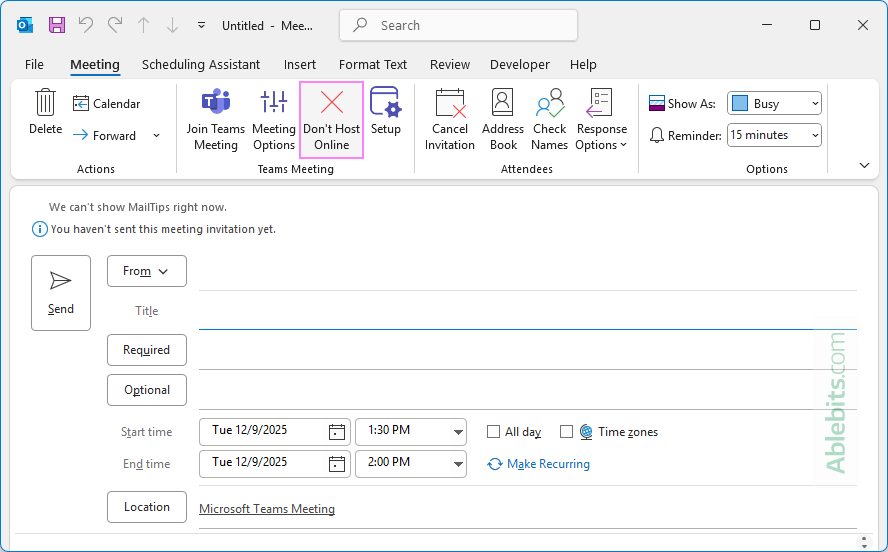
Note. You can only remove Teams while you are still editing the meeting. Once the invitation has been sent, the Teams option can't be removed.
How to enable / disable default Teams meeting in Outlook
For Microsoft 365 accounts, Teams meeting is set as the default feature. If you want to enable it for another account or wish to stop Outlook from defaulting to Teams, you can easily change this setting.
Set default Teams meeting on or off in new Outlook and web
To change the default Teams meeting option in the new Outlook app and Outlook online, follow these steps:
- Click the Settings gear icon in the upper-right corner.
- In the Settings window, go to Calendar > Events and invitations.
- Under Events you create, turn Add online meeting to all meetings on or off.
- If you want to use Microsoft Teams as default meeting, select it under Choose a meeting provider.
- Click Save.
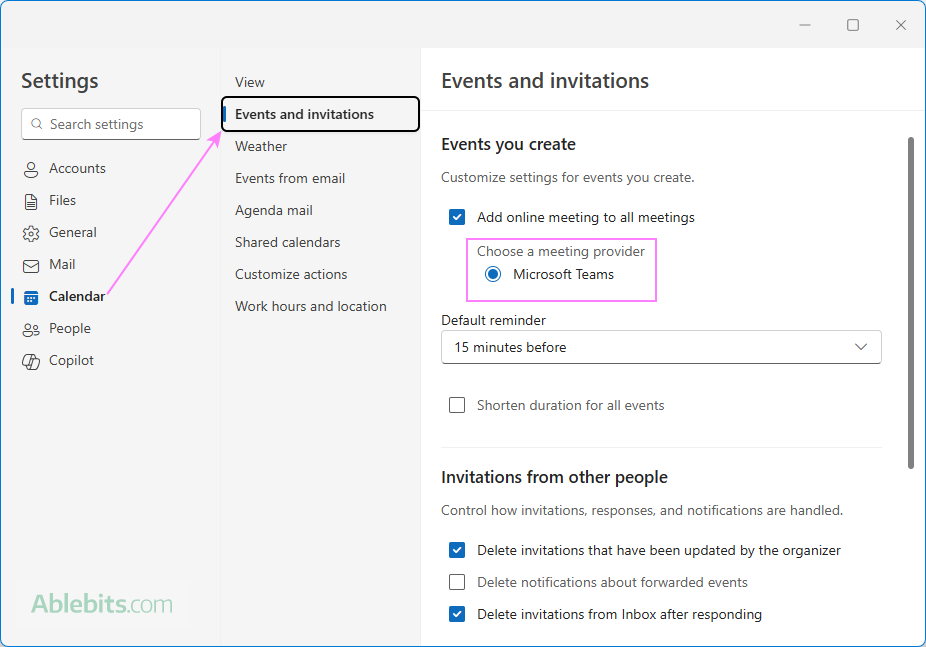
Note. Currently, this option is only available for Microsoft 365 work and school accounts, not for personal or third-party email accounts. If you don't see the Microsoft Teams option, check the These settings are applied at the account level dropdown to ensure the correct account is selected.
How to make Teams default in Outlook 365 – 2016
To add or remove Teams as default meeting in classic Outlook, the steps are:
- In Outlook, go to File > Options.
- On the Outlook Options page, select Calendar in the left pane.
- Under Calendar options, check Add online meeting to all meetings to enable it, or clear it to disable it.
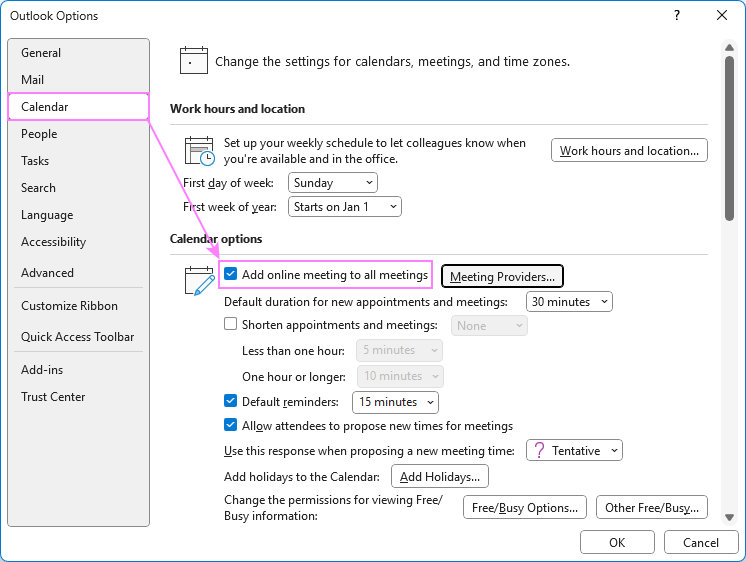
- Click the Meeting Providers… button.
- In the Online Meeting dialog, pick the account and then either:
- Select Microsoft Teams to make it your default provider.
- Clear Microsoft Teams to stop Outlook from adding Teams meetings automatically.
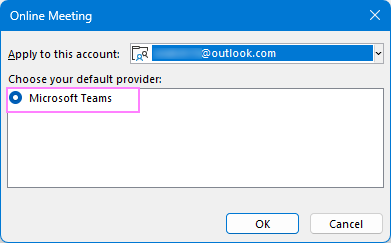
- Click OK then OK again to save your changes.
Once these settings are configured, Outlook will follow your preference, either adding a Teams link to every new meeting you create or scheduling events offline unless you choose otherwise.
Teams meeting not showing in Outlook
When Teams meeting is missing in Outlook, it usually points to a disabled add-in or a sync issue between the two apps. Below are a few practical troubleshooting tips to bring the option back.
Verify that the Teams add-in is enabled (classic Outlook)
If you don't see the Teams Meeting button in classic Outlook, the most common reason is that the add-in has been turned off or disabled. Here is how to check it:
- In your Outlook, go to File > Options.
- On the left pane, select Add-ins.
- Make sure the Microsoft Teams Meeting Add-in for Microsoft Office is listed under Active Application Add-ins.
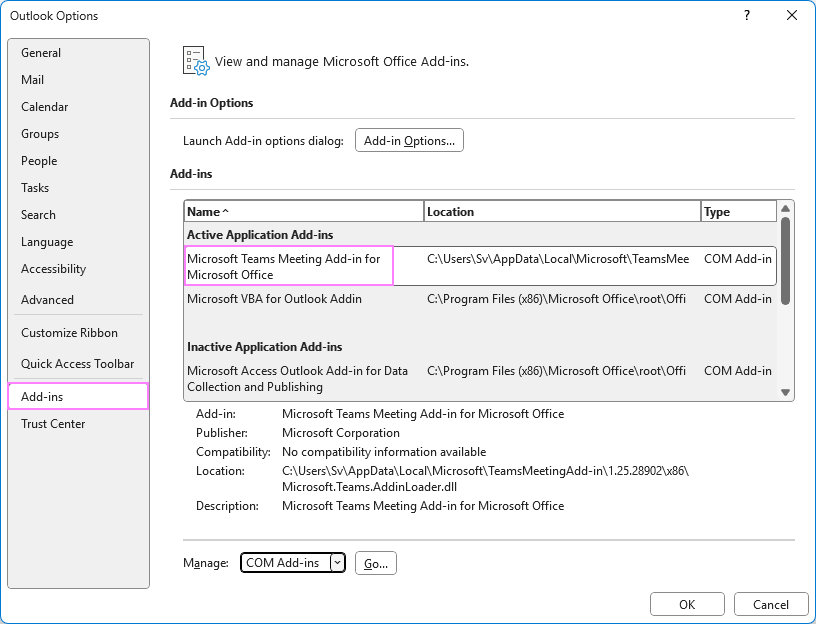
- If the Teams add-in appears under Inactive or Disabled, use the Manage dropdown at the bottom to switch to COM Add-ins, then click Go.
- Tick the box next to the Microsoft Teams Meeting Add-in and click OK to confirm.
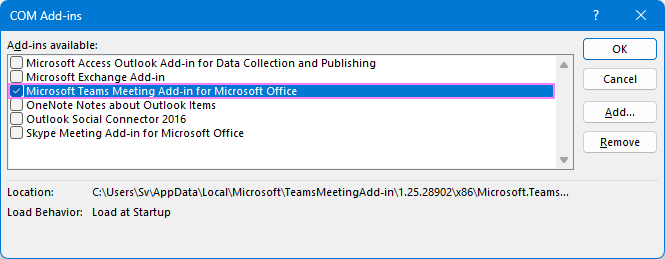
If the Teams add-in keeps getting disabled after you re-enable it, your organization might be managing this setting. Contact your IT team or admin for assistance.
Check if the Teams app is installed on your computer
For correct integration, Outlook requires the full desktop version of Microsoft Teams, not the web version. If Teams isn't installed on your computer yet, download it from Microsoft, open the app, sign in to your Microsoft account, and restart Outlook.
Make sure you're signed in with the same account in both apps
The Teams meeting feature requires that Outlook and Teams use the same Microsoft 365 account. If you're signed in with different accounts, the Teams option may not appear.
Confirm that your Outlook version supports Teams
Double-check that you are using a compatible Outlook version. If you have an older version and don't see any Teams options, updating Outlook is the most reliable solution.
Check whether your email account type supports Teams
Teams meeting integration works only with Microsoft 365 or Exchange accounts. IMAP or POP accounts will not show the Teams option.
If you have multiple accounts in Outlook, use the correct one for creating a calendar event.
Verify that online meetings are allowed in Outlook settings
In both the new and classic Outlook, the setting to add online meetings may be turned off. Look to see whether it is enabled in your Outlook.
Restart Teams and Outlook
Sometimes the connection resets after both apps start fresh. Fully quit both applications, not just minimize them, and relaunch.
Update Outlook and Teams
Outdated software can cause some features to disappear or work incorrectly. Install the latest updates for Outlook and Teams to ensure compatibility.
Check for organization-level restrictions
Your IT department or administrator may have disabled online meeting providers, including Microsoft Teams. If none of the methods above help, reach out to your IT team to confirm whether any policies are in place.
Shared Meeting Templates for Outlook
If you send similar meeting invites often or want your team to follow a consistent format, Shared Email Templates for Outlook can make the process far easier. It lets you build personalized templates for both emails and calendar events and use them across all modern Outlook versions, including Microsoft 365, Outlook 2024 – 2019 on Windows, Mac, and web.
These meeting templates allow you to:
- Prefill any meeting field such as the title, body, location, and attendees.
- Add editable custom fields, including text inputs, dropdown lists, and date/time pickers, so each invite can be adjusted quickly without starting from scratch.
Here's an example of what a meeting template might look like in your Outlook:
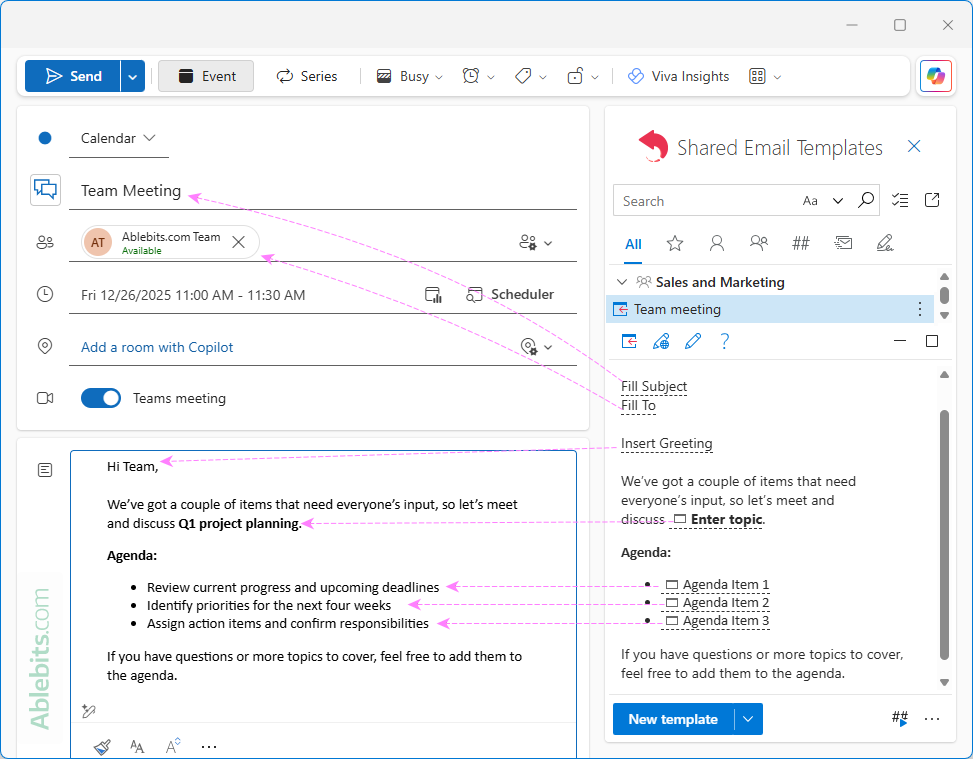
For more information, see how to create a meeting template for Outlook. You can also download a free trial from Microsoft Marketplace to explore the tool hands-on. Thank you for reading!