 by
by Learn how to create, insert, and change Quick Parts in new Outlook and Outlook on the web. You will also find out where your saved snippets are stored, how they differ from classic Outlook, and what to do if Quick Parts are missing.
Quick Parts have been part of Outlook for many years. While classic Outlook users joyfully built up their galleries of reusable content, those who moved to the new app desperately kept asking the same question: Where is Quick Parts in new Outlook?
Fortunately, the long wait is finally over. As of early 2026, Microsoft officially brought Quick Parts to both new Outlook for Windows and Outlook on the web.
Note. This article focuses on the new Outlook app and Outlook on the web. If you use classic Outlook, check out Quick Parts and AutoText in Outlook 365 - 2010.
Quick Parts in new Outlook and web: availability and caveats
Before you get started, here are a few helpful details and limitations to be aware of.
- Supported accounts: Initially, new Outlook's Quick Parts required a Microsoft 365 subscription. With later updates, the feature became available for almost every account, including Microsoft-hosted mailboxes and third-party ones. I tested this personally and can confirm that Quick Parts now work with Outlook.com and Gmail accounts added to new Outlook.
- Account-specific: If you manage multiple accounts, your Quick Parts are tied to the specific mailbox where you created them. They cannot be shared between two or more different accounts.
- Content options: Besides text, Quick Parts can include rich formatting, hyperlinks, bulleted lists, tables, and images.
- Emails only: In new Outlook and web, Quick Parts are available only for emails. They are not supported in calendar appointments, meetings, notes or other Outlook items.
- Limited organization options: Unlike classic Outlook, the new app does not support galleries, categories, or AutoText collections. All your snippets appear in a single list.
- No sorting: The items are arranged in the order in which they were created. They cannot be sorted or rearranged in a custom order.
- No direct import from classic Outlook: Quick Parts from classic Outlook do not sync over. You will need to recreate them manually.
- Insertion into email: There is just one way to insert a Quick Part into a message: the Insert tab > Quick Parts. The name shortcuts and AutoComplete suggestions used in the classic desktop application do not work in new Outlook and Outlook on the web.
- Cloud-based: Unlike Quick Parts in classic Outlook, which are stored locally, Quick Parts in the new Outlook are stored online. This means you can access them on any device from the same mailbox.
How to add a Quick Part in new Outlook and web
Creating Quick Parts is almost the same in any Outlook app. Here are the steps to follow:
- Draft your content. Open a new email message or reply. Type and format the text, add tables, bullet lists, images or other elements you want to save.
- Select the content. Highlight everything you want to include in your reusable snippet.
- Save the selection as a Quick Part. Use one of the following methods:
- Click the Insert tab >Quick Parts > Save selection to Quick Parts, or
- Right-click the highlighted content and choose Save selection to Quick Parts from the context menu.
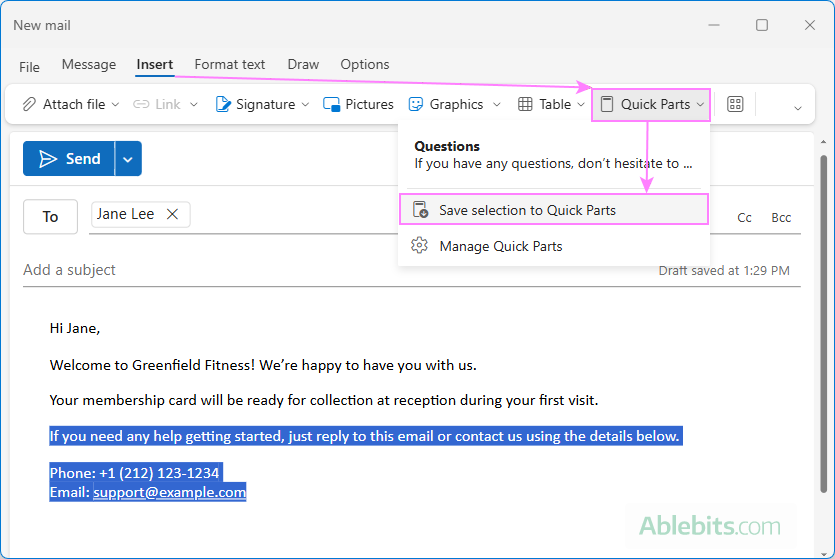
- Name and save your snippet. Give your Quick Part a short, memorable name and click Save.
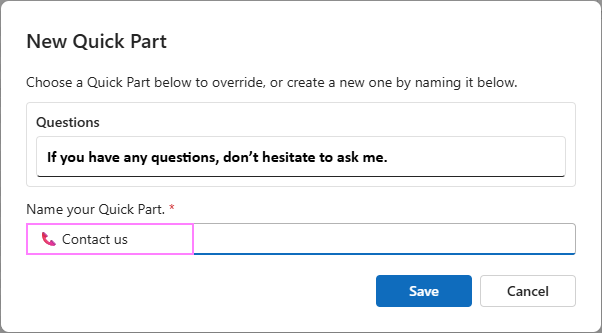
Tip. Since the new Outlook app and web version do not currently support categorizing or grouping Quick Parts, you can visually organize your list by adding an emoji to the beginning of the name, for example 🤝 Welcome greeting or 📞 Contact me.
How to use Quick Parts in new Outlook and web
Once your snippets are saved, inserting them into your emails takes just a couple of clicks.
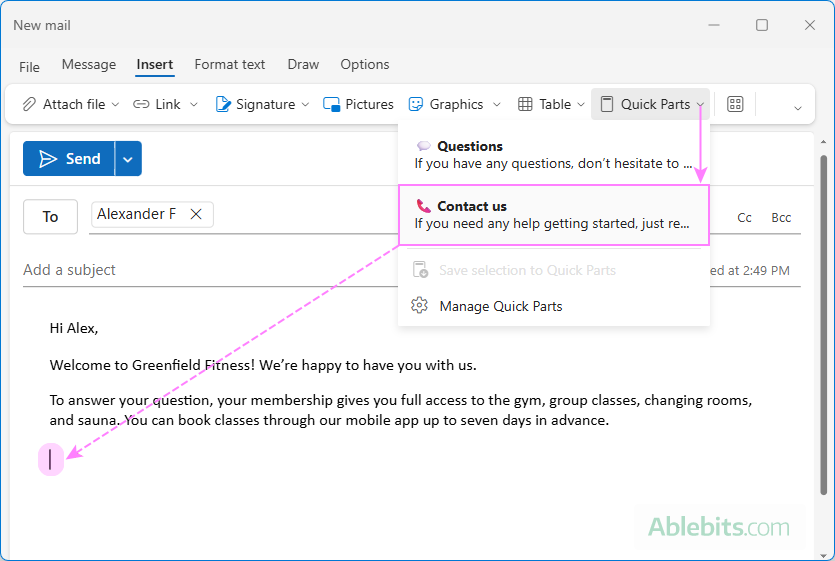
- Position your cursor into the body of your email exactly where you want the Quick Part to appear.
- Navigate to the Insert tab on the ribbon and click Quick Parts.
- Click the name of the Quick Part you want to use.
The snippet will immediately drop into your email.
Note. In classic Outlook, you can also insert a Quick Part into an email using a keyboard shortcut or AutoComplete suggestion. These insertion methods are not currently supported in new Outlook and web, though Microsoft has noted it may be implemented in future updates based on users' feedback.
How to manage Quick Parts in new Outlook and web
You can manage your saved snippets from the Quick Parts Settings. However, the options are limited here: you can only change the Quick Part's name or remove it entirely. You cannot organize them into categories or galleries or rearrange the items.
- From the main Outlook window, go to Settings > Mail > Quick Parts. You can also access these settings from the message window: Insert > Quick Parts > Manage Quick Parts.
- To rename a Quick Part, click the Edit (pencil) icon next to it.
- To delete a Quick Part, click the Delete (trash) icon next to it.
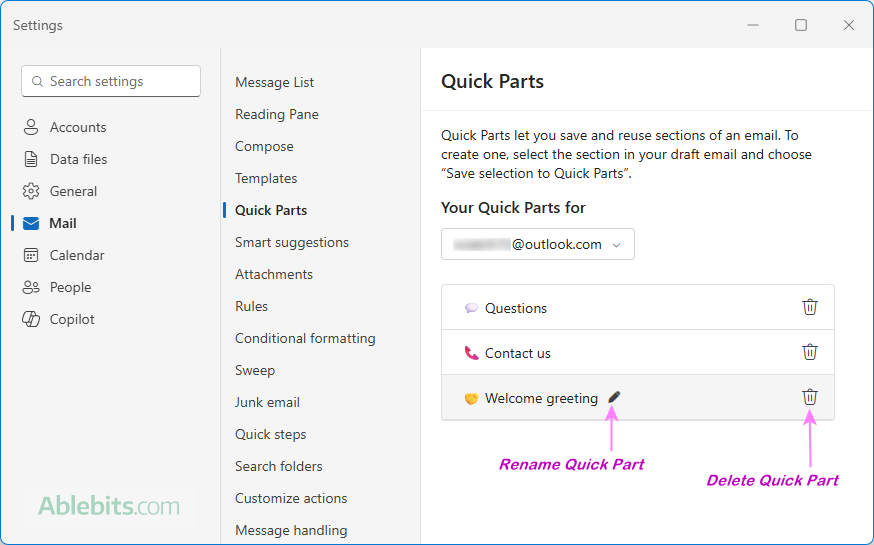
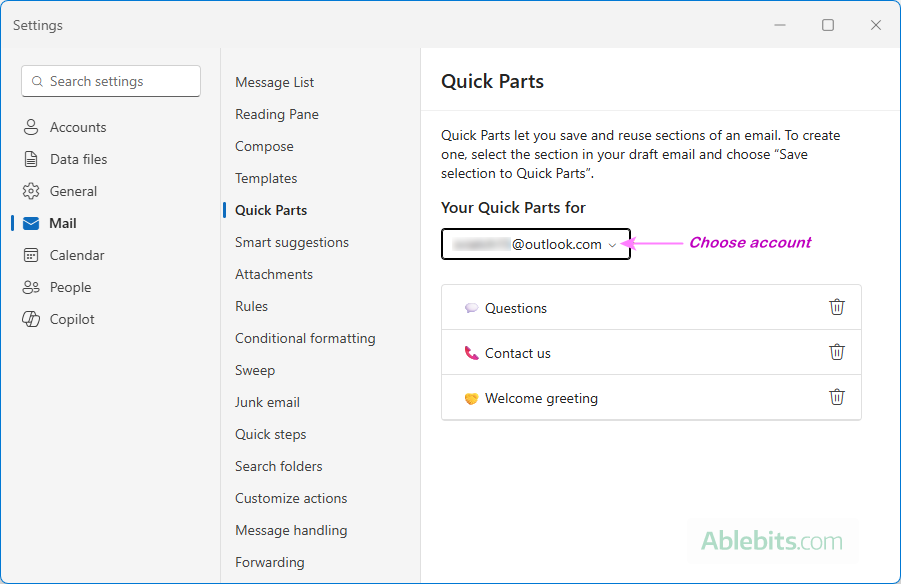
Note. By default, the settings display Quick Parts for your primary Outlook account. If you use multiple accounts, select the appropriate one from the Your Quick Parts for drop-down list.
How to edit Quick Parts in new Outlook and web
There is no "in-place" editor for Quick Parts in the new Outlook and Outlook on the web. The only way to update a snippet is overwriting it. Here is how to do this:
- Insert the existing Quick Part into a blank email.
- Make any necessary edits, fix the formatting, add or remove images.
- Highlight the edited content and save it under the exact same name as the original. This will overwrite the old version with your updated content.
Where are Quick Parts stored in new Outlook?
While classic Outlook stores Quick Parts in a NormalEmail.dotm file locally on your computer, new Outlook stores them in the cloud associated with your mailbox. This means your Quick Parts automatically sync across the new Outlook app and Outlook on the web and are available on any device where you sign in with the same account.
How to import Quick Parts from classic Outlook
There is no direct way to transfer Quick Parts from the classic desktop application. Because classic and new Outlook store Quick Parts in different locations (locally vs. online), they are not shared between the apps and cannot be imported from one app to another.
When migrating to new Outlook, you will need to recreate your Quick Parts manually. The simplest way is to copy each item from classic Outlook and save it again in the new app:
- Open classic Outlook and insert the existing Quick Part into an email.
- Copy the content.
- Open a new message in the new Outlook or Outlook online and paste the content.
- Select the pasted content.
- Go to Insert > Quick Parts > Save selection to Quick Parts.
Repeat these steps for each reusable block you want to transfer.
Quick Parts, Quick Steps, and email templates: which is better?
Outlook contains several features with similar names, so they can be easy to confuse. Which one should you opt for? That depends entirely on your purpose and a particular case of use.
Quick Parts are reusable pieces of content that you can insert into an email. Think of them as building blocks for your messages. They are handy for greetings, closing lines, instructions, disclaimers, and other text you use regularly.
Quick Steps are customizable shortcuts that perform one or more actions on a message. For example, a Quick Step can move a message to a folder, mark it as read, and add a category, all with a single click. Like Quick Parts, Quick Steps are available in all Outlook apps (classic, new and web), although they work a little differently in each version.
For detailed guides, see:
Email templates are the better choice when you want to save an entire message rather than just a piece of text. Depending on the type of template you use, it can include the email body, subject line, formatting, attachments, and recipients in the To, Cc, and Bcc fields.
To explore this in more detail:
- How to make an email template in Outlook 365 - 2016
- My Templates (text snippets) in new Outlook and web
- Full-featured email templates in new Outlook and web
To cut a long story short, use Quick Parts for reusable blocks, Quick Steps for repeated actions, and email templates for complete messages.
Quick Parts missing in new Outlook: how to fix
If Quick Parts are not showing up as expected in new Outlook, try the troubleshooting steps below to get them back.
Update your Outlook
Although Microsoft introduced Quick Parts in the new Outlook in April 2026, the wider rollout began only in July 2026. If you still don't see the feature in your Outlook, manually check for updates and install the latest version. Once the update is complete, restart the new Outlook for the changes to take effect.
For detailed instructions, see How to update new Outlook.
Check the account you are using
In new Outlook, Quick Parts are stored separately for each email account. If you have several accounts connected, make sure you are composing the message from the mailbox where a particular snippet was created.
To view Quick Parts associated with a certain account, go to Settings > Mail > Quick Parts and select the target email from the Your Quick Parts for drop-down list.
Force Outlook to refresh Quick Parts
If you are trying to insert a snippet into an email, but clicking Quick Parts on the Insert tab shows an empty list (even though you know you created Quick Parts for that account), try this simple fix:
- In the message window, go to Insert > Quick Parts > Manage Quick Parts.
- Close the Settings window without changing anything.
- Back in the message window, click Quick Parts again.
Your snippets should now be there. At least, this trick works for me every time.
I don't have any plausible technical explanation for why it works. Maybe opening the settings forces Outlook to completely repaint the ribbon elements. Or maybe Outlook just needs a gentle nudge to remember that your snippets actually exist 😊
If Quick Parts are still missing
Check if Quick Parts are available in Outlook on the web. If your snippets are there, the problem might be caused by a temporary glitch in the desktop app.
Update the new Outlook to the latest version, then close and restart it. Before you reopen the app, run Task Manager and make sure there are no Outlook processes still running in the background.
If Quick Parts are still missing in your Microsoft 365 work or school account, ask your organization's administrator to investigate the issue.
That's how to create and use Quick Parts in new Outlook and Outlook on the web. If you often find yourself typing the same instructions, confirmations, or other standard text, take a look at the resources below. They might help you to save even more time on repetitive emails.