 by
by This guide explains the most common reasons why flagged messages are missing in Outlook mail folders or To Do list and walks you through simple steps to find and restore them.
When flagged emails stop appearing in your Inbox, Tasks list, or To Do module, it can feel like your follow-ups have vanished. In reality, Outlook is likely filtering or displaying them differently. This article explains why flagged messages may not be shown and how to get them back into view.
Why are my flagged emails not showing in Outlook?
When flagged emails don't appear where you expect them, it is usually not because they are missing. It's because Outlook displays them differently based on your settings, view, or account behavior. Here are the most common reasons:
- A filter or sorting hides them. In many cases, the issue comes down to your current filters or sorting order. Outlook lets you filter messages in many ways (unread, focused, mentions, etc.). If a filter is active, flagged emails that don't match it won't be visible. Sorting can also play a role. For example, if emails are sorted by date with the oldest on top, recently flagged messages may be pushed out of view.
- View settings affect what you see. Another common culprit is your Outlook views settings. Each Outlook folder has its own customizable view, and it's easy to change it unintentionally. A modified view can hide certain items or display them differently. Occasionally, the view itself may become corrupted, causing items (including flagged emails) to display incorrectly or not at all.
- The flag status has changed. If a flagged email is marked as completed, it may disappear from Search folders, Task and To Do lists. This happens because some views only show active (incomplete) flags, so completed ones can seem to vanish.
- The flag column is hidden. In certain Outlook views, the flag icon or column may not be displayed. As a result, emails can still be flagged, but there's no visual indicator to show it. In classic Outlook, this can also happen if the setting that highlights flagged emails is turned off.
- Sync issues with your email account. If you are using Exchange, IMAP, or another server-based account, flag status may not sync immediately. This can result in flags not appearing consistently across devices or apps.
- You're viewing a different mailbox or folder. Flags belong to the specific account and folder where the email is stored. If you have multiple accounts, you might be checking the wrong one.
- Search folders are missing or misconfigured. In classic Outlook, the Follow Up search folder collects all flagged emails. In the new Outlook and Outlook on the web, you can create a custom search folder to display messages flagged for follow-up, either from all folders or from specific ones. If these are missing or set up incorrectly, you won't see a combined view of your flagged messages.
Key takeaway: In most cases, flagged emails are still there. They are just hidden by a filter, affected by a view setting, or shown in a different place. Once you identify the cause, restoring them usually takes just a few clicks.
How to fix flagged emails missing in Outlook mail folders
If flagged messages don't appear in your Outlook folders where they should be, the issue is usually caused by a current setting rather than lost data. The solutions below will help check the common causes and make your follow-up emails visible again.
Make sure flags are visible in the message list
First things first, sometimes the flag column is simply not displayed for a certain folder.
In classic Outlook, you can add it back in two ways:
- Field Chooser. Right-click any column header in the message list, find Flag Status, then drag it to the header row and drop it where you want it to appear.
- View Settings. Go to View > View Settings > Columns, and add the Flag Status column to the current view.
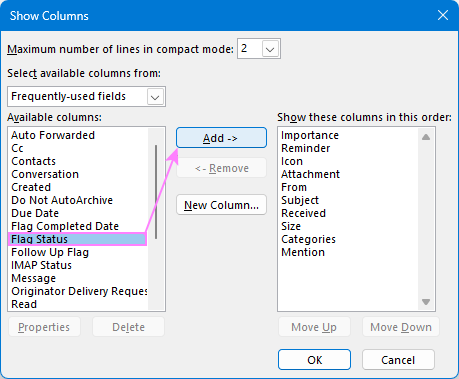
For more information, see how to show Flag Status column in Outlook.
In the new Outlook and Outlook on the web, there's no separate setting for flags. They are always displayed next to the sender or recipient name, depending on the folder.
Check your mail filters
Outlook filters can sometimes hide emails without it being obvious, so it's worth checking your current settings.
Check main filters
Start by reviewing the quick filters above your message list:
- Open the folder where you expect the emails (Inbox or another folder).
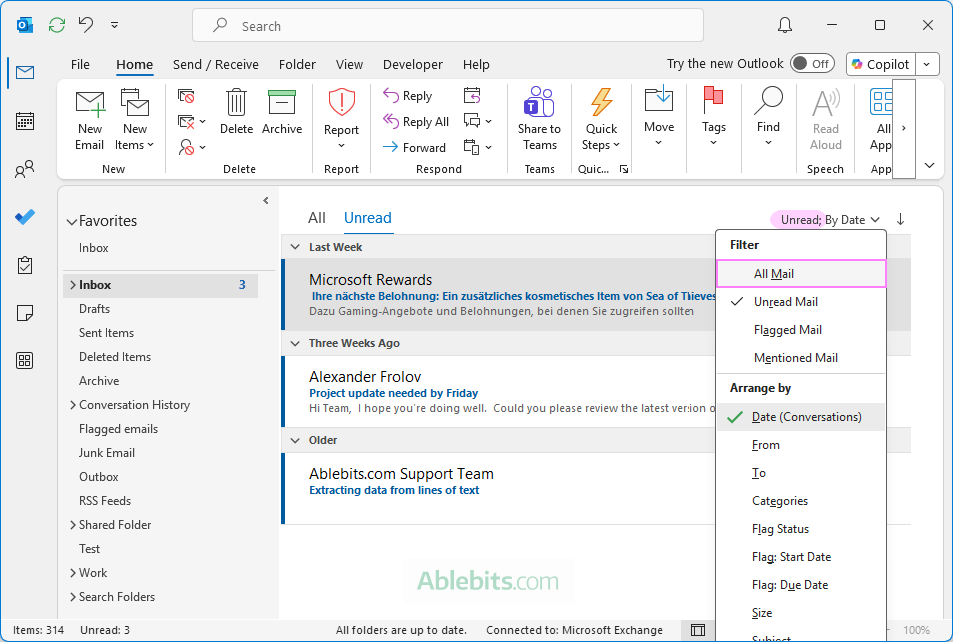
- In the upper-right corner above the message list, look for active filters such as Unread or Mentions.
- If any are selected, open the dropdown and switch to All messages.
Check view filters
If the main filters aren't the issue, a custom view filter may be applied. Here is how to check this in classic Outlook (365 – 2016):
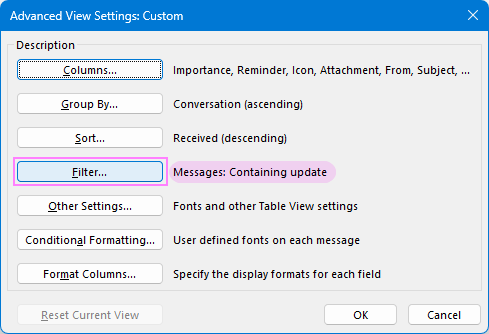
- Go to the View tab > View Settings > Filter.
- Check whether any criteria are set that could exclude your flagged emails.
- If unsure, click Clear All to remove all filters.
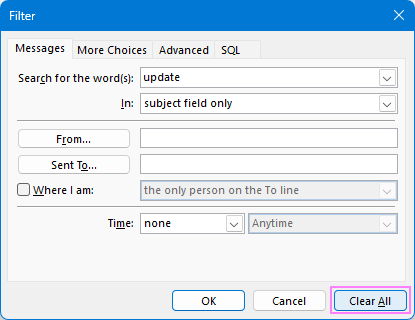
After clearing filters, your full message list including flagged items should be visible again.
Fix mail sorting and arrangement
Your current sorting order can make flagged emails harder to spot. For example, if your Inbox is sorted by date or sender, flagged messages may be pushed out of sight. To fix this, adjust the sorting so your mail list is arranged by Flag status.
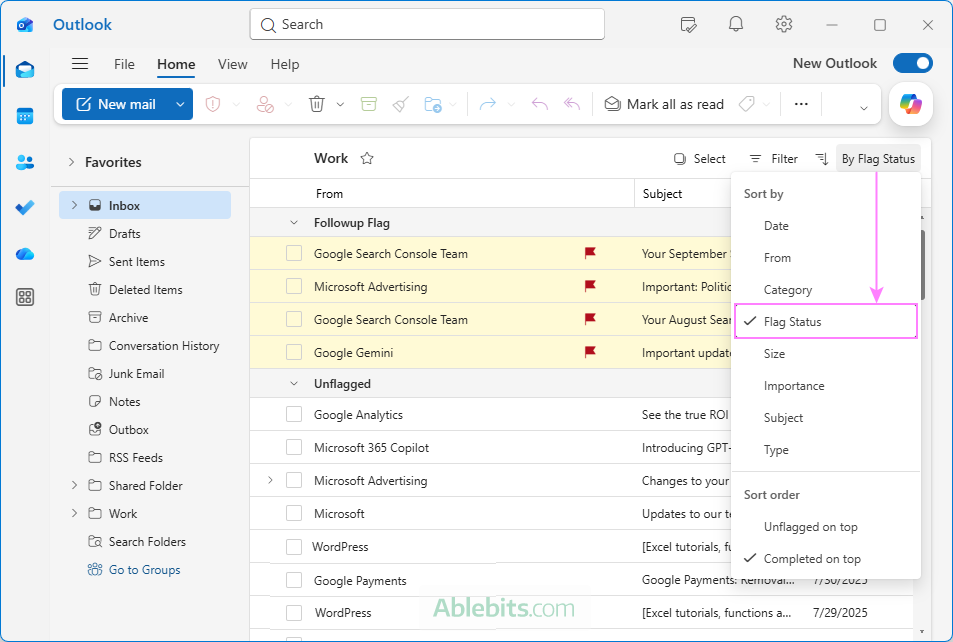
In classic Outlook, you can also sort flagged emails by Start Date or Due Date to see deadlines more clearly.
To see exactly how this works, refer to Arranging flagged emails at the top by sorting.
Reset your current view
In classic Outlook (365 – 2016), each folder has its own customizable view. If the previous fixes haven't worked, the issue may be caused by a corrupted view. Resetting the view can restore the default layout and make flagged emails visible again.
- To reset the current view: Go to the View tab and click Reset View.
- To reset all folder views: With Outlook closed, run the outlook.exe /cleanviews command-line switch.
Once the view is reset to its default settings, flagged messages usually reappear right away.
For a step-by-step walkthrough, see How to reset Outlook view.
Confirm sync status
Synchronization problems are a frequent reason for flagged emails missing, especially when using an Exchange or IMAP account across multiple devices. For example, a flag set in Outlook on the web may not show in the desktop app if there's a delay or sync error.
Try these troubleshooting steps to resolve it:
- Check the status bar at the bottom of Outlook for sync errors.
- Restart Outlook to refresh the connection.
- In classic Outlook, press F9 or click Send/Receive All Folders to trigger a manual sync.
- In Outlook on the web, refresh your browser or sign out and back in.
Once syncing is restored, flagged items should appear consistently across your devices.
Repair a corrupted Outlook data file
In more persistent cases, the issue may be caused by a corrupted Outlook data file (PST or OST). This can lead to a range of erratic behavior, including flagged emails not appearing correctly.
To fix the issue:
- First, try repairing the data file using the built-in Inbox Repair Tool (SCANPST.exe) provided by Microsoft.
- If that doesn't resolve the problem, repair your Outlook application itself via Windows settings or Control panel.
Once you've worked through these fixes, your flagged emails will usually reappear in their expected locations.
Tip. If you frequently work with flagged emails, collecting them in a dedicated Search Folder or routing them automatically to a custom folder can help keep all your follow-ups in one place.
How to fix Outlook flagged emails not showing in To Do list
Aside from mail folders, flagged emails also appear in Tasks (classic Outlook 365 – 2016) and To Do (classic, new and web). If follow-up messages are missing there, the cause is usually related to how these modules are configured or synced. Below are the main reasons and how to fix them.
Sync delays
Flagged emails don't always appear in the To Do list instantly. There can be a short delay, especially when working across devices or between different Outlook apps.
What to do:
- Wait a moment and check again.
- Restart desktop Outlook or refresh the web app.
Flagged emails setting is turned off
Flagged emails are normally shown in a dedicated list within Outlook's To Do as demonstrated in the screenshot below.
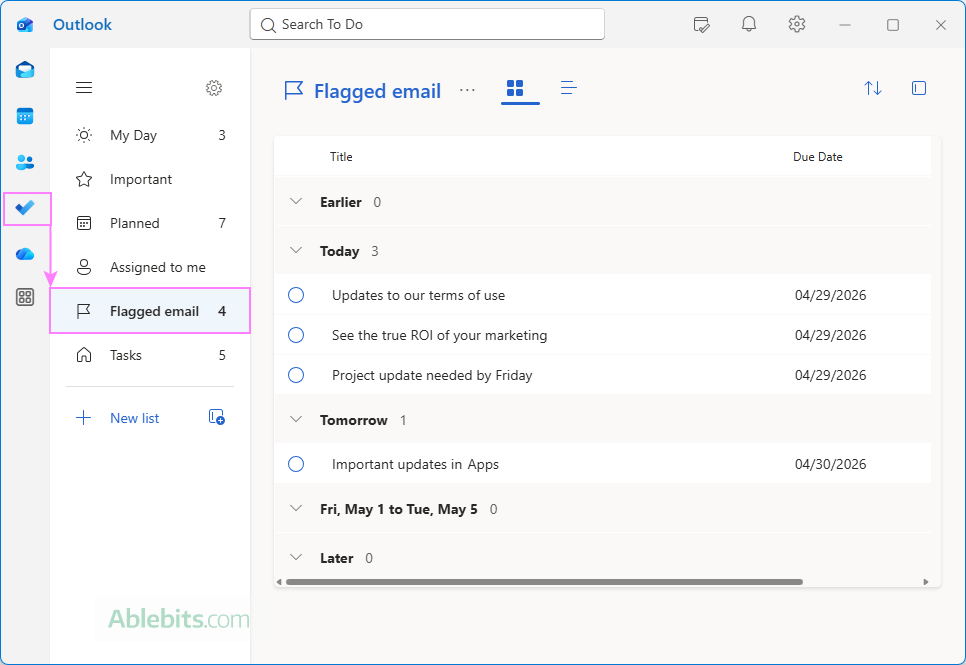
If you don't see the Flagged email section in the left pane, the feature may be disabled. To enable it:
- Click the Settings gear icon in the left pane.
- Scroll down to the Connected apps section and turn on the Flagged email toggle.
For a closer look at the process, refer to How to add flagged emails to Outlook To-Do list.
Completed flagged emails are hidden
Completed items are displayed differently in Outlook To Do, which can make them seem like they are gone entirely.
- Completed tasks are not shown in the main list by default. You can view them by expanding the Completed section.
- However, flagged emails that have been marked as completed (shown with a checkmark in the mail list) do not appear in To Do at all. There is currently no setting to display these completed flagged emails in the To Do list in any Outlook version.
Note. The new Outlook does not support showing flagged emails in the My Day pane on the right side. Currently, this feature is only available in Outlook on the web. To learn how to set this up, see How to get flagged emails on the right.
Now that you know why and where flagged emails can be hidden in Outlook, you can quickly troubleshoot the issue whenever it happens. By systematically checking your view settings and sync status, you can almost always get to the bottom of where your flagged messages went 😊