 by
by The tutorial shows different ways to locate flagged emails in Outlook classic, new and web, so you can see all your follow-ups at a glance without digging through your mail folders.
Flagging emails is only half the job. Being able to find them quickly is what really counts:) If you are wondering where all those carefully flagged messages actually are, Outlook gives you plenty of ways to bring them back into view.
How to find flagged emails in Outlook
There are several ways to find flagged emails in Outlook, depending on how you prefer to work. Each method creates a slightly different view and is covered in detail later in the tutorial. This section outlines the main options so you can quickly decide where to start.
- View flagged emails in message list. Work directly in your mail folders using different approaches:
- Create a search folder. See all follow-up messages across your mailbox in one Search Folder, updated automatically.
- Show flagged emails on the right. Keep them visible in a separate pane while working with emails or calendar:
- To-Do Bar – shows follow-up emails as tasks on the right side in classic Outlook.
- My Day pane – displays them within the To Do view on the right side in the new Outlook and web.
- View flagged emails in Tasks and To Do. View and manage them alongside your tasks:
Show flagged emails at the top in Outlook
The fastest way to display flagged emails right in your folder view (Inbox or any other) is to bring them to the top. You can do this by sorting messages.
Sort flagged messages in classic Outlook (365 – 2016)
There are two quick ways to sort the folder by flagged emails:
- Flag Status column. Click the Flag Status column header to place flagged emails above all other messages.
- Arrange by menu. Click the Arrange by button in the upper-right corner above the message list, and under Arrange by choose one of the options:
- Flag Status – group by flagged vs. not flagged.
- Flag: Start Date – arrange flagged emails by their start date.
- Flag: Due Date – sort emails based on follow-up deadlines.
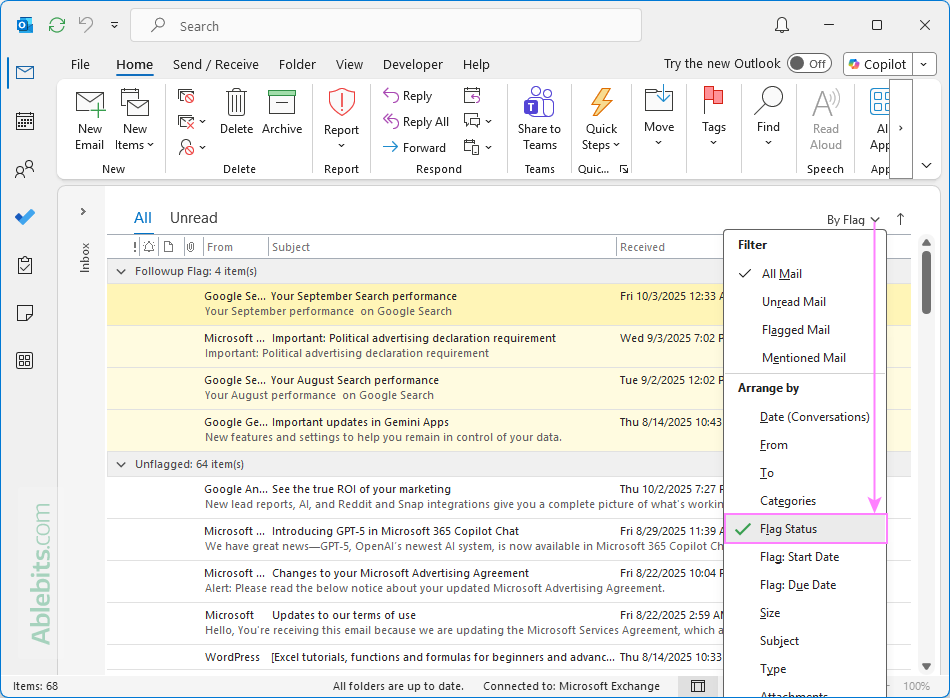
Note. If the Flag Status column isn't visible in your current view, you'll need to add it first. See how to show Flag Status column in Outlook.
Sort by flagged emails in new Outlook and web
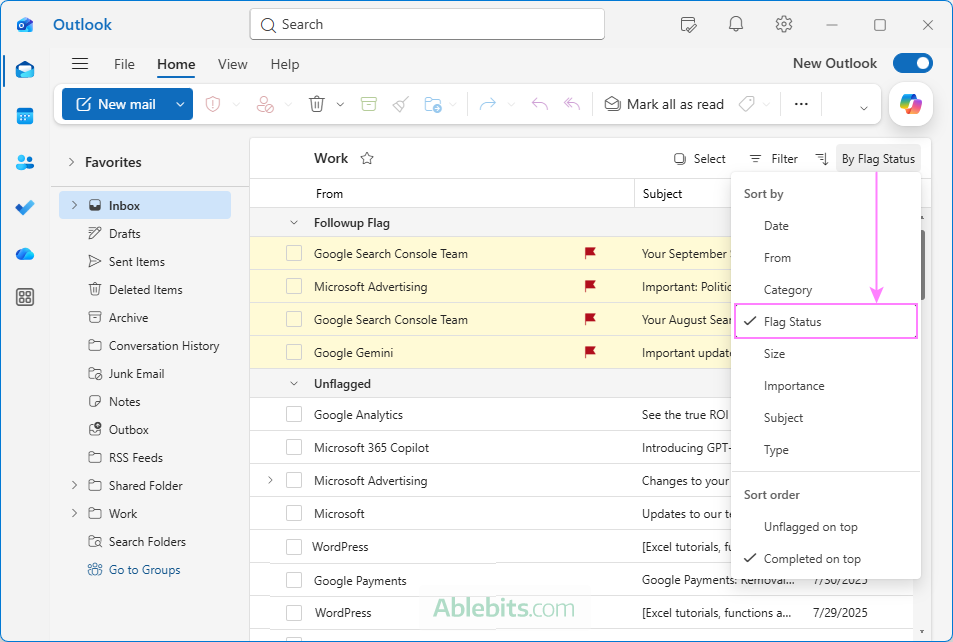
In the new Outlook app and Outlook online, the sorting options are available through the Sort menu:
- In the upper-right corner above the message list, click the Sort button. (With the default arrangement, it says By Date or shows your current sorting option.)
- Under Sort by, choose Flag Status.
- Under Sort order, select Newest on top (default) or Oldest on top.
View flagged emails in Outlook by filtering
If you want to show only follow-up items hide everything else, filtering is the right option.
Filter flagged messages in classic Outlook (365 – 2016)
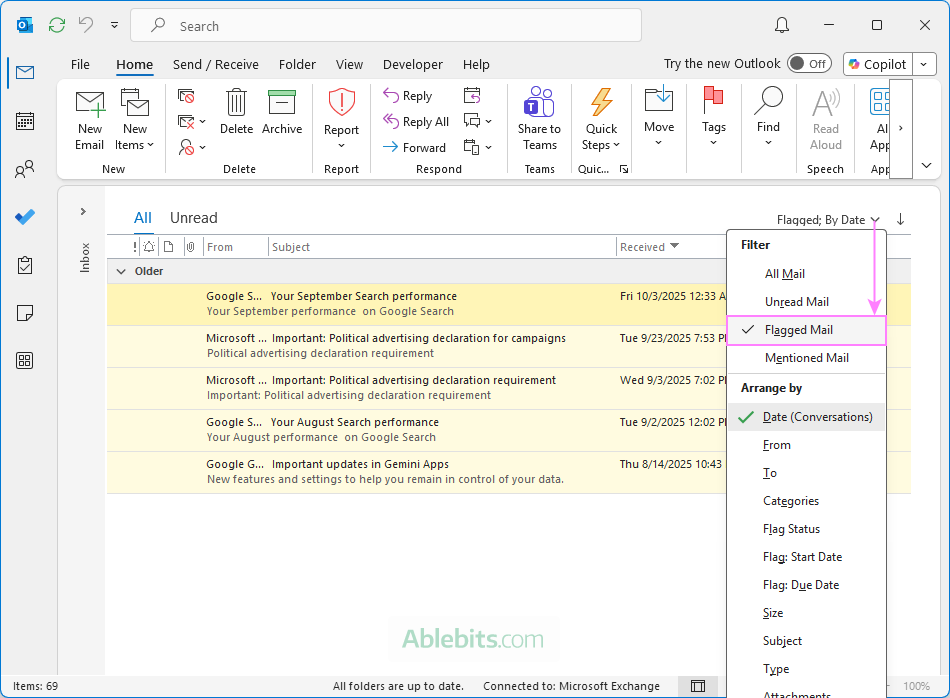
To show only flagged emails, do one of the following:
- On the Home tab, in the Find group, click Filter Email, and choose Flagged.
- Or, click the Arrange by button in the upper-right corner above the message list, and under Filter, select Flagged Mail.
Filter by flagged in new Outlook and web
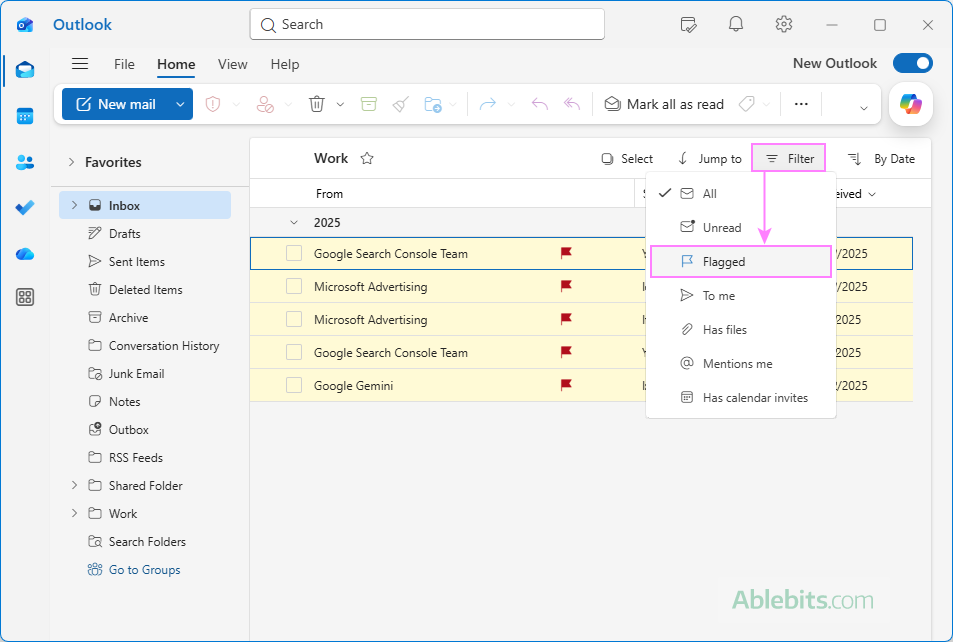
In the new Outlook app and Outlook on the web, you can filter flagged messages in this way:
- In the upper-right corner, click the Filter
- From the dropdown menu, select Flagged.
Once applied, Outlook displays only emails marked for follow-up.
Search for flagged emails in all or specific folders
If messages marked for follow-up are scattered across multiple folders, Outlook search filters can collect them into a single view.
- Click in the Search box at the top of the message list.
- Type a search filter for flagged emails:
- To find all flagged messages, use is:flagged or hasflag:true.
- Or use a more specific filter. For example, due:this week to find emails with a due date this week.
- Press Enter.
As a result, you will see all messages matching the filter.
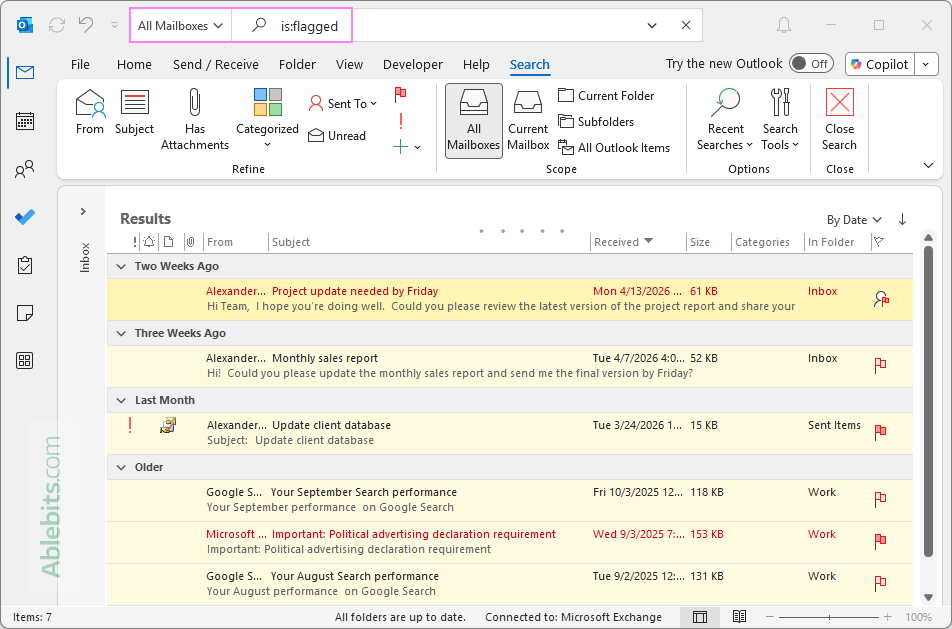
Tips:
- To search within a specific folder, stay in that folder before running the search.
- To search across all folders in the current account, select Current Mailboxes.
- To search across all accounts, select All Mailboxes.
Note. At the time of writing, this method works correctly only in classic desktop Outlook. In the new Outlook app and Outlook on the web, search filters for flagged emails are not fully supported yet.
How to see flagged emails in Search Folder
Microsoft Outlook offers a handy feature called Search Folders, which can automatically show all target messages in one place without moving them from their original folders.
Use search folder for flagged emails in classic Outlook (365 – 2016)
Here is how to set it up:
- Go to the Folder tab and, in the New group, click New Search Folder. Alternatively, right-click Search Folders in the folder pane and choose this option.
- In the New Search Folder dialog box, under Reading Mail, select Mail flagged for follow up.
- In the Search mail in dropdown, choose the mailbox you want to include.
- Click OK to create the For Follow Up folder.
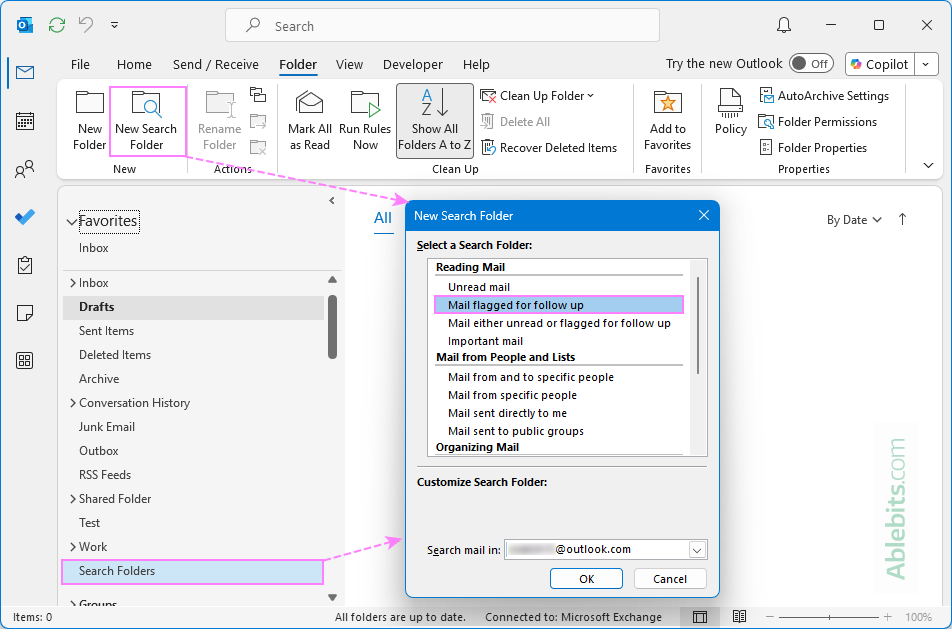
Note. In classic Outlook, a Search Folder shows the total number of flagged messages, not just unread ones.
Create search folder for flagged messages in new Outlook and web
In the new Outlook and Outlook on the web, Search Folders offer a bit more flexibility, including the option to limit results to specific folders.
- In the folder pane, right-click Search Folders, and then click Create new search folder.
- In the settings window, do the following:
- Enter a name for the folder.
- From the Type dropdown, select Flagged for follow-up.
- (Optional) To include only certain folders, select the Filter to specific folders checkbox, and then choose the folders you want. Leave it unselected to include all folders.
- Click Save.
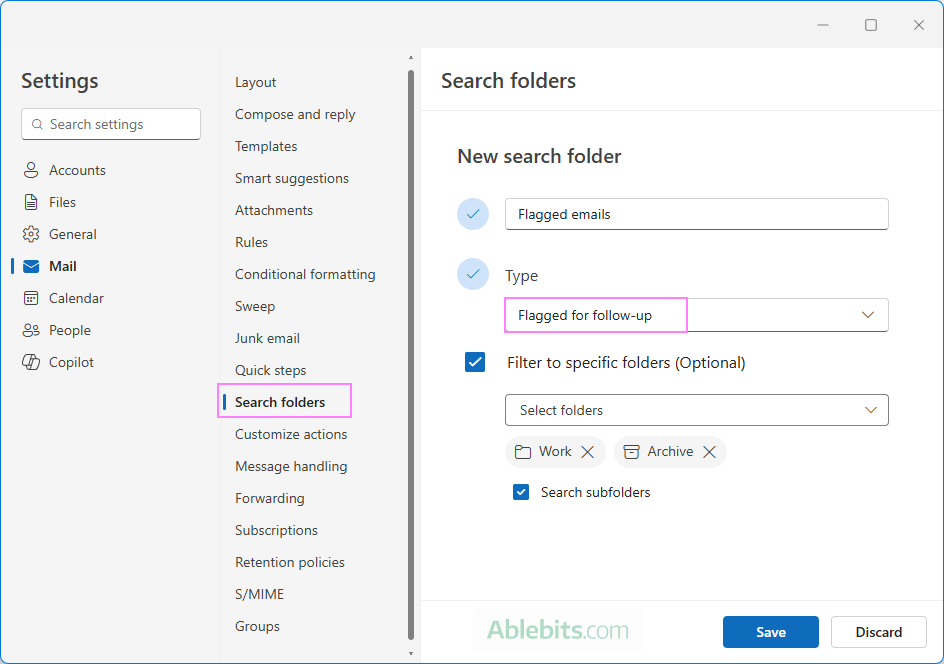
Give Outlook a moment to gather your flagged emails. Once ready, the folder will keep itself updated automatically as you mark more messages or clear flags.
How to show flagged emails in Outlook on the right
If you prefer to always keep your important emails visible, Outlook can display them in a side panel on the right.
Add flagged emails to right side of classic Outlook (365 – 2016)
In classic Outlook, flagged emails are automatically added to the Task list. Also, they are displayed in the To-Do Bar, which can be pinned on the right side of the Outlook window. Here's how to do this:
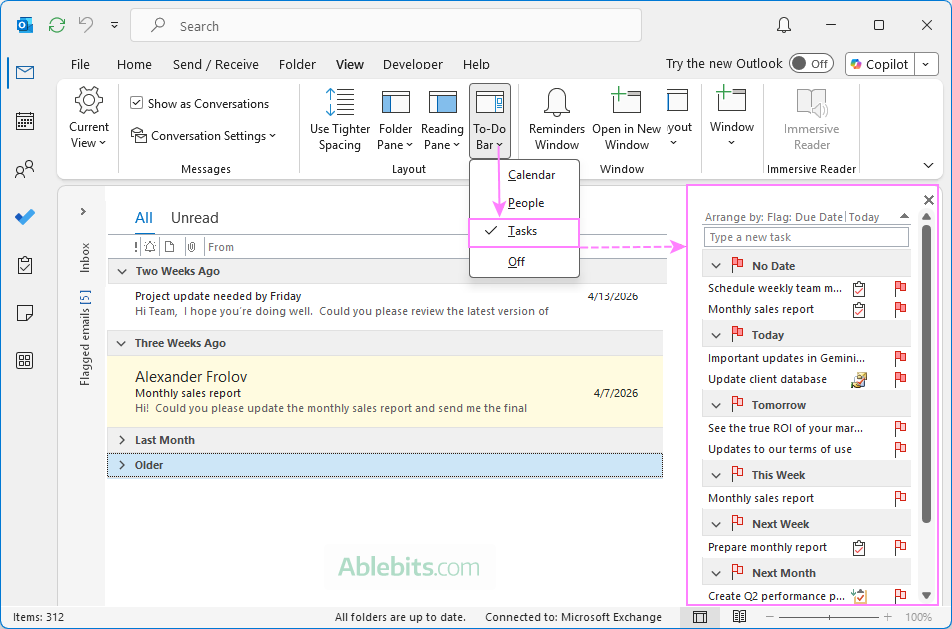
- Go to the View tab.
- In the Layout group, click To-Do Bar > Tasks.
The To-Do Bar will appear on the right, showing your flagged emails along with your tasks. It stays there as you switch between mail and calendar views.
Put flagged emails on the right side in Outlook on the web
In Outlook on the web, flagged emails can be accessed through the My Day pane.
- Open Outlook on the web.
- Click the My Day icon in the upper-right corner to open its pane.
- In the My Day pane, switch to the To Do tab.
- Click the small caret next to Tasks and select Flagged Emails.
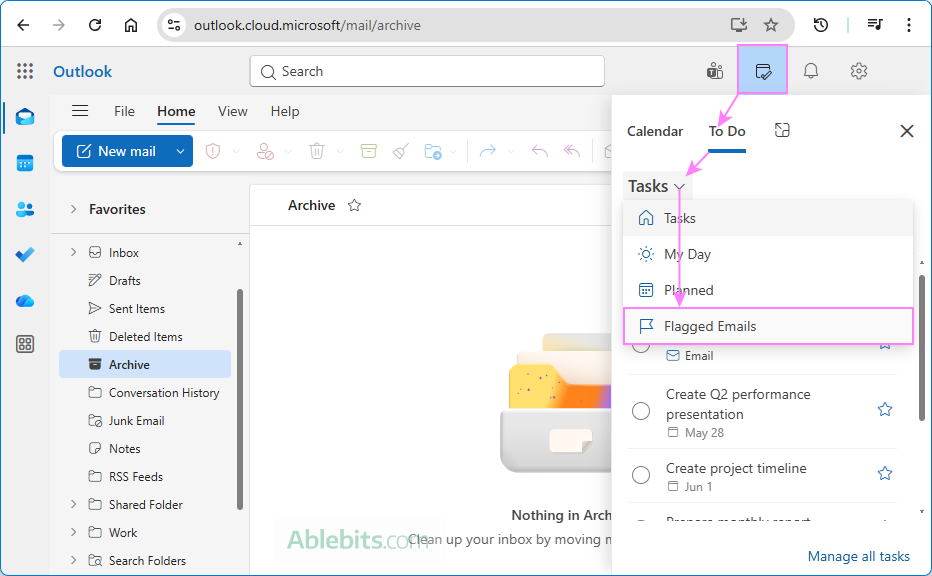
Note. While the new Outlook app looks similar to the web version and is essentially a "wrapper" for Outlook on the web, it currently shows only tasks in the My Day pane and does not provide a separate view for flagged emails.
Add flagged emails to Task and To-Do list in Outlook
When you flag an email in Outlook, it is automatically treated as a task and added to your Task list in classic Outlook and To-Do list in all versions.
See flagged emails in Outlook Task list
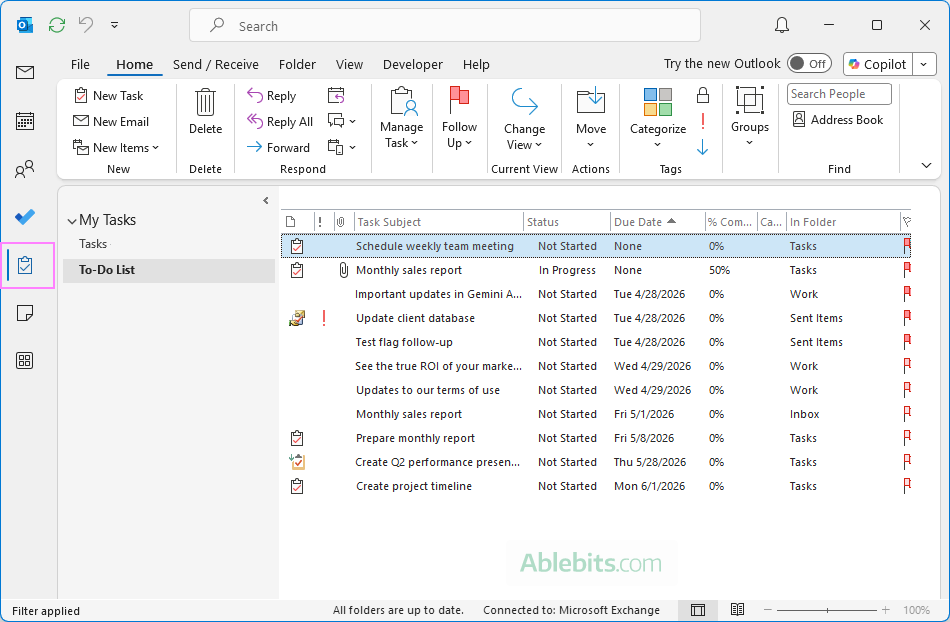
In classic Outlook (365 – 2016), flagged emails are added to Tasks automatically and appear together with your regular tasks. To see them, just switch to the Tasks module in the Outlook Navigation pane:
Add flagged emails to Outlook To-Do list
Microsoft To Do can also display flagged emails, but this feature may not be enabled by default.
To show flagged messages in the To-Do list, check this setting in your Outlook (it is the same in classic, new, and web app):
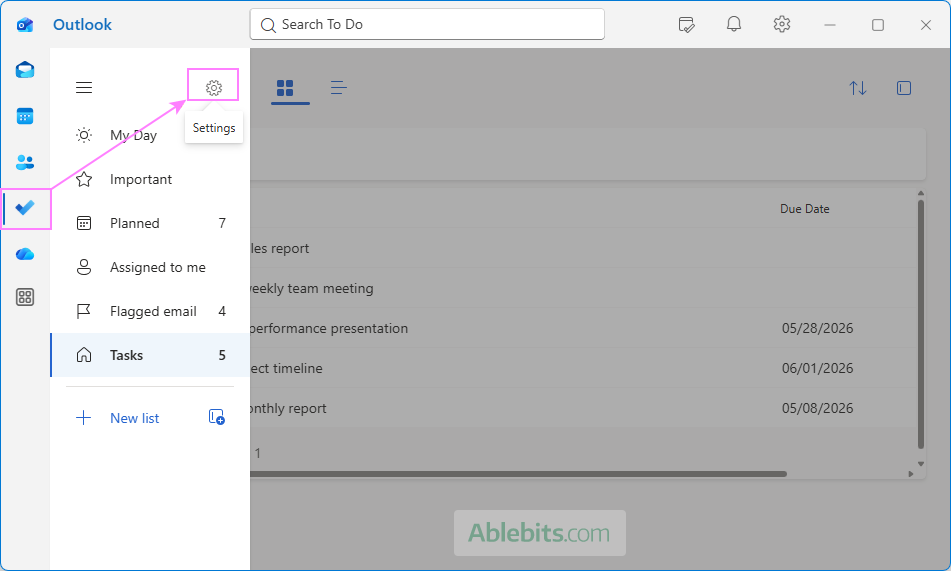
- In the Outlook navigation pane, click To Do.
- In the To-Do app, on the left pane, click the Settings gear icon.
- Scroll down to the Connected apps section and make sure the Flagged email toggle is on.
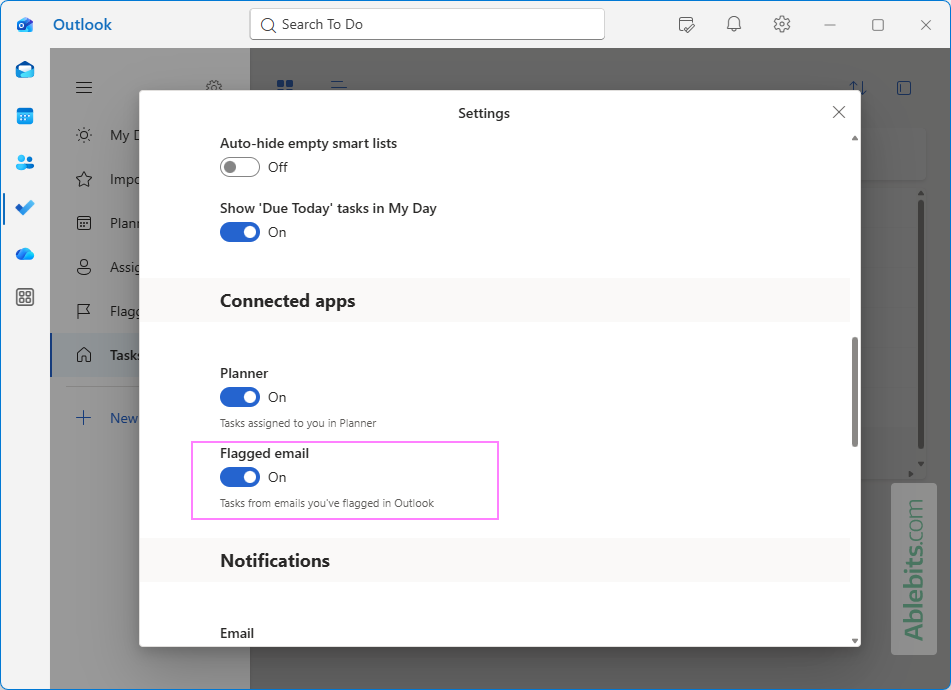
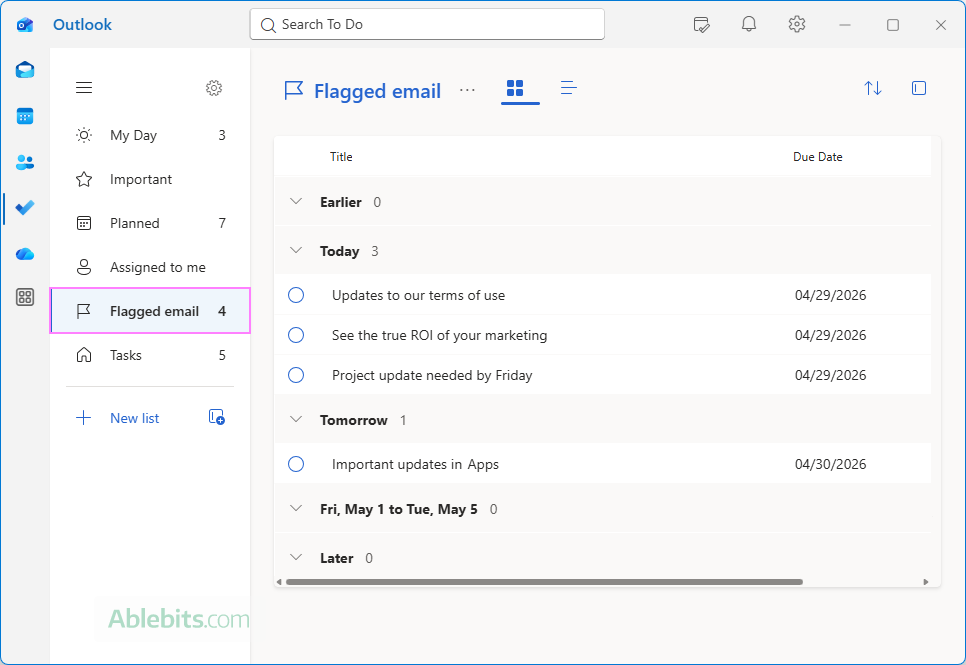
Once enabled, your flagged messages will be shown in a dedicated list in the Outlook To-Do module:
As you see, there are many different ways to keep Outlook flagged emails under control. It's just a matter of finding what works best for you 😊