 by
by In this article, we'll look at the main two ways to send encrypted emails in Outlook. You'll learn how each method works, what setup is required, and how to fix common issues so your messages stay secure and accessible to the right person.
Email is how most of us communicate these days, at work and at home. Many messages include sensitive details like contracts or financial information. And even if you are not sending top-secret data, you probably still want your emails to stay private. The safest way to protect your messages is to encrypt them so only the intended recipient can read them.
Outlook secure email encryption – the basics
Encrypted email protects your message by scrambling its contents so it can't be read by anyone except the recipient. This is especially helpful when you're sharing sensitive details directly in the email or sending confidential attachments.
Common attachment types such as Word, Excel, PowerPoint, PDF, and XPS files are encrypted along with the message.
Email subjects are not encrypted because they are part of the email header metadata required by mail servers for routing, sorting, and spam filtering.
Outlook supports two main methods of email encryption.
S/MIME
S/MIME (Secure/Multipurpose Internet Mail Extensions) is a widely recognized standard for encrypting and digitally signing emails that has been around since 1998.
S/MIME is supported by most email clients, including Microsoft Outlook. It requires that both the sender and the recipient should have digital certs. When the recipient opens the email, Outlook automatically decrypts it as long as the correct certificate is installed on their computer.
How S/MIME based email encryption works
S/MIME uses a method called asymmetric encryption to protect email messages. This means it works with two related keys: a public key and a private key.
When you send an encrypted email, Outlook uses the recipient's public key to lock the message. Once encrypted, the message can only be unlocked with the matching private key, which is stored securely on the recipient's device.
In simple terms, anyone can use the public key to encrypt a message, but only the intended recipient can decrypt it using their private key. This is what keeps the email content secure during delivery.

What you need:
- An S/MIME certificate installed on your computer and on the recipient's computer
- The recipient's public key
- A qualifying Microsoft 365 subscription
Note. S/MIME certs are typically used with Microsoft 365 business accounts (work or school). Also, they can be used with Gmail accounts added to Outlook. They do not work with Outlook.com, Hotmail.com, or Live.com accounts.
Microsoft Purview Message Encryption
Microsoft Purview Message Encryption (MPE), previously known as Office 365 Message Encryption, combines email encryption with Information Rights Management (IRM) from Purview Information Protection. This allows organizations not only to encrypt messages but also to apply usage restrictions, such as preventing forwarding or replying to all.
MPE is configured by an administrator in the Exchange Admin Center using PowerShell. Once enabled, users can easily send encrypted emails directly from Outlook.
Recipients using Outlook (including Microsoft 365, classic Outlook 2024 - 2019, the new Outlook, and web version) can open encrypted messages normally. If the recipient uses another email service, they'll receive instructions on how to open the message.
Note. Currently, Microsoft Purview Message Encryption is only available in the new Outlook for Microsoft 365 business accounts.
What you need:
- A Microsoft 365 work or school account
- Office 365 Enterprise E3 license
- MPE and IRM enabled and configured by your organization
S/MIME vs. MPE in Outlook
Both methods are used to secure Outlook emails, but they work in different ways and suit different situations.
- MPE is designed for ease of use and flexibility. It's enabled and managed by your organization, and once configured, users can encrypt messages with just a click.
- S/MIME is certificate-based encryption. Both sender and recipient must have S/MIME certs installed and exchanged before encrypted communication can begin.
Key differences at a glance:
| Feature | S/MIME | MPE |
|---|---|---|
| Type | Client-based (end-to-end) | Server-based (tenant-controlled) |
| Cross-platform standard | Broad industry standard | Microsoft ecosystem; Proprietary Cloud Service (Azure RMS) |
| Security | High (user holds keys) | Designed and controlled by Microsoft |
| Requires certificates | Yes | No |
| External recipients | Must have S/MIME certs | Can use web browser / one-time password |
| Setup complexity | Complex (cert management needed) | Simple (admin-managed; no user setup required) |
| Identity verification | Strong (certificate-based digital signing) | Limited (digital signatures are not supported) |
| Policy control | No | Yes (preventing forwarding or replying to all) |
Which encryption method should I choose?
That depends on the situation. If you want something quick and easy, especially when emailing people outside your organization, MPE is usually a better choice.
If you need identity verification or work in a regulated or high-security environment, S/MIME may be required.
In this article, we'll focus primarily on S/MIME encryption because it's a widely recognized standard supported by many email clients.
Note. Only one encryption method can be used per message. If an email is signed or encrypted with S/MIME, do not apply Microsoft Purview Message Encryption. To use MPE, first remove the S/MIME digital signature or encryption. Likewise, if a message already has MPE/IRM applied, it should not be signed or encrypted with S/MIME, as combining both methods can cause conflicts.
Encrypted messages vs. Secure connection to server
Most modern email clients and servers already use secure connections when sending and receiving messages (TLS protocol for sending and SSL/TLS for retrieving email from the server). These protocols protect the connection between your device and the mail server so that messages cannot be intercepted while they are in transit. However, this does not mean the message itself is encrypted. Once the email reaches the server, it is usually stored in plain text, which means it could theoretically be accessed by system administrators or anyone with sufficient server privileges.
Outlook email encryption solves this problem by protecting the message itself, not just the connection. With S/MIME or Microsoft Purview Message Encryption, the entire message content, including attachments, is secured, so only the intended recipient can read it.
Getting ready for Outlook email encryption
To start encrypting Outlook emails with S/MIME, you'll need to complete the following setup steps.
Step 1: Get an S/MIME certificate
An S/MIME certificate acts as your digital ID. It confirms your identity and allows you to encrypt and digitally sign emails. If you don't already have one, you need to obtain it from a trusted Certificate Authority or request from your organization's IT department. Without this certificate, Outlook cannot encrypt or sign messages.
See how to get a valid S/MIME certificate.
Step 2: Install the S/MIME certificate on Windows
After obtaining your email cert, you need to install it into your Windows user profile. This allows Outlook to access and use it. If Windows doesn't know about your certificate, Outlook won't know about it either.
See how to install the S/MIME cert on Windows.
Step 3: Add and configure the certificate in Outlook
Next, you must enable and configure S/MIME inside Outlook's security settings. This step connects Outlook to your installed certificate so it can digitally sign emails and automatically decrypt messages sent to you.
Once configured correctly, Outlook will handle encryption and decryption in the background.
See how to add email certificate to Outlook.
Step 4. Exchange email certificates with the recipient
For S/MIME encryption to work, both sender and recipient must exchange certificates. In particular, you need the recipient's public key to send an encrypted message to them.
If Outlook cannot find the recipient's public key, you'll see a warning message saying there's a problem encrypting the email because the recipient has a missing or invalid certificate.
How to add a recipient's certificate to Outlook
The simplest method is to create a contact from a digitally signed email in classic Outlook. Here's how:
- Ask the recipient to send you a digitally signed email.
- Open the signed email with a ribbon badge indicating a digital signature.
- Right-click the name in the From field and select Add to Outlook Contacts.
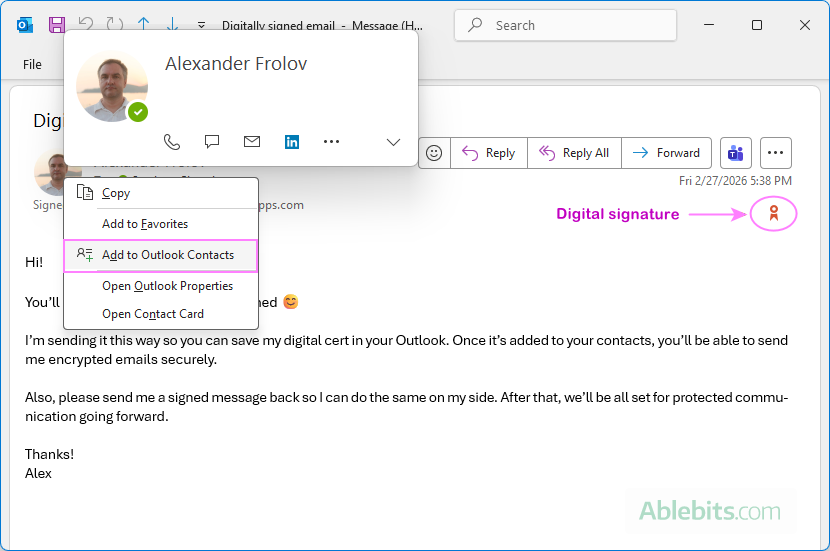
- In the new contact window, on the Contact tab, click Certificates and make sure the cert appears under Digital IDs.

- Save the contact.
Tip. If the certificate is not added to the contact on the first try, restart your Outlook and try again. From my experience, it often helps :)
If the contact already exists
If the person is already saved in your Outlook contacts, you can try updating their existing entry:
- Right-click the name in the From field and select Edit Contact.
- Check whether the certificate (digital ID) is added.
- If it is, click Save & Close.
If the certificate is not added, delete the existing contact and create a new one as described above.
Once these four steps are complete, you're ready to start sending encrypted emails in Outlook.
Notes:
- If the recipient is included in your organization's Global Address List (GAL), you still need to create a separate entry in your personal Outlook contacts and store their digital certificate there. Currently, there is no way to add S/MIME certificates directly in the GAL. Because of this limitation, encryption will not work unless the certificate is saved in your personal contacts.
- Once you create a contact from a digitally signed email in classic Outlook, that contact (including the certificate) syncs with the new Outlook and Outlook on the web. This means you can send encrypted emails from any Outlook app, as long as you're using the same account.
How to send encrypted email in Outlook
Once your S/MIME certificate is set up and your recipient's cert is saved in your contacts, sending a secure encrypted email takes just a couple of clicks.
How to encrypt email in classic Outlook
In classic Outlook (365 – 2016), you can encrypt a message directly from the ribbon while composing it. The steps are:
- On the Options tab, in the Encrypt group, click Encrypt > Encrypt with S/MIME.
- Finish composing your message and then click Send.

That's all there is to it. Outlook will automatically use the recipient's saved certificate (public key) to encrypt the message.
How to encrypt email in new Outlook and web
In the new Outlook app and Outlook online, you can encrypt an email in this way:
- In an email window, go to the Options tab, and click Message options.

If you don't see Message options on the ribbon, click More options (three dots), and then click More options again.
- In the Message options window that pops-up, select Encrypt this message (S/MIME) and click OK.

- Complete your message and send it.
Outlook will encrypt the email using the recipient's public key.
Do not send encrypted messages to GAL contacts
If a recipient appears both in your personal Contacts and in your organization's Global Address List (GAL), always select the recipient from the Contacts list, where you've created the entry with a digital cert.
Currently, an S/MIME certificate cannot be added to the Global Address List. Because of this, Outlook cannot properly encrypt the message if you select the recipient from the GAL and display a missing certificate error. Even if you somehow manage to send an encrypted email to such a contact, the recipient won't be able to read it.
To make sure encryption works correctly, follow these steps:
- In the message you're encrypting, click the To
- In the Select Names window, select Contacts (or a specific contact folder) from the Address Book drop-down list.
- Click To at the bottom of the window.
- Click OK.

This ensures Outlook uses the contact entry that contains the recipient's digital certificate.
In the new Outlook, the steps are essentially the same, although the layout looks different.
How to automatically encrypt all Outlook emails
If you regularly send sensitive information, you can configure Outlook to encrypt all outgoing messages by default. This includes new emails, replies, and forwarded messages.
Note. Use this setting carefully. When you enable automatic S/MIME encryption, every recipient must have your digital certificate and a correct S/MIME setup to decrypt your messages. Otherwise, they won't be able to open them.
Encrypt all outgoing messages in classic Outlook
In Outlook 365 – 2016, you can turn on automatic encryption in the Trust Center.
- Go to File > Options > Trust Center > Trust Center Settings.
- In the left pane, click Email Security.
- Under Encrypted email, select the Encrypt contents and attachments for outgoing messages
- Click OK to save your changes.

From now on, all messages you send will be encrypted automatically.
Tip. If you need to choose a specific certificate, click Settings in the same section.
Encrypt all messages and attachments in new Outlook
To enable automatic encryption in the new Outlook, follow these steps:
- Go to Settings > Mail > S/MIME.
- Select Encrypt contents and attachment for all messages I send.
- Click Save.

Notes:
- Settings in the new Outlook and Outlook on the web should are supposed to be synchronized. Any change made in one will apply to the other.
- In Chrome and other third-party browsers, this setting can only be enabled if the S/MIME extension has been installed by your IT administrator. In Microsoft Edge, you can install the S/MIME extension yourself if needed.
How to use Microsoft Purview Message Encryption in new Outlook
Microsoft Purview Message Encryption with IRM protection allows you to encrypt messages and apply usage restrictions, such as preventing forwarding. It's simple to use once enabled by your organization.
- In a new email message, go to the Options tab and click Encrypt.
- From the drop-down menu, pick Encrypt.
- Optionally, choose additional permissions such as Do Not Forward or Do Not Reply All.
- Finish composing your email and send it.

Note. If the Encrypt button is not available or grayed out in your new Outlook, your organization may not have the required Office 365 Enterprise E3 license or your administrator may not have enabled or configured Microsoft Purview Message Encryption with IRM. In that case, you can still use S/MIME encryption if it is set up in your account.
Outlook encryption not working
Sometimes encryption in Outlook doesn't behave as expected. The issue is usually related to invalid/missing email certificates or their incorrect set up. Below are the most common problems and how to resolve them.
Missing Certificates error when sending an encrypted email
When trying to send an encrypted email in Outlook, you may see an error saying that valid certificates weren't found for the recipient.

Reason: Outlook needs access to the recipient's public key in order to encrypt the message. If it cannot find a valid certificate, encryption will fail.
This usually occurs when:
- The recipient's S/MIME certificate is not saved in your Outlook contacts.
- You selected the recipient from the Global Address List (GAL) instead of your personal contacts.
- The saved certificate has expired or is no longer valid.
How to fix it:
- Ask the recipient to send you a digitally signed email.
- Create a new contact from that message to add a recipient's certificate to your Outlook.
- If the contact already exists, delete it and recreate it from the digitally signed email to ensure the certificate is correctly added.
- When addressing the message, select the recipient from your Contacts list, not from the GAL.
Recipient cannot open and view an encrypted email
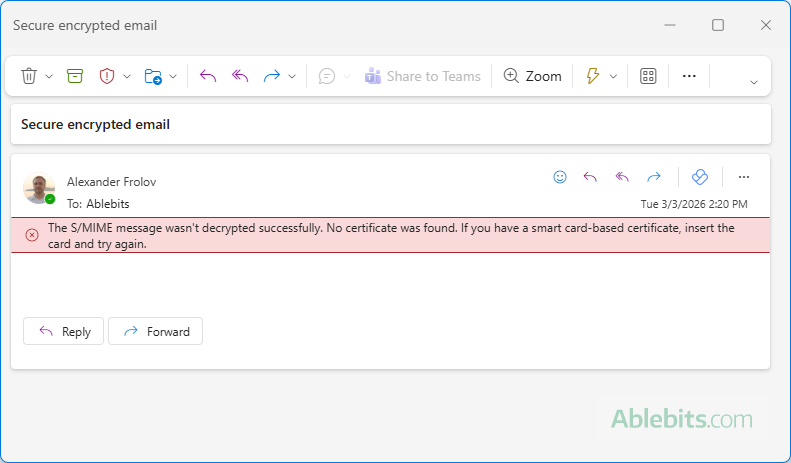
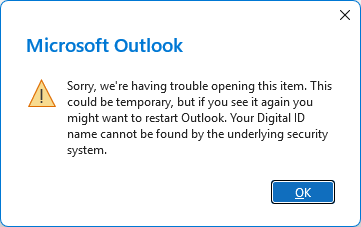
The new Outlook may allow you to send an encrypted message even if the recipient's certificate is not found (after you click Continue in the Missing certificate warning). However, sending it this way does not solve the problem. The recipient won't be able to open and read the message. Instead, they will see a notification that the email could not be decrypted or an error stating that Outlook is having trouble opening the item.
The "S/MIME message was not decrypted successfully" warning in the new Outlook:
Outlook is having trouble opening an encrypted message:
Why it happens:
- The recipient does not have an S/MIME certificate installed.
- Their certificate has expired.
- They are using an email client that does not support S/MIME.
- The message was encrypted using a wrong contact entry (for example, GAL instead of personal contacts).
How to fix it:
- Confirm that the recipient has a valid S/MIME certificate installed.
- Make sure you encrypted the message using the correct contact that contains their public key.
- If the recipient cannot use S/MIME, consider sending the message using Microsoft Purview Message Encryption instead if you have it enabled in your Outlook.
Remember, S/MIME-based Outlook email encryption only works if both sides (the sender and the recipient) are properly set up.
Let's be honest – most of us don't think about email security until something goes wrong. Outlook encryption isn't just for secret agents. It is for anyone who wants their message to be read by the right person, and by no one else. Once everything is set up, it's just a click before you hit Send.