 by
by This article shows a few quick ways to edit an email in Outlook after sending, along with advantages and limitations of each method.
Clicked Send a little too soon and then spotted a typo, broken link, or missing attachment? Don't panic. While Outlook does not let you directly edit a message after it has been delivered, there are several ways to update a sent email depending on your Outlook version, account type, and whether the recipient has already read it. This guide explains what is and isn't possible and shows the best options for each situation.
Can you edit a sent email in Outlook?
Once an email has been delivered to another person, you cannot edit the message in that other person's mailbox directly.
However, depending on your situation, you may be able to:
- Recall the original email and replace it with a corrected version.
- Send an updated or corrected copy.
- Edit the copy stored in your Sent Items folder for your own reference.
The right method depends on whether the email has already been read by recipient and which Outlook account you're using.
How to edit sent email in Outlook by recalling it
If you spotted a mistake in an email you've already sent, you can attempt to recall it and replace it with a corrected version. This is the closest thing to editing a sent email in Outlook.
For a successful recall, all of the following conditions must be met:
- Both you and the recipient use a Microsoft Exchange or Microsoft 365 account within the same organization.
- The recipient has not opened the original message yet.
- The original email is still in the recipient's Inbox and has not been moved to another folder, either manually or automatically by an email rule.
Tip. If you notice the mistake after sending the email, perform the recall immediately. The sooner Outlook processes the recall request, the greater the chance it will succeed before recipients open the original message.
To explore the topic in greater detail, see How to recall emails in Outlook.
Recall and replace a sent message in Outlook 365 – 2016
To recall a sent email and replace it with a corrected version in classic Outlook (365 – 2016), follow these steps:
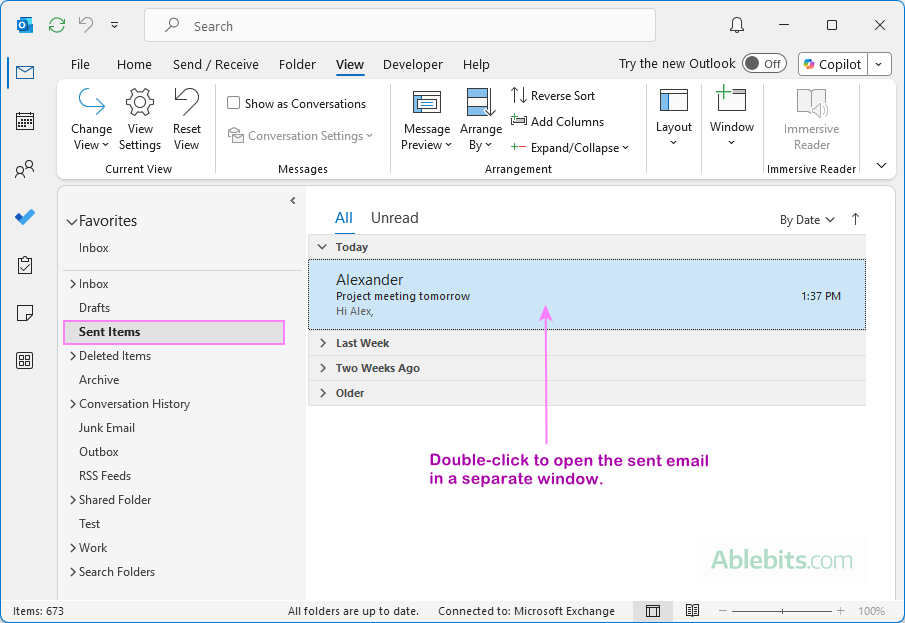
- Open the Sent Items folder.
- Double-click the message to open it in its own window.
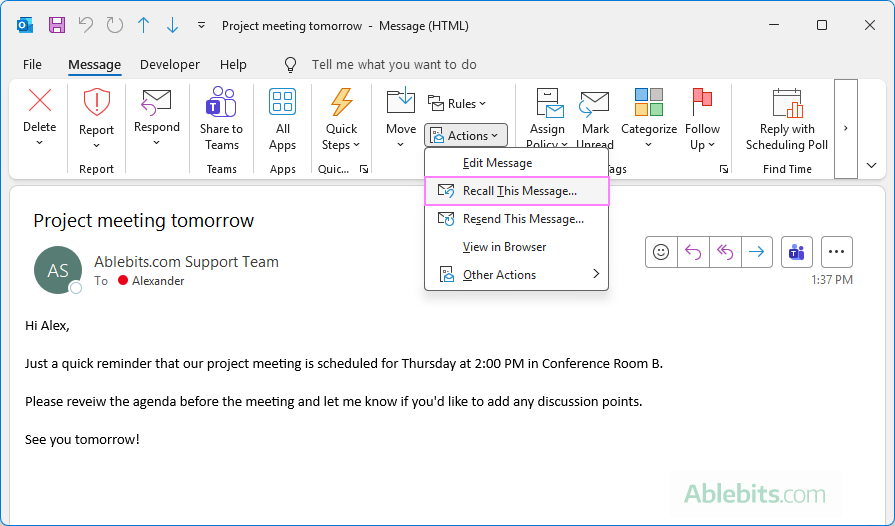
- On the Message tab, in the Move group, click Actions > Recall This Message.
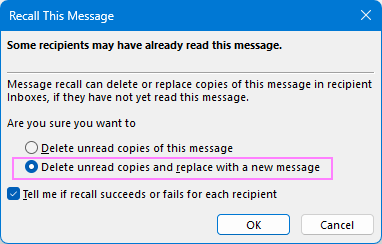
- In the dialog window that opens, choose the Delete unread copies and replace with a new message
- If you want to be notified about the result, keep the Tell me if recall succeeds or fails for each recipient check box selected, and click OK.
- Outlook opens the original message for editing.
- Make the necessary changes and click Send.
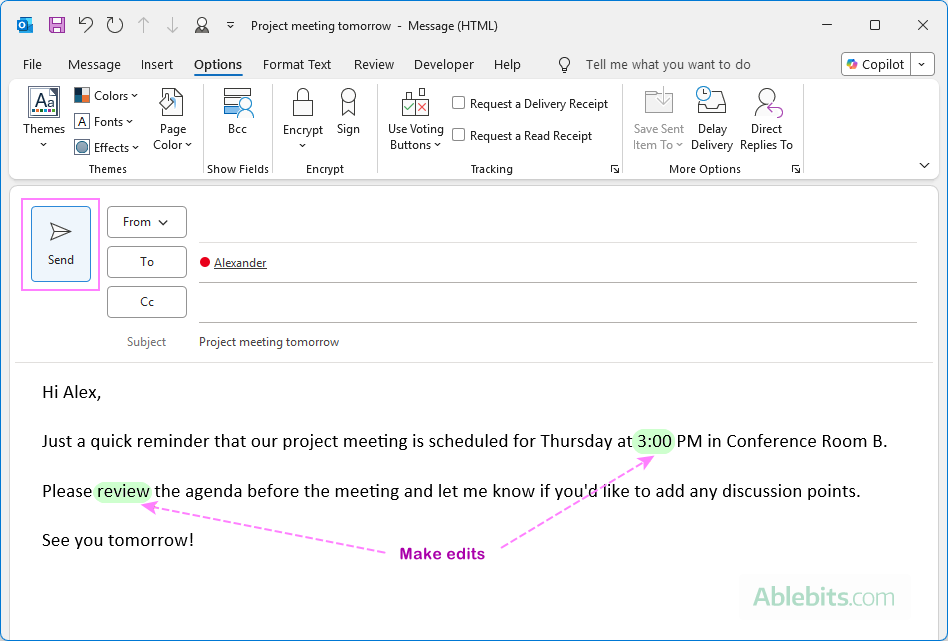
The corrected message is on its way. If the recall works as intended, the recipient will see the updated version instead of the original email.
Recall and edit a sent email in new Outlook and web
The new Outlook and Outlook on the web also let you correct a sent email by recalling it. Although the feature is named differently, the process is very similar to classic Outlook: you recall a sent message, edit it, and send the updated version.
Here's how to do this:
- In the Sent Items folder, find the message, and open it in a separate window.
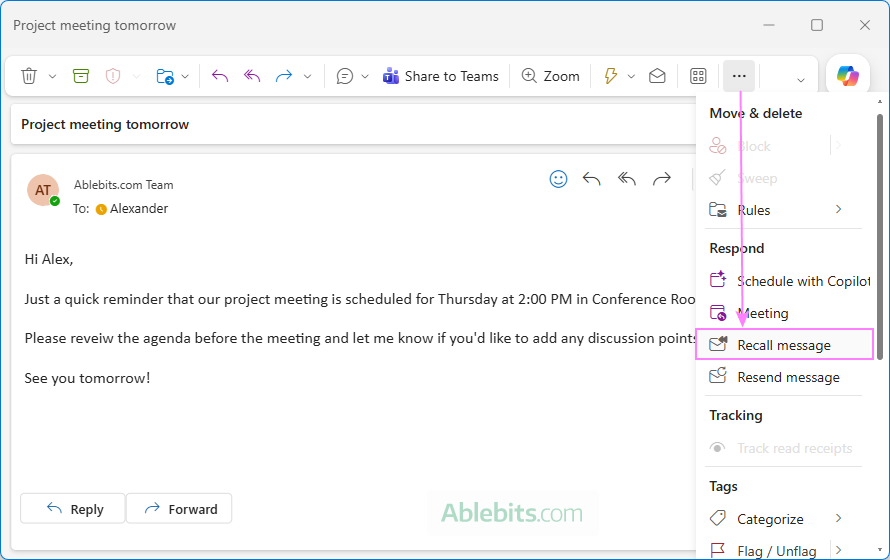
- On the ribbon, click Recall message. If the button is not there, click More actions (the three dots) and choose Recall message.
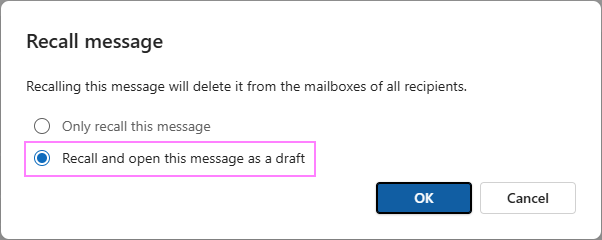
- In the Recall message dialog box, select Recall and open this message as a draft, and click OK.
- In a draft copy that opens, make the necessary edits and click Send.
That's it! If the original email is successfully recalled before it is read, recipients will see only the updated version. Otherwise, both messages may remain in their Inbox.
How to resend an edited version of an Outlook message
If recall is unavailable or unlikely to succeed (for example, because the message was sent to someone outside your organization), the easiest solution is to resend the email with your corrections.
- In the Sent Items folder, double-click the message you want to edit.
- Apply the Resend command:
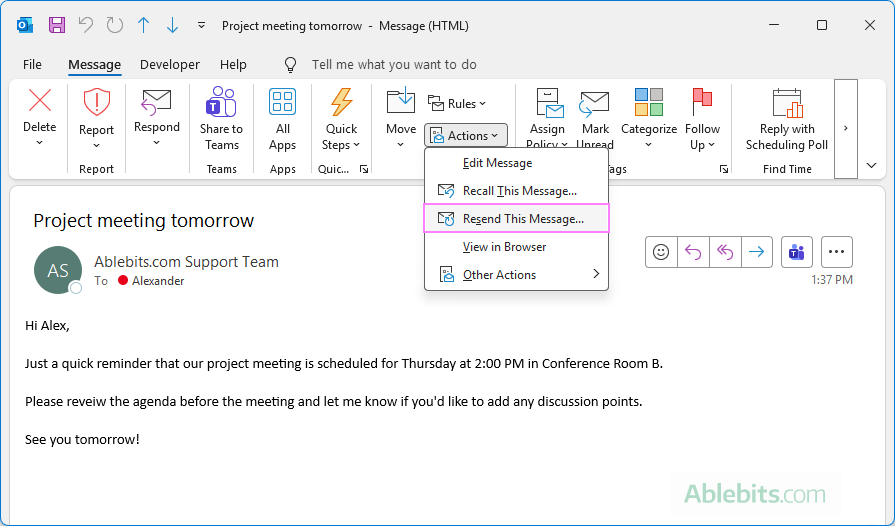
- Classic Outlook (365 – 2016): On the Message tab, click Actions > Resend This Message.
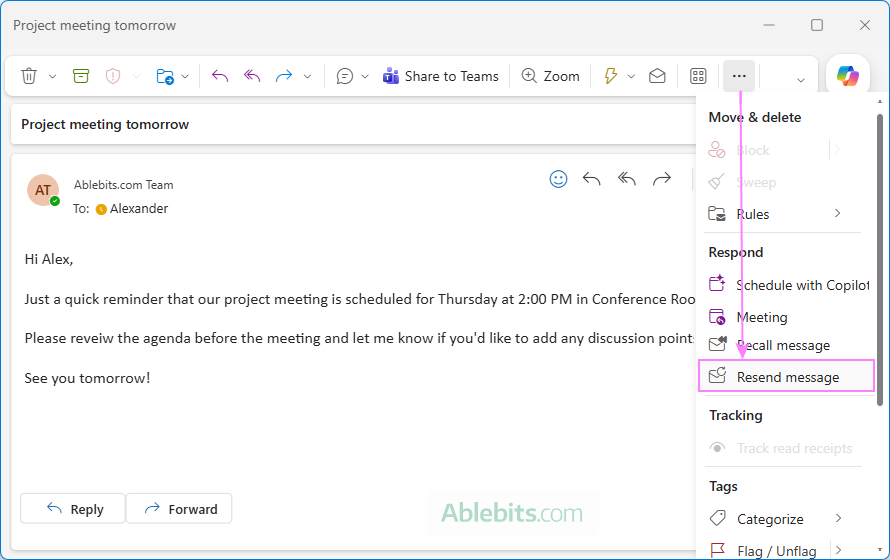
- New Outlook and Outlook on the web: Click More actions (the three dots) at the right end of the ribbon, and then select Resend message.
- Classic Outlook (365 – 2016): On the Message tab, click Actions > Resend This Message.
- The message opens in a separate window, ready for editing.
- Make the necessary changes, then click Send.
Unlike message recall, resending does not delete the original email from the recipient's mailbox. It simply creates a copy that you can edit, saving you from copying the original message manually or rewriting it from scratch.
Tip. For the sake of clarity, it's a good idea to start the email with a short note such as: "Please disregard my previous email. Here's the corrected version."
How to edit a sent email in Outlook for your own records
Besides recalling or resending a message, Outlook 365 – 2016 also lets you edit the email stored in your Sent Items folder. This does not change the message that recipients have already received, it only updates your own copy.
Admittedly, this feature isn't much help if you're trying to fix a typo. (Your future self might appreciate the correction, but everyone else will still see the original!) However, it can be useful if you want to add notes or update information for your personal records.
Here's how to edit a sent email in classic Outlook:
- Open the Sent Items folder and double-click the email.
- On the Message tab, select Actions > Edit Message.
- Make the changes you want.
- Press Ctrl + S to save the edited message.
- Close the message window.
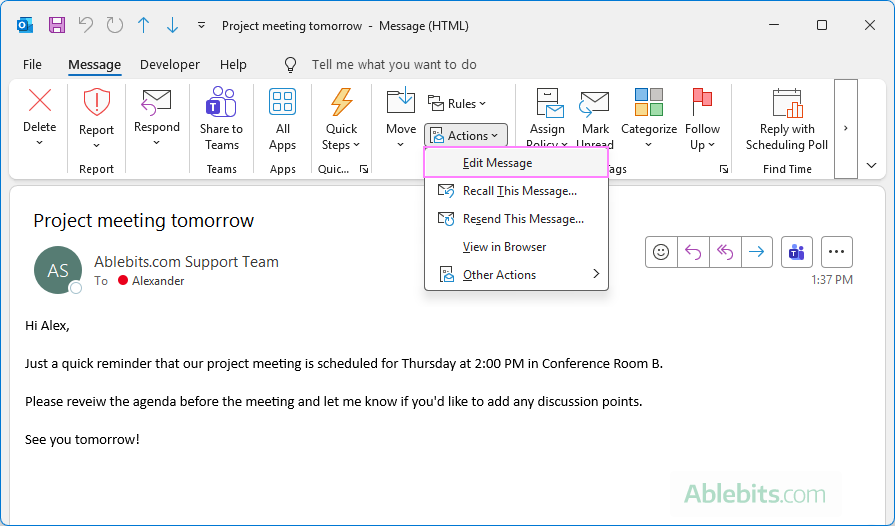
Done. From that point on, the updated version is stored in your Sent Items folder.
Notes:
- This changes only your local copy. Recipients continue to see the original message.
- This option is available only in classic Outlook; the new Outlook and Outlook on the web do not support editing sent messages.
Frequently asked questions on editing sent messages
Still have questions? Below are answers to the questions users most often ask about editing sent emails in Outlook.
Can I edit an email after the recipient has opened it?
No. Once the recipient has opened the message, Outlook cannot modify it. The only option is to send a follow-up email with the correct information.
Does editing a sent email update it for everyone?
No. Editing a message in the Sent Items folder changes only your own copy.
Why is the Recall option missing in my Outlook?
The Recall option is available only for Microsoft Exchange and Microsoft 365 business accounts. It is not available for Outlook.com, Gmail, Yahoo, IMAP, or POP accounts.
Can I recall an email sent to Gmail?
No. Outlook message recall does not work with Gmail or other external email providers.
In conclusion: While Outlook can't magically rewrite an email that's already been delivered, it does give you a few ways to fix the situation. When in doubt, sending a brief correction email is usually the simplest and most reliable approach.