 by
by Want to make your messages more trustworthy and secure? This guide explains how to send digitally signed emails in Outlook using an S/MIME certificate.
In professional communication, trust matters. When you send an important email, you want the recipient to know it truly came from you and hasn't been changed along the way. That's exactly what a digitally signed email does. It confirms the sender's identity and protects your messages from tampering.
What is a digitally signed email?
A digital signature is an electronic verification added to an email message that confirms the sender's identity and ensures the message hasn't been altered in transit. Think of it like a verified badge on a social media profile, which tells the recipient: "Yes, this message is genuinely from me".
Digital signatures use a security standard called S/MIME (Secure/Multipurpose Internet Mail Extensions). It is supported by most email clients, including Outlook, Gmail, and Apple Mail.
In simple words, it's like signing your name across a sealed envelope. If the seal is intact, the recipient knows the contents haven't been tampered with.
When you send a digitally signed message, the recipient can:
- Confirm that you are the actual sender
- See that the message hasn't been modified after sending
- Check whether the signature is valid
The visual sign looks different in different email clients. In Outlook it appears as a ribbon badge, while in Gmail or Apple Mail as a checkmark. The symbol changes, but the meaning stays the same: the message is authentic and unchanged.
Here's how a digitally signed email looks like in Outlook:
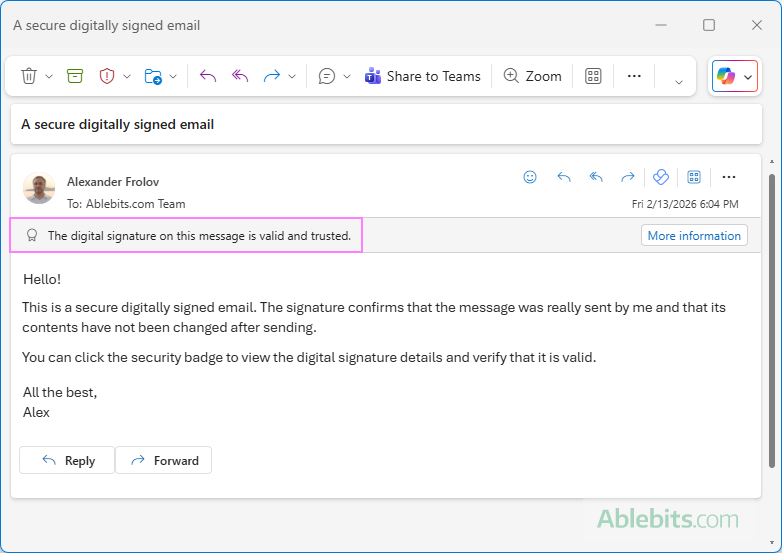
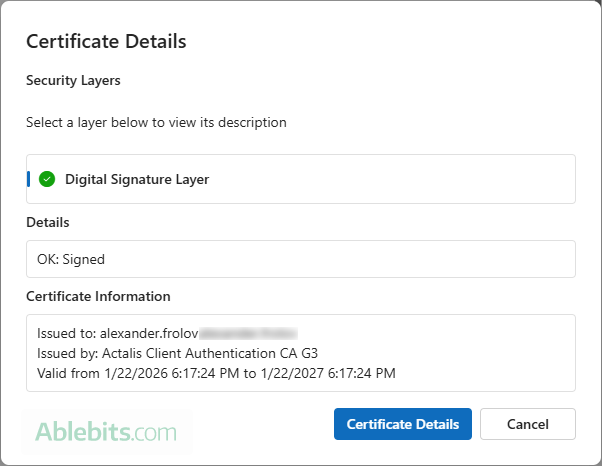
When you click the digital signature badge or the More information button (depending on your email app), you can view the certificate details such as who issued it, who it was issued to, and its validity period.
Digital signature vs. regular email signature
A digital signature isn't the same as a regular email signature you include with an outgoing message. An email signature is just a customizable closing salutation. Anyone can copy, edit and reuse any email signature they want. While a digital signature provides verification of the sender's authenticity and can come only from the owner of the email certificate (S/MIME) used to sign it.
Digital signing vs. encryption
Digitally signing a message is not the same as encrypting it. Encryption hides/ciphers the content of your email so only the recipient can read it. A digital signature doesn't hide anything, instead it proves who sent the message and protects it from being altered. If you need both privacy and proof of identity, you can use encryption and a digital signature together.
How digital email signature works
Before we dive into the setup steps, it helps to understand what's happening behind the scenes and why it matters. It makes the whole process less mysterious and helps you troubleshoot issues if something doesn't look right. With that in mind, let's break it down in simple terms.
Public and private keys
An S/MIME email certificate works like a special digital ID linked to your email address. It includes two connected parts:
- A private key – kept securely on your device
- A public key – shared with people who receive your signed emails
These two keys work together. When you digitally sign an email, Outlook uses your private key to create the signature. When the recipient opens the message, their email app uses your public key to verify it.
What happens when you send a digitally signed email
Here's the process step by step:
- You request a certificate from a trusted Certificate Authority (CA).
- You install the certificate on your device and enable it in Outlook.
- You add a digital signature to an email before sending it.
- When a digitally signed email goes off, Outlook attaches your public key to the message.
- The recipient's email app checks:
- Whether the certificate matches your email address
- Whether it was issued by a trusted CA
- Whether the signature is valid
If everything checks out, the message shows a trusted signature indicator (such as a ribbon badge or checkmark).
The message recipients don't need to configure anything on their side. Most modern email clients support S/MIME verification automatically. If their app supports digital signatures, it will recognize and validate your signed message by default.
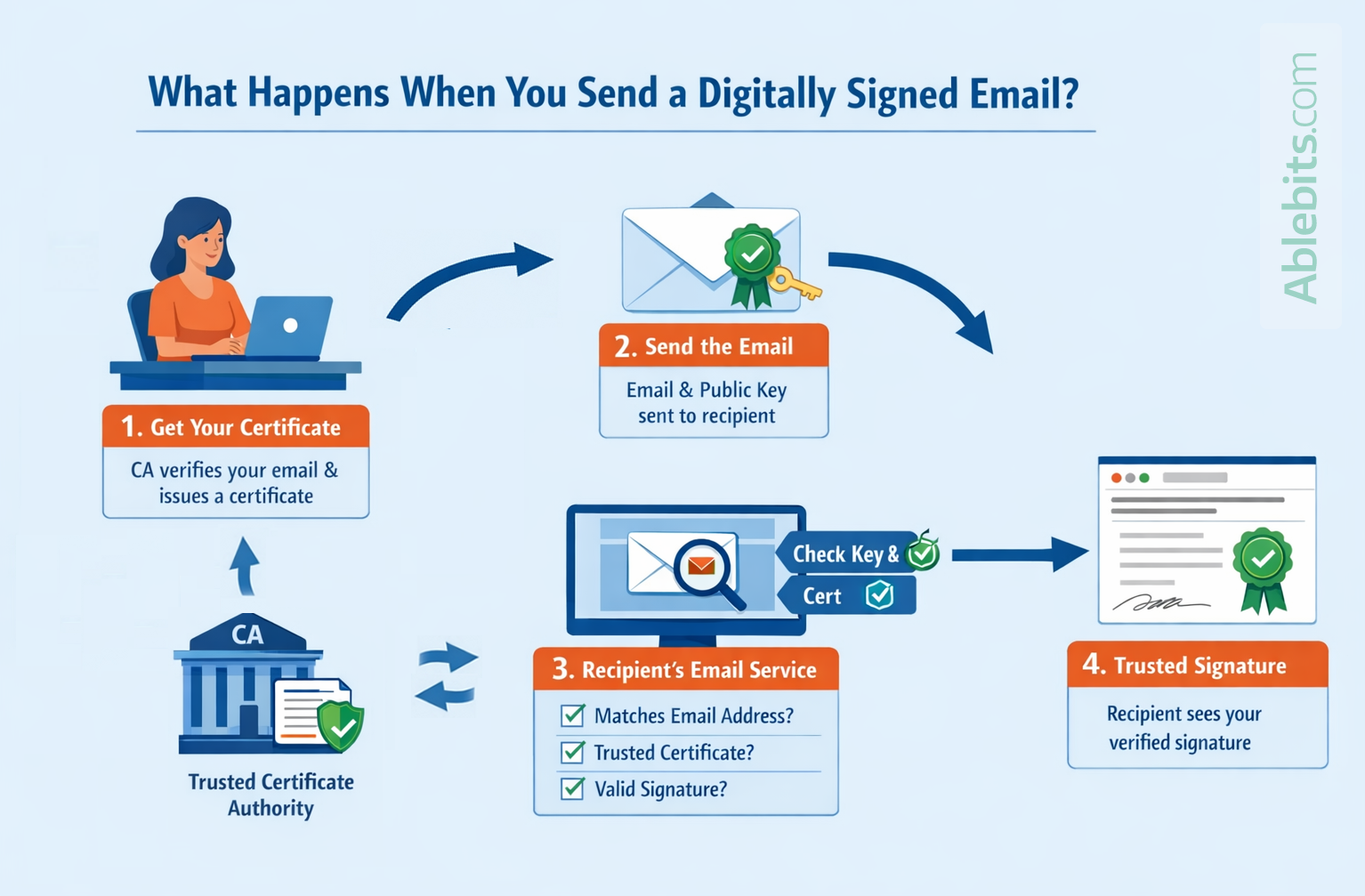
Summary: Understanding how digital signatures work may sound a bit technical at first, but the idea is simple: a trusted authority verifies your identity and issues an email certificate –> the certificate creates a digital signature –> the recipient's email app confirms it's valid and trusted. Once set up, the process happens quietly in the background each time you send a digitally signed message.
Note. S/MIME is not supported for personal outlook.com, hotmail.com, or live.com accounts.
What you need before sending digitally signed emails in Outlook
Sending a secure digitally signed email in Outlook is easy. The most difficult part is obtaining an email certificate and setting everything up correctly. In many companies, IT handles the entire process for you. If that's your situation, you can safely skip the technical setup and jump straight to sending signed emails.
To successfully send digitally signed emails in Outlook, make sure you have the following in place:
- A valid S/MIME certificate. It acts as your digital ID when signing messages. If you don't have a certificate yet, you'll need to obtain one from a trusted Certificate Authority or request from your organization's IT department.
- The certificate installed on Windows. It must be imported into your Windows user profile so Outlook can access it.
- The certificate added to Outlook. It needs to be selected and properly configured in Outlook's security settings.
- A supported email account. S/MIME-based digital signing is typically used with Microsoft 365 business accounts (work or school). It can also work with a Gmail account added to Outlook. It does not work with Outlook.com, Hotmail.com, or Live.com accounts.
How to digitally sign an email in Outlook
Once your S/MIME certificate is added and a setup is complete, sending a digitally signed email takes only a few clicks.
Send a digitally signed message in classic Outlook
To digitally sign an email in Outlook 365 – 2016, follow these steps:
- In the message window, on the Options tab, in the Encrypt group, click Sign.
- Compose your message and then send it as usual.
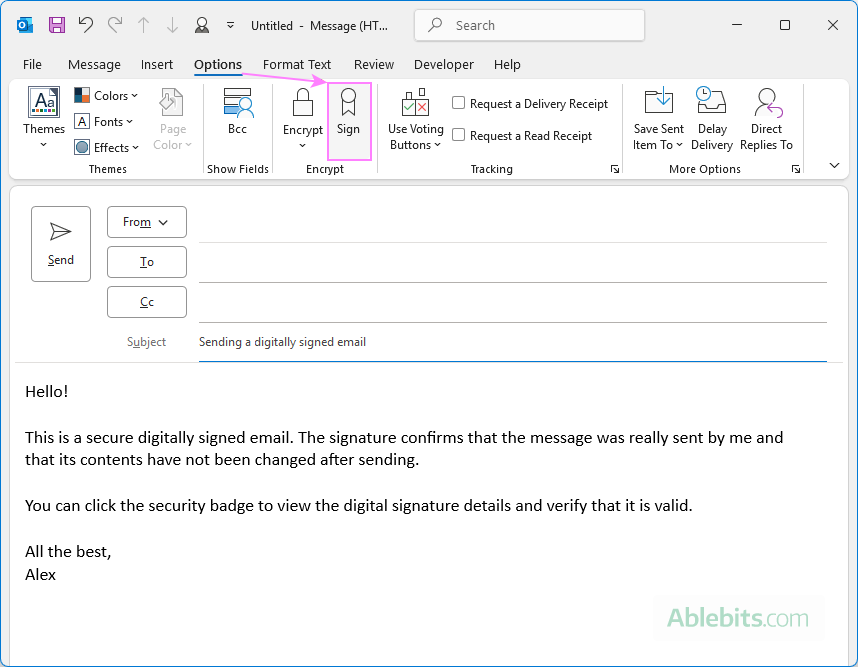
That's it. Outlook will attach your digital signature automatically.
Digitally sign an email in new Outlook
In the new Outlook app, the steps are:
- In the message window, go to the Options tab, and click Message options.
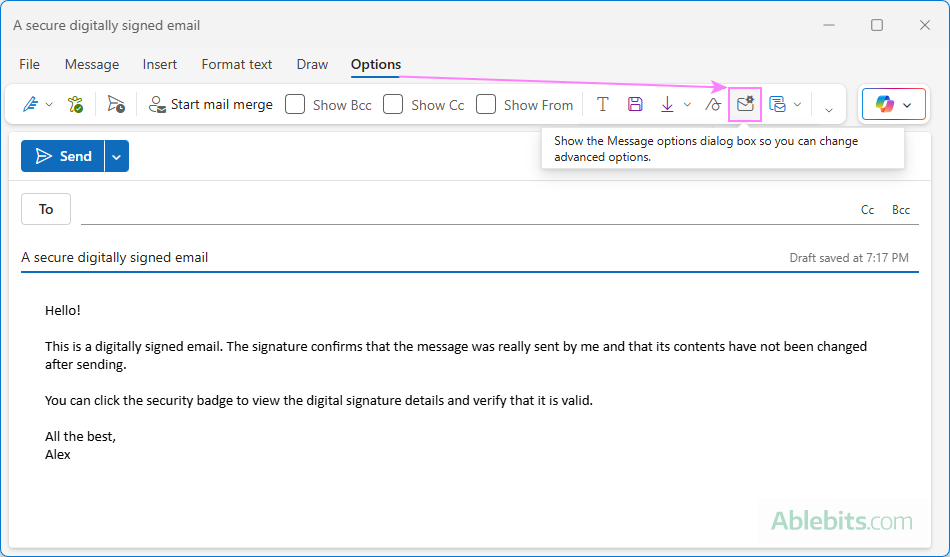
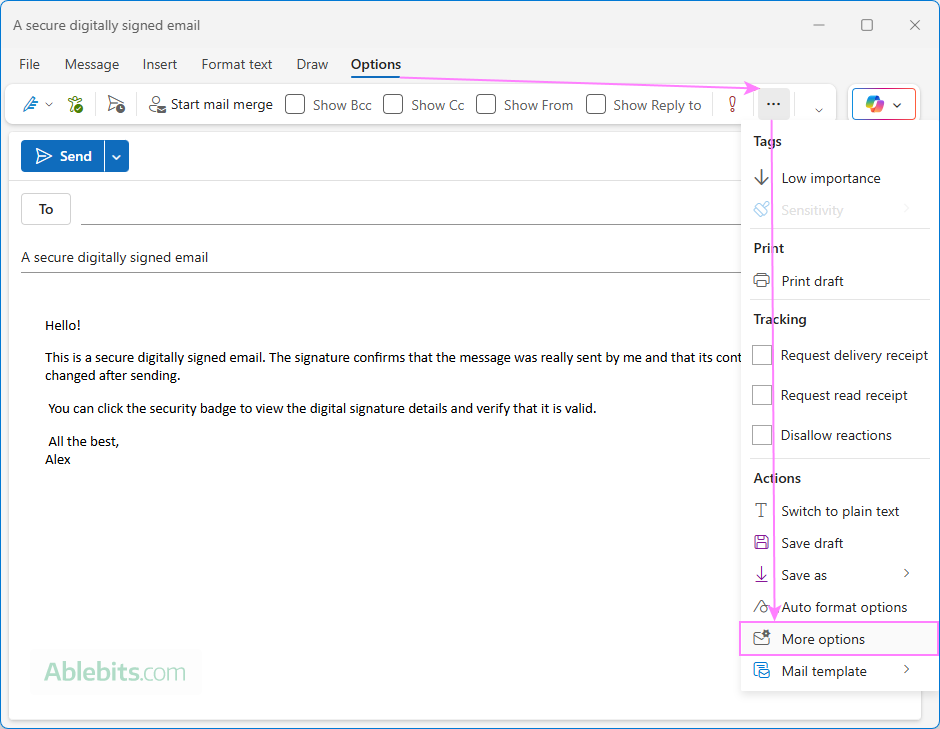
If the Message options button does not show on the ribbon, click More options (the three dots), then choose More options again.
- Select Digitally sign this message (S/MIME) and click OK.
- Write your message and click Send.
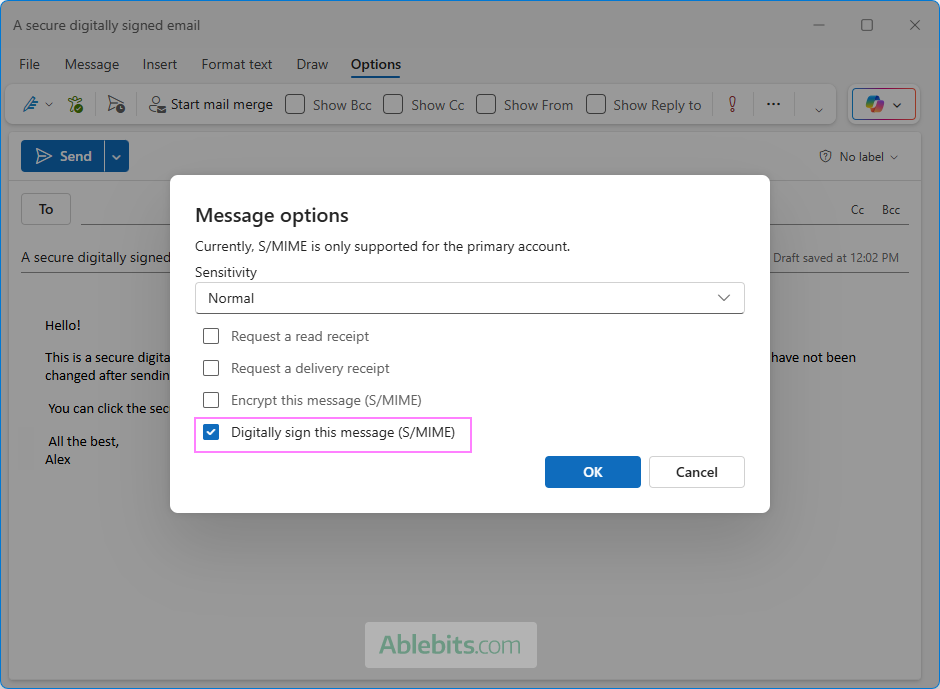
Currently, S/MIME is only supported for the primary account in the new Outlook. If you don't see the digital signing option, double-check that you are using the primary account and that S/MIME is enabled for it.
Note. At the time of writing, the new Outlook app has some known issues with digitally signed emails. Even if the S/MIME certificate is valid and properly imported, you may see an error stating that the certificate is untrusted. In many cases, the very same email cert works without any problems in classic Outlook.
How to digitally sign all messages in Outlook
If you regularly send signed emails, you can set Outlook to add your digital signature automatically to every outgoing message.
Digitally sign all emails in classic Outlook
In Outlook 365 - 2016, you can enable this in the Trust Center:
- Go to File > Options > Trust Center > Trust Center Settings.
- In the left pane, click Email Security.
- Under Encrypted email, select the Add digital signature to outgoing messages
- Additionally, you can also choose:
- Send clear text signed message when sending signed messages – select this if you want recipients without S/MIME support to still be able to read your message. Usually it is enabled by default.
- Request S/MIME receipt for all S/MIME signed messages – this lets you verify that your signed message was received intact by the intended recipient.
- Select OK to close each open window.
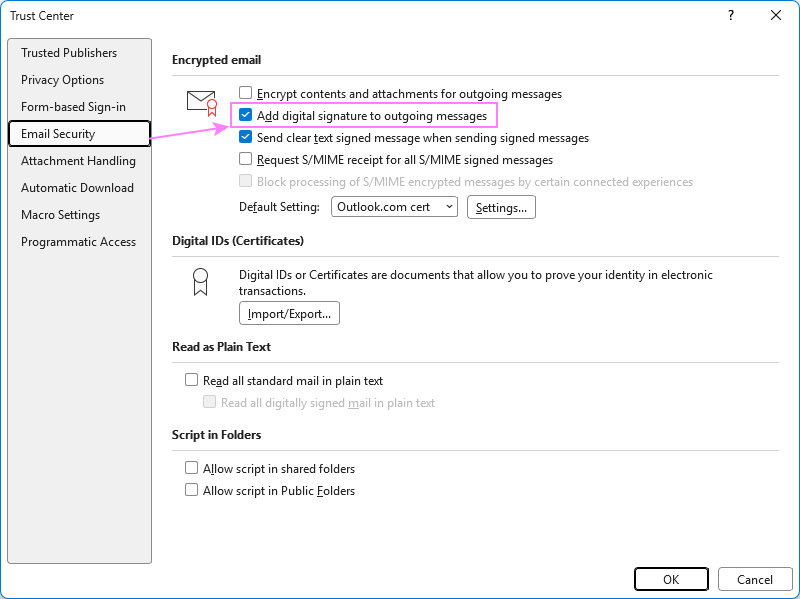
Tip. If you have multiple certificates and want to choose which one Outlook should use, click Settings in the Email Security section.
Add a digital signature to all messages in new Outlook and web
In the new Outlook app and Outlook online, the option is located in Mail settings:
- Go to Settings > Mail > S/MIME.
- Enable Add a digital signature to all messages I send.
- Click Save.
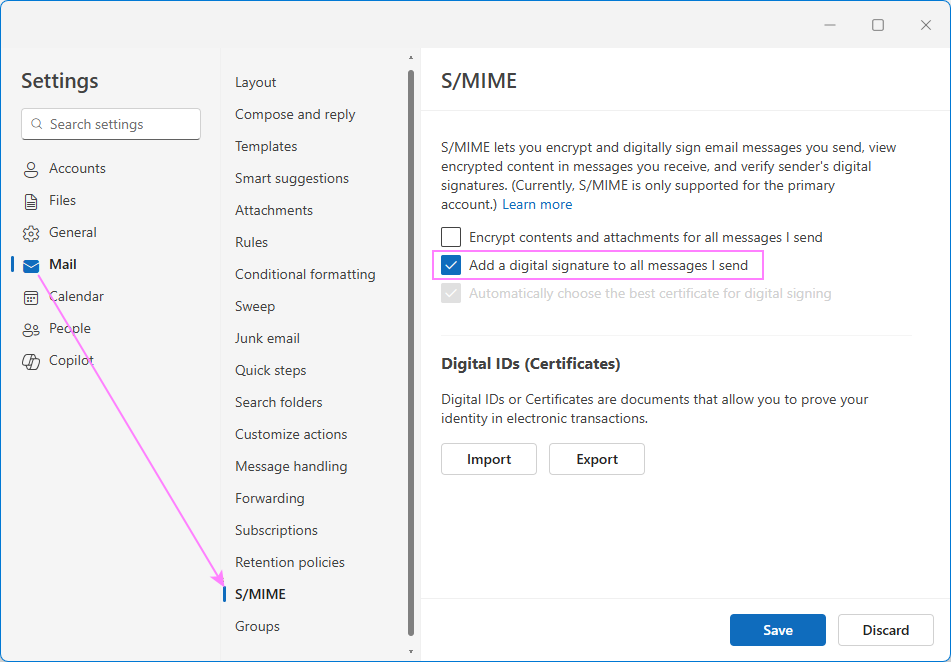
If this option is unavailable or grayed out, it means your organization manages the setting and you are not allowed to change it.
Note.
- These settings in the new Outlook and Outlook on the web should be synchronized. Any change you make in one app will automatically apply to the other.
- When using Outlook on the web in Chrome or other third-party browsers, this feature can only be enabled if the S/MIME extension has been installed by your IT administrator. In Microsoft Edge, you can install the S/MIME extension yourself.
Request an S/MIME receipt in Outlook
When you want to be sure that your message was delivered to the recipients and read by them, you request a regular delivery or read receipt.
If you want confirmation that your digitally signed message was received unaltered by the intended persons, you can request an S/MIME receipt. This feature is only available in classic Outlook.
Here's how to request an S/MIME receipt for a specific email:
- In a message window, go to the Options tab.
- In the More Options group, click the dialog box launcher (a small arrow in the corner).
- In the Properties window, under Security, click Security Settings.
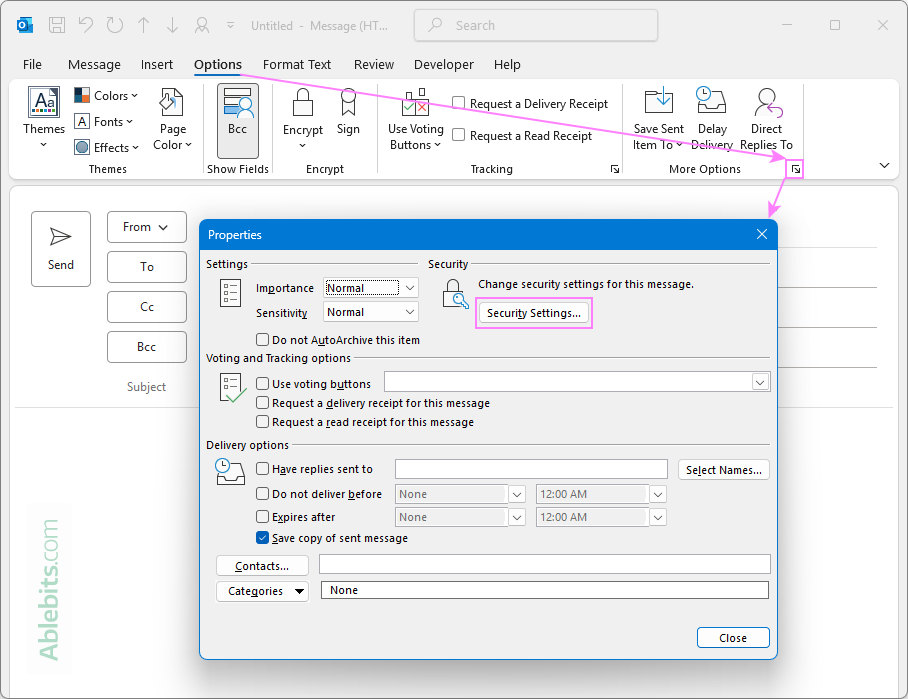
- In the Security Properties window, select these options and click OK:
- Add digital signature to this message
- Request S/MIME receipt for this message
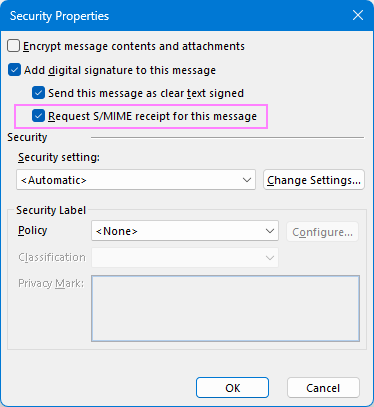
- Close the open dialog boxes and send your message.
After requesting an S/MIME receipt, the verification details are sent to you in a separate message. This message confirms that the signed email was received and validated by the recipient's email system.
Tip. To request an S/MIME receipt automatically for all outgoing messages, you can enable the corresponding option in Trust Center Email Security Settings.
Problems with digitally signing emails in Outlook
Even when everything seems set up correctly, you may occasionally see errors. Below are the most common ones and how to fix them.
Invalid Certificate error
If Outlook shows an Invalid Certificate error when sending a signed email, it usually means that your email cert is missing, invalid, expired, or doesn't match your email address you are using.
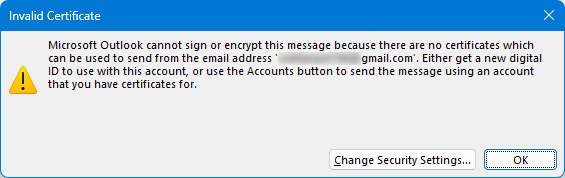
For the full troubleshooting instructions, please refer to How to resolve Invalid Certificate error in Outlook.
Recipient doesn't see the digital signature badge
If the recipient doesn't see a digital signature icon or verification badge, it may be because their email app doesn't fully support S/MIME.
Digital signature can't be verified in Outlook.com and Outlook on the web
Most modern desktop email clients handle S/MIME automatically. However, Outlook on the web and Outlook.com do not display the badge and may even show a warning that the digital signature can't be verified.
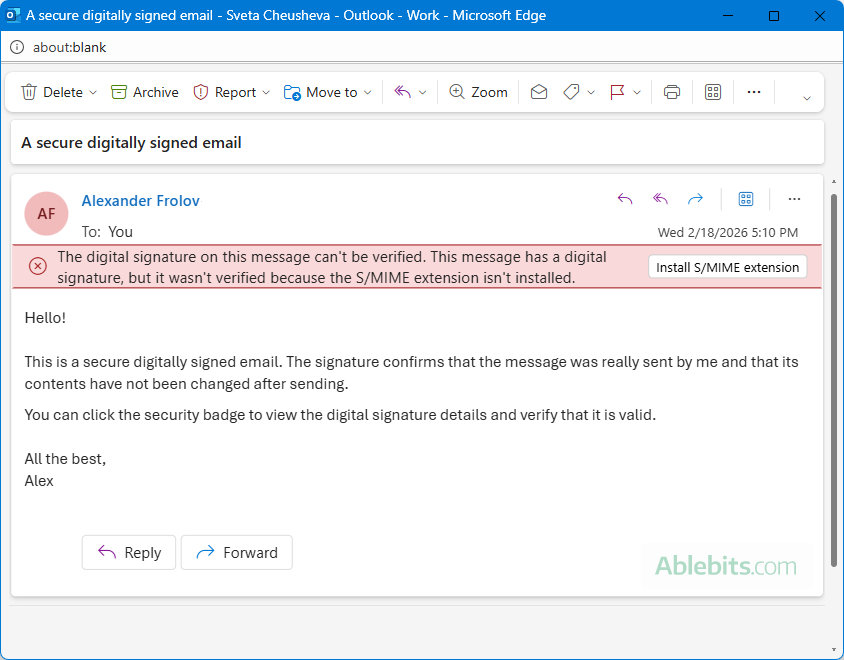
To fix this, the recipient is prompted to install the extension named "Microsoft S/MIME Control for Outlook on the web for Edge/Chrome". Most users will hardly ever bother to do so. A simpler solution is to ask the recipient to open the message in a desktop email client, where digital signatures are automatically validated and displayed.
In conclusion: Digitally signing emails might sound like something only cybersecurity experts can fully understand and manage. But in reality, it's just a smarter way to say: "Yep, this email is really from me". Yes, the setup takes a little time and patience. But after that, one click and your message carries proof that it's secure, authentic, and untouched.