 by
by The article shows a few easy ways to zoom in or out when reading and composing Outlook emails, plus a couple of extra options for adjusting text size in the message list.
When message text appears too small, changing the zoom is an easy fix. Outlook offers different zoom options depending on your version and exactly what you're doing: reading, composing, or looking through a list of emails.
4 easy ways to zoom in Outlook
Outlook's zoom settings behave differently depending on where you are in the app. Reading an email, composing a new message, and viewing your message list each have their own zoom controls. Once you know where these options are, adjusting the view becomes simple.
Below is a quick overview of the main zoom options in Outlook:
Ctrl key + scroll
This is the fastest method that works almost everywhere in Outlook.
- Hold down the Ctrl key on your keyboard.
- Scroll your mouse wheel up to zoom in or down to zoom out.
Where it works:
- When reading and composing emails
- In all Outlook apps, including classic, new, and web
Keyboard shortcuts
If you prefer using the keyboard, these shortcuts let you adjust the zoom level quickly:
- Press Ctrl + Plus (+) to increase zoom.
- Press Ctrl + Minus (-) to decrease zoom.
- Press Ctrl + 0 to reset to the default 100%.
Where it works:
- New Outlook: in the message window and Reading Pane
- Outlook on the web: in the message window, Reading Pane, and message list
- Classic Outlook: not supported
Zoom slider
It lets you change the message text size zoom by dragging the slider or clicking the + or – buttons.
Where it works:
- In classic Outlook for the Reading Pane
Zoom button on the ribbon
When viewing a message in the preview pane, you can enlarge or reduce text size using a Zoom command on the ribbon.
Where it works:
- When viewing or composing a message in the Reading pane
- In the new Outlook app and web
With the main zoom tools covered, we can now take a closer look at how to use them in different Outlook versions.
How to zoom in the new Outlook and web
When you are viewing a message, replying, or composing an email directly in the Reading Pane, you can adjust the zoom level in this way:
- On the View tab, click Zoom.
- Use the plus button (+) to enlarge the text or the minus button (-) to reduce it.
- To return to the standard 100% view, click Reset.
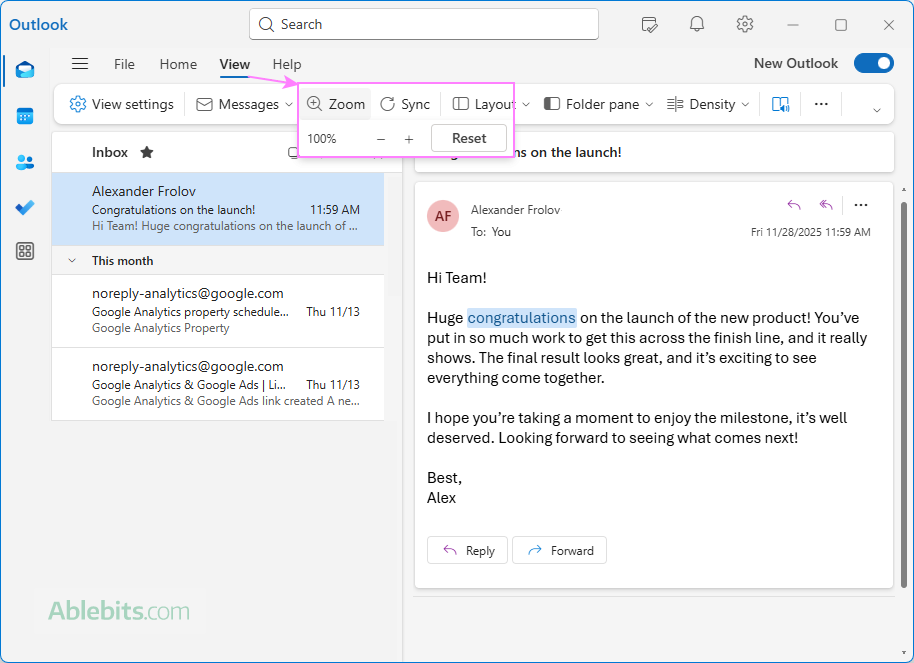
That's all you need to change the text size while reading or replying directly in the preview pane on both the new Outlook app and Outlook on the web.
Tips and notes:
- The Zoom option is also available when you open someone's message in a separate window.
- When composing a message in a separate window, the Zoom command isn't shown on the ribbon. You can increase or decrease text using the Font Size dropdown menu on the Message tab, or utilize Ctrl + scroll and the keyboard shortcuts to zoom in and out.
- In Outlook on the web, you can also use your browser's zoom to enlarge or shrink the entire page, including the message content.
Other ways to adjust text size in the new Outlook and web
Aside from the Zoom command, there are a couple of other settings to control the text size in different parts of the new Outlook and web app.
- Change font size in the message list. Go to Settings > Mail > Layout > Text size and spacing and choose one of the predefined options: small, medium, or large.
- Change default font size in new Outlook and web. Navigate to Settings > Mail > Compose and reply > Message format and select the font and size you prefer for new messages.
How to change zoom in classic Outlook
In classic Outlook, the Reading Pane has its own zoom tool, which lets you adjust the text size for a single message or set a permanent zoom level that applies to all messages you preview.
Adjust zoom while reading or replying to email
To control how big the message text is in the preview pane, drag the Zoom slider to the level you prefer.
- Select the email you want to read or reply to.
- In the lower-right corner of the Reading Pane, move the Zoom slider to increase or decrease the text size.
- You can also click the plus (+) button to zoom in or the minus (–) button to zoom out.
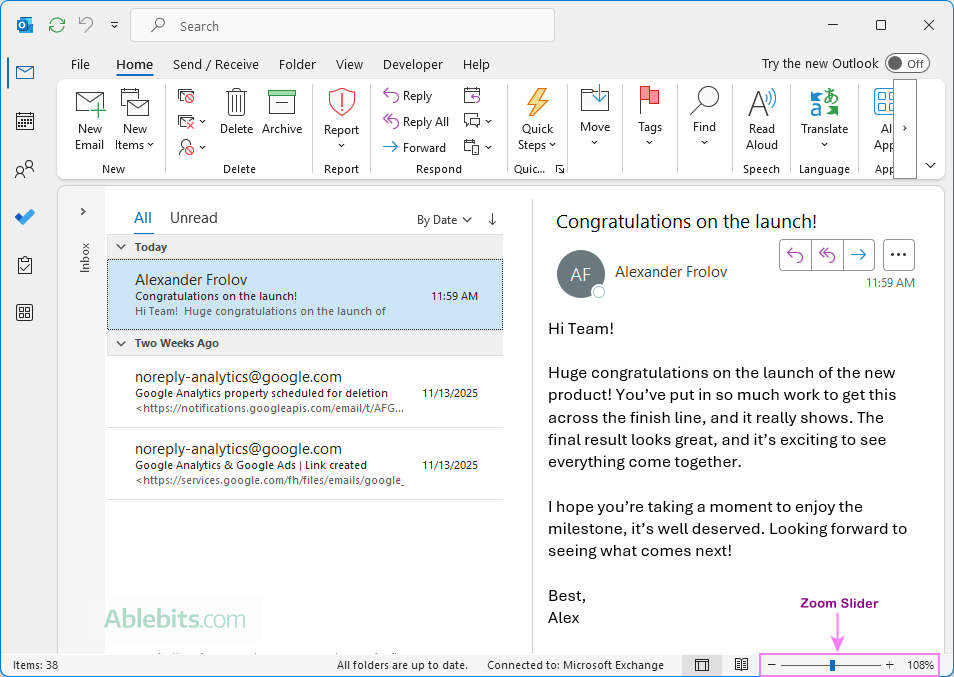
This zoom level you set applies only to the message you are currently viewing.
Set a permanent zoom level for the Reading Pane
If you'd like the same zoom percentage to apply to all messages you preview in classic Outlook, follow these steps:
- Click the percentage (%) to the right of the Zoom slider.
- In the Zoom window, choose one of the preset percentages or type your own value in the Percent box.
- Select the Remember my preference option.
- Click OK to save the change.
Outlook will now use this zoom level for every message in the Reading Pane.
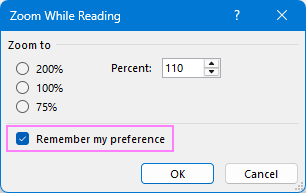
Tip. In a message window, the Zoom slider is not available. Instead, you can zoon in and out with the help of Ctrl + scroll or make the message text larger or smaller using the Font Size dropdown menu on the ribbon.
Additional text-size options in classic Outlook
If you want broader control over how text appears in different parts of classic Outlook, configure these additional settings:
- Change font size for email list. Go to View tab > View Settings > Other Settings > Settings and set the desired font options for columns, rows, and message preview.
- Change default font size. Go to File> Options > Mail > Stationery and Fonts. On the Personal Stationery tab, you can set the default font size for new messages, replies, and forwards.
That's how you can switch zoom levels in every version of Outlook to match your comfort and enjoy a clearer, more readable workspace.