 by
by This article explains how to create and use a scheduling poll in Outlook, view votes, and schedule the meeting automatically or manually based on responses.
If coordinating meeting times has ever tested your patience, Scheduling Poll is worth adding to your Outlook routine. It brings clarity to availability, cuts down on follow-ups, and makes choosing a time far less dramatic than it usually is.
What is a scheduling poll in Outlook?
A Scheduling Poll is a built-in Outlook feature that lets you suggest multiple meeting time options and ask attendees to vote on what is most convenient for them.
As responses come in, Outlook shows you the participants' preferences. If you choose, Outlook can also schedule the meeting automatically once attendees reach agreement on a time.
Scheduling Poll is available in Outlook for Microsoft 365 (Windows and Mac), Outlook 2024 – 2019, new Outlook, and Outlook on the web.
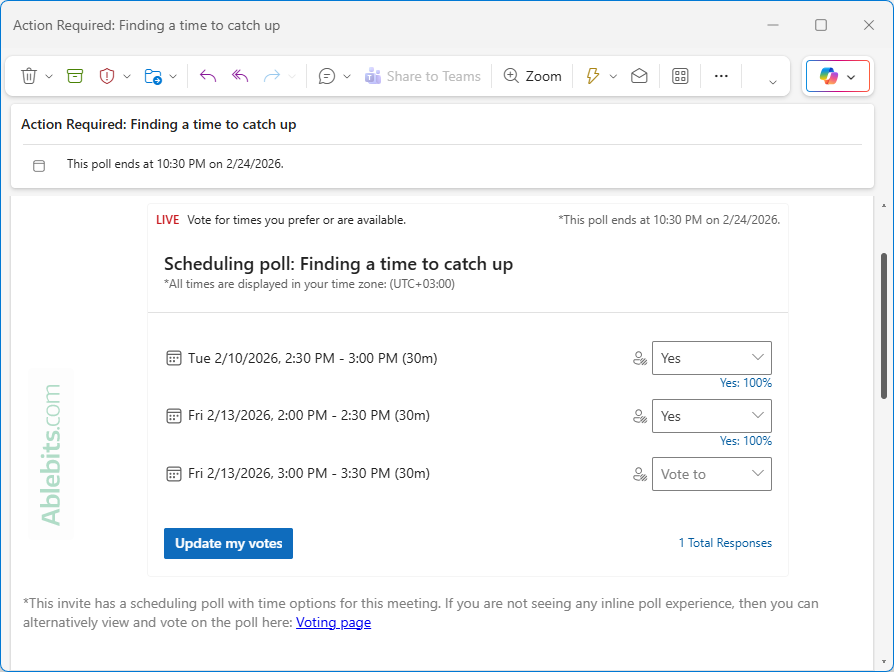
Note. The feature is only available for Microsoft 365 business (work or school) accounts. It is not supported for personal Outlook.com accounts and for third-party email accounts added to Outlook, such as Gmail or Yahoo.
How to access scheduling poll in Outlook
There are a few different ways to access Scheduling Poll in Outlook, depending on which version you are using. You can start a poll from an email you are reading, a message you are composing, or directly from the calendar.
Below are the common entry points, broken down by Outlook application.
Access scheduling poll in classic Outlook 365 – 2019
In the classic desktop Outlook app, there are 3 ways to add a scheduling poll.
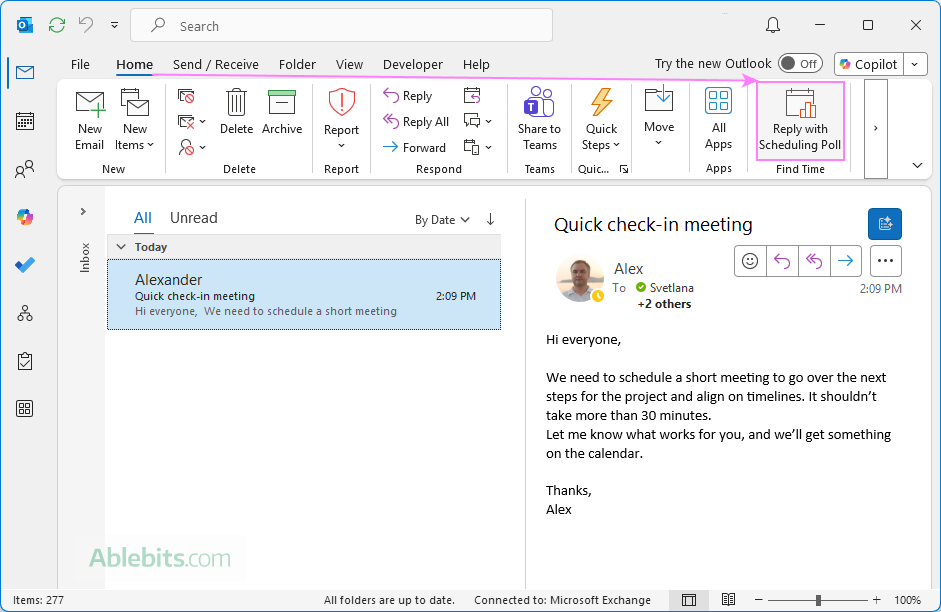
- From the Reading Pane. When you are viewing someone's email in the Reading Pane, click Reply with Scheduling Poll on the Home tab.
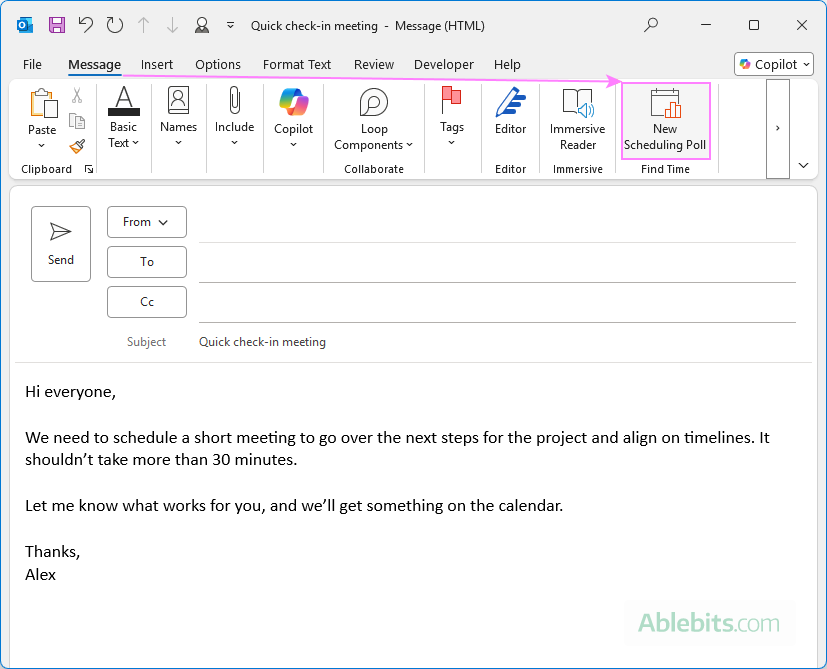
- From the message window. When composing a new email or replying/forwarding an existing one, select New Scheduling Poll on the Message tab, in the Find Time group.
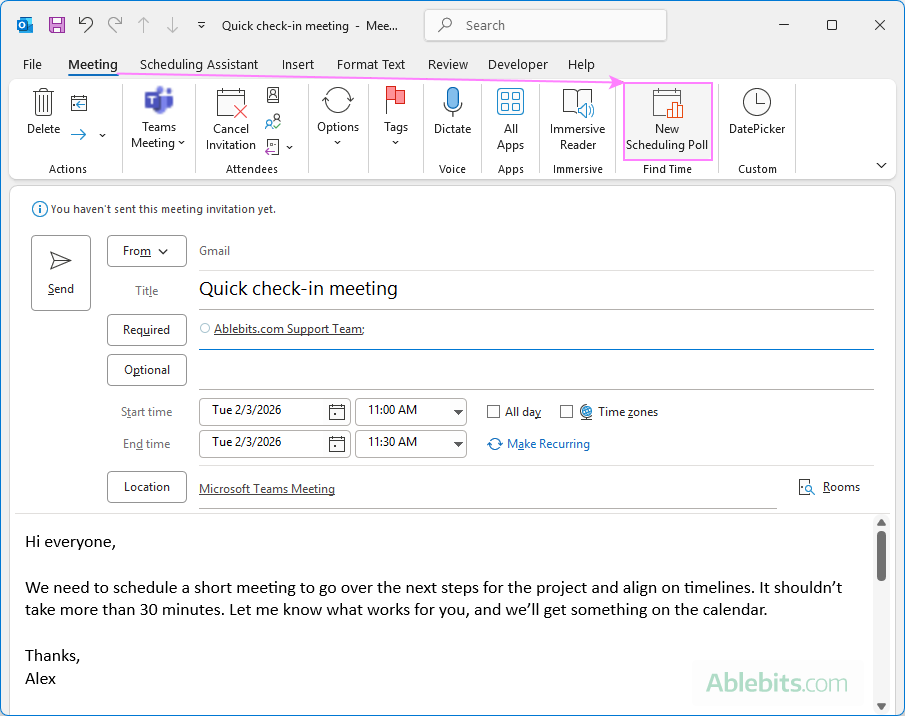
- From Outlook Calendar. When creating a new meeting or appointment or editing an existing event, click New Scheduling Poll on the Meeting / Appointment tab.
Add scheduling poll in new Outlook and web
In the new Outlook app and Outlook online, accessing Scheduling Poll is equally easy - the option is available in both the mail and calendar event windows.
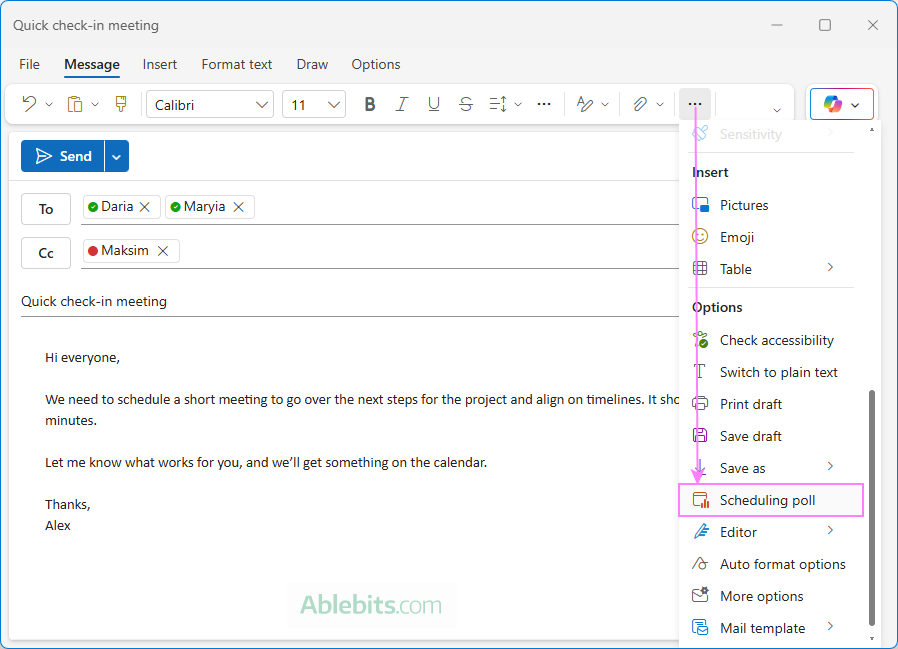
- From an email. When creating or replying to an email, select Scheduling poll in the Message tab. If you do not see it directly in the ribbon, click More options (three-dots) and find Scheduling poll under Options.
- From Calendar. When creating a new calendar event, click the Scheduling poll button to the right of the Date and time field.
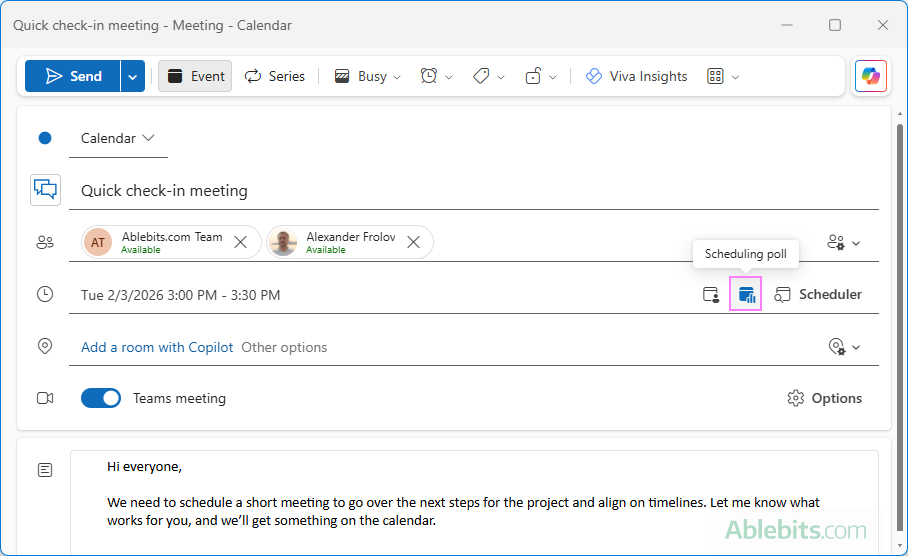
Note. If the Scheduling poll button is inactive or greyed out, add at least one attendee to the meeting to activate it.
How to create Outlook scheduling poll
Once you know where to find Scheduling Poll in Outlook, creating one is quick and intuitive. Follow the steps below to make and send a scheduling poll in Outlook:
Step 1: Start a new email or meeting
Begin by choosing where you want to create the poll:
- Create a new email or reply to an existing message, or
- Make a new calendar event or open an existing one to edit.
Both options work the same way once the poll is added.
Step 2: Add recipients
To enable scheduling poll features, add recipients to the To field (and optionally Cc) in an email. If you're creating a meeting, add required and optional attendees, so Outlook could check availability and suggest suitable meeting times.
Step 3: Access Scheduling Poll
Insert a scheduling poll using one of the methods explained in the previous section. When selected, the Scheduling Poll pane opens on the right side of the window.
Step 4: Suggest meeting times
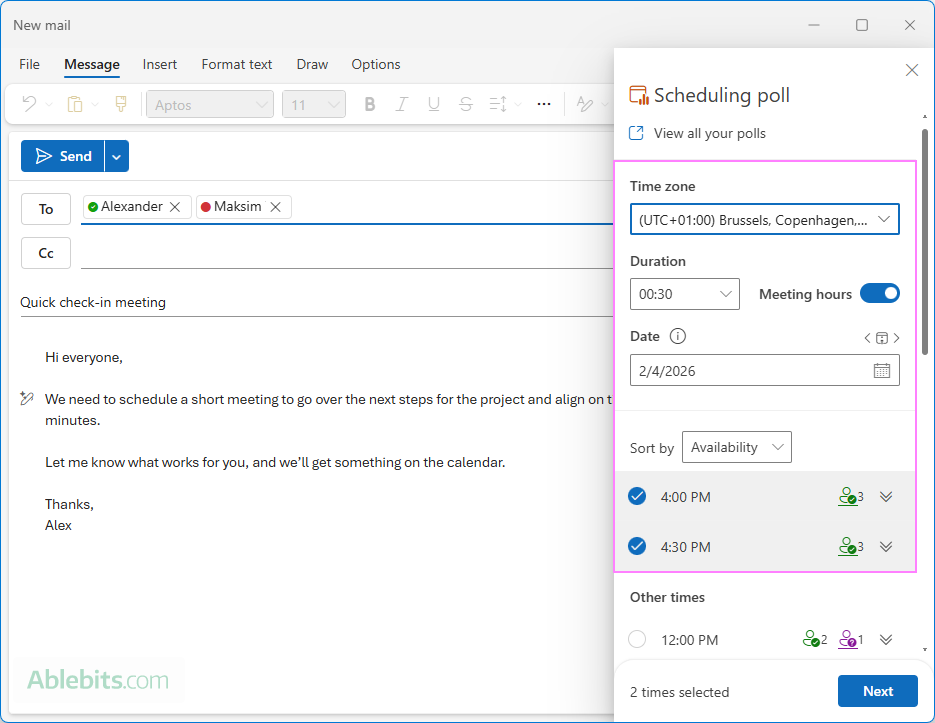
In the Scheduling Poll pane, you can set up and refine your time options:
- Time zone – use the dropdown menu to change the meeting's time zone if needed.
- Meeting duration – choose how long the meeting should be.
- Pick dates – use the date picker to view availability on different days. You can add time options from multiple dates to the same poll.
- Select times – Outlook reviews attendees' calendars (when available) and suggests suitable meeting times. By default, times are sorted by availability, but you can switch to chronological order if you prefer.
- Meeting hours – Turn on this toggle to limit suggestions to workdays and working hours only.
After selecting one or more meeting times, the Next button becomes available. Click it to continue.
Step 5: Adjust scheduling poll settings
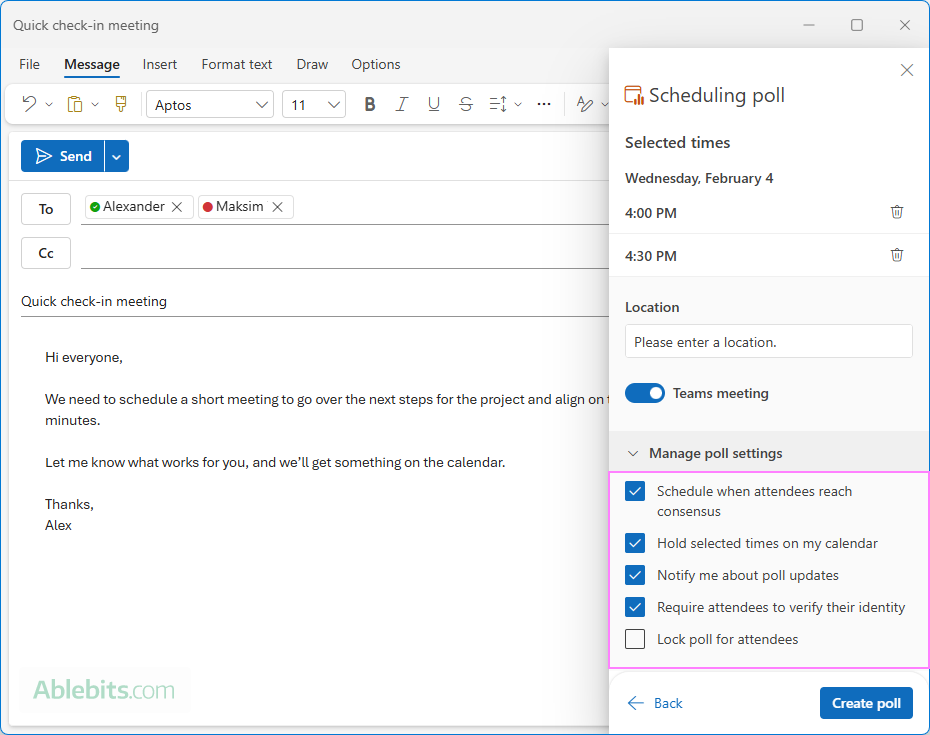
Before sending out the poll, you can fine-tune how it behaves:
- Schedule when attendees reach consensus. A meeting is automatically scheduled once all required attendees vote for the same time. If multiple options were selected, the earliest one is used.
- Hold selected times on my calendar. Holds are placed on Microsoft 365 users' calendars for all proposed time options. These are removed once the meeting is scheduled or the poll is canceled.
- Notify me about poll updates. An email notification is sent to the organizer whenever someone votes, informing about the current poll status.
- Require attendees to verify their identity. Helps prevent anonymous voting by requiring attendees to sign in.
- Lock poll for attendees. Prevents attendees from suggesting new times or modifying others' responses.
In this step, you can also:
- Remove selected times using the Delete (trash bin) button.
- Add a meeting location.
- Enable or disable online meetings. Generally, Microsoft Teams meeting is turned on by default, but the provider may vary based on your organization's settings.
Step 6: Add the poll to an Outlook email
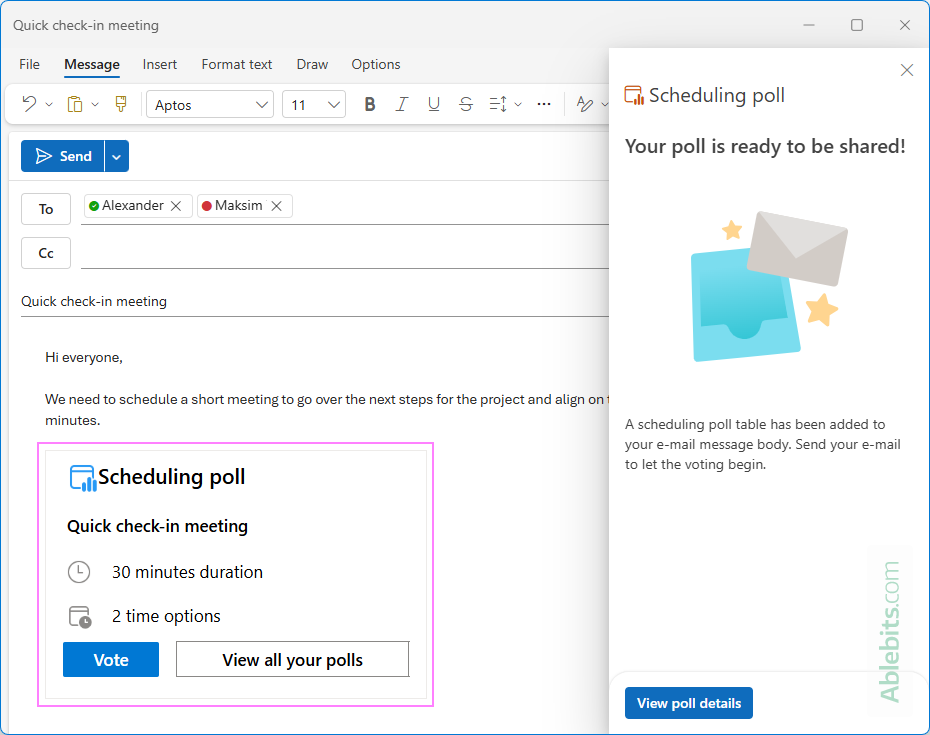
Click the Create poll button to insert the scheduling poll into your message.
- The poll is added at the current cursor position in the email body.
- If you started from a calendar event, Outlook creates a new email automatically.
The poll includes two buttons:
- Vote – opens the voting page in Outlook on the web.
- View all your polls – shows all scheduling polls you've created so far.
Step 7: Send the poll
Add a short message explaining the purpose of the meeting, then click Send.
Tip. For best results, offer a small number of well-spaced time options and clearly mention when you'd like attendees to respond.
How to send scheduling poll from calendar invite in new Outlook and web
While creating and sending a scheduling poll from an email works the same way across all Outlook versions (Outlook 365, new app, and web), the new Outlook calendar provides its own, built-in approach.
- In the new Outlook app or Outlook online, create a new calendar event or open an existing one.
- Add the required and optional attendees.
- Select Scheduling poll next to the Date and time field.
- Within the expanded field area, set up the scheduling poll:
- Review automatically suggested time options based on attendees' availability.
- Click + Add new option to include additional time slots. Then, pick a date and select times, including time options from different days if needed.
- Set a date and time when the poll ends.
- Send the calendar invite as usual to share the poll with all attendees.
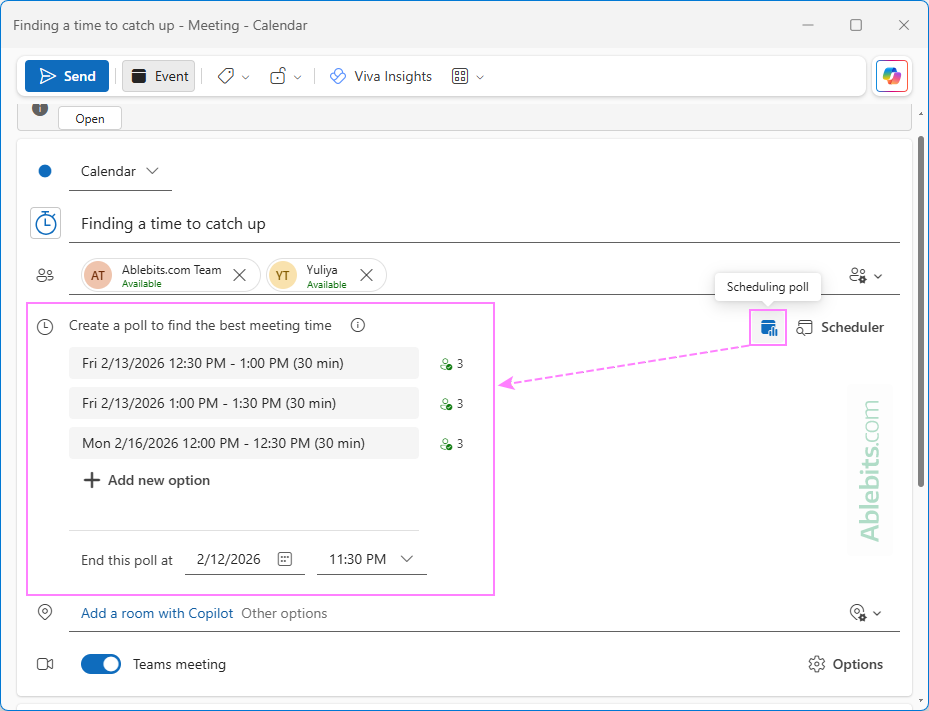
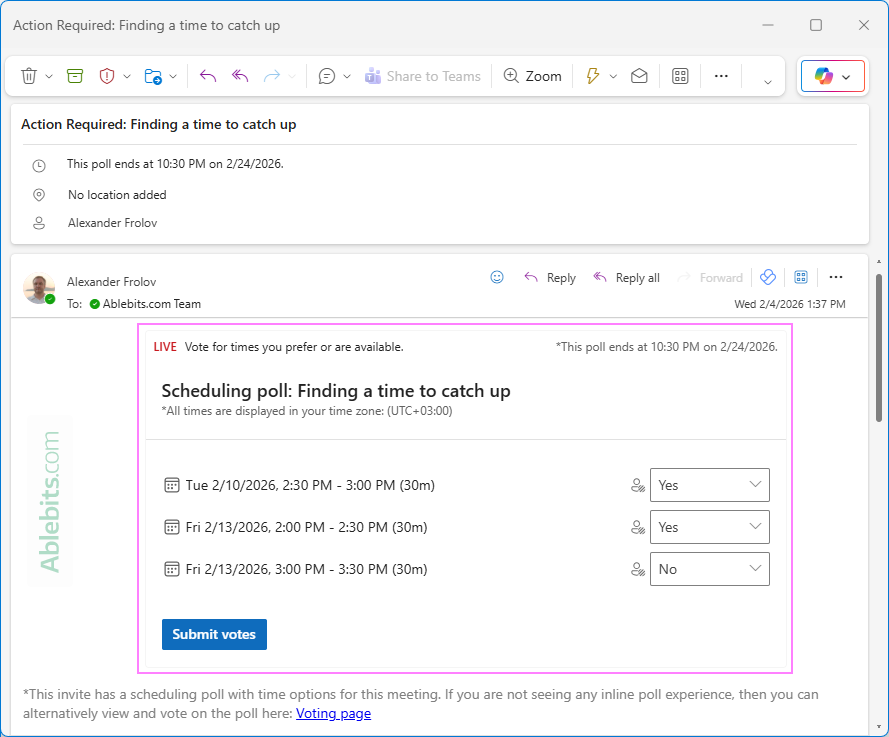
You (as the organizer) and all attendees will receive a meeting invite with the embedded scheduling poll. Attendees can vote directly from the invite in their desktop Outlook or open the voting page in Outlook on the web.
How Outlook Scheduling Poll determines availability
Outlook's Scheduling Poll uses your Microsoft 365 account settings and attendee calendar data to suggest meeting times. Understanding how this information is gathered can help you interpret the suggestions more confidently.
Time zone and working hours
The time zone used for the poll is taken from the organizer's Regional settings, but it can be changed by the organizer when setting up the poll.
Working hours are pulled from the organizer's calendar settings when available. If those aren't set, Outlook uses your Exchange working hours instead. If no custom settings are found, they default to 8 a.m. – 5 p.m.
Calendar access and availability
Scheduling Poll uses your Microsoft 365 account to check your calendar and the calendars of attendees within your organization. This allows Outlook to suggest meeting times based on real availability.
If you are inviting an external attendee, their availability appears as Unknown, since Outlook can't access that calendar data.
Understanding the people icons
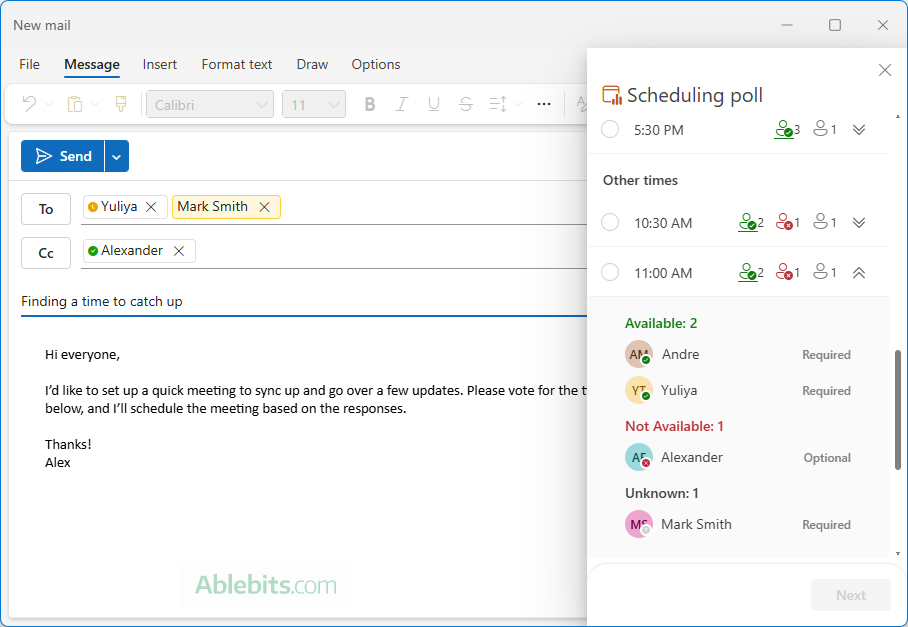
Each time suggestion includes people icons that visually indicate availability. Hovering over an icon shows whether a participant is required or optional and their availability status:
- Underlined – Organizer
- Green – Available
- Red – Busy
- Purple – Out of office
- Gray – Unknown
You can use the Expand/Collapse button to view a detailed list of participants for a specific time option, including their availability and whether they're marked as required or optional.
How recipients vote on Outlook scheduling poll
How recipients vote on an Outlook scheduling poll depends on where the organizer created it and whether the recipients are internal (Microsoft 365) or external.
Vote for scheduling poll in an email
If the scheduling poll is created and sent from an email (regardless of whether you use classic Outlook, new app or web), all recipients receive a similar message. The email includes basic meeting details, such as the meeting duration and the number of proposed time options. The embedded Vote button opens the voting form in the recipient's default web browser at outlook.office.com, where they can select the times that work for them and submit their response.
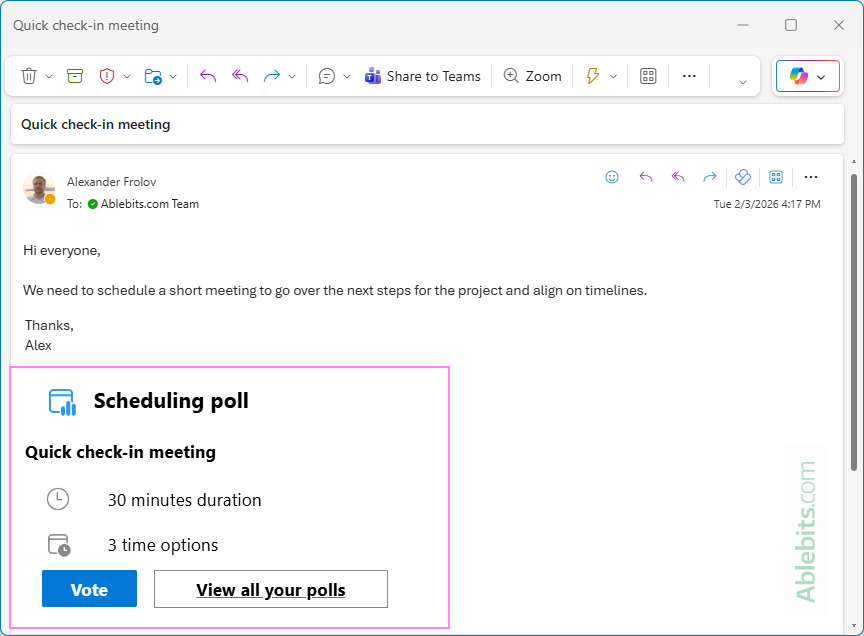
This experience is the same for both internal and external recipients.
Vote for scheduling poll in a calendar invite (new Outlook and web)
If the scheduling poll is created directly from a calendar event in the new Outlook or Outlook online, the voting experience differs:
- Microsoft 365 recipients. The poll is embedded into the invite as an interactive message. Attendees can select their preferred times and submit their vote without leaving Outlook.
- External recipients. External attendees receive a meeting invite that includes a link to the voting page instead of an embedded poll. The link opens the voting form in a web browser.
How to view poll results and schedule the meeting
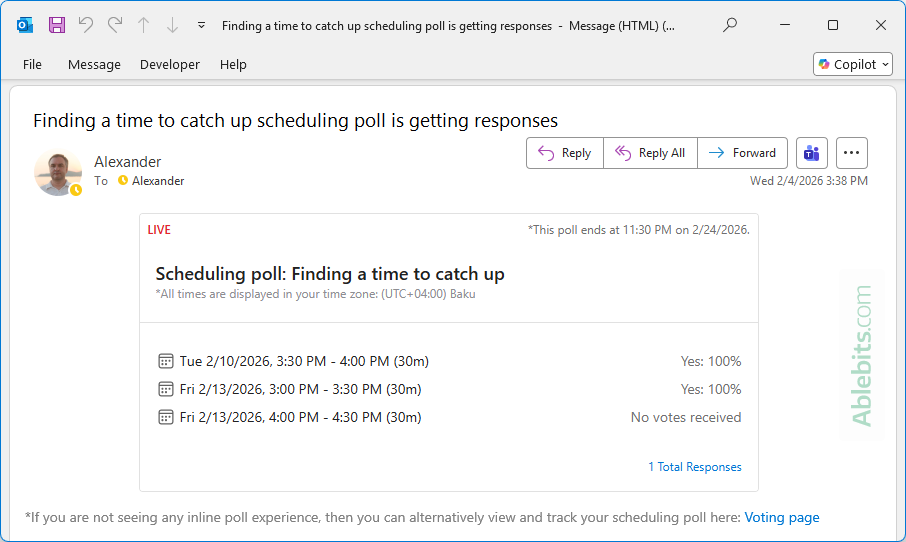
Once attendees start voting, Outlook keeps you informed by sending separate email notifications with the current poll results, so you can quickly see which time options are gaining the most support.
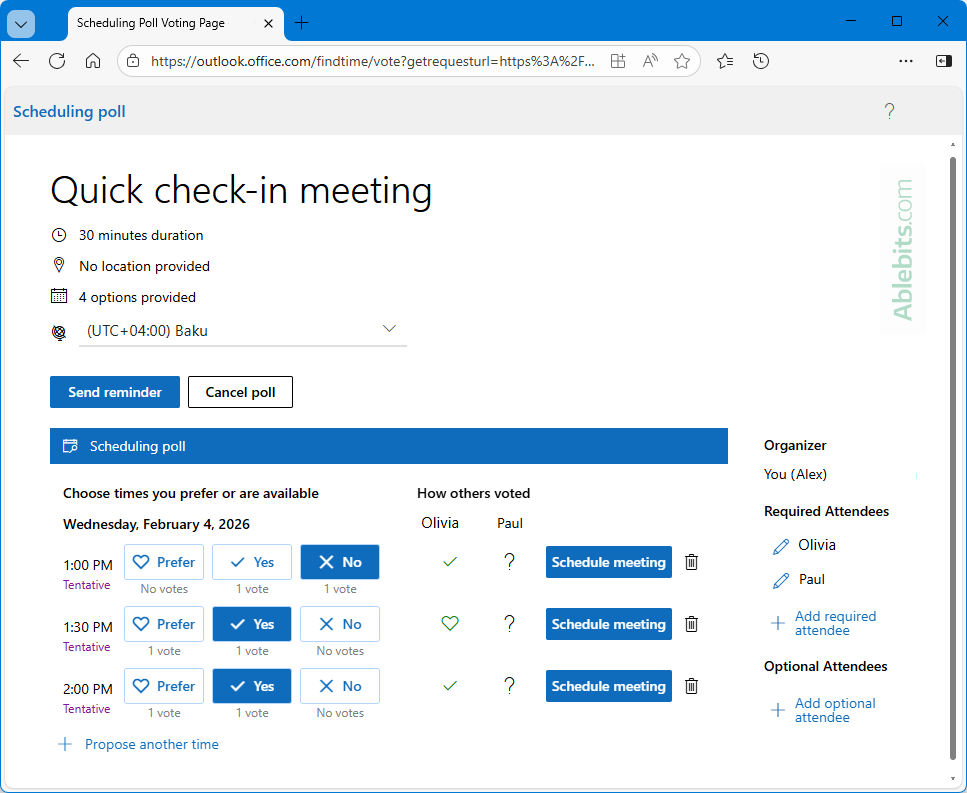
You can also open the full voting details at any time. For this, click the Vote button or the Voting page link from the original email or any follow-up message, whichever is available. This opens the Scheduling Poll Voting Page in your web browser, where you can view detailed responses for each time option.
From the voting page, you can schedule the meeting by clicking the Scheduling button next to your preferred time option or the one that received the most votes.
If you enabled the Schedule when attendees reach consensus option in the poll settings, Outlook automatically schedules the meeting as soon as all required attendees agree on the same time.
If you can't find any email related to a particular poll, you can open the Scheduling Poll Dashboard in your browser. It shows a list of all scheduling polls you've created and lets you check the current results or schedule a meeting from any active poll.
Outlook scheduling poll for multiple days
You can include time options for multiple days in a single scheduling poll. This is helpful when a meeting isn't urgent or when attendees have limited availability.
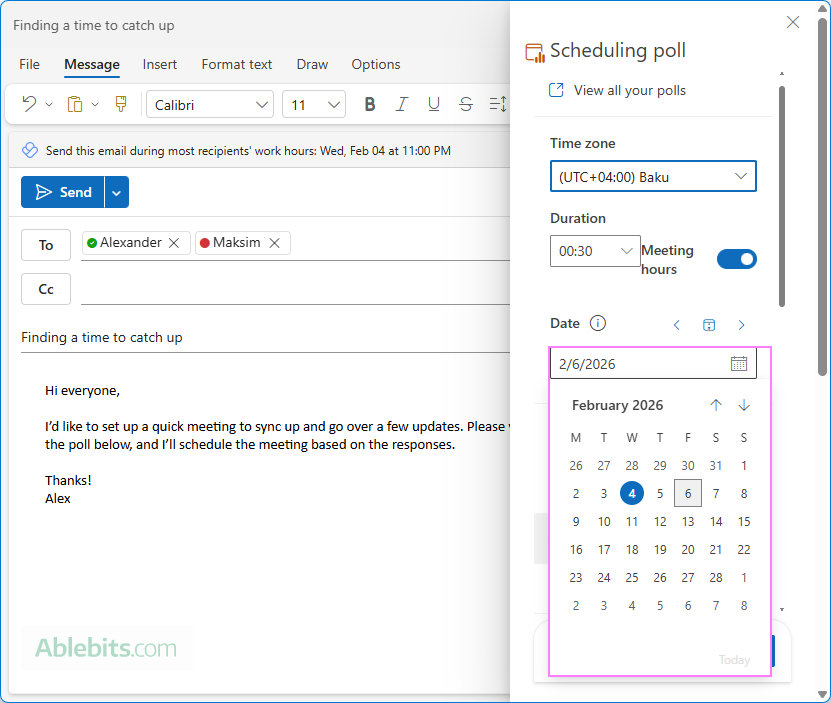
To add times from different days, use the date picker in the Scheduling Poll pane to choose a date, then select one or more suggested time slots. You can switch to another date and repeat the process.
All selected times will be combined into the same poll, allowing attendees to vote for any option that fits their schedule.
Outlook scheduling poll for external users
Outlook lets you include external users in a scheduling poll, but the experience is slightly different from that of internal Microsoft 365 participants.
When external recipients are invited, they often receive an email that includes a link to the voting page rather than an embedded poll.
Because Outlook cannot access calendars of external users, it can't determine their availability. As a result, their status appears as Unknown to the organizer when viewing suggested time options.
Tip. When your meeting includes external attendees, consider offering a few extra times to improve the chances of finding a slot that everyone can attend.
In conclusion, finding a meeting time that suits everyone can be surprisingly hard. Scheduling Poll makes it a lot less painful by letting attendees vote instead of replying with "Maybe" or "I can do that time, but only if it ends early". Just try it, and you will spend less time negotiating calendars and more time actually meeting 😊