 by
by This article provides a detailed overview of how to schedule and manage meetings in Outlook. It covers everything from sending an invite to updating, canceling, and tracking attendance in both the classic and new Outlook app.
Bringing people together for a discussion is much easier when everyone receives the essential details right from the start. Outlook provides all the tools you need to set up appointments, add participants, and track responses.
This guide walks you through the process step-by-step:
How to schedule a meeting in Outlook 365 - 2016
If you are using the classic desktop version of Outlook on Windows, you can set up a meeting request and send a calendar invite by following these steps.
Step 1. Create a meeting in Outlook
There are several ways to start a new meeting request:
- From any mail folder: On the Home tab, click New Items > Meeting.
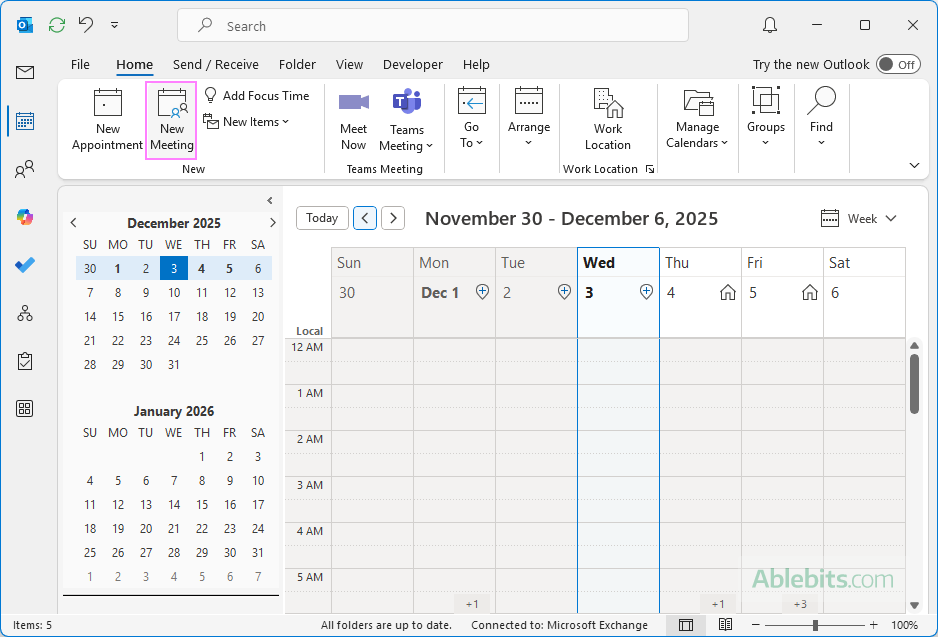
- From the calendar: Click New Meeting on the Home tab.
- Using a keyboard shortcut: Press Ctrl + Shift + Q keys together.
Step 2. Add detail and schedule a meeting
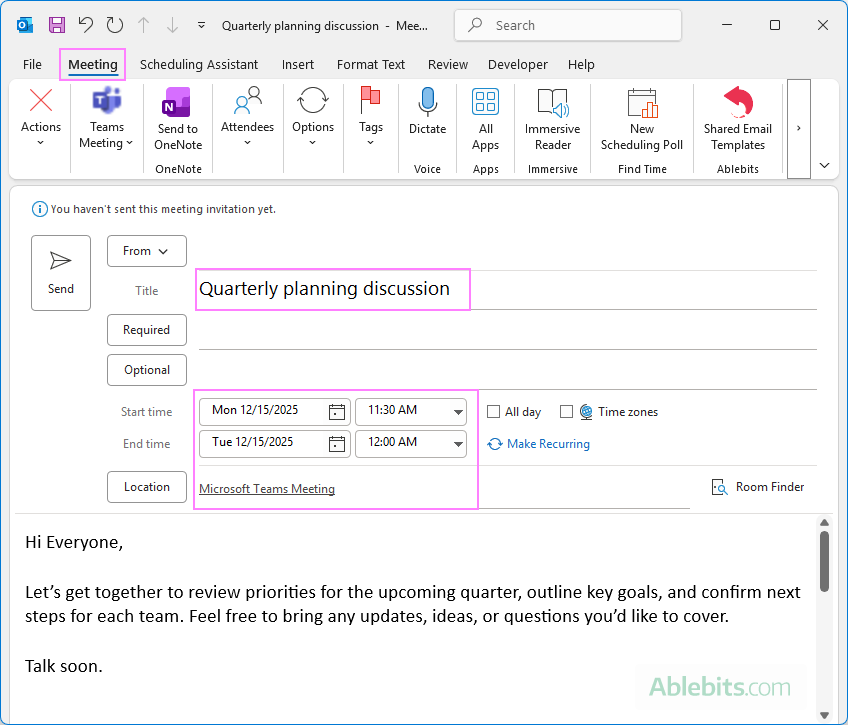
In the meeting window, fill out the key fields:
- Title: Enter a short descriptive title.
- Schedule: Set the start and end time on a certain date.
- Location: Choose where the meeting will take place.
- For an online event, choose Teams Meeting (or third-party add-in if available) to insert the join link.
- For an in-person meeting, type the room or physical address.
- Attachments (optional):
- To attach a file from your computer, go to the Insert tab > Attach File and choose the file.
- To attach an email, click the Insert tab > Outlook Item and pick the message or another item you want to include.
- Agenda: In the meeting body, type your agenda, talking points, or any notes you want attendees to see beforehand.
Step 3. Add attendees
You can add participants in either of these ways:
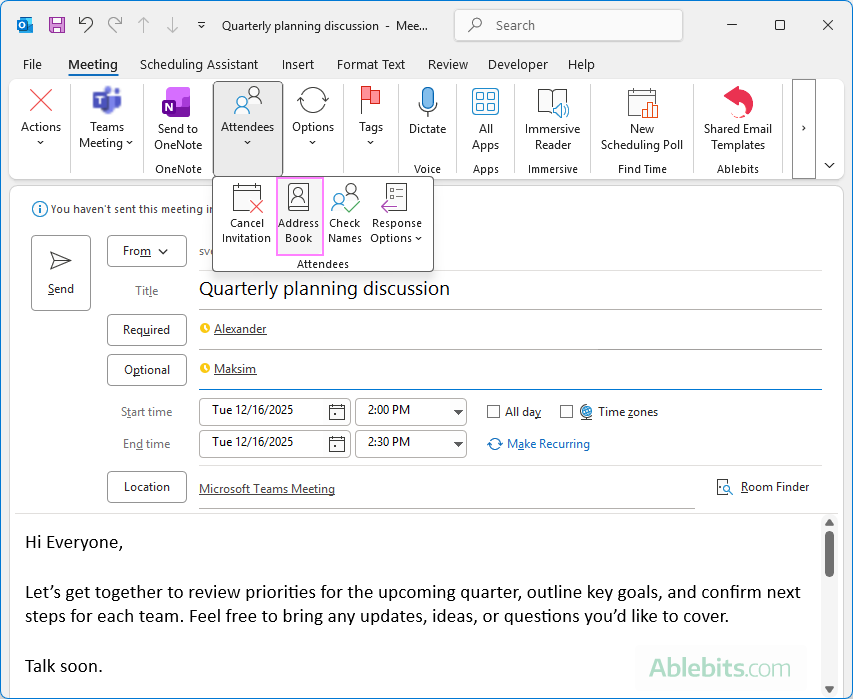
- Type names directly to the Required and Optional boxes. Outlook will suggest names as you type, based on your contacts and recent emails.
- On the Meeting tab, in the Attendees group, click the Add Attendees button on the ribbon to open your address book. Choose a name from the list, then click the Required or Optional button to add it to the appropriate field.
Step 4. Prevent scheduling conflicts
If you are using a Microsoft 365 or Exchange account, the Scheduling Assistant can help you check everyone's availability:
- In the open meeting request, switch to the Scheduling Assistant tab.
- The timeline grid shows each attendee's free and busy times, allowing you to adjust the timing when all required participants are available.
You can also add people directly from this view. On the left side, under All Attendees, click in the Add required attendee or Add optional attendee box and begin typing a name or email address. Outlook will display matches you can choose from to add them to the meeting right away.

Tip. For group meetings, try creating a scheduling poll. Instead of guessing availability, offer a few time options and let attendees vote, helping you choose a time that avoids conflicts and works for most participants.
Step 5. Send the meeting invite
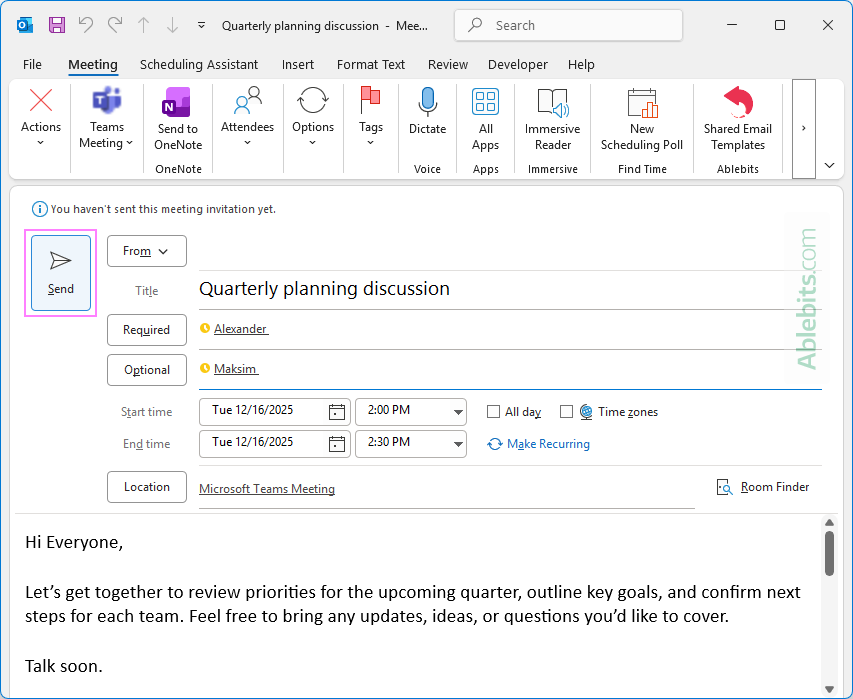
Once everything looks right, click Send. Outlook will send the invitation to all participants and add the meeting to your calendar.
Tips
- Save a meeting draft. To save a draft of your invite without sending it, use the standard save shortcut Ctrl + S.
- Make an appointment. To set up a calendar event just for yourself without inviting others, create an appointment instead.
- Meeting add-ins. If you have third-party add-ins installed (for example, Google's GoTo or similar tools), you'll usually see them on the ribbon when scheduling an event in Outlook and can use to insert a join link.
- Room Finder. With a Microsoft Exchange or Microsoft 365 account, you can use Room Finder to check room availability and reserve a suitable room.
How to send a calendar invite in new Outlook and web
Creating a meeting request and sending an invite in the new Outlook app and Outlook on the web follows almost the same steps as in the classic desktop application:
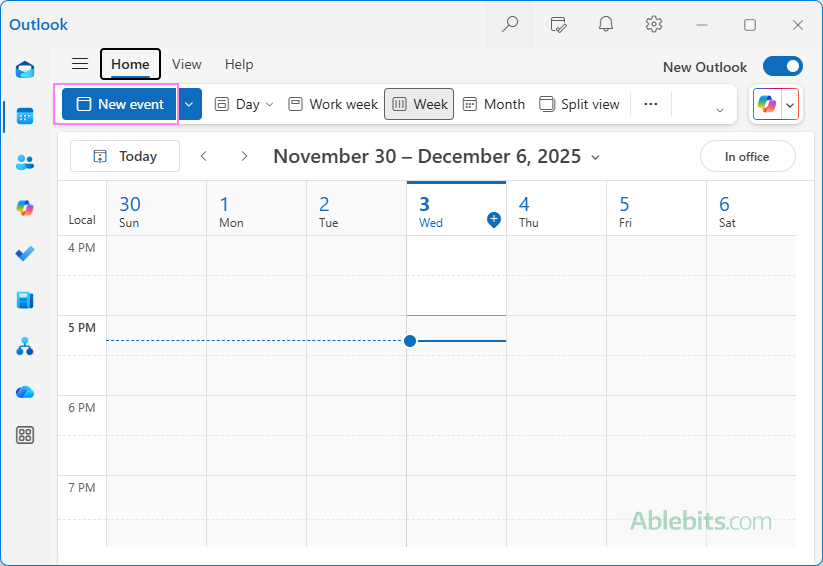
- Create a new calendar event. Go to your calendar and click New Event in the upper-left corner of the Home ribbon. Or use the keyboard shortcut Ctrl + N to open a new event window.
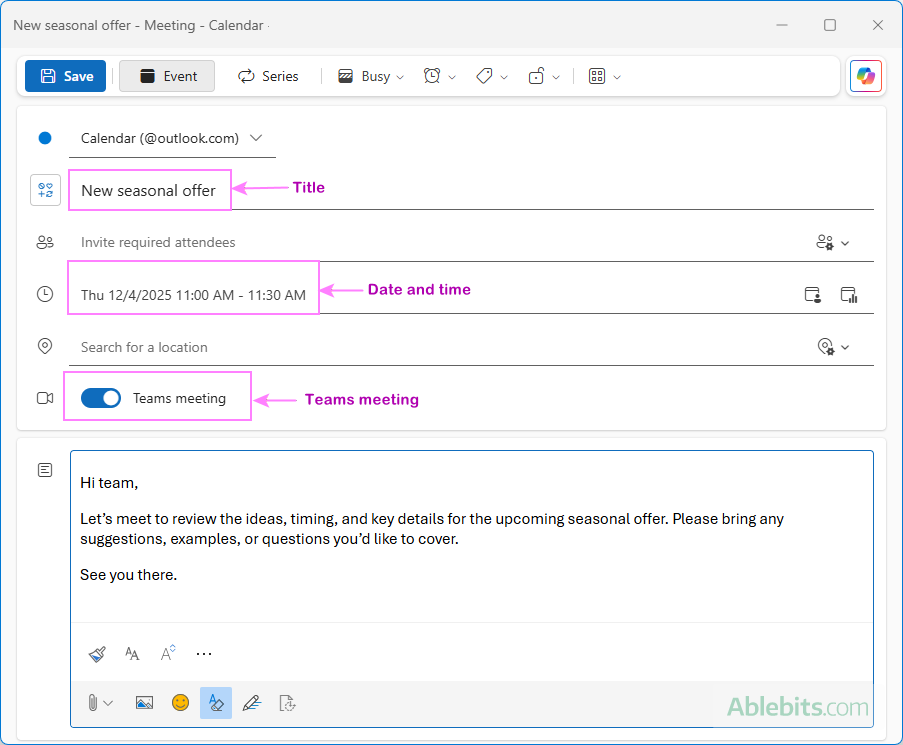
- Schedule and enter details. In the meeting window, fill in the main information:
- Title – enter an event name.
- Date and time – set the start and end time.
- Location – specify where the event will take place (online or in person).
- Add an online meeting link. If you are planning a virtual event, turn on Teams meeting. The join link will be inserted automatically in the invite.
In the large text box below, type your agenda, notes, or any details you want participants to review beforehand.
- Add attendees. By default, a new Outlook meeting has a single line for required attendees. Start typing a name or email address, and Outlook will suggest people from your contacts and recent conversations.
To add optional attendees, open the Response options dropdown on the right and choose Add optional attendees. An additional field will appear beneath the Required attendees line, where you can type the names of optional participants.
The Response options menu also gives you control over how attendees interact with your meeting request: request responses, allow forwarding, and hide attendee list.

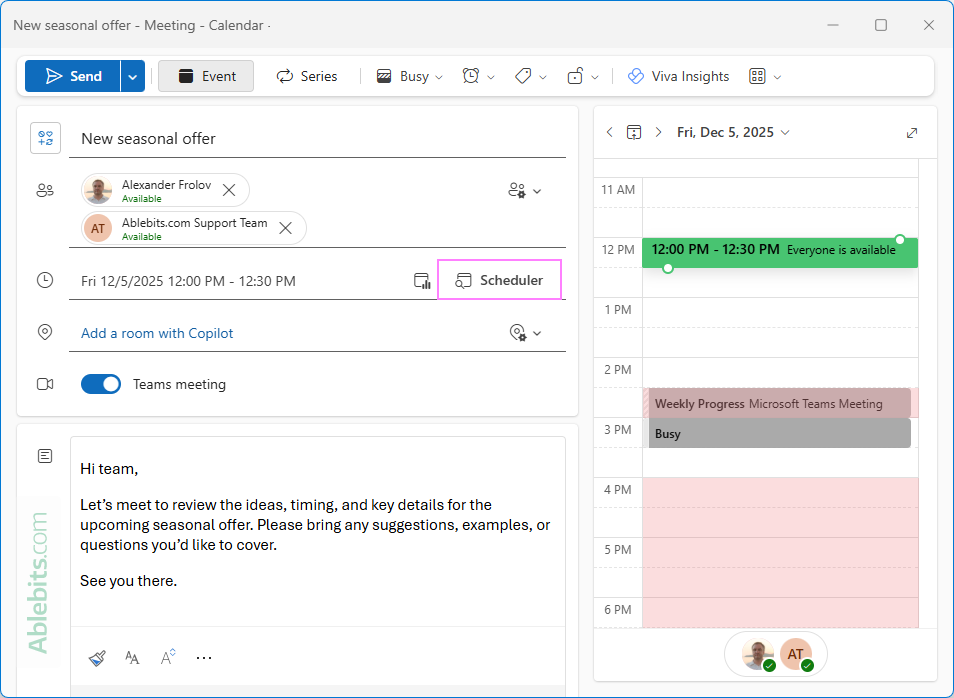
- Check attendee availability. For a Microsoft 365 or an Exchange account, you can use Outlook's Scheduling Assistant to find a suitable time based on everyone's calendars.
- Usually, the assistant opens automatically in its own pane on the right side.
- To switch to full view, click the double-pointing arrow in the upper right corner of the assistant pane, or click Scheduler to the right of the data and time.
Adjust the meeting time on the grid until you see a slot that suits all attendees.
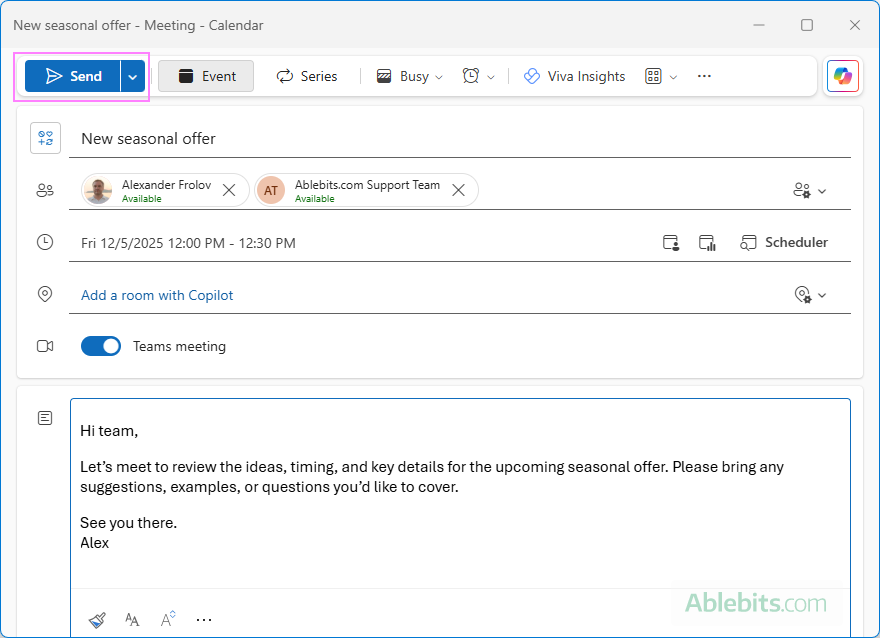
- Send the calendar invite. When the details look correct and the time is set, click the Send button. Your meeting request is emailed to all attendees and added to your calendar. When people accept, the event appears on their calendars as well.
Tip. If you organize Outlook meetings often, shared meeting templates will help your whole team send clear, well-structured invites. You can prefill all main fields (such as the title, location, and attendees) and add editable dropdowns or text fields for custom input whenever needed. For more information, see how to create a fillable meeting template for Outlook.
How to create meeting from email in Outlook
Sometimes an email thread naturally turns into a conversation that's easier to finish in a meeting. Outlook includes a built-in Reply with Meeting option that lets you create a calendar from an email without re-typing the details.
Create a meeting invite from an email in Outlook 365 – 2016
From an existing message, you can create a meeting request in several ways:
- With the email selected, go to the Home tab and, in the Respond group, click Reply with Meeting.
- In the message window or the Reading Pane, click the three dots (…) in the upper-right corner and choose Meeting.
- Or press Ctrl + Alt + R to instantly create a meeting request from the currently selected email.
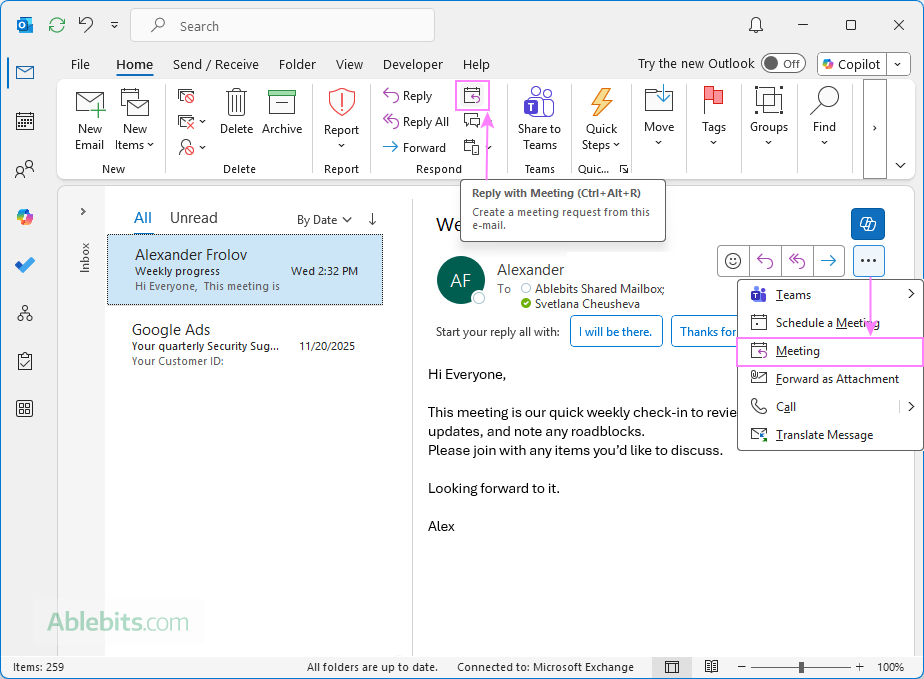
Outlook opens a new meeting window with the prefilled title, participants, and message content, so you can adjust the details and send the invite.
Reply with meeting in new Outlook and web
If you are using the new Outlook app or Outlook on the web, the steps are slightly different but just as quick:
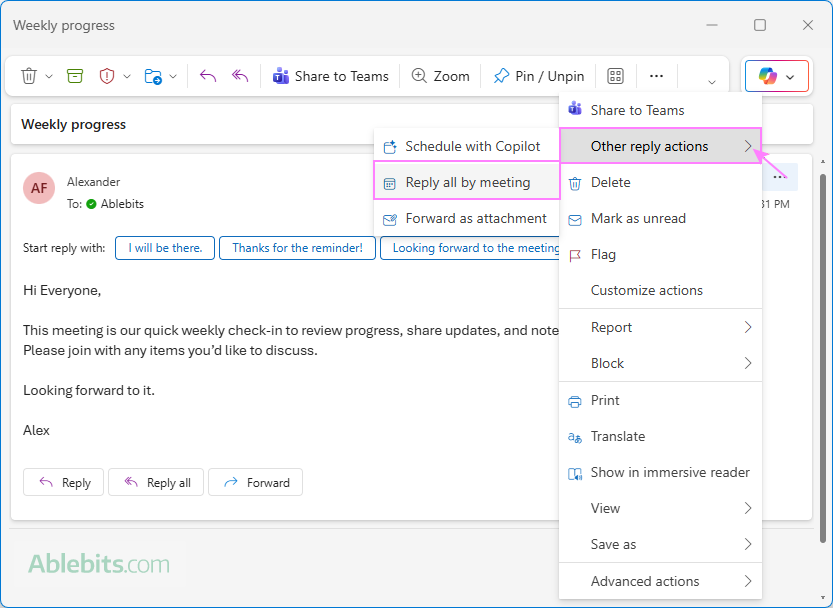
- Open the email in a separate window or select to view it in the Preview pane.
- Click the three dots (…) in the upper-right corner.
- Choose Other reply actions > Reply all by meeting.
How to make a recurring meeting in Outlook
A recurring meeting is an event that repeats on a regular schedule – daily, weekly, monthly, or at custom intervals. Instead of creating each occurrence manually, you set up the pattern, and Outlook adds all future events to your calendar at once.
Set up recurring meetings in Outlook 365 – 2016
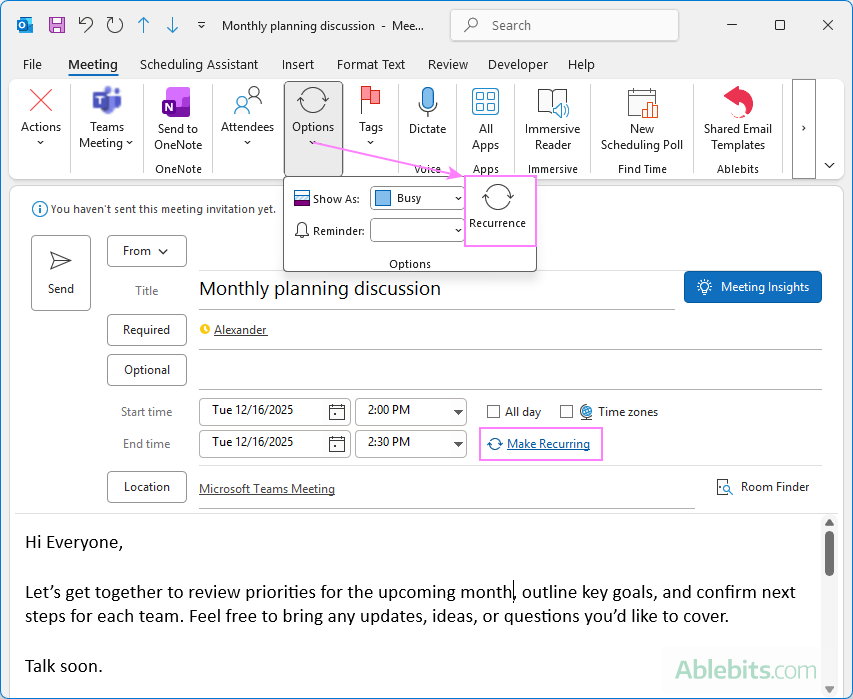
Start by creating a meeting request as explained earlier. To turn it into a recurring meeting, use any of the following options:
- On the Meeting tab, in the Options group, click Recurrence.
- Choose Make recurring next to the End time field.
- Use the Ctrl + G shortcut that opens the recurrence settings window.
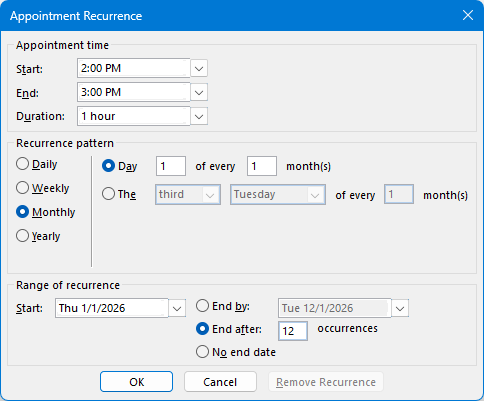
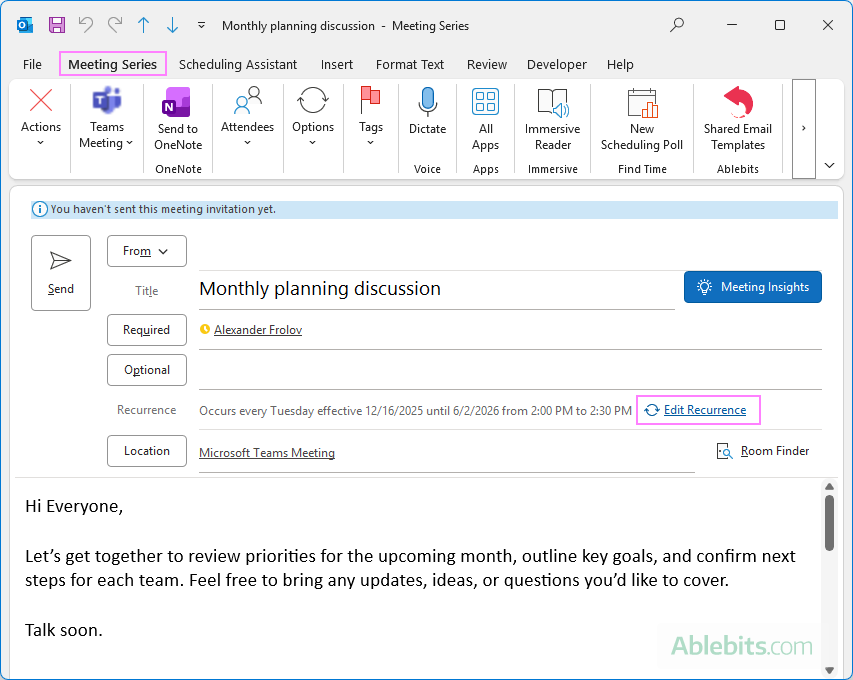
In the Appointment Recurrence window that appears, adjust the start and end times, choose how often the meeting should occur, set the recurrence range, and then click OK.
After you apply a recurrence pattern, Outlook makes the following changes:
- The Meeting tab becomes Meeting Series, since you are now editing the entire set of events.
- The separate Start time and End time boxes are replaced with a single Recurrence line summarizing the schedule.
- The Make recurring button changes to Edit recurrence, which you can use anytime to modify the pattern.
Once everything is set, click Send to add the series to your calendar and send the invites to participants.
Schedule recurring meetings in new Outlook and web
In the new Outlook and Outlook online, scheduling a recurring calendar event is a bit different but still straightforward.
First, create a single calendar event as usual. Then, follow these steps:
- Click the date and time field marked with the clock icon.
- In the full scheduling window that opens, click Recurring.
- Set up the recurrence interval for the event.
- When your recurrence schedule is fully configured, click Send to place the series on your calendar and notify the attendees.
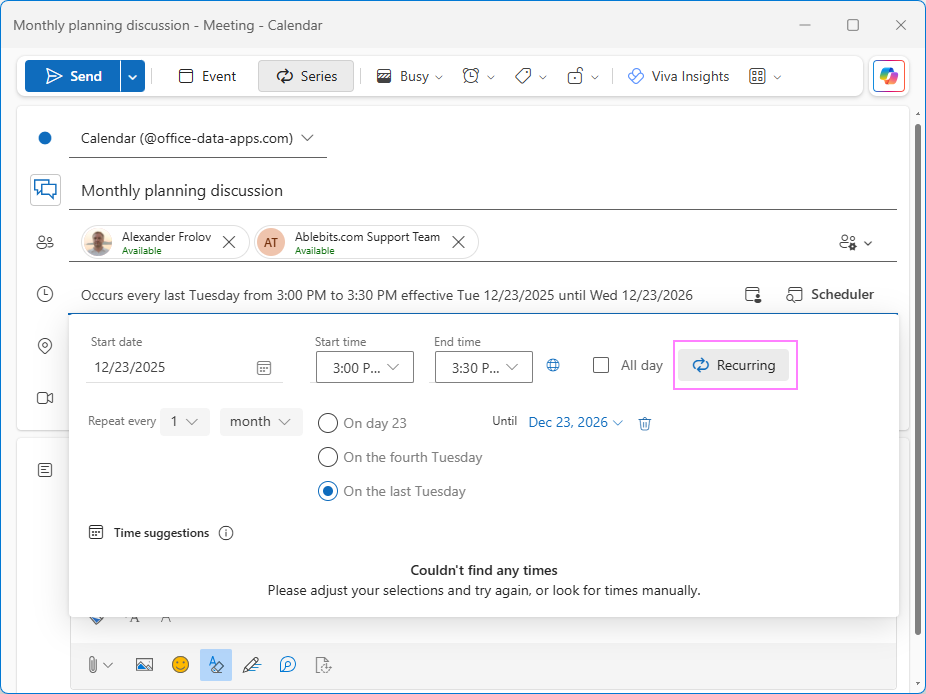
Tip. To quickly create a recurring meeting that occurs every week at the time you set, you can use the Series button on the ribbon while creating the event. The event becomes weekly by default, and you can refine the schedule later using the recurrence options.
How to add or remove participants from an existing Outlook meeting
There may be times when you need to adjust the attendee list after a meeting has already been scheduled. Only the event organizer and the co-organizer (if one is assigned) can add new participants or remove existing ones.
To update the attendee list:
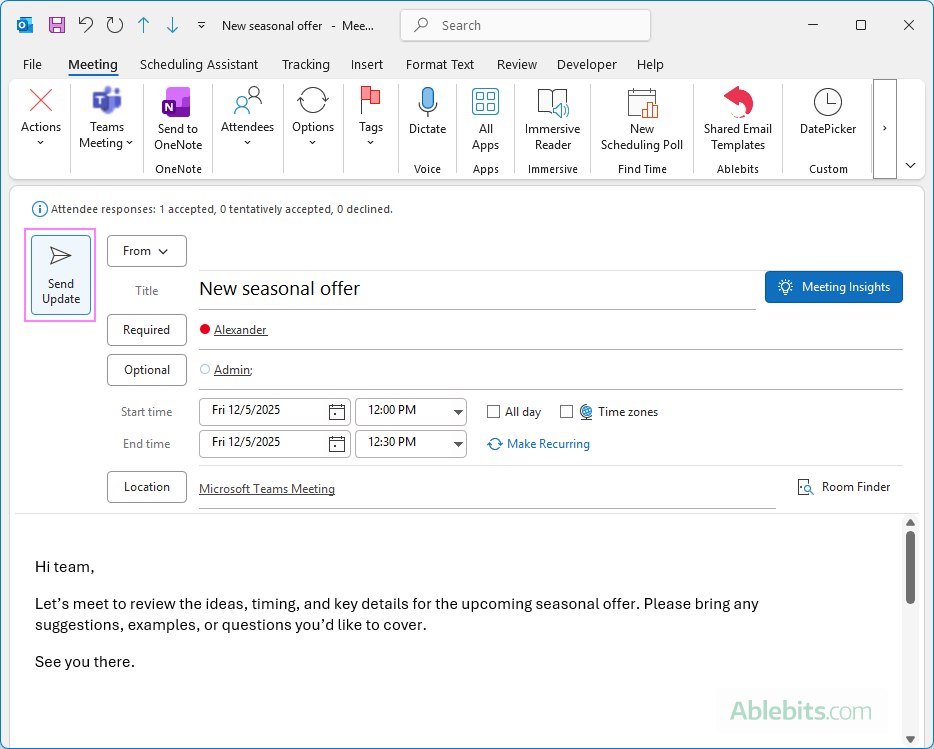
- In your calendar, double-click the meeting to open it.
- Add names to the Required and/or Optional fields or remove people you no longer want included.
- Click Send Update to notify attendees of the change.
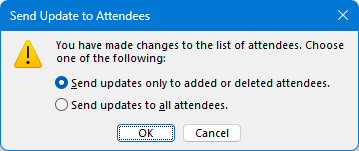
- Choose one of the update options:
- Only added or deleted attendees – sends the update only to those who were changed.
- All attendees – sends the updated information to everyone on the list.
The steps are the same in all Outlook versions, including Microsoft 365, the new Outlook app, and web, with only minor visual differences in the interface.
Tip. If you aren't the organizer, you can't change the attendee list directly. However, if the owner has allowed forwarding, you can re-send the meeting invite to someone else as explained below.
Edit an Outlook calendar invite (change time, location, etc.)
You can make changes to an Outlook meeting at any time and notify participants of the updates. Here is how:
- Open the meeting. In your Outlook Calendar, double-click the event you want to edit.
- Make your changes. Change any part of the meeting: the title, location, date and time, agenda, or attendee list.
- Send the update. When you are finished, click Send Update for the participants to receive the revised details.
Edit a calendar invite without sending update (classic Outlook)
Classic Outlook gives you the option to save changes privately for your own reference without notifying anyone. For this, just use the Ctrl + S shortcut.
If you try to close the edited meeting without saving, Outlook will prompt you to choose how to proceed:
- Save changes and send update
- Save changes but don't send update
- Don't save changes
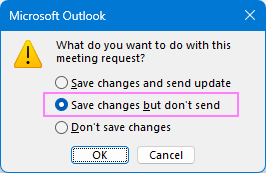
Note. In the new Outlook and the web version, there is no option to save changes without sending an update. Any edit you make must be sent to participants, which seems logical as it ensures every person receives the same up-to-date details.
How to forward a meeting invite in Outlook
Forwarding a calendar invite can be helpful when someone else needs to see the details or should participate.
Here's how to forward an Outlook meeting invitation:
- From your Outlook calendar, open the event you want to share.
- Forward the invite using any of these options:
- Press Ctrl + F to open a forwardable meeting request.
- Classic Outlook: On the Meeting tab, in the Respond group, select Respond > Forward.
- New Outlook and Outlook on the web: Click Share > Forward this event on the ribbon.
- Add the recipients you want to forward the invite to, then click Send.
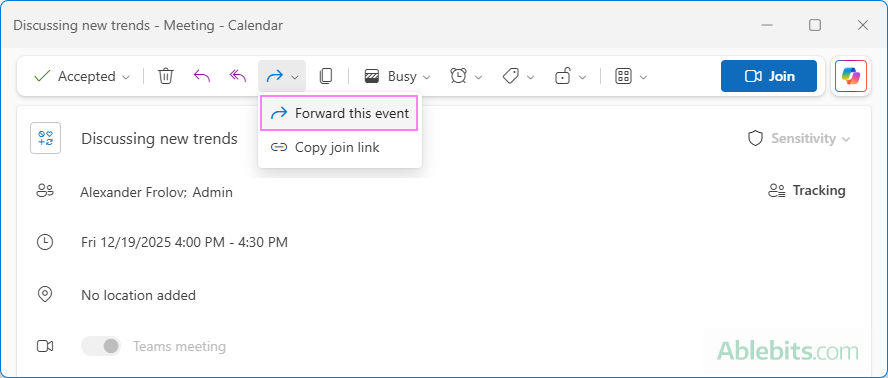
When you forward an invitation, the organizer receives a notification letting them know the event was shared with someone else. They can then choose whether to include that person on the official attendee list.
Note. Forwarding may be disallowed by the organizer. In this case, you won't be able to pass along the invite to others.
How to cancel a meeting in Outlook
If an event is no longer needed or plans have changed, you can cancel it directly from your Outlook calendar with just a few steps.
- In Outlook calendar, double-click the event you want to cancel to open it in a separate window.
- Click the Cancel button on the ribbon.
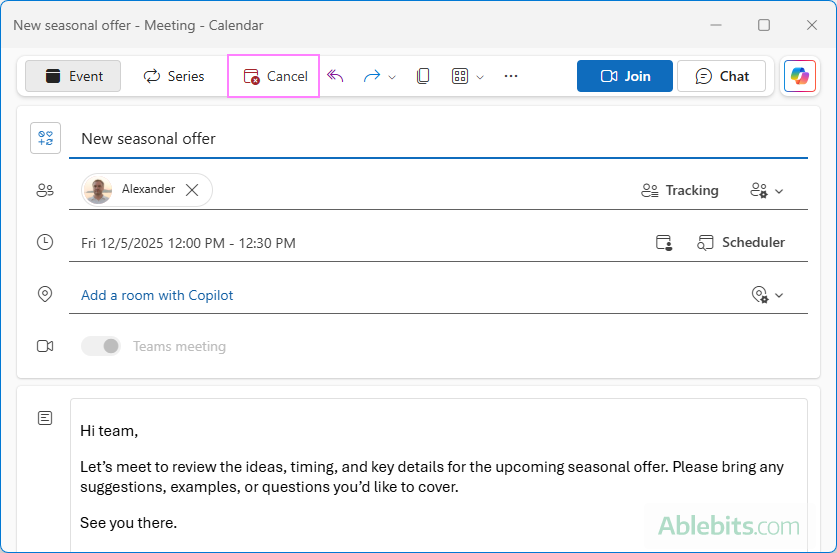
The next step varies depending on which Outlook version you're using:
- New Outlook and Outlook on the web: A message box appears where you can type a brief explanation (optional). When you're ready, click Send to notify attendees that the meeting has been canceled.
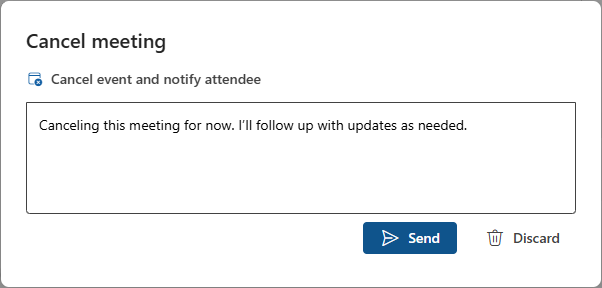
- Classic Outlook (365 – 2016): After you select Cancel Meeting on the ribbon, Outlook may not send the update right away. Instead, you'll see a Send Cancellation button. Click it to notify attendees and remove the event from their calendars.
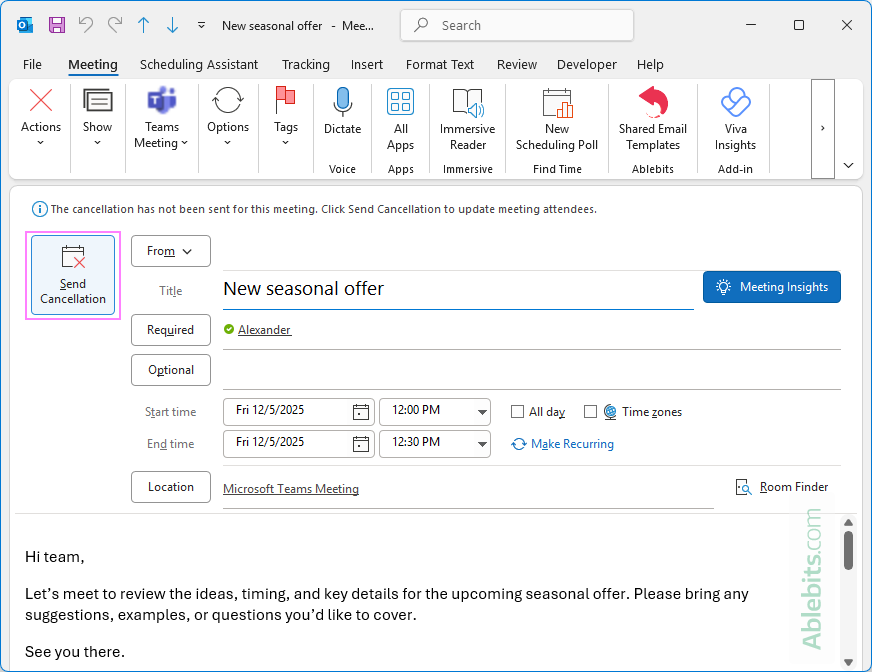
Tips and notes
- In the new Outlook and Outlook on the web, you can also cancel a meeting from the preview window when you select the event in the calendar without fully opening it.
- Only the organizer can recall the meeting. Attendees can decline the invite and remove it from their own calendars, but that does not cancel the event for the group.
How to respond to Outlook calendar invite (accept or decline)
When you receive a meeting invitation in Outlook, you can reply directly from the message. In the upper-right corner of the invite, choose one of the response options:
- Accept – confirms you will attend and adds the meeting to your calendar.
- Decline – removes the event from your calendar and lets the organizer know you won't be joining.
- Tentative – indicates you might attend but haven't fully committed.
If the scheduled time doesn't work for you, you can suggest a different one:
- Tentative and propose new time
- Decline and propose new time
These options send your availability to the organizer, so they can adjust the timing if needed.
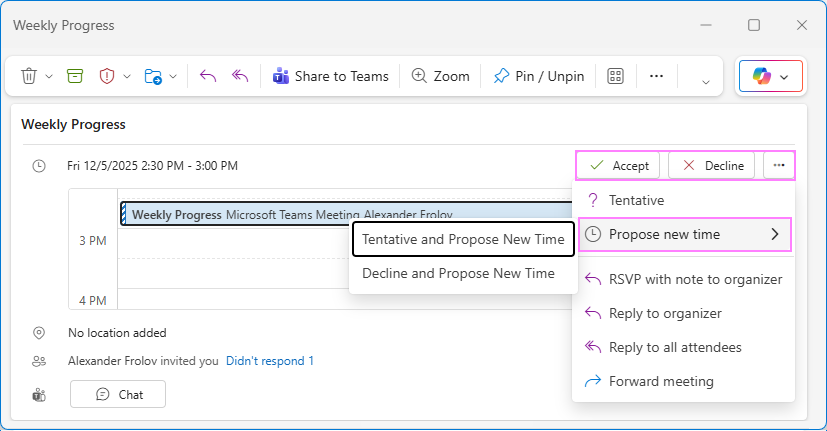
Once you have chosen any response, the invitation message is moved from your Inbox to the Deleted Items folder.
Tip. If you misplace the meeting email and can't find it in your inbox, you can still respond from your Outlook calendar. The event appears there even if you haven't accepted it yet, allowing you to open it and choose your reply.
How to change response to an Outlook invite
If your availability changes after you've already responded to a meeting request, you can update your reply so the organizer knows whether you can attend.
Change a meeting response after accepting
If you previously accepted or tentatively accepted the invite:
- Find the event in your calendar.
- Open it and choose a different response option.
This works in all Outlook versions: classic, the new app, and Outlook on the web.
Change a meeting response in Outlook after declining
If you declined the invite and later want to attend, you'll need to retrieve the original invitation:
- Go to your Deleted Items folder and locate the meeting request.
- If you're viewing it in the Reading Pane, select Accept or Tentative at the top of the invite.
- If you opened the message in a separate window, select the appropriate response option from the Respond group on the ribbon.
This will update your status and place the meeting back on your calendar.
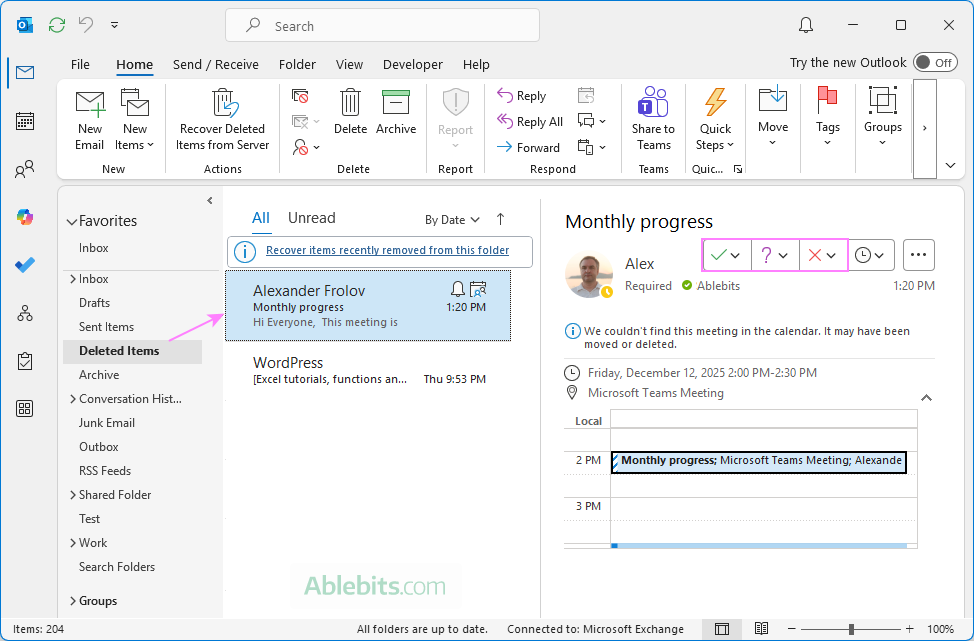
Note. This method works only in classic Outlook. In the new Outlook and web, you can change your response only for accepted or tentative meetings. Once an invite is declined, there is currently no option to change the response.
How to see who accepted a meeting in Outlook
After sending an invitation, you may want to check who plans to attend. To view attendee responses just open the meeting in your calendar. What you see varies by version:
Classic Outlook (365 – 2016) displays overall attendance information in a small bar at the top of the window, showing how many people have accepted, declined, or marked as tentative. Individual responses are not shown.
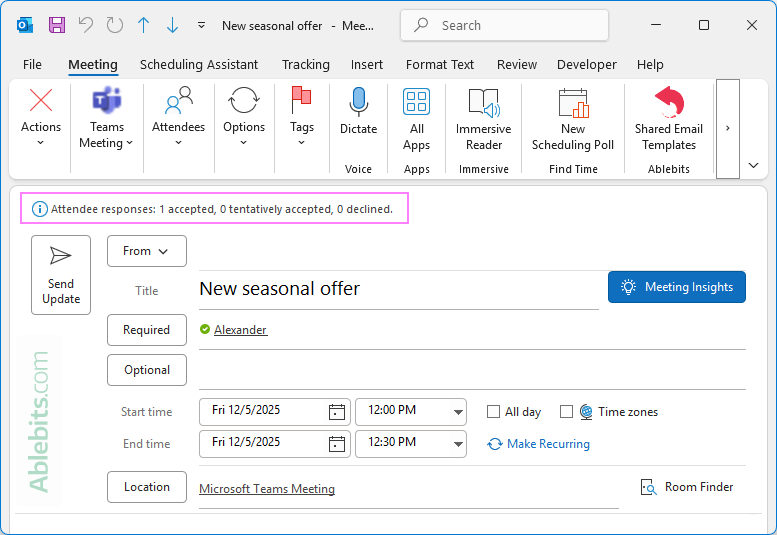
In the new Outlook and web, you can get a more detailed view. Open the meeting, and you'll see the response of each participant in the Tracking pane on the right side.
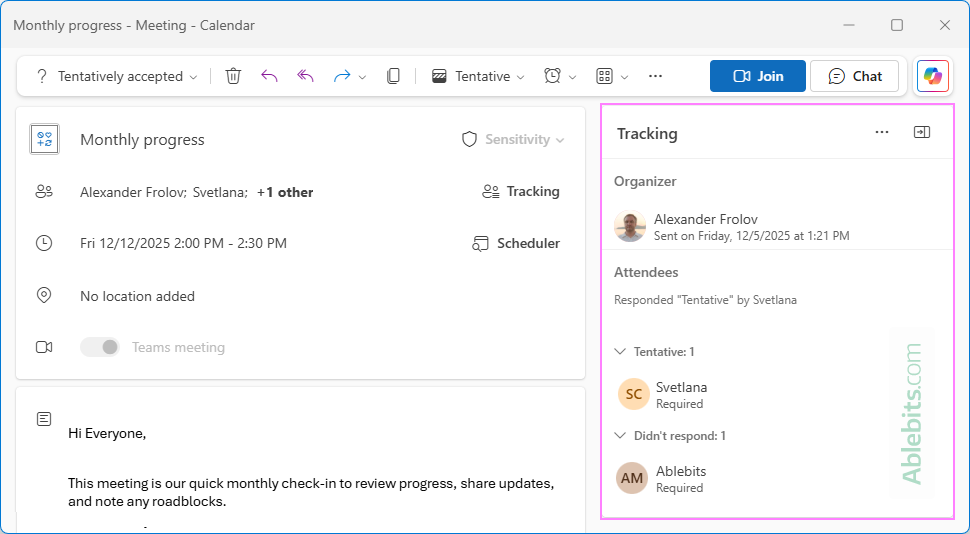
Tip. In the new Outlook and web, you don't even need to open the full event window. Select the event in your calendar, and the preview pop-up will show key details, including who has accepted the invite.
How to request response for Outlook meeting invite
Outlook is set to request responses from attendees by default, but you can always check or change this setting.
To require a response for a meeting invite in classic Outlook:
- Start creating a new request.
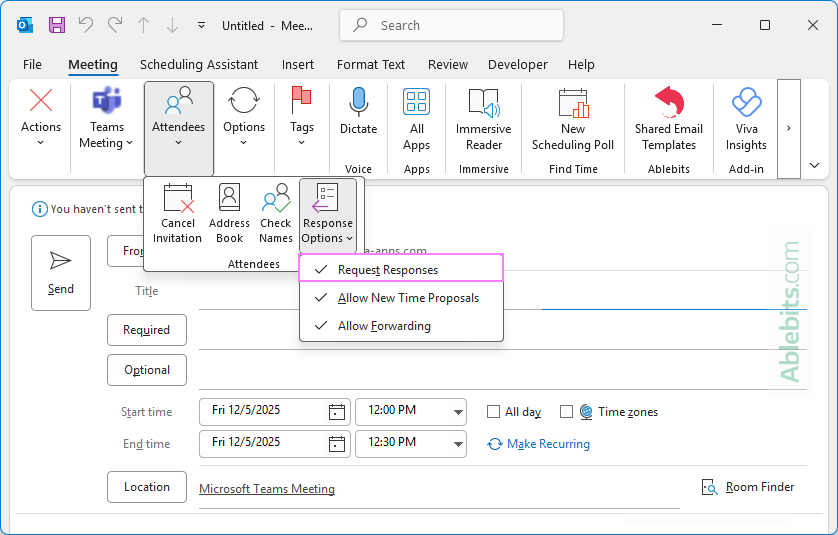
- On the Meeting tab, in the Attendees group, click Response Options.
- Make sure Request Responses is checked.
If you uncheck this option, attendees will still receive the invitation, but Outlook won't prompt them to send an accept/decline response.
To request a response to a calendar event in the new Outlook and web:
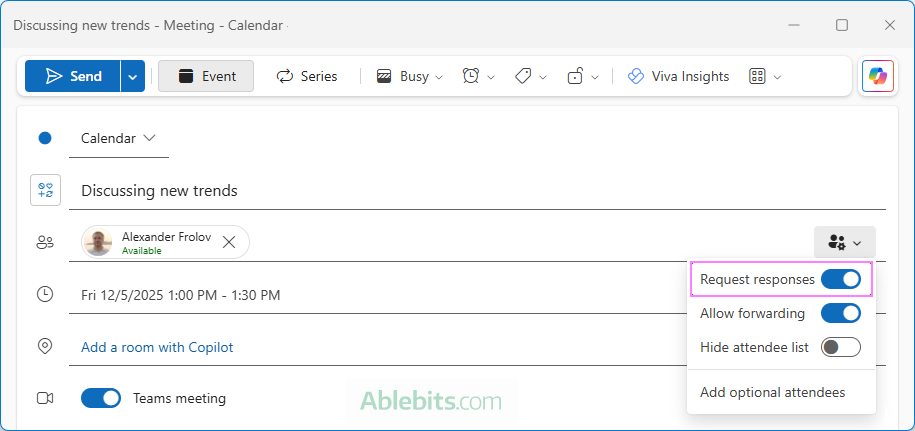
- In the calendar event window, select Response options on the right side of the attendee line.
- Make sure Request responses is turned on.
How to hide attendees in Outlook invite
The new Outlook app and Outlook on the web include a helpful privacy option that lets you hide the attendee list in a calendar invite. By default, this feature is turned off, but you can enable it in just a moment.
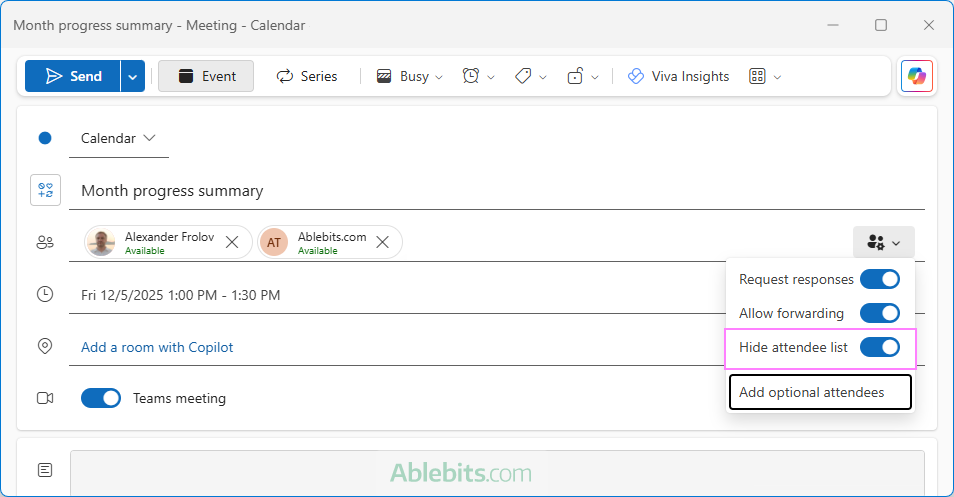
- When creating a meeting request, click Response options on the right side of the attendee line.
- Turn on Hide attendee list.
Once enabled, each person will only see their own name in the invitation. Other participants won't be visible, which can be useful for broadcast-style sessions or events where attendee privacy matters.
Note. This option is available only in the new Outlook and Outlook on the web. Classic Outlook does not include a setting to hide the attendee list.
As you've seen, Outlook offers plenty of ways to create and manage calendar invites. With these skills at hand, you can efficiently handle meetings of all kinds: one-off events, recurring sessions, reschedules, and last-minute changes. When you are ready to explore advanced features, our blog is always here to help :)
2 comments
How do i send a meeting invite to multiple attendees to join the meeting at different time
Hello Wendy,
To our best knowledge, there is no option in Outlook to set a different time in the meeting request for each attendee. Outlook will automatically adjust the time for each attendee's time zone, but everyone will be invited to join the meeting at the same time.